Introduction
Check In (also called Return or Unassign) is the operation that releases a device from its current assignee and returns it to available inventory. It is the counterpart to Check Out (Assign) and closes the custody loop: a device that was checked out to a user, department, or location is brought back, its condition is assessed, and its status is reset so it can be reassigned, repaired, or retired.
Navigation Path: Sidebar > Assets > Asset Details
Check in one Asset
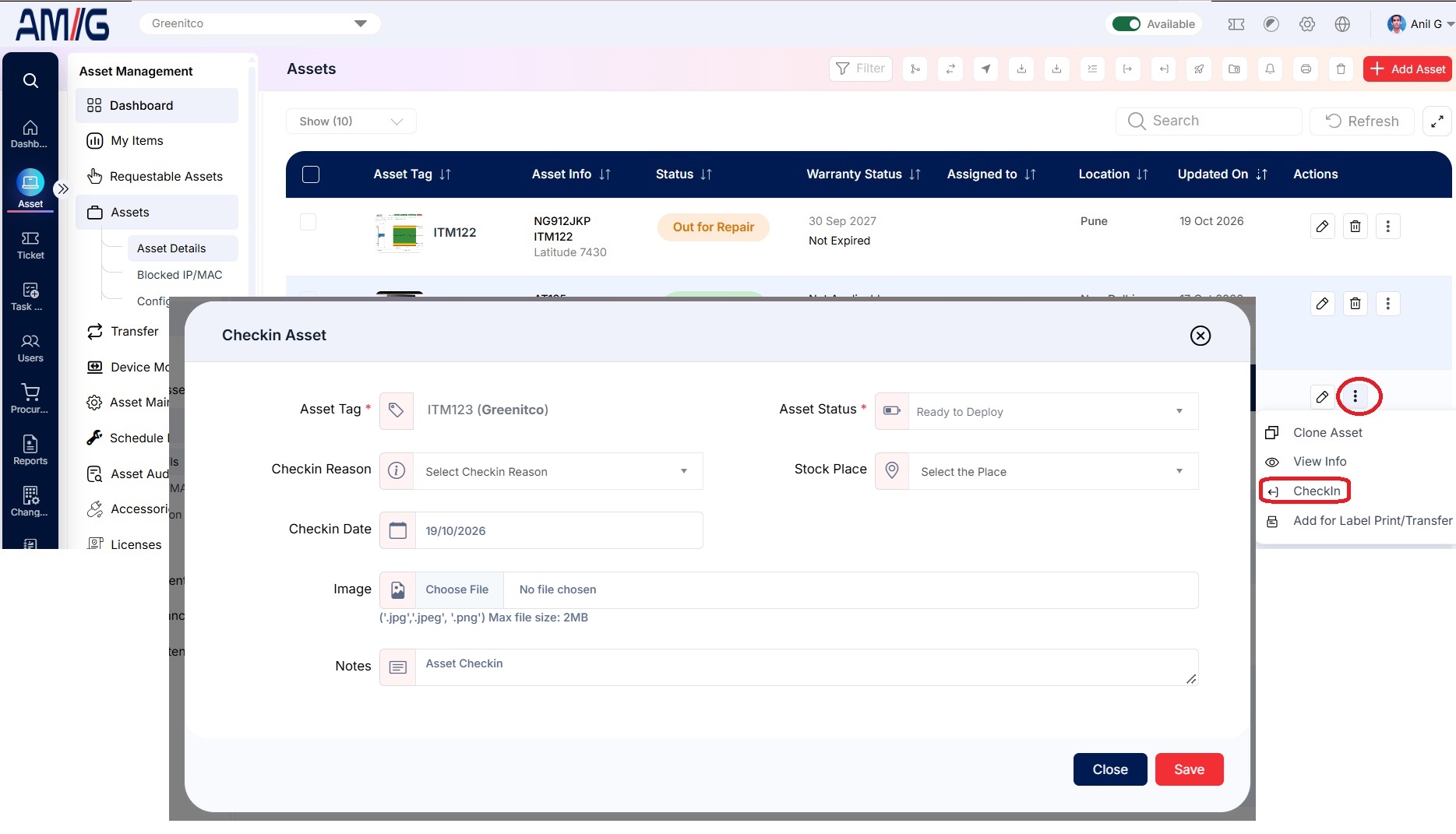
- Open the Asset's action menu and select Check In (sign-in icon).
- Select the new status and enter notes.
- Select Save.
Which Status Should You Select When Checking In an Asset?
Choose a status based on the asset's current condition and whether it is ready to be assigned to another user.
| Status | When to Select It | Can It Be Reassigned? |
|---|---|---|
| Ready for Use / Ready to Deploy | The asset is working properly and ready for the next user. | Yes |
| Pending | The asset is temporarily unavailable, such as while waiting for software installation or repair. | No |
| Out for Repair | The asset has been sent for repair. | No |
| Out for Diagnostics | The asset is being inspected to identify a problem. | No |
| Broken / Not Fixable | The asset is damaged and cannot be repaired. | No |
| Lost / Stolen | The asset has been lost or reported stolen. | No |
| Archived | The asset is retained for historical records and is no longer available for regular use. | No |
| Scrap | The asset has been discarded or permanently removed from service. | No |
Helpful Tip
Select Ready for Use / Ready to Deploy only when the asset is available for reassignment. If the asset requires attention or is no longer in service, select the status that best describes its current condition.
Check in many devices (bulk check-in)
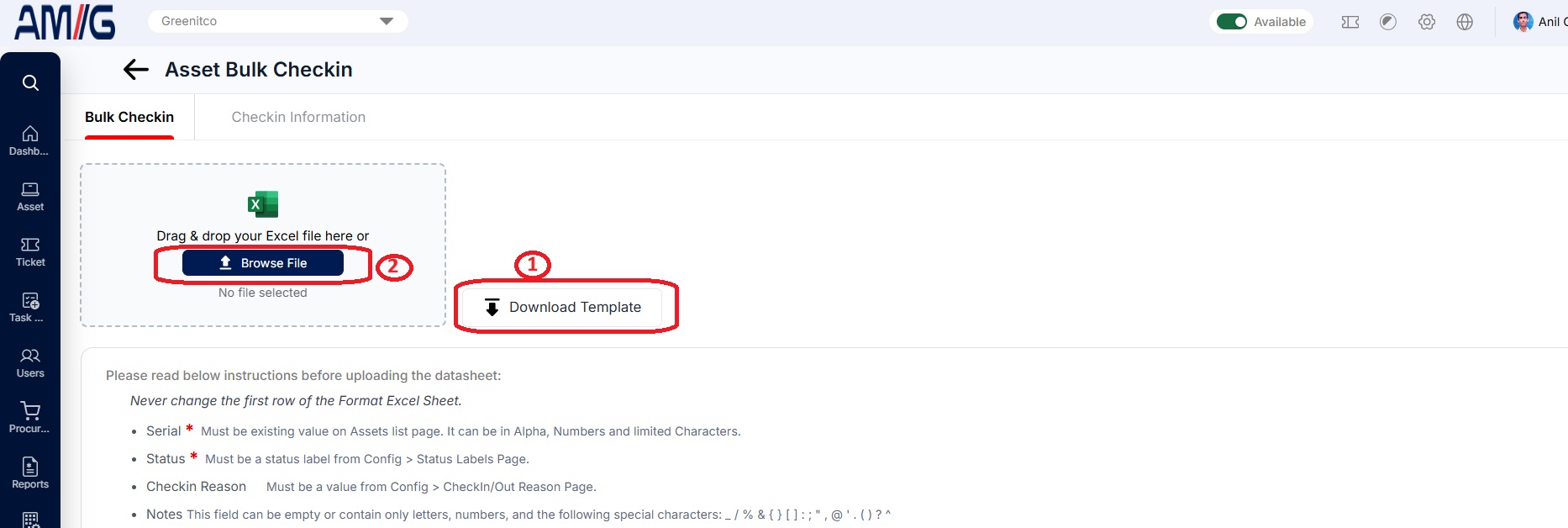
- Open Asset → Asset Details and select Bulk Check-in (sign-in icon in the toolbar).
- Select Download Format, fill in the template and upload it.
- Select Checkin.
| Column | Rule |
|---|---|
| Serial * | An existing device serial number |
| Status * | A status label (Config → Status Labels). Deployed is not allowed on check-in |
| Notes | Empty or letters, numbers and limited special characters |
Never change the first (header) row of the template.
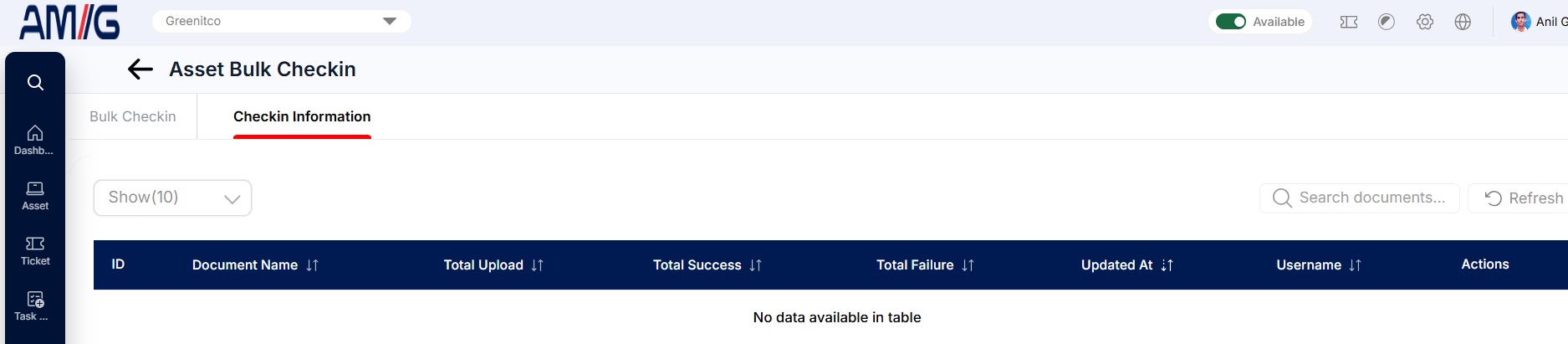
The Checkin Information tab lists each bulk attempt with its date, counts by status and error messages.