

Introduction
The Technician Log Reports provides an overview of technician activity sessions recorded in AMG, including login activity and break periods. Each record represents an individual activity session and displays details such as the technician's name, activity type, start date and time, end date and time, session duration in minutes, and any associated comments.
This report helps management monitor technician availability by reviewing their working sessions and break periods. It provides visibility into when technicians are active or unavailable, helping administrators understand their availability for ticket assignment and workload distribution.
Management can use this report to:
-
Review technician login and activity records.
-
Monitor break periods and their duration.
-
Understand technician availability during working hours.
-
Support shift planning and attendance reviews.
-
Make informed decisions regarding ticket allocation based on recorded availability.
Overall, the Technician Log Reports supports better workforce monitoring and resource planning by providing a consolidated view of technician activity and availability.
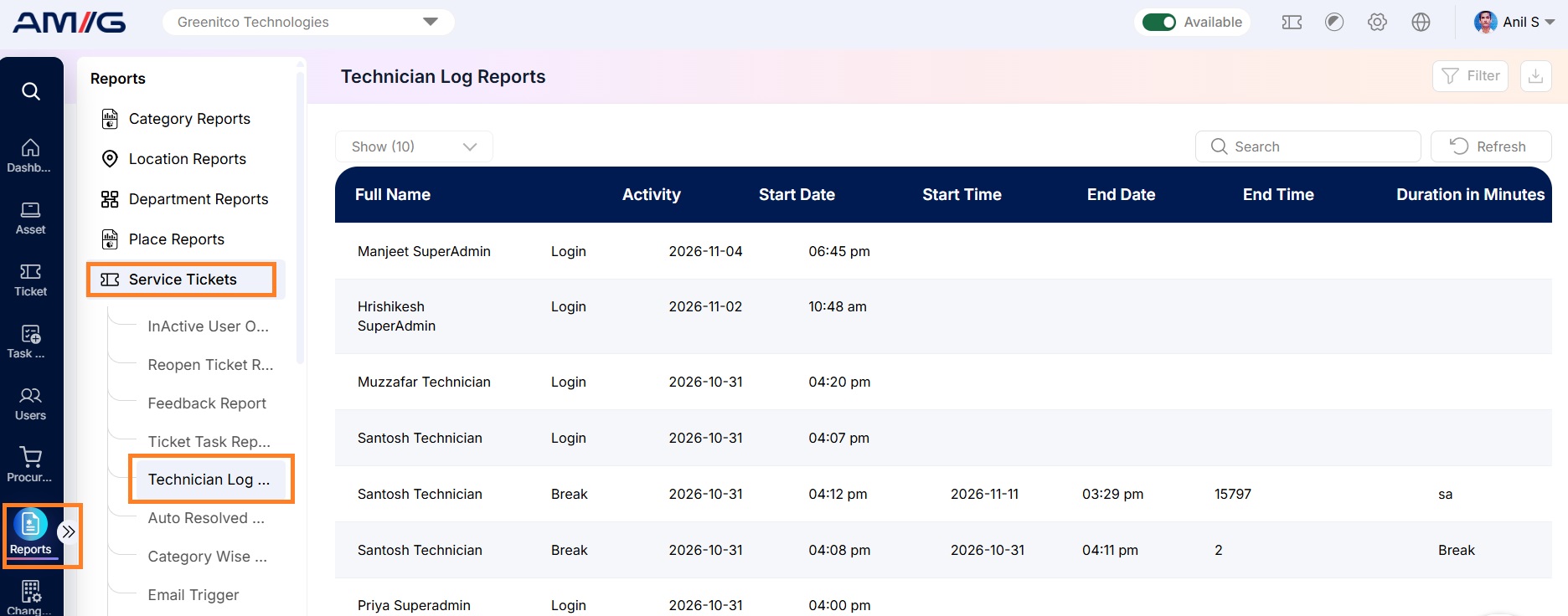
Navigation Path: Sidebar > Reports > Service Ticket > Technician Log Reports
Viewing the Report
Open Technician Log Reports from Sidebar > Reports > Service Ticket > Technician Log Reports. The report opens as a list.
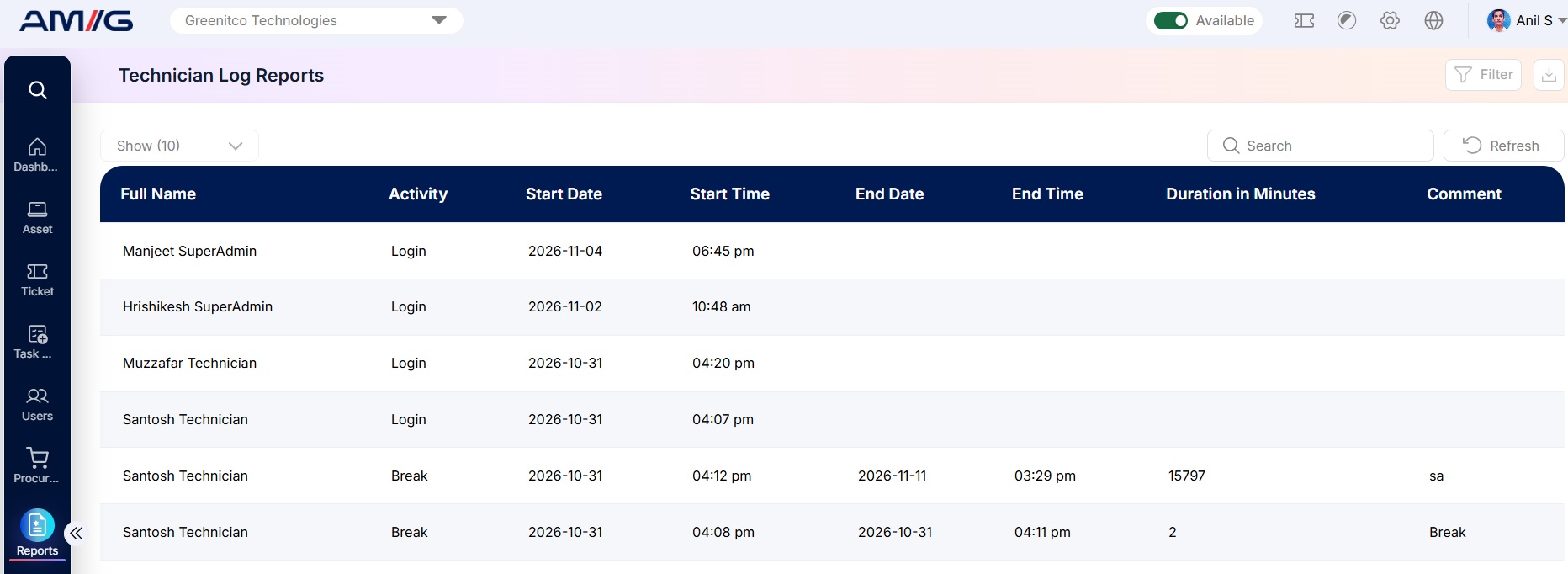 Figure 2.13.1: Technician Log Reports – report listing
Table 2.13.1: What each column shows
| Column | What it shows |
|---|---|
| Full Name | The technician the entry belongs to. |
| Activity | The type of activity: Login (the technician’s logged-in session) or Break (time the technician spent on a break). |
| Start Date | The date the activity started. |
| Start Time | The time the activity started. |
| End Date | The date the activity ended. Blank if the activity has not ended yet. |
| End Time | The time the activity ended. Blank if the activity has not ended yet. |
| Duration in Minutes | How long the activity lasted, in minutes, from start to end. Shown only once the activity has ended. |
| Comment | Any remark recorded with the activity, such as the reason for a break. |
Note: An entry with no End Date, End Time or Duration is still open, for example because the technician is still logged in or still on a break.
Table 2.13.2: Buttons and controls on the report
| Control | What it does |
|---|---|
| Show | Choose how many entries appear on each page (10 by default). |
| Search | Find entries by typing a technician’s name or an activity. |
| Refresh | Reloads the report with the latest entries. |
| Filter | Opens the filter panel so you can narrow down the list. |
| Download | The icon next to Filter. Downloads the report as a file. |
Filtering the Report
Step 1: Click Filter at the top-right of the report. The filter panel opens.
Step 2: Choose the values you need in one or both of the filters listed below.
Step 3: Click Filter to update the report. Click Clear to remove all filters.
Table 2.13.3: Available filters
| Filter | What it does |
|---|---|
| Filter By Ticket Handler | Shows entries for one technician only. Start typing the name and pick it from the list. |
| Filter By Date Range | Shows entries within a date and time range. Click the field and pick a start and end date. By default the range covers today, from 00:00:00 to 23:59:59. |
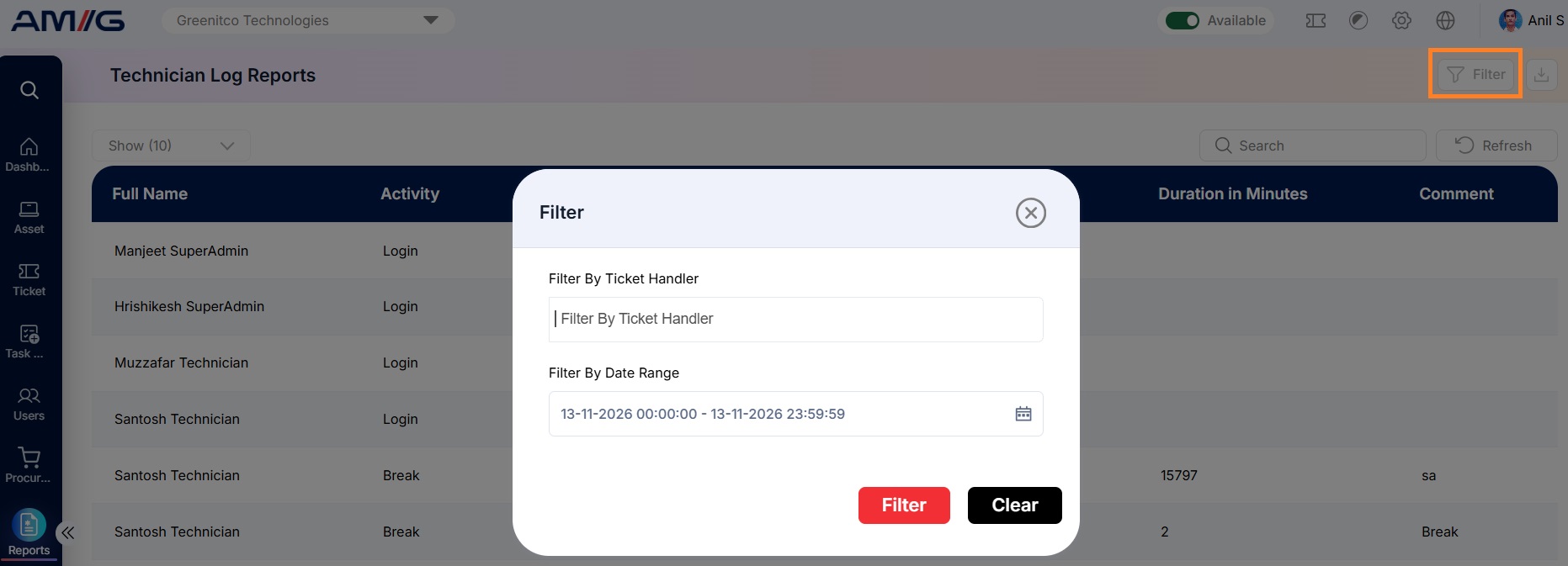 Figure 2.13.2: Technician Log Reports – filter panel