

Step 1: On the Roles & Permissions list, find the role you want to set up.
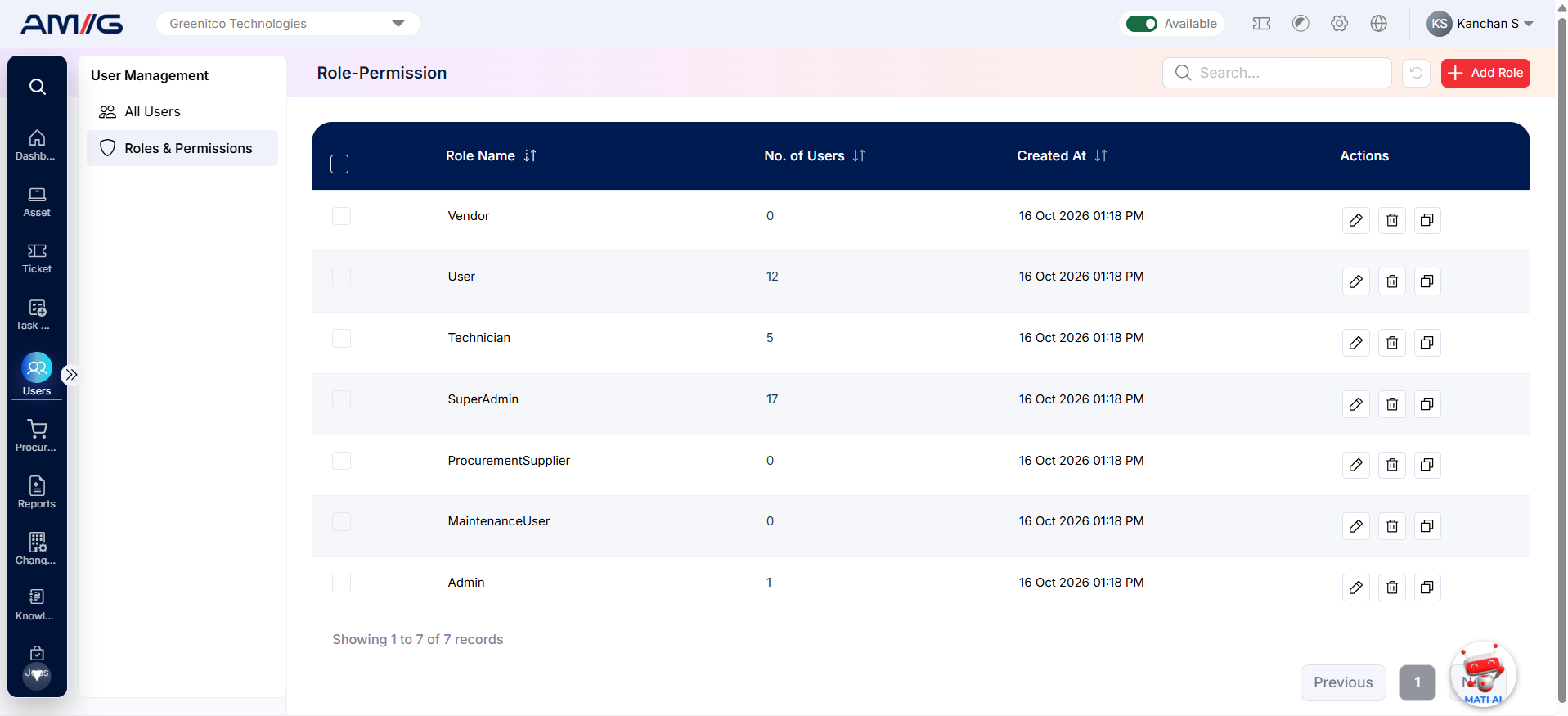
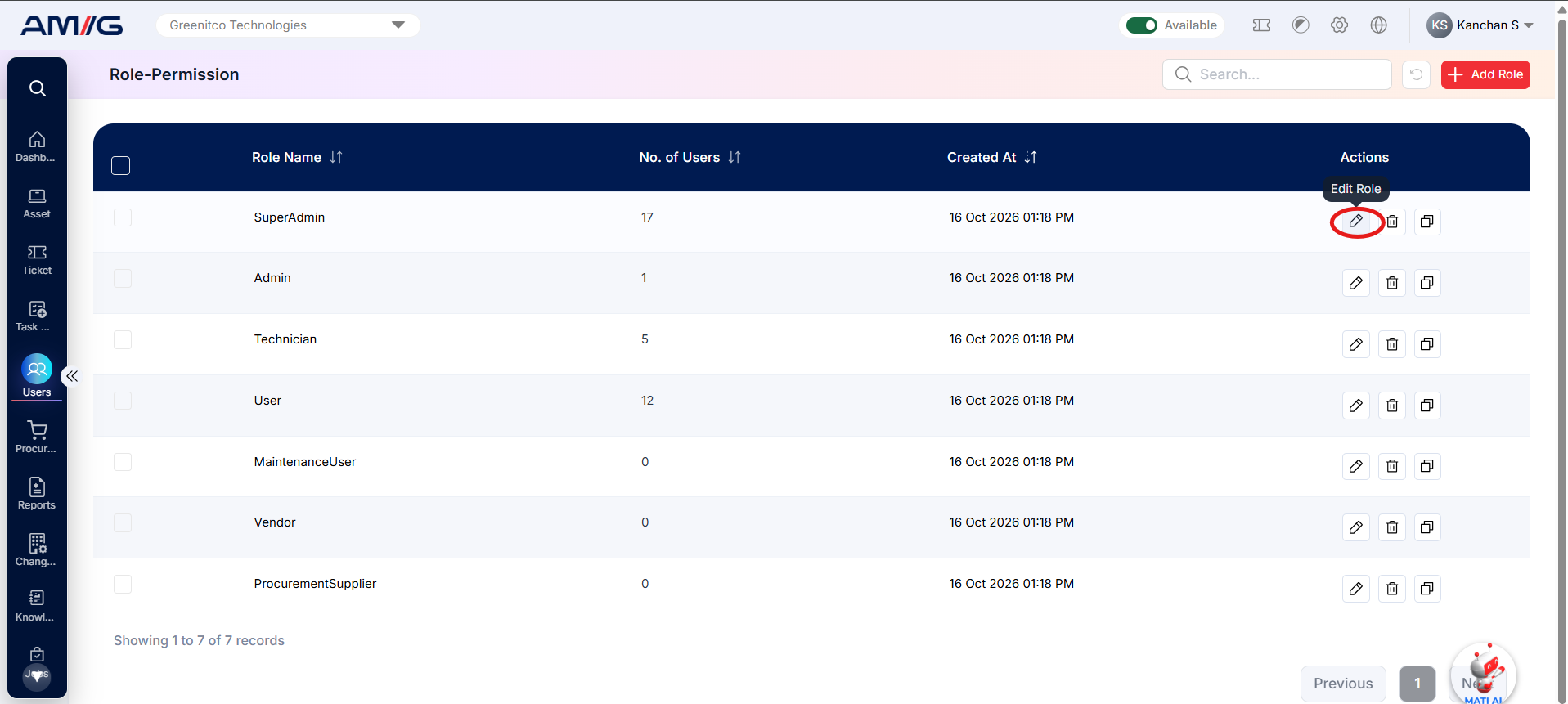
Step 2: Click the Edit icon in the Actions column. The Role-Permission page opens.
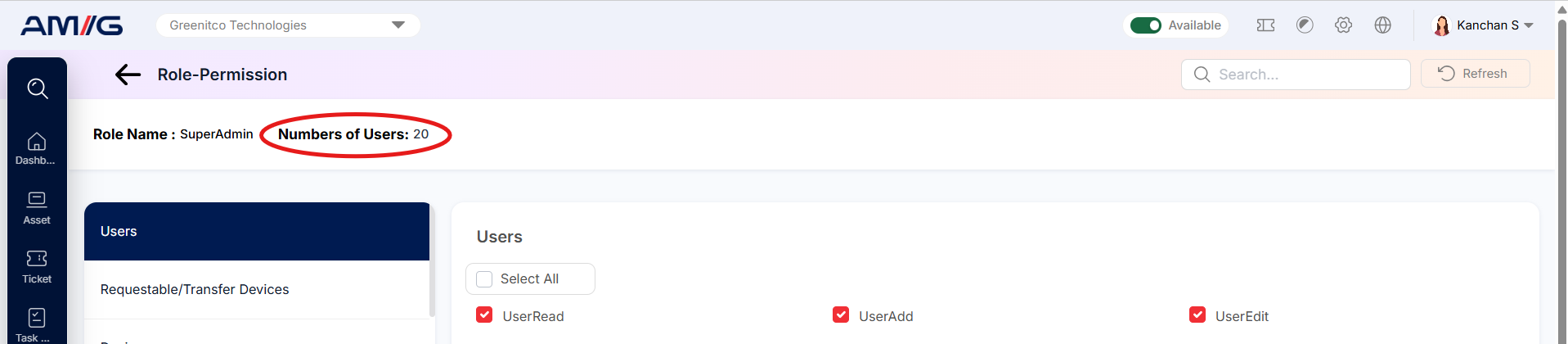
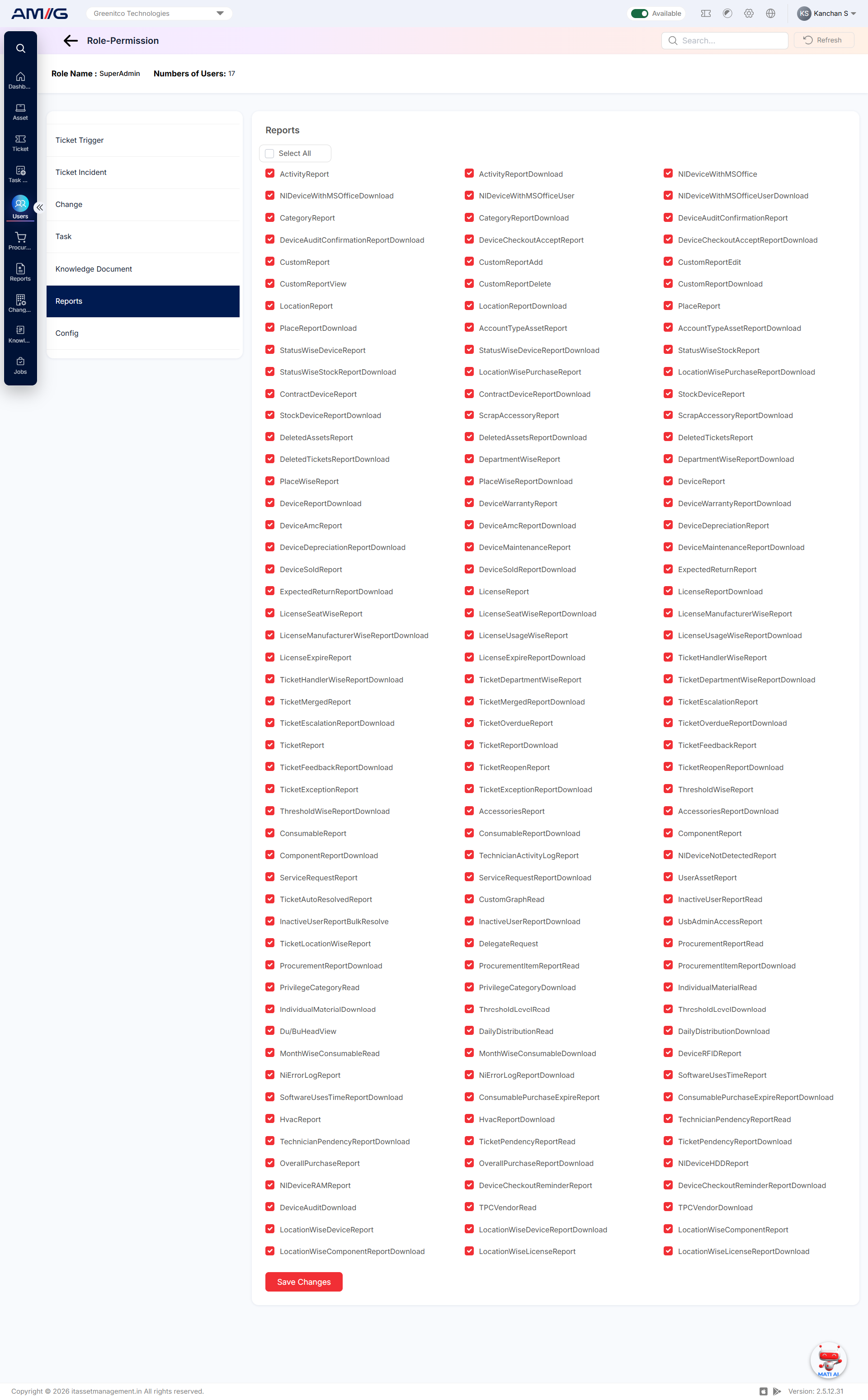
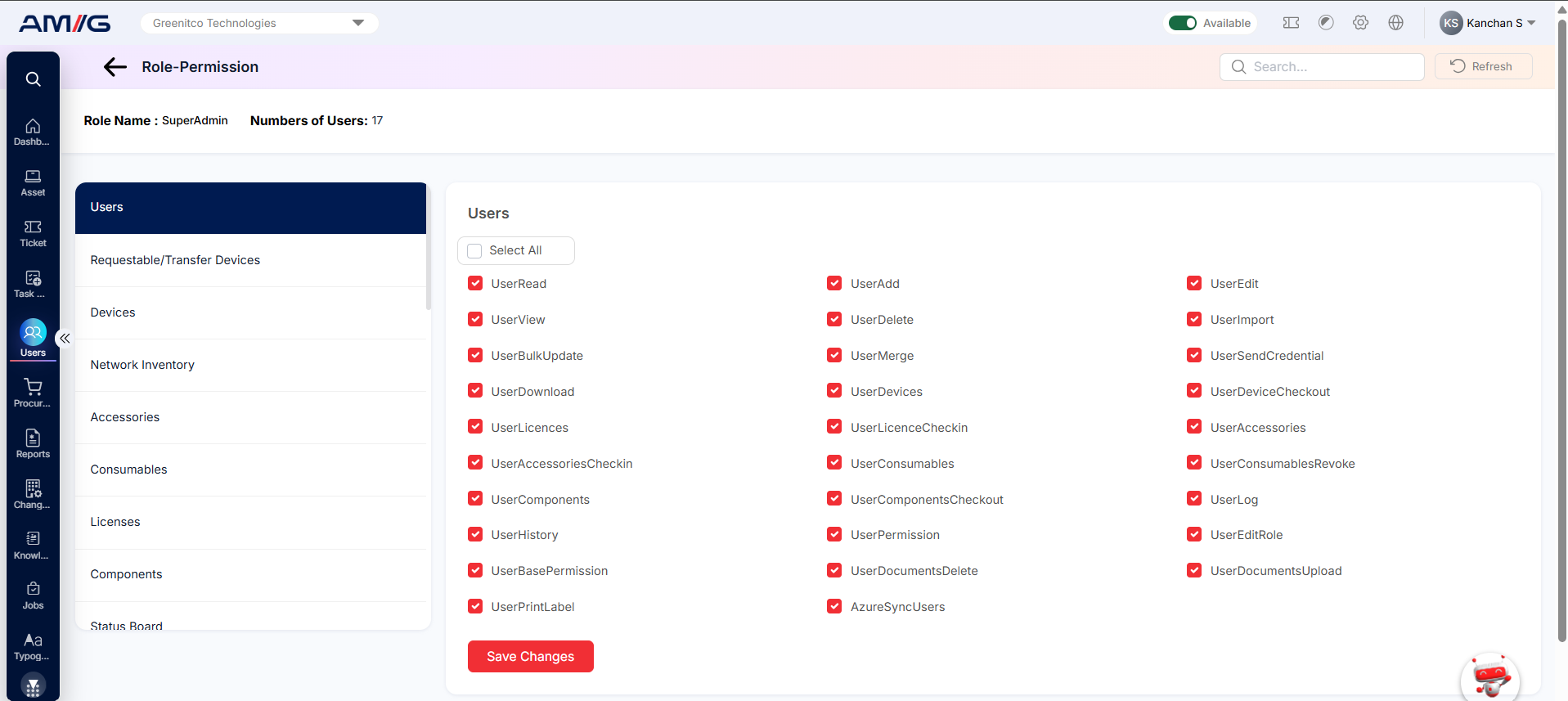 Step 3: At the top, check the role name and how many users have it.
Screenshot
Step 4: On the left, click a module (for example, Reports). Its permissions appear on the right.
Step 5: Tick the permissions the role should have, and untick the ones it should not. Use Select All to tick or untick everything for that module.
Step 6: Click Save Changes.
 Step 7: Repeat steps 4–6 for each module you want to set up.
Important: Permissions are saved one module at a time. Click Save Changes before you move to the next module, or your ticks will be lost.
Tip: Not sure what a permission does? Each module in section 1.2.5 has a table that lists every permission with a plain-English explanation.