

Bulk Import Assets from Excel
Product: NEXTMEGABYTE (Greenitco ITAM) · Module: IT Asset Management (ITAM) · Audience: Administrator, Technician
Bulk import adds many assets at once from an Excel template.
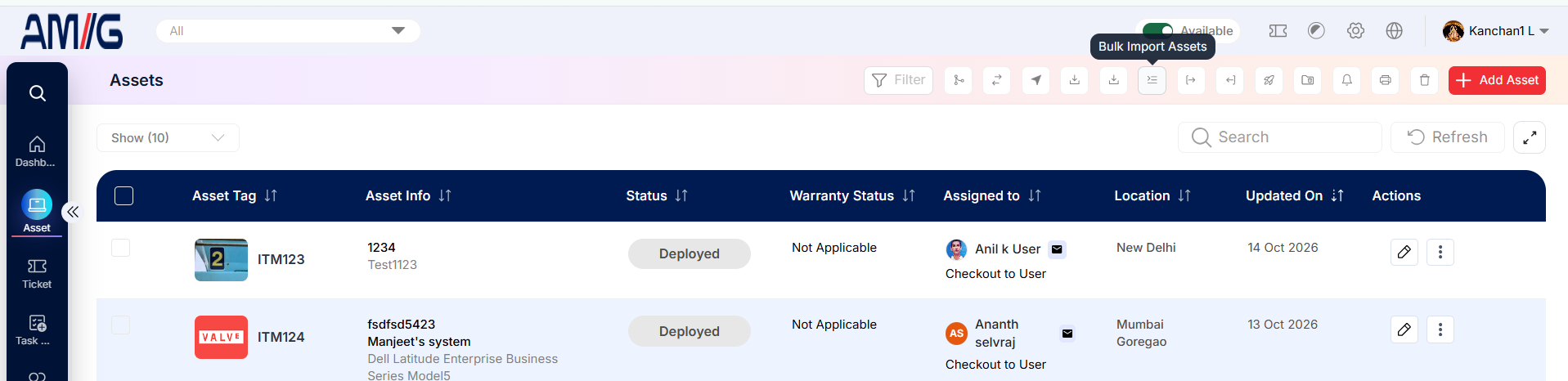
Menu path: left side menu → Addets → Asset Details → Bulk Import (upload icon)
Import assets
- Open Assets → Asset Details and select Bulk Import (upload icon).
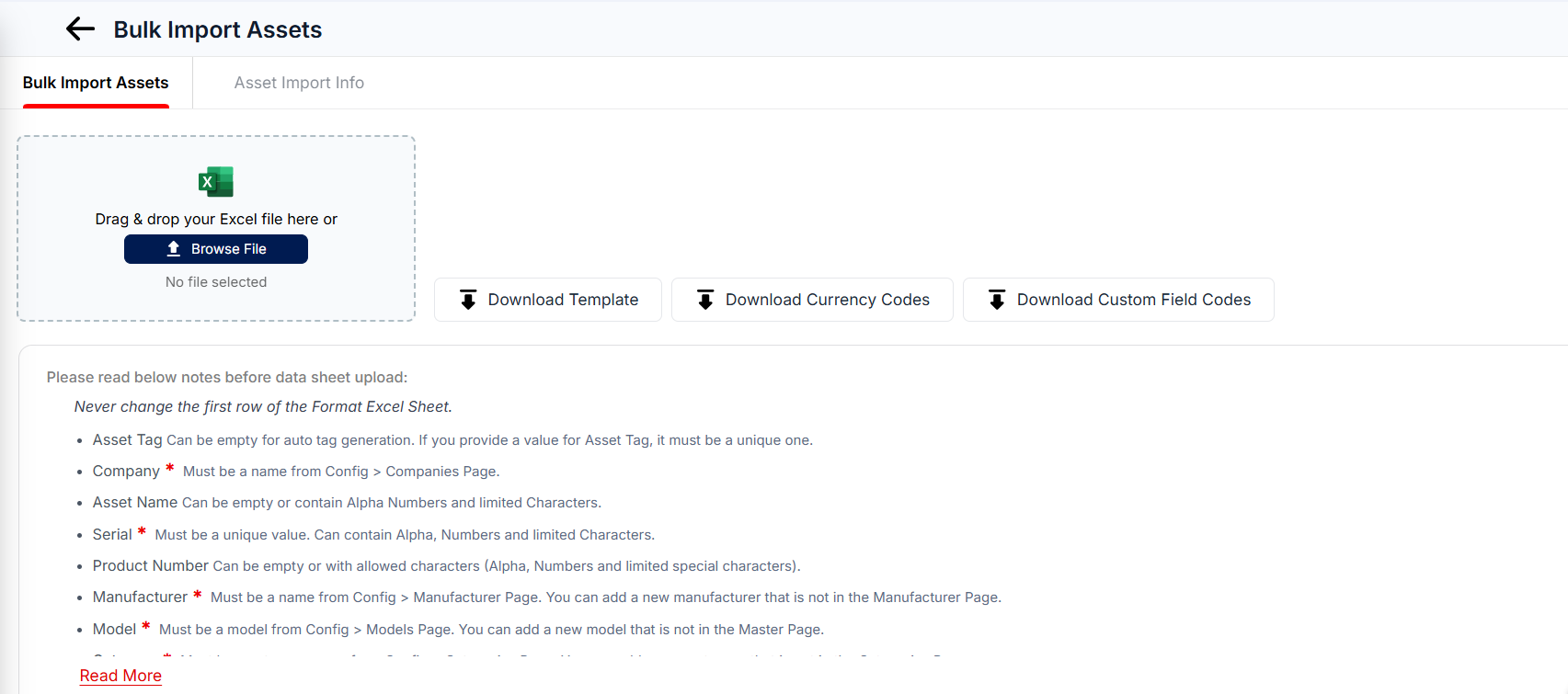
- Select Download Format to get the Excel template.
- Fill in one row per device using the rules below.
- Save the file, choose it and select Upload.
Never change the first (header) row of the template. Values that refer to configuration records (company, model, location and so on) must match existing records exactly.
Best practice: Before a large import, test with 5–10 records to validate mappings, custom fields and mandatory data.
Column rules
| # | Column | Required | Rule |
|---|---|---|---|
| 1 | Company | Yes | An existing company (Config → Companies) |
| 2 | Addet Name | No | Letters, numbers and limited special characters |
| 3 | Asset Tag | No | Leave empty for automatic tag generation; if entered, must be unique |
| 4 | Serial Number | Yes | Unique; letters, numbers and limited special characters |
| 5 | Product Number | No | Letters, numbers and limited special characters |
| 6 | Manufacturer | Yes | An existing manufacturer (Config → Manufacturers) |
| 7 | Model | Yes | An existing model (Config → Models) |
| 8 | Category | Yes | An existing category (Config → Categories) |
| 9 | Asset Status | Yes | An existing status label (Config → Status Labels), for example Ready to Deploy, In Repair or Scrap |
| 10 | Checkout For | When status is Deployed | User or Place |
| 11 | Checkout To | When status is Deployed | A valid username or place name |
| 12 | Checkout Reason | When status is Deployed | An existing check-in/check-out reason |
| 13 | Expected Check-In Date | No | A valid Excel date, for example 01/15/2026 |
| 14 | Allocation Type | When status is Deployed | An existing allocation type (Config → Allocation Type) |
| 15 | Department | No | An existing department |
| 16 | Location | Yes | An existing location |
| 17 | Internal Place | No | An existing internal place |
| 18 | Purchase Date | No | A valid Excel date |
| 19 | Currency | No | A currency code: INR, USD, EUR, GBP, AED |
| 20 | Purchase Cost | No | A number, for example 25000 |
| 21 | Purchase Reference | No | An existing purchase invoice number (Config → Purchases) |
| 22 | UUID | No | Letters, numbers and limited special characters (max 100); used for RFID, NFC and beacons |
| 23 | Warranty Start Date | No | A valid Excel date |
| 24 | Warranty End Date | No | A valid Excel date |
| 25 | Warranty Months | No | A whole number, for example 12, 24 or 36 |
| 26 | AMC Expiry Date | No | A valid Excel date |
| 27 | AMC Supplier | No | An existing supplier |
| 28 | Notes | No | Letters, numbers and limited special characters |
| 29 | Order Number | No | Letters, numbers and limited special characters |
| 30 | Asset Owner | No | An existing username |
| 31 | Supplier | No | An existing supplier |
| 32 | IP Address | No | A valid IPv4 or IPv6 address, for example 192.168.1.10 |
| 33 | MAC Address | No | A valid MAC address without separators such as ":", for example AA11BB22CC33 |
| 34 | Asset Type | No | An existing asset type |
| 35 | Asset From | No | Purchase Asset, Project Asset, Rental or Customer Owned |
| 36 | Contract Reference | When Asset From is Project Asset | An existing contract agreement |
| 37 | Stock Place | No | An existing internal place |
| 38 | Requestable | No | 1 (Yes) or 0 (No) |
| 39 | High Priority | No | 1 (Yes) or 0 (No) |
| 40 | SEZ Device | No | 1 (Yes) or 0 (No) |
If a manufacturer, model or category in your file does not exist yet, create it in configuration before importing.
Import custom fields
- Create the custom field in Custom Fields Configuration.
- Select Download Custom Field Codes on the import page.
- Add a column to the template with the custom field code as the header.
- Enter the values for each device and upload the file as usual.
Review import results
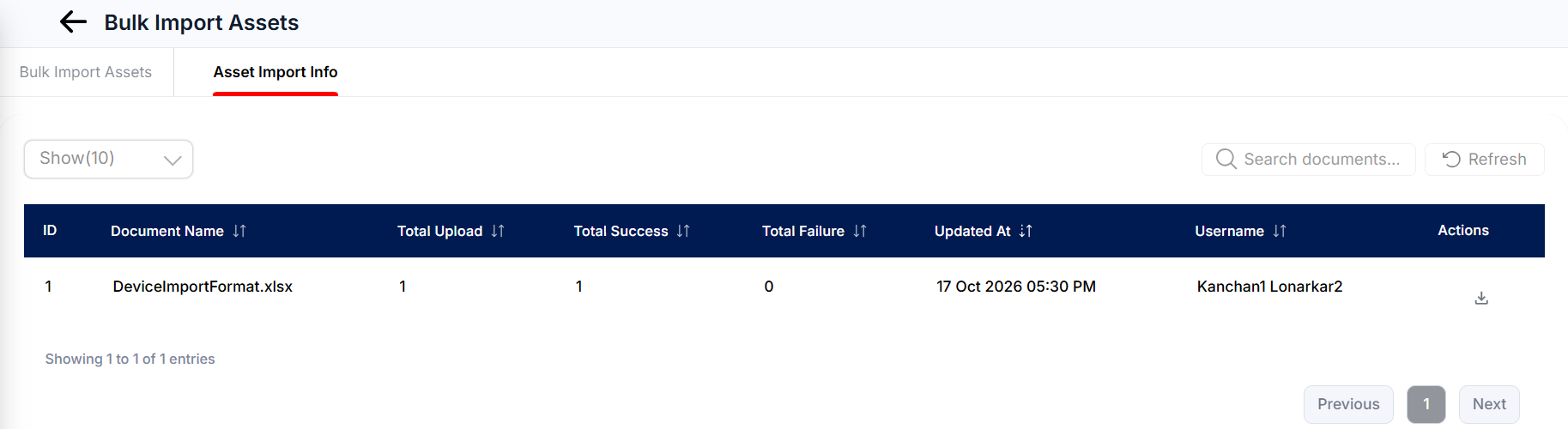
Open the Asset Import Information tab (second tab). Each import attempt shows the date, the number of successful, failed and duplicate records, and validation errors. Download the attempt file, correct the failed rows and import them again.
Common questions
Why did my import fail for some rows? The most common causes are a company, model, category, status or location name that does not exactly match the configuration, a duplicate serial number or asset tag, or a date that is not a valid Excel date. Download the attempt file from the import results tab to see the error for each row.
Can I import assets that are already assigned to users? Yes. Set Asset Status to Deployed and fill in Checkout For, Checkout To, Checkout Reason and Allocation Type.