Introduction
An Asset Project allows you to group assets and purchases under a specific project or piece of work. It helps identify which items belong to a particular project and provides visibility into project asset utilization.
Each project includes details such as the project name, project number, company, project head, project dates, and notes.
Once a project is created, you can link assets and purchases to it, making it easier to track the resources used by each project and review their utilization.
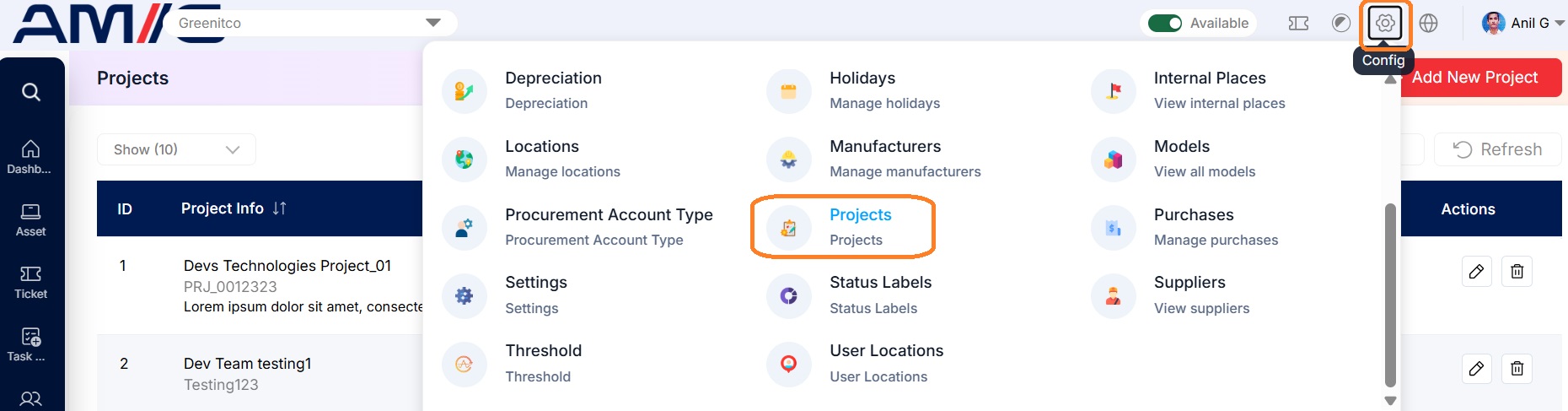
Navigation Path:> Header > Config > Projects
Viewing the Projects List
Open Header > Config > Projects to see all existing projects, with tools to search, sort and manage them.
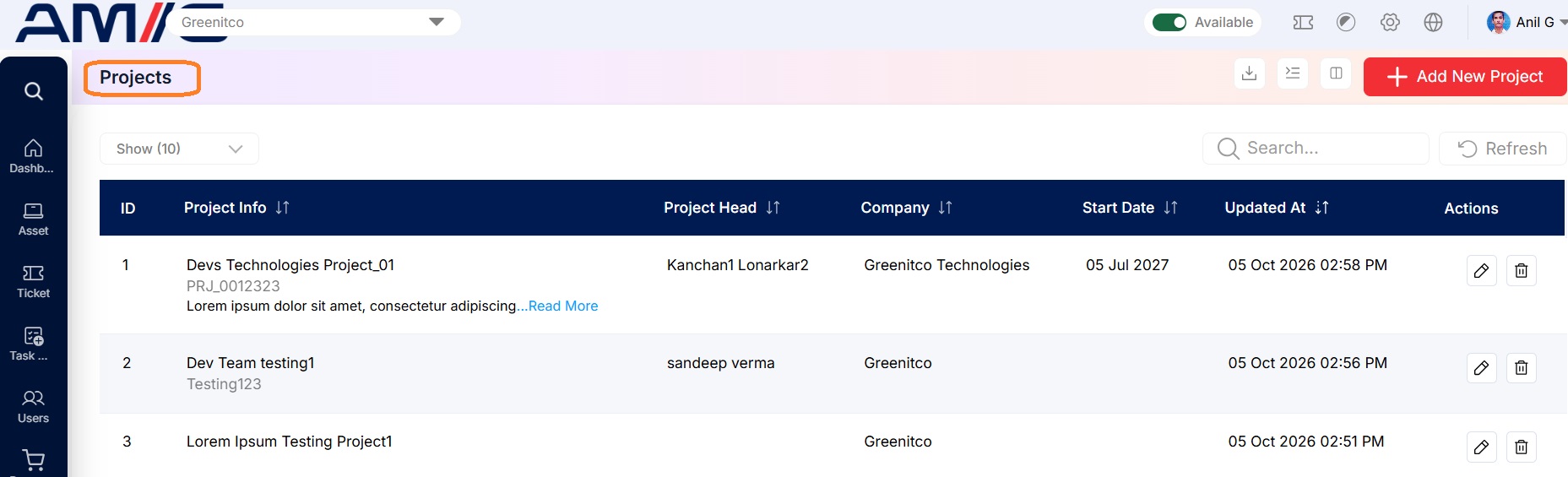 Figure: Projects Main Screen
Understanding the Main Screen
Table: Projects main screen elements
| Area | Description |
|---|---|
| Sub Header | Use Show (10) to choose how many records you see on one page. Type in the Search box to find a record quickly, or click Refresh to reload the list. |
| Action Buttons | In the top right corner you will find a few small list tools (including downloading the list and opening Bulk Project Import, see Section 13.4) and the red + Add New Project button. |
| The Data Table | Shows all your projects with their ID, Project Info (name, project number and a short description), Project Head, Company, Start Date and Updated At. Click Read More to see the full description. |
| Sorting | Click the small arrows beside a column name to sort the list (A to Z, Z to A, oldest or newest first). |
| Actions Column | Each row has two icons: Edit (pencil) and Delete (trash can). |
Creating a New Project
Here is how to add a new project:
Step 1: Click the red + Add New Project button in the top right corner.
Step 2: Enter the Project Name and, if it has one, the Project No.
Step 3: Choose the Company and, if needed, the Project Head.
Step 4: Set the project dates, if you know them.
Step 5: Add a description or any notes in the Notes box. You can use bold, italics and lists.
Step 6: Click the red Save button. Your project appears in the list straight away. (Click Close to cancel.)
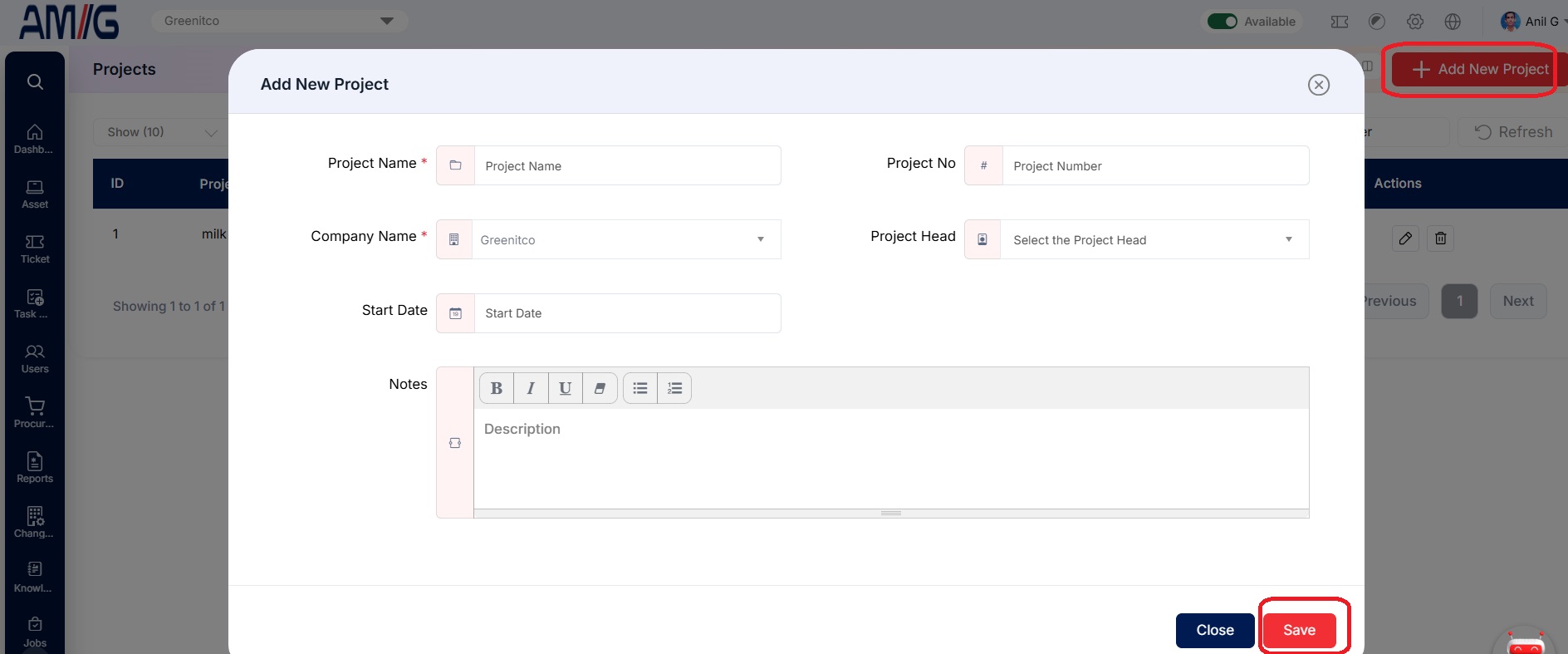 Figure: Add New Project
Table: Add New Project fields
| Field | Description |
|---|---|
| Project Name | Enter the project's name. |
| Project No. | Enter the project's reference number, if it has one (for example, PRJ_0012323). |
| Company Name | Choose the company the project belongs to. Companies are set up under Header > Config > Company. |
| Project Head | Choose the person responsible for the project, if there is one. The list comes from the Users module. |
| Start Date | Pick the date the project starts, if known. |
| End Date | Pick the date the project ends, if known. |
| Description | Add any useful details or notes about the project. |
Bulk Project Import and Import History
Need to add lots of projects at once? Use Bulk Project Import to upload them from an Excel file instead of typing them in one by one.
Here is how:
Step 1: On the Projects screen, open Bulk Project Import from the toolbar in the top right corner.
Step 2: On the Bulk Project Import tab, download the import template.
Step 3: Fill in your projects. Keep the first (header) row exactly as it is, and make sure company names and other values match what is already set up in AMG.
Step 4: Upload the completed .xlsx file.
Step 5: Open the Bulk Project Import Information tab to check the result. For each upload you will see the file name, Total Upload, Total Success, Total Failure, when it ran and who ran it.
Step 6: If any rows failed, click the Download icon on that upload to get the processed file, fix the failed rows and upload them again.
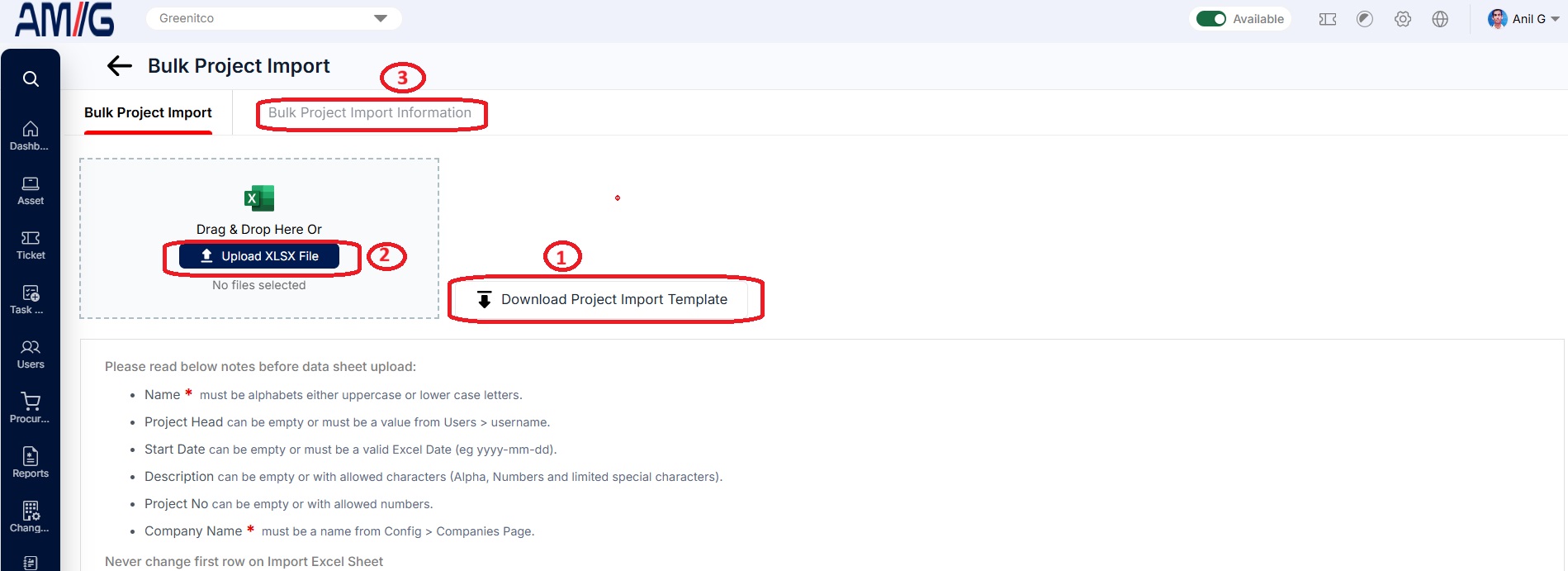 Figure: Project Bulk Import History
Managing Existing Projects
You can manage existing projects straight from the list using the icons in the Actions column:
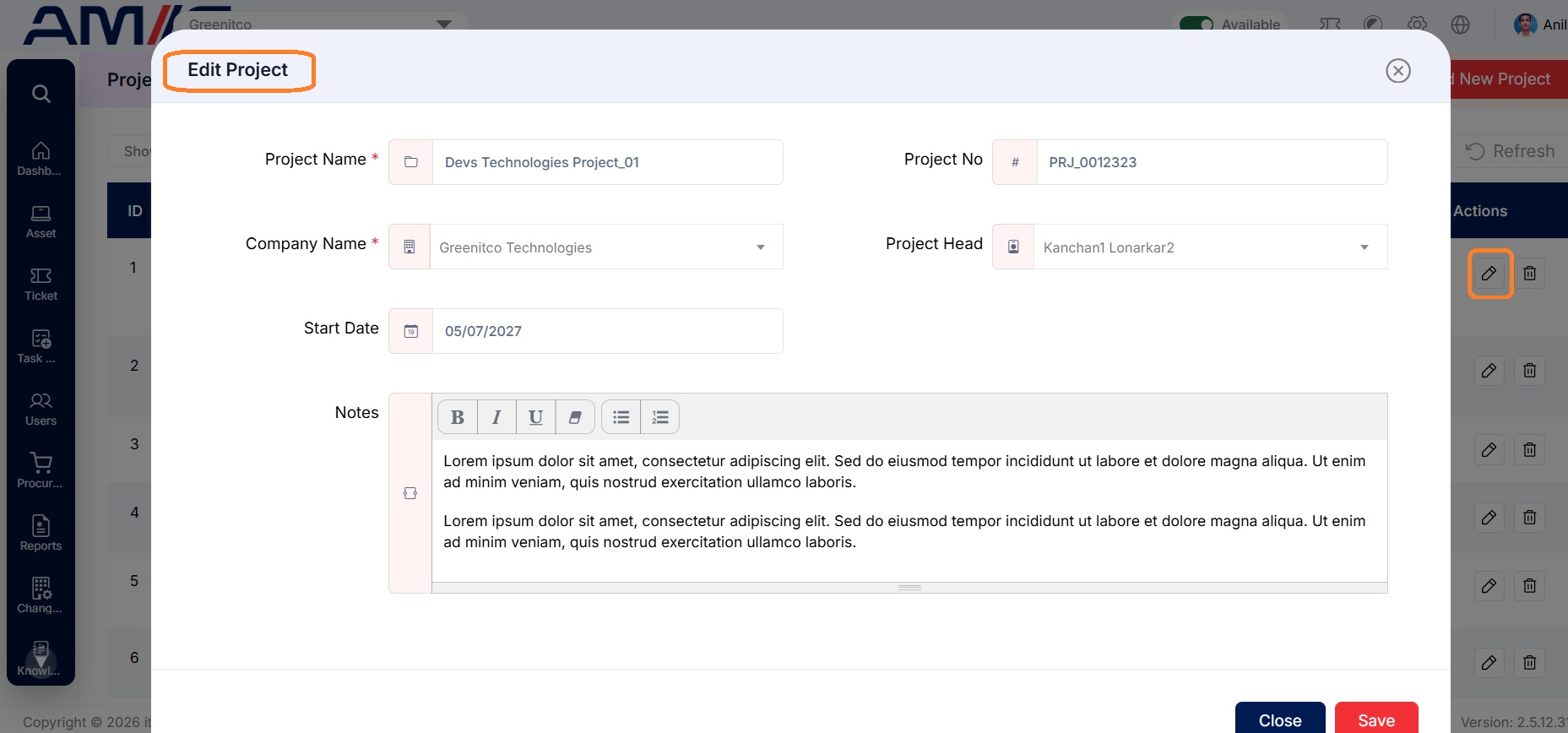
Edit a project
Step 1: On the Projects screen, locate the project you want to change.
Step 2: Click the Pencil (Edit) icon in the Actions column.
Step 3: Update the project name, number, head, dates, or notes.
Step 4: Click Save to apply the changes.
Delete a project
Step 1: Check whether any assets or purchases are linked to the project. Move them to another project first if needed.
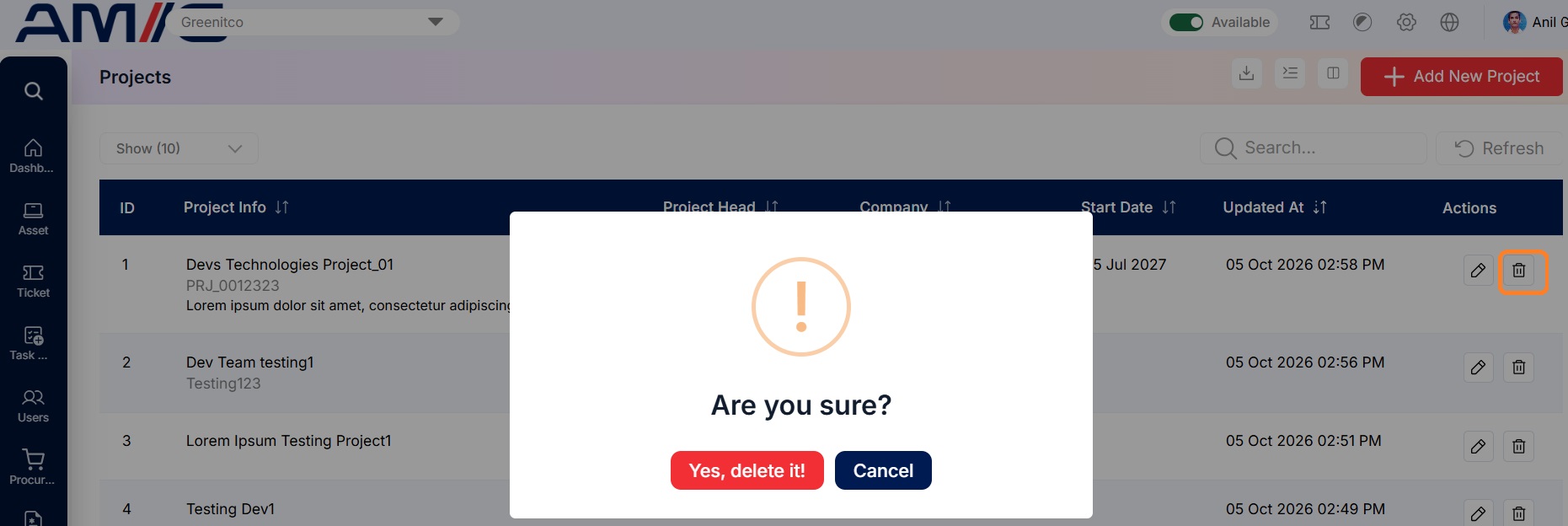
Step 2: Locate the project and click its Trash Can (Delete) icon.
Step 3: Review the confirmation prompt and confirm the deletion.
Important: Before deleting a project, check whether any assets or purchases are linked to it, and move them to another project first if needed.