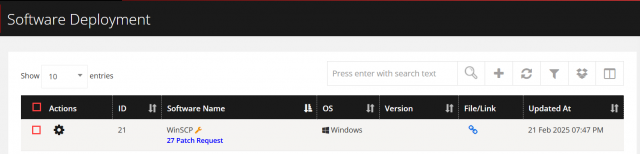
Software Deployment
Product: NEXTMEGABYTE (Greenitco ITAM) · Module: Patch Management (ITOM) · Audience: Administrator
Software deployment installs or uninstalls applications on endpoints remotely from the portal. It delivers new software quickly, keeps systems consistent and reduces manual errors.
Features
| Feature | Description |
|---|---|
| Direct install | Deploy applications (MSI, EXE) to endpoints |
| Direct uninstall | Remove applications remotely without physical access |
| Software package library | A catalog of approved, tested packages |
| Version control | Track which version is installed on each device |
| Bulk deployment | Push installs to hundreds of endpoints at once |
| Install status tracking | Real-time success, failure or pending status per device |
| On-demand install | Users request software from the approved catalog; administrators approve and deploy |
Supported packages (Windows): .msi, .msu and .exe (with silent install switches).
Upload package → Software library → Select devices or groups → Select policy (1–5)
→ Agent receives request → Install or uninstall → Status reported to dashboard
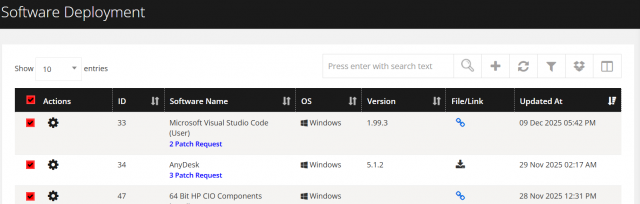
Menu path: left side menu → Patch Management → Software Deployment
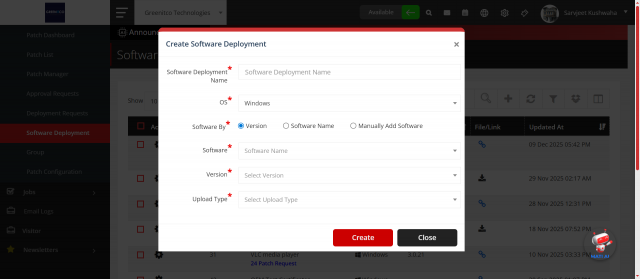
Add a software package
- Open Patch Management → Software Deployment and select Add (plus icon).
- Fill in the fields and select Create.
| Field | Description |
|---|---|
| Software Deployment Name | Name of the software package |
| OS | Target operating system |
| Software By | How the software is added |
| Upload Type | Link (download URL) or File (upload the installer) |

Edit or remove a software package
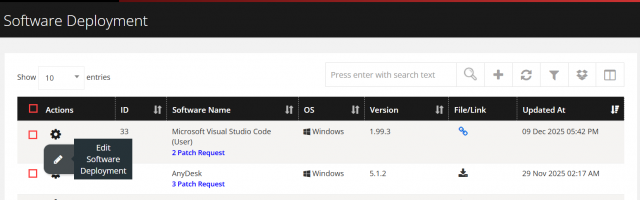
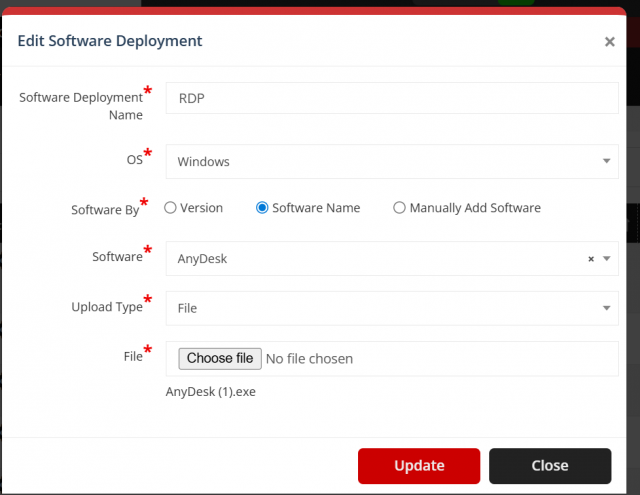
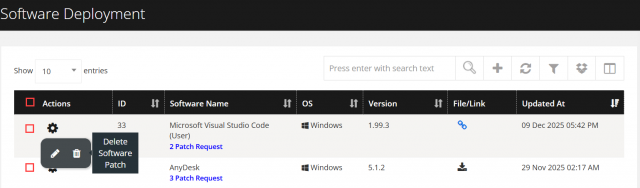
- Edit: open the action menu, select the pencil icon, change the details and select Update.
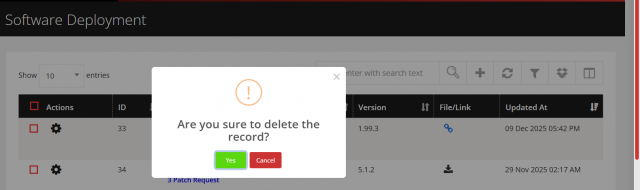
- Remove: open the action menu, select the trash icon and select Yes.
Filter software packages
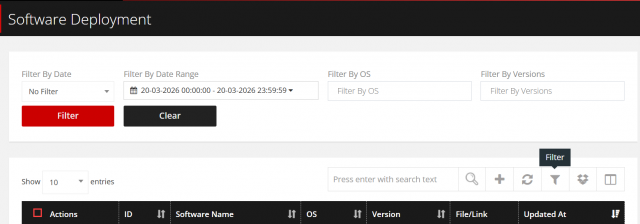
Select Filter and filter by Date (created or updated), Date Range, OS or Version. The number of active filters is shown on the filter icon; select Clear to remove them.
Request a software deployment
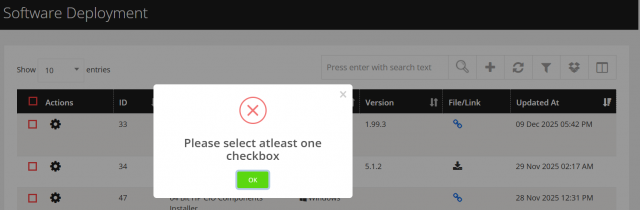
- In Software Deployment, select Bulk Software Deployment (dropbox icon).
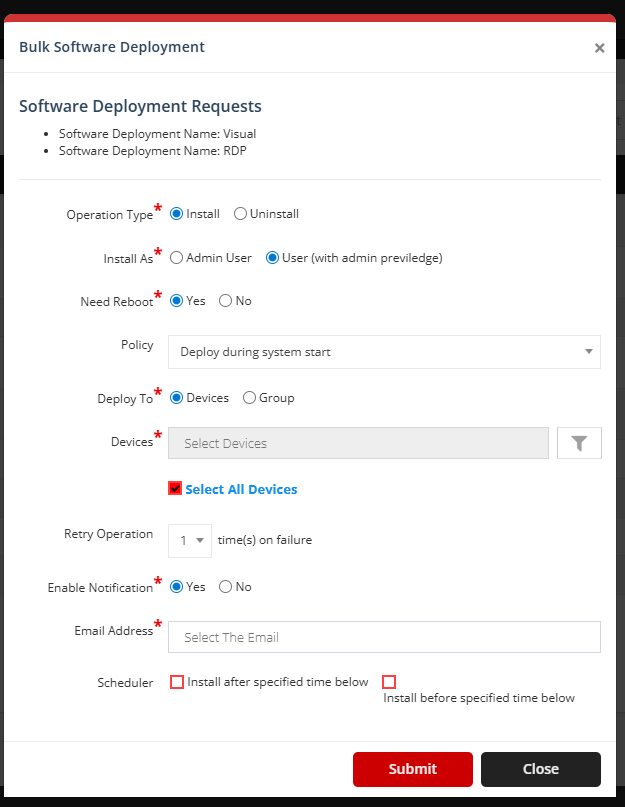
- Select the software and fill in the request form.
- Select Submit.

| Field | Description |
|---|---|
| Operation Type | Install or Uninstall |
| Install / Uninstall As | Admin User or User (with admin privileges) |
| Need Reboot | Yes or No |
| Policy | The deployment policy. See Deployment Policies |
| Devices / Device Group | Select individual devices or a device group |
| Retry Operation | How many times to retry if the operation fails |
| Enable Notification | Yes or No. If yes, select the email addresses to notify |
| Scheduler | Install after or Install before the specified time |
| Schedule Date | Date and time for the schedule |
View deployment status
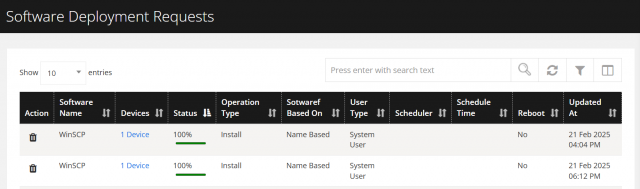
- In Software Deployment, select the Patch Request link to see the list of requests.
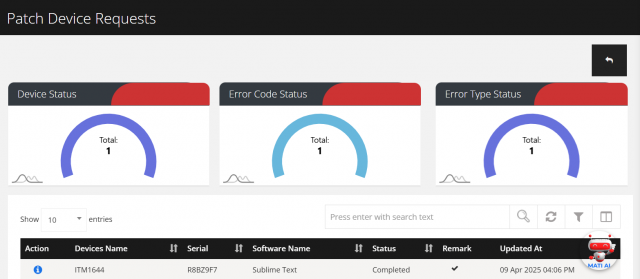
- Select the Device link to see each device's install status and errors.
- Select the info icon to view the deployment history.