

Introduction
User Location Limits allow administrators to control which locations a user can access within ITM12. This helps ensure that users can view and manage data only for the locations assigned to them.
Location-based access can apply to assets, accessories, consumables, components, licences, and users. By restricting access to specific locations, the organisation can maintain better control over its data and ensure that information is accessible only to authorised users.
Navigation Path:> Header > Config > Users Location
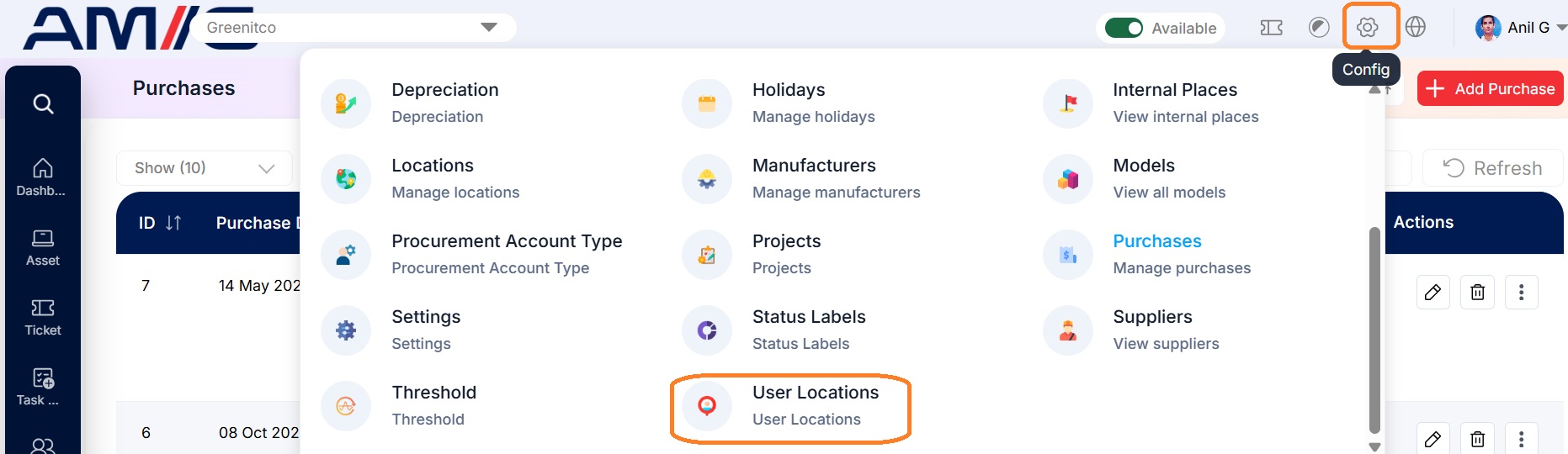
Administrators can assign specific locations to a user based on their responsibilities. Once the location restrictions are configured and location-based access is enabled, the user's access to location-related data is limited to the permitted locations.
For example, if a user is assigned access to the Mumbai office, they can access the relevant assets and other supported records associated with that location, but not those belonging to other restricted locations.
Configuration Requirement User Location Limits work only when location-based access is enabled in the system settings.
Navigation Path: Header > Config > Settings > Device Settings
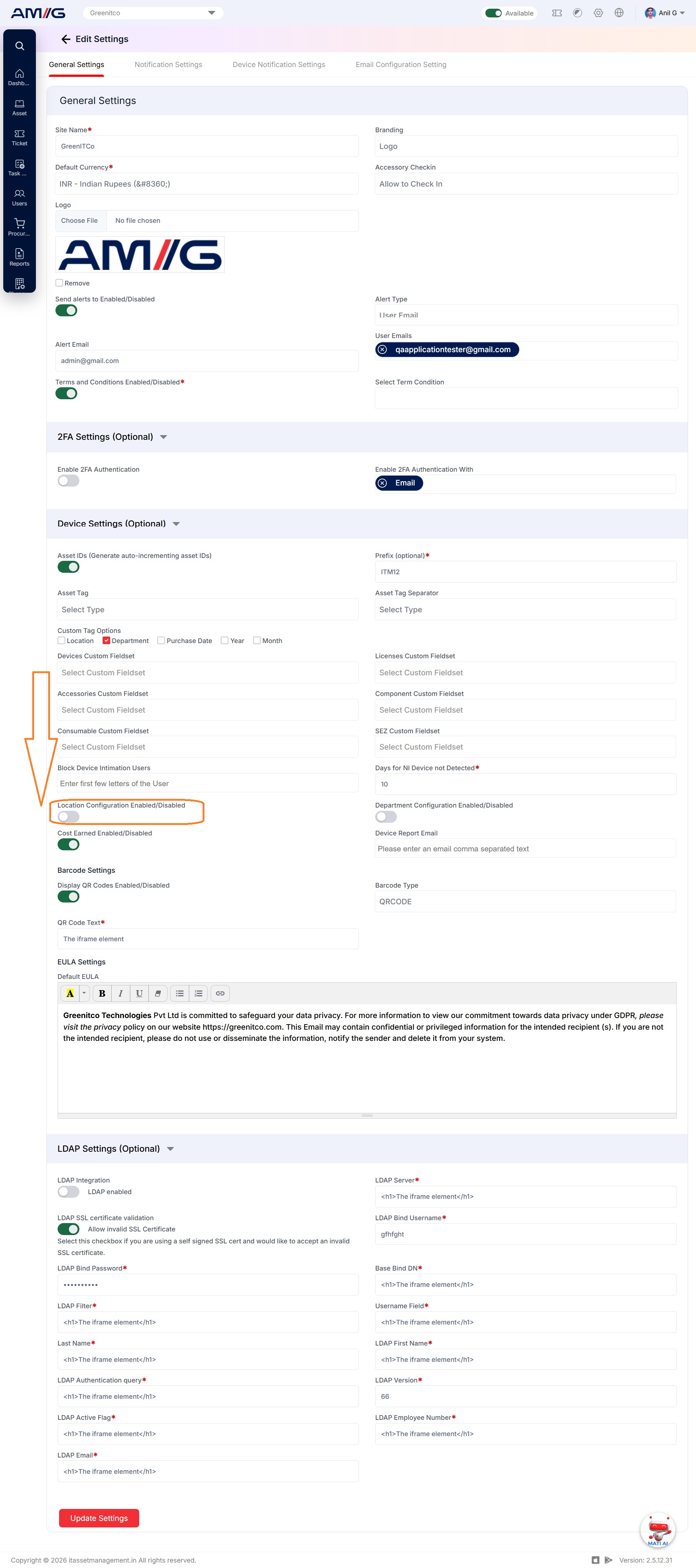
Enable the location-based access option to apply the configured location restrictions.
Benefits of User Location Limits
- Controlled Access: Restricts users to their permitted locations.
- Data Security: Helps prevent unauthorised access to records belonging to other locations.
- Location-Based Management: Allows users to manage assets and other supported records relevant to their assigned locations.
- Better Administration: Helps organisations manage access across multiple offices, branches, or sites.
By configuring User Location Limits, organisations can manage location-based access more effectively and ensure that users work only with the data relevant to their responsibilities.
Viewing the User Location Limits Screen
Go to Header > Config > Users Location. The screen is split into two panels: the list of users on the left and the selected user's locations on the right.
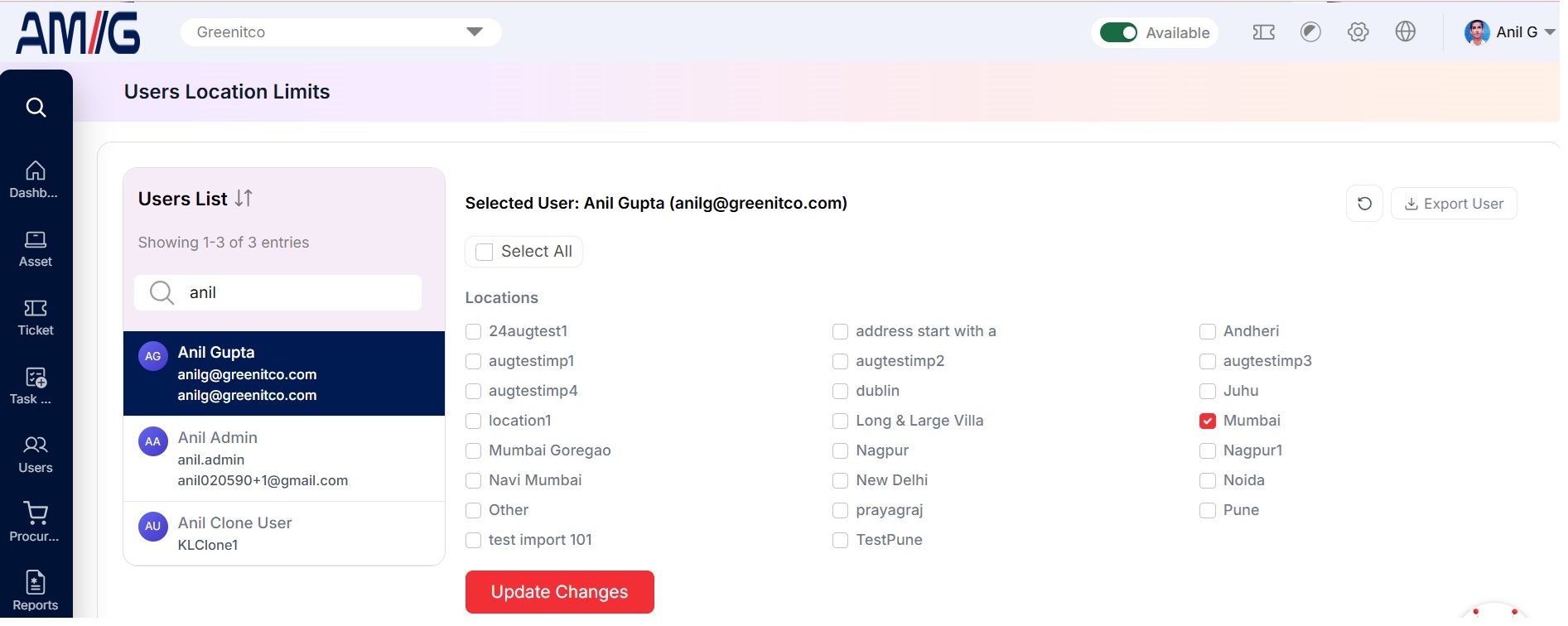 Figure: Users Location Limits Screen
Understanding the Main Screen
Table: Users Location Limits screen elements
| Area | Description |
|---|---|
| Users List | Lists every admin and super admin user whose location access can be controlled, with their name, username and email. The count above the list shows how many users there are (for example, "Showing 1-10 of 54 entries"). Click the arrows beside the heading to sort. |
| Search | Type a name or email to find a user quickly. |
| Selected User | Shows the name and username of the user you are configuring. |
| Select All | Ticks every location for the selected user in one click. |
| Locations | Every location has a checkbox. A red tick means the user can access that location. |
| Refresh | Click the Refresh icon to reload the information on the screen. |
| Export User | Click Export User to download the user information. |
| Update Changes Button | Click the red Update Changes button to save the selected locations. |
Updating a User's Permitted Locations
Step 1: Find the user in the Users List (use Search if the list is long) and click their name.
Step 2: Check the Selected User heading to make sure you picked the right person.
Step 3: In the Locations area, tick every location the user should be able to access, and untick any they should not. Use Select All only if the user needs every location.
Step 4: Click the red Update Changes button. The new limits apply straight away.
Note: The changes apply to the user shown in the Selected User heading. Always check that name before clicking Update Changes.