

Introduction
Ticket Status defines the different stages a ticket can go through, from the time it is created until it is completed. This section allows you to manage existing statuses and create custom statuses based on your organisation's business requirements.
The system provides the following default statuses: Open, In Progress, On Hold, Waiting for User, Waiting for Vendor, Resolved, and Closed. You can also create additional statuses to meet the specific needs of your organisation.
Using this section, you can:
-
Create Custom Statuses: Add new statuses to match your business processes. For example, an HR department may use statuses such as Employee Onboarding, Onboarding Completed, and Candidate Dropped.
-
Assign Statuses to Ticket Types: Choose which ticket types can use a particular status. This can be configured under Sidebar > Ticket > Ticket Type.
-
Set Status Colours: Assign a colour to each status so users can easily identify ticket statuses in the ticket list.
-
Control SLA Calculation: Decide whether the SLA timer should continue running or pause when a ticket enters a particular status. For example, you can pause the SLA while waiting for a response from a user or vendor.
-
Configure Dynamic Forms: Display a form when a user changes a ticket's status from the ticket details page. This allows you to collect the required information before the status is updated. Dynamic forms can be configured under Sidebar > Ticket > Service Request > Dynamic Form.
These settings help you customise the ticket lifecycle, improve tracking, and ensure that ticket handling follows your organisation's processes.
Navigation:
Sidebar › Ticket › All Status › Ticket Status
Viewing the Ticket Status List
The Ticket Status list displays existing statuses and provides filtering, search, refresh, pagination, and an Add Ticket Status action.
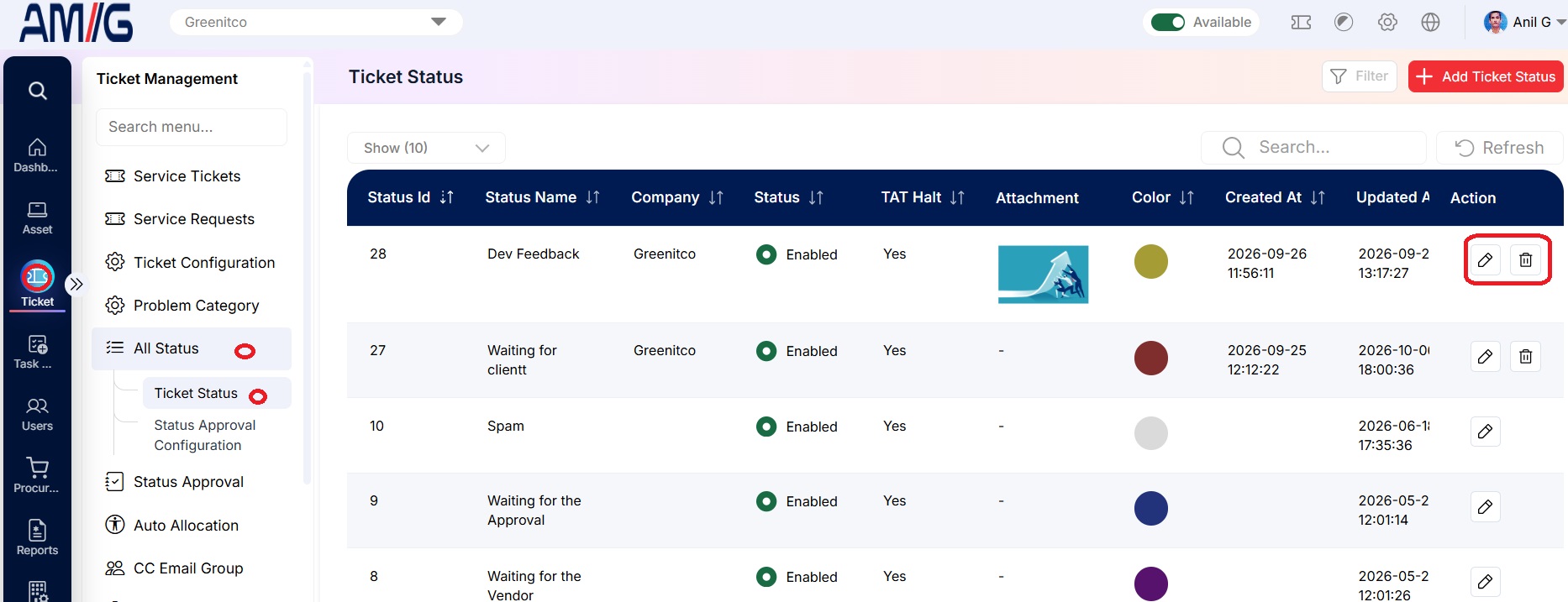
Ticket Status List
Ticket status list columns
| Column | Description |
|---|---|
| Status Id / Status Name | Identifier and display name of the ticket status. |
| Company / Status | Company associated with the status and its enabled state. |
| TAT Halt | Whether the status halts the turnaround-time count. |
| Attachment / Color | An optional attachment and the configured status colour. |
| Created At / Updated At | Creation and most recent update timestamps. |
| Action | Available actions such as edit or delete, where shown. |
Creating a Ticket Status
Step 1 → Click Add Ticket Status on the Ticket Status list.
Step 2 → Enter the status name, select the company and status value, and configure any applicable optional fields.
Step 3 → Click Create to save the status, or Close to exit without saving.
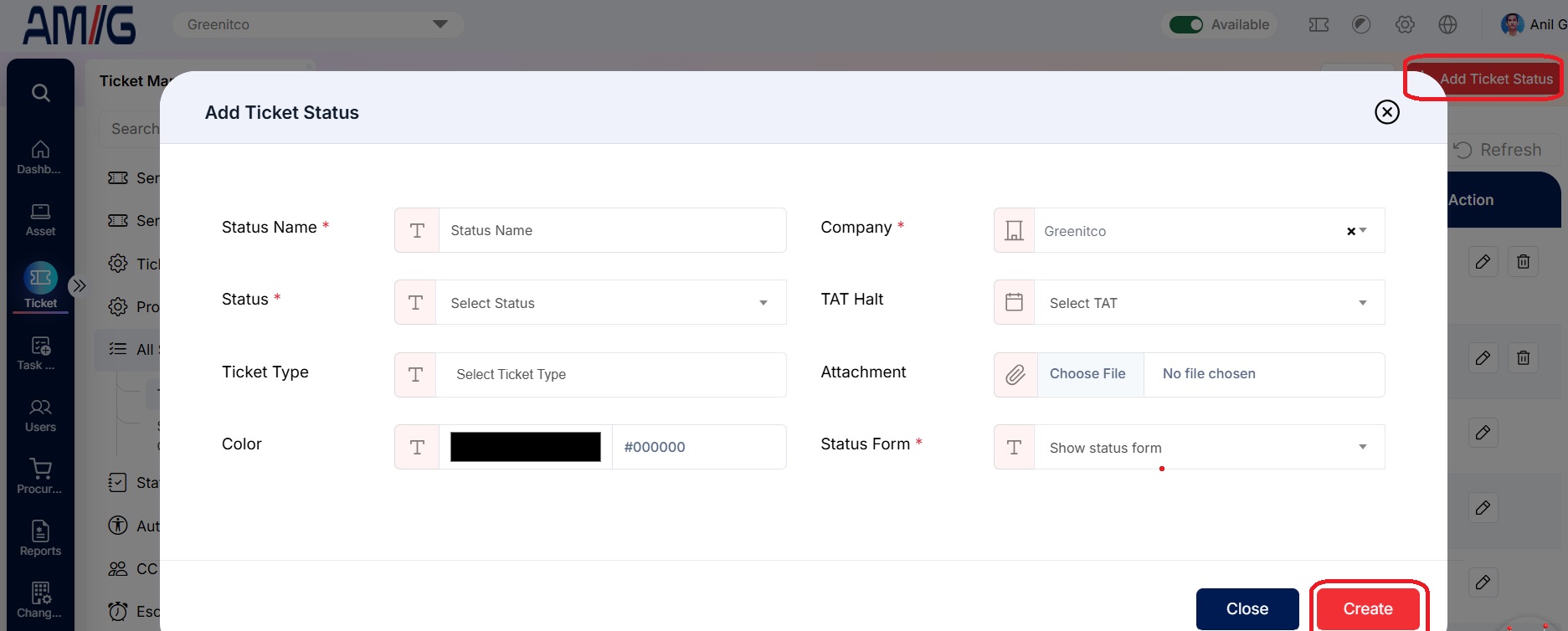
Add Ticket Status – Basic Fields
Ticket status form fields
| Field | Description |
|---|---|
| Status Name | Enter the display name for the status. Required. |
| Company | Select the company for which this status is applicable. Required. |
| Status | Select whether the status is enabled or disabled. Enabled statuses are available in the ticket status dropdown. Required. |
| TAT Halt | Choose whether TAT is halted while a ticket is in this status. |
| Ticket Type | Select a configured ticket type, if this status should apply only to a specific type. See Sidebar > Ticket > Ticket Types. |
| Attachment | Optionally upload an image or file to use as the status icon. |
| Color | Select the colour used to identify this status in ticket lists. |
| Status Form | Choose whether a status form should be shown when this status is set. Required. |
Configuring Status Form Mappings
When Status Form is set to show a form, the Form Mapping area allows a problem category to be paired with a form. Add a mapping for each required category/form combination.
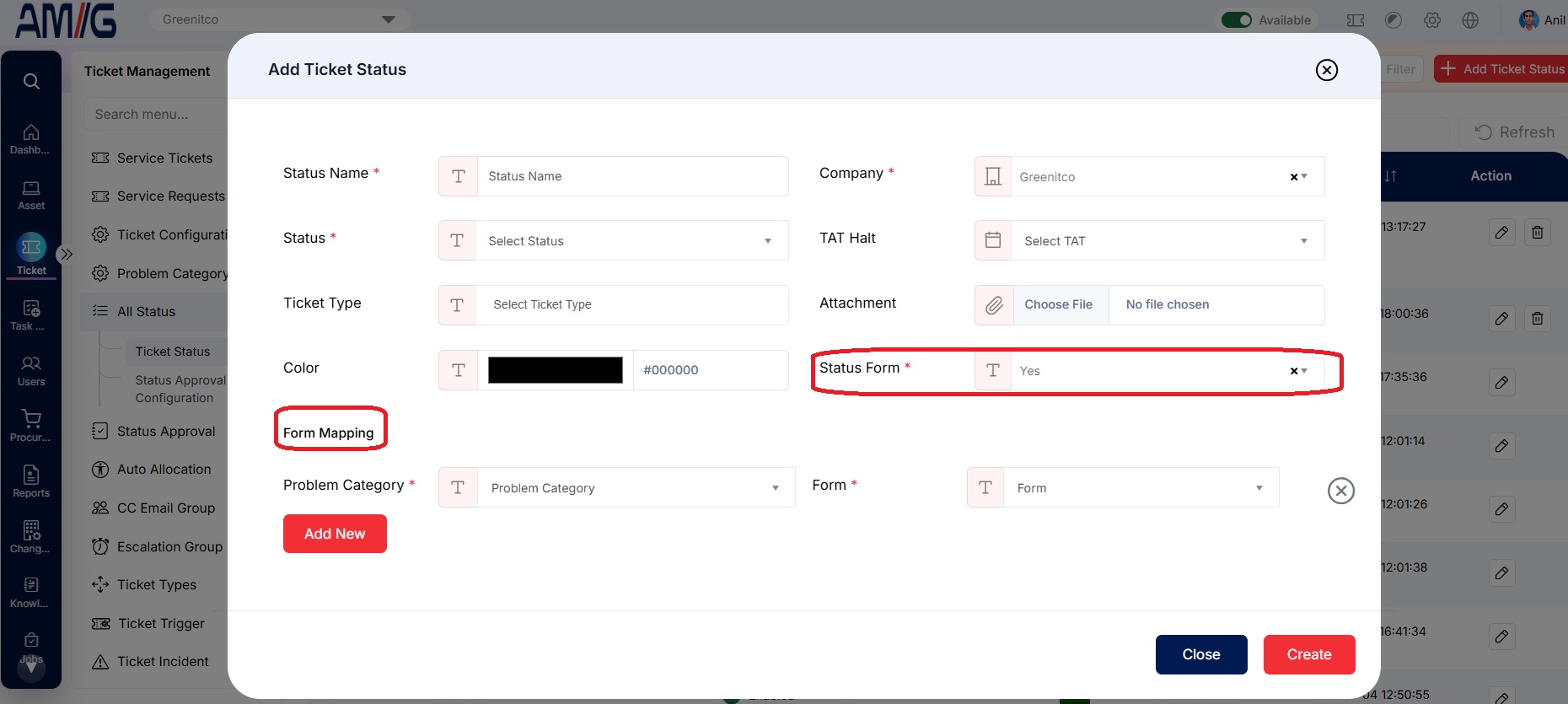
Add Ticket Status – Form Mapping
Status form mapping fields
| Field | Description |
|---|---|
| Problem Category | Select the problem category associated with the mapping. Required in the displayed form. |
| Form | Select the form to be shown for that problem category. Required in the displayed form. |
| Add New | Add another mapping row. |
| Remove icon | Remove a mapping row when it is no longer needed. |
Managing Existing Ticket Statuses
Manage an existing ticket status
Step 1 → Open Sidebar > Ticket > All Status > Ticket Status.
Step 2 → Use Search or Filter to locate the status. Click Refresh to reload the list if needed.
Step 3 → To edit the status, click its Pencil icon, update the required fields, and save the changes.
Step 4 → To delete the status, click the Trash Can icon if available, then review and confirm the deletion prompt.