

Introduction
The Escalate Tickets Report provides a consolidated summary of tickets that have been escalated. It displays key ticket information, including Ticket ID, Ticket Subject, creation date, department, problem category, subcategory, ticket handler, and creator, along with the associated escalation details.
This report helps administrators monitor escalated tickets, identify who is handling them, track who created them, and review escalation activity. It provides an overview of ticket escalations and helps administrators monitor the escalation process effectively.
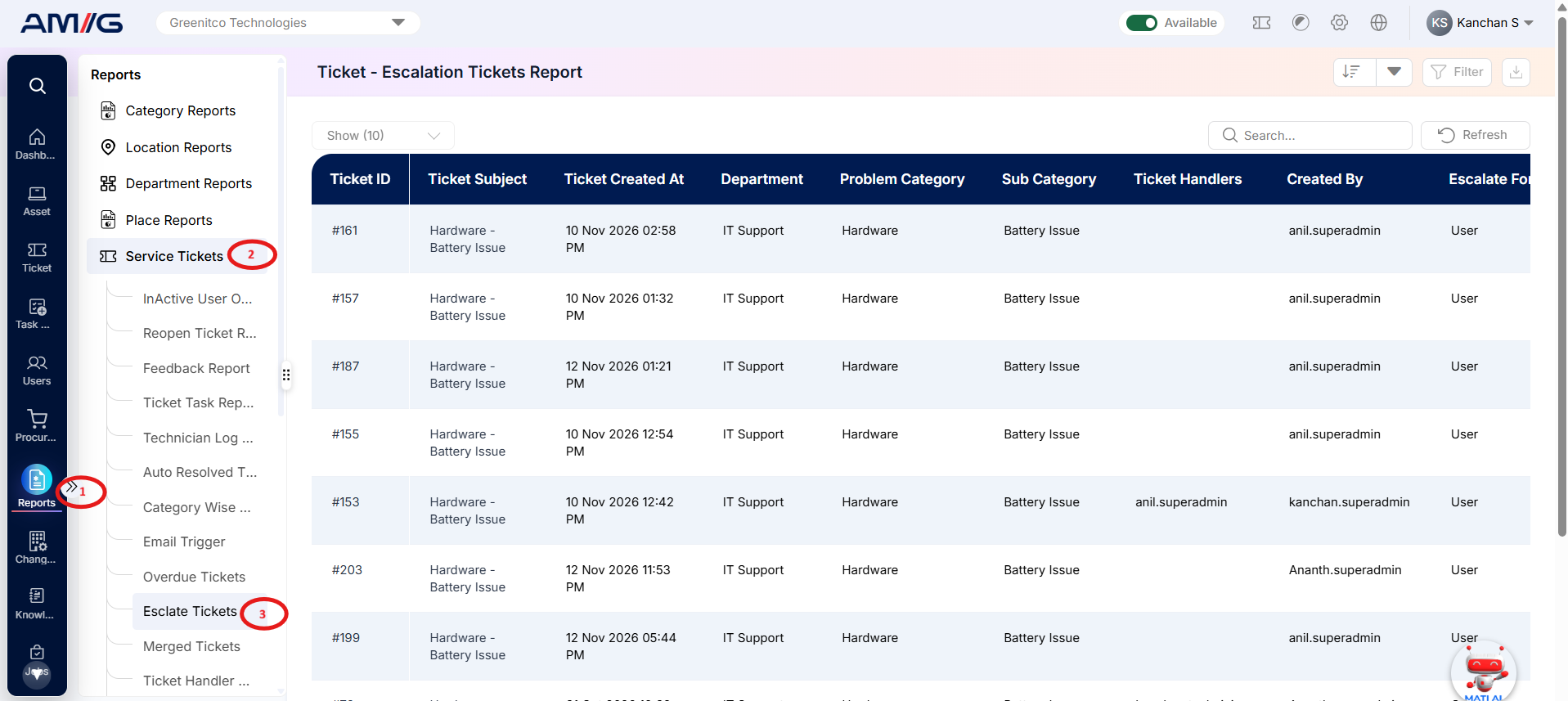
Navigation Path: Sidebar > Reports > Service Ticket > Escalate Tickets Report
Viewing the Report
Open Escalate Tickets Report from Sidebar > Reports > Service Ticket > Escalate Tickets Report. The report opens as a list.
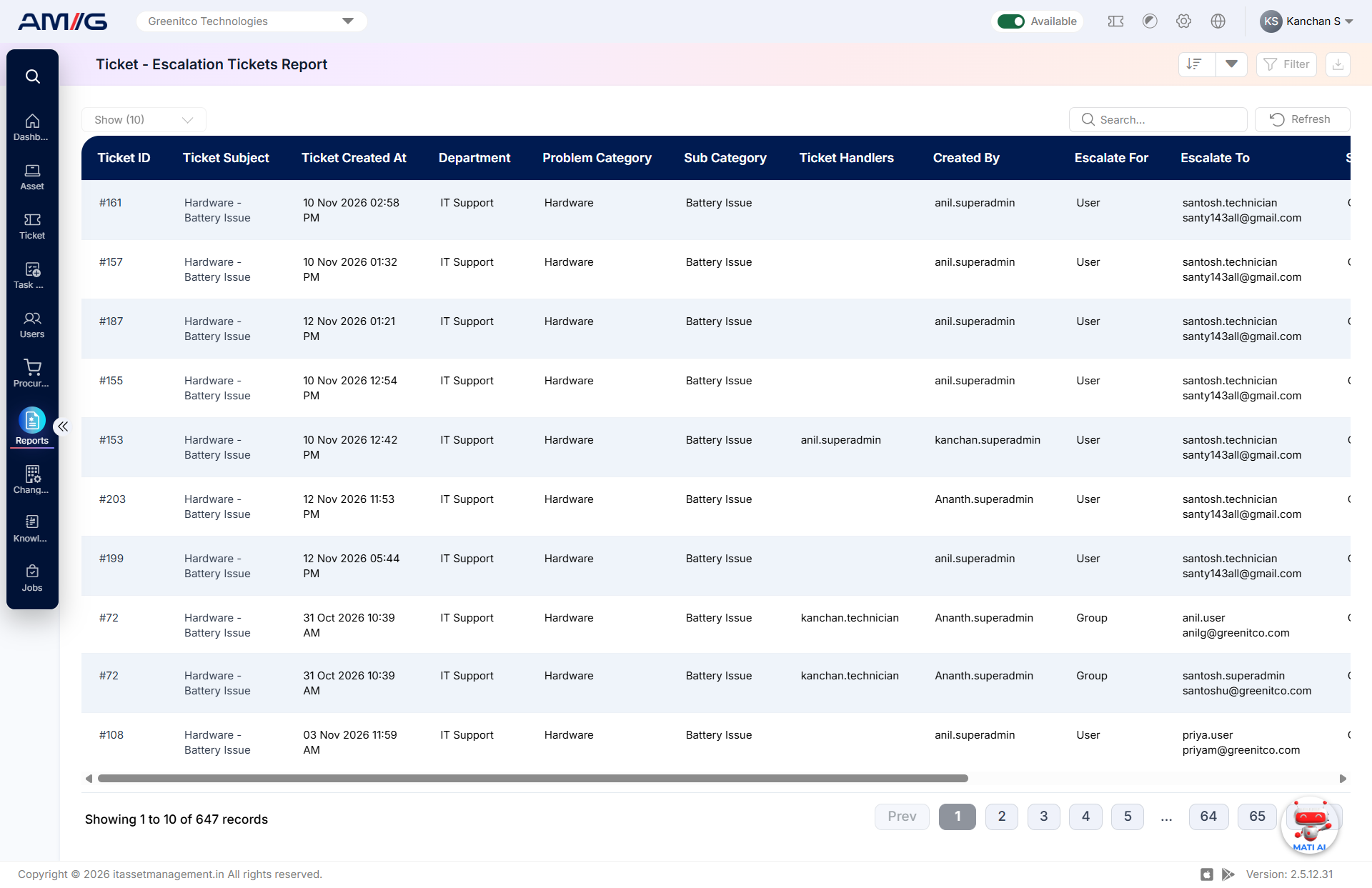
Figure 2.1.1: Escalate Tickets Report – report listing
Table 2.1.1: Report columns
| Column | What it shows |
|---|---|
| Ticket ID | Displays the unique identification number of the ticket that was merged. |
| Ticket Subject | Displays the subject or title of the merged ticket. |
| Ticket Created At | Displays the date and time when the ticket was originally created. |
| Department | Displays the department associated with the ticket. |
| Problem Category | Displays the problem category assigned to the ticket. |
| Sub Category | Displays the subcategory associated with the ticket. |
| Ticket Handlers | Displays the technician or technicians assigned to handle the ticket. |
| Created By | Displays the user who originally created the ticket. |
More escalation columns are available by scrolling to the right.
Filtering the Report
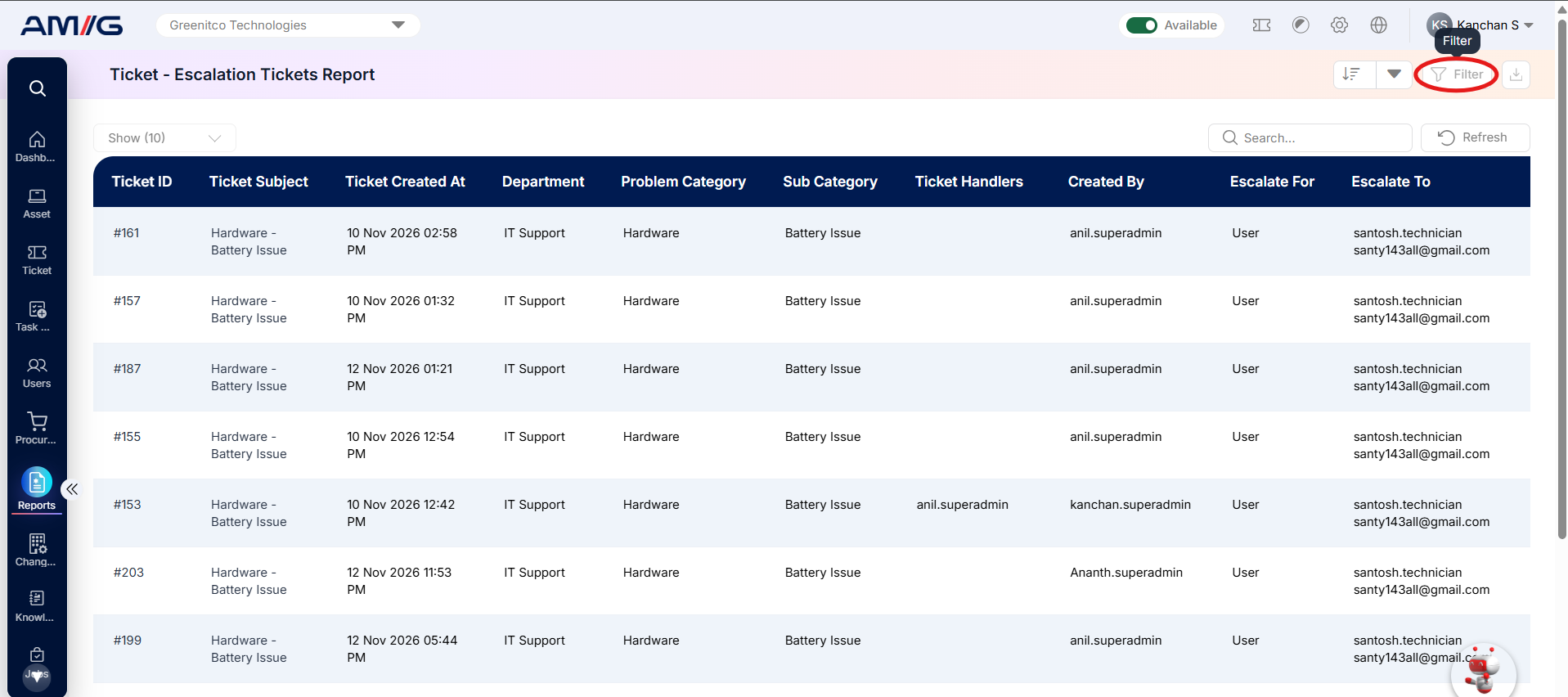
Step 1: Click Filter at the top-right of the report. The filter panel opens.
 Step 2: Choose the values you need in one or more of the filters listed below.
Step 3: Click Filter (or Apply Filter) to update the report. Click Clear to remove all filters.
Table 2.1.2: Available filters
| Filter | What it does |
|---|---|
| Department | Filters tickets based on the department associated with them. |
| Problem Category | Filters tickets according to their assigned problem category. |
| Sub Category | Filters tickets based on the assigned problem subcategory. |
| Status | Displays tickets matching the selected ticket status. |
| Ticket Handler | Filters tickets based on the technician or handler assigned to them. |
| Priority | Filters tickets according to their assigned priority level. |
| Escalate To | Filters tickets based on the person or authority to whom they have been escalated. |
| Location | Filters tickets based on the associated location. |
| Date | Filters tickets using the selected date criteria. |
| Date Range | Filters tickets created or recorded within the specified date range. |
| Ticket Type | Filters tickets based on the selected ticket type. |
| Creator / Logger | Filters tickets based on the user who created or logged them. |
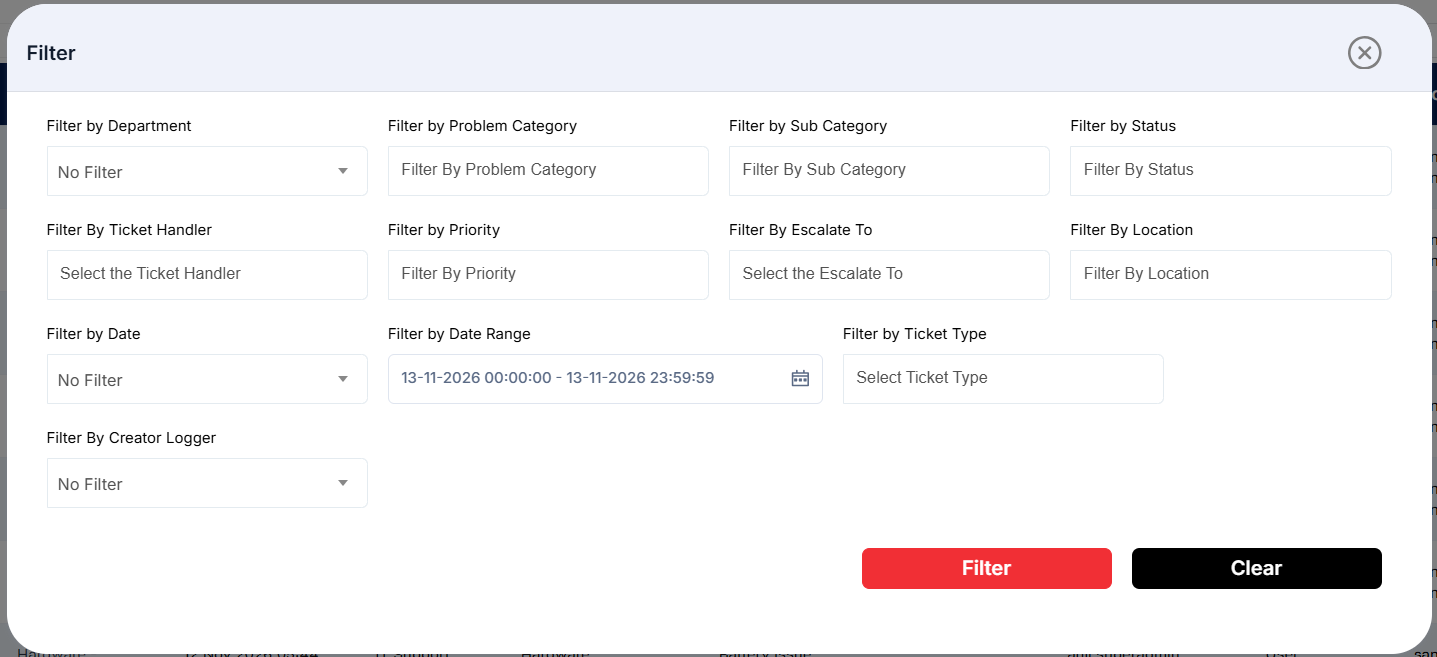
Figure 2.1.2: Escalate Tickets Report – filter panel
Sorting the Report
Click the Sort button at the top-right corner of the report to view the available sorting options. Select the desired column to sort the report records.
The available sorting options are:
- Ticket ID
- Ticket Subject
- Ticket Created At
- Department
- Problem Category
- Sub Category
- Ticket Handler
- Created By
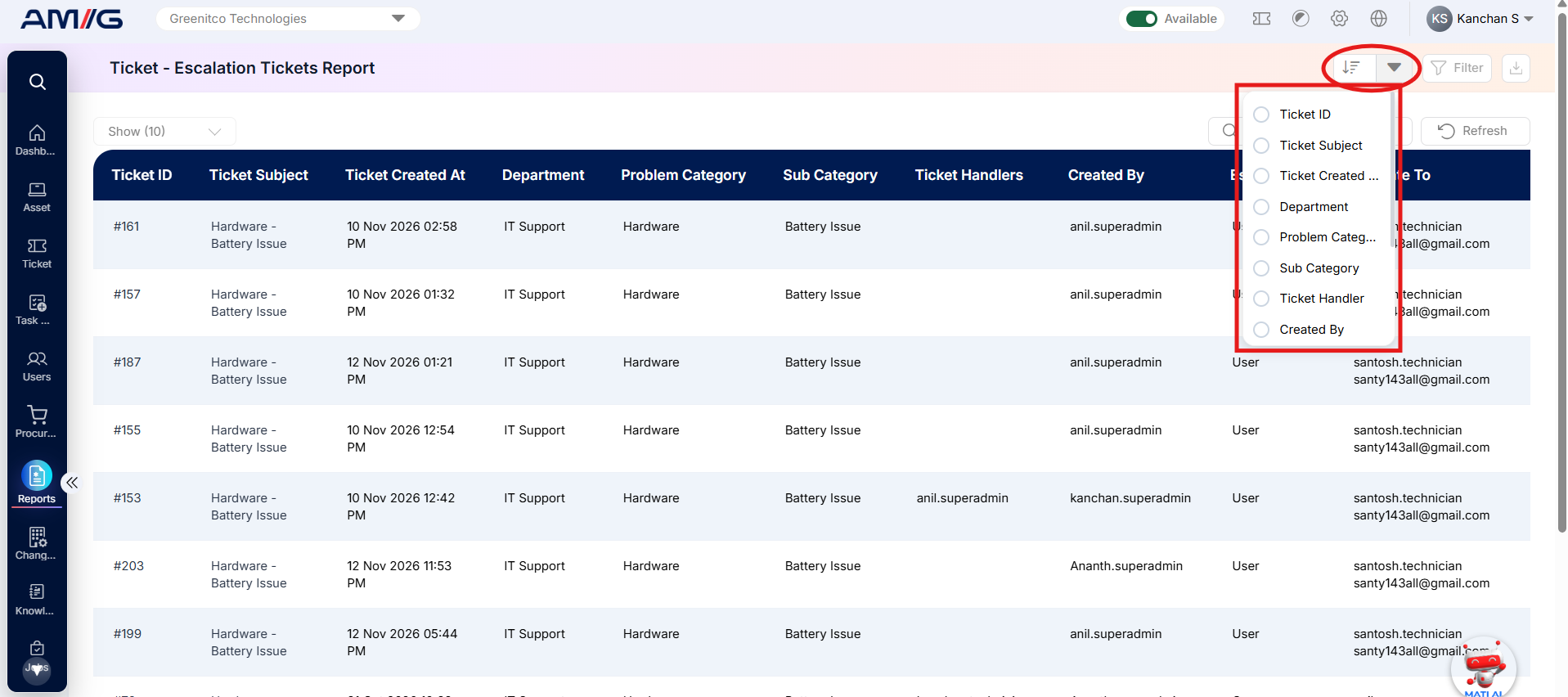
Figure 2.1.3: Escalate Tickets Report – sort options