

Introduction
The Tickets Report provides a comprehensive view of service tickets recorded in AMG, covering ticket details, classification, assignment, and lifecycle information. It enables management to review the complete ticket journey, from ticket creation through various stages of handling, progress, and resolution.
The report includes information such as ticket creation date and time, pickup details, status changes, time spent in different stages, including On Hold, response and resolution timelines, and SLA breach details. It helps users understand how tickets are being handled, how long they remain in particular statuses, and whether they are progressing within the defined service timelines.
By consolidating ticket-related information in a single report, management can monitor ticket progress, identify delayed or pending tickets, review SLA compliance, and evaluate the overall handling of service requests. The report also supports operational analysis by highlighting tickets that may require follow-up, escalation, or corrective action.
Overall, the Tickets Report provides management with detailed visibility into ticket activities and lifecycle performance, helping them make informed decisions, prioritize actions, and improve service delivery.
Navigation Path: Sidebar > Reports > Service Ticket > Tickets Report
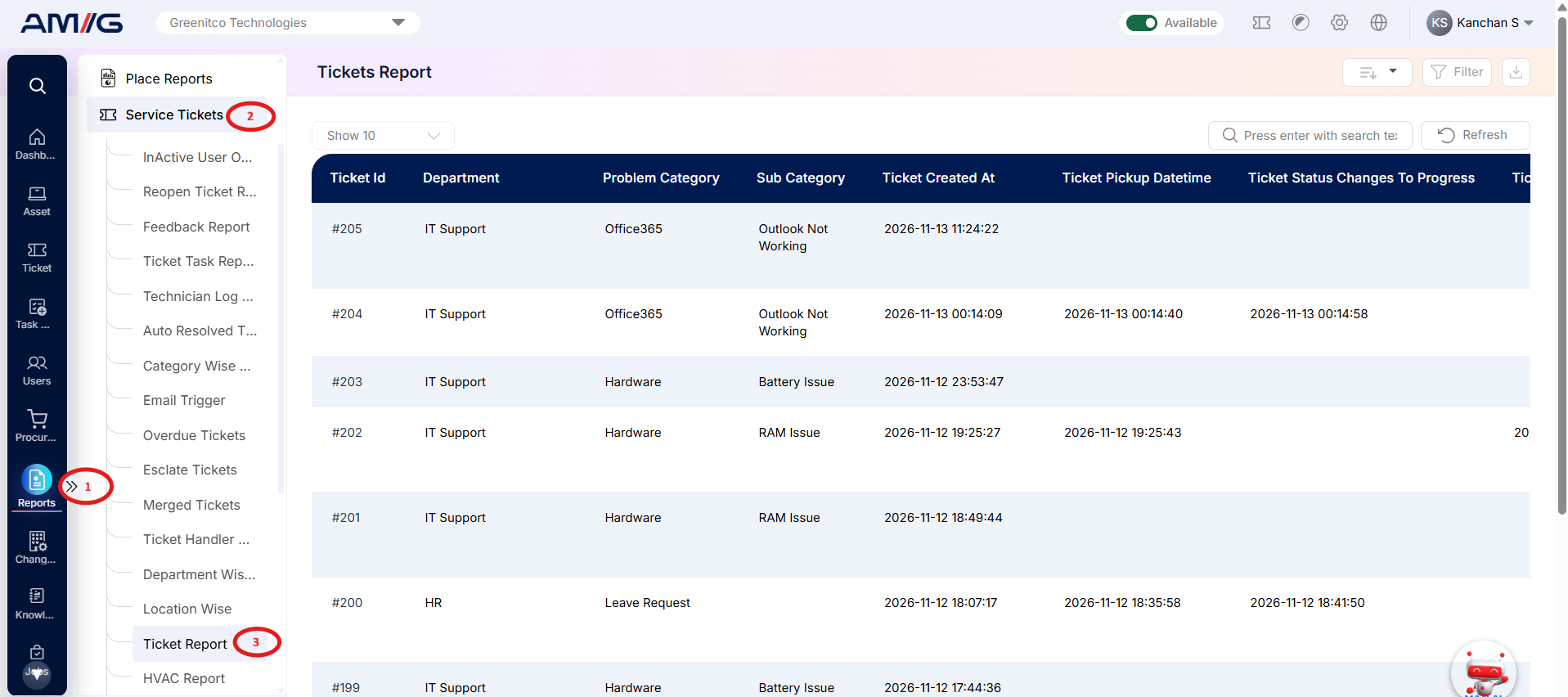
Viewing the Report
Open Tickets Report from Sidebar > Reports > Service Ticket > Tickets Report. The report opens as a list.
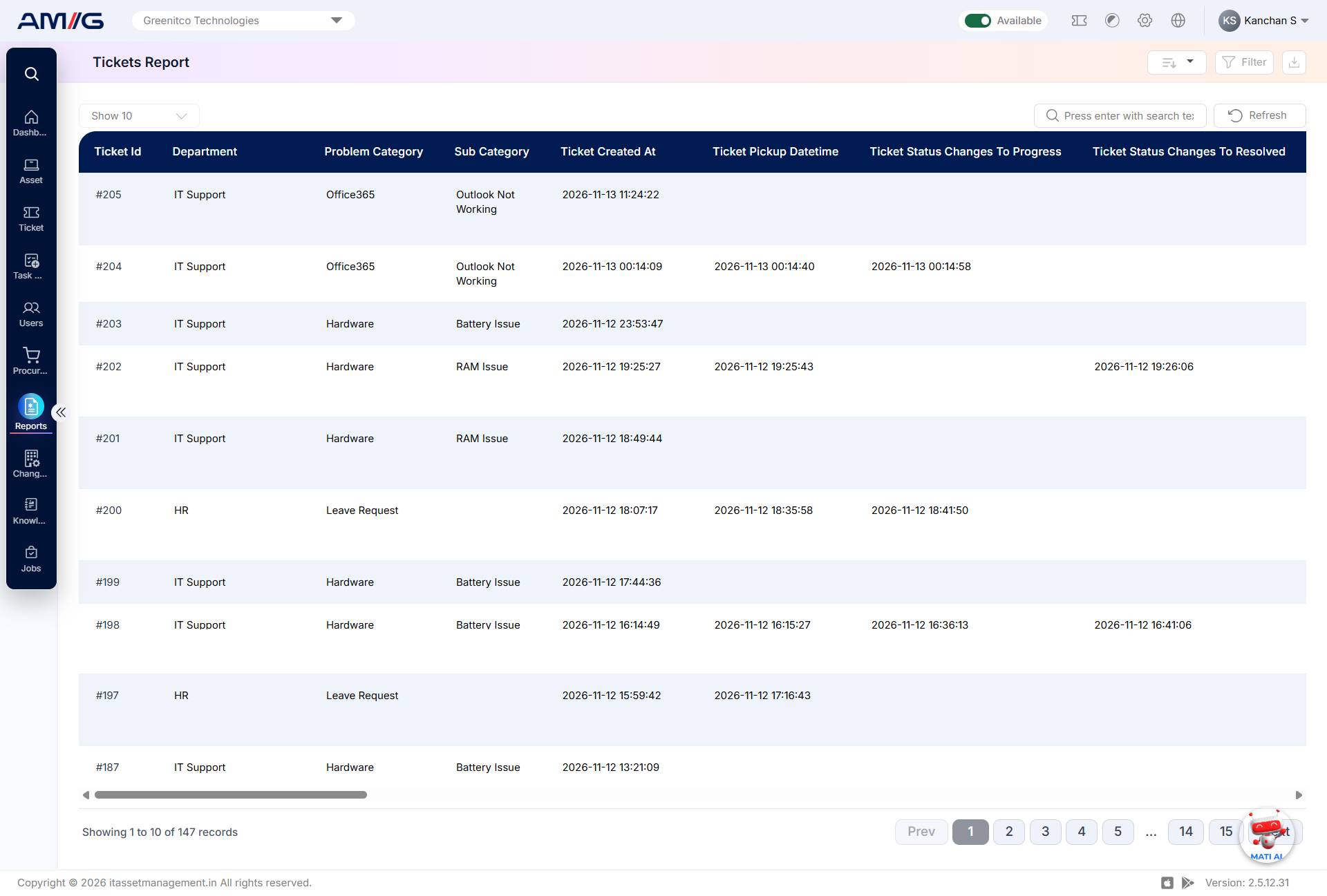
Figure 2.6.1: Tickets Report – report listing
Table 2.6.1: Report columns
| Column | What it shows |
|---|---|
| Ticket ID | Displays the unique identification number assigned to the ticket, which helps users identify and track individual tickets. |
| Department | Displays the department associated with the ticket, indicating the department to which the reported issue belongs. |
| Problem Category | Displays the primary problem category assigned to the ticket for classifying the reported issue. |
| Sub Category | Displays the subcategory associated with the problem category, providing more specific classification of the reported issue. |
| Ticket Created At | Displays the date and time when the ticket was initially created in AMG. |
| Ticket Pickup Datetime | Displays the date and time when the ticket was picked up for handling. This helps users understand the time taken between ticket creation and pickup. |
| Ticket Status Changes To Progress | Displays the date and time when the ticket status was changed to In Progress, indicating when active work on the ticket was recorded. |
More columns are available by scrolling to the right.
Filtering the Report
Step 1: Click Filter at the top-right of the report. The filter panel opens.
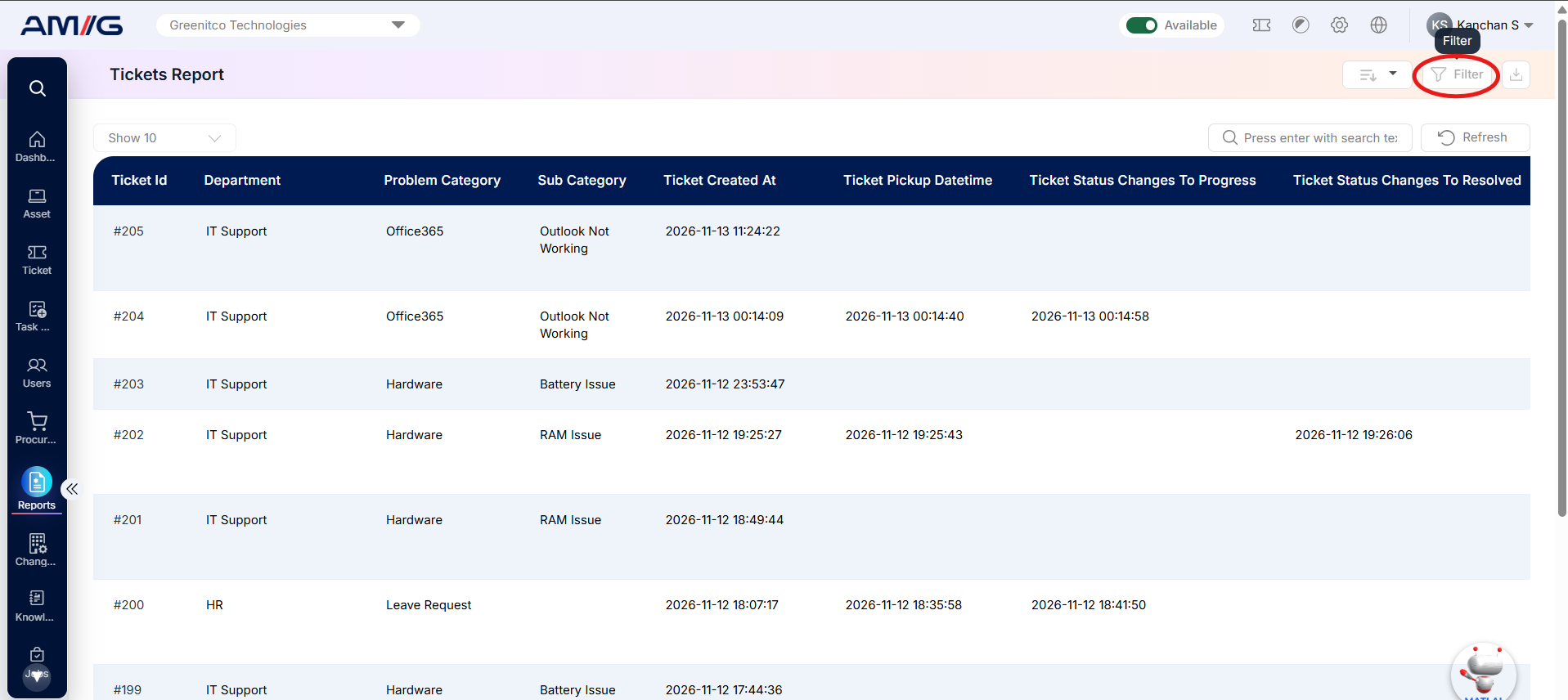 Step 2: Choose the values you need in one or more of the filters listed below.
Step 3: Click Filter (or Apply Filter) to update the report. Click Clear to remove all filters.
Table 2.6.2: Available filters
| Filter | What it does |
|---|---|
| Department | Filters tickets based on the selected department. |
| Problem Category | Filters tickets according to the selected problem category. |
| Sub Category | Narrows down the report to tickets associated with the selected subcategory. |
| Status | Displays tickets matching the selected ticket status, such as Open, In Progress, On Hold, Resolved, or Closed. |
| Location | Filters tickets based on the selected location where the ticket is associated or reported. |
| Base Location | Filters tickets according to the selected base location configured in the system. |
| Priority | Displays tickets matching the selected priority level, helping users focus on tickets based on their urgency. |
| Ticket Type | Filters tickets based on the selected ticket type. |
| Ticket Handler | Displays tickets assigned to the selected technician or ticket handler. |
| Custom Field | Allows users to select a custom field configured for tickets to narrow down the report results. |
| Custom Field Value | Filters the report based on the value entered or selected for the chosen custom field. |
| Date | Filters report records based on the selected date criteria. |
| Date Range | Displays tickets recorded within the specified start and end dates. |
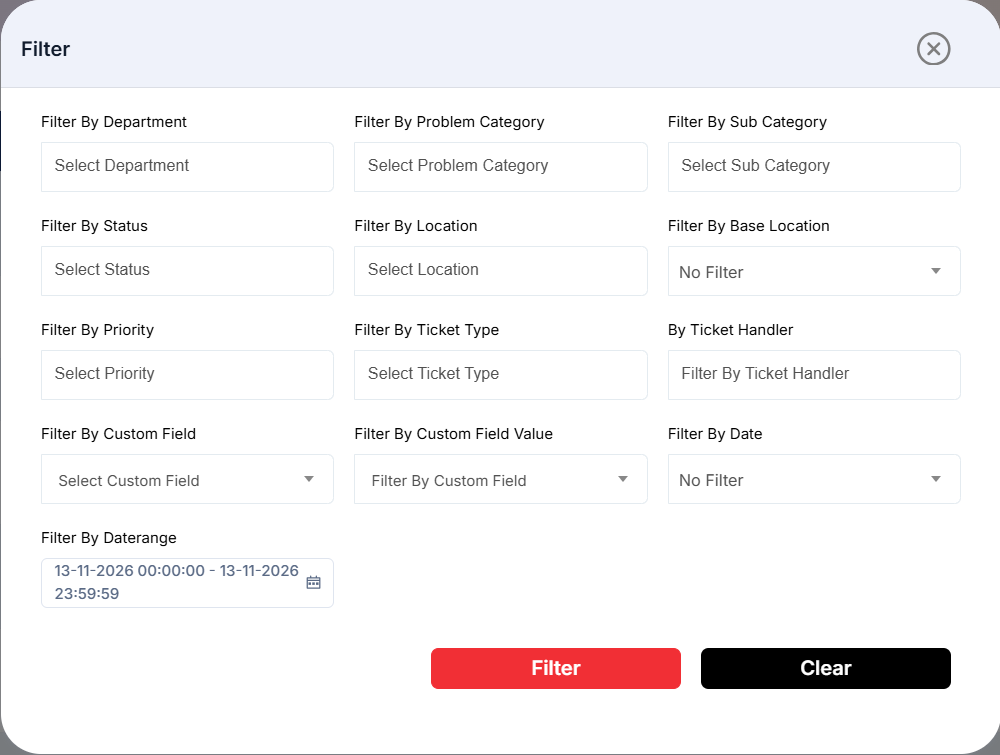
Figure 2.6.2: Tickets Report – filter panel
Sorting the Report
Click the Sort button at the top-right corner of the report to view the available sorting options. Select the desired column to sort the report records.
The available sorting options are:
- Ticket ID
- Department
- Problem Category
- Sub Category
- User
- Updated At
These sorting options allow users to organize ticket records based on ticket identification, department, problem classification, user, or the last updated date and time, making it easier to locate and review specific ticket information.
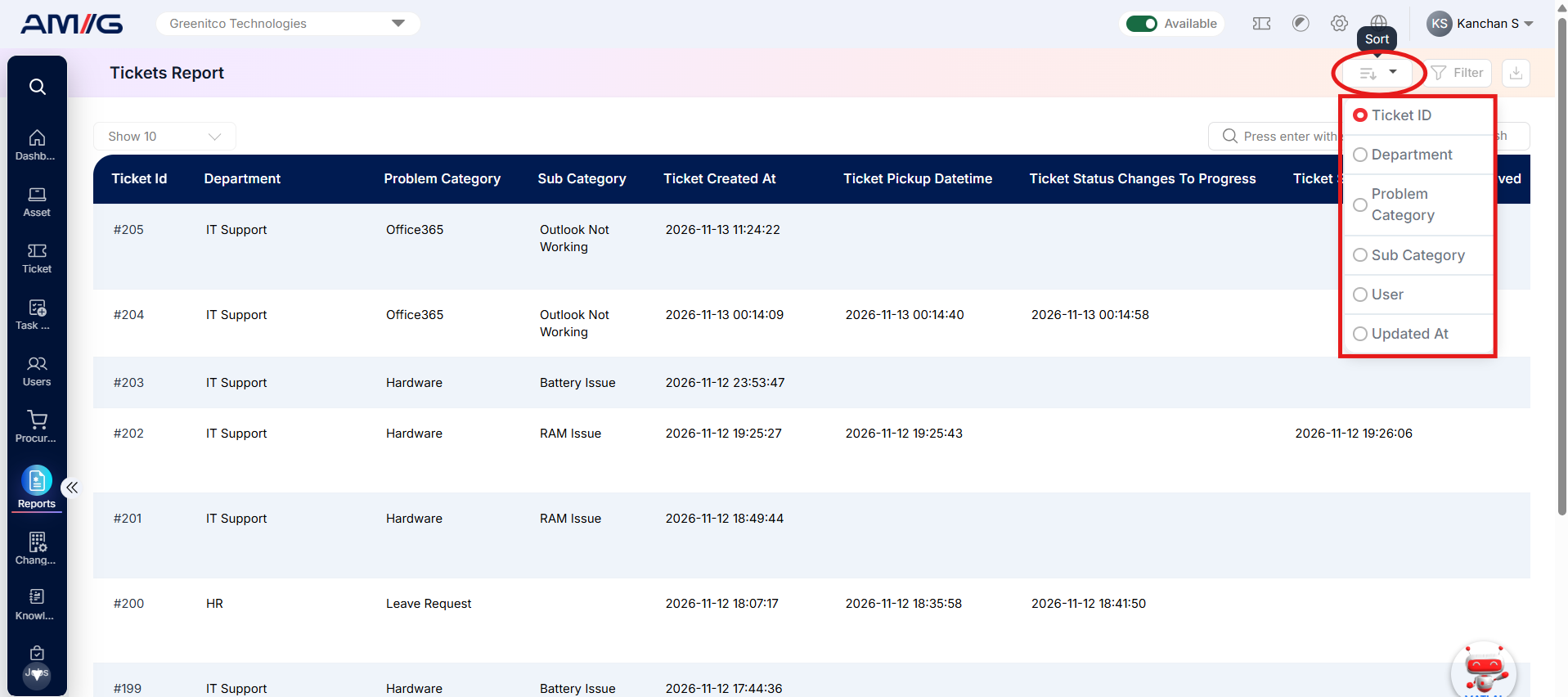
Figure 2.6.3: Tickets Report – sort options