Introduction
The Depreciation section allows administrators to define how an asset's value decreases over time. Depreciation helps determine an asset's useful life and track its value throughout its lifecycle.
In this module, administrators can configure depreciation terms, such as 12, 24, or 36 months, to define the period over which an asset's value is written off. These terms can be applied to assets based on the organization's requirements and configured asset categories.
By maintaining depreciation terms, the organization can track asset value over time and make informed decisions about asset replacement and lifecycle management.
This section explains how to view, create, edit, and delete depreciation terms.
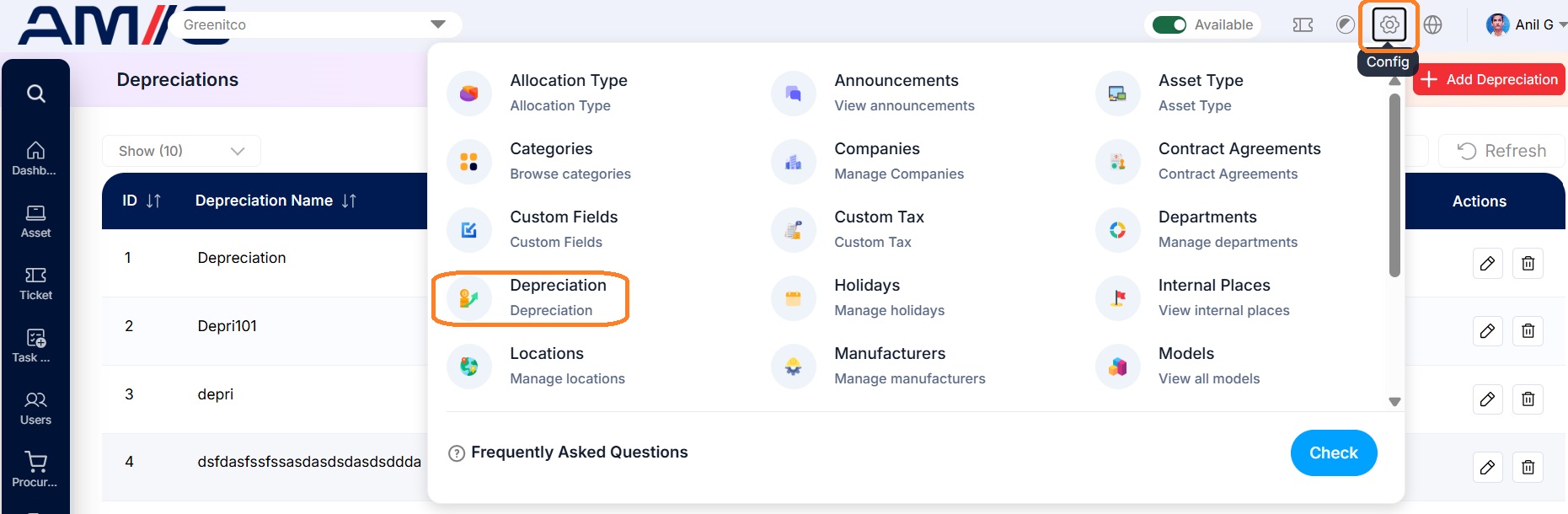
Navigation Path:> Header > Config > Depreciations
Viewing the Depreciations List
Go to Header > Config > Depreciations. You will land on the main list showing all existing depreciation terms.
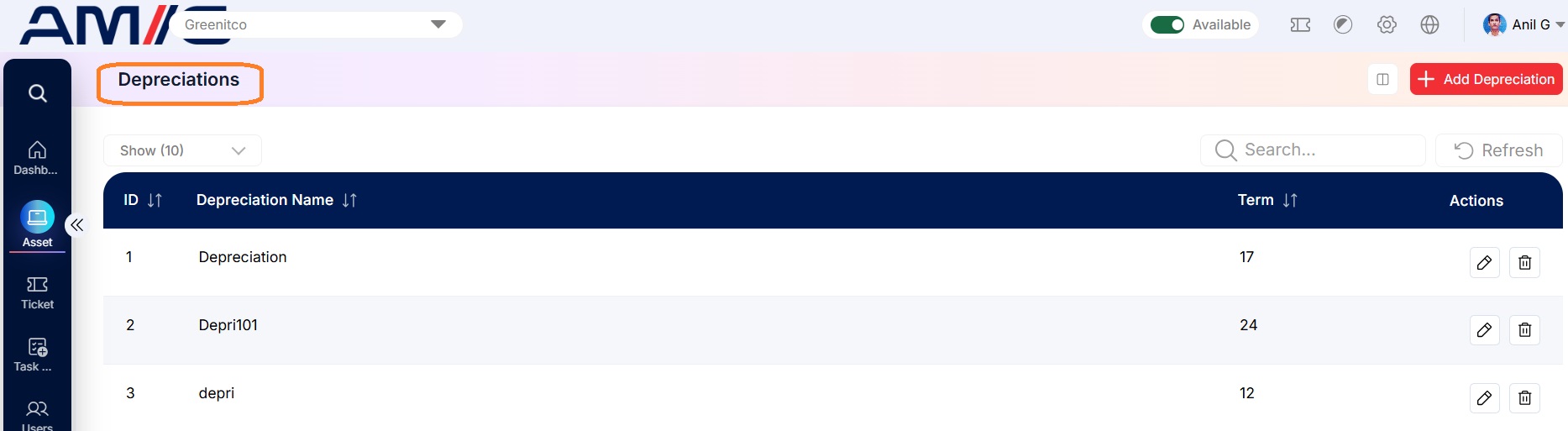 Figure: Depreciations Main Screen
Understanding the Main Screen
Table: Depreciations main screen elements
| Area | Description |
|---|---|
| Sub Header | Use Show (10) to choose how many records you see on one page. Type in the Search box to find a record quickly, or click Refresh to reload the list. |
| Add Depreciation Button | Click the red + Add Depreciation button in the top right corner to set up a new term. |
| The Data Table | Shows all your depreciation terms with their ID, Depreciation Name and Term (in months). |
| Sorting | Click the small arrows beside a column name to sort the list (A to Z, Z to A, oldest or newest first). |
| Actions Column | Every row has two icons on the far right: Edit (pencil) to change that depreciation, and Delete (trash can) to remove it. |
| Pagination | The bottom of the page shows how many records you're looking at. Use Previous and Next to move between pages. |
How to Create a New Depreciation Term
Adding a new depreciation term only takes a minute. Here is how:
Step 1: On the Depreciations screen, click the red + Add Depreciation button in the top right corner.
Step 2: The "Add Depreciation Details" pop-up window opens.
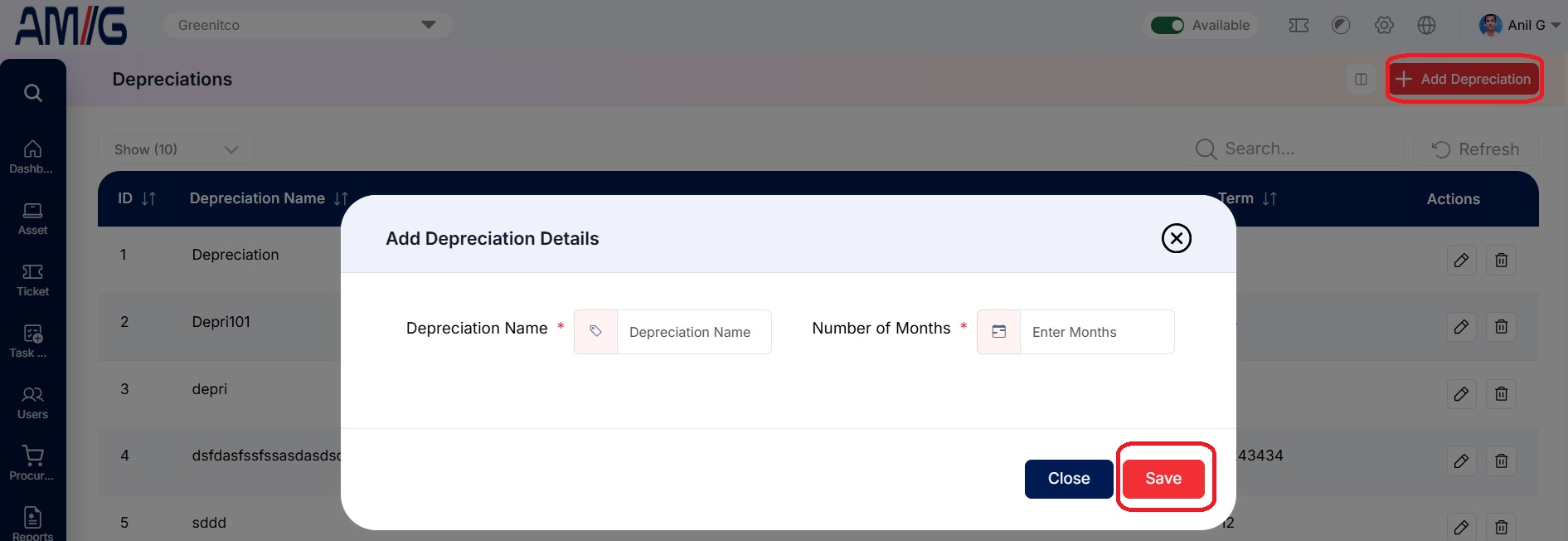 Figure: Add Depreciation Modal
Step 3: Fill in the required fields. They are marked with a red asterisk (*), and the form will not save without them:
Table: Add Depreciation – required fields
| Field | Description |
|---|---|
| Depreciation Name | Give the term a clear name (for example, "Standard 3-Year IT Equipment"). |
| Number of Months | Enter how many months the asset should depreciate over. For a 3-year term, enter 36. |
Step 4: Click the red Save button. Your new depreciation term is created and shows up in the list straight away.
Note: Changed your mind? Click the blue Close button or the X in the top right corner. Nothing will be saved.
Managing Existing Depreciations
Once a record exists, you can look after it straight from the Depreciations list using the icons in the Actions column:
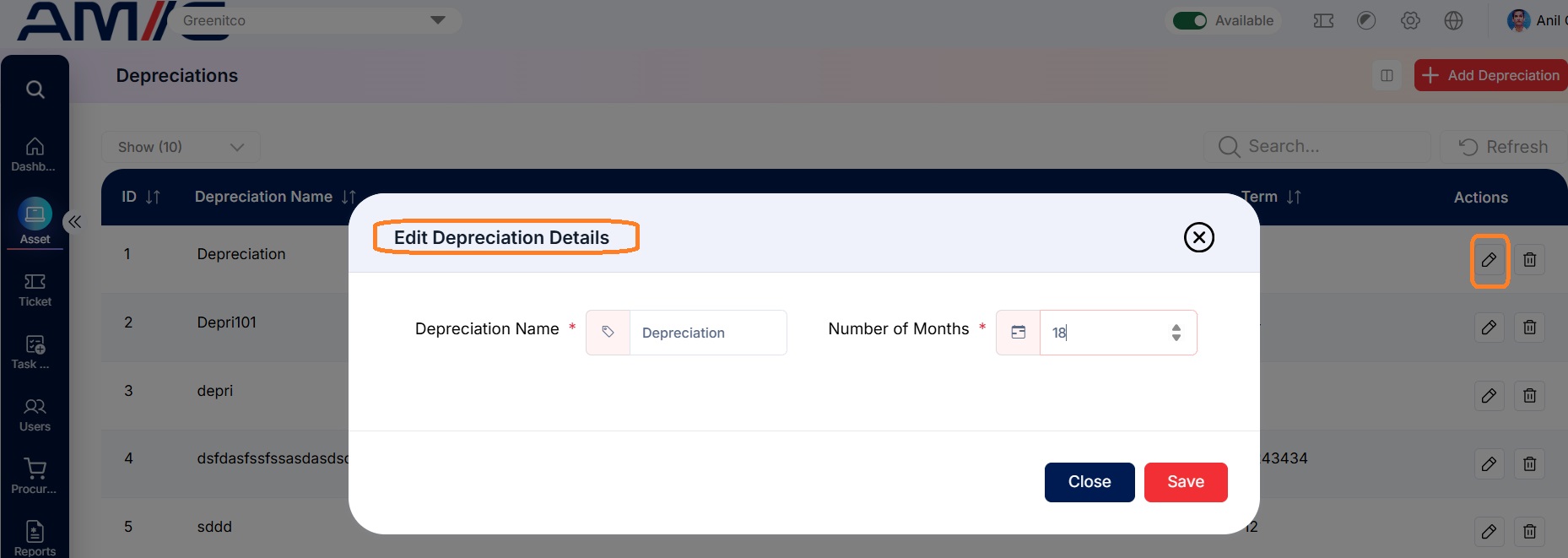
Edit a depreciation term
Step 1: On the Depreciations screen, locate the depreciation term you want to change.
Step 2: Click the Pencil (Edit) icon in the Actions column.
Step 3: Update the term name or the number of months.
Step 4: Click Save to apply the changes.
Delete a depreciation term
Step 1: Locate the depreciation term in the list.
Step 2: Click the Trash Can (Delete) icon in that row.
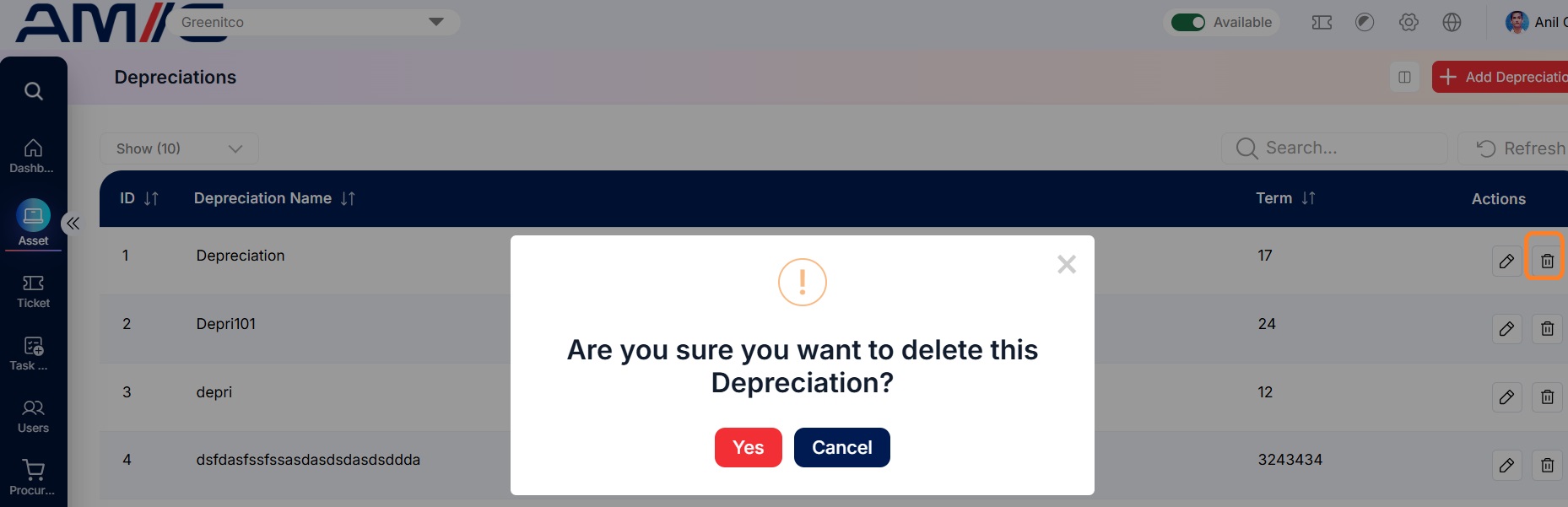
Step 3: Review the confirmation prompt and confirm the deletion.
Important: Before deleting a depreciation term, make sure it is not applied to any active assets or models.