

Introduction
Problem Categories help organise service tickets based on the type of issue being reported. This section allows you to create and manage categories and subcategories for different departments, making it easier to classify tickets, assign responsibility, and analyse recurring issues.
For example, the IT department may have categories such as Hardware, Software, and Network, while the HR department may have categories such as Employee Onboarding and Payroll.
Using this section, you can:
-
Manage Categories and Subcategories: Create parent categories and subcategories to organise tickets according to your organisation's requirements.
-
Configure Department and Priority: Assign a department and priority to a category to help determine how the ticket should be handled.
-
Set SLA and Turnaround Time: Define the expected resolution time and SLA values for tickets under a specific category.
-
Configure Custom Fields: Display additional fields when a user selects a category while creating a ticket. These fields can be configured under Header > Config > Custom Fields.
-
Enable Approval Requirements: Specify whether tickets created under a particular category require approval.
-
Configure Request Forms: Display a specific form when a user creates a ticket under a particular category to collect the required information.
-
Set Escalation Rules: Define department-level escalation rules for tickets that breach their configured SLA.
-
Automate Tasks: Configure tasks that are automatically generated when a ticket is created under a specific category.
-
Configure Ticket Status: Define the applicable ticket status settings for a category.
These settings help standardise ticket classification, automate ticket-handling activities, improve SLA management, and generate more meaningful reports for analysis.
Navigation:
Sidebar › Ticket › Problem Category
Viewing Problem Categories
The Problem Categories list displays each category, its department and parent category, priority, turnaround time, task count, and available actions. Search, Filter, Refresh, and import/export controls are also available.
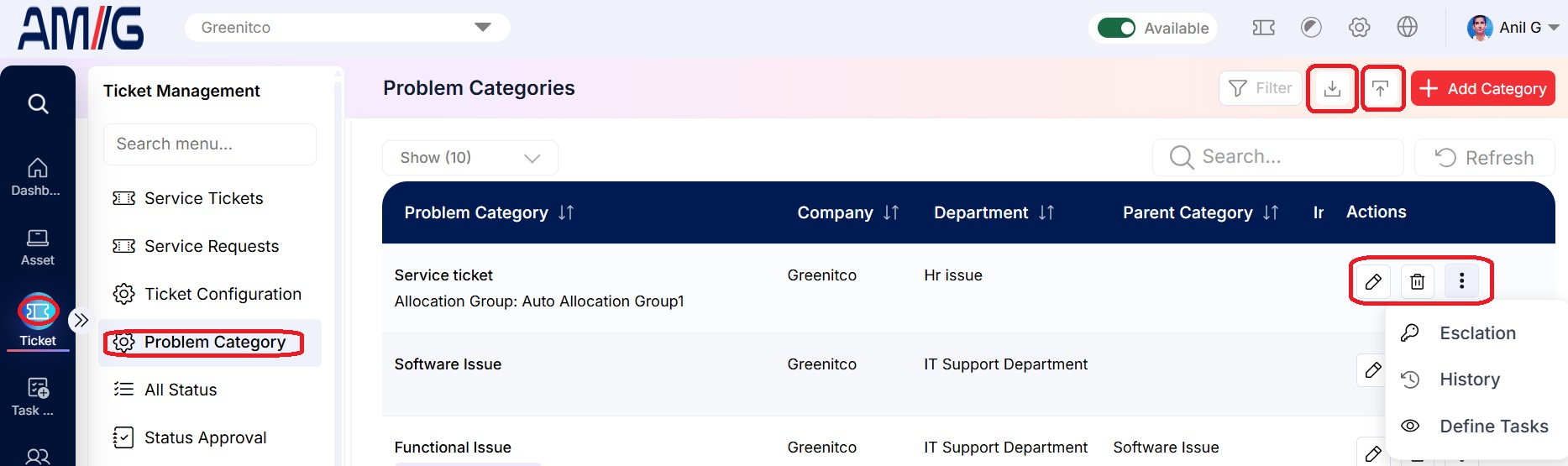 Problem Categories List
Problem category list columns
| Column | Description |
|---|---|
| Problem Category | Name of the category; a subcategory is labelled accordingly in the list. |
| Company / Department | Company and responsible department. |
| Parent Category | Parent category, when the record is a subcategory. |
| Initial / Attender | Short initial and assigned ticket attender, where configured. |
| Priority / TAT (Hrs) | Configured priority and turnaround time in hours. |
| Tasks Count | Count of tasks associated with the category. |
| Actions | Edit, delete, and the additional menu containing Escalation, History, and Define Tasks. |
Creating a Problem Category
Step 1 → Click Add Category on the Problem Categories screen.
Step 2 → Enter the required company, problem category, department, and priority.
Step 3 → Configure any applicable parent category, assignment, field set, turnaround-time, SLA, and status settings.
Step 4 → Review the lifecycle and approval fields, then click Create to save the category.
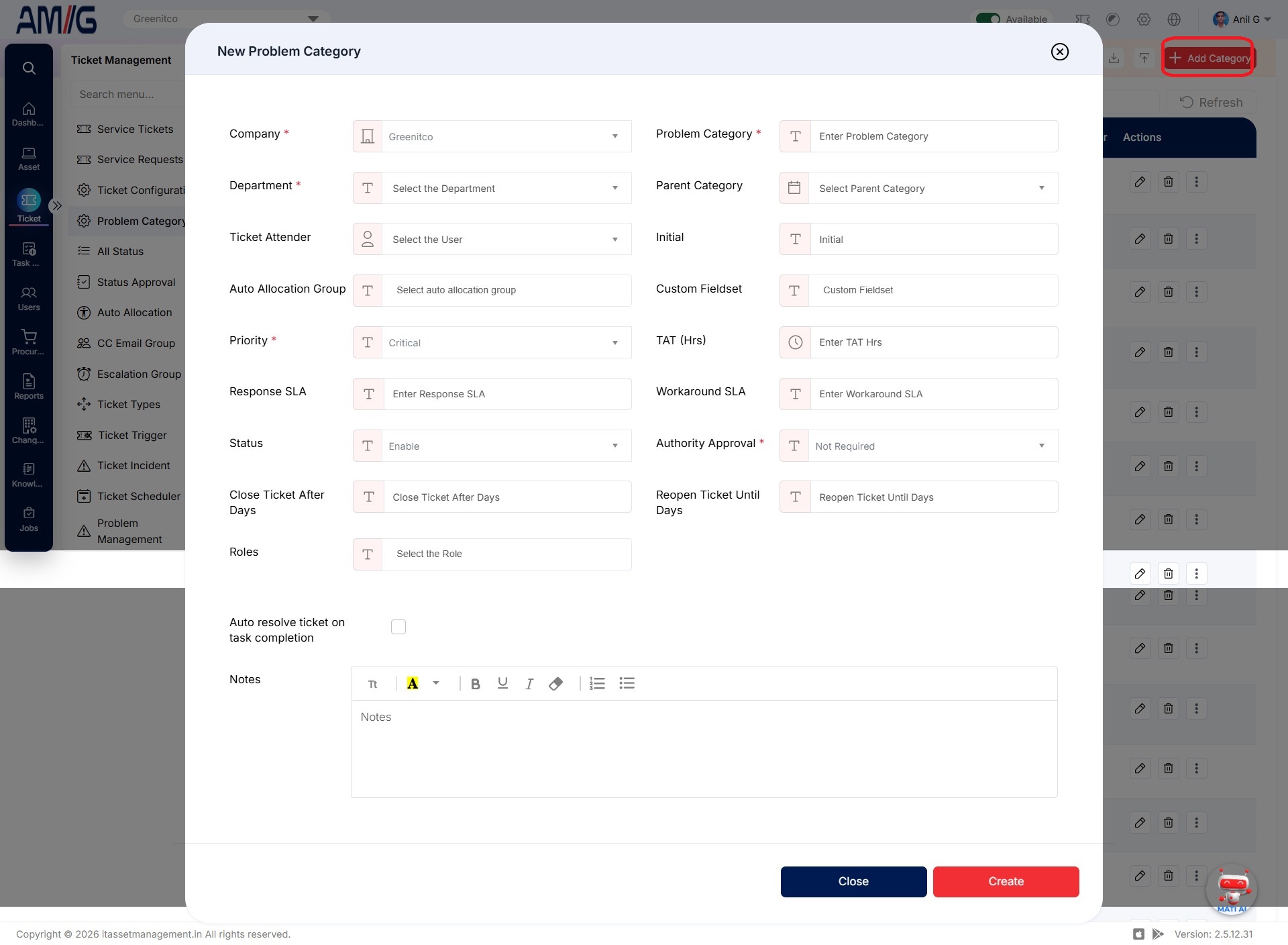 New Problem Category – Main Fields
Problem category configuration fields
| Field | Description |
|---|---|
| Company | Select the company. Required. |
| Problem Category | Enter the category name. Required. |
| Department | Select the responsible department of the category. Required. |
| Parent Category | Select a parent category when creating a subcategory. |
| Ticket Attender | Select the user who should attend tickets for the category, where applicable. |
| Initial | Enter a short initial/code for the category. |
| Auto Allocation Group | Choose an auto-allocation group if tickets in this category should be assigned through a group. Configure groups under Sidebar > Ticket > Auto Allocation. |
| Custom Fieldset | Select a custom field set to capture additional ticket details. Its fields appear when a ticket is created in this category. |
| Priority | Select the category priority. This priority is applied when a ticket is created in the category. Required. |
| TAT (Hrs) | Enter the turnaround time (TAT) in hours for tickets created in this category. |
| Response SLA / Workaround SLA | • Response SLA: Enter the number of hours used to calculate the response SLA. • Workaround SLA: Enter the number of hours used to calculate the workaround SLA. |
| Status | Enable or disable the category. Only enabled categories are available when creating tickets. |
| Authority Approval | Choose whether tickets created in this category require authority approval before proceeding. |
| Close Ticket After Days / Reopen Ticket Until Days | • Close Ticket After Days: Set the number of days after which a ticket is automatically closed. • Reopen Ticket Until Days: Set the period during which a user can reopen the ticket. |
| Roles | Select the roles for which this category should be available when creating a ticket. |
| Auto resolve ticket on task completion | Enable this option to automatically resolve the ticket when its tasks are completed. |
| Notes | Enter supporting notes in the rich-text area. |
Configuring Category Approval and Ticket Lifecycle Settings
The expanded category form includes additional authority-approval and ticket-lifecycle settings. It also shows Authority Board (SRAT) and Form Required fields. Configure these values according to your organisation’s approval process.
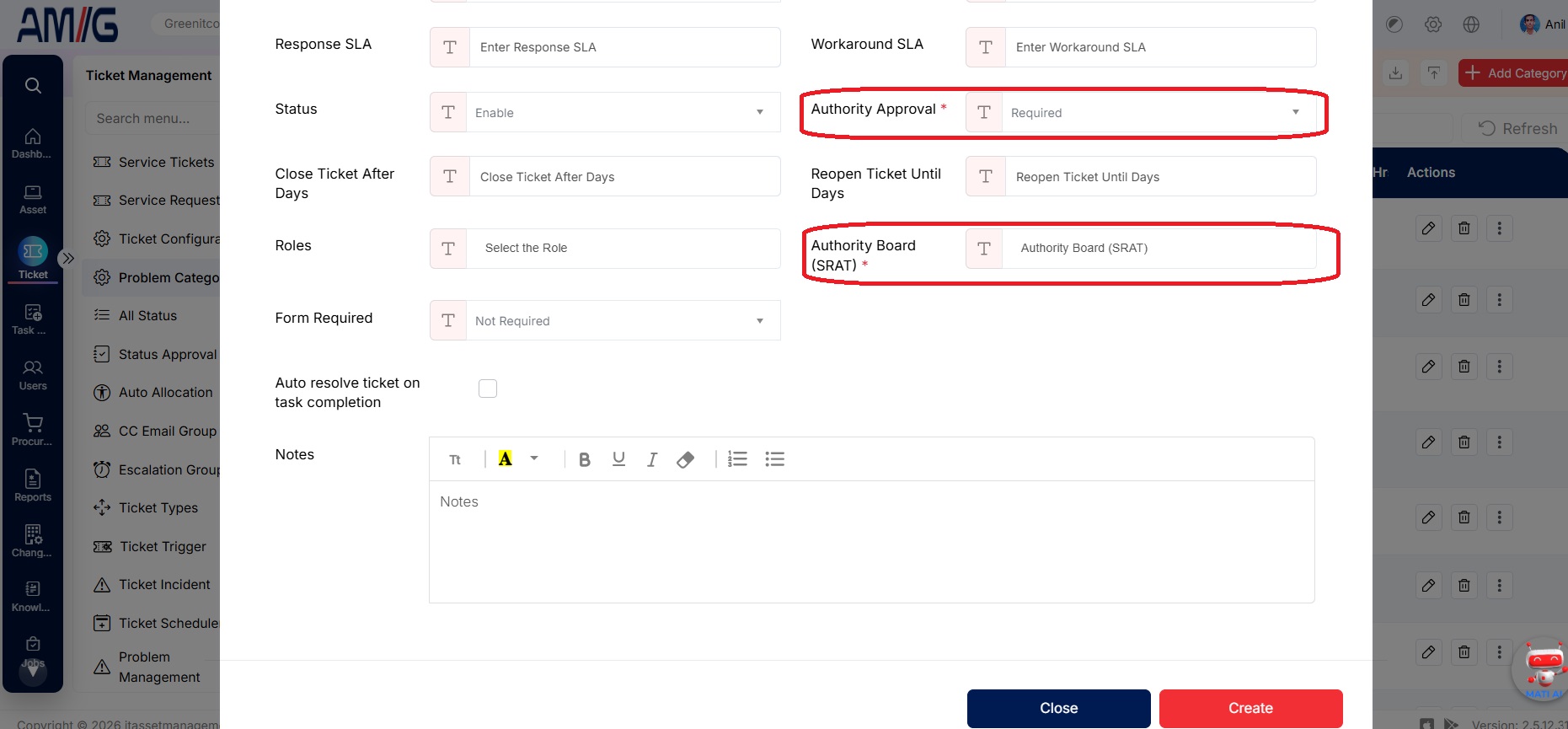 Problem Category – Approval and Lifecycle Settings
Additional category settings
| Field | Description |
|---|---|
| Authority Approval | Indicates whether authority approval is required. |
| Authority Board (SRAT) | Enter or select the authority board, as configured under Sidebar > Ticket > Service Request > PAB. Required in the displayed form. |
| Form Required | Choose whether a form is required for this category. If it is, the selected form loads whenever a ticket is created in this category. Forms are defined under Sidebar > Ticket > Service Request > Dynamic Form. |
Managing Category Actions
Open the three-dot menu in the Actions column to access the additional configuration options for a problem category.
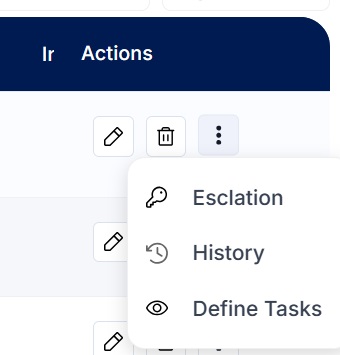 Problem Category – Additional Actions
Edit a problem category
Step 1 → On the Problem Categories screen, locate the category to update.
Step 2 → Click the Pencil (Edit) icon in the Actions column.
Step 3 → Update the category fields and settings as required.
Step 4 → Click Save or Update to apply the changes.
Delete a problem category
Step 1 → On the Problem Categories screen, locate the category to remove.
Step 2 → Click the Trash Can (Delete) icon in the Actions column.
Step 3 → Review the confirmation prompt and confirm deletion if the action is available.
Open additional category actions
Step 1 → Click the three-dot Actions menu for the required category.
Step 2 → Select Escalation to configure the category’s escalation rules.
Step 3 → Select History to review saved category history entries.
Step 4 → Select Define Tasks to view or manage tasks associated with the category.
Viewing Problem Category History
Step 1 → Open the Actions menu for the required problem category and select History.
Step 2 → Review the history entries to see recorded category values and the user who updated them.
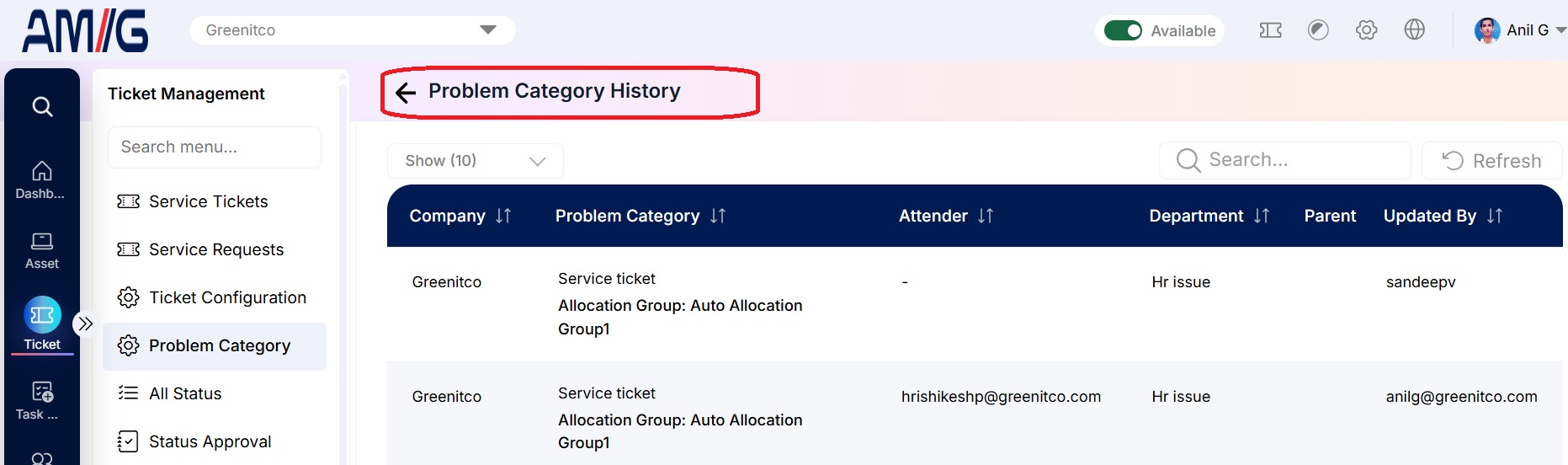 Problem Category History
Problem category history columns
| Column | Description |
|---|---|
| Company / Problem Category | Company and category name for the historical record. |
| Attender / Department / Parent Category | Assignment and category hierarchy values recorded at that time. |
| Priority / TAT (Hrs) | Priority and turnaround-time values recorded in history. |
| Response SLA / Workaround SLA | SLA values captured in the history record. |
| Updated By | User shown as having made the change. |
Importing Problem Categories
Step 1 → Open Problem Category Import from the category import control.
Step 2 → Download the format workbook and populate it without changing the header row.
Step 3 → Drag and drop the completed XLSX file, or click Upload XLSX File to select it.
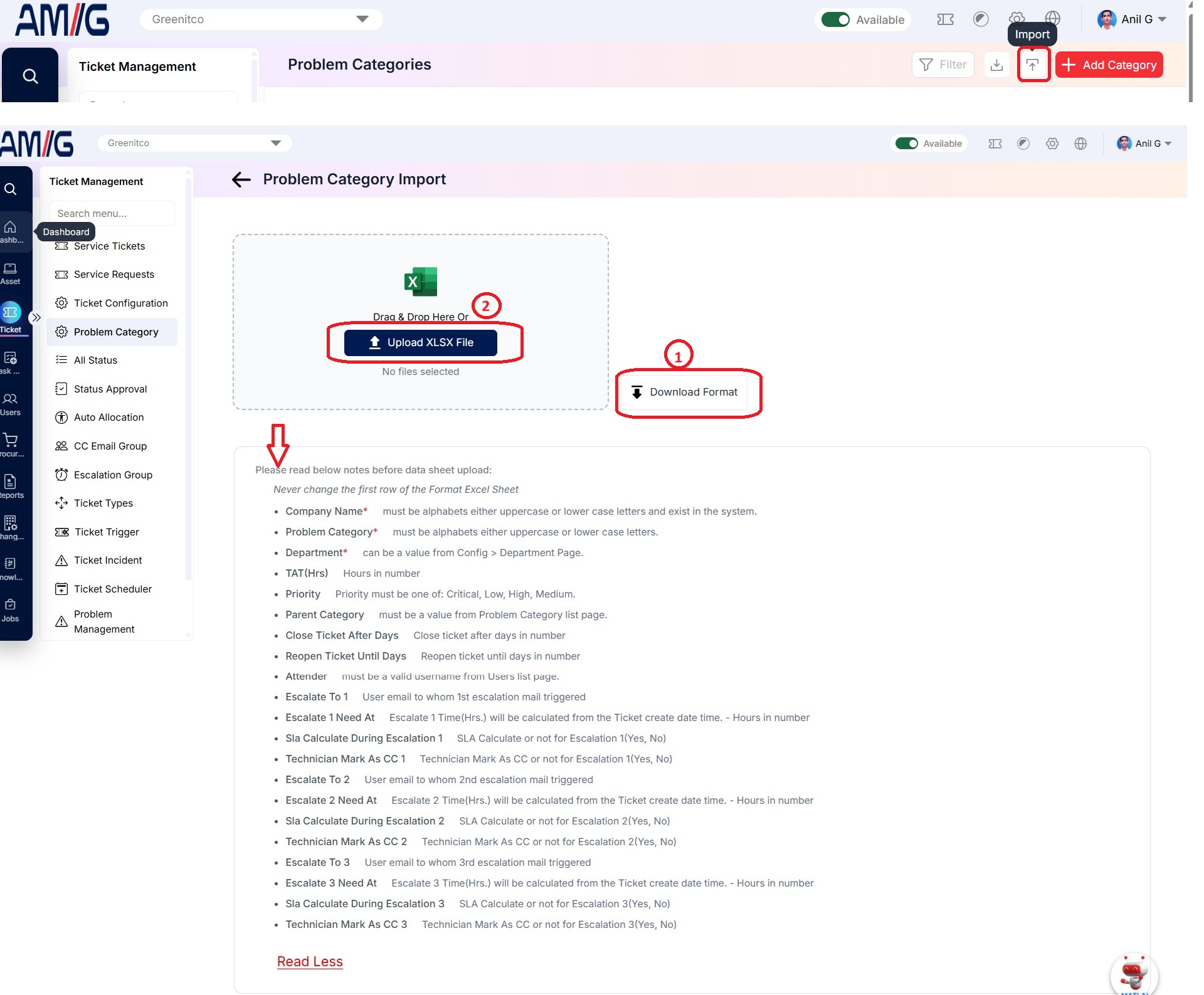
Problem Category Import and Format Guidance
Import file preparation rules
| Field / Rule | Requirement shown on screen |
|---|---|
| Header row | Do not change the first row of the format Excel sheet. |
| Company Name | Required; use the company name as it exists in the system. |
| Problem Category | Required; enter the category name. |
| Department | Required; use a value from the Department configuration page. |
| TAT (Hrs) | Enter the turnaround time in hours as a numeric value. |
| Priority | Use one of the listed values: Critical, Low, High, or Medium. |
| Parent Category | Use a value from the Problem Category list when required. |
| Close Ticket After Days / Reopen Ticket Until Days | Enter day values as numbers. |
| Attender | Use a valid username from the Users list. |
| Escalation fields | For each escalation level included in the workbook, enter the target user email, trigger time in hours, whether SLA calculation is enabled (Yes/No), and whether the technician is copied (CC: Yes/No). |
Configuring Category Tasks
Select Define Tasks from the category Actions menu to open the task list for that category. Tasks specify the required work, turnaround time, and assignment settings. Configured tasks are generated when a ticket is created in the category.
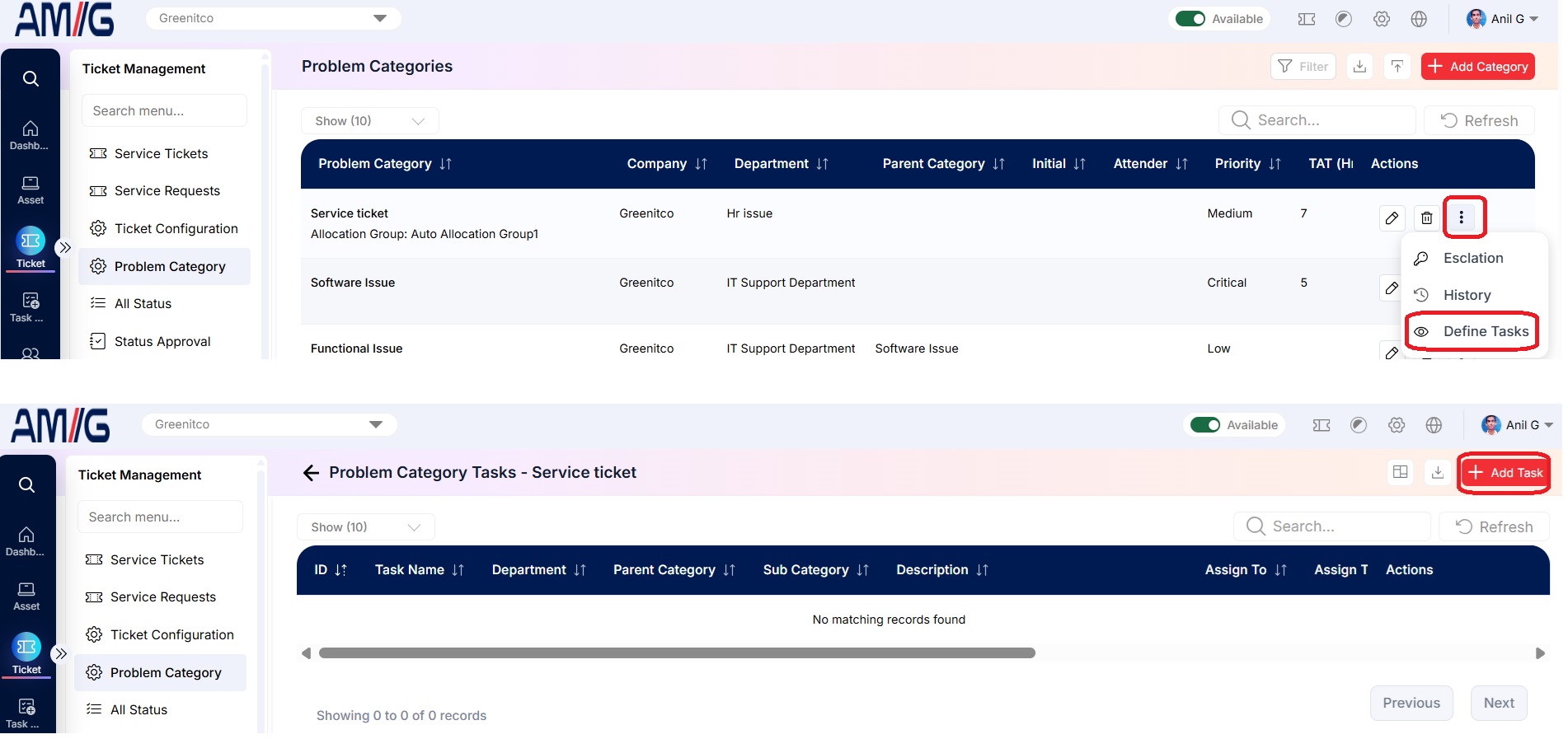 Problem Category Tasks List
Problem category task list columns
| Column | Description |
|---|---|
| ID / Task Name | Task identifier and name. |
| Department / Parent Category / Sub Category | Department and category relationship values. |
| Description | Task description. |
| Assign To / Assign To User/Group | Assignment type and selected user or group. |
| TAT (Hrs) / Task Flow | Task turnaround time and task-flow selection. |
| Actions | Actions available for the task. |
Step 1 → On the Problem Category Tasks screen, click Add Task.
Step 2 → Complete the task name, TAT, department, problem category, assignment, task flow, status, visibility, and description fields.
Step 3 → Click Submit to save the task.
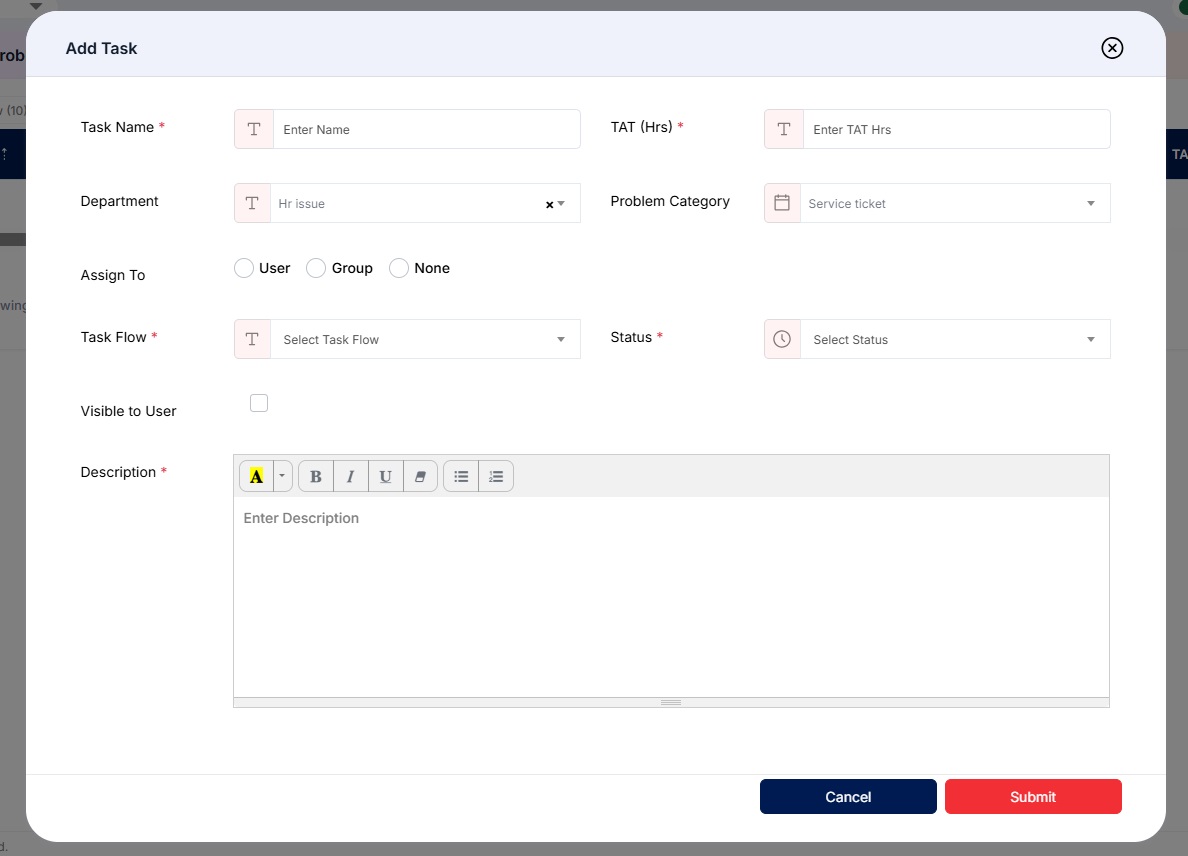 Add Task Form
Add task fields
| Field | Description |
|---|---|
| Task Name | Enter the task name. Required. |
| TAT (Hrs) | Enter the task turnaround time in hours. Required to calculate the task expiry time. |
| Department / Problem Category | Select the department and associated problem category for the task. |
| Assign To | Choose User, Group, or None. User assigns the task to a selected user; Group routes the task through the selected group; None leaves the task unassigned so a technician can self-assign it or assign it to someone else. |
| Task Flow | Select Sequential or Bulk. Sequential creates tasks one at a time after the preceding task is completed; Bulk creates all tasks at once. Required. |
| Status | Set the task to Enabled or Disabled. Disabled tasks are not generated. Required. |
| Visible to User | Choose whether the task is visible to the user. |
| Description | Enter task instructions or details in the rich-text area. Required. |
Configuring Category Escalation
Select Escalation from the category Actions menu to configure the escalation recipient and trigger time. The trigger time is calculated from the ticket creation date and time. The SLA Count setting determines whether SLA calculation is included during escalation.
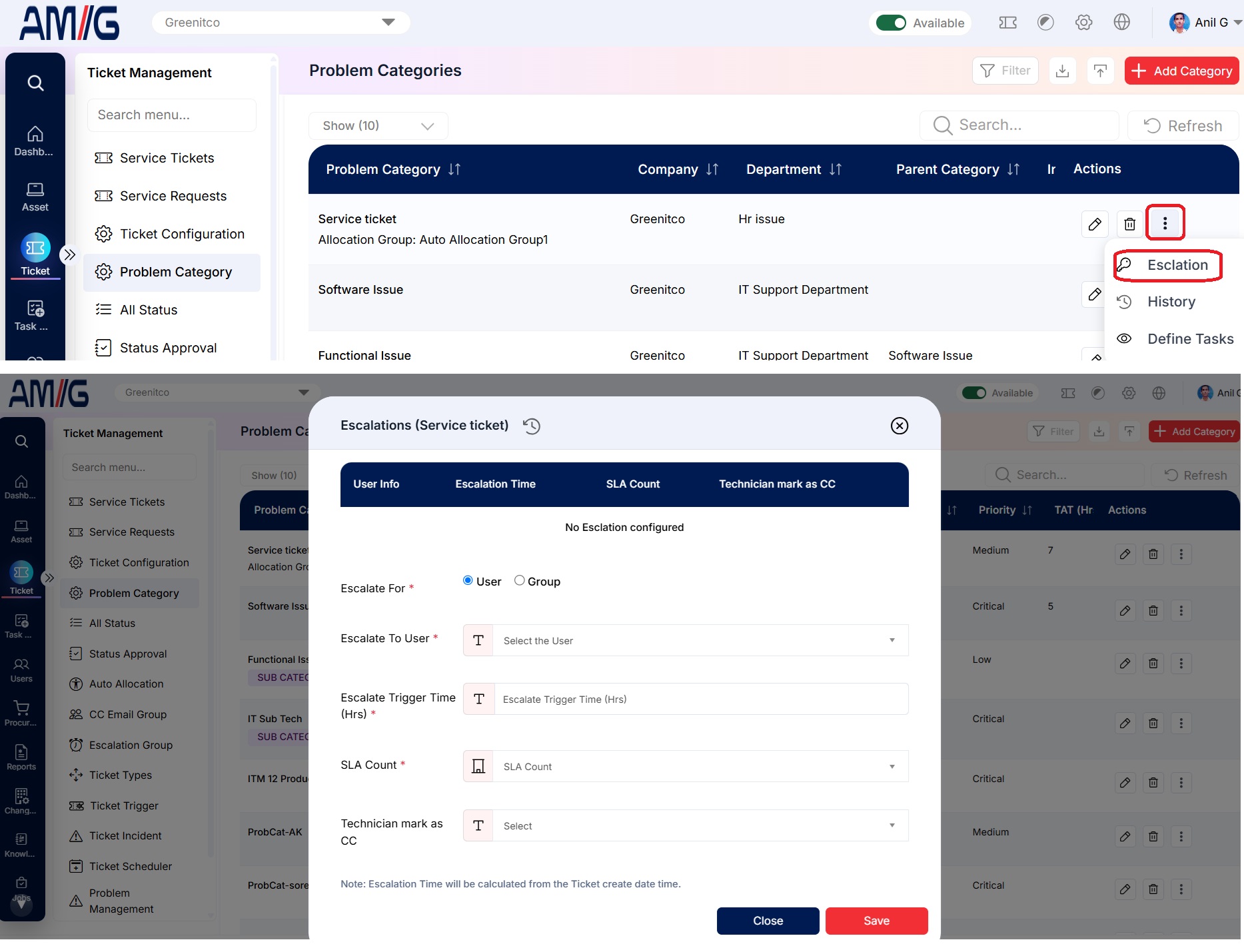 Escalation Configuration for a Problem Category
Category escalation fields
| Field | Description |
|---|---|
| Escalate For | Choose whether escalation goes to a User or Group. |
| Escalate To User/Group | When User is selected, choose the user who receives the escalation. When Group is selected, choose the escalation group. Required in the displayed form. |
| Escalate Trigger Time (Hrs) | Enter the escalation trigger time in hours, calculated from the ticket creation date and time. Required. |
| SLA Count | Select the SLA count setting. When SLA calculation is enabled for the escalation, it is included in the SLA count. Required. |
| Technician mark as CC | Choose whether the technician should be copied (CC) on the escalation email. |
| Escalation summary | The top of the form lists User Info, Escalation Time, SLA Count, and Technician mark as CC. |