Introduction
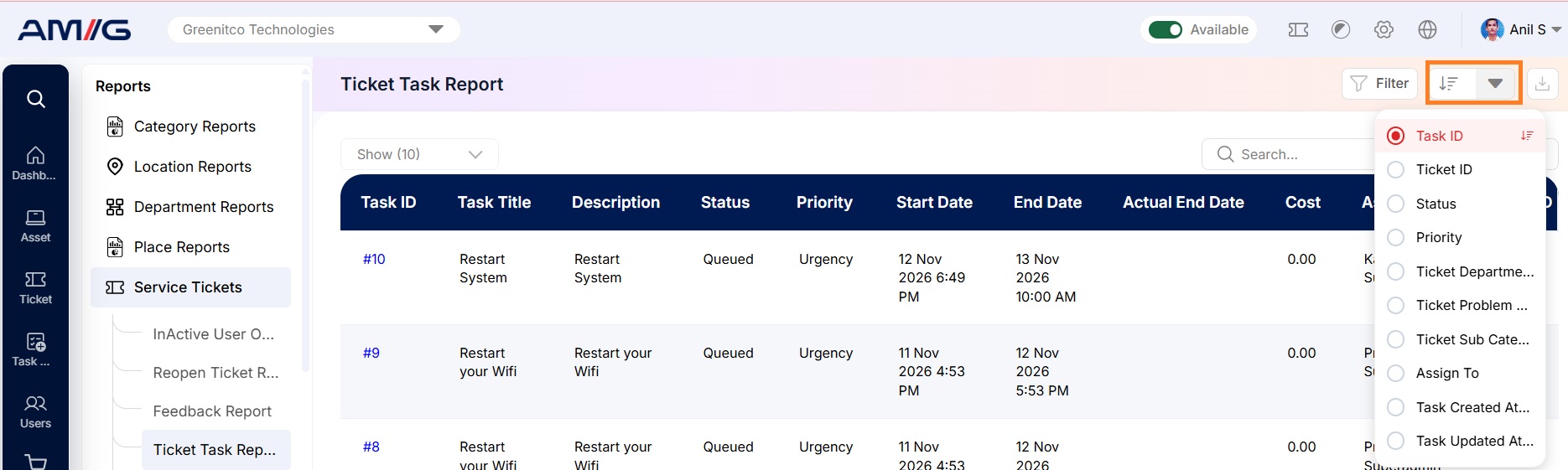
The Ticket Task Report provides a consolidated overview of all tasks created under tickets in AMG. It displays individual task details along with their associated parent ticket, task status, priority, department, problem category, assigned technician, creation date, and last updated date.
The report helps administrators monitor tasks generated as part of ticket resolution, understand their current progress, and evaluate the overall task workload. It also provides visibility into pending, completed, and overdue tasks, helping identify delays and track task completion.
Use this report to:
-
View all tasks created under different tickets in one place.
-
Monitor the current status and progress of individual tasks.
-
Track tasks assigned to technicians and review their pending workload.
-
Identify overdue tasks and tasks that are approaching their due dates.
-
Review task priority and associated ticket information.
-
Monitor task creation and last update details.
-
Evaluate overall task progress and identify delays in ticket resolution.
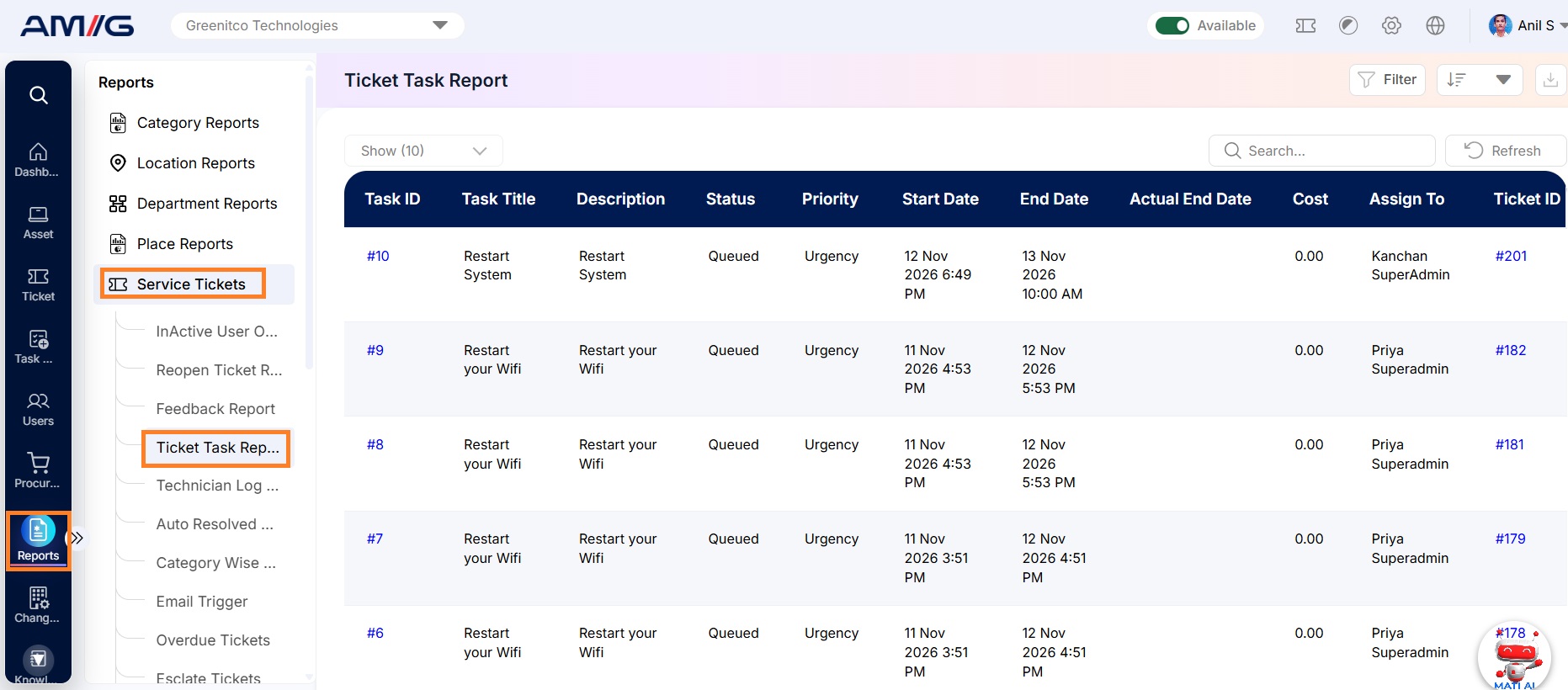
Navigation Path: Sidebar > Reports > Service Ticket > Ticket Task Report
Viewing the Report
Open Ticket Task Report from Sidebar > Reports > Service Ticket > Ticket Task Report. The report opens as a list of tasks. Each row shows the Task ID, Ticket ID, Status, Priority, Ticket Department, Ticket Problem Category, Ticket Sub Category, Assign To, Task Created At and Task Updated At.
Table 2.17.1: Buttons and controls on the report
| Control | What it does |
|---|---|
| Show | Choose how many entries appear on each page (10 by default). |
| Search | Find entries by typing any value shown in the report. |
| Refresh | Reloads the report with the latest data. |
| Filter | Opens the filter panel so you can narrow down the report. |
| Download | The icon at the top-right. Downloads the report as a file. |
Filtering the Report
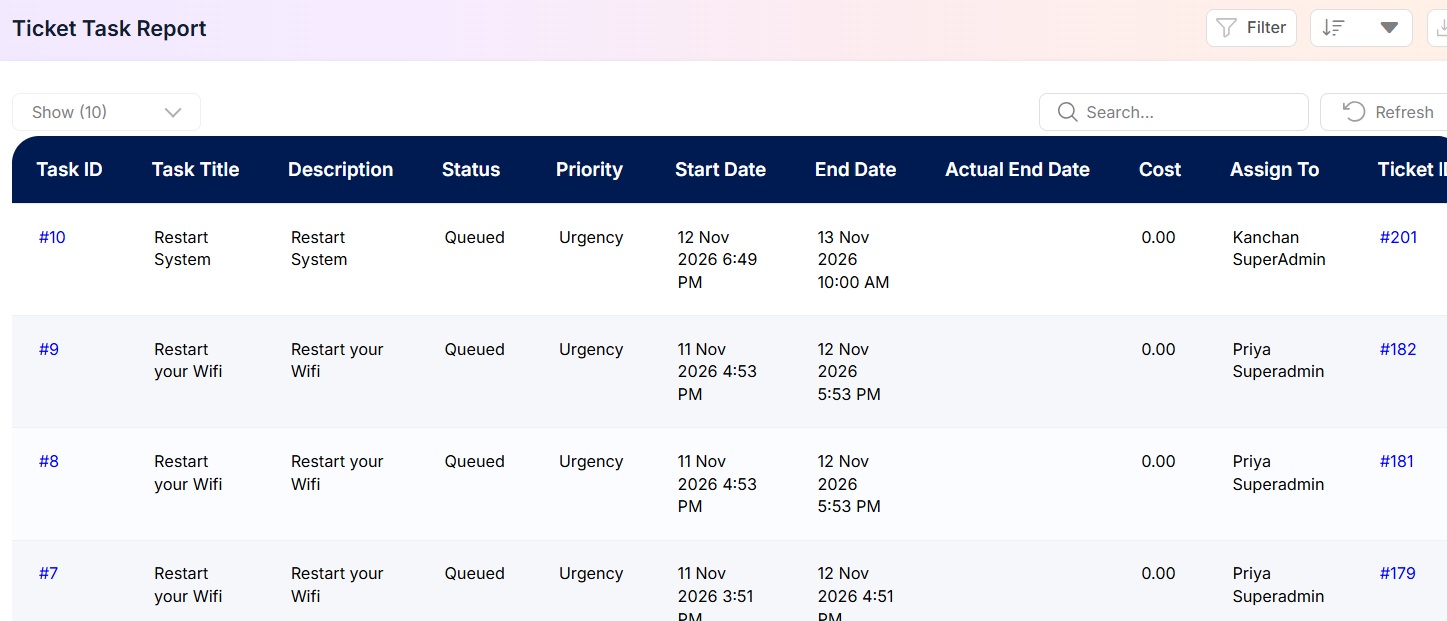
Step 1: Click Filter at the top-right of the report. The filter panel opens.
Step 2: Choose the values you need in one or more of the filters listed below.
Step 3: Click Apply Filter to update the report. Click Clear to remove all filters.
Table 2.17.2: Available filters
| Filter | What it does |
|---|---|
| Department | Filter tasks based on the department associated with the parent ticket. |
| Problem Category | Filter tasks according to the problem category assigned to the parent ticket. |
| Sub Category | Further narrow down tasks based on the selected problem subcategory. |
| Status | View tasks based on their current status, such as pending, in progress, or completed. |
| Date | Filter tasks based on a specific creation date. |
| Date Range | Retrieve tasks created within a selected start and end date. |
| Priority | Filter tasks according to their assigned priority level. |
| Assigned To | View tasks assigned to a specific technician or team member. |
Sorting the Report
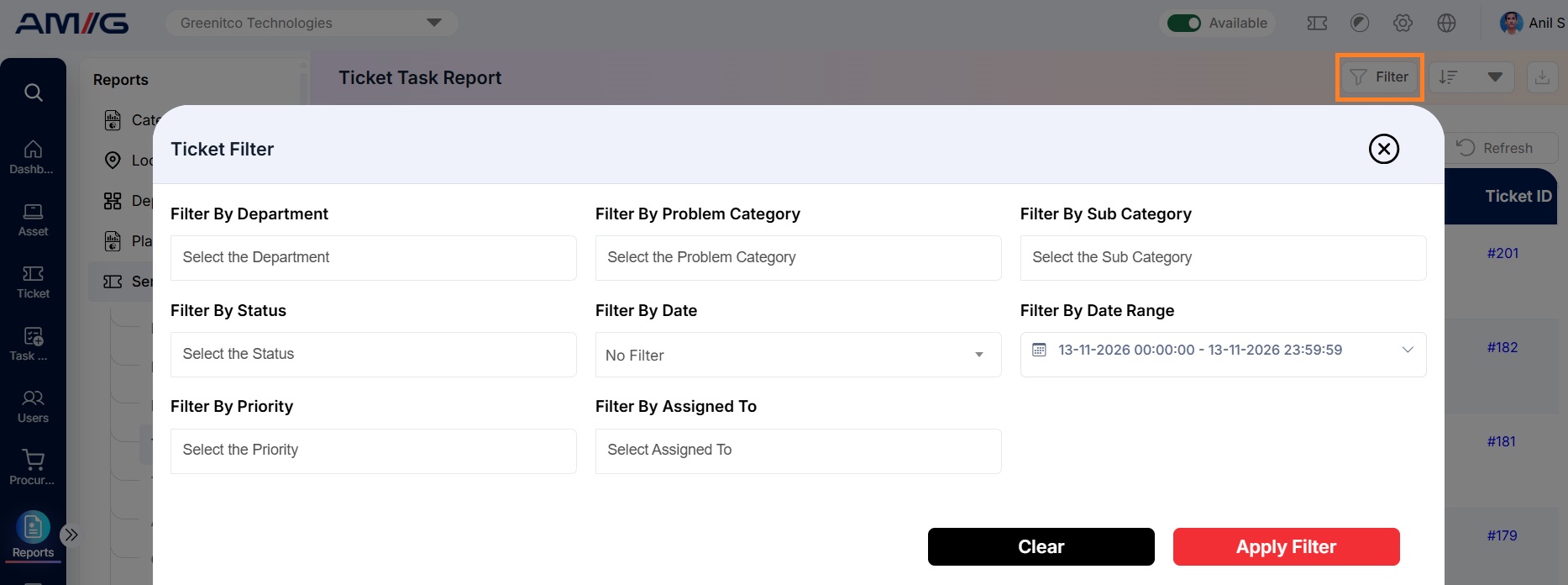
Click the Sort button available at the top-right corner of the report to arrange task records based on a specific column.
The following sorting options are available:
- Task ID
- Ticket ID
- Status
- Priority
- Ticket Department
- Ticket Problem Category
- Ticket Sub Category
- Assigned To
- Task Created At
- Task Updated At
Use these sorting options to organize task records, quickly locate specific tasks, and review task progress based on assignment, priority, status, or creation and update dates.