Consumables Management
Product: NEXTMEGABYTE (Greenitco ITAM) · Module: IT Asset Management (ITAM) · Audience: Administrator, Technician
Consumables are quantity-tracked items that are used up, such as toner, cartridges, batteries, cables and stationery.
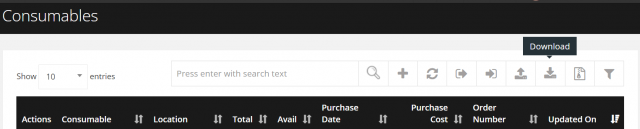
Menu path: left side menu → Consumables
Add a consumable
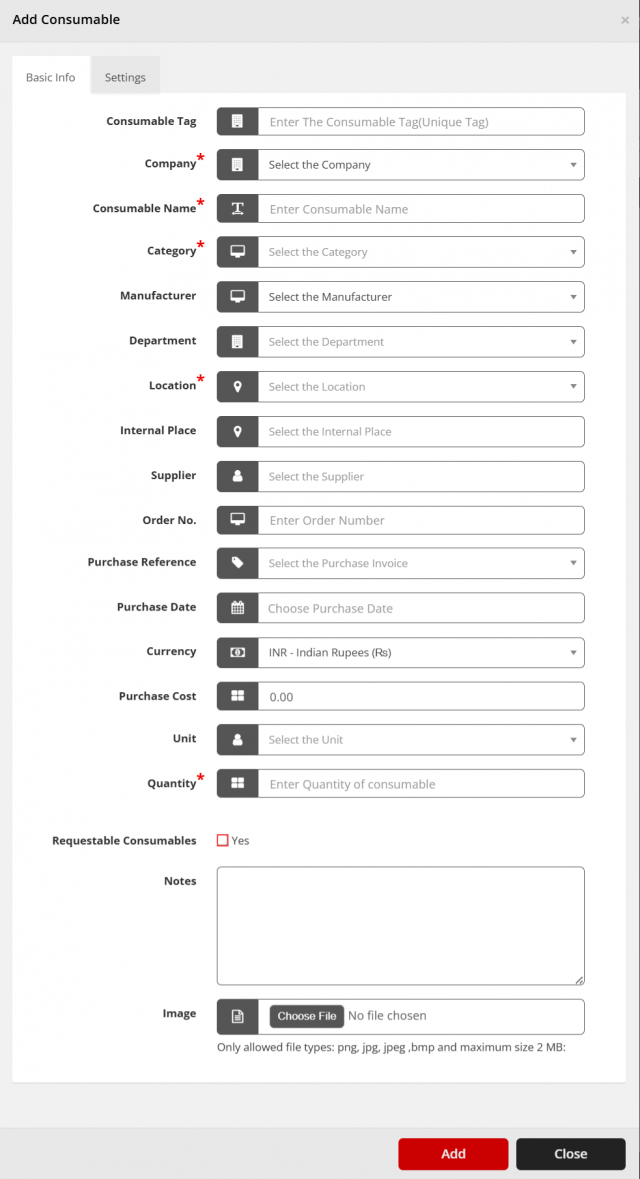
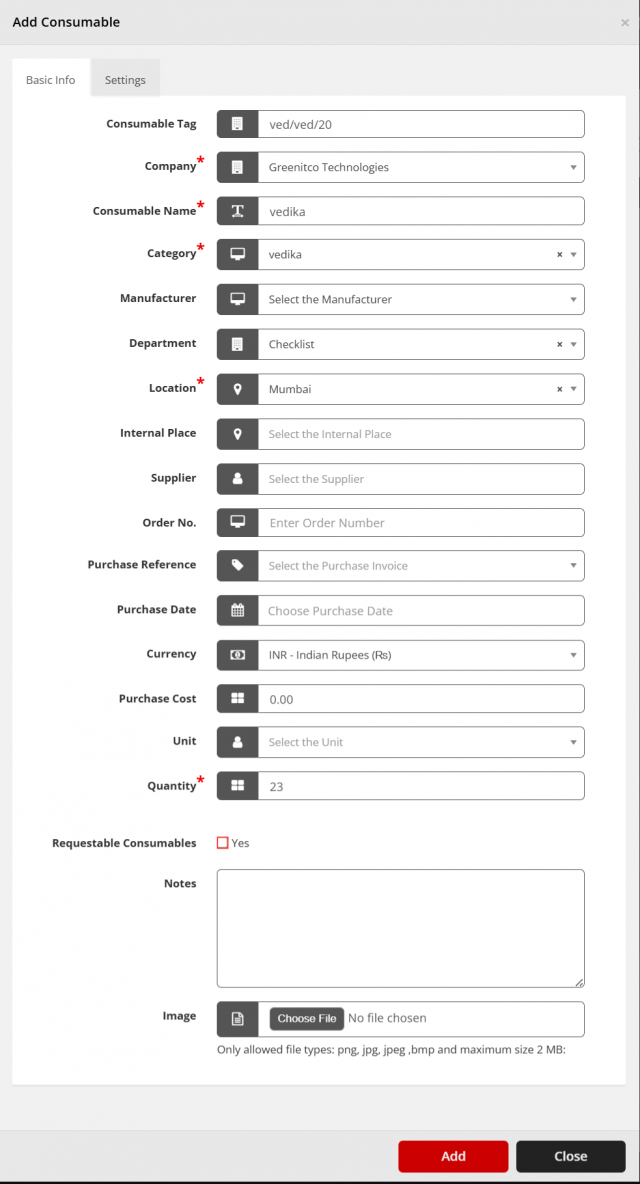
- Open Consumables and select Add (plus icon).
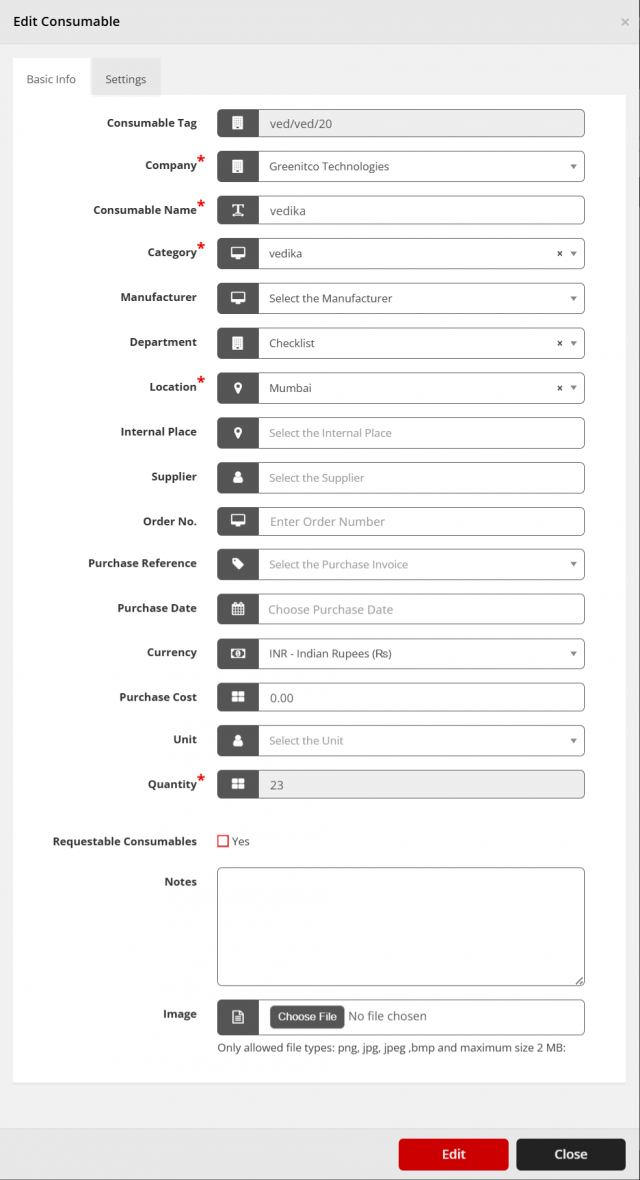
- Enter the Consumable Tag (a unique identifier) and the other details.
- Select Add. A notification is sent to the alert email address in settings.
| Field | Reference |
|---|---|
| Consumable Tag | Unique identifier of the consumable. Prevents duplicates and improves tracking and reporting. It can be edited and is included in the Excel download |
| Company, Category, Manufacturer, Department, Location, Supplier | The matching configuration pages |
| Purchase Reference | The purchase invoice. See Purchase Configuration |
| Quantity | Number of units |
| Threshold (Settings tab) | Low-stock limit and alert recipient. See Stock Thresholds |

Edit, clone or remove a consumable
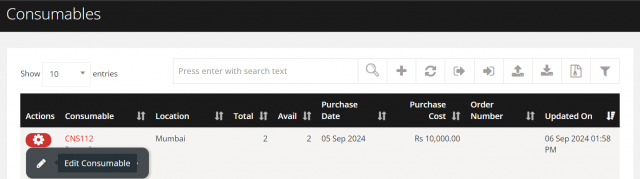
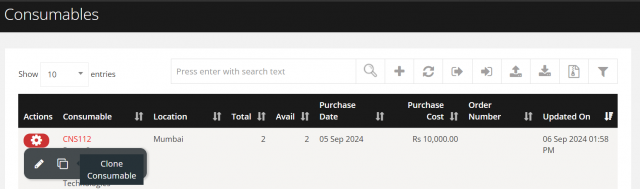
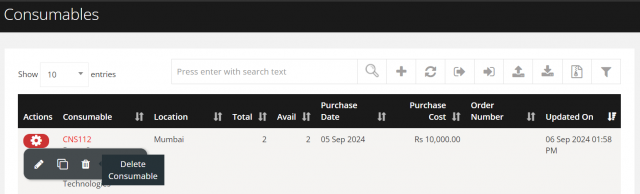
Open the consumable's action menu, then:
- Edit (pencil icon): update the details and select Edit.
- Clone (copy icon): update the details for the new item and select Add.
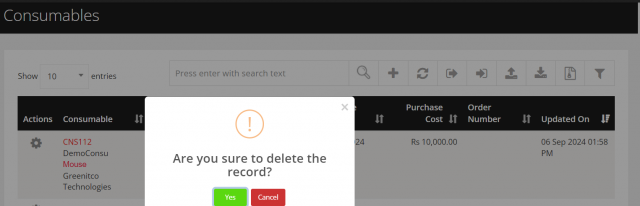
- Delete (trash icon): select Yes to confirm.
View consumable details
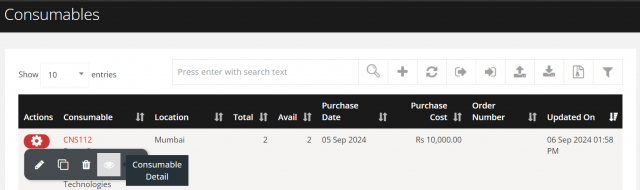
Open the action menu and select View (eye icon). Use the tabs to see more information.
Check out a consumable
Consumables can be checked out to a user or to a place.
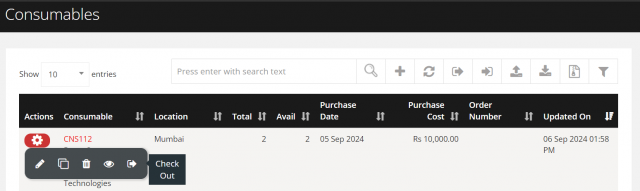
- Open the consumable's action menu and select Check Out (sign-out icon).
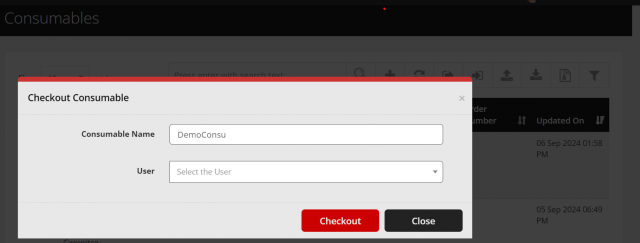
- Select Assigned For (User or Place) and the matching Assigned To value.
- Select Checkout.
Check in (revoke) a consumable
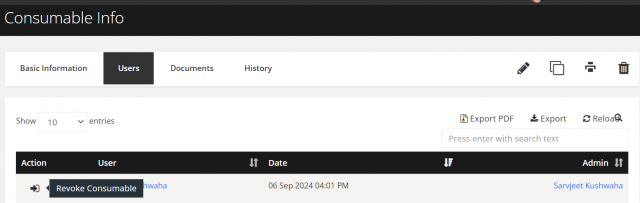
- Open the consumable with View (eye icon) and go to the user tab.
- Select Check In (sign-in icon) for the assignment.
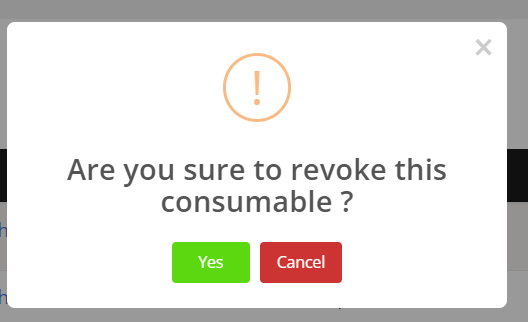
- Select Yes to confirm.
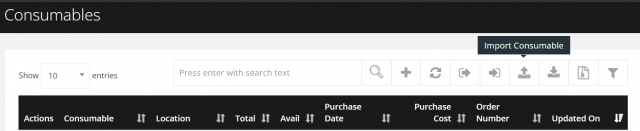
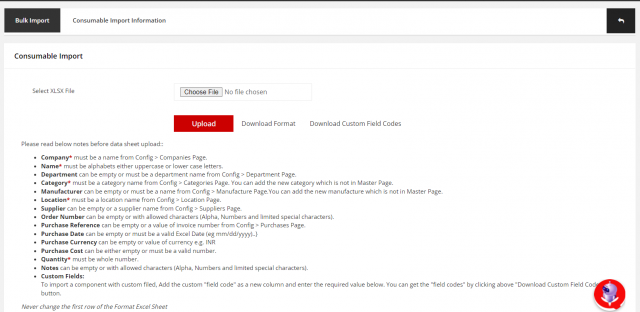
Bulk import consumables
| Column | Rule |
|---|---|
| Company * | A company name |
| Name * | Letters |
| Department | Empty or a department name |
| Category * | A category name |
| Manufacturer | Empty or a manufacturer name |
| Location * | A location name |
| Supplier | Empty or a supplier name |
| Order Number, Notes | Empty or letters, numbers and limited special characters |
| Purchase Reference | Empty or an invoice number |
| Purchase Date | Empty or a valid Excel date (mm/dd/yyyy) |
| Purchase Currency | Empty or a currency code, for example INR |
| Purchase Cost | Empty or a number |
| Quantity * | A whole number |
| Threshold | Optional; must not be greater than the quantity |
| Custom fields | Add the custom field code as a column header (use Download Custom Field Codes) |
Filling in the purchase columns during import also creates the purchase entry for each consumable.
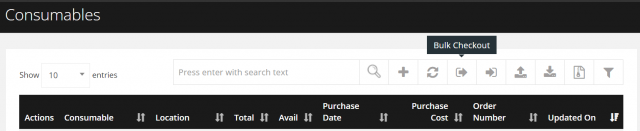
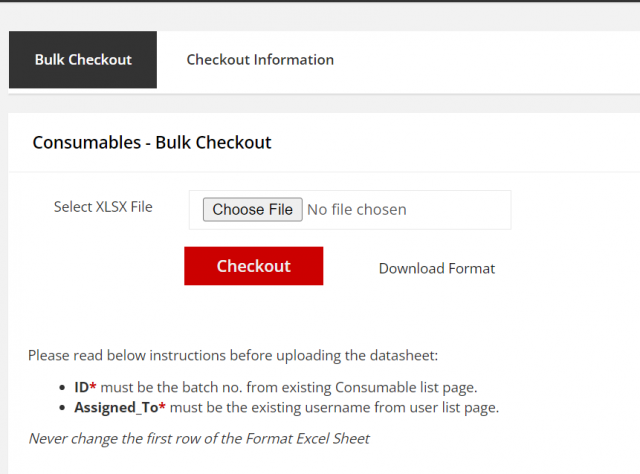
Bulk check out consumables
| Column | Rule |
|---|---|
| ID * | An existing consumable ID from the consumable list |
| Assigned_To * | An existing username |
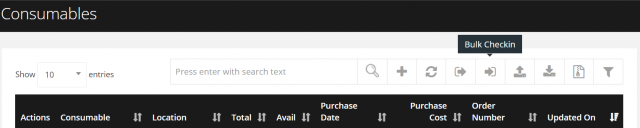
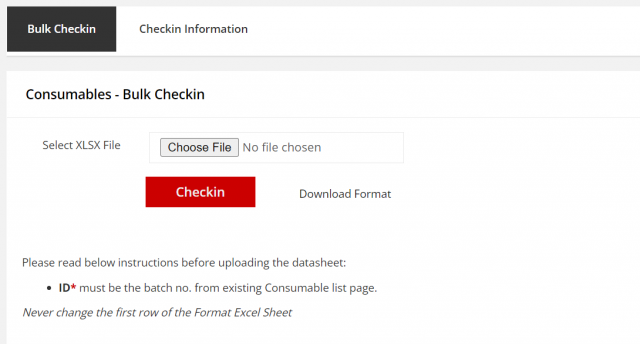
Bulk check in consumables
| Column | Rule |
|---|---|
| ID * | An existing consumable batch number |
Never change the first (header) row of any template. Each bulk tab keeps a history of attempts with status counts and error messages.
Scrap consumables
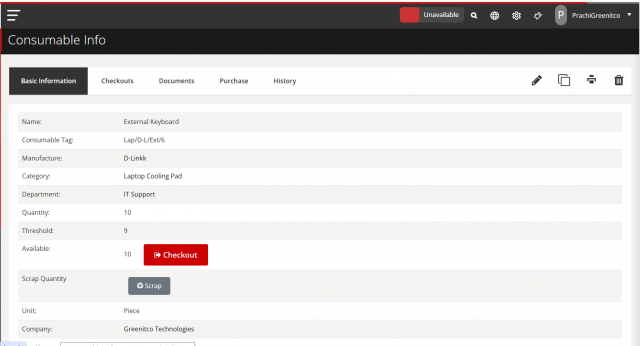
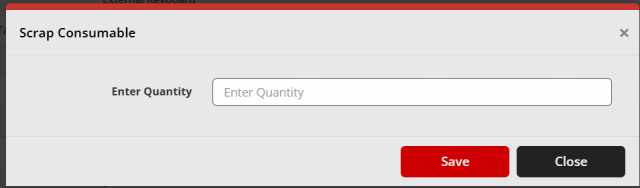
The Scrap button is shown on the consumable information page only when the available quantity is greater than 0. Select Scrap, enter the quantity and select Submit. The quantity is deducted from available stock and added to scrap stock.
Record consumable purchases
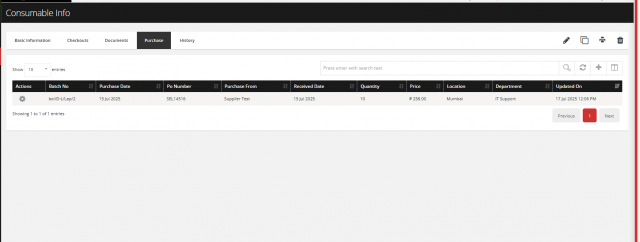
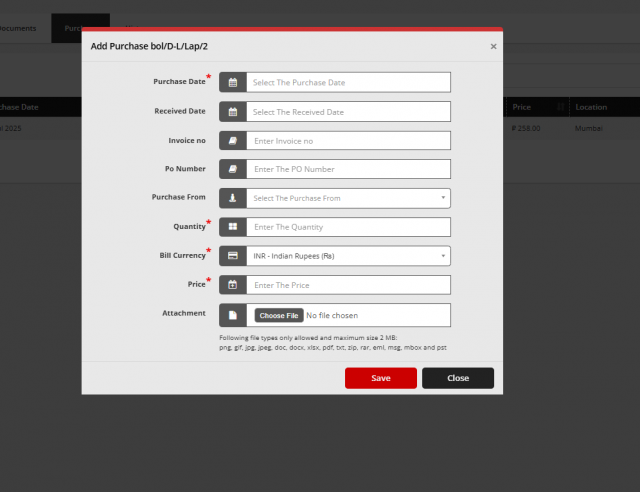
- Open the consumable information page and select the Purchase tab.
- Select Add (plus icon), fill in the purchase details and select Submit.
- Use Edit or Delete in the action menu to change or remove a purchase entry.
The same purchase process applies to accessories and components.
Download the consumable list
Select Download (download icon) to export consumables to Excel.