

Introduction
Internal Places allow you to define specific areas within a location, such as a building, floor, room, or branch office. This helps you identify the exact place where an asset, user, or ticket is located, rather than recording only the general location.
Internal Places are associated with locations configured under Header > Config > Location and can be used to specify more detailed location information for assets, users, and tickets.
For example, instead of recording an asset's location simply as Mumbai, you can specify 1st Floor, Mumbai Office to identify where the asset is physically located.
Using this section, you can:
- Create Internal Places: Define specific areas within an existing location.
- Associate Places with Locations: Link each internal place to its corresponding location.
- Improve Location Tracking: Record more precise location details for assets, users, and tickets.
These settings help your organisation maintain accurate location information, making it easier to identify and manage assets, users, and tickets across different areas.
In this section, you will learn how to view, create, edit, and delete internal places.
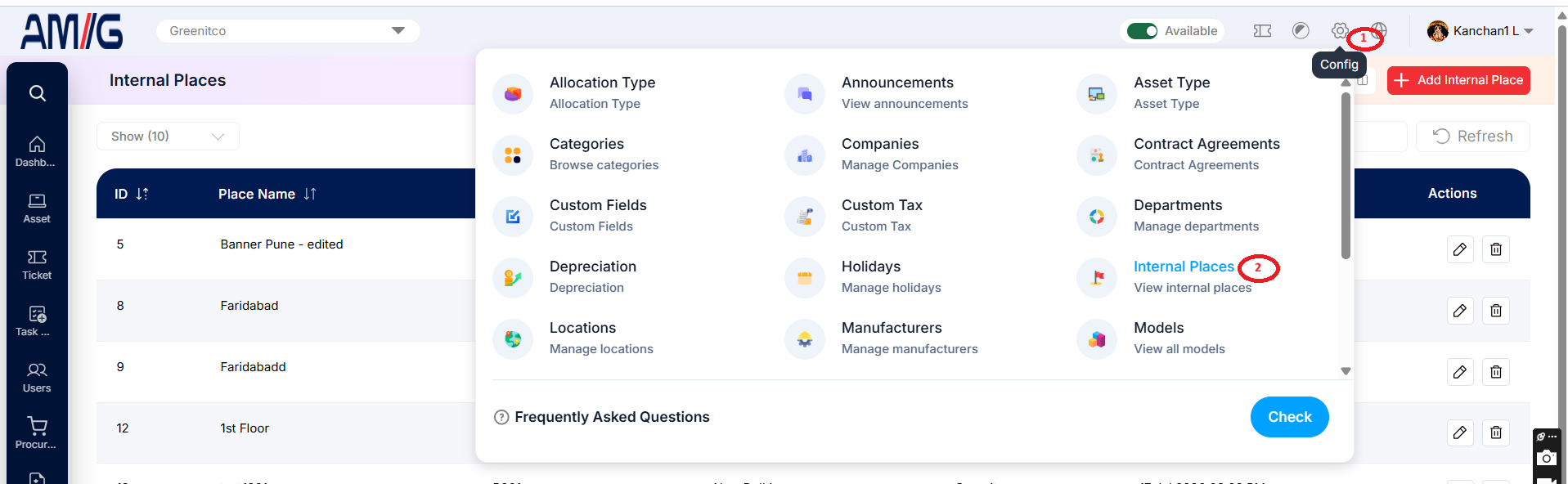
Navigation Path: Header > Config > Internal Places
Viewing the Internal Places List
Go to Header > Config > Internal Places. You will land on the main list showing all existing internal places.
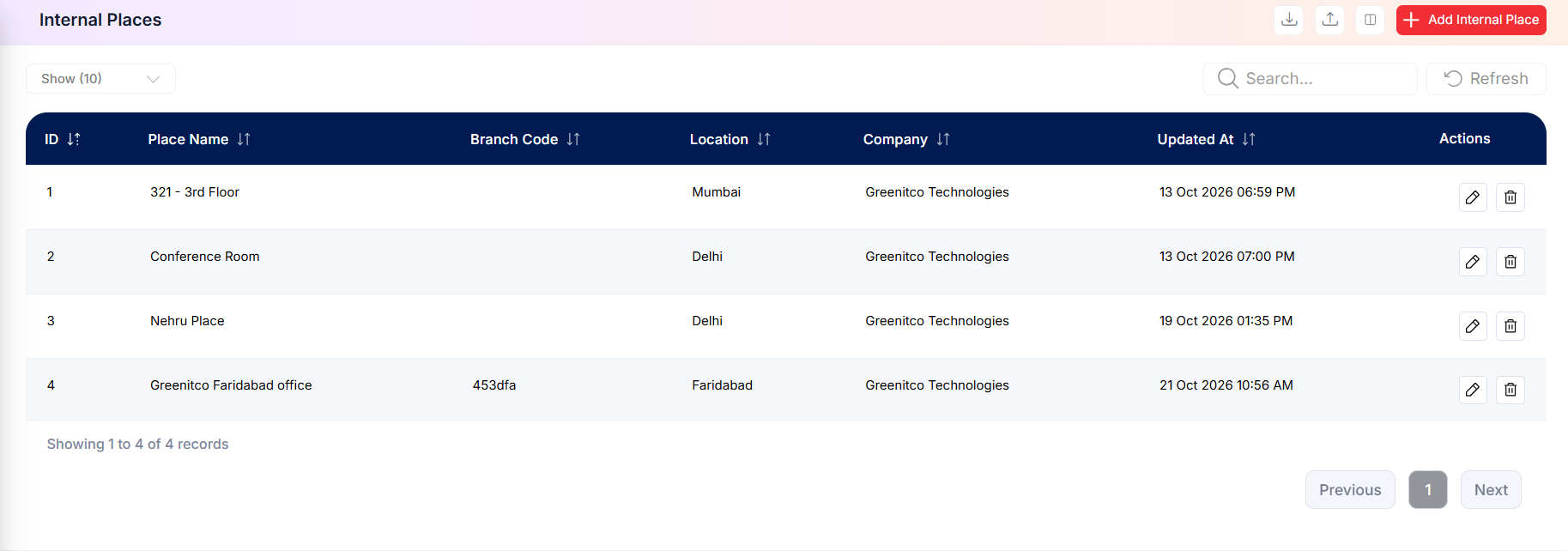
Figure: Internal Places Main Screen
Understanding the Main Screen
Table: Internal Places main screen elements
| Area | Description |
|---|---|
| Sub Header | Use Show (10) to choose how many records you see on one page. Type in the Search box to find a record quickly, or click Refresh to reload the list. |
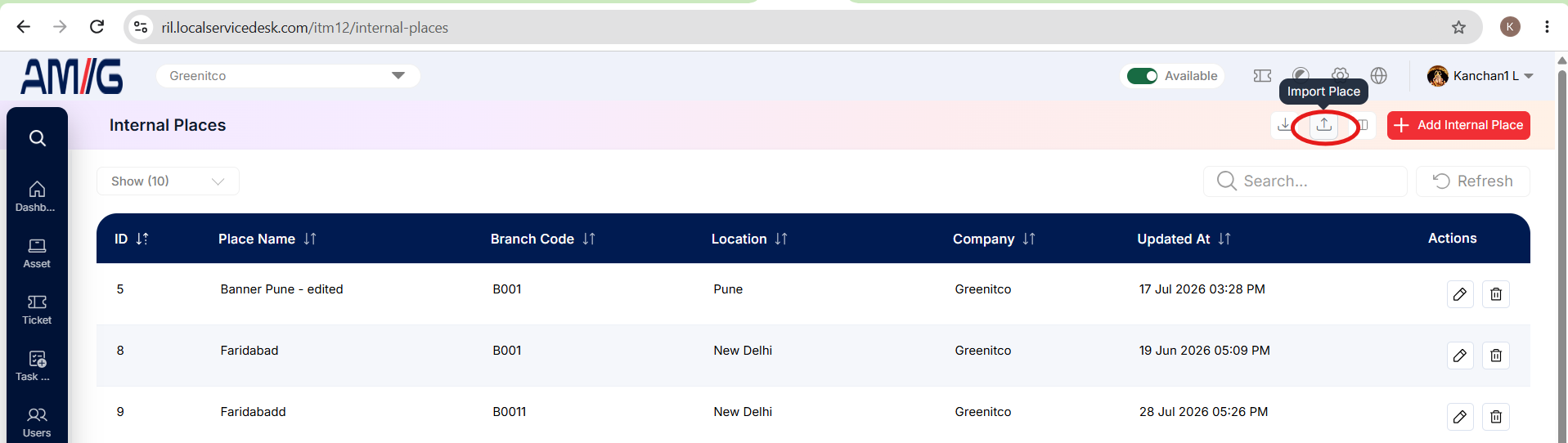
| Action Buttons | In the top right corner you will find the Download icon (export the list), the Upload icon (import from a file) and the red + Add Internal Place button. |
| The Data Table | Shows all your internal places with their ID, Place Name, Branch Code, Location, Company and Updated At. |
| Sorting | Click the small arrows beside a column name to sort the list (A to Z, Z to A, oldest or newest first). |
| Actions Column | Every row has two icons on the far right: Edit (pencil) to change that internal place, and Delete (trash can) to remove it. |
How to Create a New Internal Place
Adding a new internal place only takes a minute. Here is how:
Step 1: On the Internal Places screen, click the red + Add Internal Place button in the top right corner.
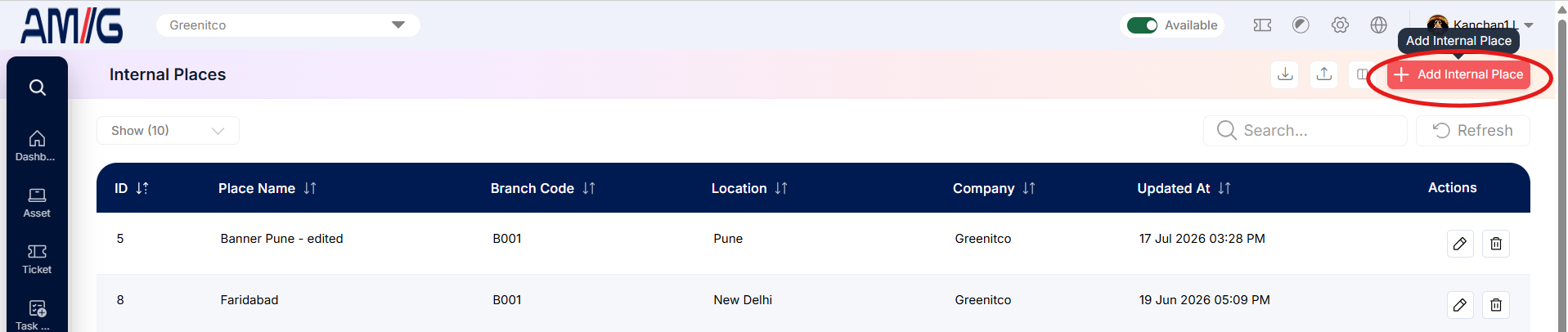 Step 2: The "Add Internal Place" pop-up window opens.
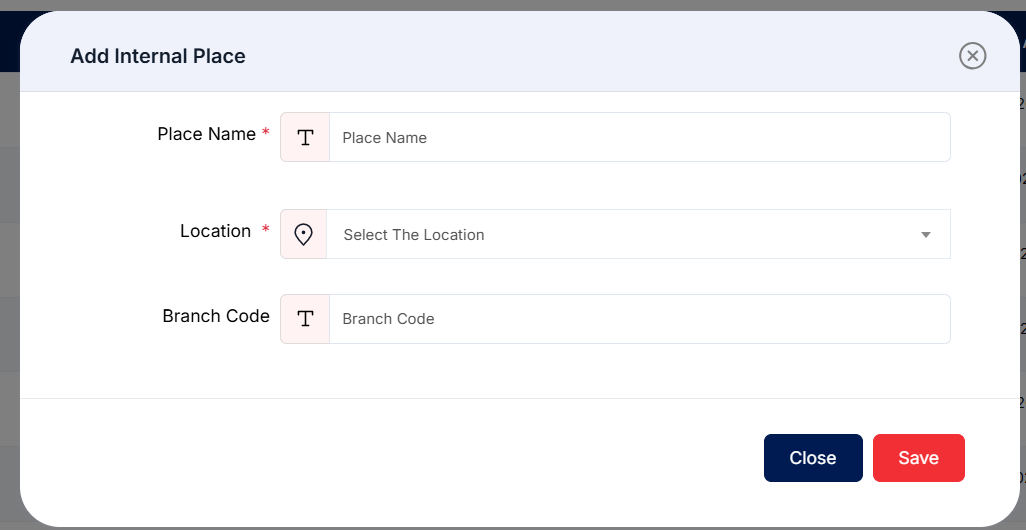
Figure: Add Internal Place Modal
Step 3: Fill in the required fields. They are marked with a red asterisk (*), and the form will not save without them:
Table: Add Internal Place – required fields
| Field | Description |
|---|---|
| Place Name | Give the place a clear name (for example, "2nd Floor Conference Room"). |
| Location | Choose the location (city or office) this place belongs to, such as Mumbai or New Delhi. The list comes from Header > Config > Locations, so add the location there first if it is missing. |
Step 4: Add a branch code if you use one (optional):
Table: Add Internal Place – optional field
| Field | Description |
|---|---|
| Branch Code | Enter a short code for the branch (for example, B002 or MUM-2F). It is used as a location code and in reports. |
Step 5: Click the red Save button. Your new internal place is created and shows up in the list straight away.
Note: Changed your mind? Click the blue Close button or the X in the top right corner. Nothing will be saved.
Bulk Importing Internal Places
Have lots of Internal Places to add? Instead of entering them one by one, fill them into an Excel template and upload them all in one go.
Accessing Bulk Import
Step 1: On the Internal Places screen, click the Upload icon in the top right corner.
 Step 2: The "Bulk Place Import" screen opens on the Bulk Place Import tab.
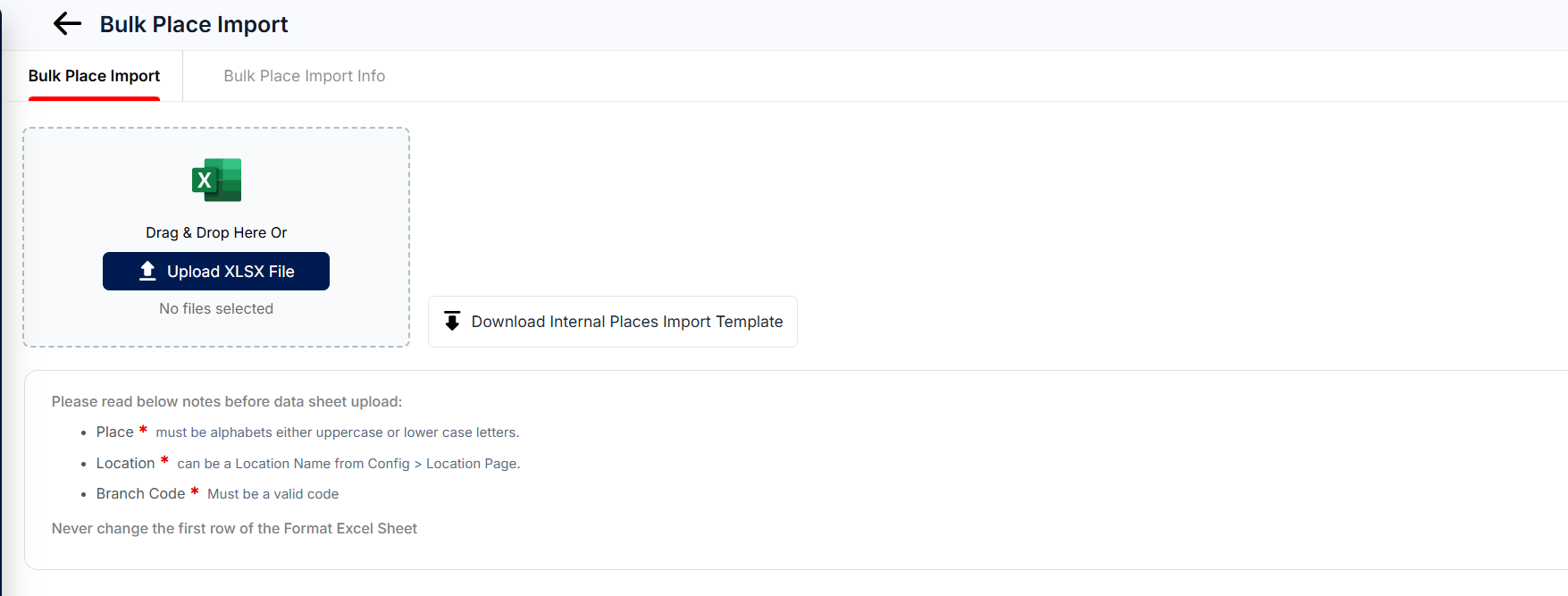
Figure: Bulk Place Import Tab
Uploading Your File
Step 1: Click Download Internal Places Import Template to get the Excel template.
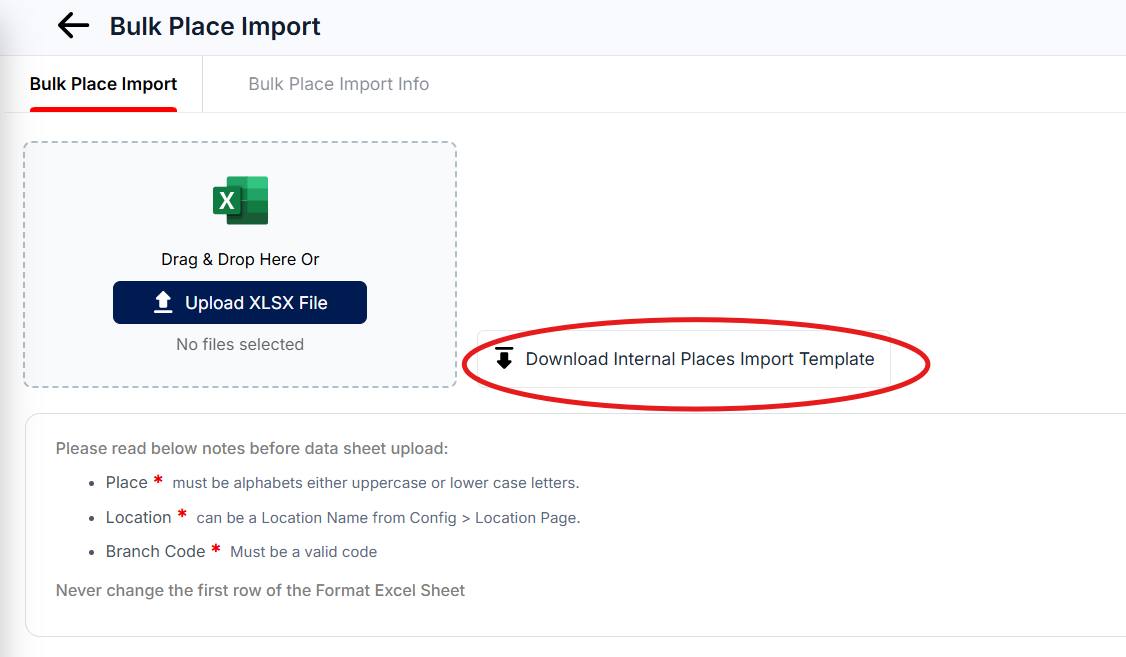 Step 2: Fill in the template with your internal Place. Before you upload, read the Upload Notes on the screen. Rows that break these rules will not be imported:
Table: Bulk import validation rules
| Column | Rule |
|---|---|
| Place | Letters only (A to Z, upper or lower case). |
| Location | Must match a location that already exists in the Config > Location Page. |
| Branch Code | Can be left empty; otherwise use letters and numbers only. |
Step 3: Drag your finished .xlsx file into the dashed box, or click Upload XLSX File to pick it from your computer.
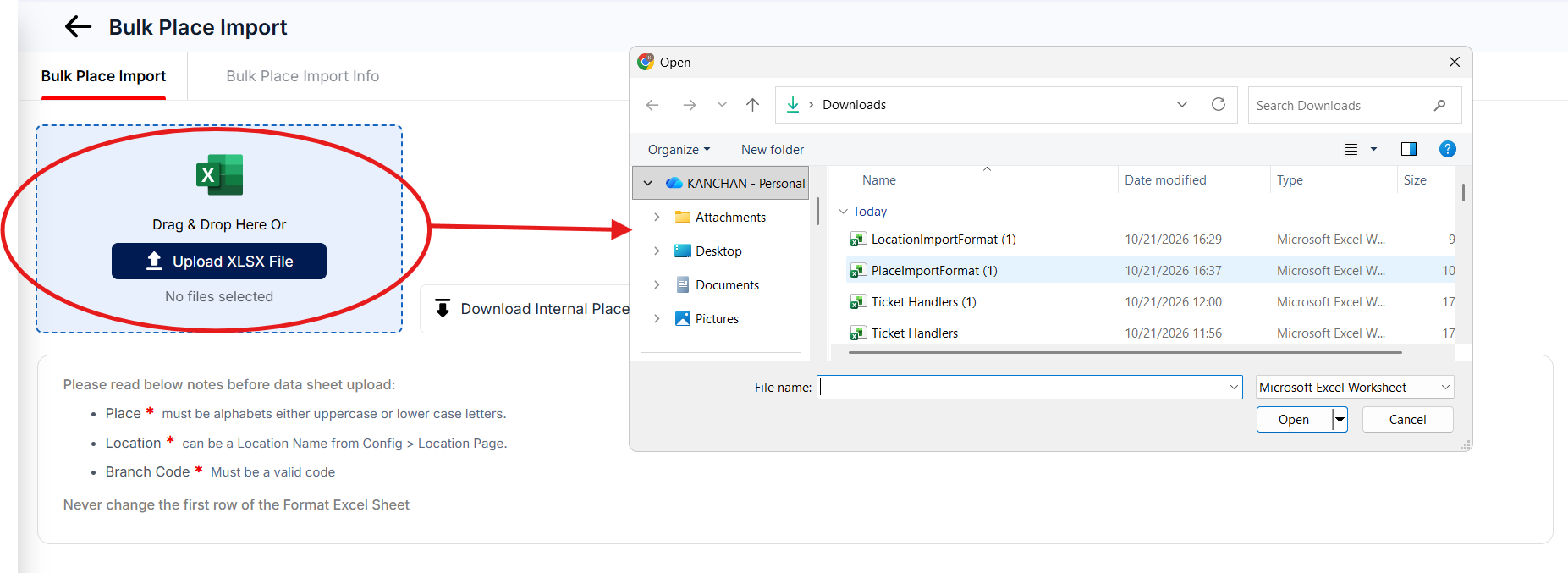 Step 4: The system reads the file and adds the internal Place. Afterwards, open the Bulk Place upload info tab to see how many were imported and whether any rows failed (see below).
Viewing Import History
Every upload is logged, so you can always check what happened with each file:
Step 1: Click the Bulk Place upload info tab at the top of the Bulk Place Import screen.
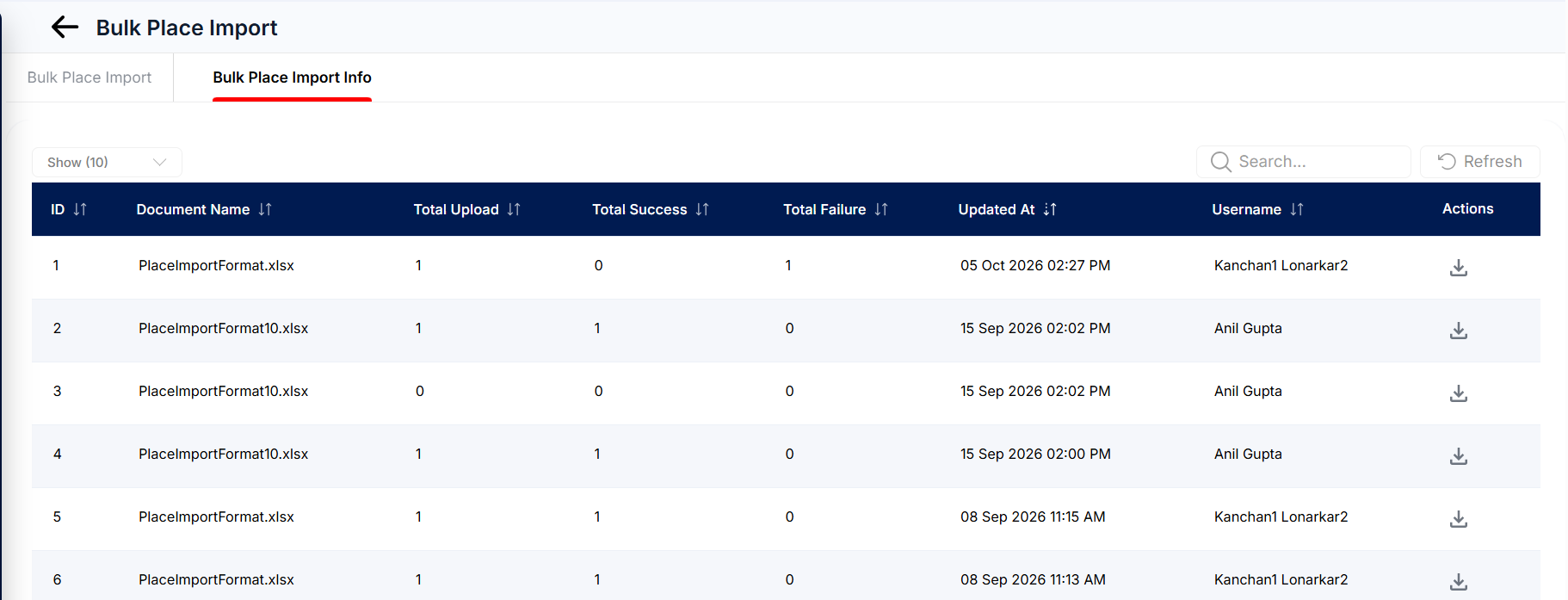
Figure: Bulk Place Import – History Tab
Step 2: You will see a list of every upload, with these details:
Table: Import history columns
| Column | Description |
|---|---|
| ID | A unique number for each upload. |
| Document Name | The name of the file you uploaded. |
| Total Upload | How many rows were in the file. |
| Total Success | How many rows were added successfully. |
| Total Failure | How many rows could not be added. |
| Updated At | When the upload was processed. |
| Username | Who did the upload. |
| Actions | Click the Download icon to get the processed file back. It shows which rows failed and why, so you can fix them and upload again. |
Tip: If some rows failed, download the processed file, fix only the failed rows and upload just those again. The rows that succeeded are already in the system, so re-uploading them could create duplicates.
Managing Existing Internal Places
Once a record exists, you can look after it straight from the Internal Places list using the icons in the Actions column:
Edit an internal place
Step 1: On the Internal Places screen, locate the entry you want to change.
Step 2: Click the Pencil (Edit) icon in the Actions column.
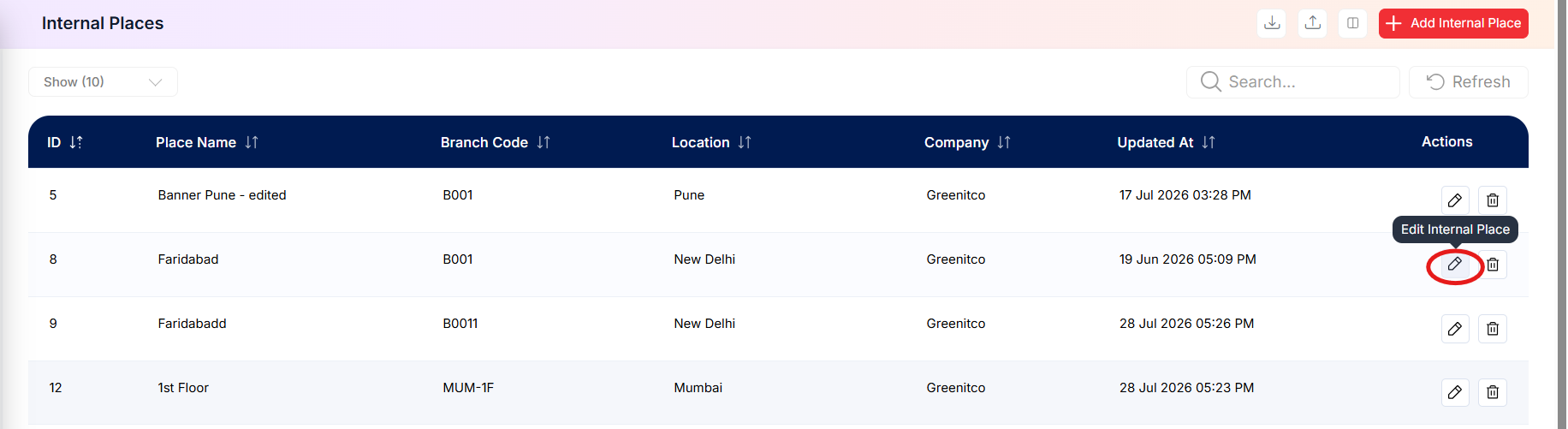 Step 3: Update the name, location, branch code, or other displayed details.
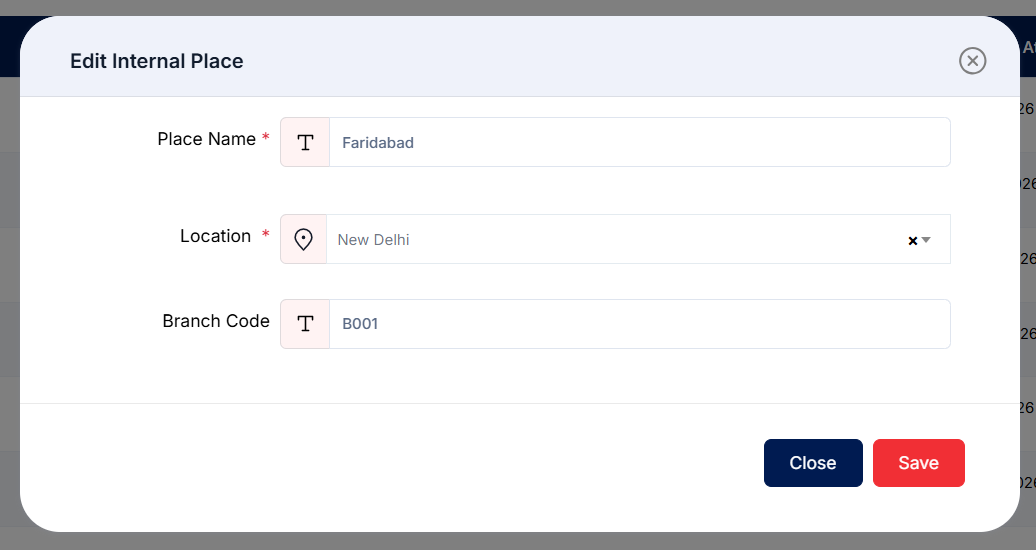 Step 4: Click Save to apply the changes.
Delete an internal place
Step 1: Locate the internal place in the list.
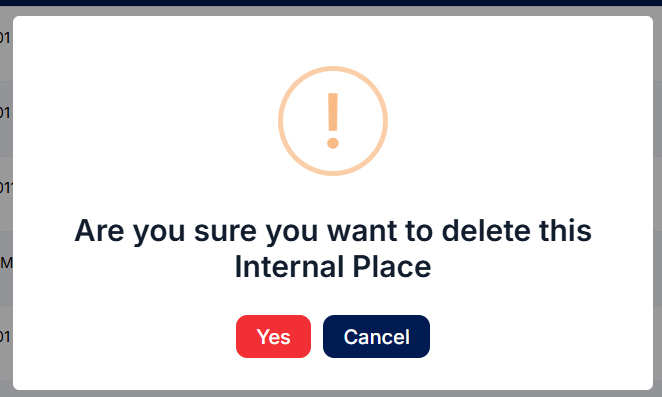
Step 2: Click the Trash Can (Delete) icon in that row.
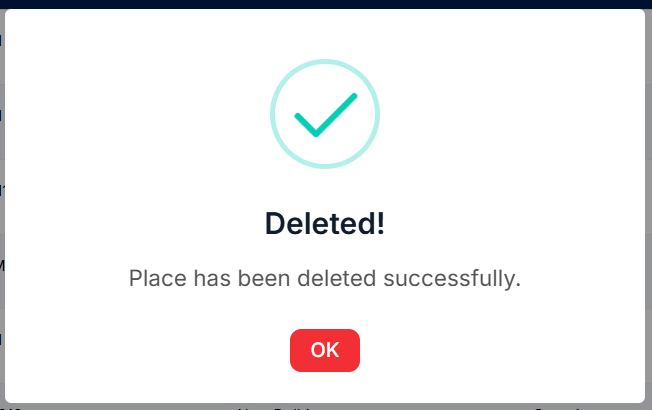
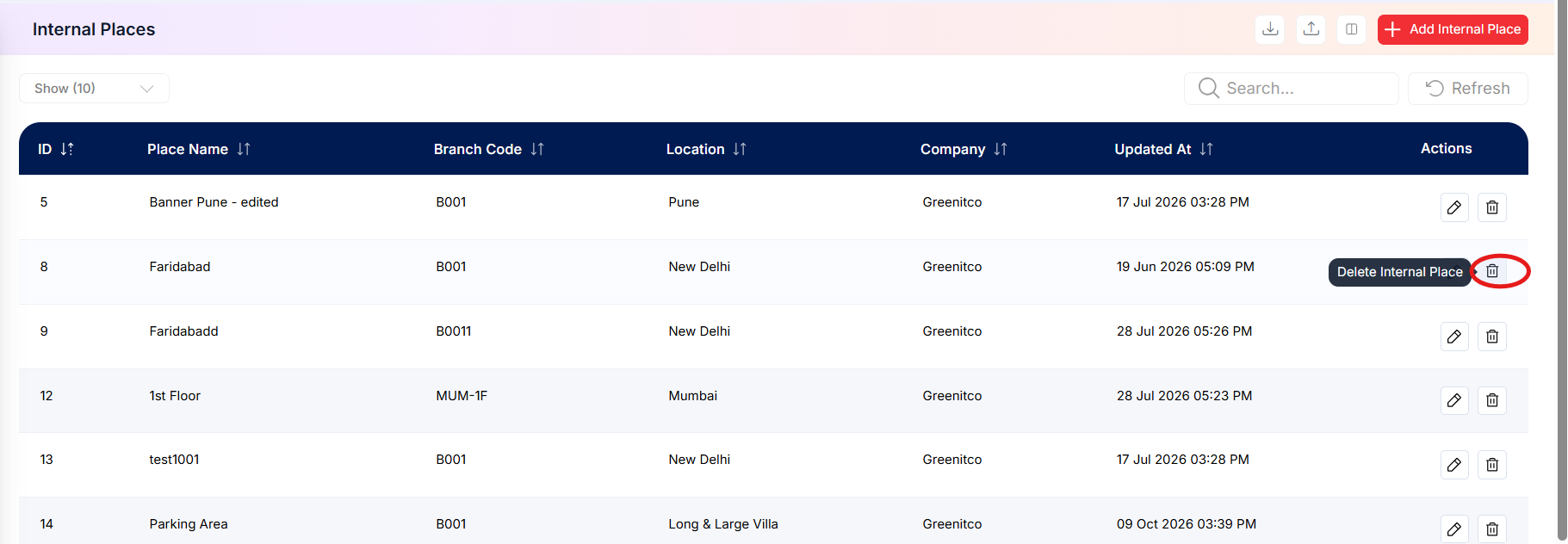 Step 3: Review the confirmation prompt and confirm the deletion.
Important: Before deleting an internal place, make sure no active assets are still assigned to it.