

Network Inventory
Product: NEXTMEGABYTE (Greenitco ITAM) · Module: IT Asset Management (ITAM) · Audience: Administrator, Technician
Network inventory (NI) automatically collects an up-to-date list of devices connected to your network, such as computers, servers and routers, with details of installed software, Windows events, serial numbers and configuration. Data comes from endpoint agents, the AD agent, the network scanner and Azure sync.
Network inventory covers hardware inventory, software inventory, network configuration, security information and user accounts. Supported sources include agent and agentless discovery, Active Directory, Windows, Linux, Android and Apple systems, IP cameras, routers, printers, USB and pen-drive detection, cloud inventory, virtual machines, IoT devices and RFID.
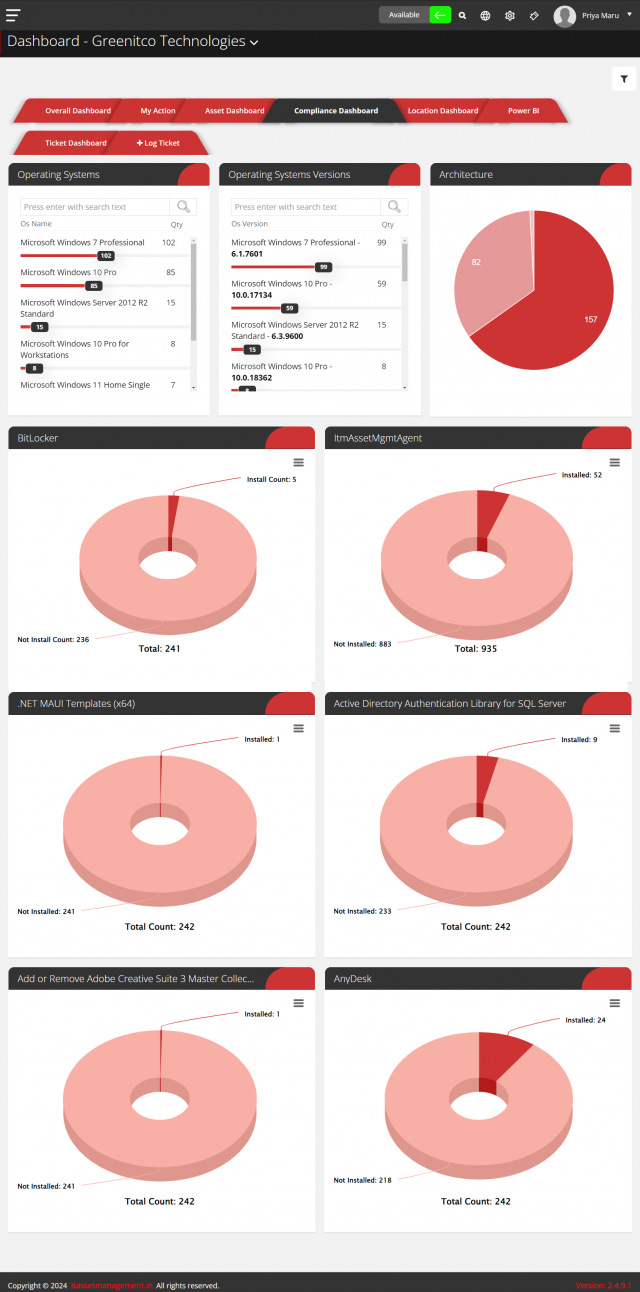
Menu path: left side menu → Network Inventory
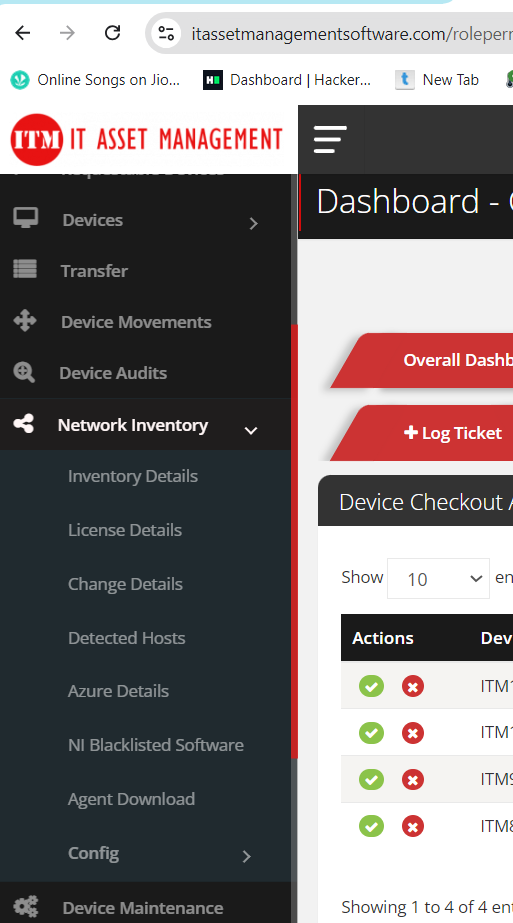
Inventory Details
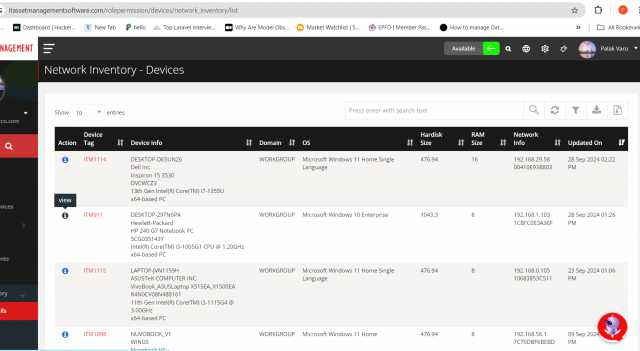
Lists every discovered device. If a device also has an asset tag in this list, it is already in the device list; select the tag to open the device.
- Open Network Inventory → Inventory Details.
- Select View (info icon) for a device.
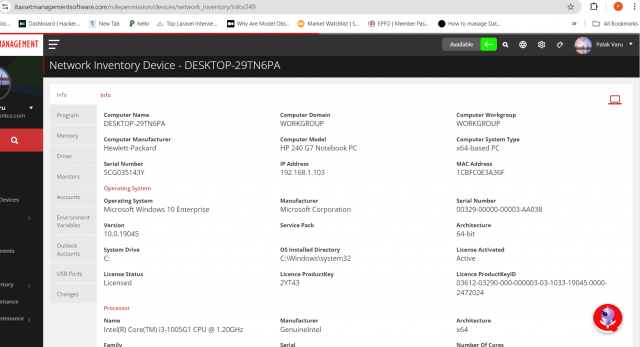
- Select a tab to see system, hardware, storage, software, memory, operating system and network details.
- Select the Changes tab to see changes detected on the device.
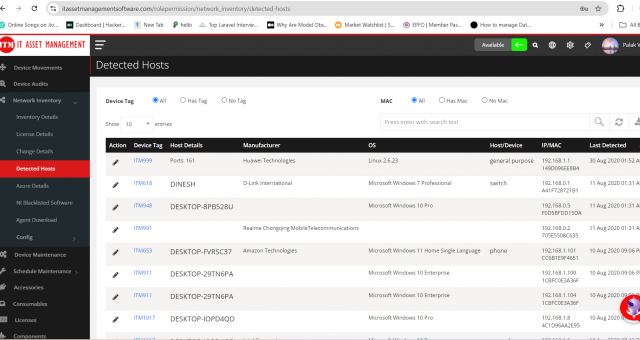
Detected Hosts
Open Network Inventory → Detected Hosts to see the hosts found on the network.
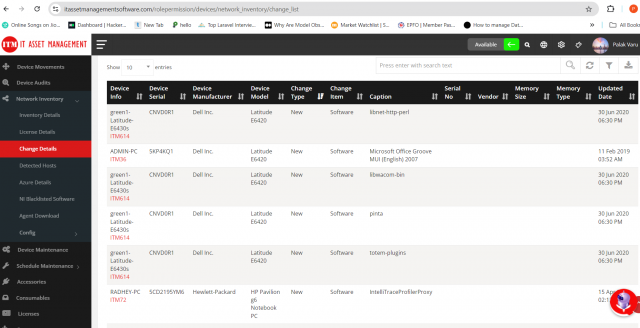
Change Details
Open Network Inventory → Change Details to see changes detected in inventory assets: the asset, serial number, change type (new, changed or missing), changed item (software, internal memory, disk drive), manufacturer and model.
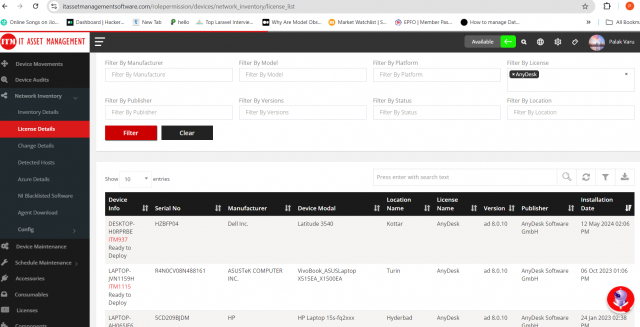
License Details (installed software)
- Open Network Inventory → License Details.
- Select the filter icon and apply filters.
The list shows the software (license) name, version, publisher, installed date, device, serial number, manufacturer, device model and location.
Software usage time (software metering)
Software usage time tracks how long installed software is used across all devices, so management can see which software is heavily used and which is rarely used, and optimize license costs.

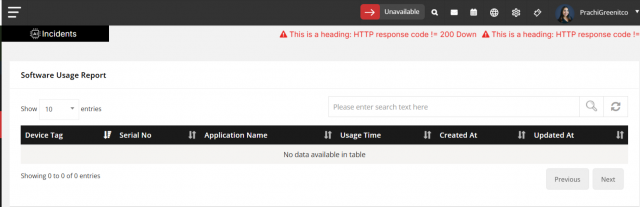
- Open Network Inventory → License Details.
- Select the usage icon for the software. The software usage time list opens.
Blacklisted software
Add unwanted software to the blacklist to find all devices on which it is installed.
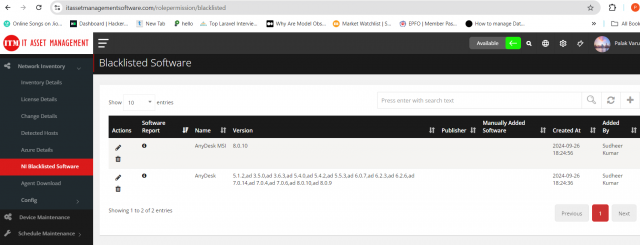
Menu path: Network Inventory → NI Blacklisted Software
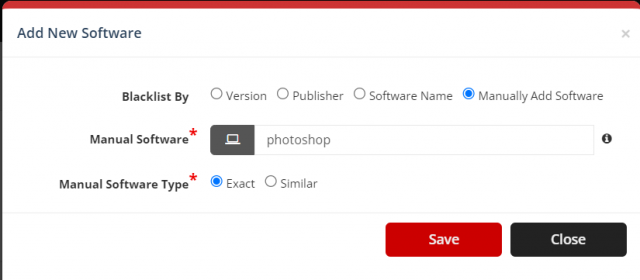
There are four ways to blacklist software:
| Option | Blacklists | Note |
|---|---|---|
| Version | Specific versions of a software | Select Select all to add all versions |
| Publisher | All software from one or more publishers | Includes all current and future software and versions from the publisher |
| Software Name | One or more software titles | Includes all current and future versions |
| Manually added software | Software not yet detected, blocked if detected in future | Choose Exact for the exact name or Similar to match similar names |
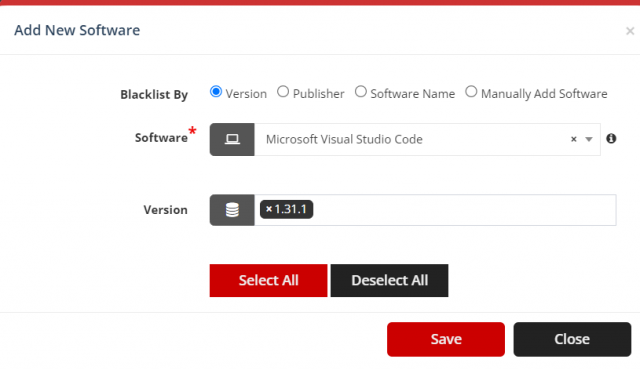
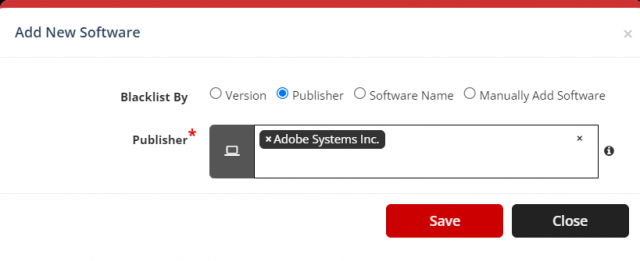
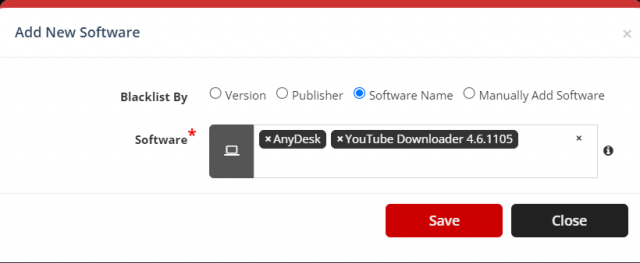
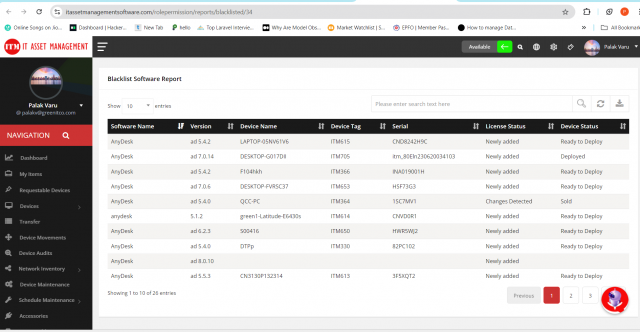
After adding software, select the info icon in the blacklist to see every device that has the blacklisted software.
Azure AD devices
See Azure AD and Microsoft Intune Device Sync.
Related pages
- Network Inventory Configuration
- Permission Reference: NI permissions