

Introduction
Merging Tickets is a feature that allows users or support technicians to combine multiple tickets related to the same issue into a single ticket. This helps eliminate duplicate tickets, keeps related communication organized in one place, and makes ticket management easier and more efficient.
For example, if a user raises multiple tickets regarding the same issue — such as being unable to log in to the application — the support team can merge those tickets into one primary ticket. This allows technicians to manage the issue centrally instead of handling each duplicate ticket separately.
After merging, the primary ticket serves as the main record for tracking the issue, while the merged tickets are associated with it according to the application's merging rules. This helps technicians review related requests, maintain better visibility into the issue, and reduce repetitive work.
Benefits of Merging Tickets
- Eliminates Duplicate Tickets: Combines tickets raised for the same issue and reduces duplication.
- Centralizes Communication: Keeps related discussions and updates organized around one primary ticket.
- Improves Productivity: Helps technicians avoid handling the same issue multiple times.
- Simplifies Tracking: Makes it easier to monitor progress and manage related requests.
- Enhances User Experience: Supports consistent communication and reduces confusion caused by multiple tickets for the same issue.
Who Can Merge Tickets
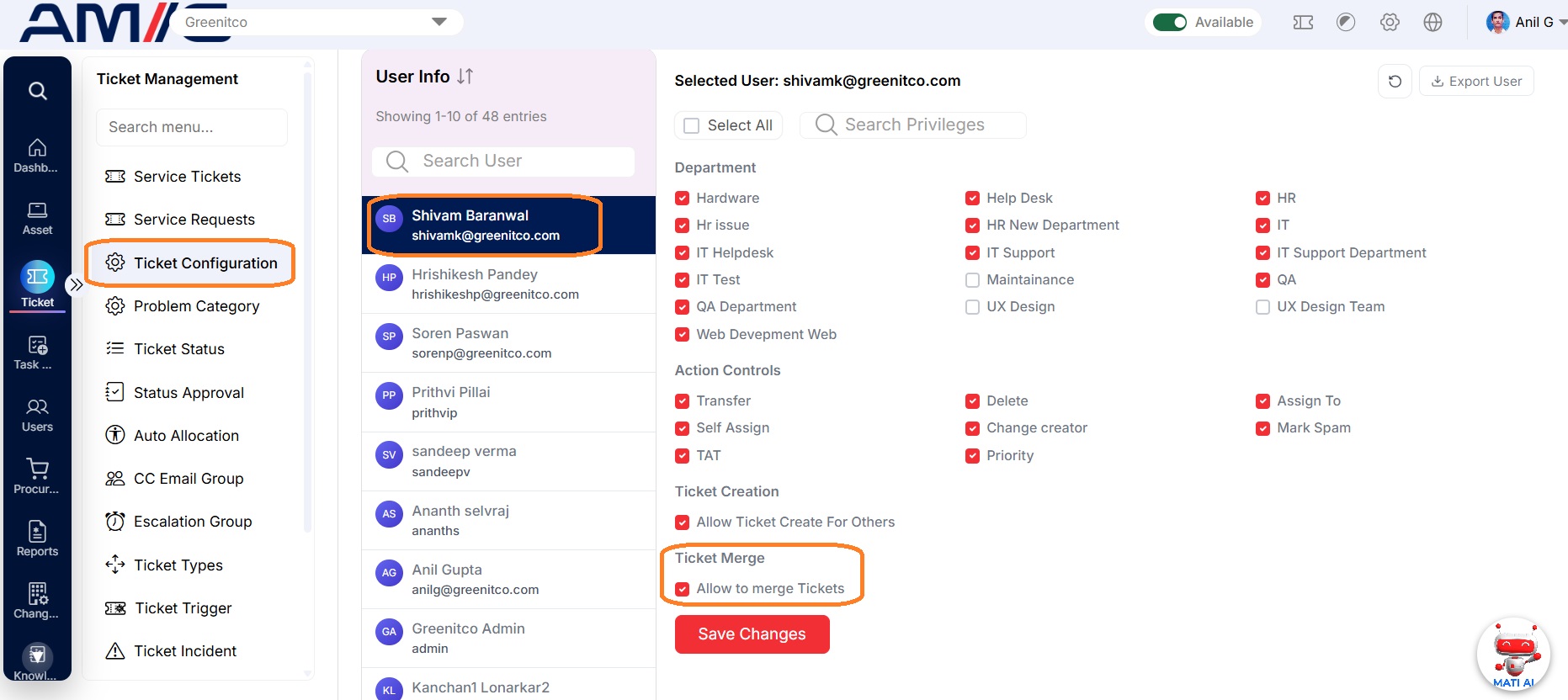
- Who — Technicians or administrators with merge access.
- Who grants it — An administrator grants merge access per person.
To grant merge access:
- Go to Service Tickets → Ticket Configuration → Ticket Handler Limits.
- Select the ticket merge check box for the person.
- Select Save Changes.
Merge Rules
Before you merge, keep these rules in mind:
- Limit — You can merge up to 10 tickets at a time.
- Ticket status — Resolved or closed tickets cannot be merged.
- Same user, same department — Only tickets of the same user in the same department can be merged.
- Primary and secondary — You choose one primary ticket; the rest become secondary tickets.
- Tasks block merging — Tickets added with a task cannot be merged until task completed.
- Status after merging — The primary ticket stays open; secondary tickets are closed automatically.
- Comment trail — A comment with links to the merged tickets is added to each ticket.
- Notifications — The ticket creator and the assigned technician are notified.
- Visibility — Except for administrators, secondary tickets are not listed in My Tickets; they are linked from the primary ticket's information page.
Merge Tickets
Follow these steps to merge multiple tickets into one primary ticket:
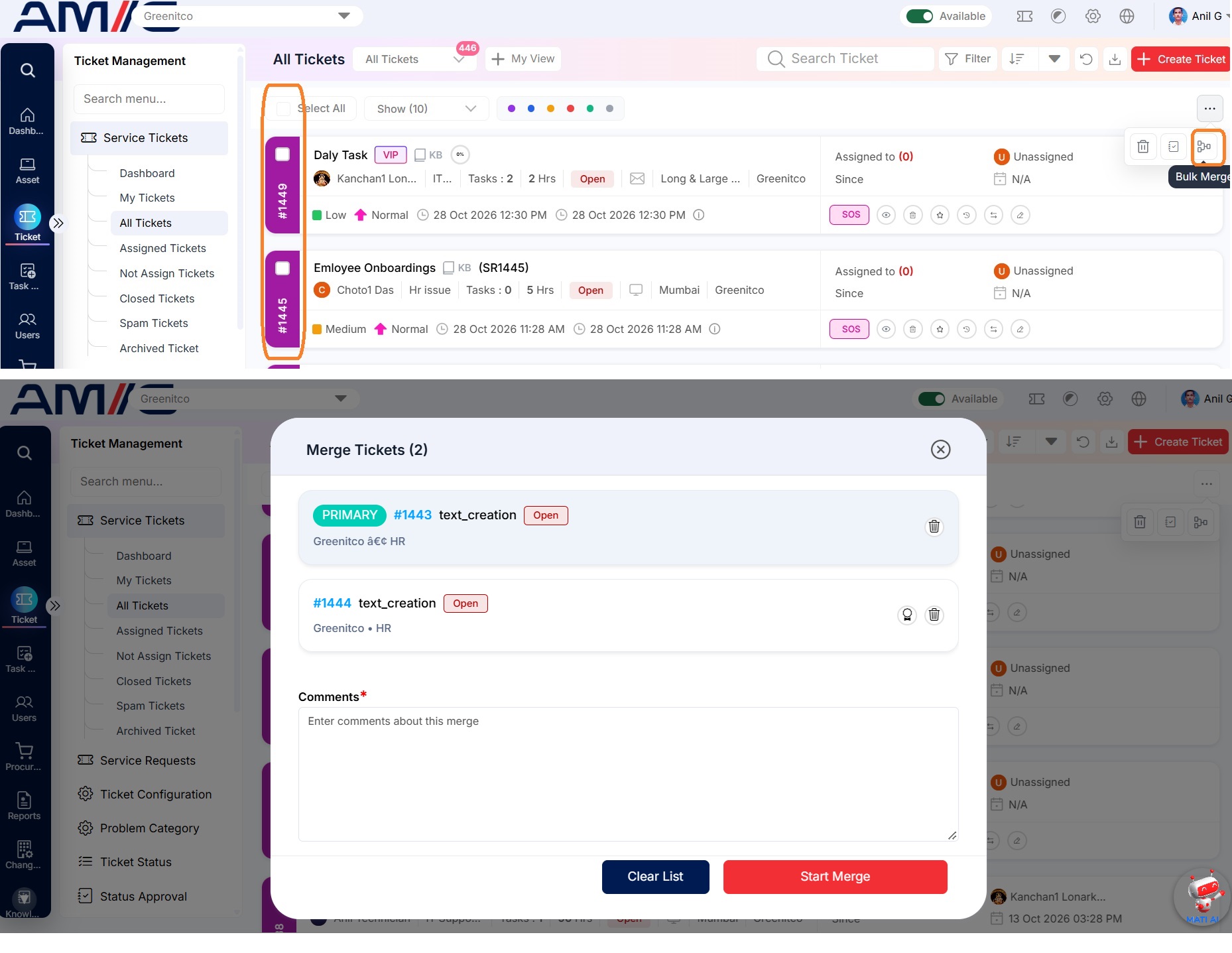
- Filter the ticket list — Apply the Department filter and the Task Added (completed) filter to show eligible tickets.
- Start the merge — Select the Bulk Merge action button.
- Choose the primary ticket — Select Make Primary on the ticket that should remain as the main record. Select Remove to drop a ticket from the merge.
- Confirm the merge — Enter a comment and select Start Merge.
- Continue as normal — Keep working on the primary ticket; the secondary tickets are linked to it.