

Introduction
The Ticket Details screen provides a consolidated overview of a ticket, helping users understand its current status, progress, and activity. It brings together key information such as ticket details, priority, assignment, conversations and comments, related tasks, feedback, and the activity timeline. Users can review previous updates, understand what has happened so far, identify who is handling the ticket, and determine the next steps based on the information available.
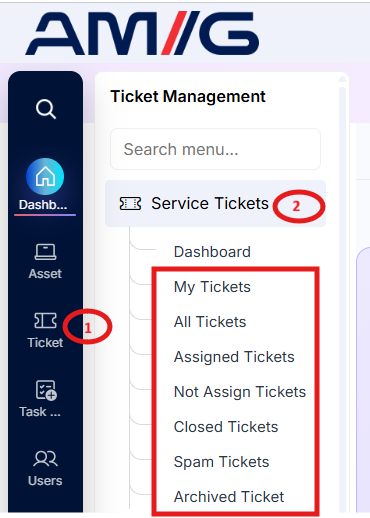
Tickets are organised into separate listing views to support different workflows: My Tickets, All Tickets, Assigned Tickets, Not Assigned Tickets, Closed Tickets, Spam Tickets, and Archived Ticket. Open a ticket by selecting its subject or ticket card from the relevant listing. The Ticket Details screen displays the information and actions available for that ticket. Available actions may vary depending on the listing, the ticket's current status, and the user's role and permission.
Navigation Path: Sidebar > Ticket > Service Ticket > Select the required ticket list
Understanding the Ticket Details Screen
The Ticket Details screen provides a consolidated view of a ticket, allowing users to review its information, monitor its progress, understand customer feedback, and manage ticket-related activities. The screen is organised into three main areas: the Main Ticket Panel, the Top Action Bar, and the Right-Side Panels, along with a Conversation Area for reviewing and adding messages.
Tickets are organised into separate listing views: My Tickets, All Tickets, Assigned Tickets, Not Assigned Tickets, Closed Tickets, Spam Tickets, and Archived Ticket. To view a ticket, open the relevant listing and click the ticket's subject or card.
The information and actions available on the Ticket Details screen may vary depending on the ticket's status, the listing from which it was opened, and the user's role and permissions.
Main Ticket Panel
The main ticket panel displays the key details of the selected ticket, including its status, priority, ownership, classification, and creation information.
Table 3.3.1: Main ticket panel fields
| Field | Description |
|---|---|
| Current Status | Displays the ticket's current status. Ticket statuses are configured under Sidebar > Ticket > All Status. |
| SLA State | Indicates whether the ticket is on time or overdue against the applicable SLA. |
| Turnaround Time (TAT) | Displays the turnaround time configured for the ticket's category under Sidebar > Ticket > Problem Category. |
| Priority | Displays the priority defined for the ticket's category under Sidebar > Ticket > Problem Category. |
| Subject | Displays the subject entered when the ticket was created, summarising the reported issue or request. |
| Creator | Identifies the person who originally created the ticket. |
| Assignee | Identifies the person currently assigned to handle the ticket. |
| Company | Displays the company under which the ticket is registered. |
| Department | Displays the department associated with the ticket. Departments are configured under Config > Department. |
| Category | Displays the problem category assigned to the ticket, configured under Sidebar > Ticket > Problem Category. |
| Location | Displays the location associated with the ticket. |
| Ticket Logger | Identifies the person who logged the ticket on behalf of the creator, when someone other than the creator submitted it. |
| Expiry Date | Displays the date and time when the ticket's configured TAT expires. |
| Created At | Displays the date and time when the ticket was created. |
| Updated At | Displays the date and time when the ticket was last updated. |
| Creation Channel | Displays the channel through which the ticket was created, such as Call, Phone, Mail, Portal, or Bot. |
| Ticket Type | Displays the type used to classify the ticket. |
Note: Fields are displayed or populated according to the information available for the selected ticket.
Top Action Bar
The top action bar provides shortcuts for performing common ticket operations directly from the Ticket Details screen.
Table 3.3.2: Top action bar actions
| Action | Description |
|---|---|
| Customer Sentiment | Click this button to open a pop-up displaying the ticket's sentiment analysis, similar to the analysis available on the ticket listing page. This helps users understand the customer's sentiment based on the available conversation. |
| Add Star | Click to mark the ticket as starred for easier access. Starred tickets can also be identified or filtered from the ticket listing page. |
| Edit | Opens the Edit Ticket pop-up, where users can update the available ticket information and save their changes. |
| Transfer | Opens the Transfer Ticket pop-up, allowing users to transfer the ticket from one department to another, subject to their permissions and the available options. |
| Assign To | Opens a pop-up displaying the departments and technicians available for assignment based on the user's access. Select the appropriate department or technician to assign the ticket. |
| Delete | Deletes the ticket when the action is permitted. Follow the application's confirmation prompt, if displayed, before proceeding. |
| Mark Spam | Marks the ticket as spam and moves it to the Spam Tickets listing, keeping it separate from the main ticket listings. |
| Ticket History | Opens the ticket's history, allowing users to review recorded actions and changes made to the ticket over time. |
| Self Assign | Allows eligible users with the required technician and department access to assign the ticket to themselves and take ownership of it. |
Important: Use only the actions available for the selected ticket and permitted under your role. Some actions may not be available for every ticket or in every listing.
Right-Side Panels
The right-side panels provide supporting information about the customer, ticket participants, tags, knowledge resources, and ticket activity.
Table 3.3.3: Right-side panels
| Panel | Description and Usage |
|---|---|
| Customer Feedback | Displays an overview of customer feedback associated with the ticket, including the current feedback and a summary of the latest comment. This helps users understand the customer's experience and most recent response. |
| Creator Information | Provides details about the ticket creator. Expand the collapsible section to view the creator's name and other relevant information available in the system. |
| Assigned Technician Information | Provides details about the technician assigned to the ticket. Expand the collapsible section to view the technician's name and other relevant information available in the system. |
| Tags | Displays the tags associated with the ticket. Click the Edit icon to open a pop-up, where you can select existing tags or enter new tags, as supported by the application. Save the changes to update the ticket's tags. |
| Knowledge Documents | Displays knowledge documents available for the ticket's department and category. Click a knowledge document to open its corresponding page and review guidance or information relevant to the issue. |
| Ticket Timeline | Displays the primary timeline of the ticket, providing a chronological view of its recorded progress and activities. |
| People Associated with the Ticket | Displays information about people associated with the ticket, helping users identify the individuals involved in its handling and resolution. |
The information available in these panels depends on the ticket details, associated records, and the user's access permissions.
Conversation Area
The conversation area displays previous comments and messages associated with the ticket. It helps users review the communication history and understand the discussion between the people involved.
Authorised users can add new messages or comments, attach supporting files, and configure the available comment and email notification options.
Table 3.3.4: Conversation area options
| Option | Description |
|---|---|
| Message or comment | Enter the message or comment to be added to the ticket. Here we can see the comments in action. If it is added as an internal comment then it will load in yellow. |
| Attach Files | Attach relevant files to provide supporting information, where file attachments are available. |
| Internal Comment | Mark a comment as internal when it is intended for internal communication rather than as a customer-facing message. |
| Include Back-Trail Conversation | Choose whether to include the previous conversation trail in email notifications, where this option is available. |
| CC Email Recipients | Add email addresses of additional recipients who should receive the relevant email notification. |
| Save Comment | Save the comment or message to the ticket. Review the content and the selected options before saving. |
Before saving: Verify the message, attachments, internal-comment setting, back-trail option, and CC recipients to ensure that the information is recorded and shared appropriately.
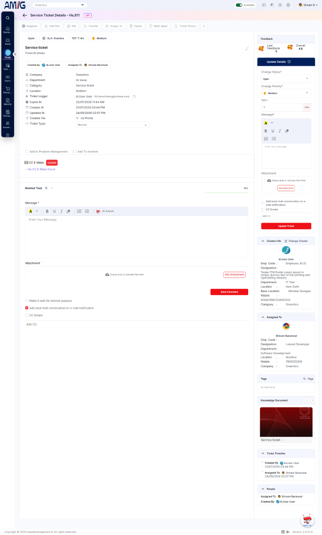
Figure 3.3.1: Ticket Details screen – ticket information and update controls
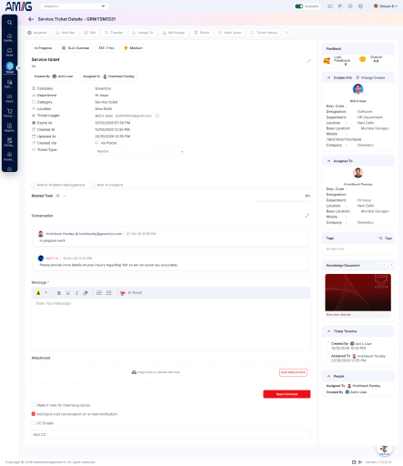
Figure 3.3.2: Ticket Details screen – conversation and ticket timeline
Note: The Ticket Details layout and visible controls may differ slightly according to the ticket, user role, and permissions.
Editing a Ticket
Step 1: Open the required ticket and click Edit in the action bar.
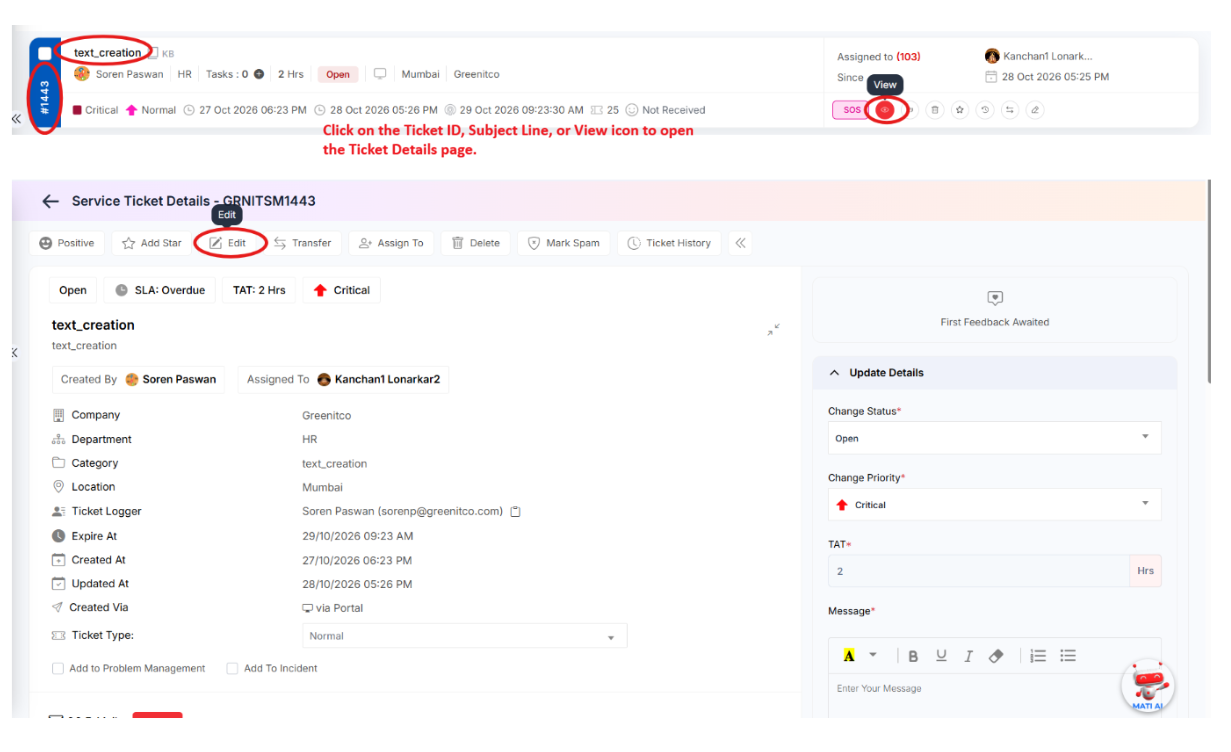 Step 2: Review or update the available fields, such as Department, Problem/Request Category, Priority, TAT, Assign To, and Device. Required fields are marked with an asterisk (*).
Step 3: Confirm that the selected technician and ticket details are correct, then click Update. Click Cancel or close the dialog to leave without saving.
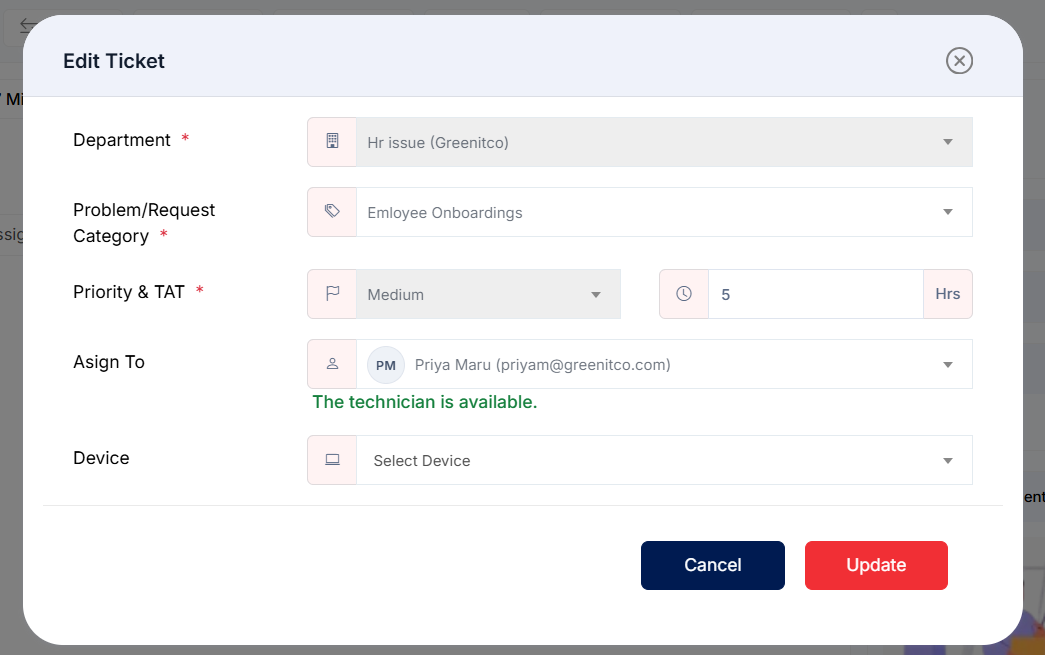
Figure 3.3.3: Edit Ticket dialog
Assigning a Ticket
Step 1: Open the ticket and click Assign To.
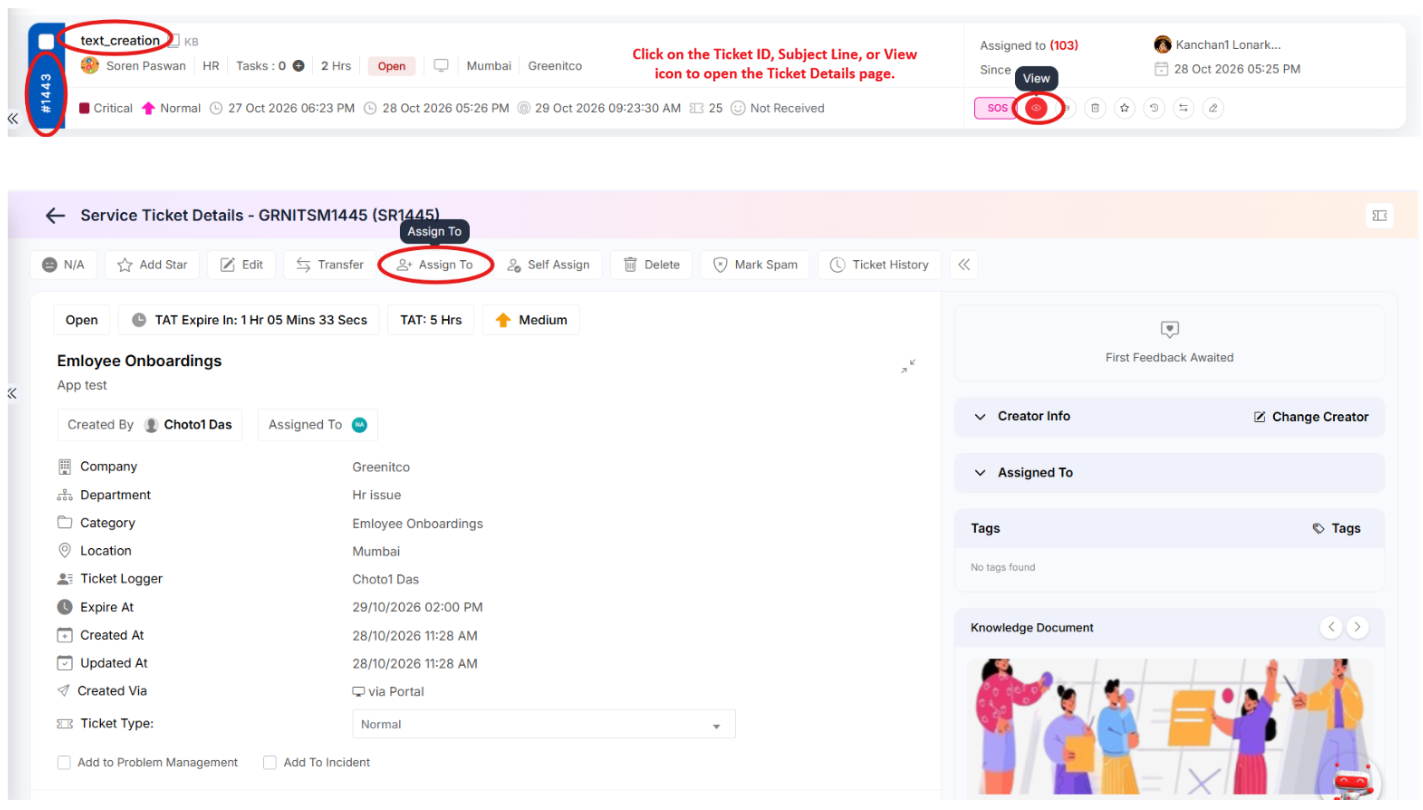 Step 2: In the Assign Ticket To dialog, select the required user from the Assign To dropdown.
Step 3: Click Assign To to confirm the assignment, or click Close to cancel.
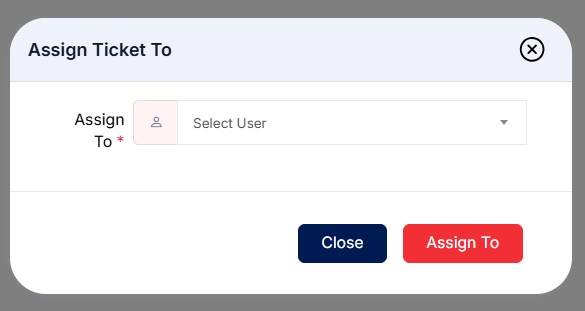
Figure 3.3.4: Assign Ticket To dialog
Transferring a Ticket
Use Transfer when responsibility for a ticket needs to move to another technician, department, or workflow destination. Transferring may also update the ticket’s category, priority, TAT, tags, or device, depending on the available fields.
Step 1: Open the ticket and click Transfer.
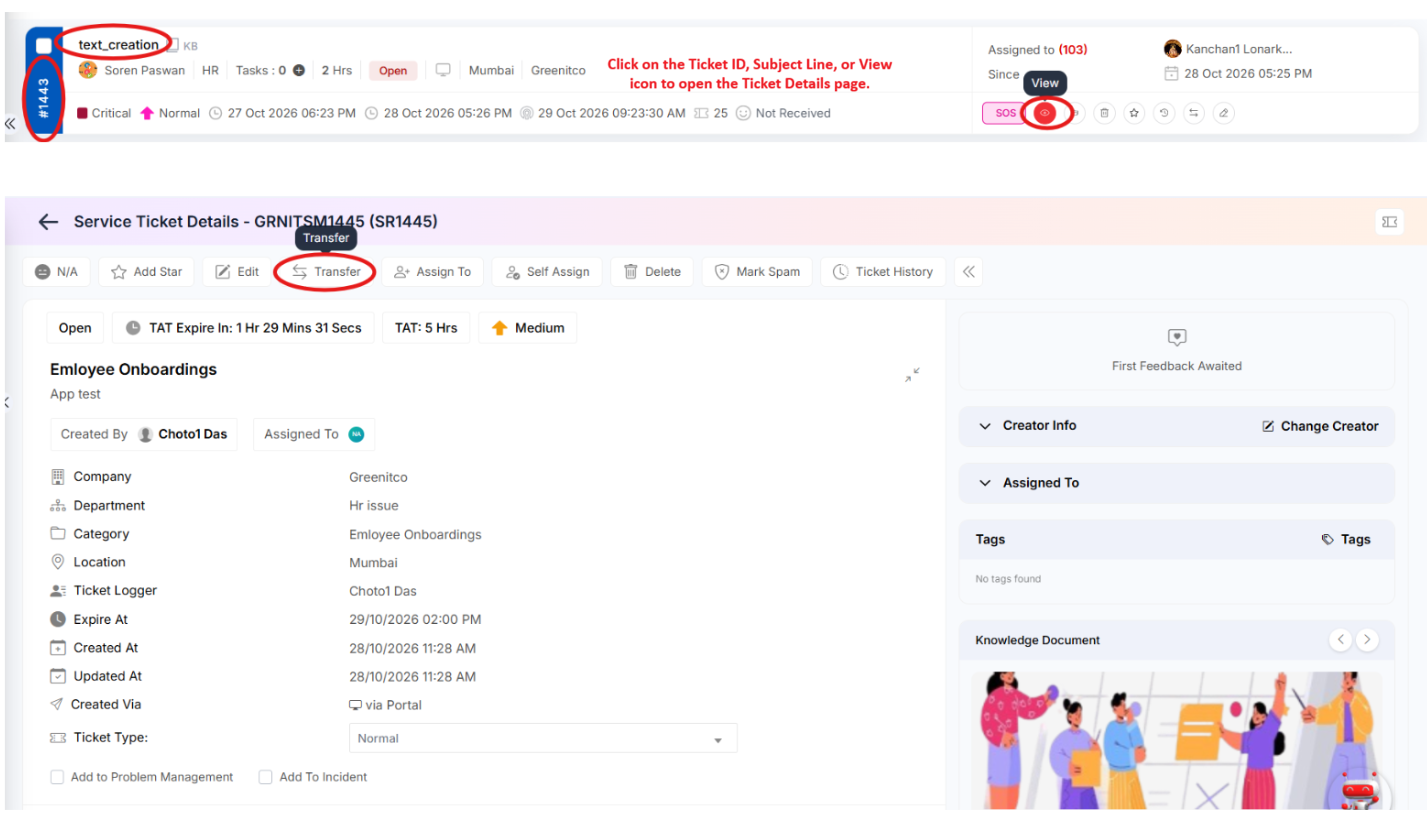 Step 2: Review the Department, Problem/Request Category, Priority and TAT, Assign To, Tag, and Device fields. Update the fields as required.
Step 3: Enter the mandatory Reason for transfer ticket. Select Make it note for internal purpose if the reason should be recorded as an internal note.
Step 4: Click Transfer to submit the change, or click Cancel to close the dialog without transferring.
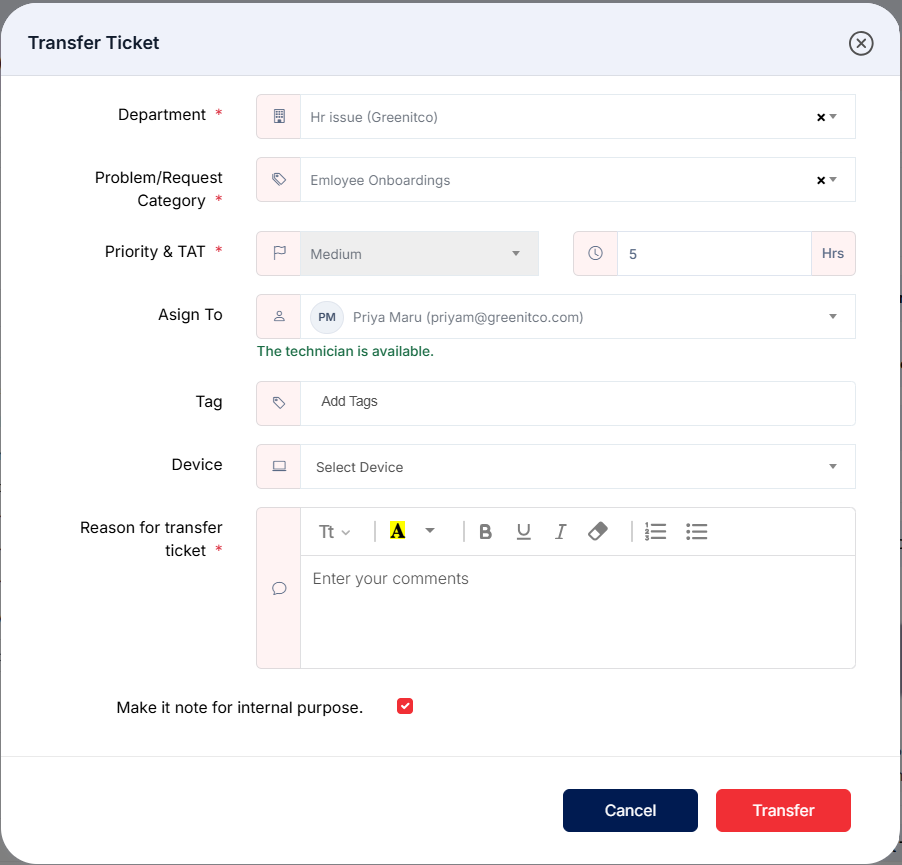
Figure 3.3.5: Transfer Ticket dialog
Self Assign Ticket
Step 1: Open the ticket details and click Self Assign.
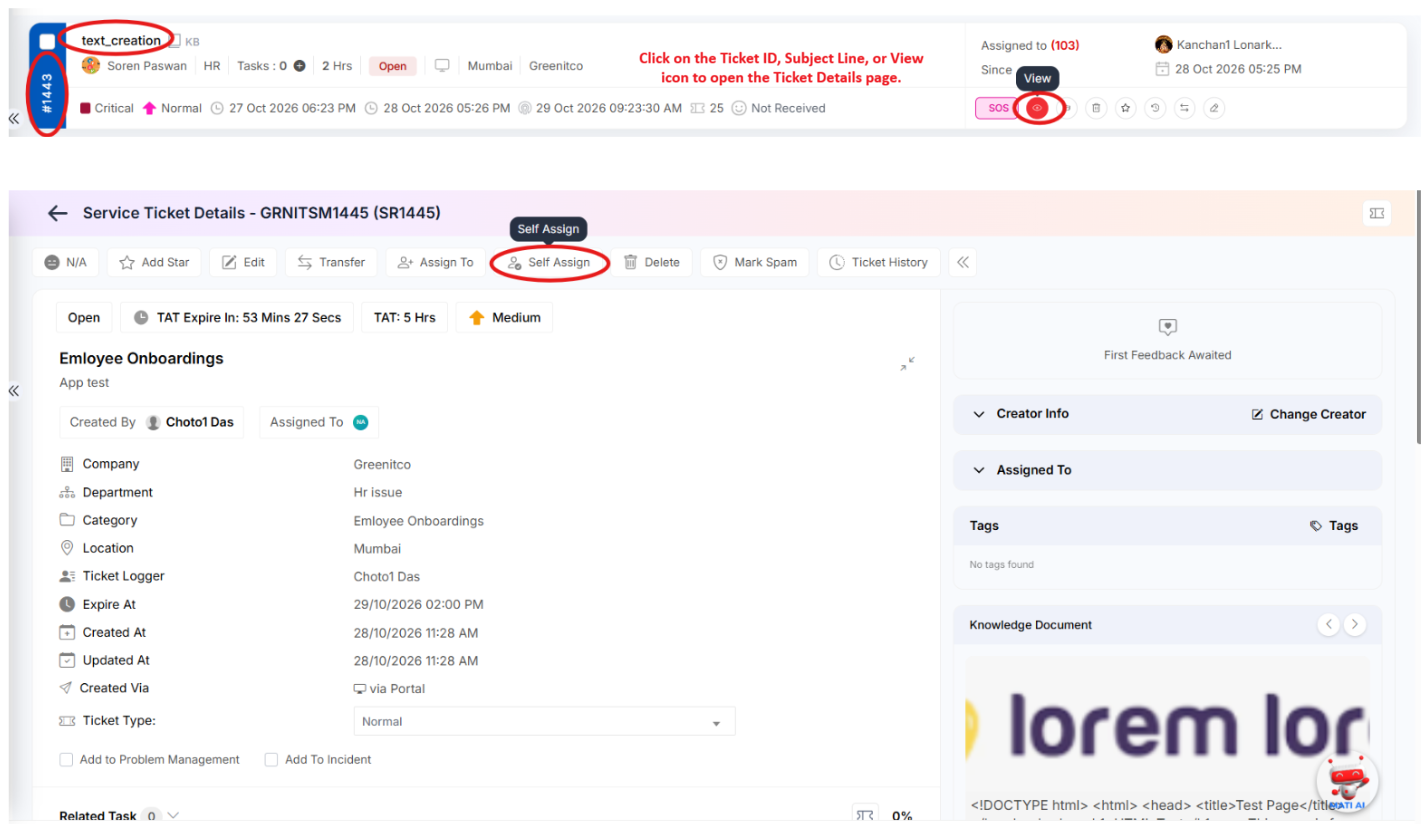 Step 2: Click Yes to confirm the Self Assign, or click Cancel button to cancel.
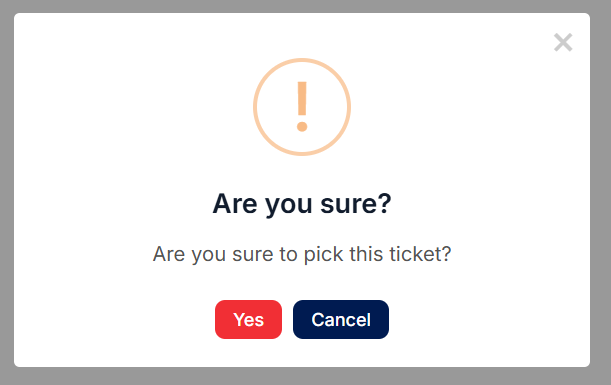
Figure 3.3.4: Self Assign Ticket dialog
Mark Spam Ticket
The Spam Ticket feature allows you to mark an unwanted or invalid ticket as spam. If the ticket was created by a technician or existing portal user, marking it as spam will also block (Inactive) that technician in the system.
Step 1: Open the Ticket Details page and click Mark Spam.
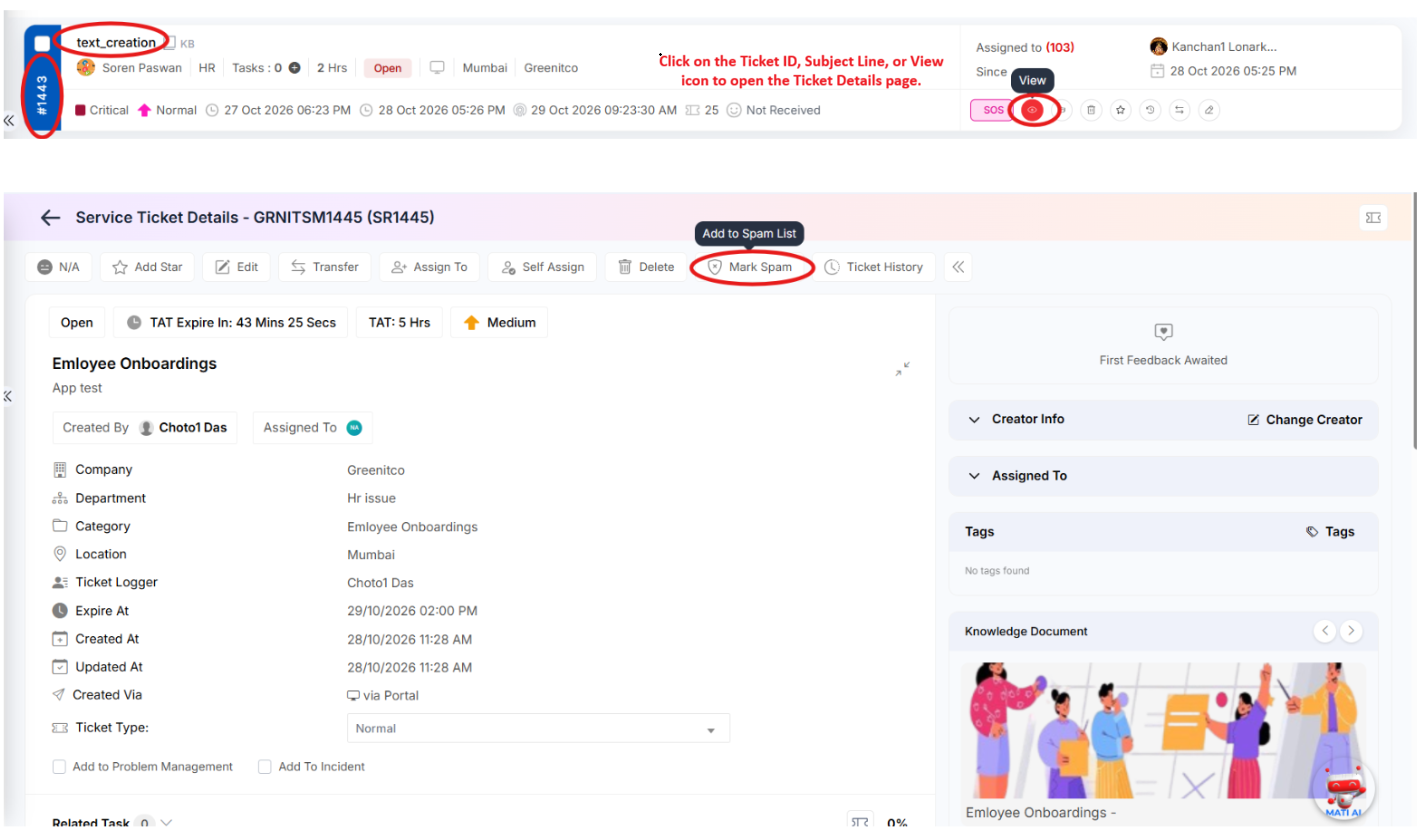 Step 2: Click Mark Spam to confirm the Mark Spam Ticket, or click Cancel the action and keep the ticket unchanged.
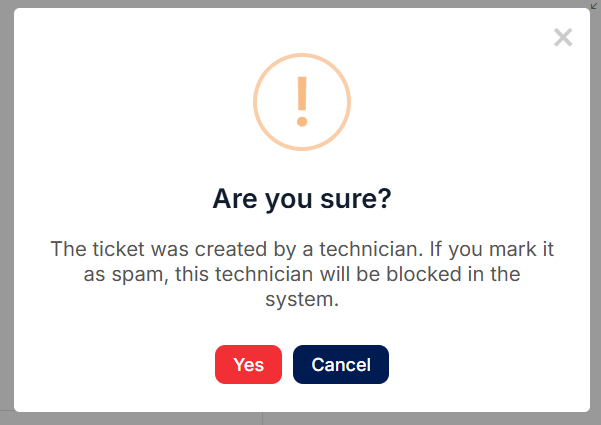
Note: If the ticket was created by a technician, marking the ticket as spam will block (Inactive) that technician in the system.
Delete Ticket
The Delete Ticket feature allows you to delete a ticket from the system. To delete a ticket, you must provide a reason for deletion.
Step 1: Open the Ticket Details page and click Delete Ticket.
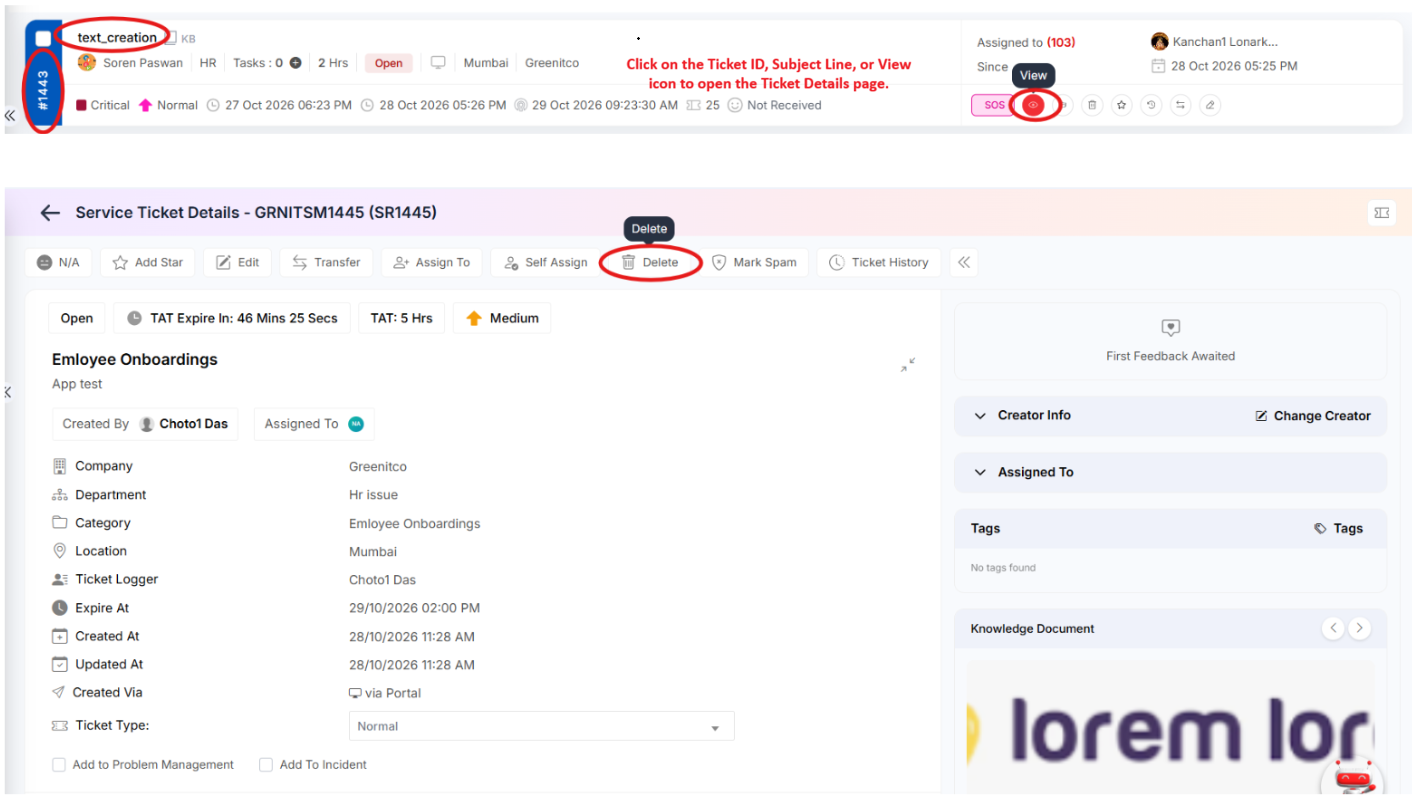 Step 2: Enter the reason for deleting the ticket in the Add Reason field.
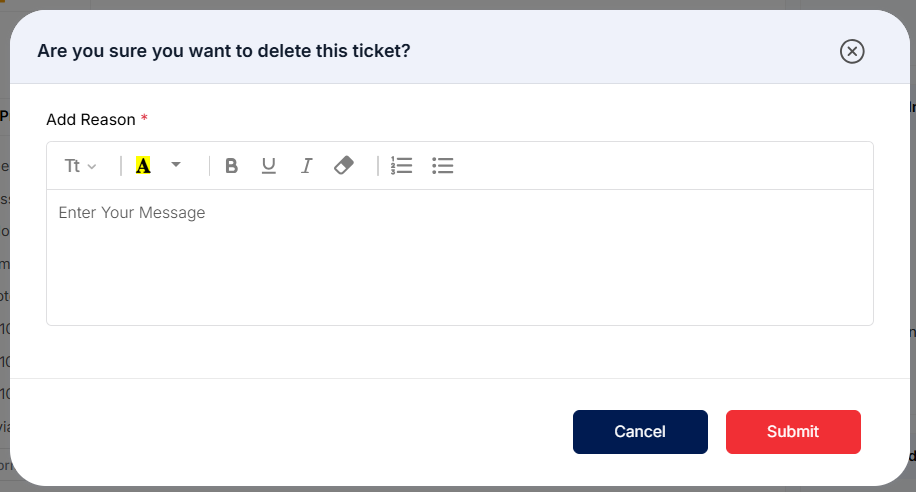 Step 3: Click Submit to confirm and delete the ticket, or click Cancel to cancel the action and keep the ticket unchanged.
Note: Once a ticket is deleted, it cannot be recovered or restored. Please make sure you want to permanently delete the ticket before proceeding.
Reviewing Ticket History
Step 1: From the ticket detail screen, click Ticket History.
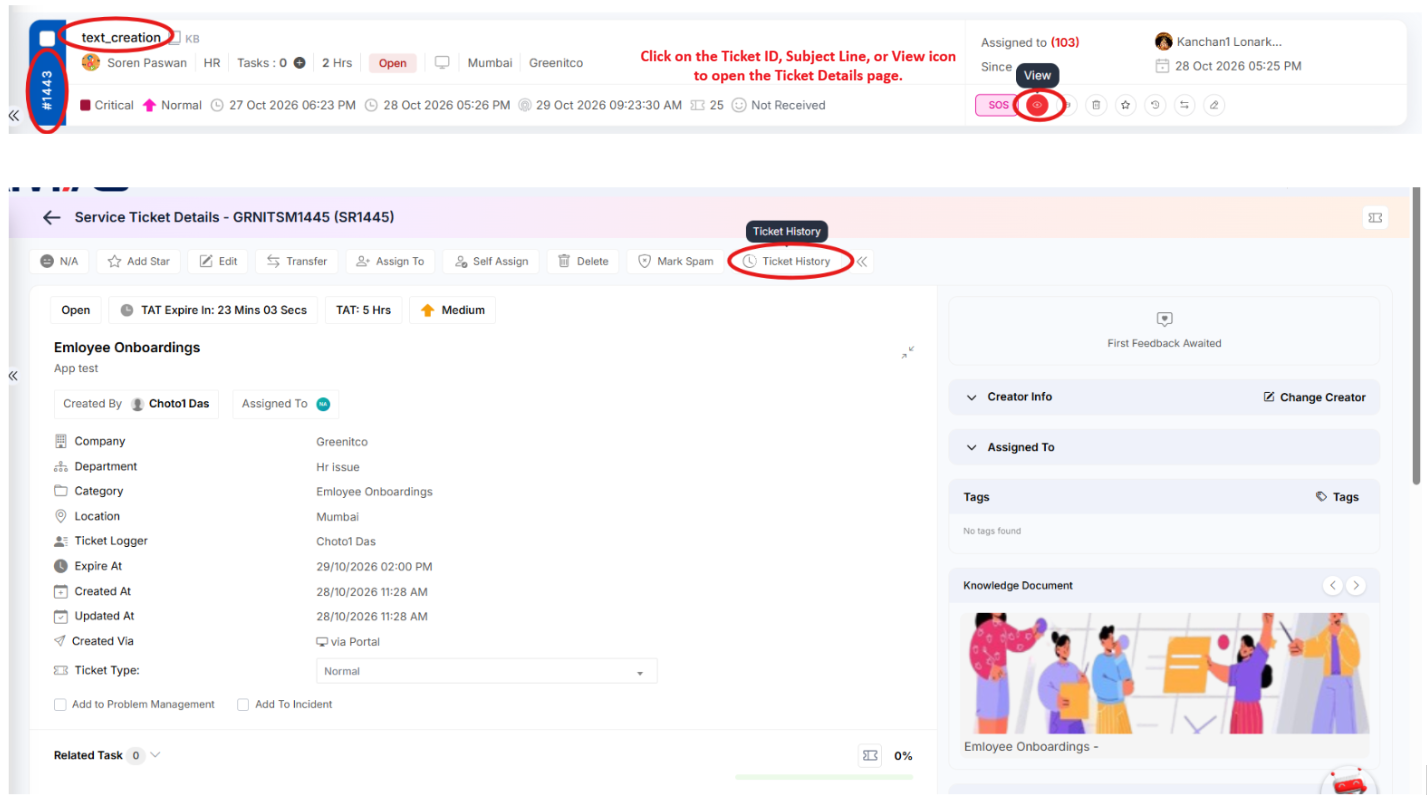 Step 2: Review the ticket summary and chronological event timeline. The history can show ticket creation, assignment changes, and other recorded events, with the user or system actor and event timestamp.
Step 3: Close the history dialog to return to the ticket details.
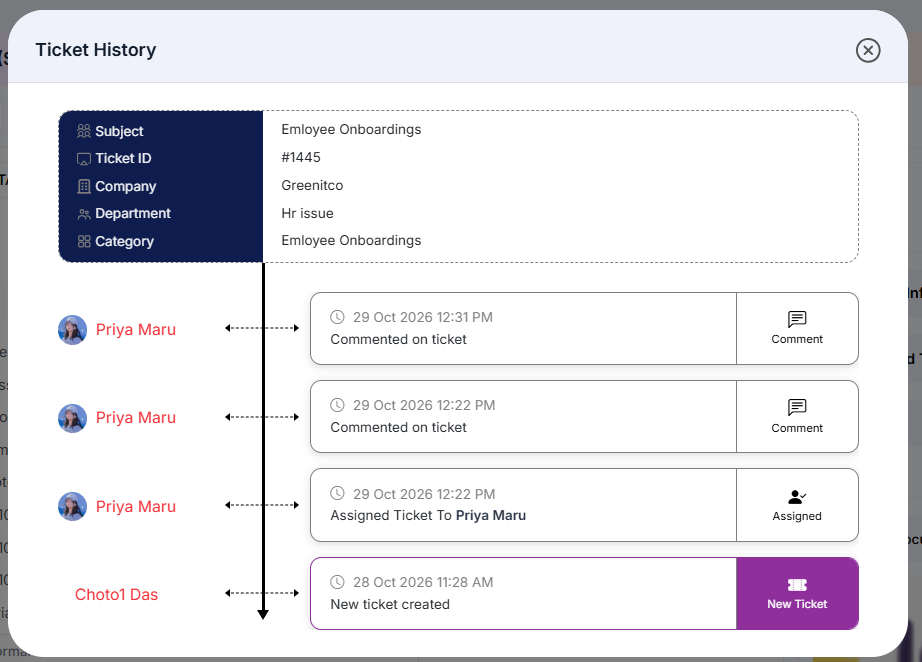
Figure 3.3.6: Ticket History timeline
Updating the Ticket Type
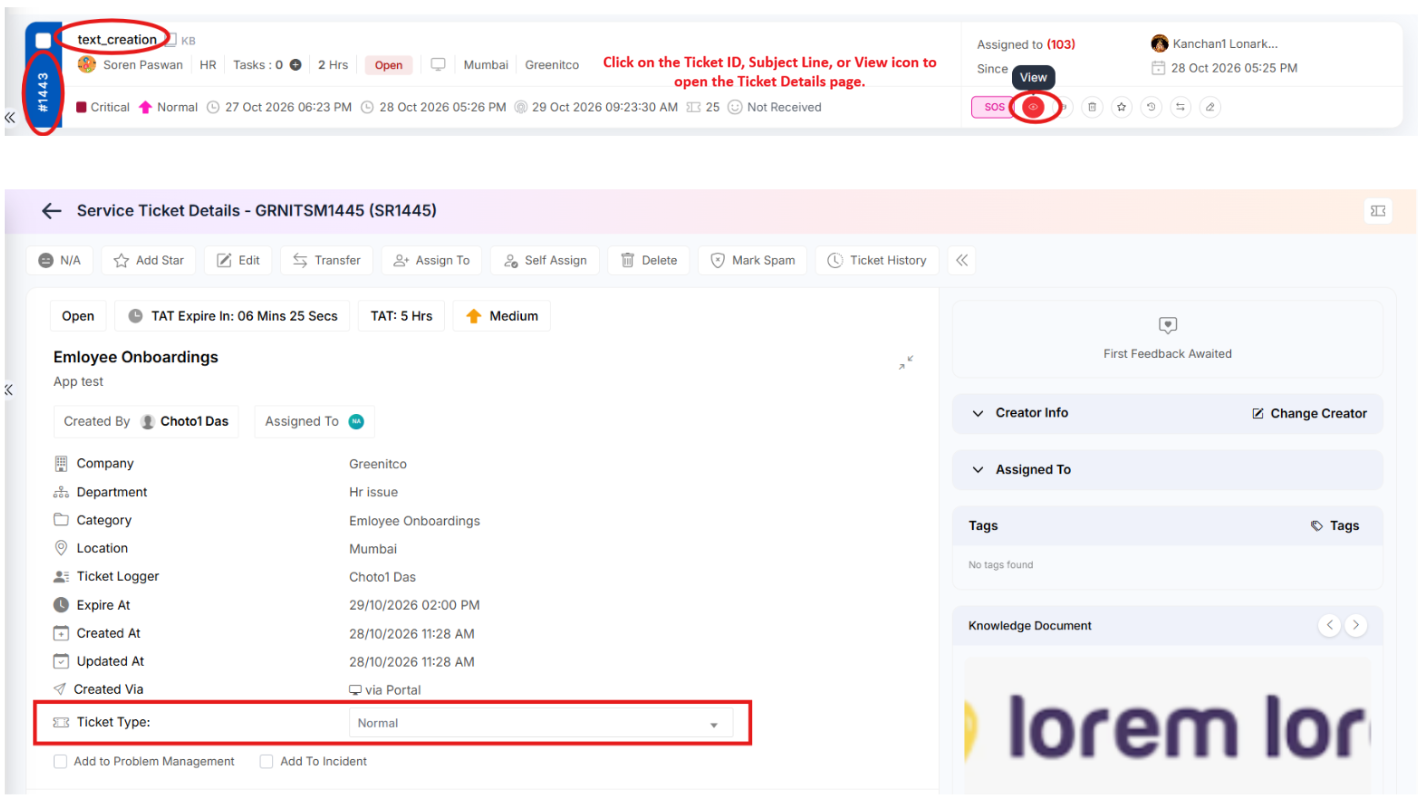
The Ticket Type field allows users to change the type assigned to a ticket and provide any additional information required by the selected type.
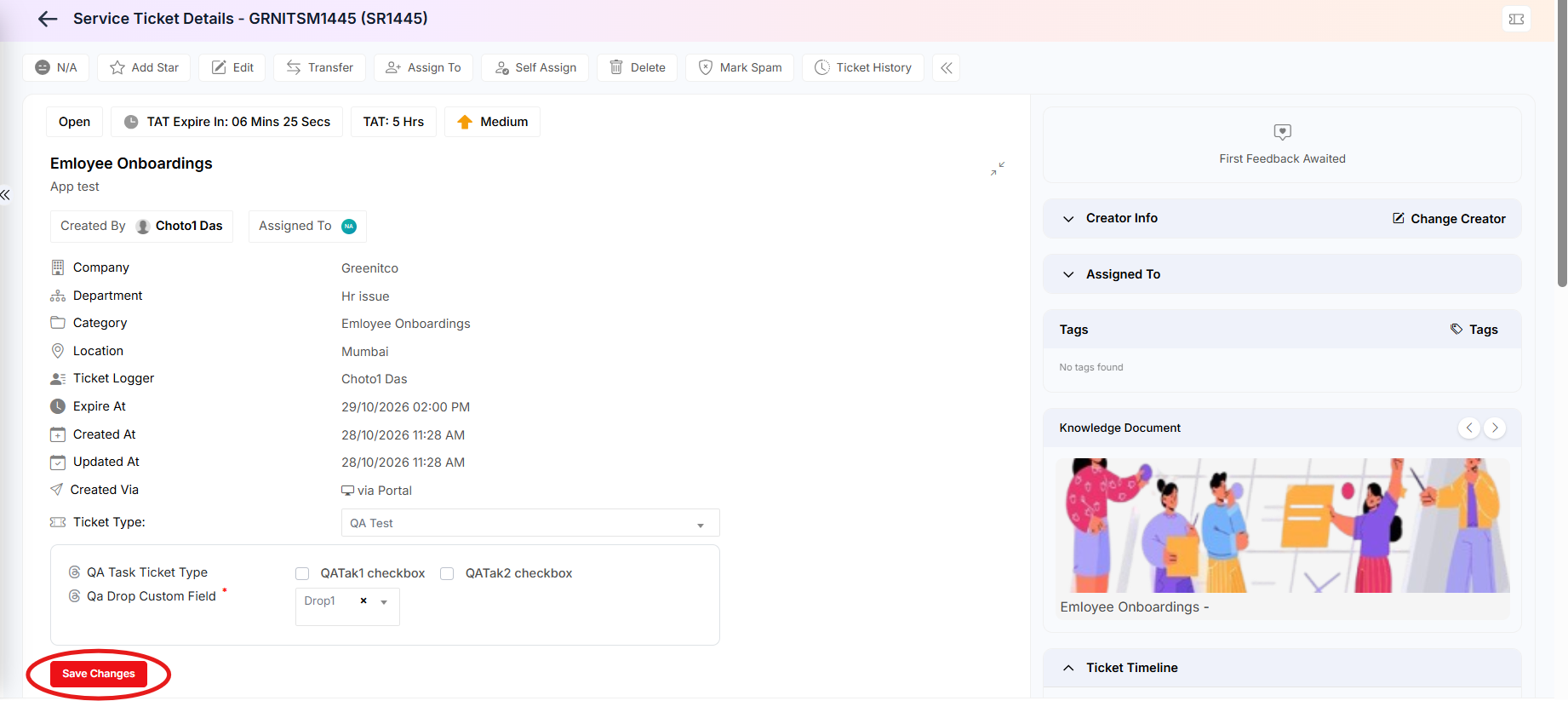
Step 1: Open the ticket from the relevant ticket listing and navigate to the Ticket Details screen. Scroll to the Ticket Type drop-down field.
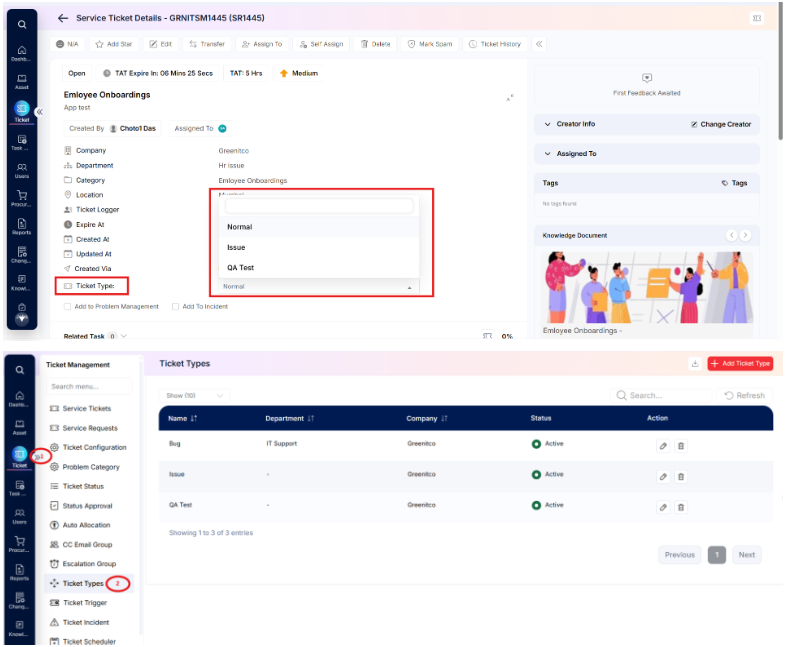
 Step 2: Select the required ticket type from the drop-down list. The available ticket types are configured under Sidebar > Ticket > Ticket Type.
 Step 3: If custom fields are configured for the selected ticket type, the corresponding fields will appear. Enter the required information in these fields, as applicable.
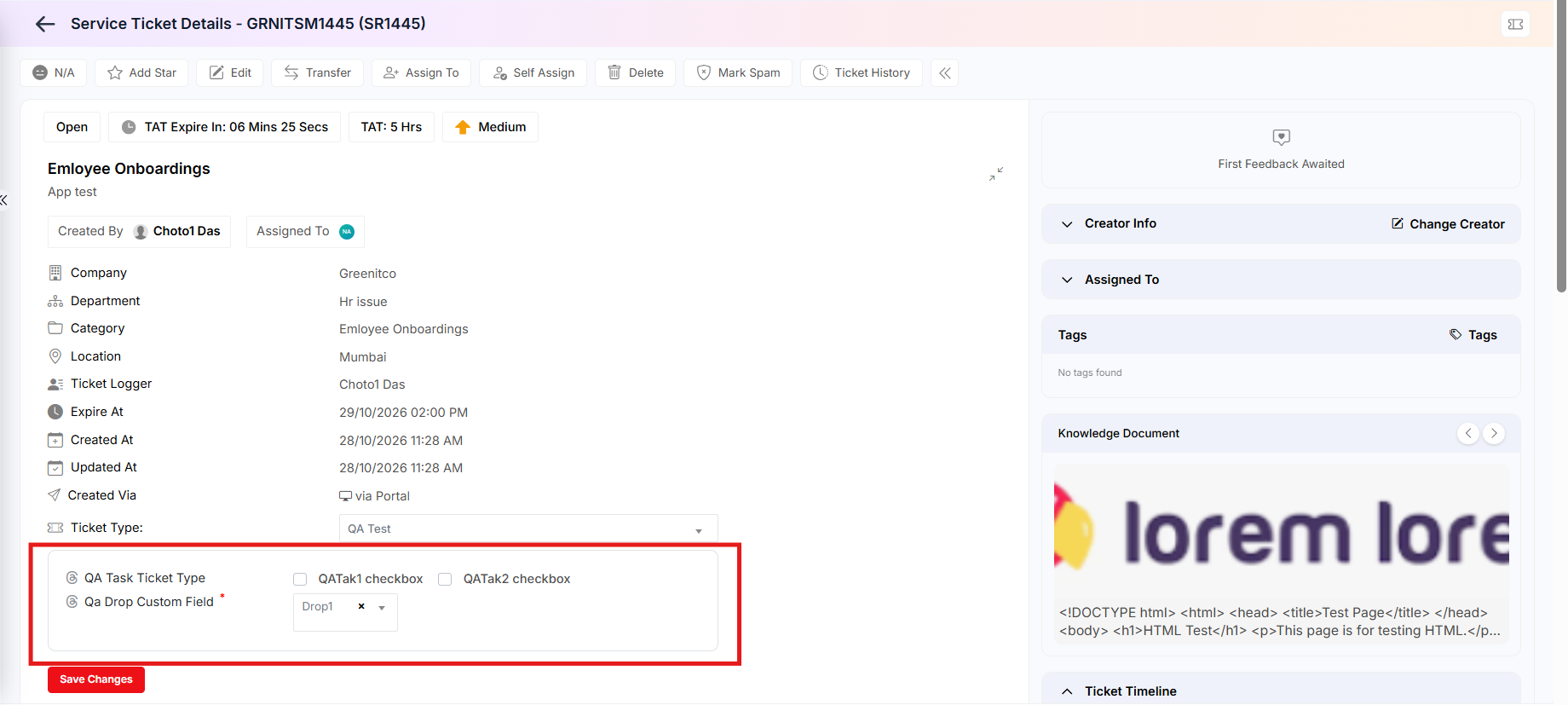 Step 4: Click Save to submit the changes. The ticket type and any associated custom-field information will be updated.
Adding a Ticket to Problem Management
The ticket can be added as an impacted ticket of a problem management record, which helps in maintaining this ticket through problem management.
Step 1: Click the Add to Problem Management checkbox.
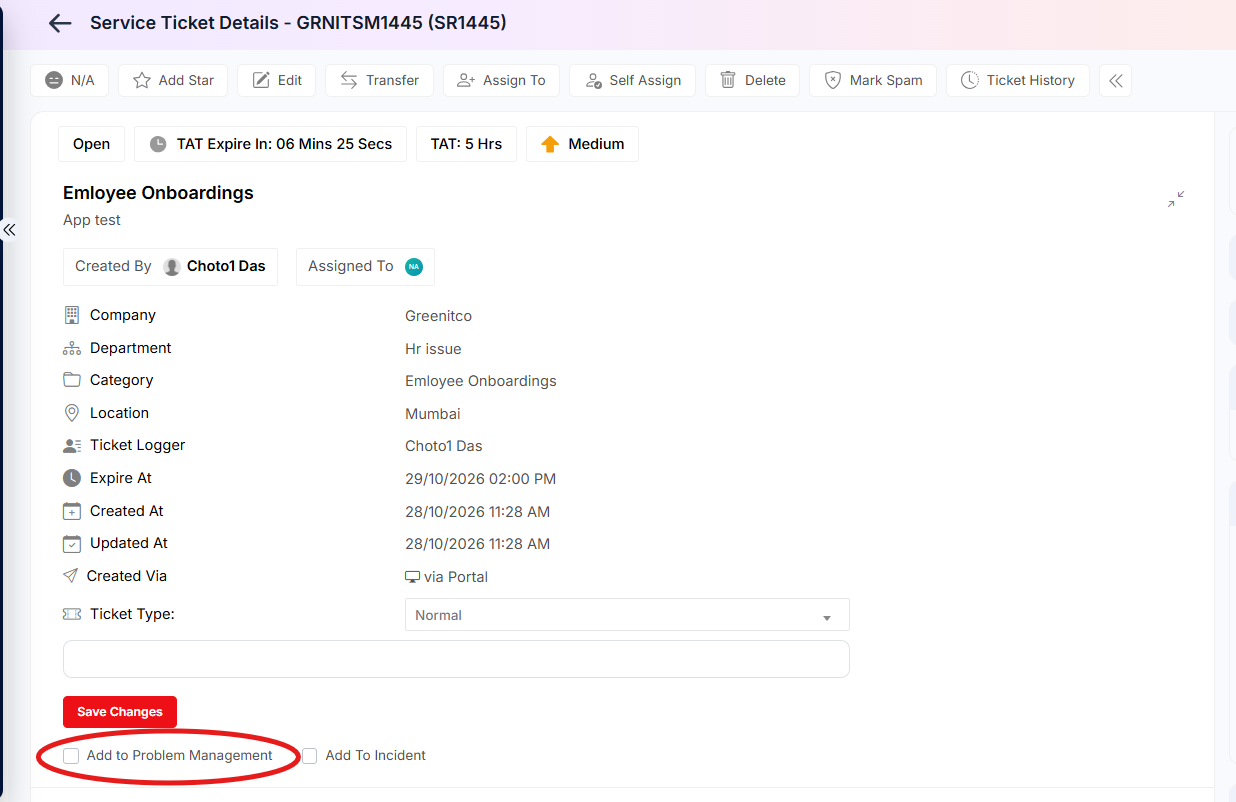
Figure 3.3.7: Add to Problem Management option
Step 2: A pop-up opens with a drop-down of problem management records. Select the required problem management record from the drop-down list. The available records are configured under Sidebar > Ticket > Problem Management.
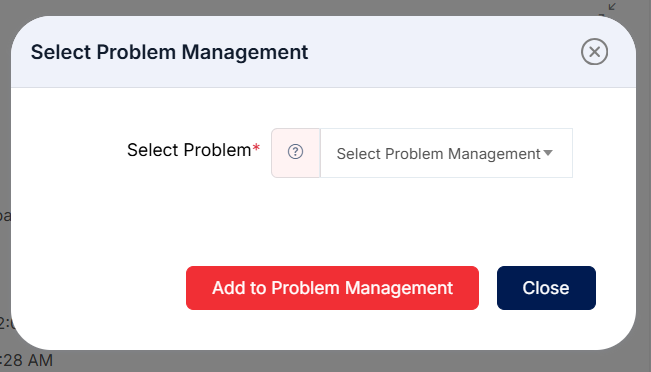
Figure 3.3.8: Select Problem Management dialog
Step 3: Click Save to submit the changes.
Adding a Ticket to Incident Management
The ticket can be added as an impacted ticket of an incident management record, which helps in marking this ticket under incident management.
Step 1: Click the Add to Incident Management checkbox.
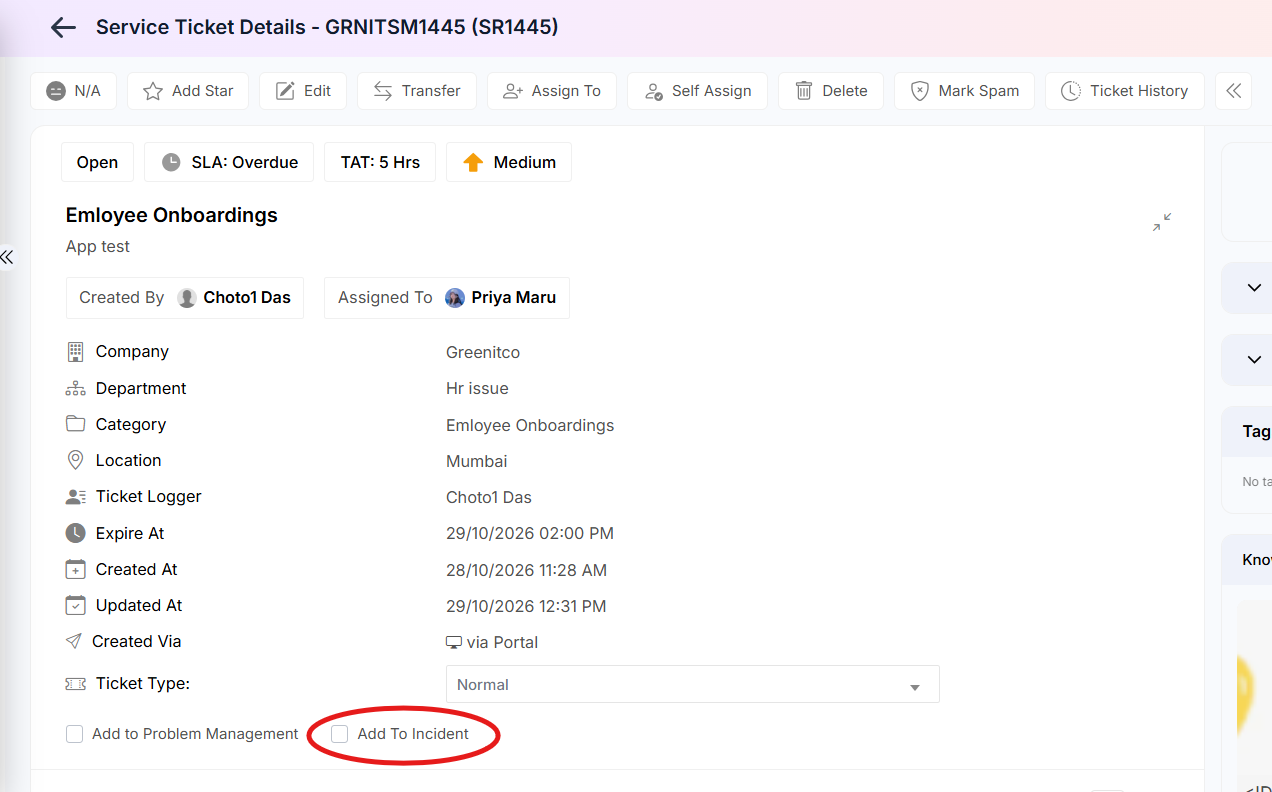
Figure 3.3.9: Add to Incident Management option
Step 2: A pop-up opens with a drop-down of incident management records. Select the required incident management record from the drop-down list. The available records are configured under Sidebar > Ticket > Incident Management.
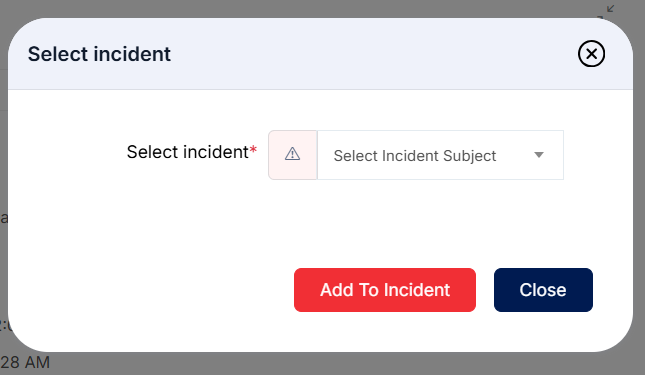
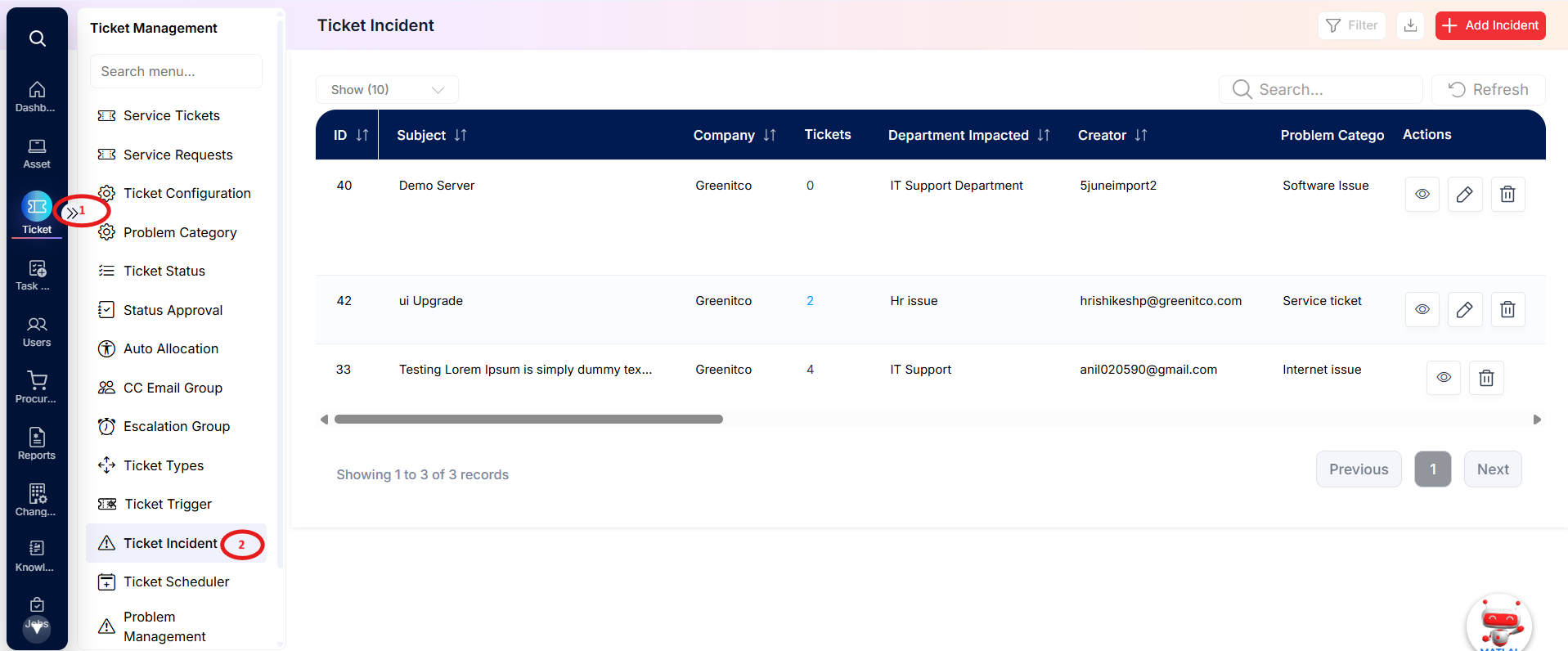 Figure 3.3.10: Select Incident dialog
Step 3: Click Save to submit the changes.
Adding Ticket Tags
Tags can be added to a ticket for better search and analysis of these issues.
Step 1: Click the Pencil icon shown on the Tags card.
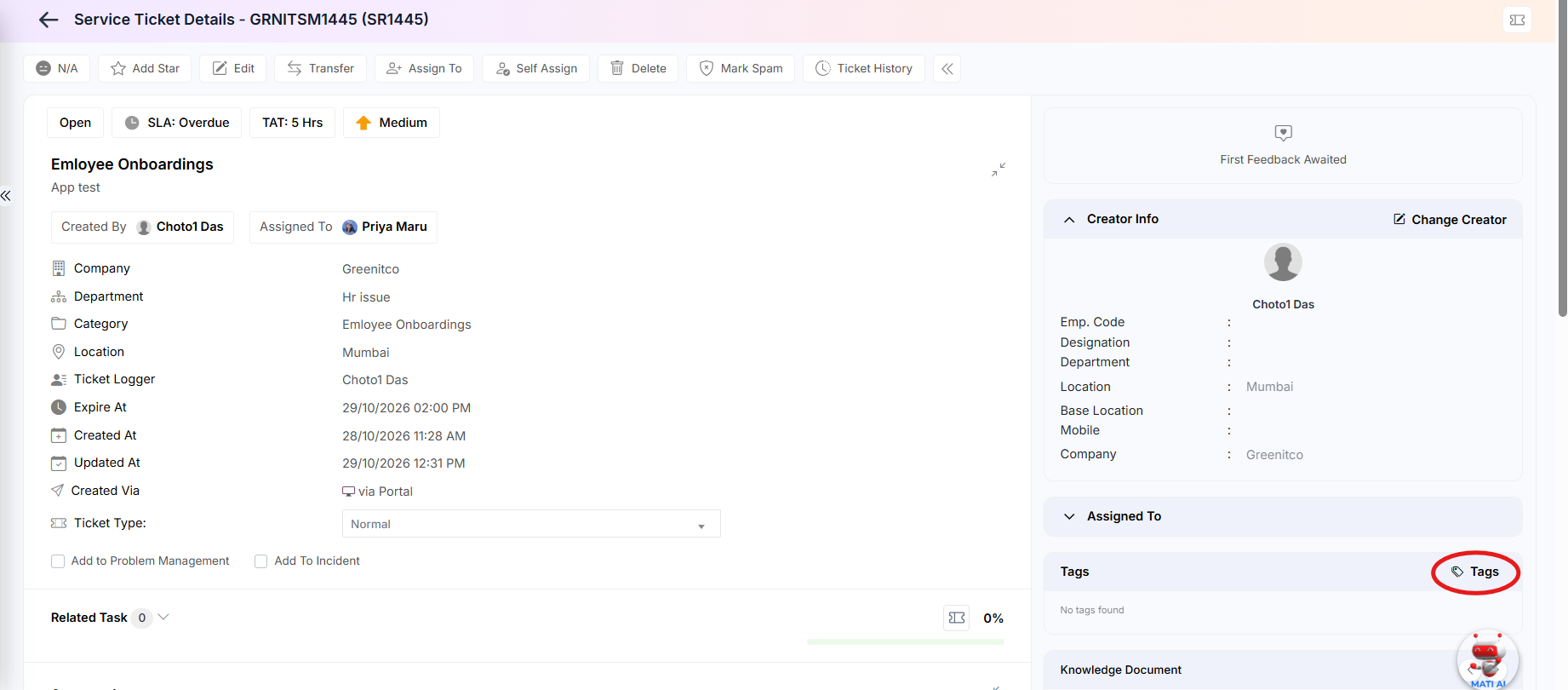
Figure 3.3.11: Tags card
Step 2: A pop-up opens with a drop-down of tags. Select the desired tag from the drop-down list; you can also type new tags.
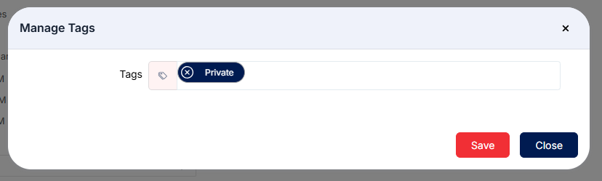
Figure 3.3.12: Manage Tags dialog
Step 3: Click Save to submit the changes.
Changing the Ticket Creator
The ticket creator can be changed if the required permission is provided to the technician from ticket configuration. The technician can then change the creator of the ticket.
Step 1: Click Change Creator shown on the Creator Info card.
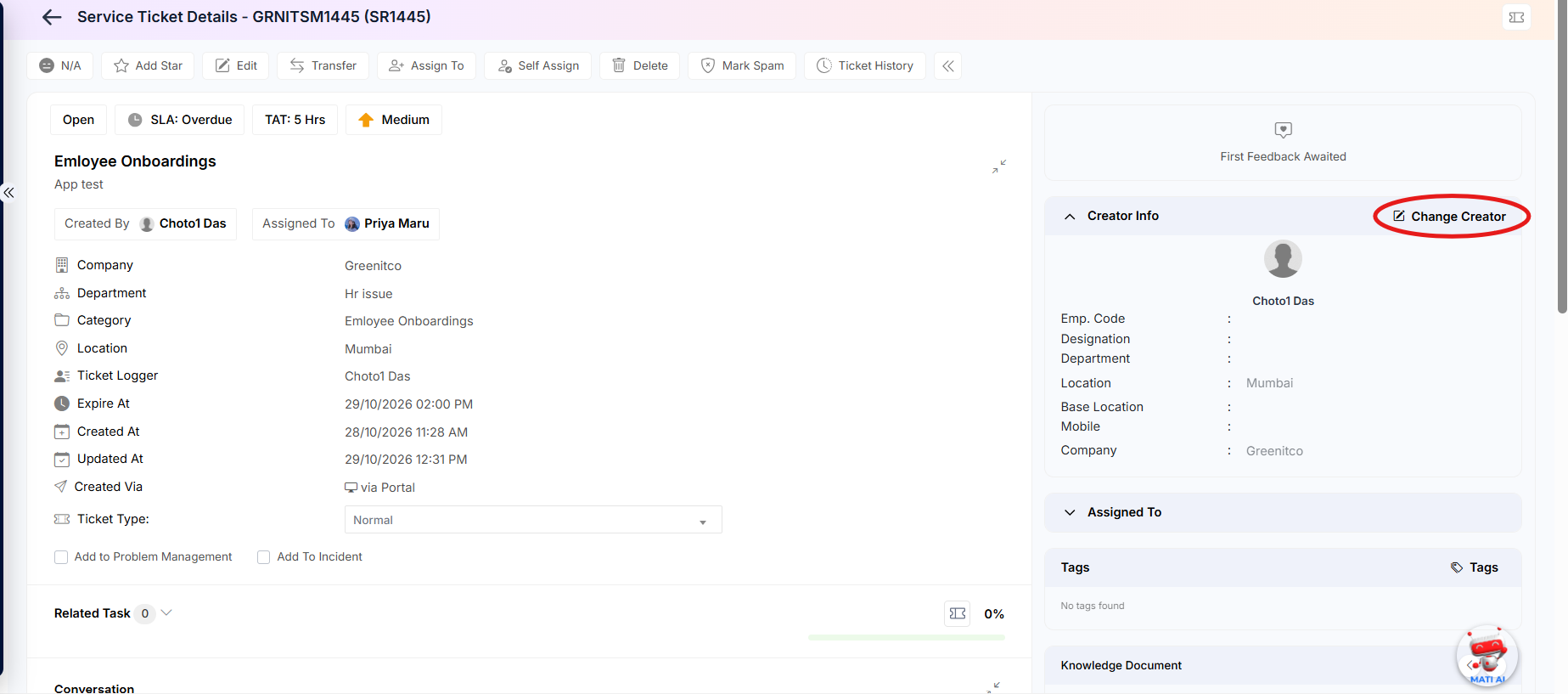
Figure 3.3.13: Change Creator option on the Creator Info card
Step 2: A pop-up opens with a drop-down of users. Select the user you want to set as the creator from the drop-down list. The available users are configured under Sidebar > Users.
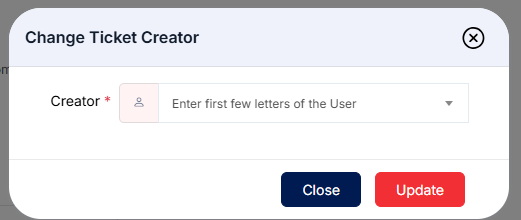
Figure 3.3.14: Change Ticket Creator dialog
Step 3: Click Update to submit the changes.
Changing the Ticket Status
The Status Update form allows the ticket handler or assigned technician to update the ticket's status and provide information about its progress. When a status update is submitted, the corresponding comment is added to the ticket's conversation, and an update notification is sent to the user.
Follow the steps below to update the ticket status.
Step 1: Open the Status Update Form
Open the required ticket from the relevant ticket listing and navigate to the Ticket Details screen. Locate the Status Update form in the right-side panel. This form is visible only to the technician when the ticket is assigned to them.
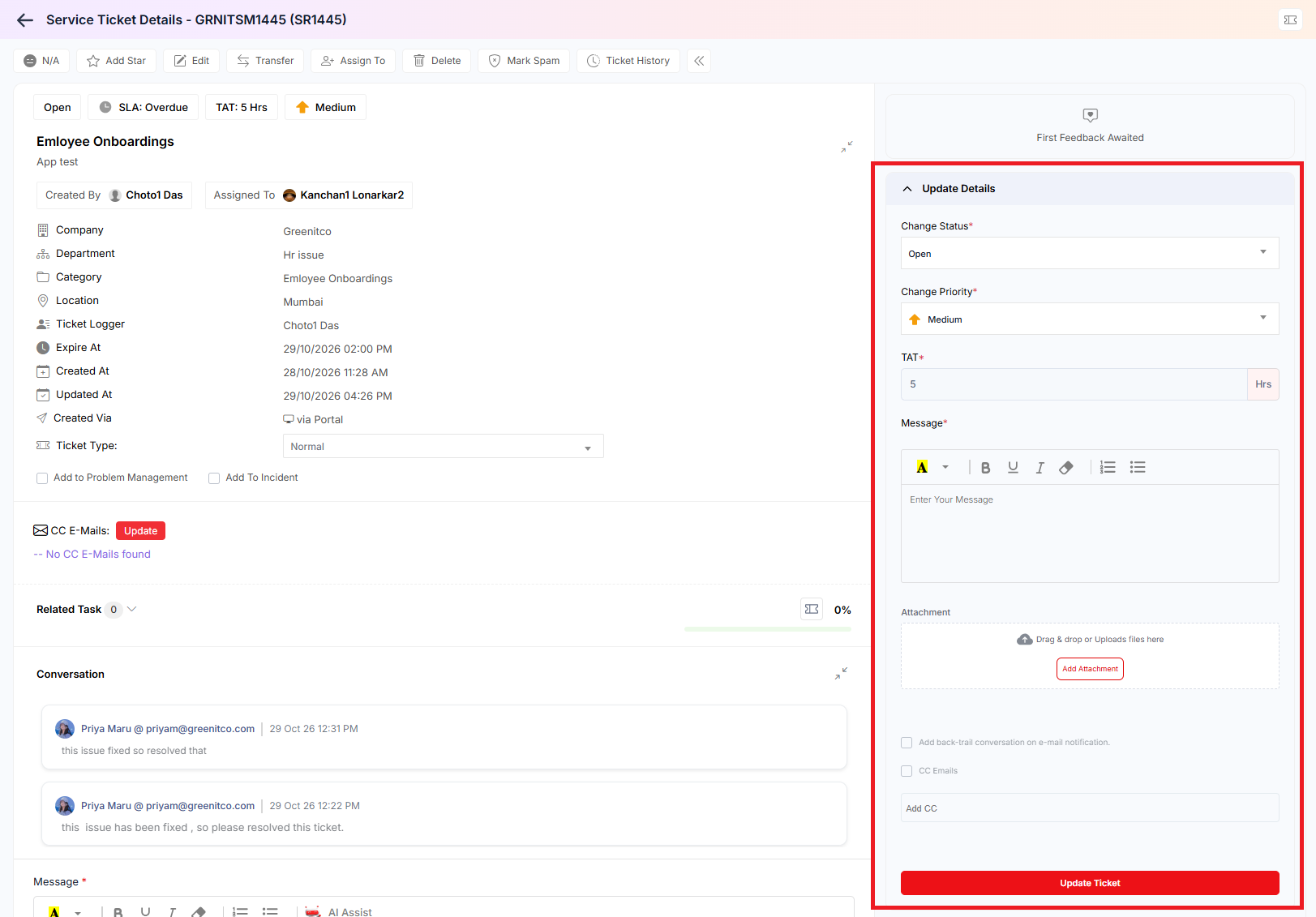
Figure 3.3.15: Status Update form
Step 2: Select the Ticket Status
Select the required status from the Ticket Status drop-down. Available statuses are configured under Sidebar > Ticket > All Status > Ticket Status.
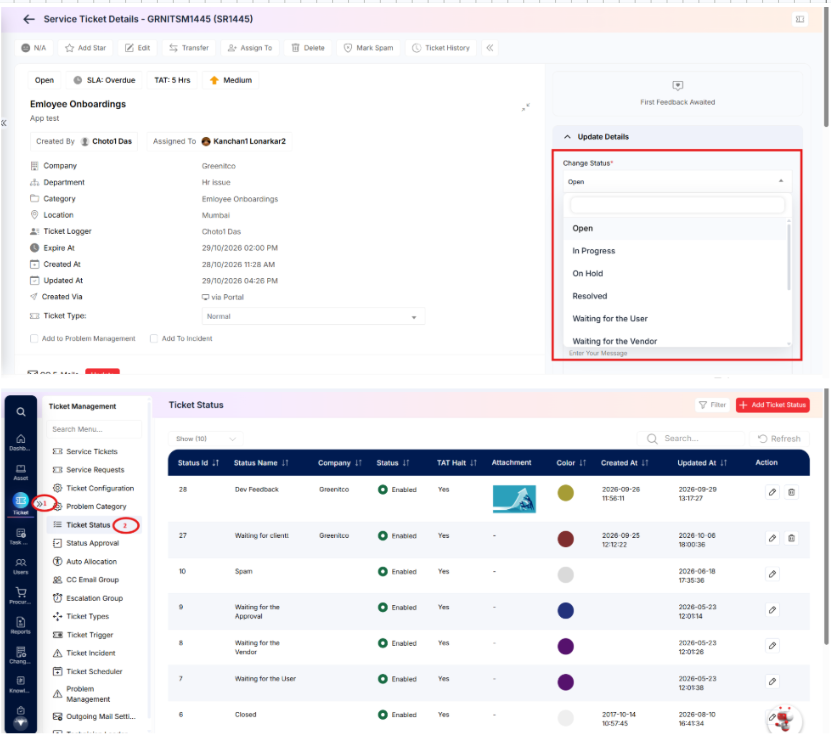 The available status options may also be filtered according to the selected ticket type. These status options are determined by the configuration associated with the ticket type selected on the Ticket Details screen.
Step 3: Update Priority, TAT, and Add a Comment
If required, update the ticket's Priority and Turnaround Time (TAT) according to the current situation. These fields are editable only when the technician has the necessary access configured under Sidebar > Ticket > Ticket Configuration, in the Ticket Handler Limit section.
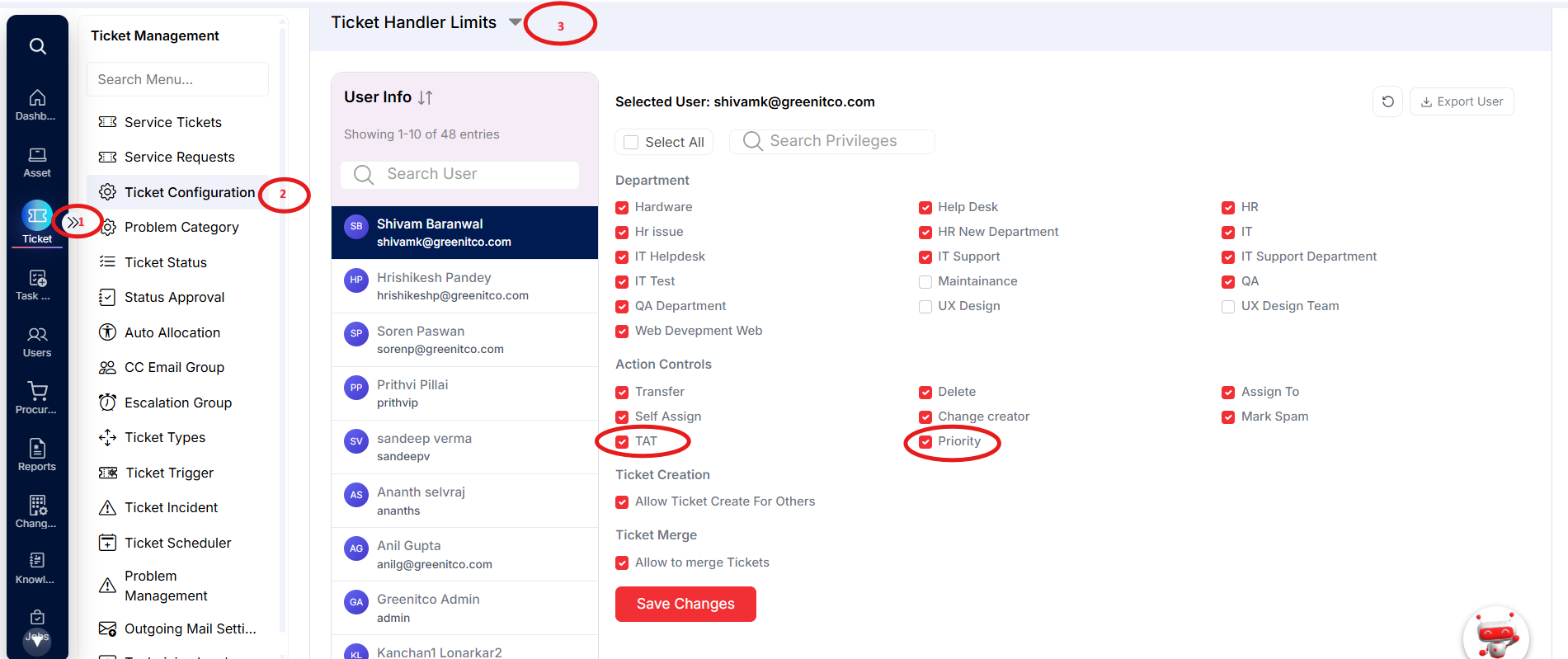
Enter a message or comment describing the progress, action taken, or any other relevant information. Attach supporting files, if required.
Step 4: Configure Internal Notes and Notifications
Before submitting the update, configure the following options as applicable:
Internal Note: Select the checkbox to mark the status update and associated comment as an internal note.
CC Notification: Select the relevant option to notify additional recipients and enter the email addresses of the users who should receive the notification.
Review the message and selected options before proceeding.
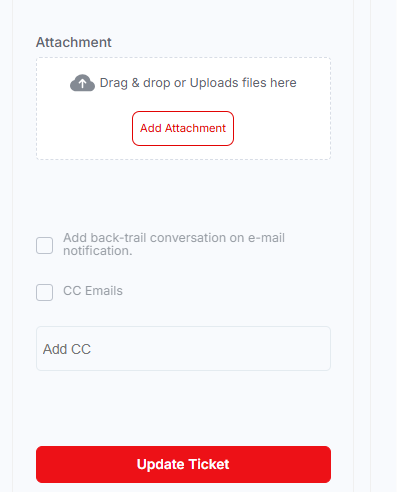
Figure 3.3.16: Status Update form – attachments, notification options and Update Ticket
Step 5: Submit the Status Update
Click Update to save the changes. The ticket status and any permitted changes to the priority or TAT are updated, and the comment is added to the ticket conversation.
A notification is sent to the user regarding the status update, subject to the configured notification options and the selected comment settings.