

Introduction
Custom Fields allow you to collect additional information that is not available in the standard forms. For example, you may need to capture a warranty reference for an asset or additional details when creating a service ticket. Custom fields help you customise forms to meet your organisation's specific requirements.
You can create individual custom fields, group them into Field Sets, and associate each field set with the relevant module, ticket type, model, or category. Once configured, the additional fields appear automatically on the applicable forms.
Using this section, you can:
- Create Custom Fields: Add fields to capture additional information based on your business requirements.
- Configure Field Types: Define the type of information to collect, including text, dropdown, radio button, and checkbox fields.
- Manage Field Options: Configure the available choices for dropdown, radio button, and checkbox fields.
- Create Field Sets: Group related custom fields together for easier management.
- Associate Field Sets: Link field sets to the relevant modules, ticket types, models, or categories so that the appropriate fields appear on the corresponding forms.
Example: You can create a field set containing warranty details and associate it with a specific asset category. When a user adds or updates an asset in that category, the configured warranty fields appear on the relevant form.
These settings help you collect consistent, relevant information across different modules without changing the standard form structure.
In this section, you will learn how to view and create custom fields, configure field options, and create and manage field sets.
Navigation:
Header › Config › Custom Fields
Viewing the Custom Fields List
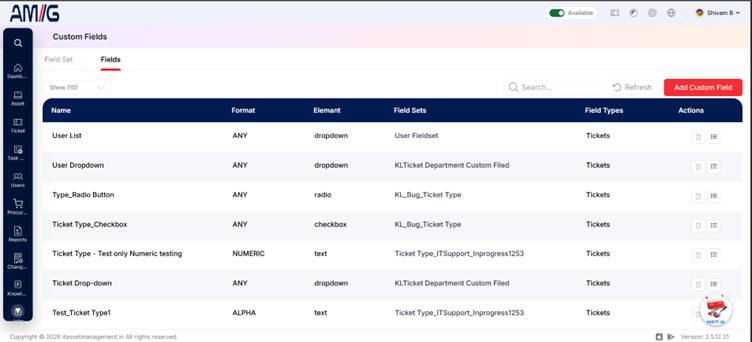
Go to Header > Config > Custom Fields. The screen has two tabs: Field Set and Fields. Click the Fields tab to see every custom field created so far.
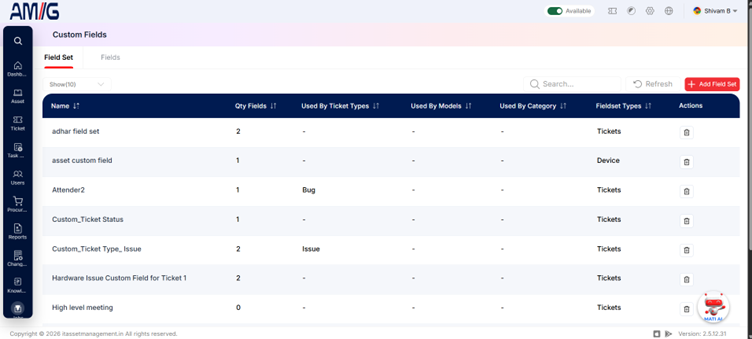 ▲ Custom Fields – Fields List
Understanding the Main Screen
Custom Fields main screen elements
| Area | Description |
|---|---|
| Sub Header | Use Show (10) to choose how many records you see on one page. Type in the Search box to find a record quickly, or click Refresh to reload the list. |
| Tabs | The Field Set tab lists your field sets (see Managing Field Sets). The Fields tab lists the individual custom fields. |
| Add Custom Field Button | Click the red Add Custom Field button in the top right corner to create a new field. |
| The Data Table | Shows every field with its Name, Format, Element, Field Sets and Field Types (see the Fields list columns table). |
| Actions Column | Each row has two icons on the far right: Delete (trash can) and Details (list icon). |
| Pagination | The bottom of the page shows how many records you're looking at. Use Previous and Next to move between pages. |
Fields list columns
| Column | Description |
|---|---|
| Name | The name given to the custom field. |
| Format | The validation rule applied to the value, such as ANY, NUMERIC or ALPHA. |
| Element | How the field appears on the form, such as text, dropdown, radio or checkbox. |
| Field Sets | The field set(s) the field belongs to. |
| Field Types | The module the field can be used in, such as Tickets or Device. |
How to Create a New Custom Field
To create a custom field, follow these steps:
Step 1: On the Custom Fields screen, open the Fields tab and click the red Add Custom Field button in the top right corner.
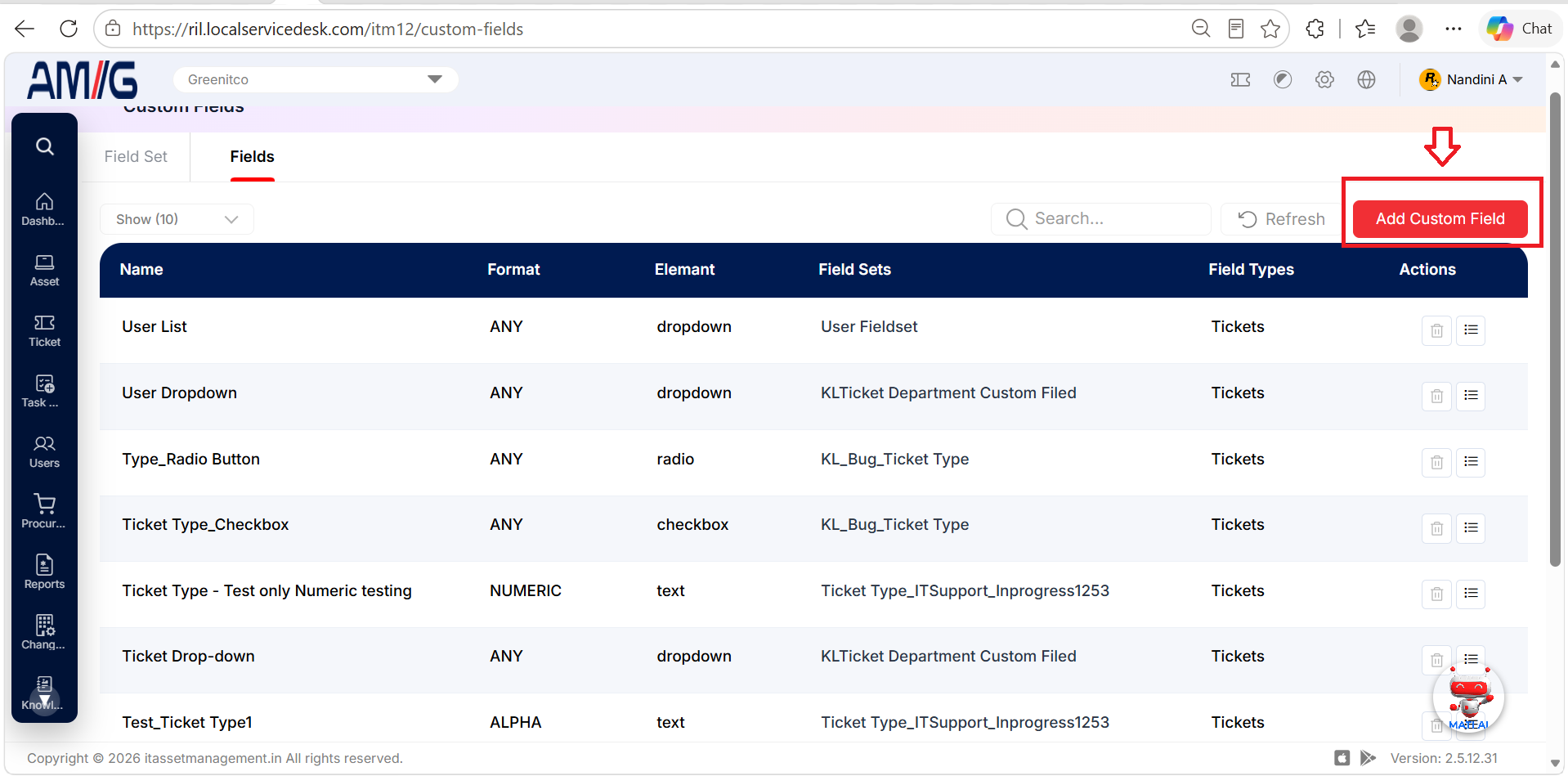
Step 2: The "Add Custom Field" pop-up window opens.
Add Custom Field Modal
Step 3: Fill in the required fields. They are marked with a red asterisk (*), and the form will not save without them:
Add Custom Field – required fields
| Field | Description |
|---|---|
| Field Name | Give the field a clear name that tells users what to enter (for example, "Aadhaar Number"). |
| Form Element | Choose how the field is shown on the form: Text, Date, Time, Datetime, Dropdown, Radio or Checkbox. |
| Field Type | Choose the module the field is for: Device, Ticket, Component, Consumable, Accessories, License, Mailroom or Kanban. The field can only be used in the module you choose. |
| Option Type | Appears only when the Form Element is Dropdown, Radio or Checkbox. Choose Custom or Predefined (see Setting Up Dropdown, Radio and Checkbox Options). |
Step 4: Fill in any optional settings you need:
Add Custom Field – optional fields
| Field | Description |
|---|---|
| Format | Choose the rule used to check the value users enter: Any, Alpha, Numeric, Date, Time, Datetime, MAC, IP or Custom. With Custom, you can enter your own validation pattern. |
| Help Note | Type any guidance users should see when filling in the field. You can use highlighting, bold, italic, underline and bullet or numbered lists. |
Step 5: If the field is a dropdown, radio or checkbox, set up its choices as described in Setting Up Dropdown, Radio and Checkbox Options.
Step 6: Click Save. The custom field is created and appears in the Fields list.
[NOTE] To cancel without saving, click Cancel or the X in the top-right corner.
Setting Up Dropdown, Radio and Checkbox Options
When the Form Element is Dropdown, Radio or Checkbox, the field needs a list of choices. Use the Option Type field to decide where those choices come from: type your own list (Custom) or use records that already exist in AMG (Predefined).
Custom Options
Step 1: Set Option Type to Custom. The Custom Options area appears.
Step 2: Click the blue + Add Option button to add a new row, then type the choice into the box.
Step 3: Repeat for each choice you need. To remove a choice, click the pink Minus (-) button beside it.
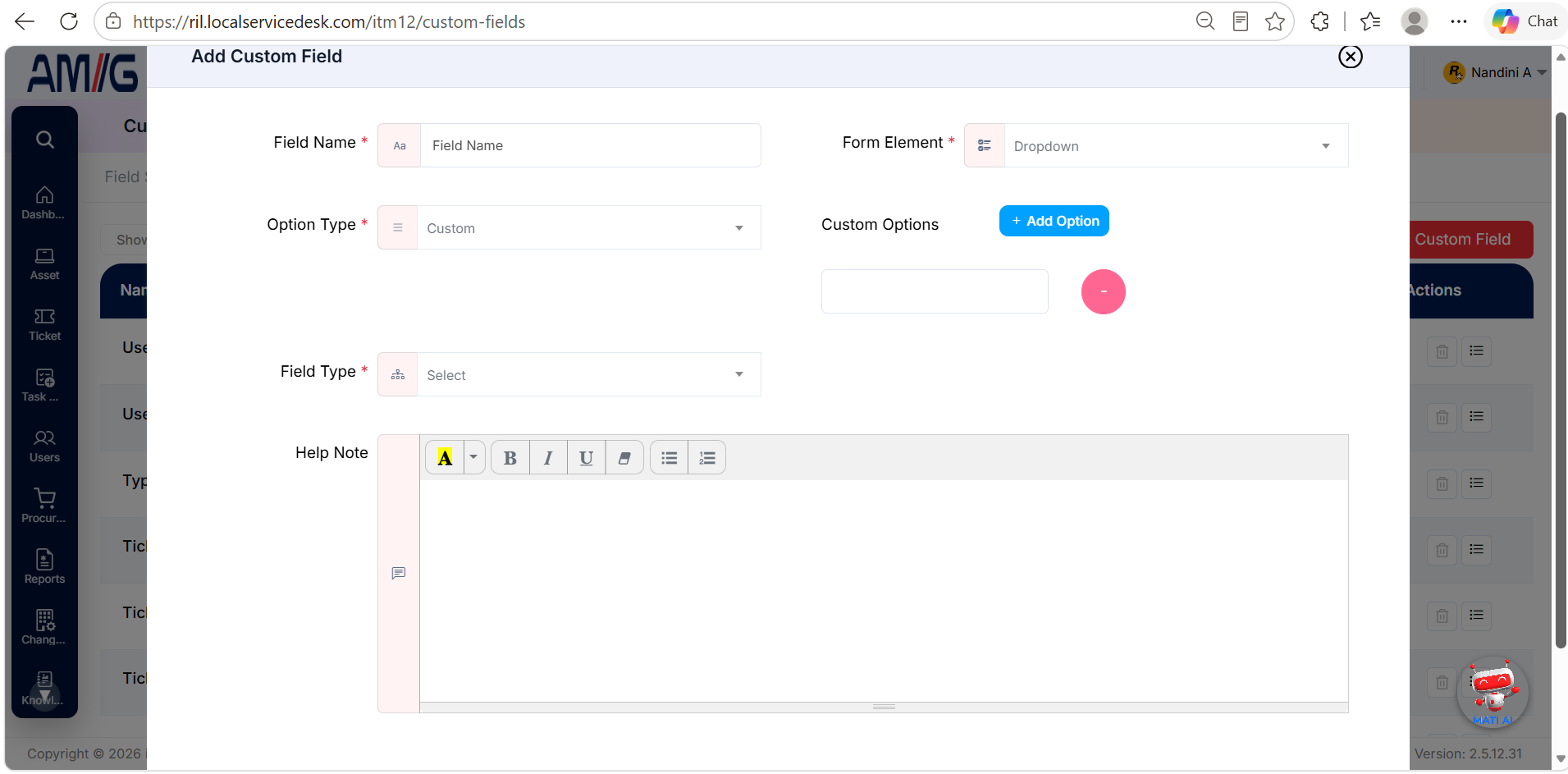 Add Custom Field – Custom Options
Predefined Options
Step 1: Set Option Type to Predefined. A required Predefined Options field appears.
Step 2: Choose the list the field should use. When someone fills in the form, the field shows the live records from that list, so the choices always stay up to date.
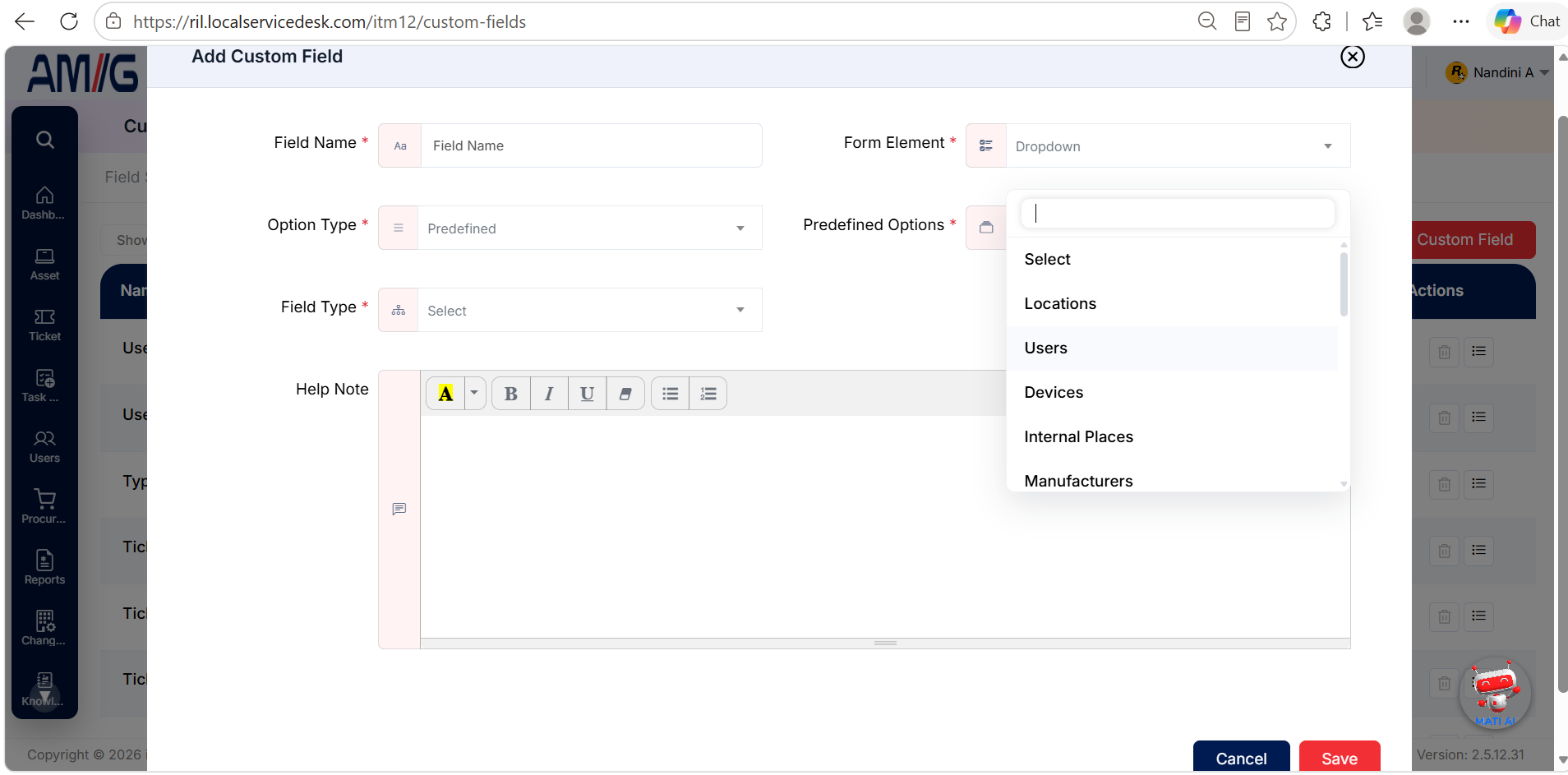 Add Custom Field – Predefined Options
Available predefined lists
| Group | Lists |
|---|---|
| People and places | User, Department, Location, Internal Place |
| Assets | Device, Model, Manufacturer, Component, License |
| Service management | Ticket, Service Request, Change Management, Task |
| Procurement | Project, Purchase, Supplier, Contract, Courier Provider |
💡 Tip: If the choices already exist somewhere in AMG (for example, your locations or suppliers), use Predefined. You then only have one list to keep up to date.
Managing Field Sets
A field set groups related custom fields so they can be attached in one go. You choose a field set on a category (How to Create a New Category), a department's ticket configuration (How to Create a New Department), a model (Creating a New Model) or in the device settings (Device Settings (Optional)), and all of its fields then appear on the matching forms.
Viewing the Field Set List
Step 1: On the Custom Fields screen, click the Field Set tab.
Step 2: You will see every field set, with tools to search, sort and manage them.
 Custom Field Set List
Field set list columns
| Column | Description |
|---|---|
| Name | The name of the field set. |
| Qty Fields | How many custom fields are in the field set. |
| Used By Ticket Types | The ticket types that use this field set. A dash (-) means none. |
| Used By Models | The models that use this field set. A dash (-) means none. |
| Used By Category | The categories that use this field set. A dash (-) means none. |
| Fieldset Types | The module the field set is for, such as Tickets or Device. |
| Actions | Click the Trash Can icon to delete the field set. |
Click the small arrows beside a column name to sort the list.
Creating a Field Set
Step 1: On the Field Set tab, click the red + Add Field Set button in the top right corner.
Step 2: The "Add Custom Field Set" pop-up window opens.
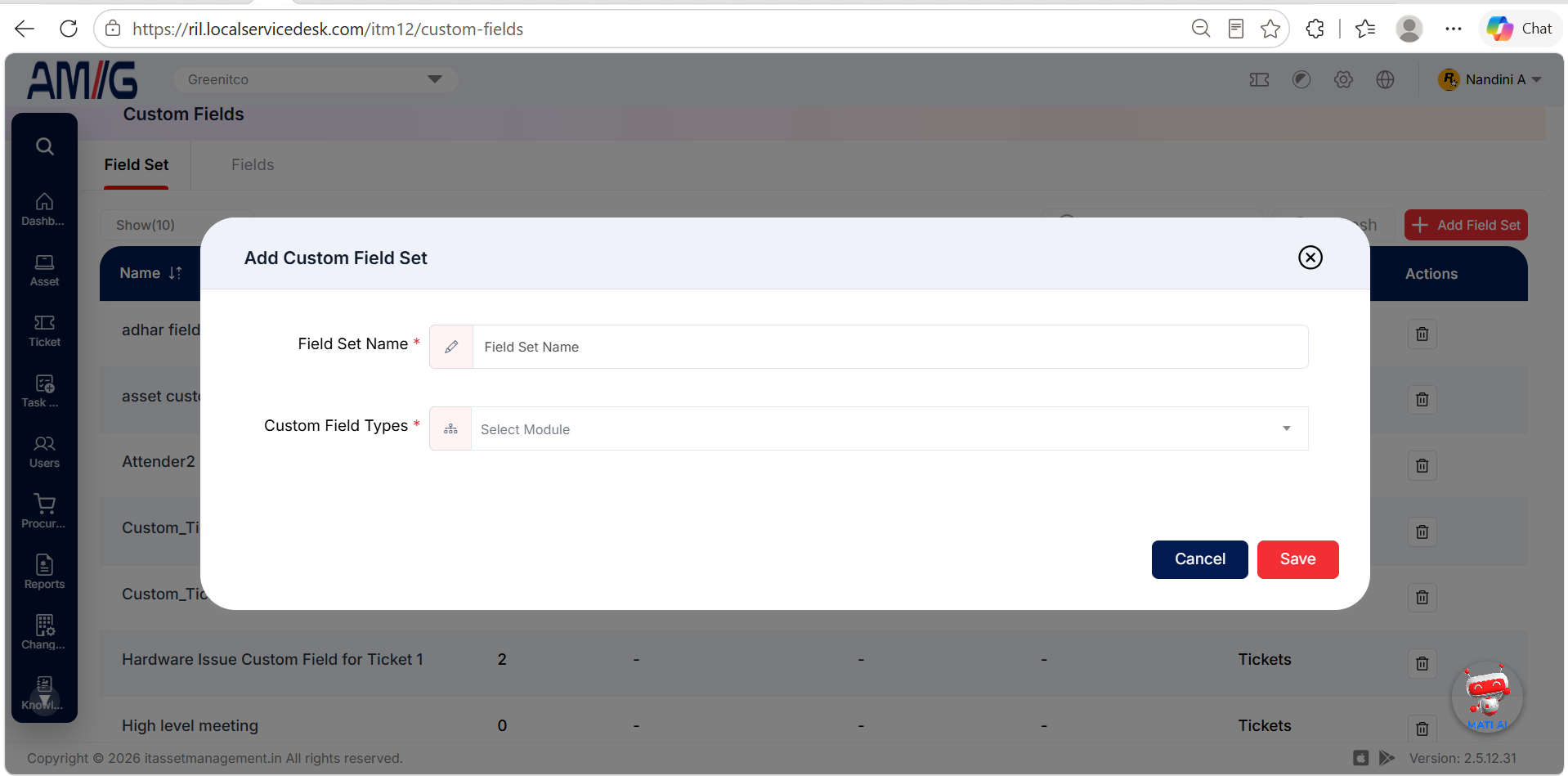 Add Custom Field Set Modal
Step 3: Fill in the required fields:
Add Custom Field Set – required fields
| Field | Description |
|---|---|
| Field Set Name | Give the field set a name that makes its purpose clear (for example, "Laptop Warranty Details"). |
| Custom Field Types | Choose the module the field set is for from the Select Module dropdown. |
Step 4: Click Save. The new field set appears in the Field Set list.
[NOTE] To cancel without saving, click Cancel or the X in the top-right corner.
Managing Existing Custom Fields and Field Sets
Once a record exists, you can manage it directly from the list using the icons in the Actions column:
View custom field details
Step 1: Open the Custom Fields screen and select the Fields tab.
Step 2: Click the List icon on the required row to review the field details.
Delete a custom field
Step 1: Before deleting, check the Field Sets and Used By columns to identify where the field is used.
Step 2: On the Fields tab, click the Trash Can (Delete) icon for the field.
Step 3: Review the confirmation prompt and confirm the deletion.
Delete a field set
Step 1: Check how the field set is used before deleting it; deleting it can remove those fields from forms that use it.
Step 2: Open the Field Set tab and click the (Delete) icon for the field set.
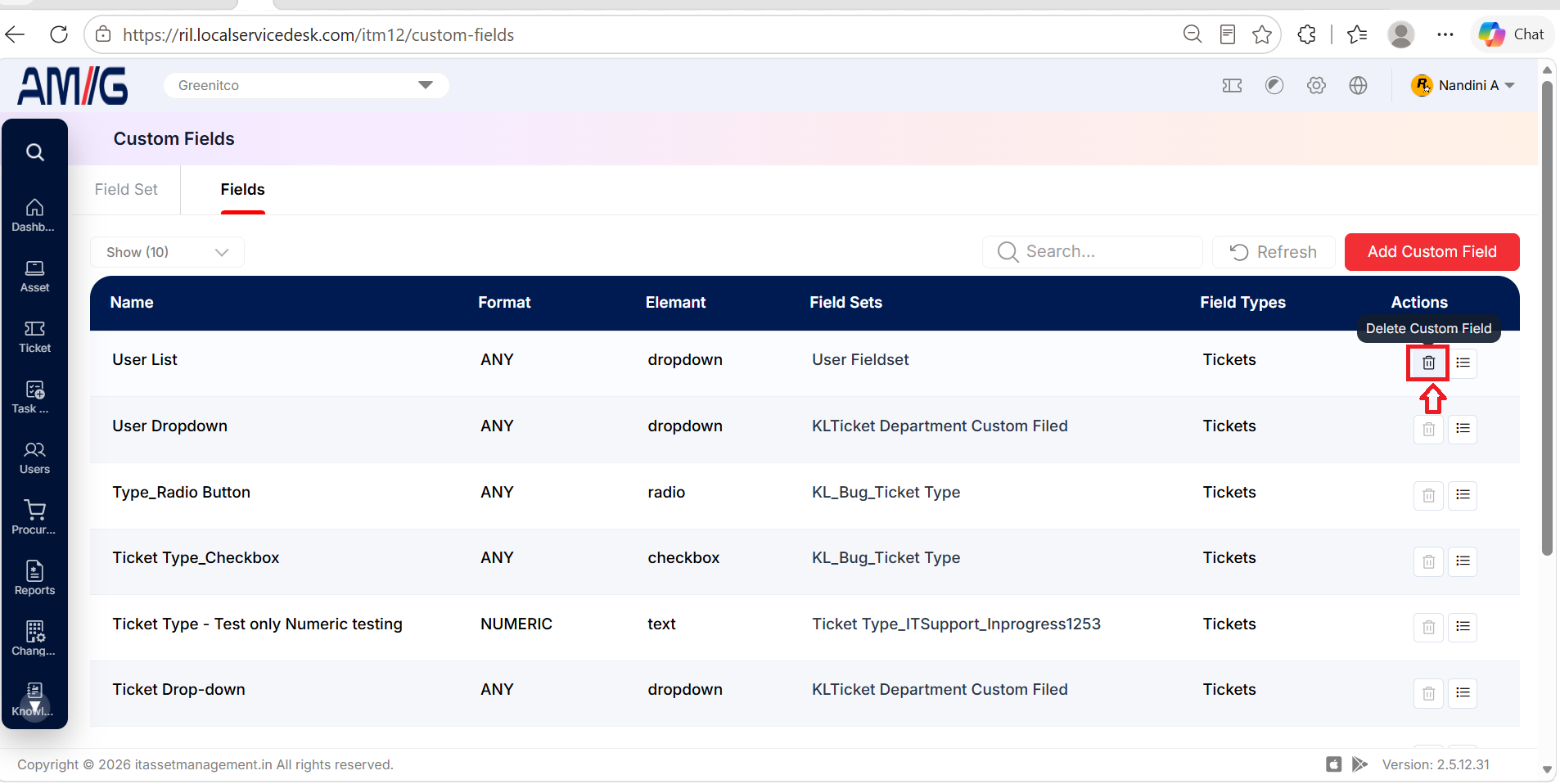 Step 3: Review the confirmation prompt and confirm the deletion.
[NOTE] Before deleting a field or field set, check the Field Sets and Used By columns. Deleting it removes those fields from every form that uses them.