

Introduction
Ticket Triggers allow you to automate actions on tickets when specific conditions are met. Instead of manually performing the same tasks for every ticket, you can configure rules that automatically carry out the required actions when a ticket is created or matches the defined conditions.
For example, if a ticket is created from a known spam email address, you can configure a trigger to automatically delete the ticket. Similarly, you can configure triggers to update ticket details, assign a handler, change the priority, or initiate an escalation based on specific conditions.
Using this section, you can:
-
Create Triggers: Define rules based on your organisation's requirements.
-
Set Conditions: Specify the conditions that a ticket must meet before an action is performed.
-
Configure AND/OR Conditions: Choose whether all configured conditions must match (AND) or whether matching any one condition is sufficient (OR).
-
Automate Actions: Configure one or more actions to run when the specified conditions are met.
-
Manage Trigger Details: Provide a company, title, description, and status for each trigger.
-
Enable or Disable Triggers: Control whether a trigger is active and available to automate ticket operations.
These settings help automate routine ticket-handling activities, reduce manual effort, and ensure tickets are processed consistently according to your organisation's requirements.
📍 Navigation:
Sidebar › Ticket › Ticket Trigger
Viewing the Ticket Trigger List
The list displays the company, trigger title, description, status, creation and update times, and available actions. Use Search to locate a trigger or Refresh to reload the list.
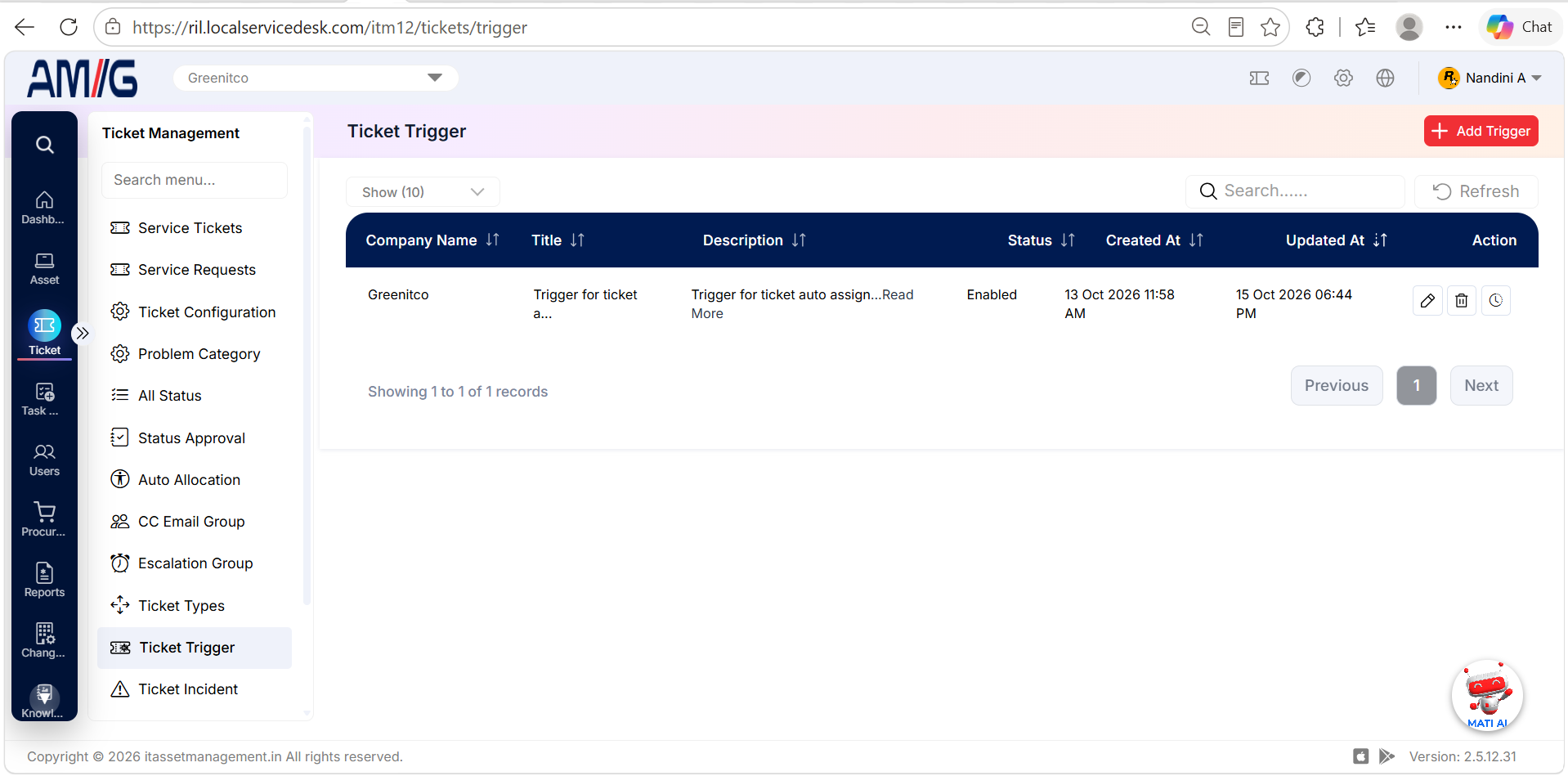 Ticket Trigger List
Ticket Trigger list columns
| Column | Description |
|---|---|
| Company Name | Company for which the trigger is configured. |
| Title | Trigger name. |
| Description | Summary of the trigger rule. |
| Status | Whether the trigger is enabled. The trigger will apply only if the status is enabled. |
| Created At / Updated At | Trigger creation and latest update timestamps. |
| Action | Edit, Delete and History controls. |
Creating a Ticket Trigger
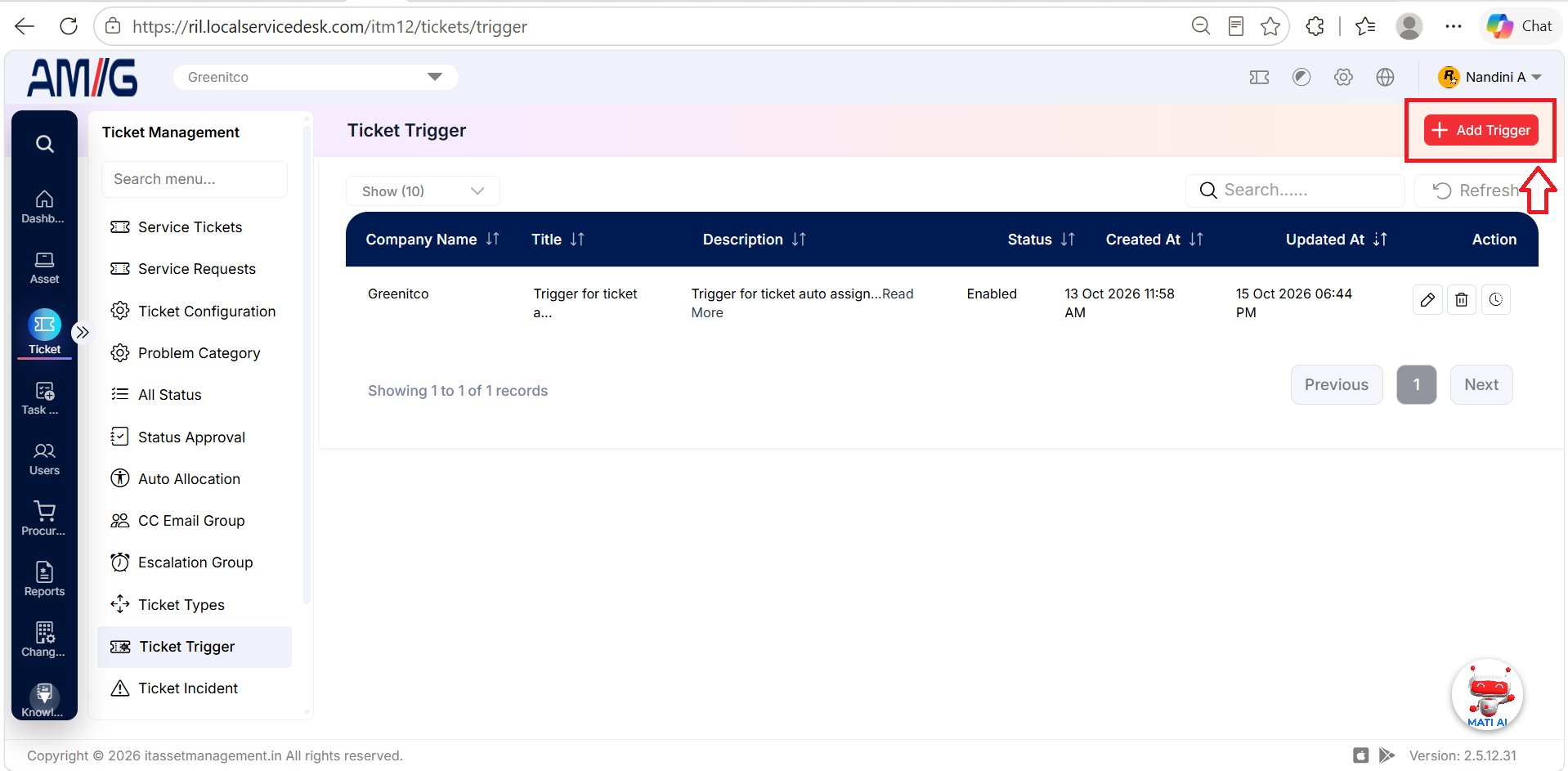
Step 1 → On the Ticket Trigger screen, click Add Trigger.
Step 2 → Select the company and enter the trigger title and description.
Step 3 → Select the Match Type. And requires every condition to match; Or runs the trigger when any one condition matches.
Step 4 → Under Conditions, select a field, choose a comparison operator, and enter the value. Click Add Condition to add another condition row.
Step 5 → Under Actions, select the required action. Click Add Action to add another action if needed.
Step 6 → Set the trigger status and click Save. Click Cancel to exit without saving.
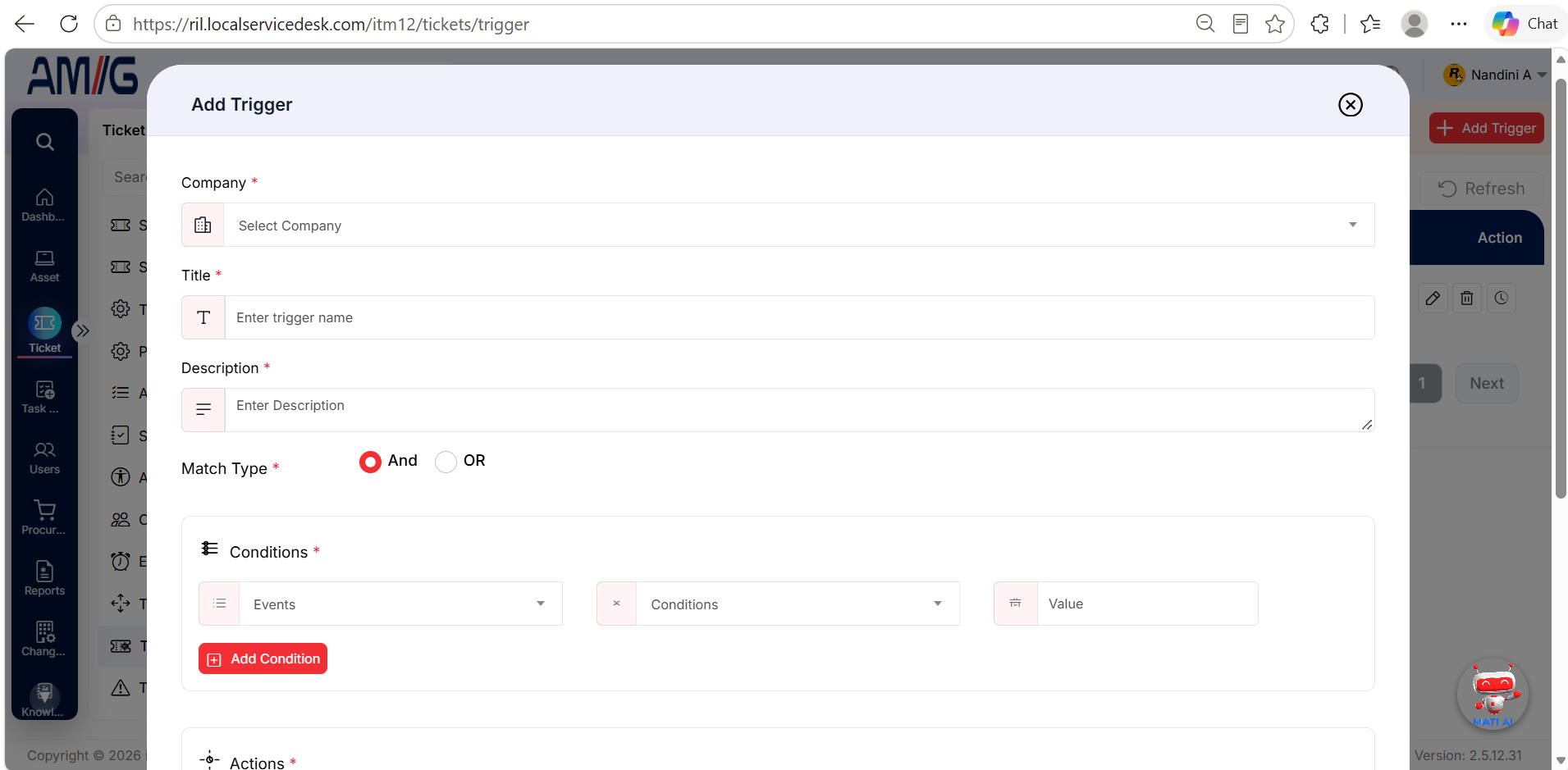 Add Ticket Trigger Form
Ticket Trigger configuration fields
| Field | Description |
|---|---|
| Company | Select the company to which the trigger rule applies. Required. |
| Title / Description | Enter the trigger title and description. Both fields are required. |
| Match Type | Select And or Or to define how the conditions are evaluated. |
| Conditions | Define each condition using a field, comparison operator, and value. Available fields include: Ticket Subject Ticket Body Ticket Status Ticket Category Ticket Number of Attachments Ticket Assignee Customer Name Customer Email Ticket Priority Ticket Department Ticket Subcategory |
| Add Condition | Adds another condition row. Available operators include: • Contains • Does not contain • Ends with • Starts with • Is • Is Not • Equals • Does not equal • Less than • More than • Changed • Not Changed |
| Actions | Select the action or actions to run when the condition set matches. • Notify via email: Configure the recipient, subject, and message to send an email when the trigger matches. • Add Note: Opens a note field and adds the specified note to the ticket. • Change Status: Opens a dropdown to select the ticket status. • Assign Ticket: Opens a dropdown to select the technician. • Delete Ticket: Deletes the ticket when the trigger matches. • Change Department: Opens dropdowns to change the ticket’s department, category, and subcategory. • Change Priority: Opens a dropdown to select the ticket priority. • Escalate Ticket: Escalates the ticket when the configured conditions match. • Call API Definition: Opens a dropdown to select the custom API integration to invoke. |
| Add Action | Adds another action row. Multiple actions can be configured for one trigger. |
| Status | Enables or disables the trigger. Disabled triggers do not run on tickets. |
Viewing Ticket Trigger History
Step 1 → In the Ticket Trigger list, click the History icon for the required trigger.
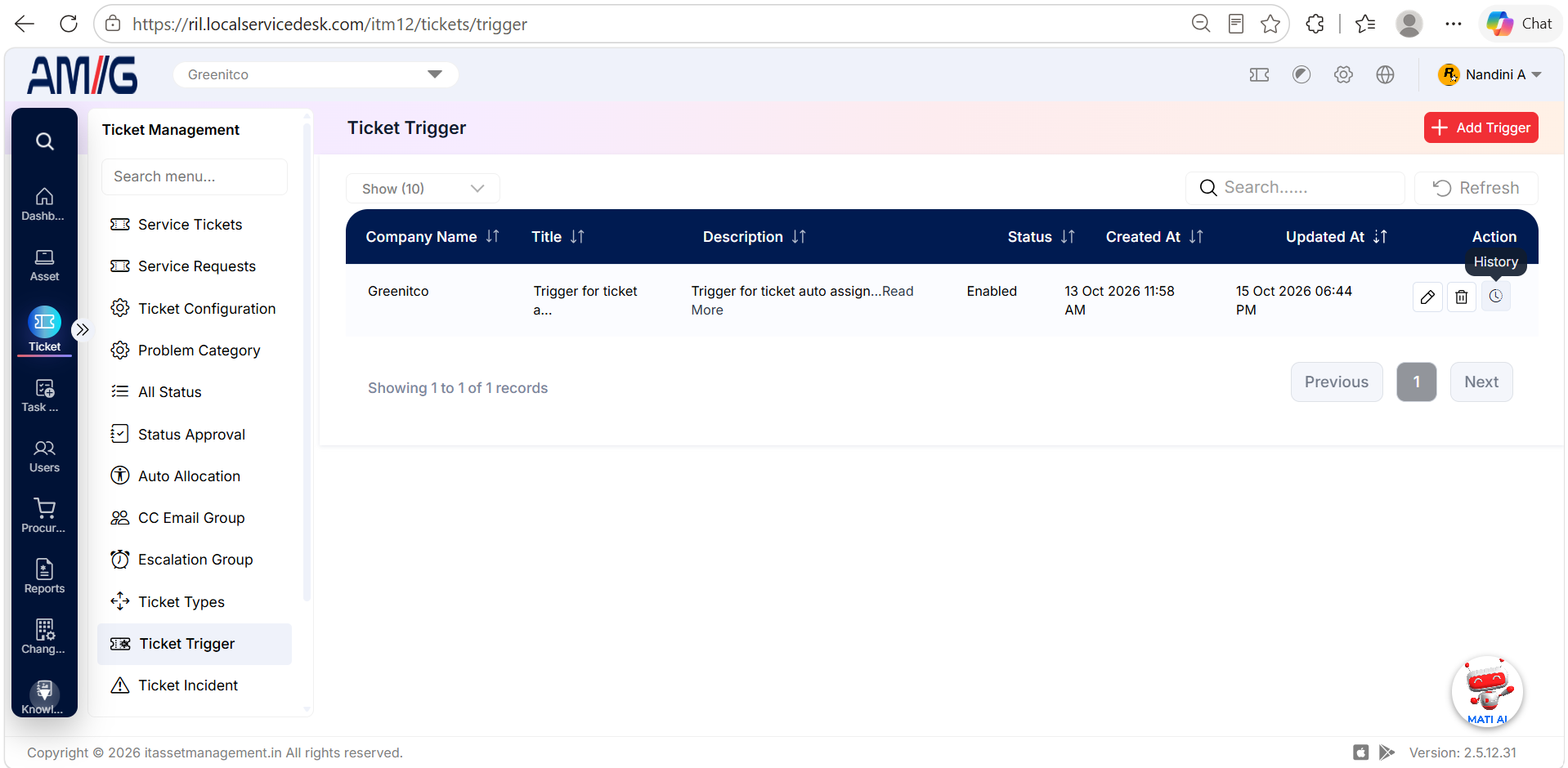
Step 2 → Review the history timeline for the subject, timestamp, user who made the change, action, and recorded value change.
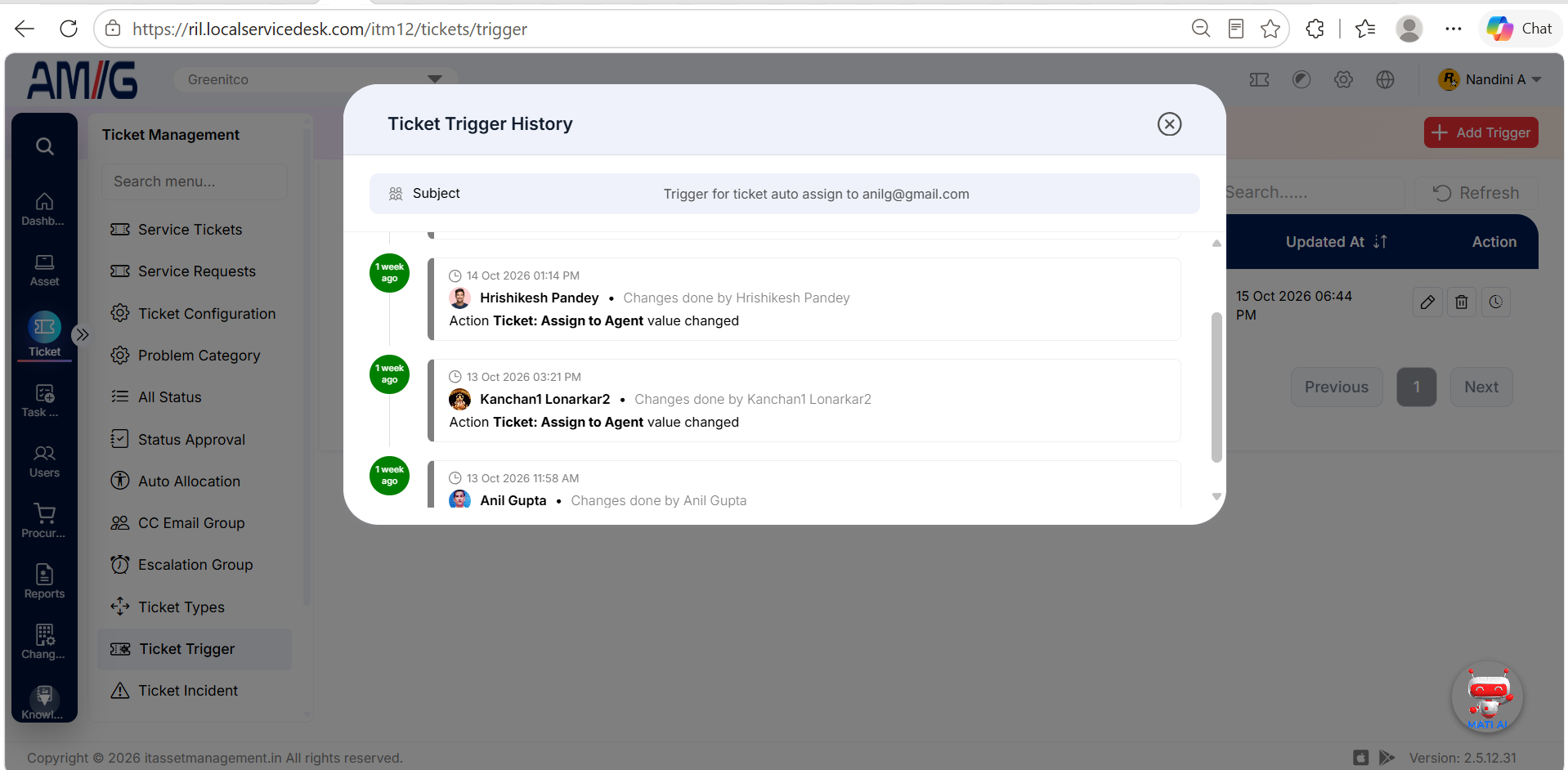
▲ Ticket Trigger History Timeline
Ticket Trigger history details
| Item | Description |
|---|---|
| Subject | Identifies the trigger being reviewed. |
| Timestamp | Date and time recorded for the change. |
| Changed By | User recorded as making the change. |
| Action / Value Change | Shows the trigger action that changed and the recorded change. |
Managing Existing Ticket Triggers
Edit a trigger
Step 1 → Locate the trigger and click the (Edit) icon.
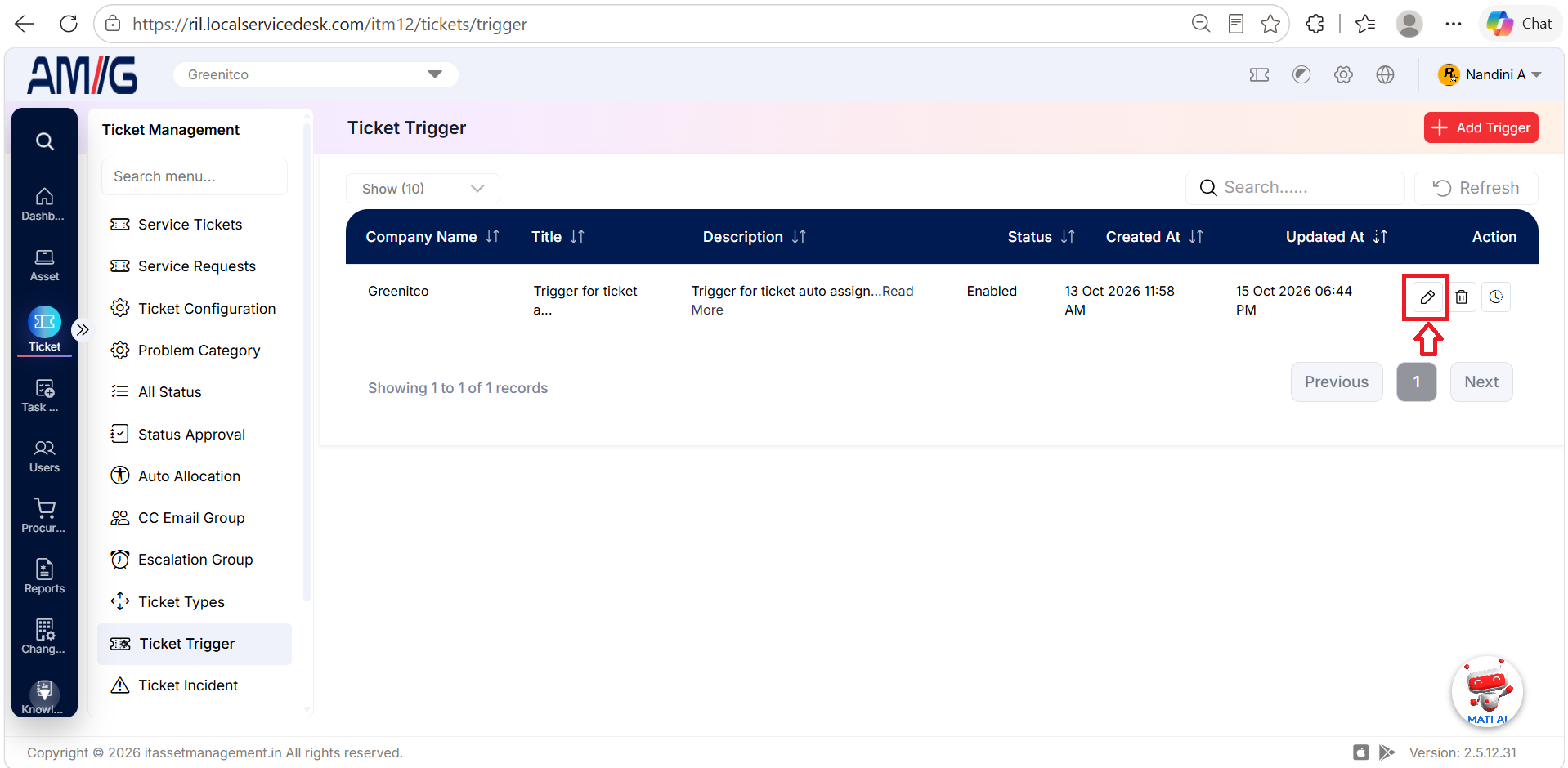
Step 2 → Update the company, title, description, match type, conditions, actions, or status as required.
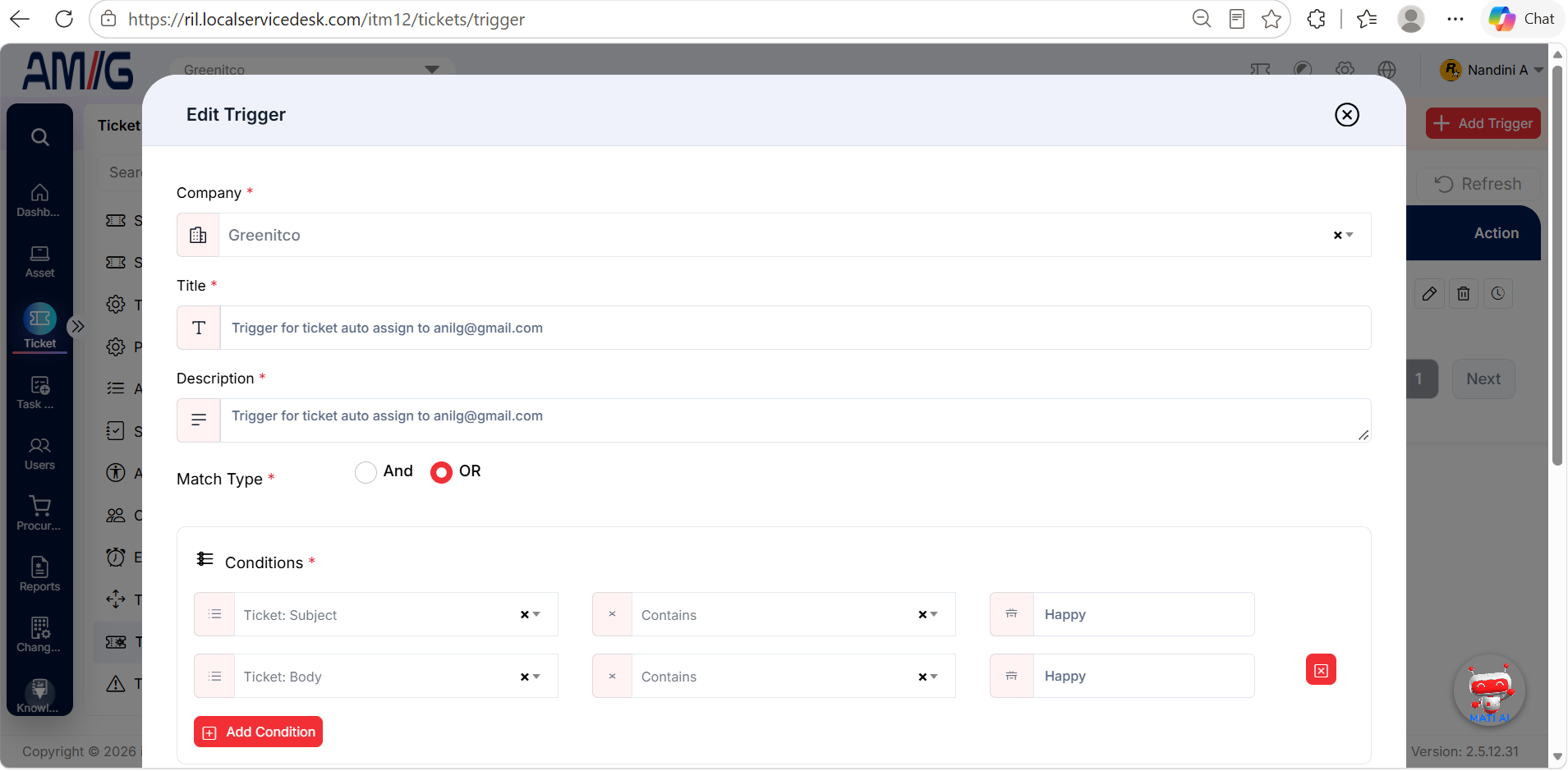
Step 3 → Click Save to apply the changes.
Delete a trigger
Step 1 → Locate the trigger and click the Trash icon.
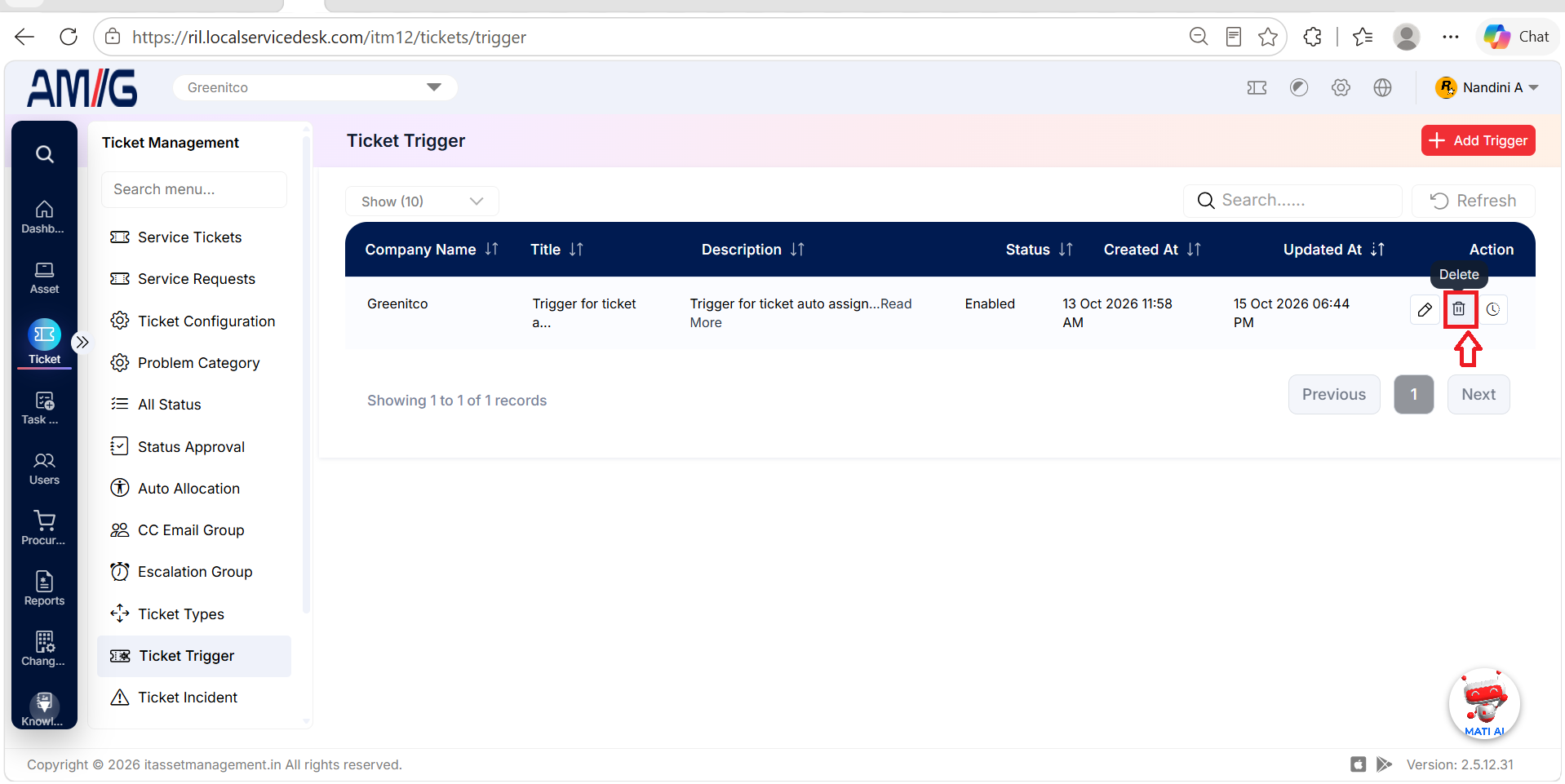
Step 2 → Review the confirmation prompt and confirm deletion if the trigger is eligible for removal.