Mailroom Setup
Product: NEXTMEGABYTE (Greenitco ITAM) · Module: Mailroom Management (ESM) · Audience: Administrator
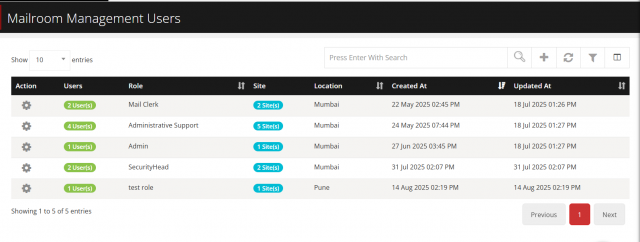
Mailroom users and roles
Menu path: Mailroom → Mailroom Users
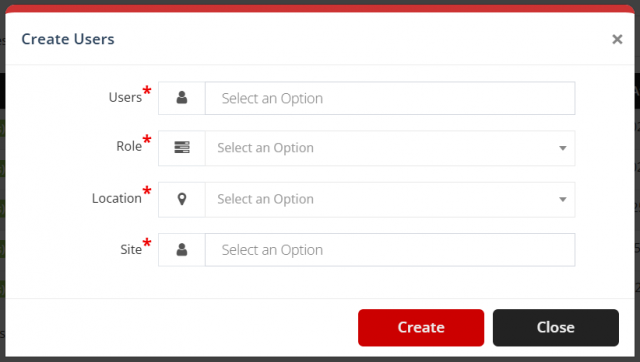
- Select Add User.
- Select one or more users, assign a role, select the location and select the sites (or all sites).
- Select Save.
Each user has one role: Mailroom Supervisor, Mail Clerk, Courier, Inventory Manager, Security Personnel, Administrative Support or IT Support. Edit or delete users with the pencil and trash icons.
Parcel statuses
Menu path: Mailroom → Status
| Field | Description |
|---|---|
| Status Name | For example Pending, In Transit, Delivered |
| Enable/Disable | Whether the status can be used |
| Custom Field Set | Extra fields captured with this status |
| Color Code | Color shown for the status |
| Is Default | The status given to new parcels |
| Signature Required | A signature must be captured when this status is set |
| Proof Required | Proof (such as a photo) must be attached when this status is set |
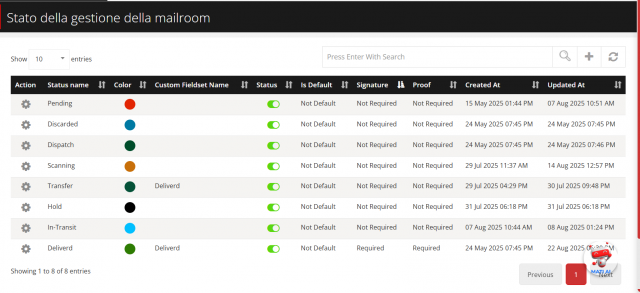
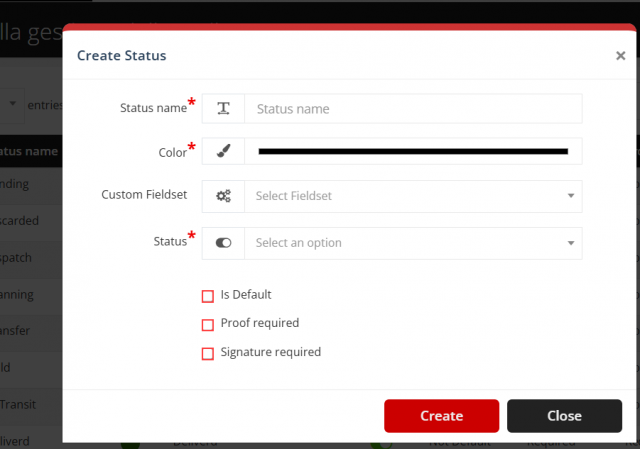
Select Add, fill in the fields and Save. Edit or delete statuses from the list.
Sites
Menu path: Mailroom → Site
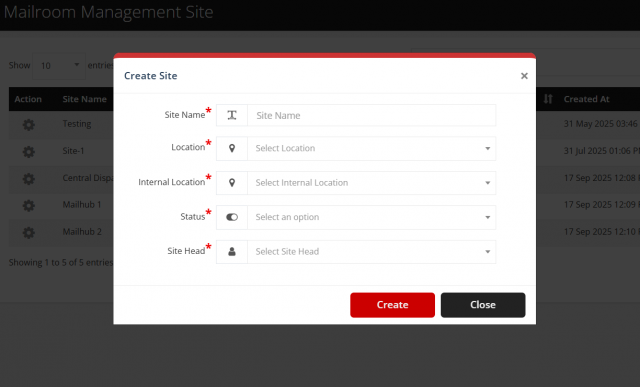
- Select Add Site (plus icon).
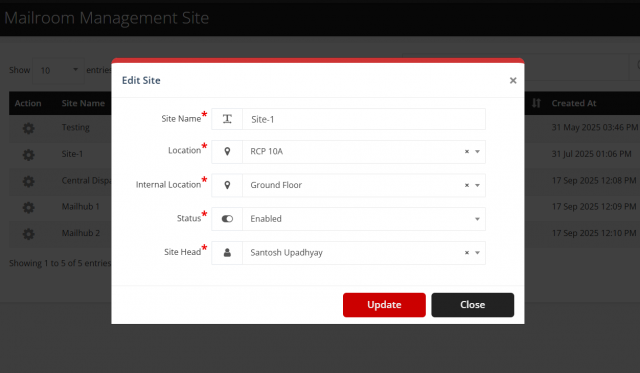
- Enter the Site Name, choose the Location and Internal Location, set the Status (enabled or disabled) and select the Site Head (the person responsible for site communication).
- Select Save.
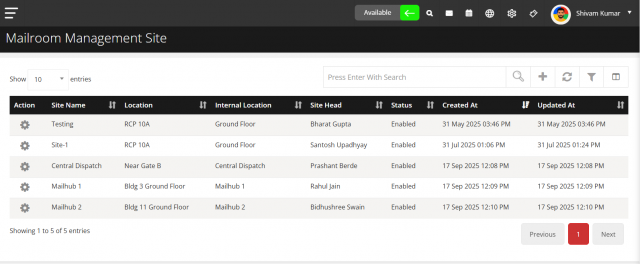
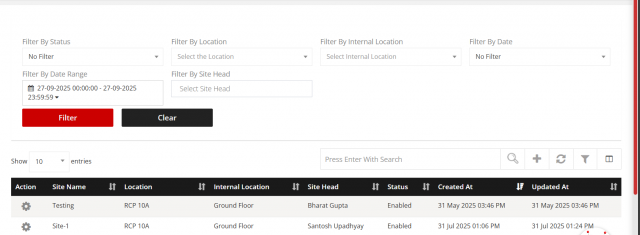
Filter sites by name, location, internal location, status or site head. Disabled sites are hidden from operations.
Notifications and field visibility
Menu path: Mailroom → Configuration → General Settings
- Email notifications: all status changes (default), initiated only, delivered only, or initiated and delivered only.
- MRR and TPN visibility: choose the sites that can see the MRR (Mail Receipt Reference) and TPN (Tracking Package Number) fields.
Delegation
Menu path: Mailroom → Configuration → Delegation
Select Add (plus icon), choose the User whose duties are delegated and the Delegated To user, and select Include User in CC if the original user should still be copied. Select Save. Notifications then go to the delegate, with the original user in CC if selected.