Introduction
Bulk Update is the operation that lets you modify multiple device records at once, rather than editing them one by one. It is designed for scenarios where the same change applies to a group of devices—for example, reassigning a batch of laptops to a new department, updating the location of all devices in a site, or changing the status of an entire category of equipment.
Navigation Path: Sidebar > Assets > Asset Details
Update Assets in bulk
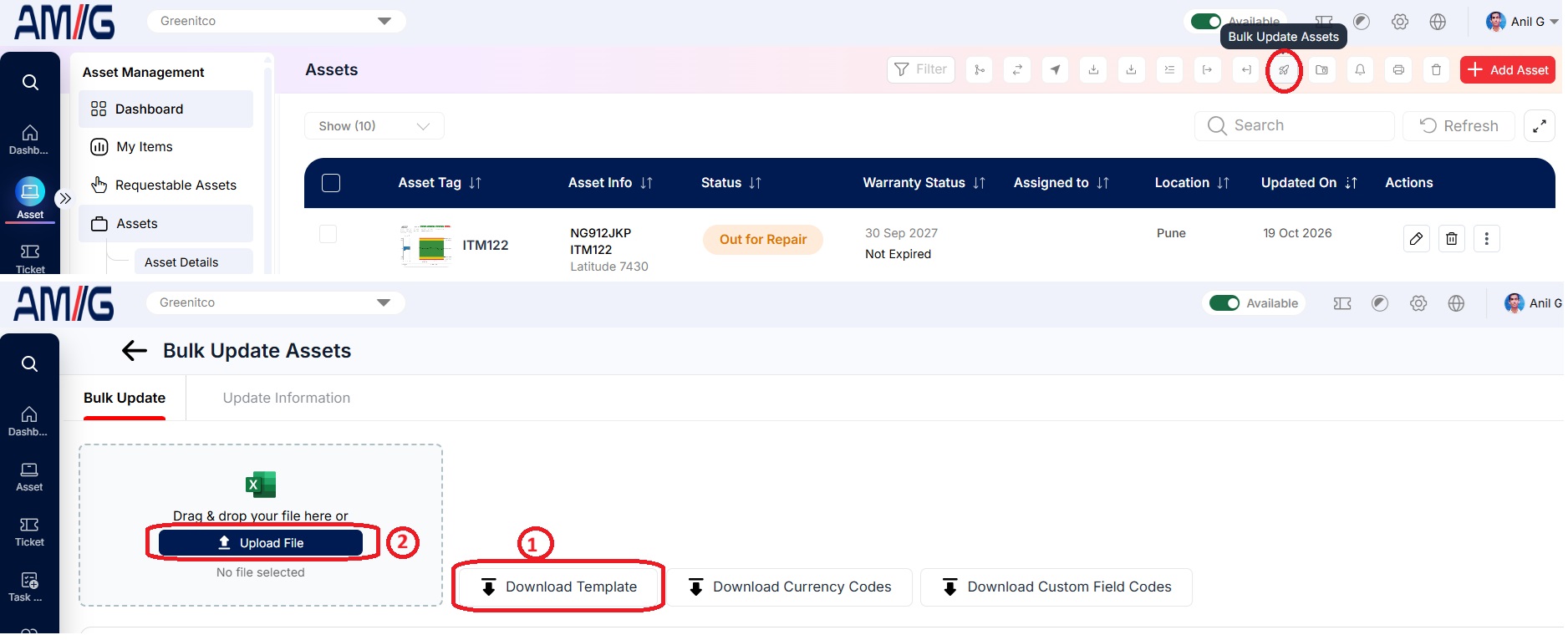
- Select Bulk Update (rocket icon).
- Select Download Format and fill in the template.
- Choose the file and select Upload.
How cells are processed
- A blank cell leaves the existing value unchanged.
- To clear a value, enter the text NULL in the cell.
- Dates must be valid Excel dates (mm/dd/yyyy).
- Never change the header row.
Column Rules
The following rules apply only when a column is not left blank. Use this guide to ensure your import file is formatted correctly.
| Column | What to Enter |
|---|---|
| Serial (required) | Enter an existing device serial number. This is used to locate the device. |
| Company | Enter a company name that already exists under Config → Companies. |
| Name | Use letters, numbers, and limited special characters. |
| Asset Tag | Enter an asset tag that already exists in the system. |
| Manufacturer | Enter a manufacturer name that exists under Config → Manufacturers. |
| Model | Enter a model that exists under Config → Models. |
| Category | Enter a category that exists under Config → Categories. |
| Status | Enter a status label. Note: "Deployed" cannot be used. |
| Department | Enter a department name. |
| Location | Enter a location name. |
| Internal Places | Enter an internal place name. |
| UUID | Use letters, numbers, and limited special characters (maximum 100 characters). |
| Purchase Date | Enter a valid Excel date. |
| Purchase Currency | Enter a valid currency code. |
| Purchase Cost | Enter a number. |
| Purchase Reference | Enter an invoice number that exists under Config → Purchases. |
| Warranty Start Date / Warranty End Date | Enter valid Excel dates. |
| Warranty Months | Enter a whole number. |
| AMC Expire Date | Enter a valid Excel date. |
| AMC Supplier / Supplier | Enter a supplier name. |
| Notes / Order Number | Use letters, numbers, and limited special characters. |
| Asset Owner | Enter a valid username. |
| IP | Use numbers and limited special characters. |
| Mac | Enter a valid MAC address without separators (e.g., no ":"). |
| Device Type | Enter a device type name. |
| Device From | Enter one of the following: Purchase Device, Project Device, Rental, or Customer Owned. |
| Stock Place | Enter an internal place name. |
| Requestable / High Priority / SEZ Device | Enter Yes or No. |
| Custom fields | Add the custom field code as the column header. You can get the codes by clicking Download Custom Field Codes. |
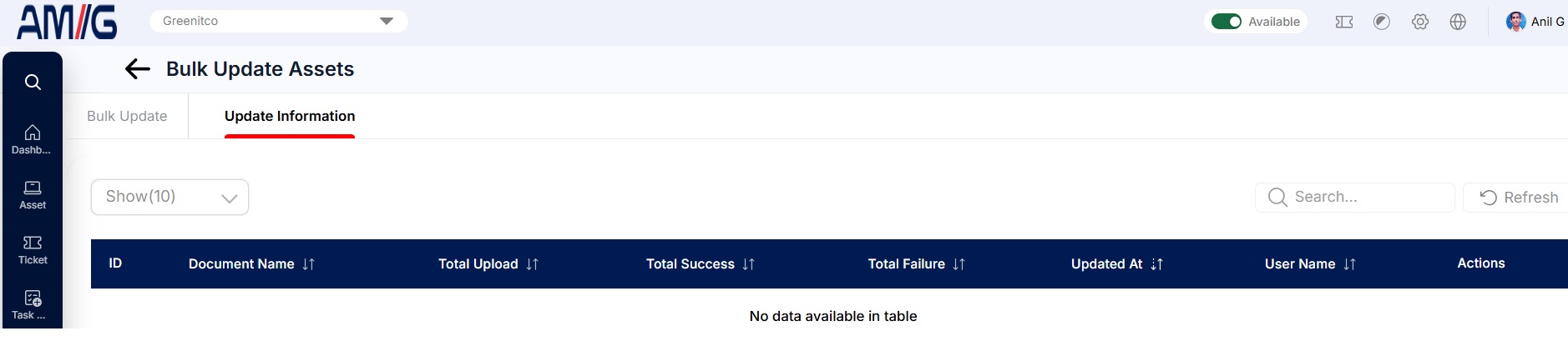
The Asset Update Information tab lists each attempt with its date, counts by status and error messages.