

Introduction
Asset Categories help organize similar assets into groups, such as laptops, pen drives, software, and accessories. They act as master records that can be selected when adding or managing assets, making it easier to classify, find, and report on assets.
Categories also allow administrators to manage common settings, such as End User License Agreement (EULA) requirements and check-in or check-out email notifications. These settings help maintain consistent asset management practices across the organization.
This section explains how to view, create, edit, and delete asset categories, as well as review their change history.
Navigation Path: Header > Config > Categories

Viewing the Categories List
Go to Header > Config > Categories. You will land on the main list showing all existing categories.
Categories Main Screen
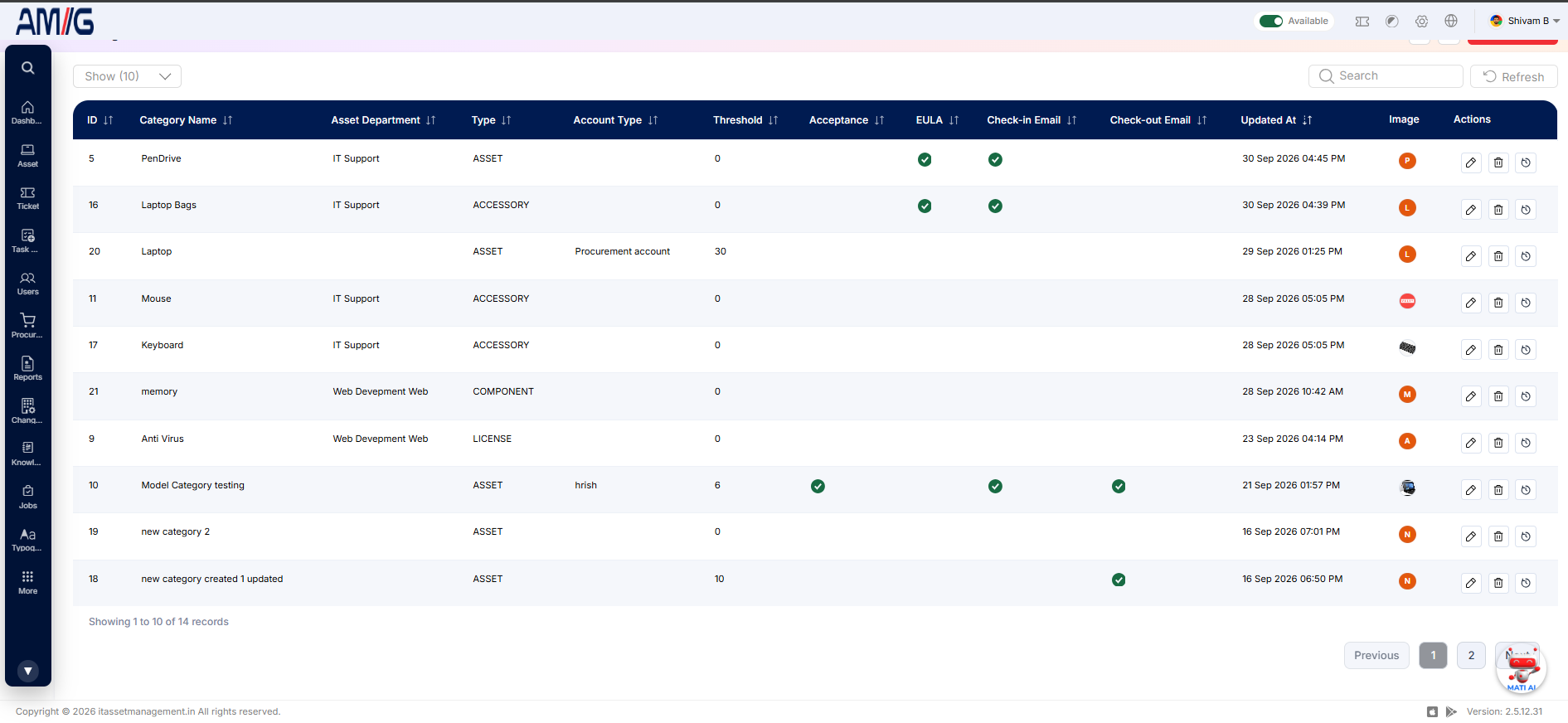 Figure: Categories Main Screen
Understanding the Main Screen
Table: Categories main screen elements
| Area | Description |
|---|---|
| Sub Header | Use Show (10) to choose how many records you see on one page. Type in the Search box to find a record quickly, or click Refresh to reload the list. |
| The Data Table | Shows all your categories with their ID, Category Name, Asset Department, Type, Account Type, Threshold, Acceptance, EULA, Check-in Email, Check-out Email, Updated At and Image. |
| Sorting | Click the small arrows beside a column name to sort the list (A to Z, Z to A, oldest or newest first). |
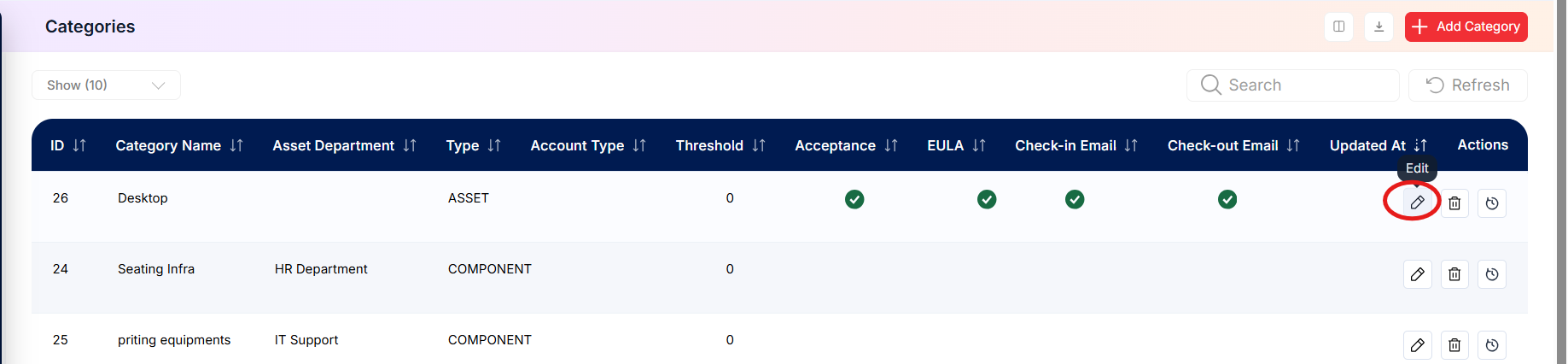
| Actions Column | Each row has three icons on the far right: Edit (pencil), Delete (trash can) and History (clock). |
| Pagination | The bottom of the page shows how many records you're looking at. Use Previous and Next to move between pages. |
Checkmark Columns: A green tick (✓) in the Acceptance, EULA, Check-in Email or Check-out Email column means that feature is switched on for the category.
How to Create a New Category
Adding a new category only takes a minute. Here is how:
Step 1: On the Categories screen, click the red + Add button in the top right corner.
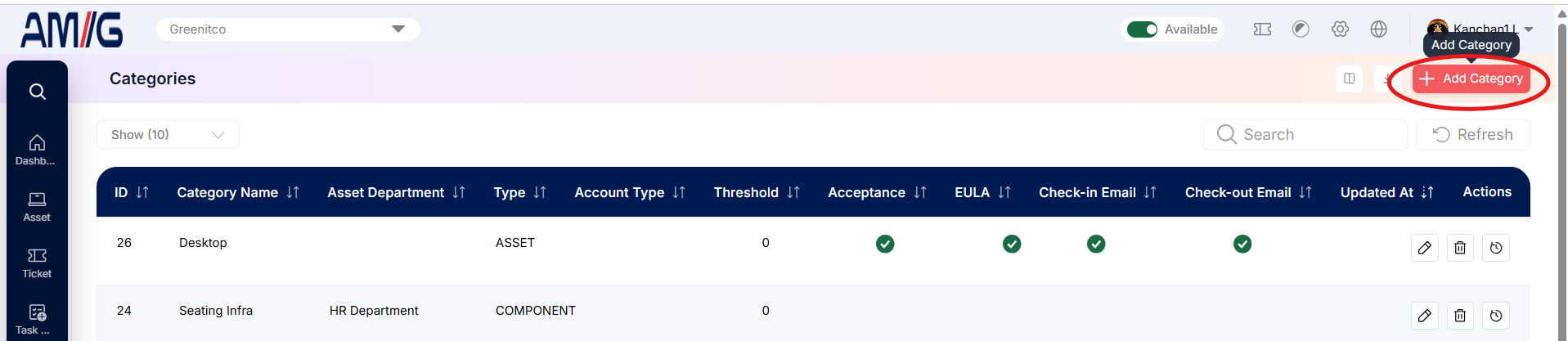
Step 2: The "Add Category" pop-up window opens.
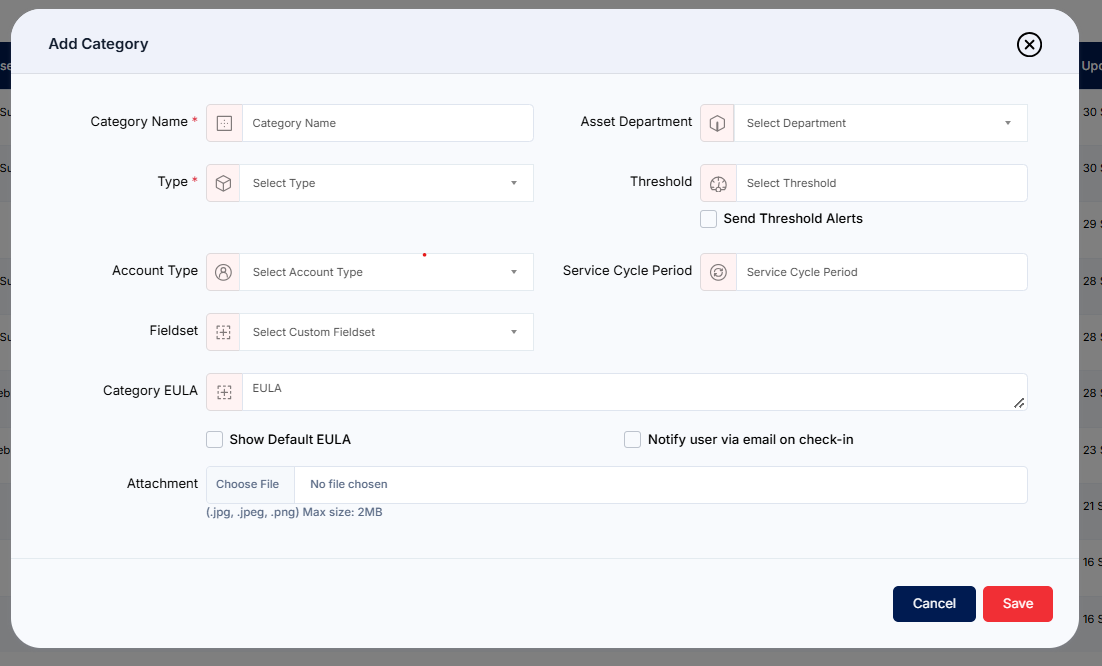
Figure: Add Category Modal
Step 3: Fill in the required fields. They are marked with a red asterisk (*), and the form will not save without them:
Table: Add Category – required fields
| Field | Description |
|---|---|
| Category Name | Give the category a clear name that everyone will recognise (for example, "Docking Stations"). |
| Type | Choose what kind of item this category is for: Asset, Accessory, Consumable, Component or License. The category only shows up in the matching module. For example, a Consumable category only appears when you add consumables. |
| Asset Department | Choose the department that owns or looks after this category. Only departments marked as an Asset Department (under Header > Config > Departments) appear in this list. |
| Threshold | Enter the minimum stock level for this category. When stock drops to this number, administrators are alerted so they can reorder in time. |
| Send Threshold Alerts | Tick this box if you would like an email to be sent when stock falls below the threshold. |
Step 4: Fill in any optional settings you need:
Table: Add Category – optional/configuration fields
| Field | Description |
|---|---|
| Account Type | Choose the account type this category belongs to. Account types are set up under Header > Config > Procurement Account Types. |
| Service Cycle Period | Enter how often items in this category need to be serviced. |
| Fieldset | Choose a custom fieldset if you want to capture extra details for this category. Those extra fields then appear on any asset, component, consumable or license that uses this category. |
| Category EULA | Type the End User License Agreement (EULA) that users must accept for items in this category. Click the expand icon in the corner if you need more room to write. |
| Show Default EULA | Tick this box to use the system's standard EULA instead of writing your own. |
| Notify user via email on check-in | Tick this box to email the user automatically whenever an item in this category is checked in. |
| Attachment | Click Choose File to add an image for the category. You can upload .jpg, .jpeg or .png files up to 2 MB. |
Step 5: Click the red Save button. Your new category is created and shows up in the list straight away.
Note: Changed your mind? Click the blue Cancel button or the X in the top right corner. Nothing will be saved.
Viewing Category History
Every time someone changes a category, the system keeps a record of it. This makes it easy to see who changed what, and when. It is handy if something looks different and you want to know why.
Step 1: On the Categories screen, find the category you want to check.
Step 2: Click its History icon (the clock) in the Actions column.
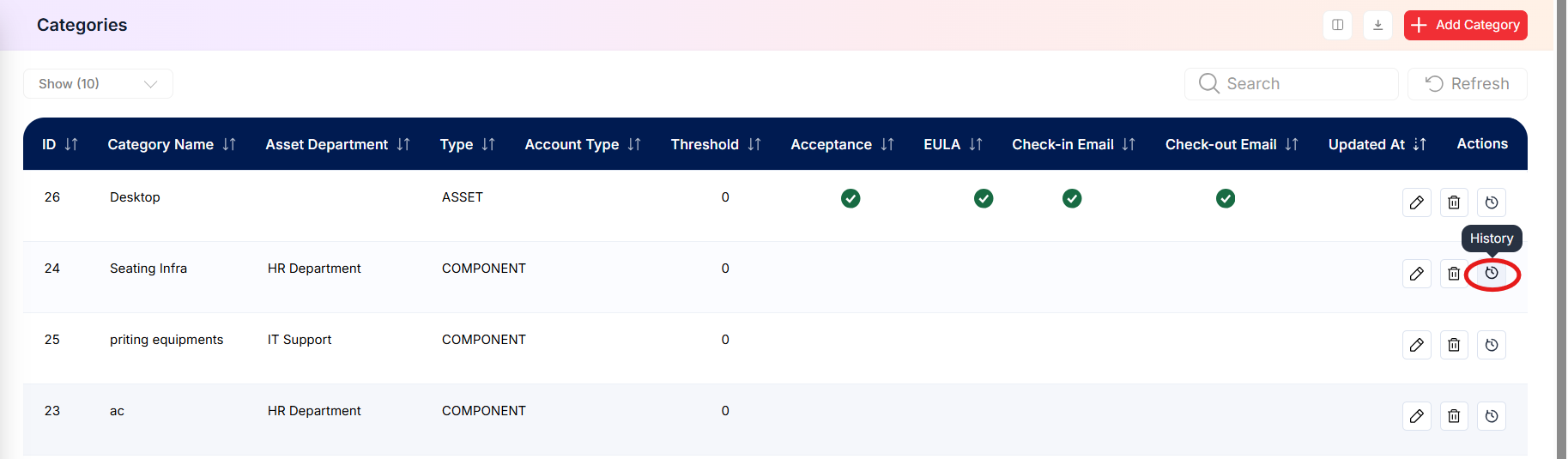 Step 3: The "Categories History" screen opens.
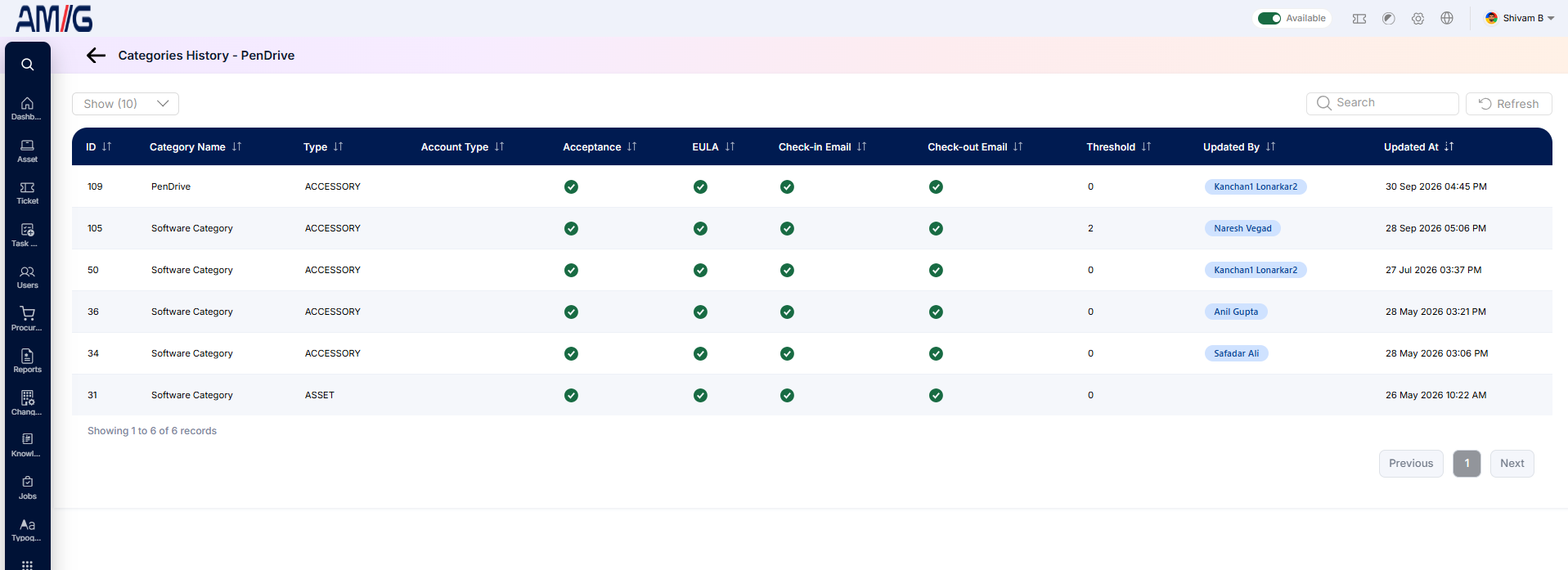
Figure: Categories History Screen
Step 4: You will see a list of every saved version of the category. For each change you can see:
Table: Categories History columns
| Column | Description |
|---|---|
| ID | The version number of that change. |
| Category Name & Type | What the category's name and type were at that point. |
| Account Type, Acceptance, EULA, Check-in Email, Check-out Email | Which of these settings were switched on at that point (shown with a green tick). |
| Threshold | The threshold value at that point. |
| Updated By | Who made the change (shown as a blue tag). |
| Updated At | The exact date and time the change was saved. |
Note: You cannot change anything on this screen; it is for viewing only. To undo a change, go back to the Categories list, click the Edit (pencil) icon and set the values back by hand.
Managing Existing Categories
Once a record exists, you can look after it straight from the Categories list using the icons in the Actions column:
Edit a category
Step 1: On the Categories screen, locate the category you want to change.
Step 2: Click the Pencil (Edit) icon in the Actions column.
 Step 3: Update the required category details and settings.
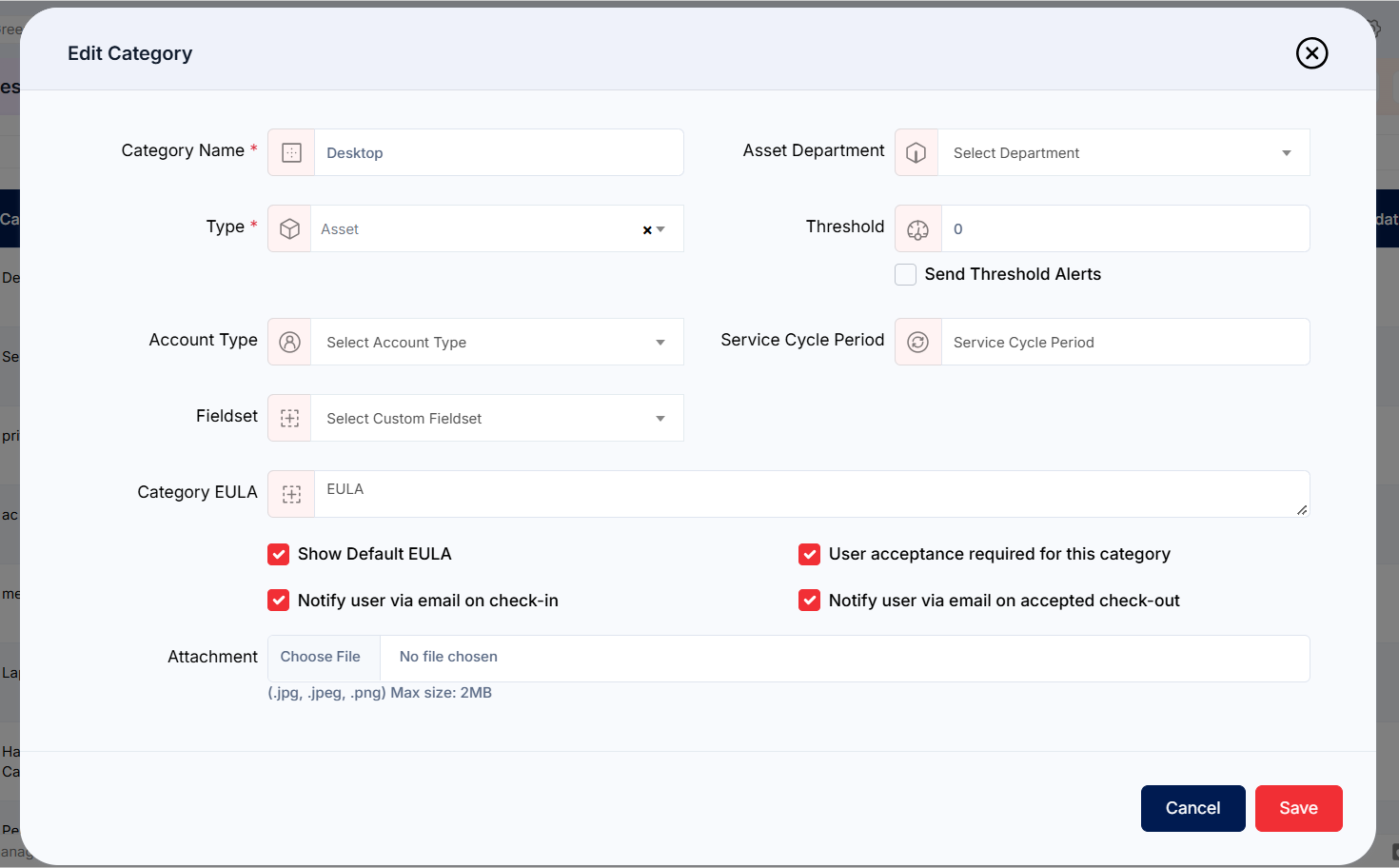
Step 4: Click Save to apply the changes.
Delete a category
Step 1: Locate the category in the Categories list.
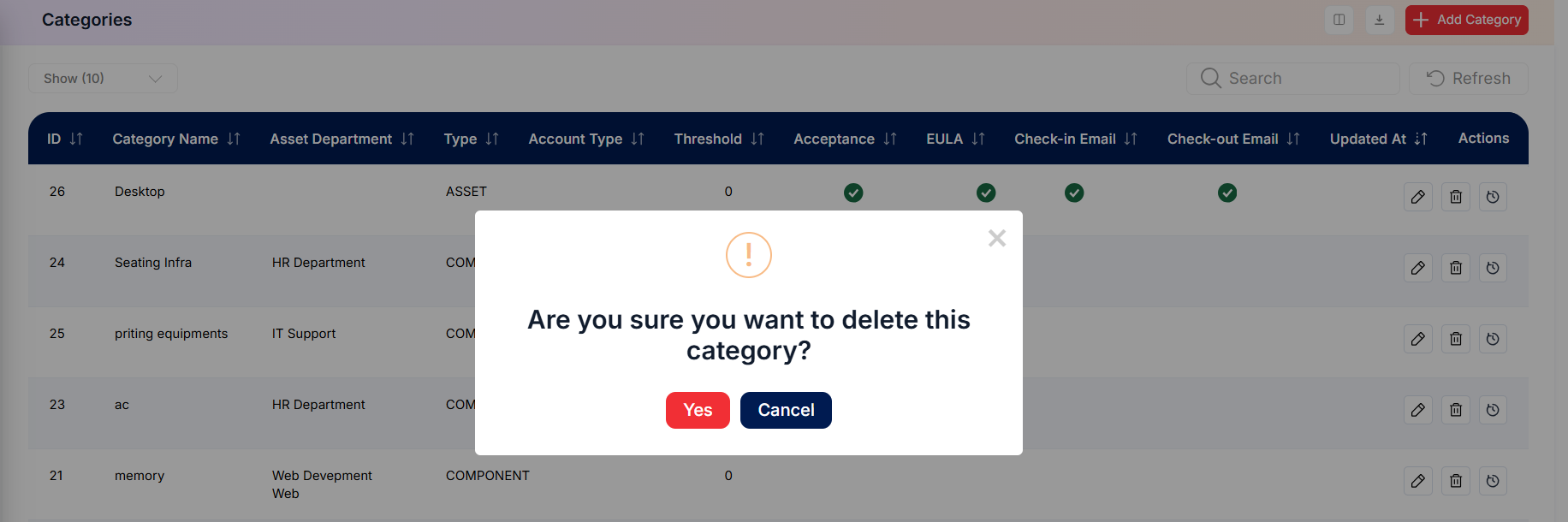
Step 2: Click the Trash Can (Delete) icon for that category.
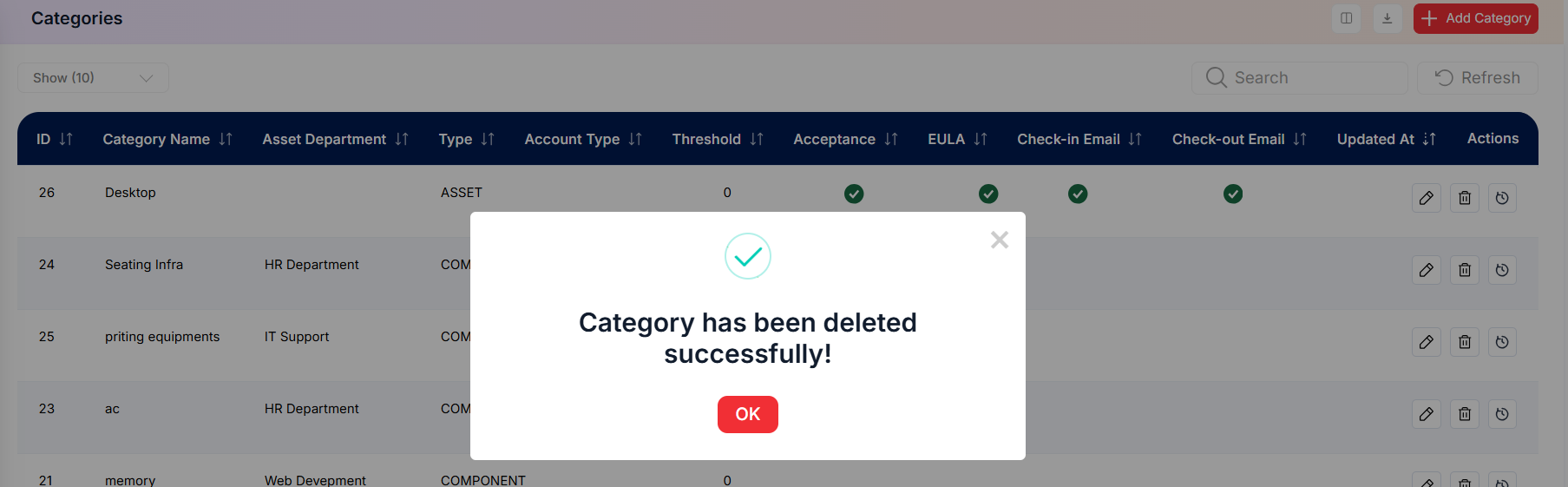
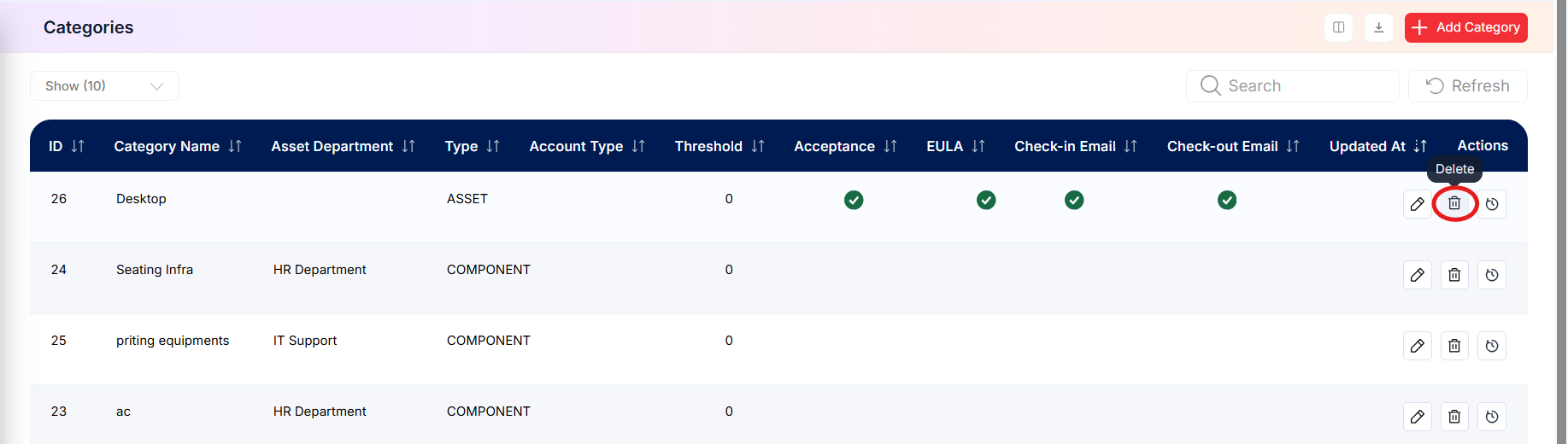 Step 3: Review the confirmation prompt and confirm the deletion.
View category history
Step 1: Locate the category and click its Clock (History) icon.
Step 2: Review the saved versions to see what changed and who made the change, as described in the category history section.
Important: Before deleting a category, make sure no active assets are still using it. Move those assets to another category first.