

Introduction
Escalation Groups allow you to organise users who should receive tickets when they need to be escalated. You can configure these groups based on company, department, problem category, and location to ensure that escalated tickets reach the appropriate people.
Once an escalation group is configured, it can be associated with a problem category under Sidebar > Ticket > Problem Category to define who should receive escalated tickets for that category.
Using this section, you can:
-
Create Escalation Groups: Define groups based on company, department, and problem category to manage ticket escalations.
-
Configure Location-Based Escalations: Assign escalation responsibility based on the ticket's location, ensuring that the appropriate users receive escalated tickets.
-
Control Category Access: Configure groups for specific problem categories so that escalation rules apply only where required.
-
Manage Group Members: Add or remove individual users who should receive escalated tickets.
-
Clone Existing Groups: Create a new escalation group by copying an existing group's configuration.
-
Import Members in Bulk: Add multiple users to a group by importing an XLSX template.
Example: If a ticket related to a hardware issue at the Mumbai office breaches its SLA, the configured escalation rules can route it to the designated escalation group for that department, category, and location.
These settings help ensure that tickets requiring additional attention are escalated to the right people at the right time.
📍 Navigation:
Sidebar › Ticket › Escalation Group
Viewing Escalation Groups
The list displays the group name, company, department, problem category, subcategory, member count, creation and update dates, and available actions.
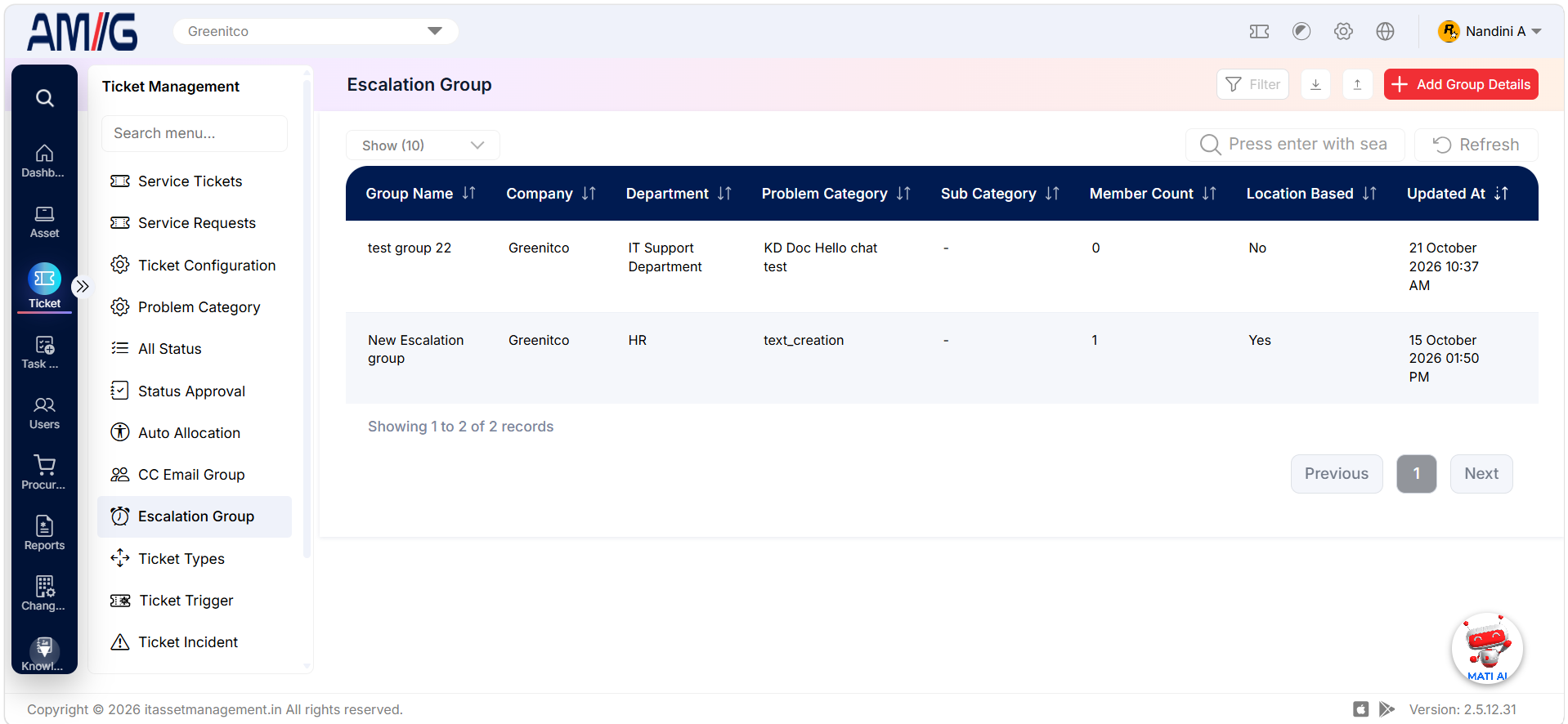 Escalation Group List
Escalation Group list columns
| Column | Description |
|---|---|
| Group Name | Name assigned to the escalation group. |
| Company / Department | Company and department associated with the group. |
| Problem Category / Sub Category | Problem category and subcategory to which the escalation group applies. |
| Member Count | Number of users in the group. |
| Created At / Updated At | Creation and latest update timestamps. |
| Actions | Edit, manage members, delete and clone controls as shown. |
Creating an Escalation Group
Step 1 → On the Escalation Group screen, click Add Group Details.
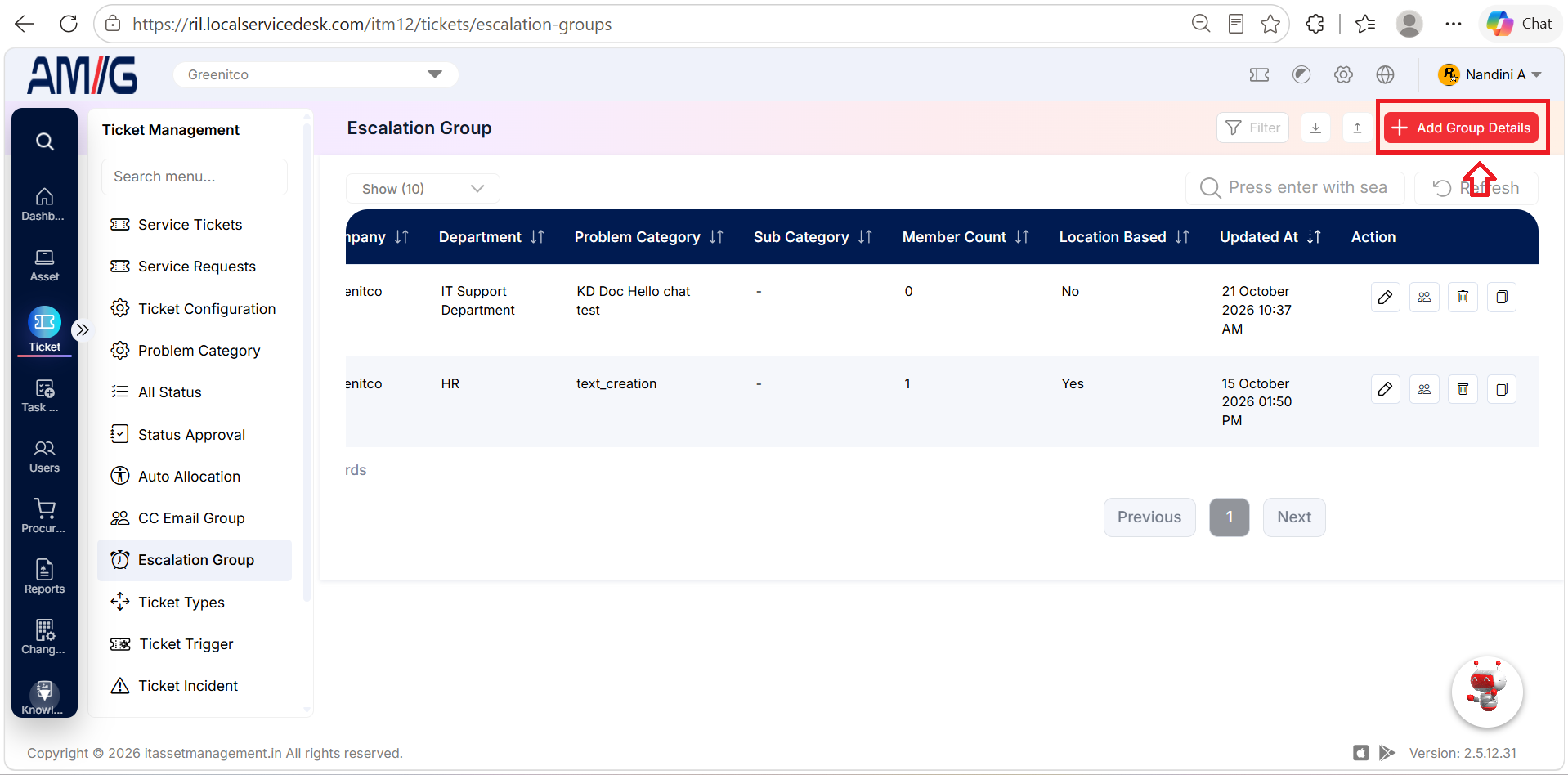
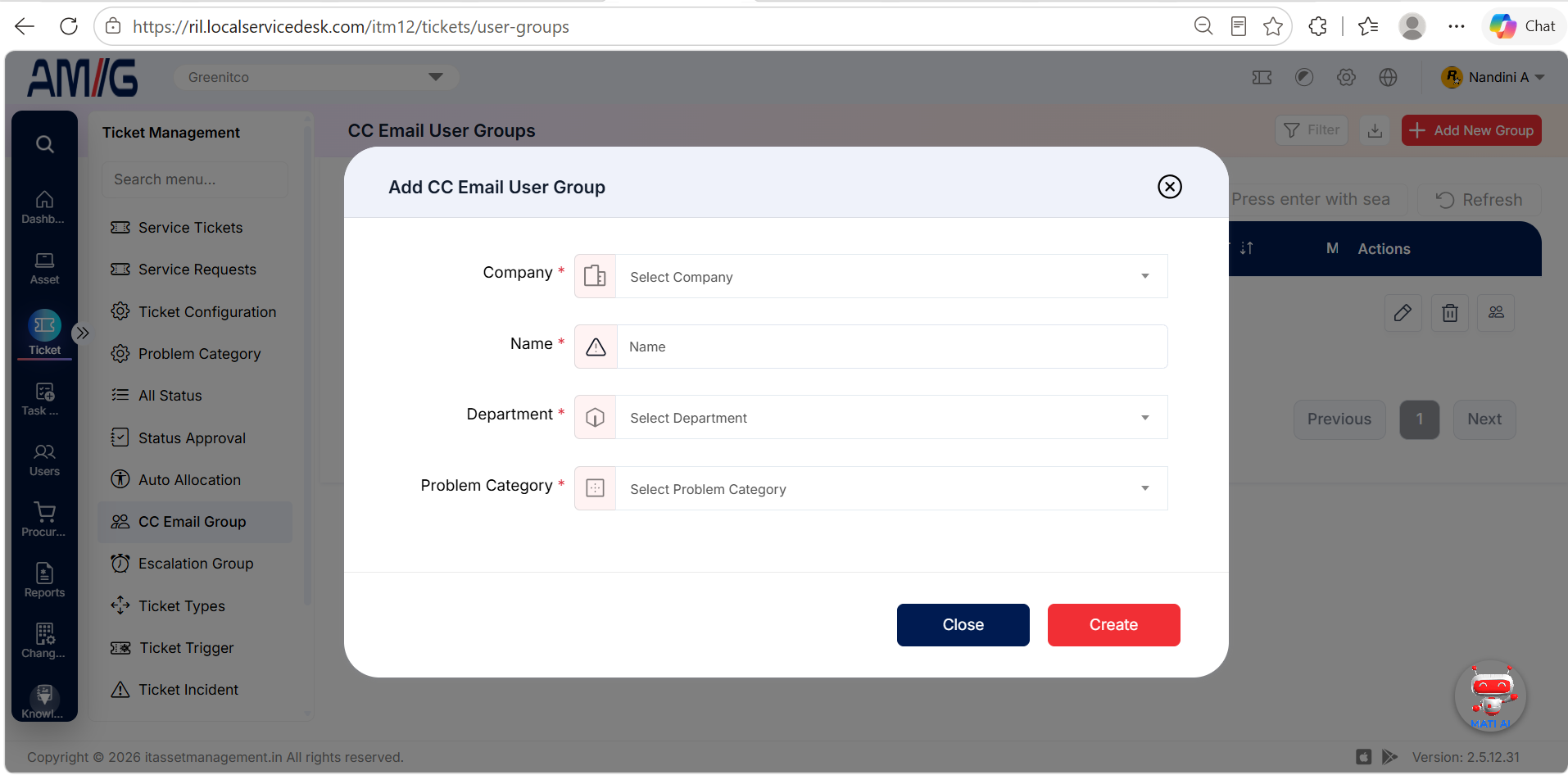
Step 2 → Enter the group name, select the company and department, and choose the Problem Category.
Step 3 → Set Location Based to Yes or No, as appropriate.
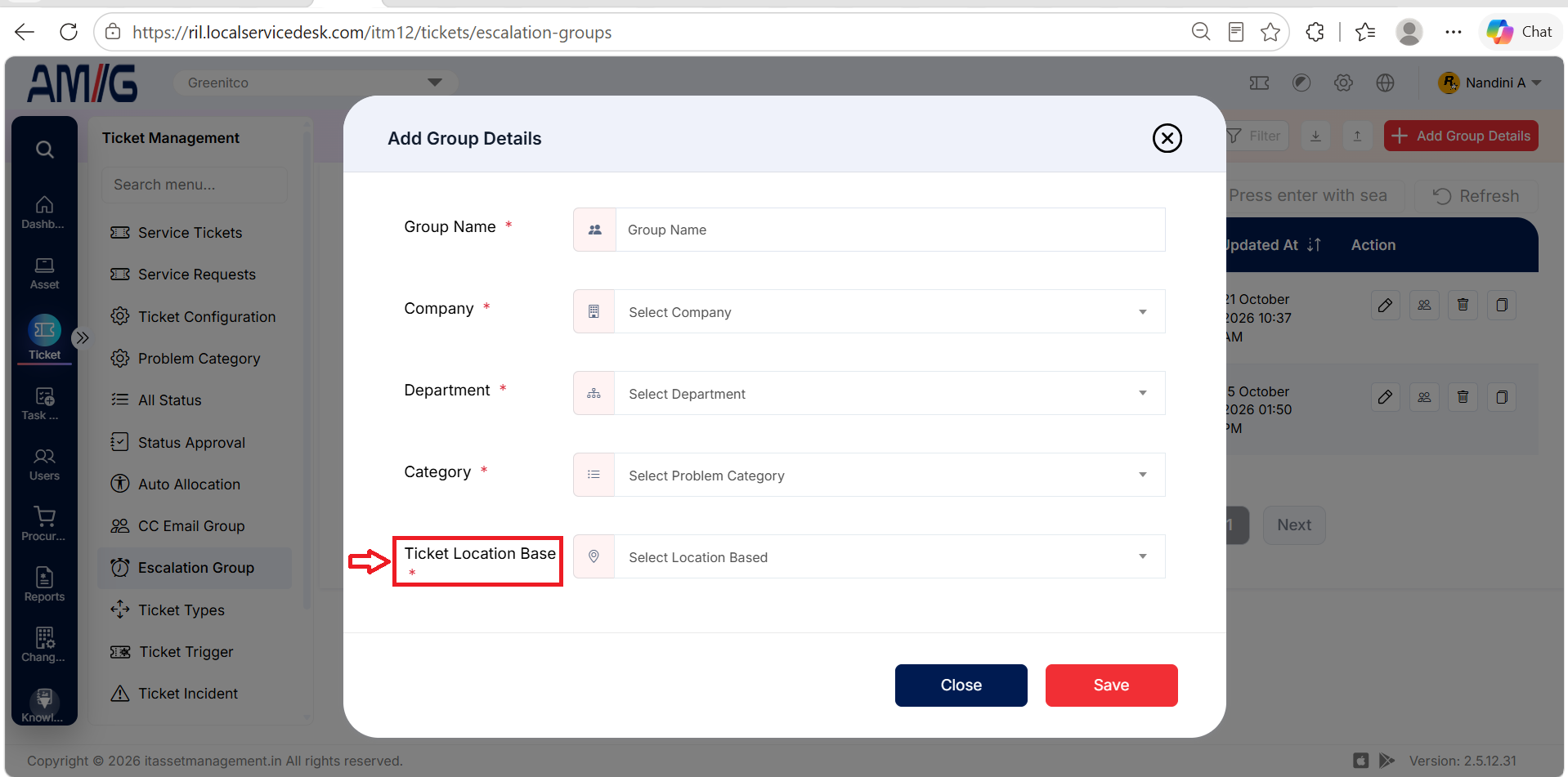
Step 4 → Click Save to create the group.
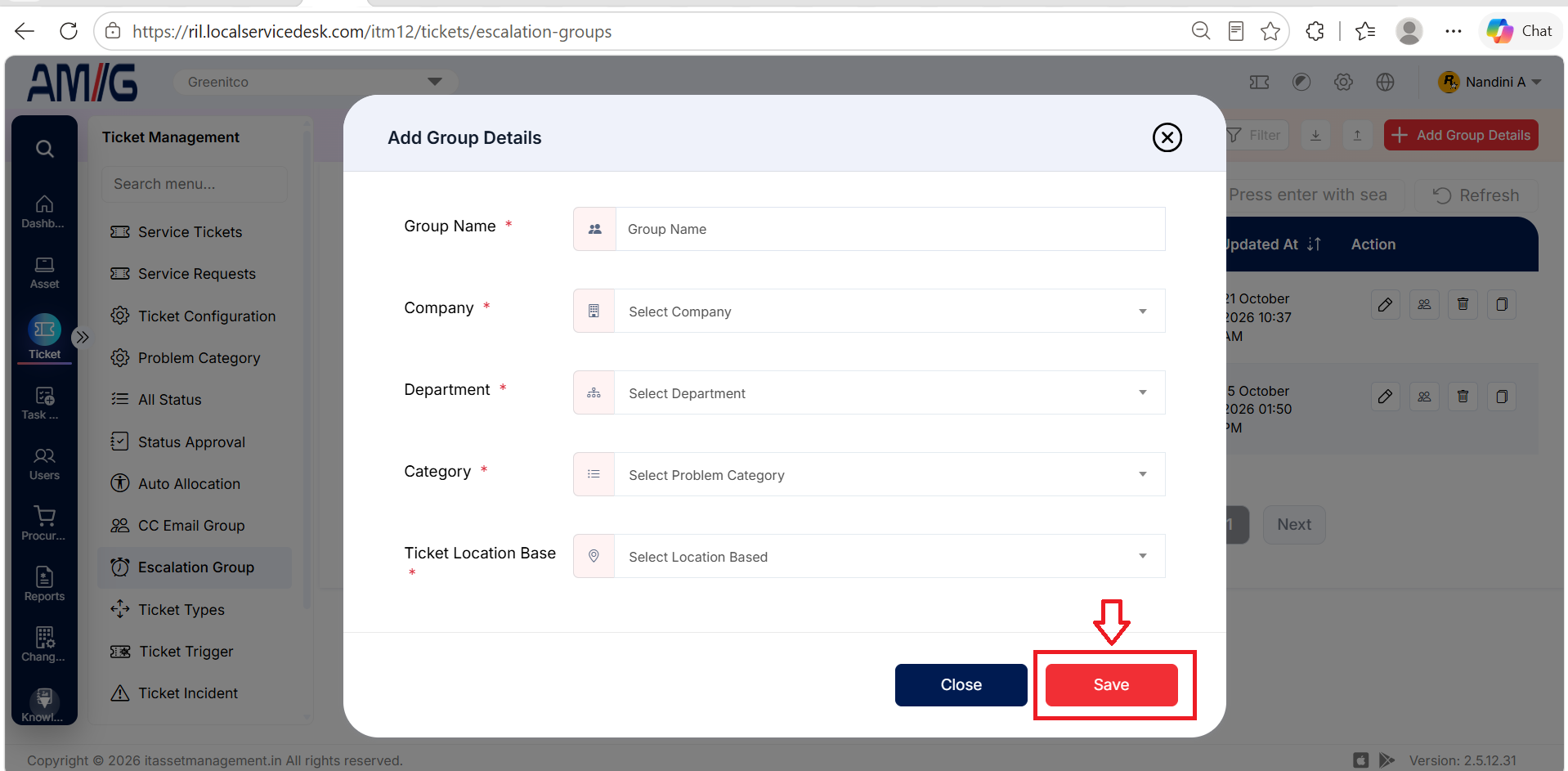 Add Escalation Group Form
Escalation Group fields
| Field | Description |
|---|---|
| Group Name | Enter a name for the group. Required. |
| Company | Select the company the group belongs to. Required. |
| Department | Select the department the group applies to. Required. |
| Category | Select the problem category the group applies to. Required. |
| Location Based | Choose Yes or No to set whether the group uses location-based access. When set to Yes, member locations can be configured under Manage Group Users for escalation routing. Required. |
Cloning an Escalation Group
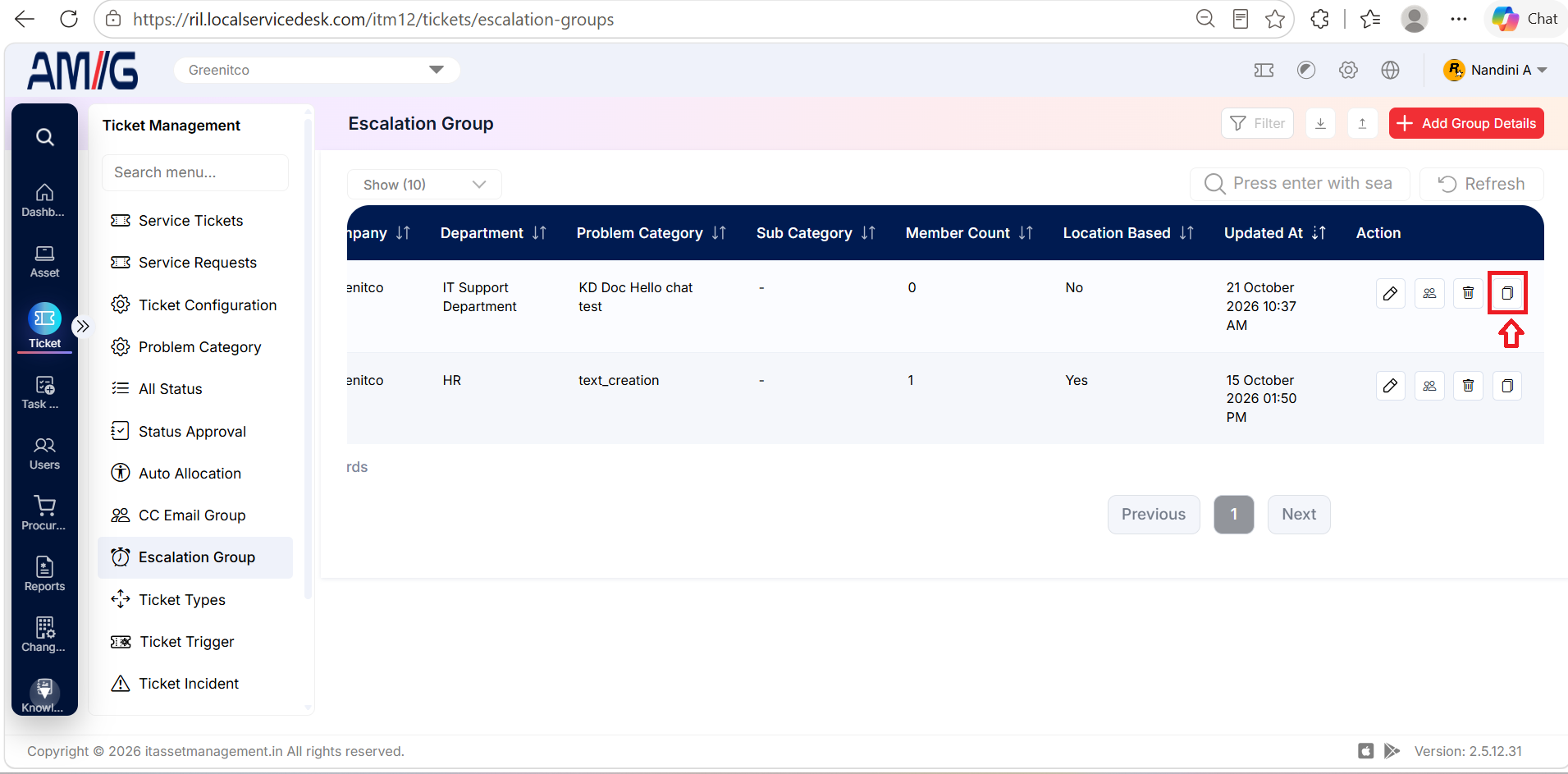
Step 1 → Select Clone for the group you want to copy.
Step 2 → Review or enter the group name, company, department, category, and Location Based value in the cloned form.
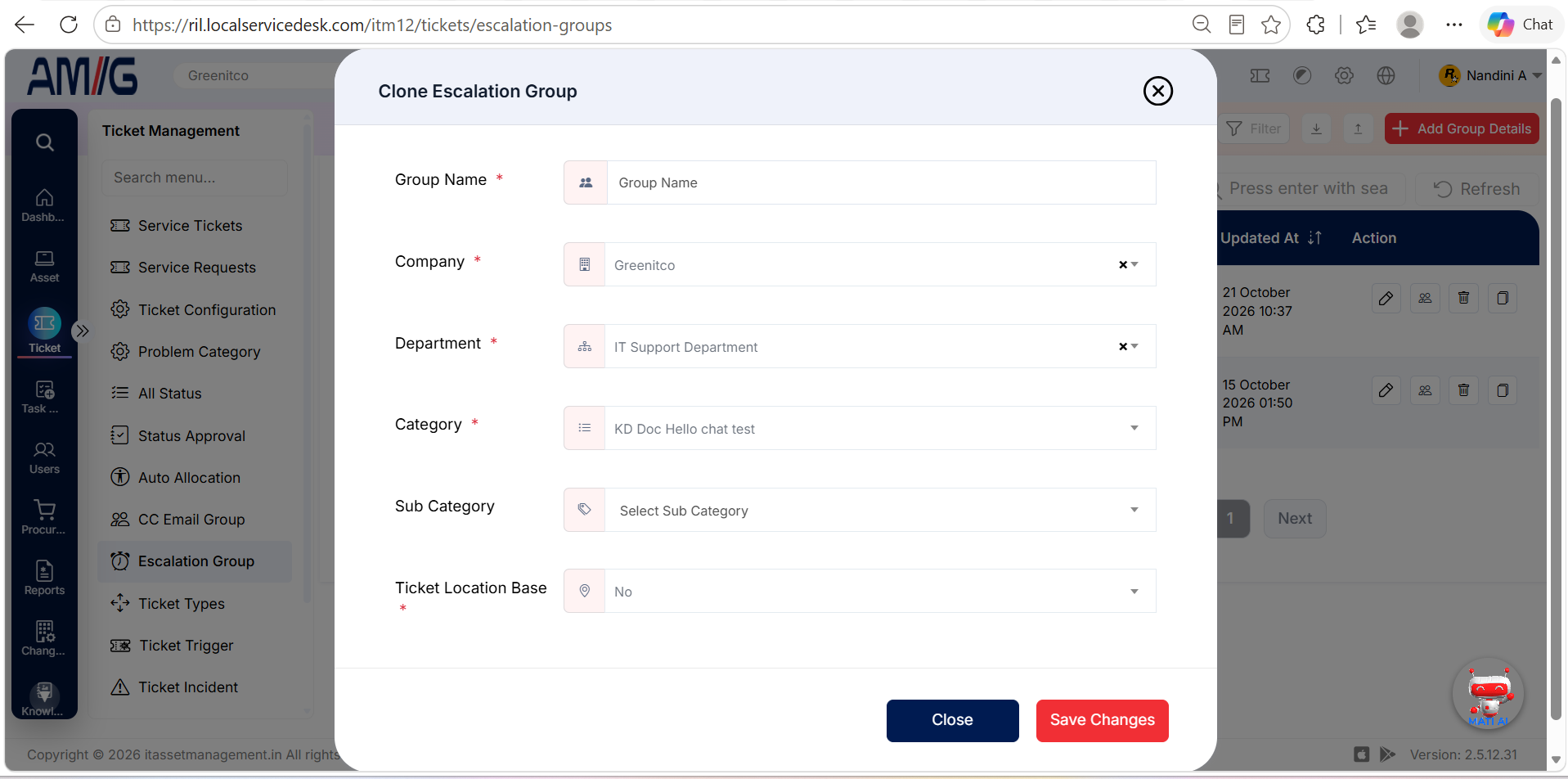 Clone Escalation Group Form
Step 3 → Click Save Changes to create the cloned group, or Close to cancel. The cloned group retains the original group’s members and related settings.
Managing Escalation Group Users
Step 1 → Open Manage Group Users for the required escalation group.
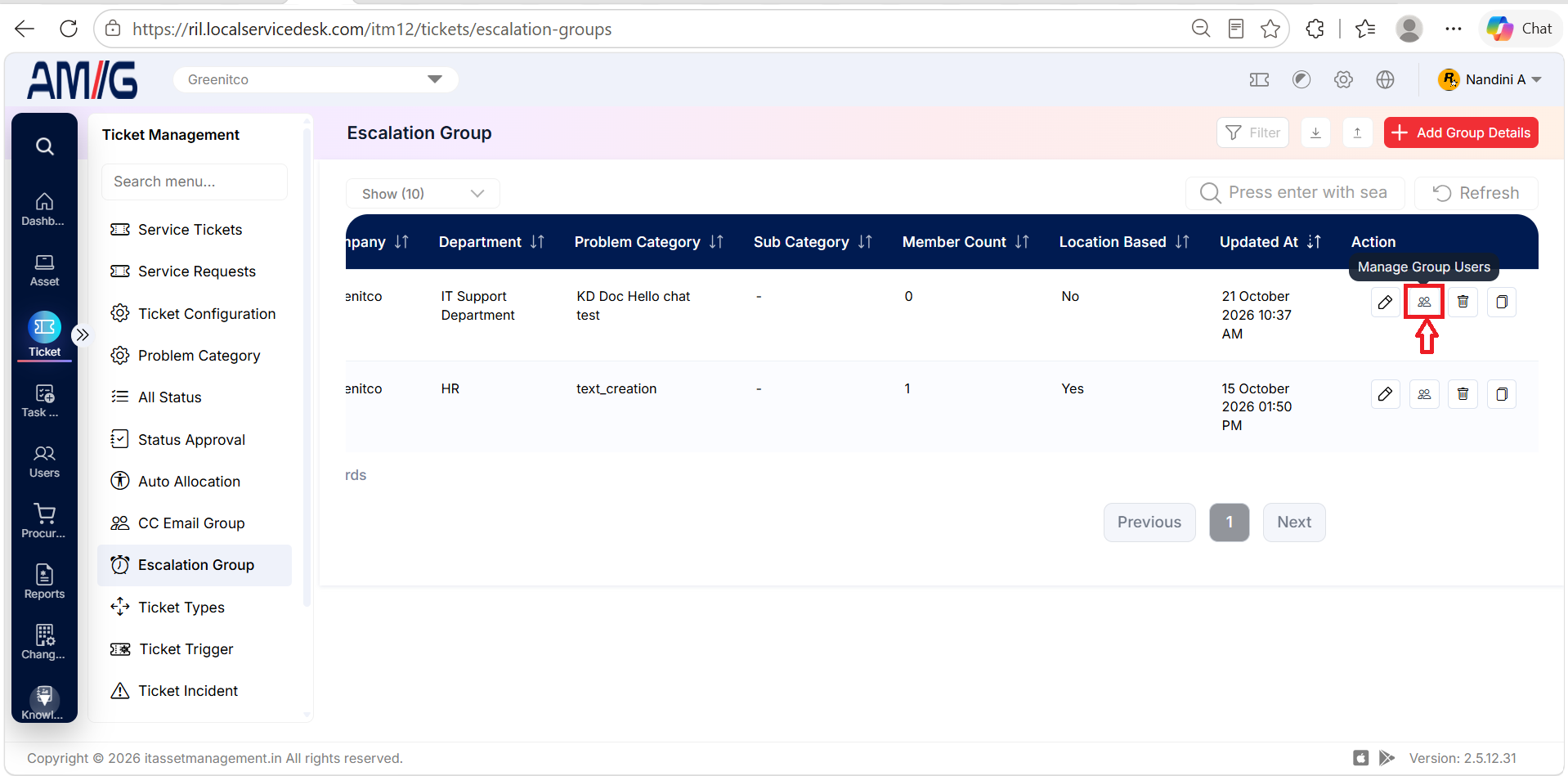 Manage Escalation Group Users
Step 2 → Review each group member’s username, location, location access, and internal-location access.
Escalation Group member list columns
| Column | Description |
|---|---|
| User Name | User assigned to the escalation group. |
| Location | Displays the user’s current and base locations. |
| Location Access | Displays additional locations assigned to the user. Tickets associated with these locations can be escalated to this user. |
| Internal Location Access | Displays the internal places assigned to the user. Tickets associated with these internal places can be escalated to this user. |
| Action | Edit or delete the group member using the available row actions. |
Adding an Escalation Group Member
Step 1 → From Manage Group Users, click Add Group User.
Step 2 → Select a user and choose the required Location Access.
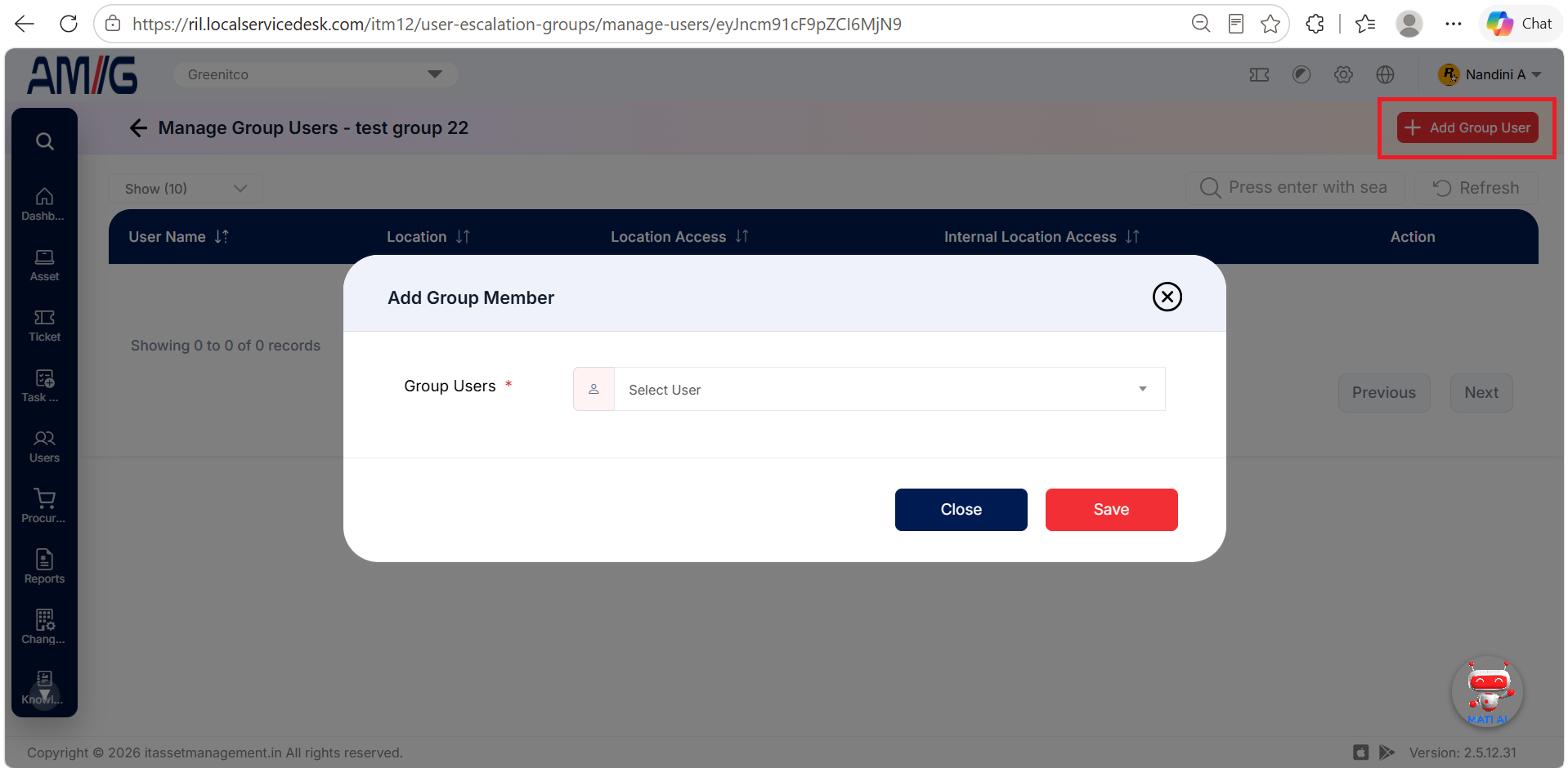 Add Escalation Group Member Form
Step 3 → Select Select All to include all applicable locations. If needed, select an Internal Place.
Step 4 → Click Save to add the user.
Add Escalation Group Member fields
| Field | Description |
|---|---|
| Group Users | Select the user to add to the group. Required. |
| Location Access | Select the locations for which tickets can be escalated to this member. Required. |
| Select All | Select all applicable locations for the member. |
| Internal Place | Optionally select an internal place for escalation access. Tickets associated with that internal place can be escalated to the member. |
Importing Escalation Groups
Step 1 → Open Escalation Import from the import control on the Escalation Group screen.
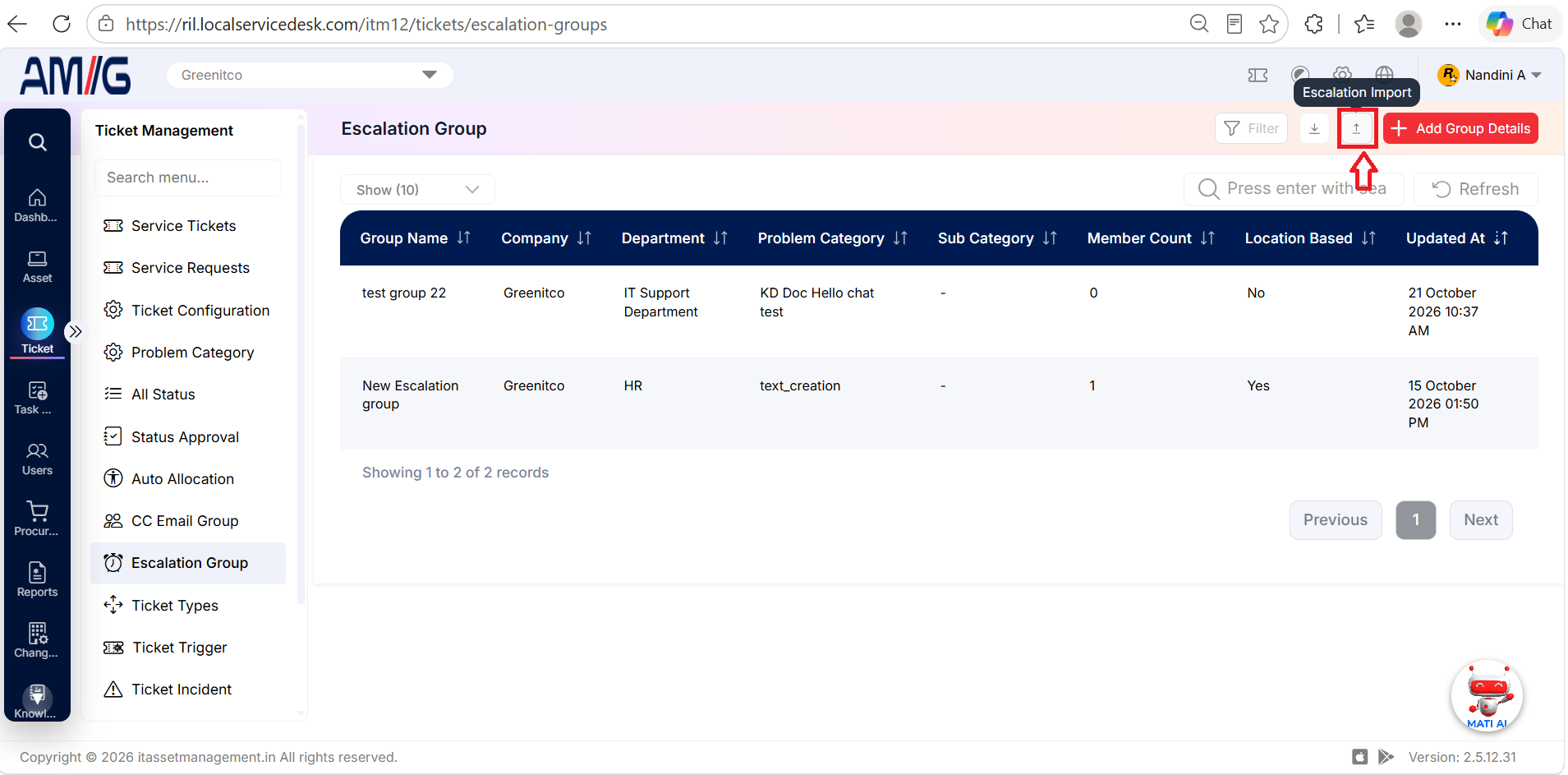
Step 2 → Download the format workbook and leave the header row unchanged.
Step 3 → Populate the workbook with existing company, department, category, subcategory, user, and location values as specified in the on-screen instructions.
Step 4 → Upload the completed XLSX file using the import control. 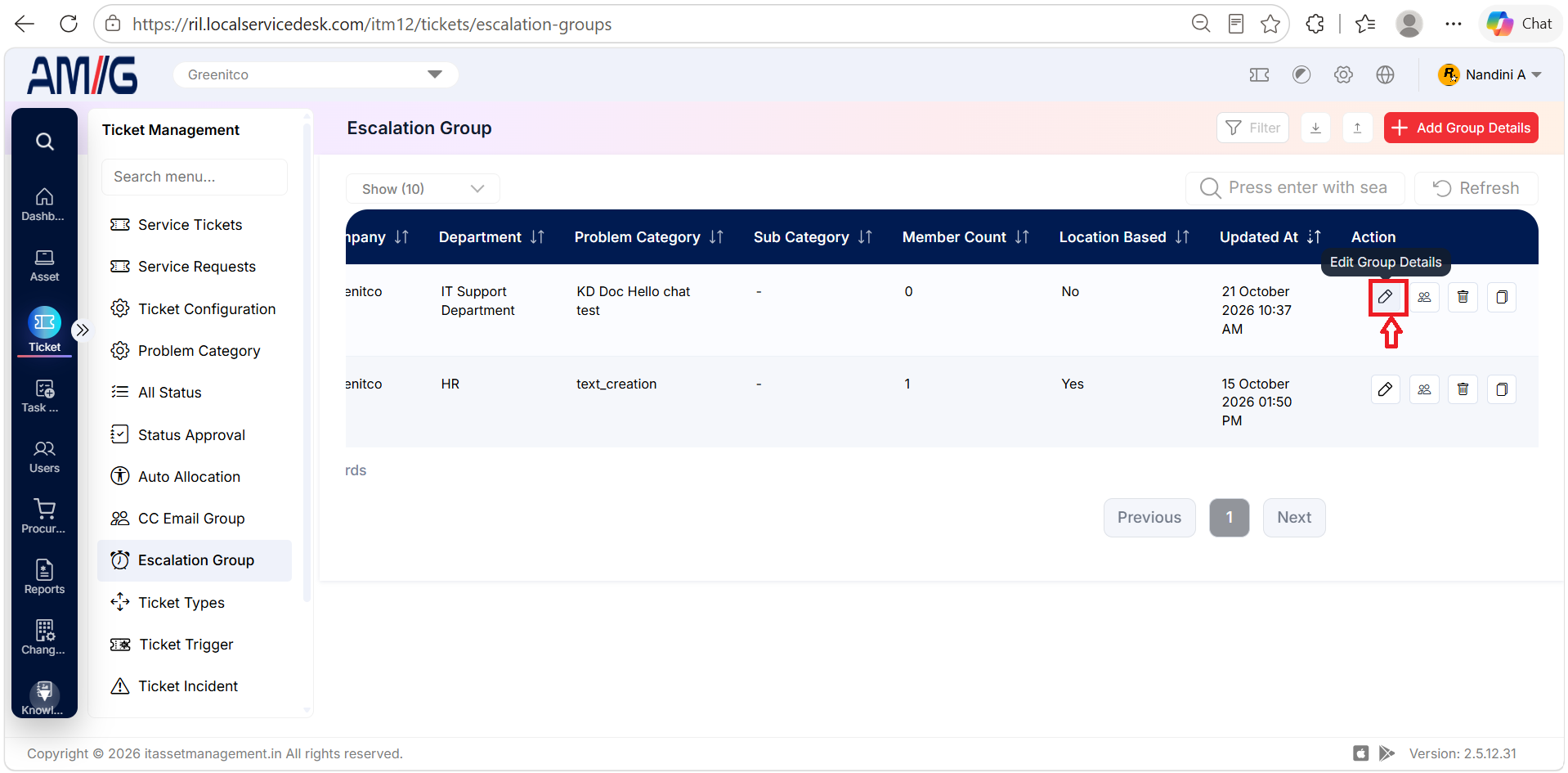
Step 2 → For edits, update the fields and save. For deletion, review the prompt and confirm if the group is eligible for removal.