

Introduction
The Dashboard provides a centralized view of service activities and overall organizational performance. It helps users understand the current operational status, identify critical issues, monitor performance, and determine areas requiring attention.
The Service Ticket Dashboard presents a visual summary of ticket activity and service performance, including ticket counts, status distribution, SLA compliance, response and resolution trends, user feedback, and workload. These insights help teams identify bottlenecks, prioritize critical issues, and make informed decisions to improve service delivery.
The information displayed depends on the selected dashboard view, date range, and the user's access permissions.
Navigation Path: Sidebar > Ticket > Service Ticket > Dashboard
Opening and Using the Dashboard
Step 1: From the left navigation menu, select Dashboard. The Service Ticket Dashboard opens.
Step 2: Select the required view: Companies, Multi Departments, Department, Technician, User, or Single Department.
Step 3: Where available, choose the relevant company, department, technician, or user.
Step 4: Set the date and time range for the reporting period.
Step 5: Click the Refresh icon to reload the dashboard using the selected view, scope, and date range.
Note: Some cards, tables, and charts may show no data when no records match the selected filters.
Dashboard Views
Companies
The Companies Dashboard provides an overview of service ticket activity and performance across different companies in the organization. It helps users understand how each company is performing, identify issues that need attention, monitor SLA performance, and review technician workloads and user feedback.
The dashboard displays ticket totals, SLA breaches, feedback summaries, and the top five tickets for each company. It also allows users to compare company performance, track ticket response and resolution times, and identify areas where service improvements may be needed.
The dashboard includes the following information:
Company Summary
Provides a company-wise summary of total tickets, SLA breaches, and user feedback. It also highlights the top five tickets for each company, helping users quickly identify important issues.
SLA Achievement Comparison
Compares SLA performance across companies, showing tickets resolved within SLA and tickets that are at risk of breaching SLA. It also provides details of the associated users and technicians to help identify where attention is needed.
Ticket Resolution Time Trend
Shows how long companies take to resolve tickets, grouped into time ranges such as 0–2 hours and other configured intervals. This helps users understand resolution speed and identify delays.
Daily Ticket Volume Trend
Displays daily ticket volumes for each company, grouped by status, such as Open, In Progress, and Resolved. This helps users track ticket activity and understand how the workload changes over time.
Average Response Time Trend
Shows the average time taken to respond to tickets for each company on a daily basis. This helps users compare responsiveness and identify companies where responses may be delayed.
SLA Alerts
Highlights tickets that have already breached their SLA or are approaching the breach limit. This helps users identify urgent tickets and take timely action.
Unassigned Tickets
Displays tickets across the organization that have not yet been assigned to a technician or responsible team. This helps users identify tickets that need assignment to prevent delays.
Technician Workload Distribution
Shows how tickets are distributed among technicians across different companies. This helps users identify technicians with heavy workloads and maintain a balanced distribution of work.
Feedback Summary
Brings positive and negative user feedback together in one place, helping users understand overall service satisfaction and identify areas for improvement.
Daily Feedback Trend
Shows how user feedback changes from day to day across the organization. This helps users monitor satisfaction trends and identify changes in service quality.
Ticket by Channel
Displays the number of tickets created through different channels, helping users understand which sources generate the most service requests.
Ticket Priority Distribution
Shows the number of tickets under each priority for different companies. This helps users understand the distribution of urgent and routine issues and identify where attention is required.
Top Issues by Company
Displays frequently reported issues in a tag cloud. Larger tags represent issues associated with more tickets, helping users quickly identify recurring problems across companies.
Together, these insights help users understand company-wise performance, identify critical issues, monitor service quality, and make informed decisions to improve IT service delivery.
Note: The information displayed may vary depending on the selected dashboard view, date range, available ticket data, and the user's access permissions.
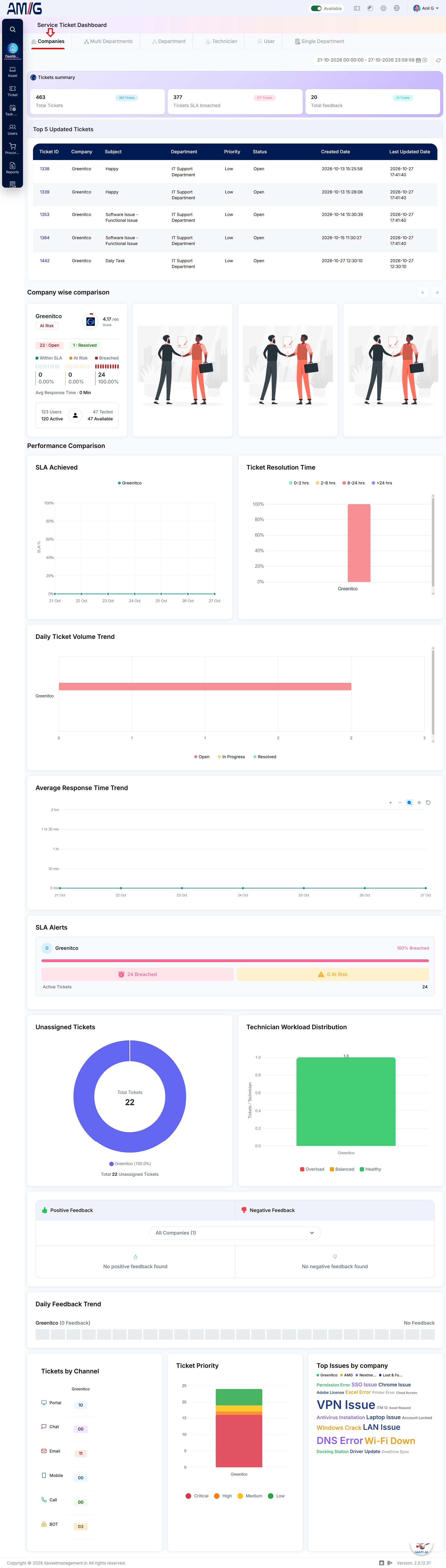 Figure: *Service Ticket Dashboard – Companies View
Multi Departments
The Multi-Department Dashboard provides an overview of ticket activity and service performance across multiple departments within the selected company. It helps users compare department performance, monitor SLA compliance, track ticket resolution and response times, review technician workloads, and identify issues that need attention.
The dashboard includes the following cards:
Ticket Summary
Shows the total number of tickets, SLA performance, and user feedback across departments within the selected company.
Top 5 Tickets
Highlights the five most significant tickets across departments to help users quickly identify important issues.
Department Technician Performance
Shows technician performance by department, including SLA achievement, average response time, open tickets, resolved and closed tickets, SLA breaches, and tickets at risk.
Ticket Resolution Time
Displays how long departments take to resolve tickets, helping users compare resolution performance.
Department-wise SLA Trend
Shows daily SLA performance across departments to help users track compliance and identify changes.
Resolution Time Trend
Displays daily ticket resolution times for different departments, helping users identify delays and improvements.
Response Time Trend
Shows daily response times across departments to help users monitor how quickly tickets receive an initial response.
Daily Ticket Volume Trend
Displays daily ticket counts by department, grouped by status, such as Open, In Progress, and Resolved.
Unassigned Tickets
Shows tickets across departments that have not yet been assigned to a technician or responsible team.
Ticket SLA Alerts
Highlights tickets that have breached their SLA or are approaching the breach limit, helping users take timely action.
Technician Workload Distribution
Shows how tickets are distributed among technicians across departments, helping identify overloaded technicians and balance workloads.
Feedback Summary
Highlights positive and negative feedback across departments. Users can filter the results to review feedback for specific departments.
Daily Feedback Trend
Shows how user feedback changes daily across departments, helping users monitor satisfaction over time.
Ticket by Channel
Displays the number of tickets created through different channels across departments, helping users understand where service requests originate.
Ticket Priority Distribution
Shows the number of tickets under each priority across departments, helping users identify areas requiring urgent attention.
Top Issues by Department
Displays frequently reported issues in a tag cloud. Larger tags represent issues with more associated tickets. Clicking a tag opens the related ticket list for further review.
Together, these cards help users compare department performance, identify service issues, monitor workloads, and improve service delivery across the selected company.
Note: The information displayed depends on the selected company, date range, available ticket data, and the user's access permissions.
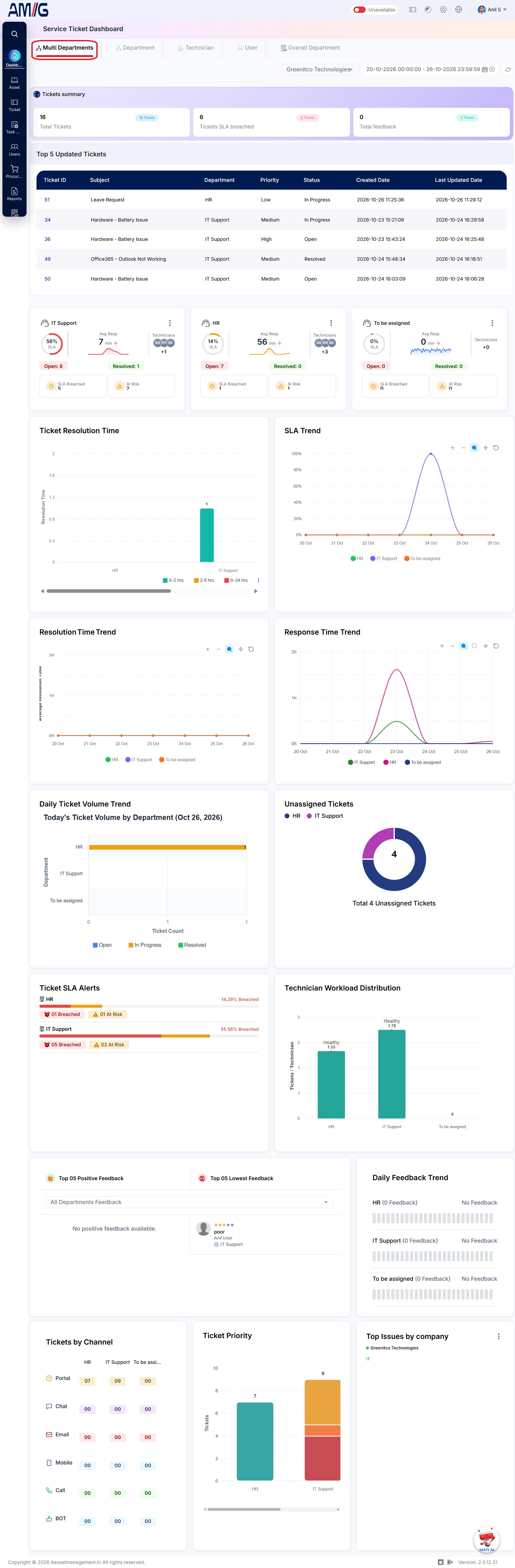
Figure: Service Ticket Dashboard – Multi Departments View
Department
The Department Dashboard provides a detailed overview of ticket activity and service performance for a selected department and reporting period. It helps users monitor ticket status, track SLA performance, review technician performance, and identify issues that require attention.
The dashboard includes the following cards:
Ticket Summary
Shows the total number of tickets, SLA performance, and user feedback for the selected department.
Top 5 Tickets
Highlights the five most significant tickets in the department, helping users quickly identify important issues.
Daily Ticket Overview
Provides a daily summary of open, resolved, SLA-breached, and at-risk tickets. It also displays SLA breach information and average response time.
Ticket Status Trend
Shows daily ticket trends by status, such as Open, In Progress, Resolved, and On Hold, helping users track changes in ticket activity.
SLA and Ticket Priority
Displays the percentage of tickets handled within SLA, tickets approaching an SLA breach within two hours, and tickets that have already breached SLA, along with priority information.
Trend Analytics
Shows daily trends in average response time, resolution time, ticket volume, and SLA breaches over the last seven days.
Issue Type
Displays tickets grouped by their configured issue types. Issue types can be managed under Sidebar > Ticket > Ticket Type and selected when creating or updating a ticket.
Ticket Statistics by Source
Shows how tickets are distributed across different sources or channels, helping users understand where service requests originate.
Top 10 Tags
Displays the ten most frequently used ticket tags in the department. Tags can be added when creating a ticket to help categorize and track recurring issues.
Top Positive and Negative Feedback
Summarizes the most positive and negative feedback for the selected department, helping users understand user satisfaction and identify areas for improvement.
Technician Leaderboard
Highlights technician ratings and performance within the department, helping users recognize strong performance and identify opportunities for improvement.
Tickets by Location
Displays the geographical distribution of tickets on a map, helping users understand where service issues are occurring.
Together, these cards help users monitor departmental performance, identify recurring issues, track SLA compliance, and improve service delivery.
Note: The information displayed depends on the selected department, reporting period, available ticket data, and the user's access permissions.
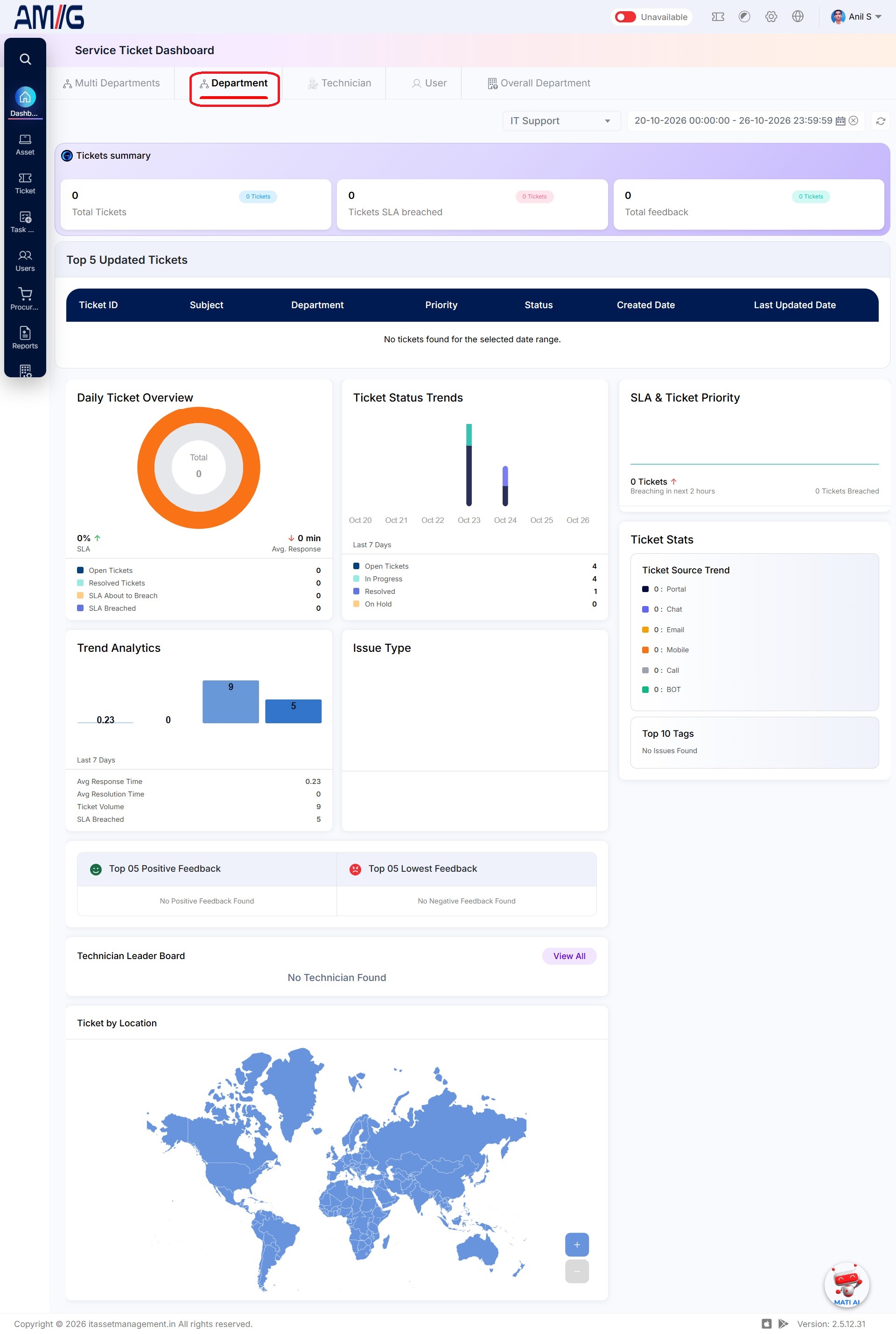
Figure: Service Ticket Dashboard – Department View
Technician
The Technician Dashboard provides a personalized view of a technician's ticket activity and performance. It helps technicians monitor their assigned tickets, track SLA compliance, review response and resolution times, and understand their performance across the companies they support.
This dashboard is available to users with a technician role and displays information based on their company access, department access, and assigned tickets. Technicians can filter the dashboard by company to view their performance for a specific company.
The dashboard includes the following cards:
Technician Details
Displays the technician's details, including the companies and departments they have access to handle tickets for. It also shows their overall SLA achievement percentage across accessible companies.
Company-wise Ticket Summary
Shows the total tickets assigned to the technician for each company, including tickets resolved within SLA and tickets that have breached SLA.
Ticket Resolution Time
Displays the time taken by the technician to resolve tickets for each company, helping compare resolution performance across companies.
Ticket Response Time
Shows the technician's daily response time for each company, helping monitor how quickly they respond to assigned tickets.
Ticket SLA Alerts
Highlights assigned tickets that have breached SLA or are approaching the breach limit, helping technicians prioritize urgent work.
SLA Achieved vs. Breached
Compares tickets handled within SLA against tickets that breached SLA, helping technicians understand their SLA performance.
Daily Feedback Trend
Shows daily feedback received for the technician's work across companies, helping track changes in user satisfaction.
Ticket Priority Distribution
Displays the distribution of assigned tickets by priority across companies, helping technicians identify high-priority work.
Ticket by Channel
Shows the channels through which the technician's assigned tickets were created, helping understand the sources of their workload.
Top Issues by Company
Displays a tag cloud of frequently reported issues among tickets assigned to the technician for each company. Larger tags represent issues associated with more tickets.
Company Leaderboard
Shows the technician's performance ranking within each company, helping them understand their standing relative to other technicians.
Service Request Summary
Displays an overview of service requests assigned to the technician, helping them track their service request workload.
Together, these cards help technicians monitor their performance, manage assigned tickets, prioritize SLA-sensitive work, and identify opportunities to improve service delivery.
Note: The information displayed depends on the technician's access permissions, assigned tickets, selected company, reporting period, and available data.
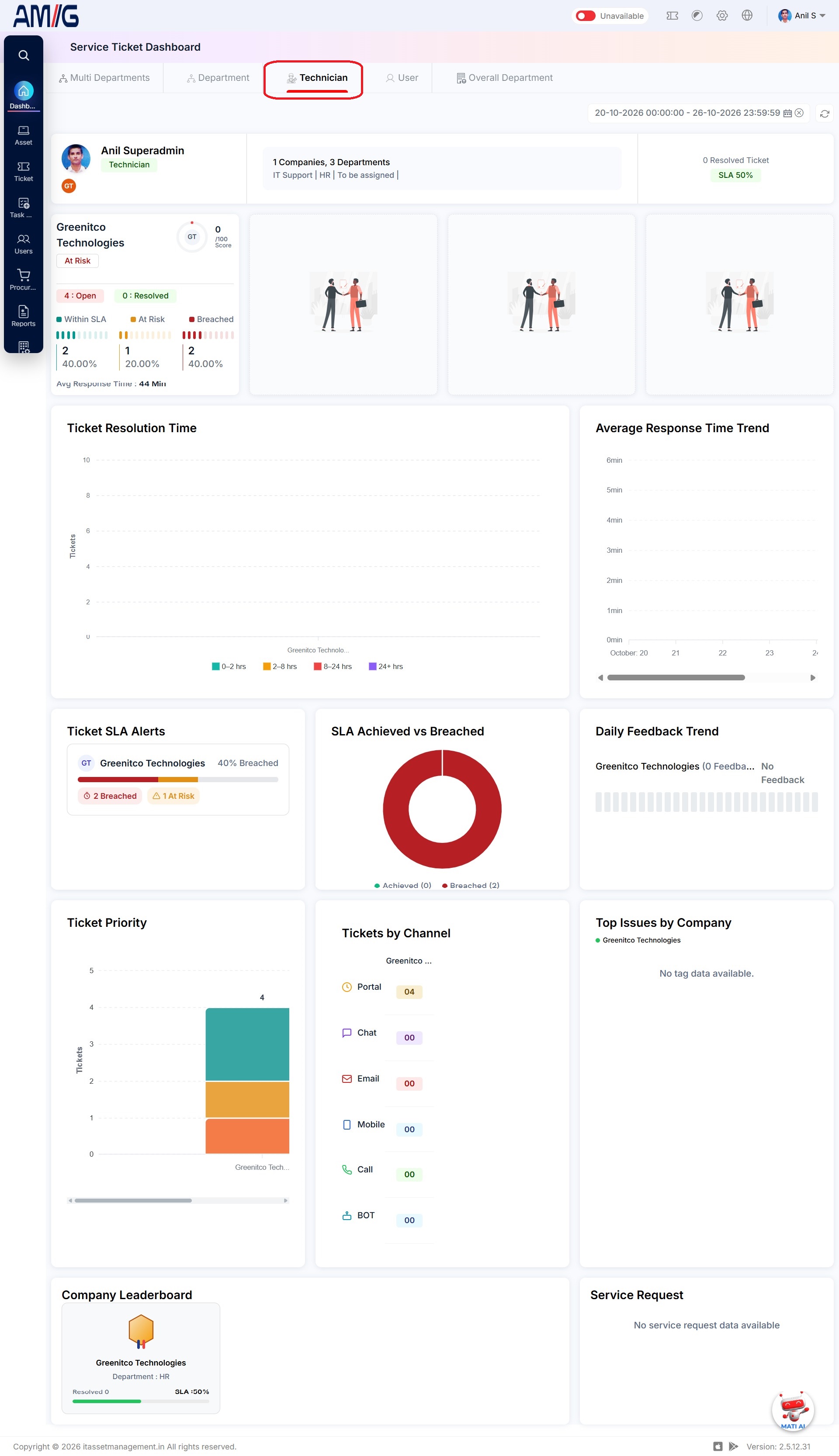 Figure: Service Ticket Dashboard – Technician View
User
The User Dashboard provides a personalized overview of the signed-in user's ticket activity, approvals, feedback, and available knowledge resources. It helps users track their tickets, manage pending approvals, review service satisfaction, and monitor their activity.
Regular users can view their own dashboard, while Admin and Super Admin users can select a specific user to view that user's dashboard.
The dashboard includes the following cards and features:
User Summary
Displays the user's company details and ticket counts, including open and resolved tickets. It also shows pending approvals and, if the user has a technician role, their SLA compliance. Quick links allow users to create tickets, track existing tickets, and manage service request approvals.
Approval and Workflow Status
Shows the status of requests awaiting the user's action, helping users identify pending approvals and track workflow progress.
Feedback Satisfaction
Summarizes the feedback received by the user and provides an overview of their overall satisfaction ratings.
Feedback Trend
Displays feedback trends over time, helping users understand how their satisfaction ratings change.
Knowledge Base Insights
Shows publicly available knowledge base articles that the user can access to find information and solutions to common issues.
Tickets Created vs. Resolved Trend
Compares the number of tickets created and resolved by the user over time, helping users track their ticket activity.
Together, these features help users manage their tickets, stay informed about pending approvals, access helpful resources, and review their service activity.
Note: The information displayed depends on the user's role, access permissions, available data, and selected reporting period.
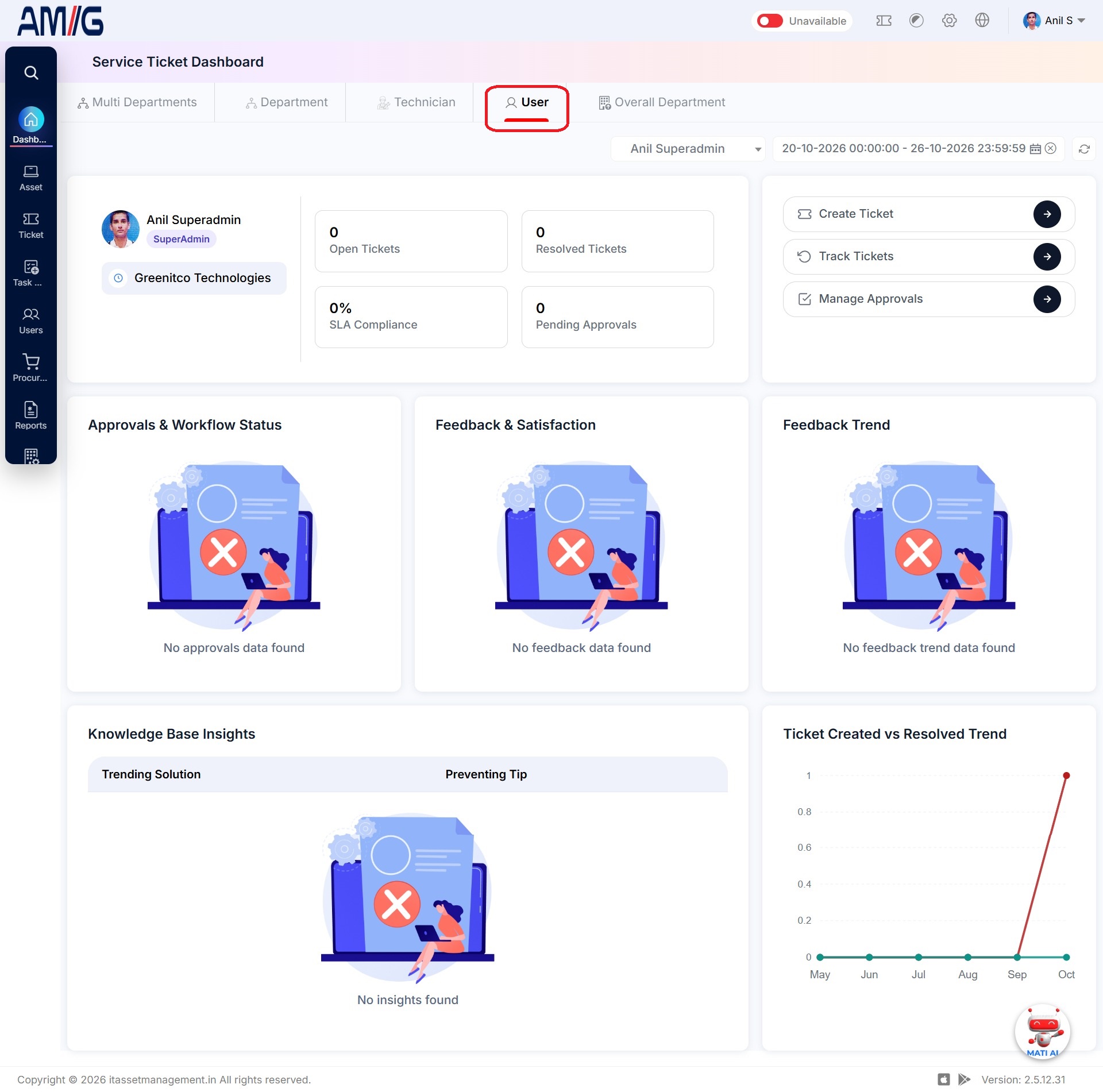 Figure: Service Ticket Dashboard – User View
Overall Department
The Overall Department Dashboard provides a detailed view of ticket activity and service performance for the selected department and reporting period. It helps users review ticket statuses, monitor SLA performance, track monthly ticket trends, and identify issues that need attention.
The dashboard includes the following cards and charts:
Ticket Details
Displays ticket counts by status, along with a summary of tickets closed during the current month, quarter, and overall period. It also shows feedback summaries and the number of technicians available in the system.
My Assigned Tickets
Allows technicians to view tickets assigned to them, along with counts for each ticket status. This section is visible only to users with technician access.
Ticket Status Summary
Shows the distribution of tickets by status, helping users understand how many tickets are open, in progress, resolved, closed, or in other available statuses.
Ticket Type-wise Tickets
Displays monthly ticket trends by ticket type, helping users identify changes in the types of service requests received.
New vs. Solved Tickets
Compares the number of new and resolved tickets month by month, helping users understand whether ticket resolution is keeping pace with incoming requests.
SLA-Breached Tickets
Lists tickets that have already breached their SLA, helping users identify overdue tickets that require attention.
SLA Breaches Within the Next Four Hours
Highlights tickets that are expected to breach their SLA within the next four hours, allowing users to take preventive action.
Total Tickets vs. SLA Breaches
Displays monthly ticket volumes alongside SLA breaches, helping users understand how SLA performance changes as ticket volumes increase or decrease.
Category-wise Tickets
Shows the distribution of tickets across categories, helping users identify the categories generating the most service requests.
Source-wise Tickets
Displays tickets grouped by their source or creation channel, helping users understand where service requests originate.
Response, Workaround, and Resolution SLA Breach Trends
Shows monthly trends in breaches of response, workaround, and resolution SLAs, helping users identify recurring service delays.
Priority-wise Tickets
Displays the distribution of tickets by priority, helping users understand the volume of high-priority and routine issues.
Department-wise Tickets
Shows how tickets are distributed across departments, helping users compare ticket volumes and identify departments with higher service demand.
Together, these cards and charts help users review department-level ticket activity, identify SLA risks, track service trends, and understand workload distribution.
Note: The information displayed depends on the selected company and department, reporting period, available ticket data, user role, and access permissions.
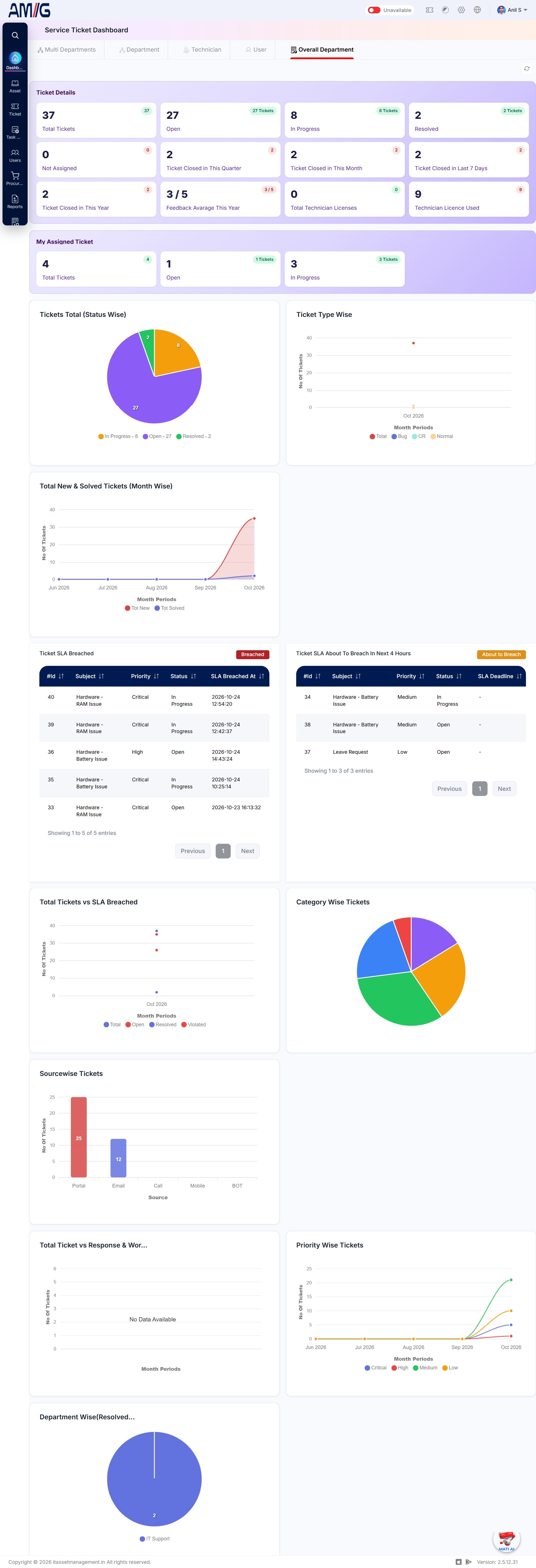 Figure: Service Ticket Dashboard – Overall Department View