Scheduled Maintenance (CMMS)
Product: NEXTMEGABYTE (Greenitco ITAM) · Module: IT Asset Management (ITAM) · Audience: Administrator, Technician
Scheduled maintenance is the CMMS part of NEXTMEGABYTE. It plans and records preventive maintenance for IT and non-IT assets, such as servers, UPS units, air conditioners and fire equipment, and for locations.
The process has four steps:
- Create a plan and its tasks.
- Allocate the plan to devices or locations and assign who performs it.
- Perform the maintenance by updating each task.
- Approve the completed maintenance, if approval is required.
Menu path: left side menu → Schedule Maintenance
Step 1: Create a maintenance plan
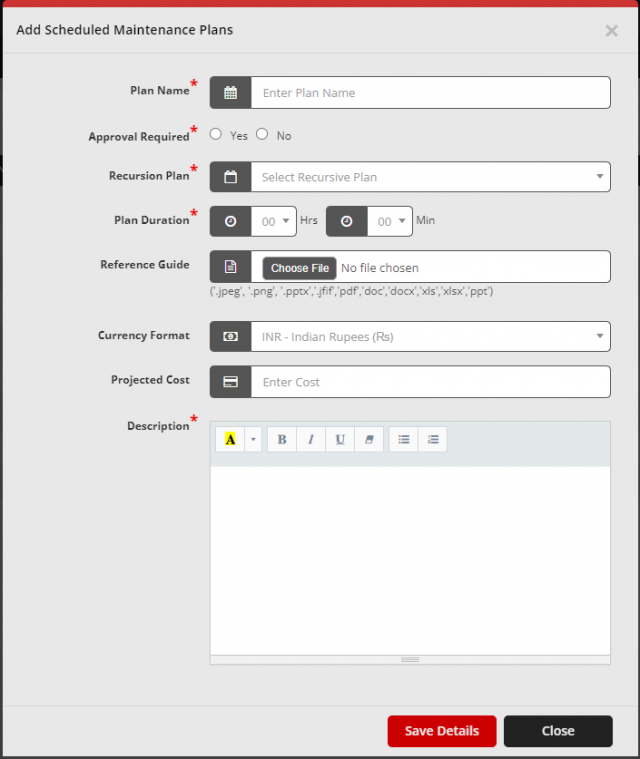
- Open Schedule Maintenance → Plan and select Add (plus icon).
- Fill in the plan fields and select Save Details.
| Field | Description |
|---|---|
| Plan Name | A clear name for the plan |
| Approval Required | Whether a manager must approve the completed maintenance. If yes, select the approving manager |
| Recursion Plan | How often maintenance runs: one time, daily, weekly, monthly or yearly |
| Plan Duration | How long the plan takes |
| Reference Guide | A document that explains how the maintenance is carried out |
| Projected Cost | Estimated maintenance cost in the selected currency |
| Description | Description of the plan |
Step 1b: Add tasks to the plan
Tasks are the steps carried out to complete a plan.
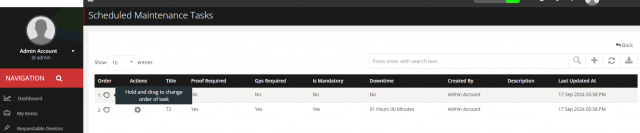
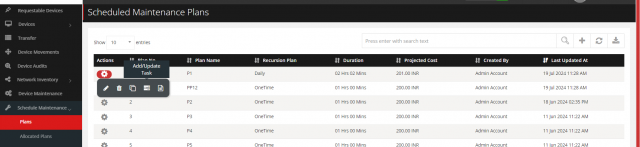
- In Schedule Maintenance → Plan, open the plan's action menu and select Add/Update Task.
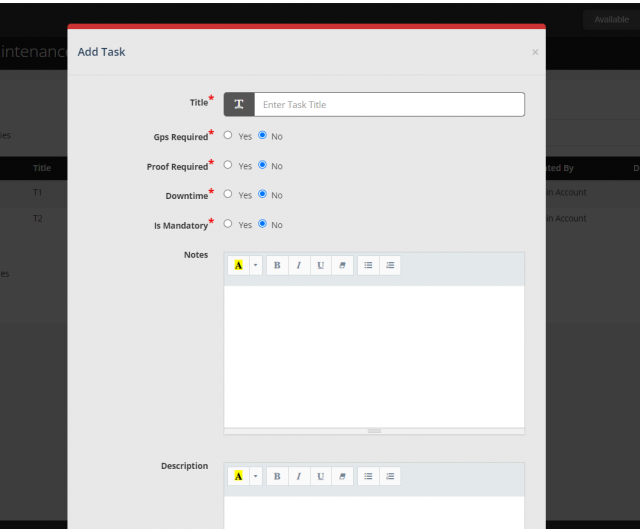
- Select Add (plus icon) and fill in the task fields.
- Add more tasks if the plan has several steps. Drag the order icon to reorder tasks; tasks are performed in order.
| Field | Description |
|---|---|
| Title | Task title |
| GPS Required | Yes if the technician's location must be captured during maintenance |
| Proof Required | Yes if proof (such as a photo) must be uploaded |
| Downtime | Downtime of the asset during this task |
Step 2: Allocate the plan
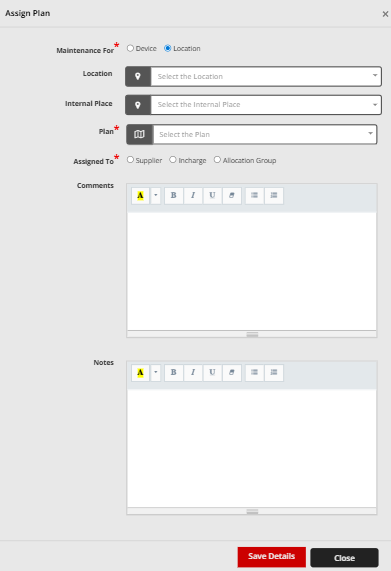
- Open Schedule Maintenance → Allocated Plans and select Allocate (desktop icon).
- Fill in the fields and select Save Details.
| Field | Description |
|---|---|
| Maintenance For | Device or Location |
| All Devices | (Device) Pick a specific device; category and model are filled automatically |
| Category / Model / Device | (Device) Narrow down and select the devices. Model and device lists are filtered by the category and model you choose |
| Location / Internal Place | (Location) The location (mandatory) and its internal place |
| Plan | The plan created in step 1 |
| Assigned To | Who performs the maintenance: a supplier, a user or an allocation group. With a group, the plan is assigned to all group members at the same time |
After allocation, the devices or locations are scheduled for maintenance according to the plan's recursion.
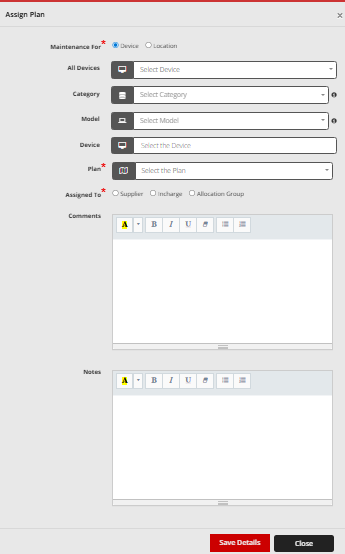
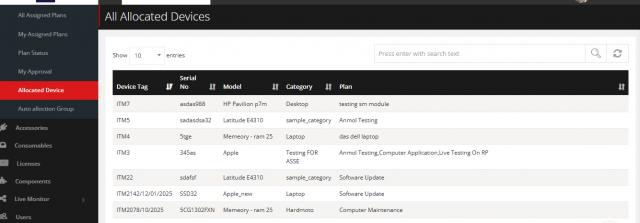
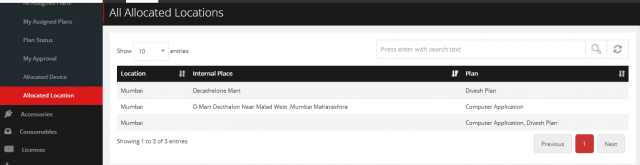
Lists of all allocated devices and locations are under Schedule Maintenance → All Allocated Device and Allocated Location.
Plan statuses
Menu path: Schedule Maintenance → Plan Status
| Status | Meaning |
|---|---|
| Scheduled | Default status of every new maintenance |
| In Progress | Maintenance is being performed |
| Complete | All tasks are done (set automatically) |
| Preponed | Moved earlier, for one occurrence or all occurrences |
| Postponed | Moved later, for one occurrence or all occurrences |
| Cancelled | Cancelled; it cannot be performed |
| Hold | Put on hold |
| Delayed | The scheduled date has passed without completion (set automatically) |
| To Be Approved | All tasks are done and manager approval is required (set automatically) |
| Rejected | The manager rejected the maintenance |
You can create additional custom statuses.
Step 3: Perform the maintenance
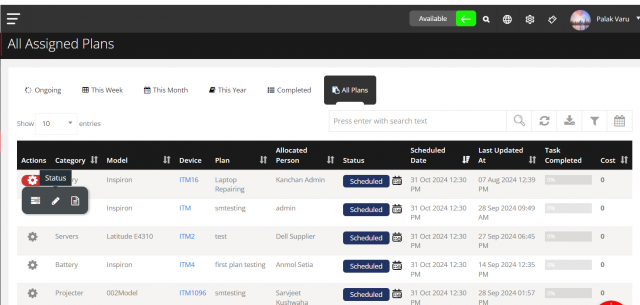
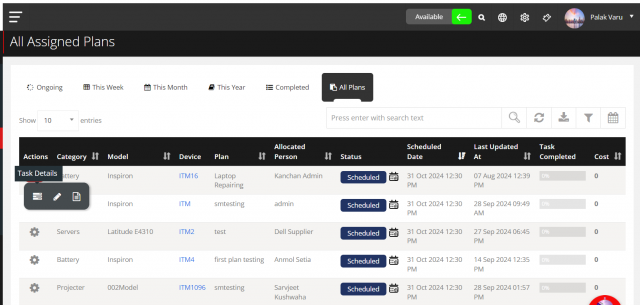
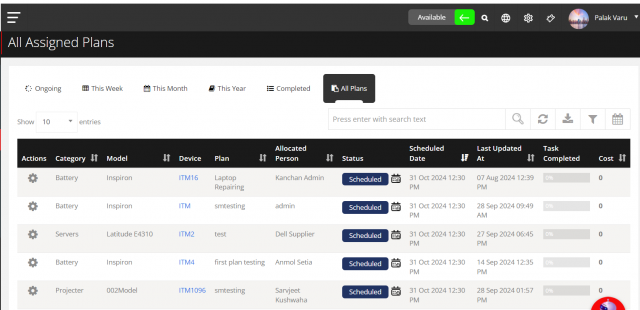
Menu path: Schedule Maintenance → All Assigned Plans (all plans) or My Assigned Plans (plans assigned to you)
| Tab | Shows |
|---|---|
| Ongoing | Plans in progress or delayed |
| This Week / This Month / This Year | Upcoming plans in that period |
| Completed | Finished maintenance |
| All Plans | Every plan |
- Open the plan's action menu and select Edit Status to set it to In Progress.
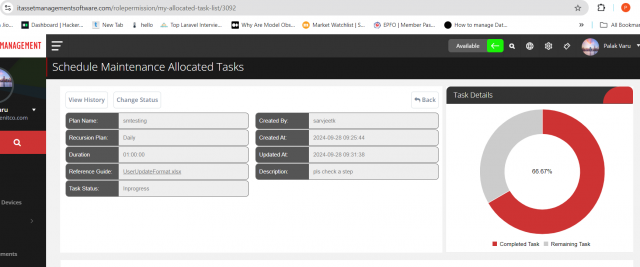
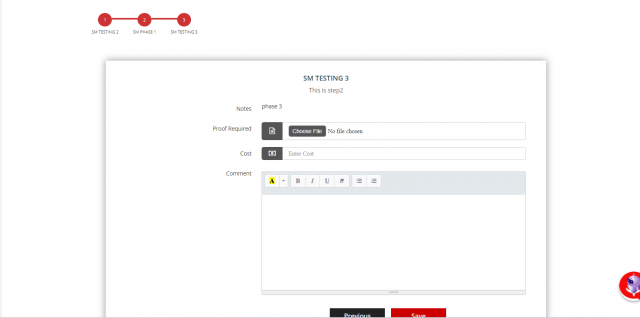
- Select Task Details. The page shows the plan details with a progress graph, and the tasks to update.
- Update each task in order (with GPS and proof if required).
Step 4: Approve maintenance
If approval is required, the completed plan goes to the manager.
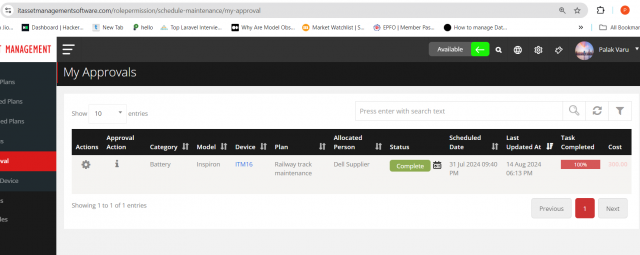
- The manager opens Schedule Maintenance → My Approvals.
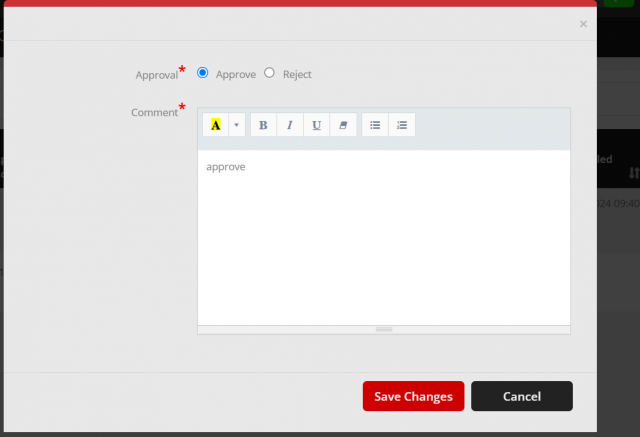
- Select Approval Action (info icon).
- Approve or reject the maintenance.
Auto allocation groups
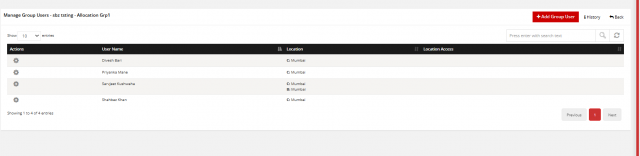
Auto allocation groups are teams to which maintenance plans can be assigned.

Menu path: Schedule Maintenance → Auto Allocation Groups
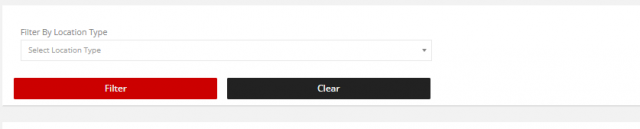
- Add, edit, delete and clone groups, download the group report and filter by location.
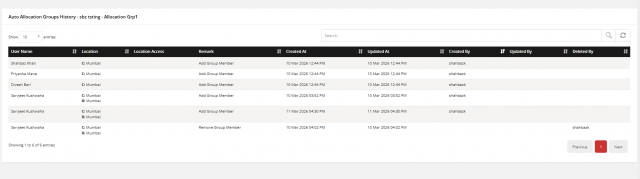
- View group history with the history icon.
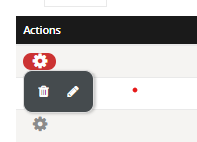
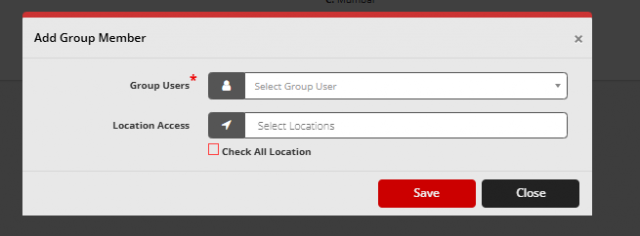
- Select Manage Group to add members, edit or delete members and view member history.