Introduction
The Asset Models section allows administrators to maintain a list of specific product models, such as the Dell Latitude 7430. Each model is linked to its respective manufacturer and asset category, helping keep asset records organized and consistent.
Once a model is configured, users can select it when adding a new asset instead of entering the same details repeatedly. For example, selecting the Dell Latitude 7430 model automatically associates the asset with the Dell manufacturer and the laptop category, based on the configured model details.
This helps standardize asset information, simplifies asset registration, and improves the accuracy of inventory records and reports.
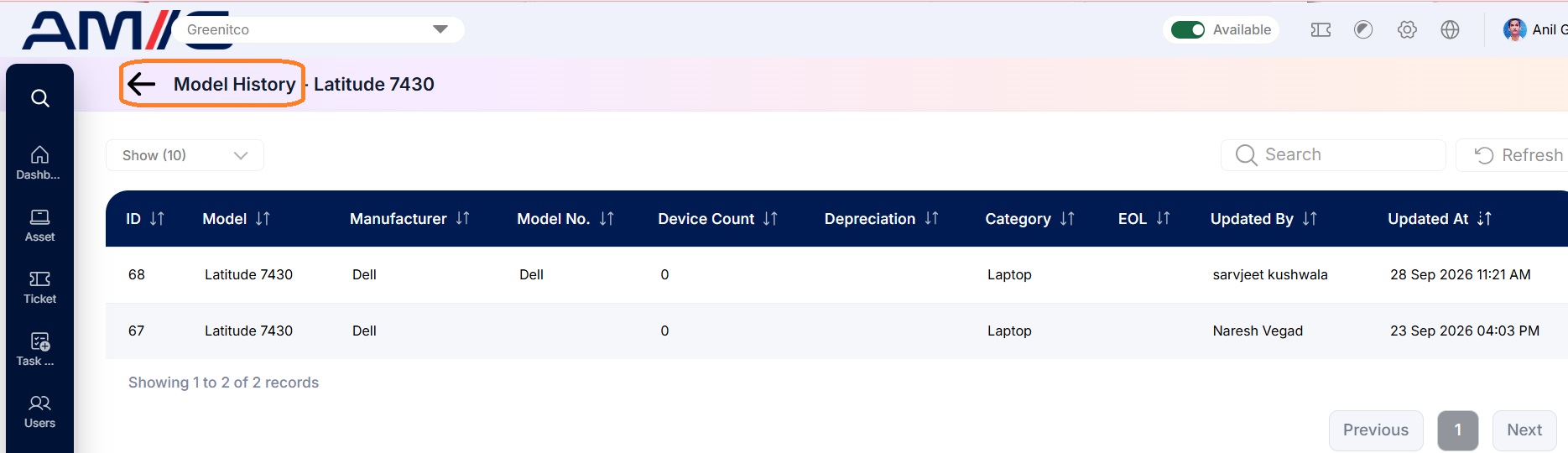
This section also allows users to manage model records and review their change history.
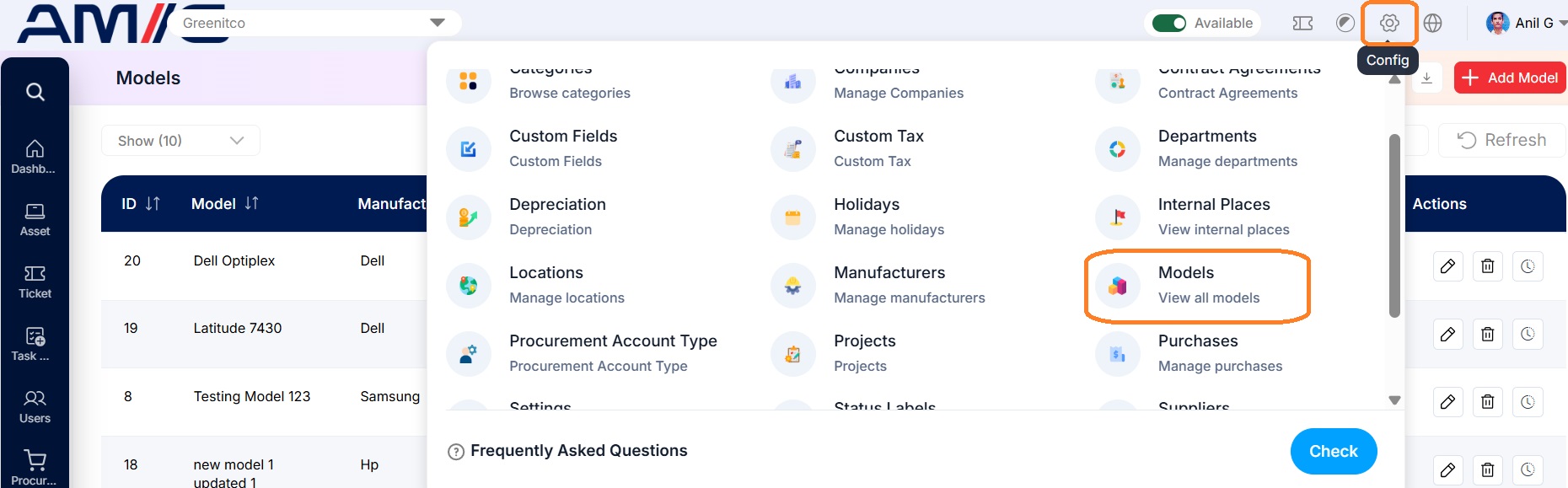
Navigation Path:> Header > Config > Models
Viewing the Models List
Go to Header > Config > Models. You will see every model set up so far, with tools to search, sort and manage them.
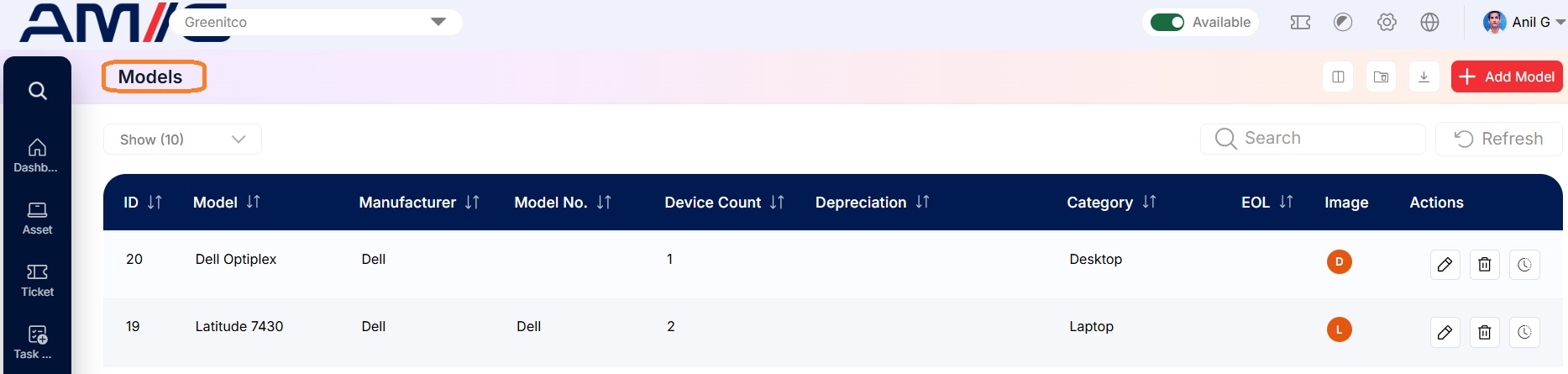 Figure: Models Main Screen
Understanding the Main Screen
Table: Models main screen elements
| Area | Description |
|---|---|
| Sub Header | Use Show (10) to choose how many records you see on one page. Type in the Search box to find a record quickly, or click Refresh to reload the list. |
| Action Buttons | In the top right corner you will find a few small list tools, such as choosing which columns to show and downloading (exporting) the list, plus the red + Add Model button. |
| The Data Table | Shows all your models with their ID, Model, Manufacturer, Model No., Device Count, Depreciation, Category, EOL and Image. Device Count tells you how many devices are using that model. If no picture has been uploaded, you will see a coloured circle with the first letter of the name. |
| Sorting | Click the small arrows beside a column name to sort the list (A to Z, Z to A, oldest or newest first). |
| Actions Column | Each row has three icons on the far right: Edit (pencil), Delete (trash can) and History (clock). |
Creating a New Model
Here is how to add a new model:
Step 1: On the Models screen, click the red + Add Model button in the top right corner.
Step 2: The "Add Model Details" form opens. Fields marked with a red asterisk (*) are required.
Step 3: Enter the model name, then choose its Category and Manufacturer. Add the model number, EOL, depreciation and fieldset if they apply.
Step 4: If you like, upload a picture of the model (.jpg, .jpeg or .png, up to 2 MB).
Step 5: Check the details and click the red Save button. The new model appears in the list and can now be chosen when adding assets. (Click Close to cancel.)
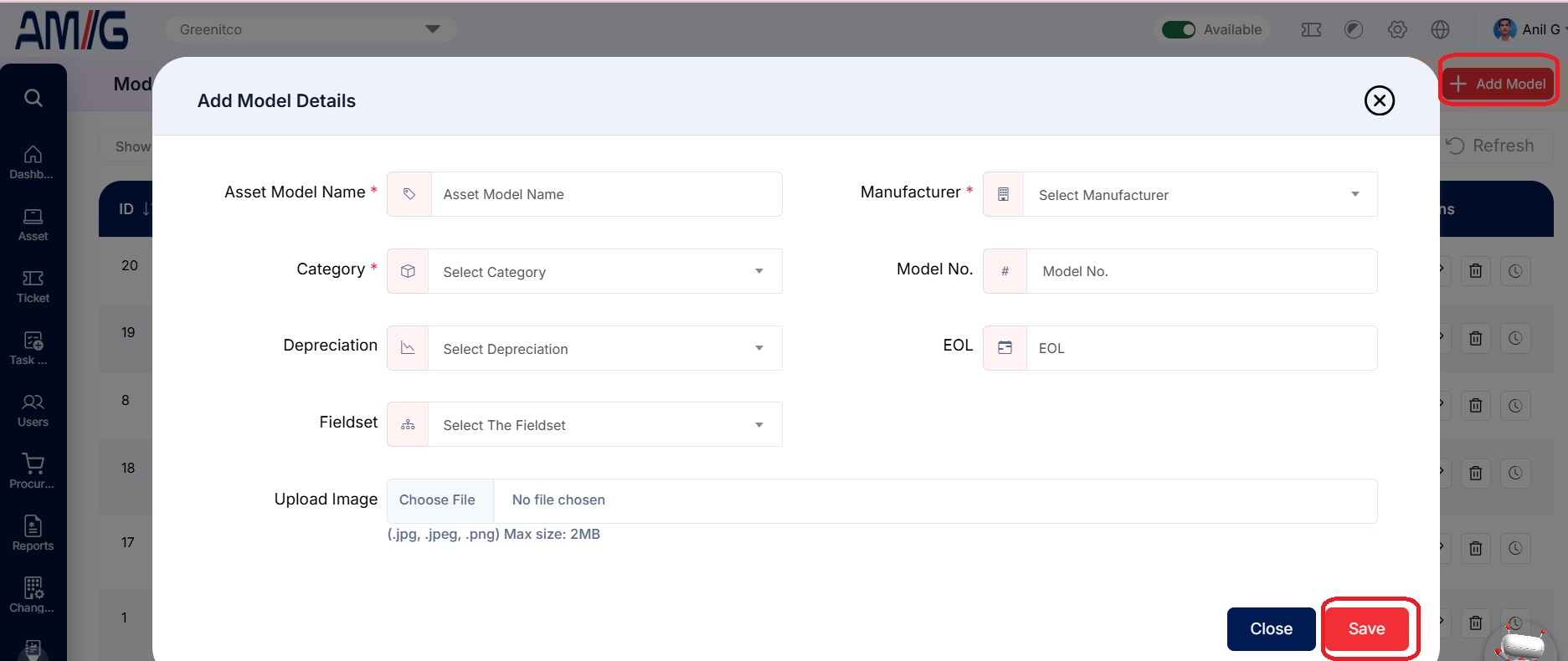 Figure: Add Model Details
Table: Add Model fields
| Field | Description |
|---|---|
| Asset Model Name | Enter the model's name (for example, "Latitude 7430"). |
| Category | Choose the category this model belongs to. Categories are set up under Header > Config > Categories. |
| Manufacturer | Choose the brand that makes this model. Manufacturers are set up under Header > Config > Manufacturers. |
| Model No. | Enter the manufacturer's model number, if you have it. |
| Depreciation | Choose how this model loses value over time. Terms are set up under Header > Config > Depreciations. |
| EOL | Enter the model's end of life (EOL), so you know when assets of this model are due for replacement. |
| Fieldset | Choose a fieldset if you want to capture extra details for this model. Those extra fields appear in the device info section whenever this model is chosen. |
| Upload Image | Optional. Add a picture of the model (.jpg, .jpeg or .png, up to 2 MB). |
Managing Existing Models
Once a model has been added, you can manage it from the Models list using the icons in the Actions column:
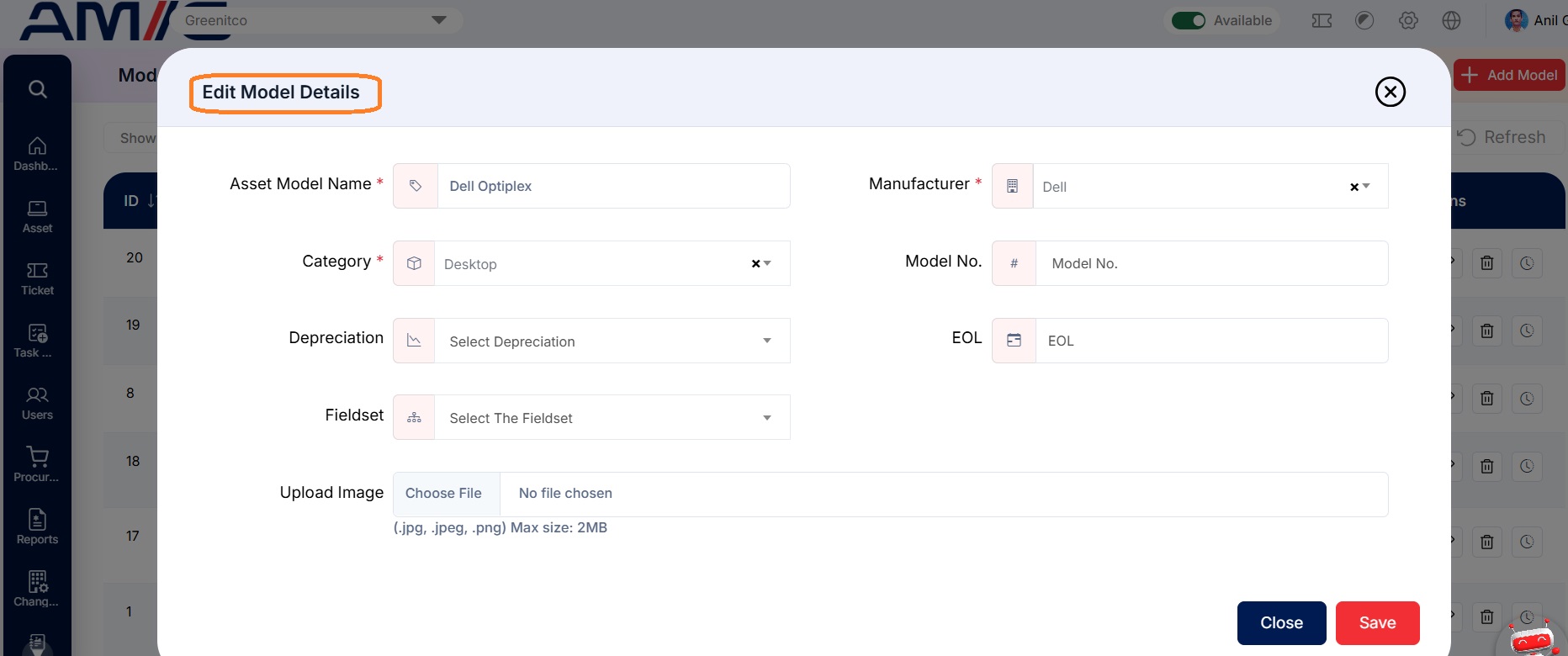
Edit a model
Step 1: On the Models screen, locate the model you want to change.
Step 2: Click the Pencil (Edit) icon in the Actions column.
Step 3: Review and update the model details.
Step 4: Click Save to apply the changes.
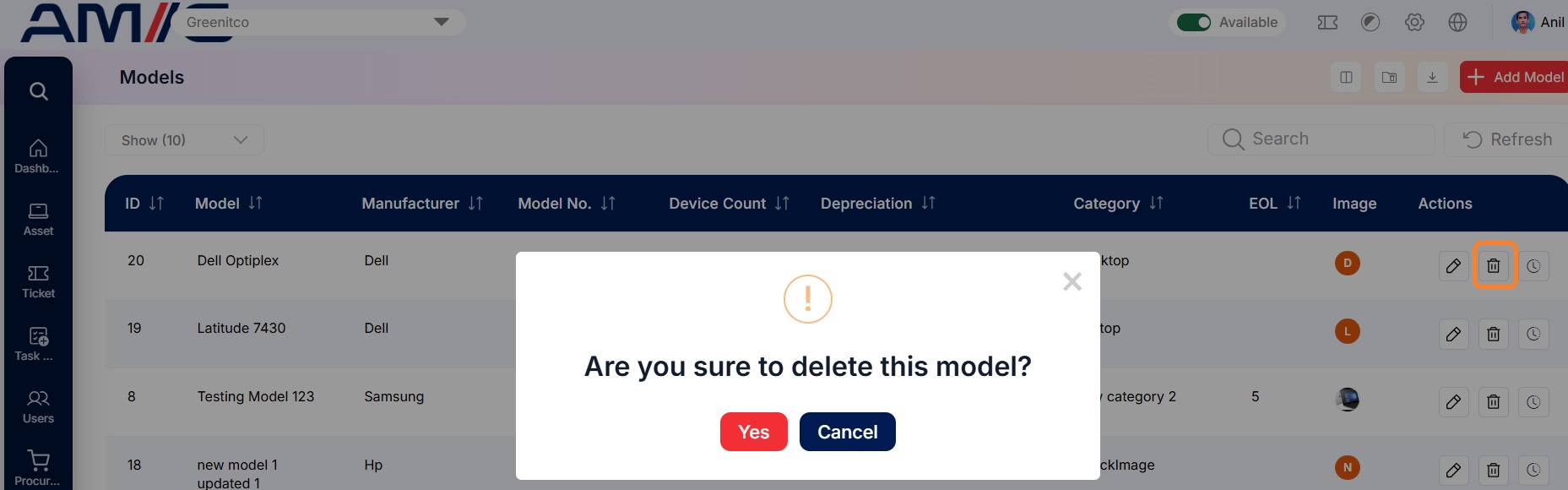
Delete a model
Step 1: Locate the model in the list and check its Device Count before deleting it.
Step 2: If devices still use this model, move them to another model first.
Step 3: Click the Trash Can (Delete) icon, then confirm the deletion when prompted.
View model history
Step 1: Click the Clock (History) icon for the required model.
Step 2: Review the history entries to see who changed the model and when.
Important: Before changing or deleting a model, check its Device Count. Changes affect every asset that uses the model, so if devices are still using it, move them to another model before deleting it.