

Introduction
Print Asset Labels is the operation that generates physical labels for assets—typically bearing a barcode, QR code, or human-readable asset tag—so that devices can be identified, scanned, and tracked in the real world. It bridges the digital inventory and the physical equipment, enabling fast checkouts, returns, audits, and reconciliation.
Labels are usually printed in batches for newly acquired assets, reprints for damaged or missing labels, or on demand for individual devices.
You can print asset tag labels for one device or many assets at the same time.
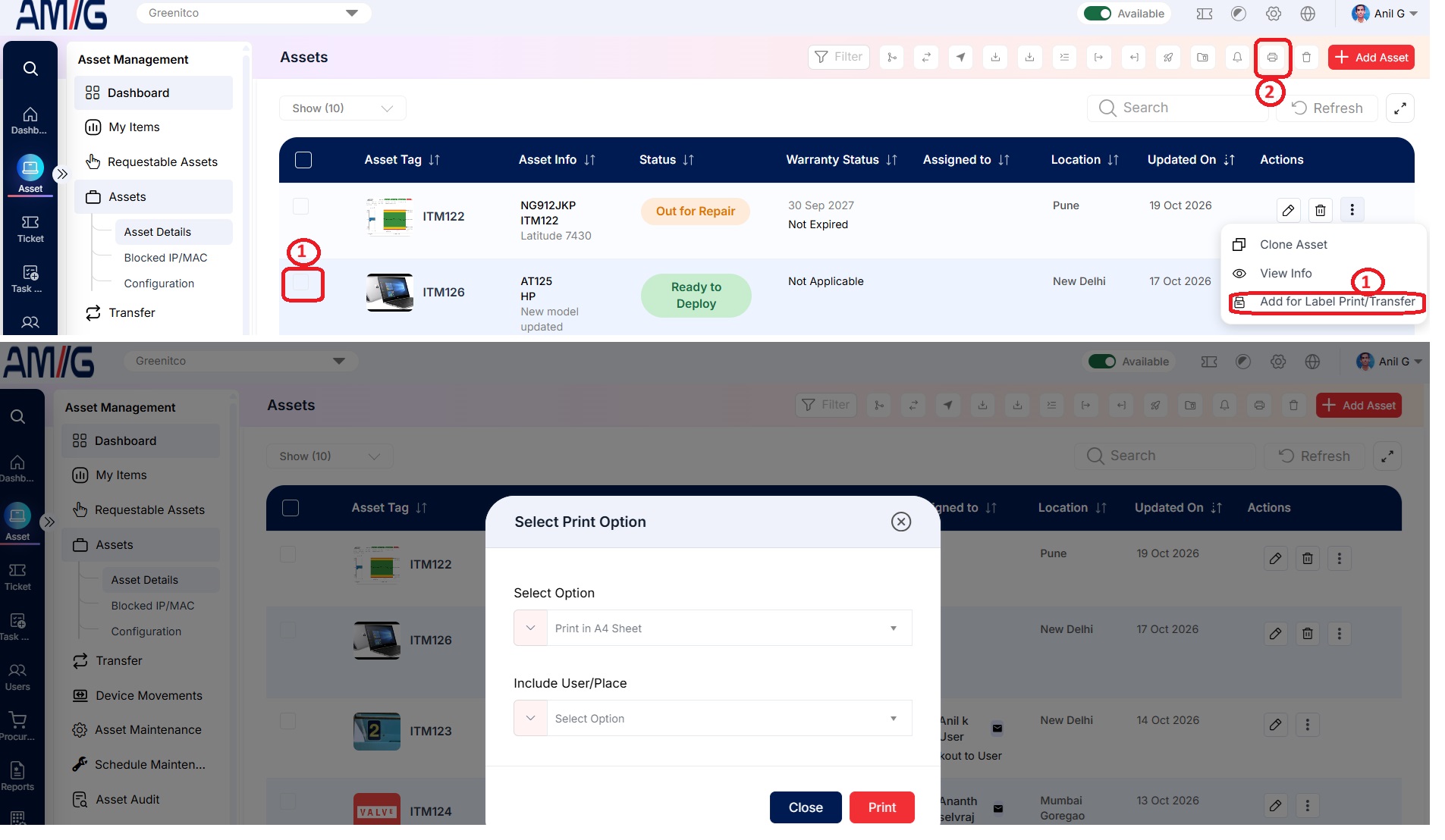
Navigation Path: Sidebar > Assets > Asset Details
- Select the assets: use the check box for each asset, or open a single asset's action menu.
- Select Print Label (print icon).
- Select the label size.
- Choose whether to include the assigned user or place name on the label.
- Select Print.
Barcode Settings
- ⚙️ Set up barcode settings: Go to Settings → Barcode Settings.
- 🖨️ Print labels for components: Visit the Components page under Asset Management.
- 🖨️ Print labels for users: Visit the Users page under All Users.
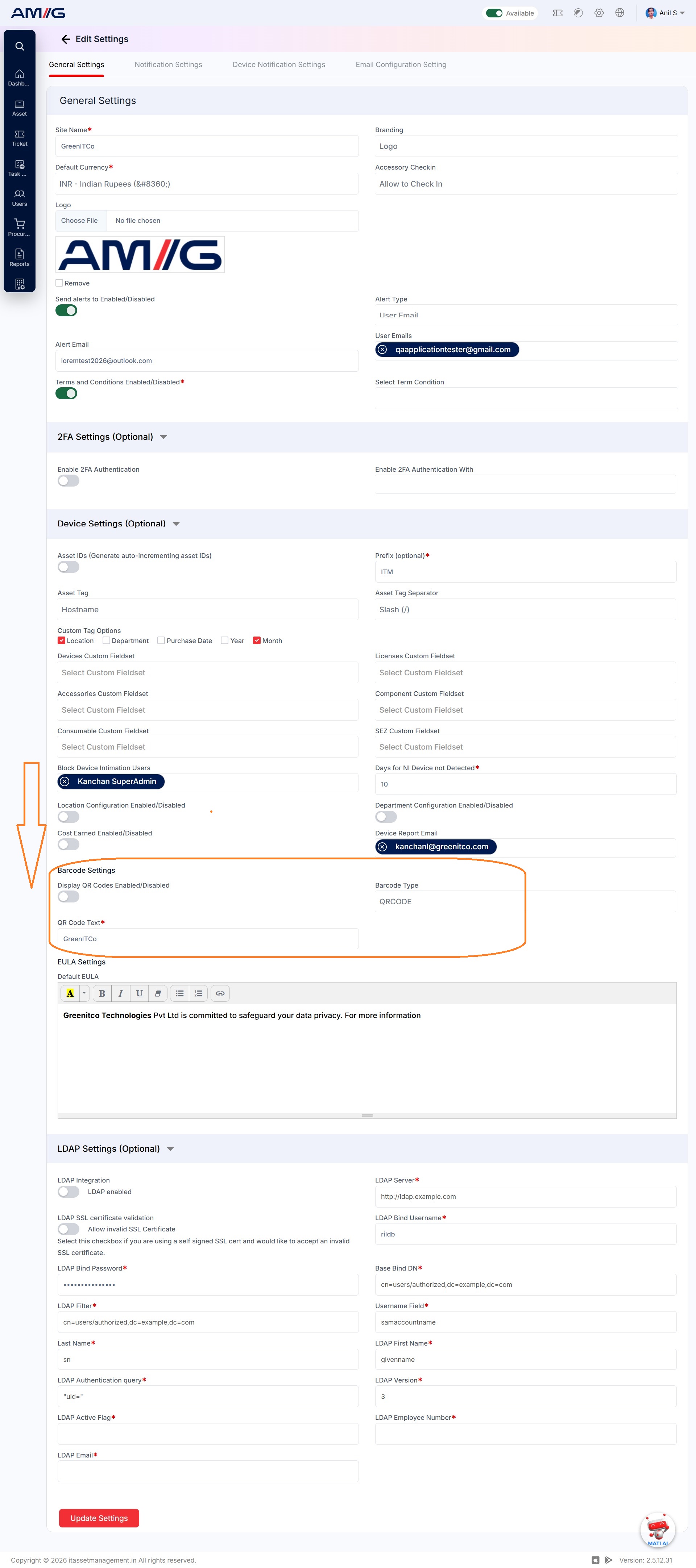
settings/edit