

Introduction
Dynamic Form provides a drag-and-drop form designer that allows administrators to create reusable custom forms based on the organisation's requirements. These forms help collect additional information from users when they create service tickets or change a ticket's status.
Created forms can be configured in the following areas:
-
Problem Category: Map a dynamic form to a problem category under Sidebar > Ticket > Problem Category. The form can be used to collect relevant information when a user raises a ticket under that category.
-
Ticket Status: Associate a dynamic form with a ticket status under Sidebar > Ticket > Status. The form can be displayed when a ticket moves to the configured status to collect the required information.
Each form has a name and description. Its layout is built by dragging and arranging field components from the available component palette. Administrators can combine multiple fields to create a form that captures the information required for a particular category or status.
The Dynamic Form list also provides the following actions:
-
Edit: Modify an existing form.
-
Delete: Remove a form.
-
History: View the recorded changes to a form, where available.
Dynamic Forms help standardise information collection, reduce missing details, and ensure that the appropriate information is captured during ticket creation and status updates.
Navigation: Sidebar > Ticket > Service Request > Dynamic Form
Viewing the Dynamic Form List
Step 1: Open Dynamic Form. The list displays the available forms and their identifiers, names, descriptions, creation dates, and update dates.
Step 2: Use Search or Refresh to locate or reload a record. The row actions allow you to edit or delete a form, or open its history.
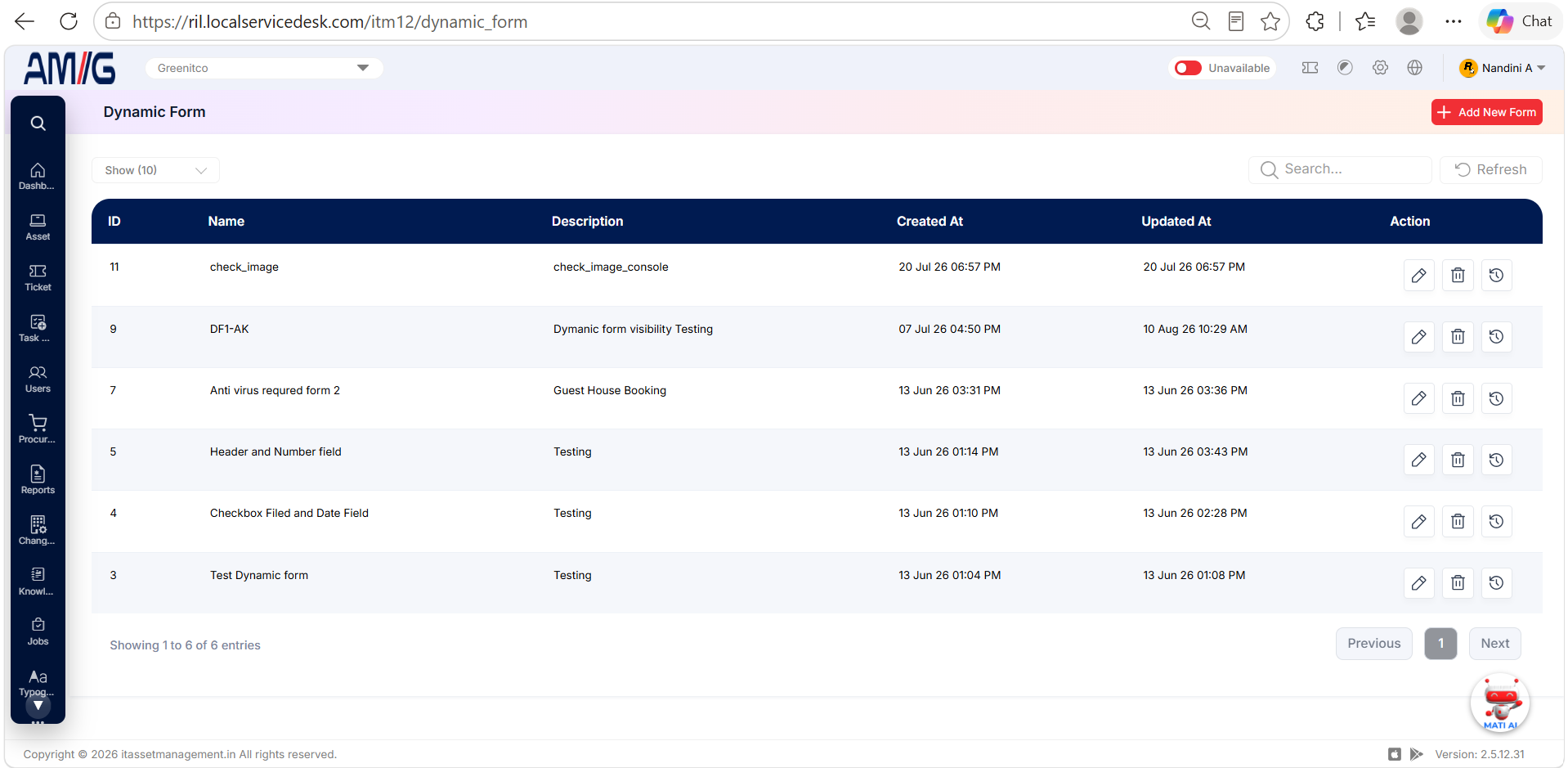
| Column / Action | Description |
|---|---|
| ID | Unique identifier for the form record. |
| Name | Form name. |
| Description | Short description of the form. |
| Created At / Updated At | Creation and most recent update timestamps. |
| Edit / Delete | Edit the form or delete the record where permitted. |
| History | Open the form’s history. |
Creating a Dynamic Form
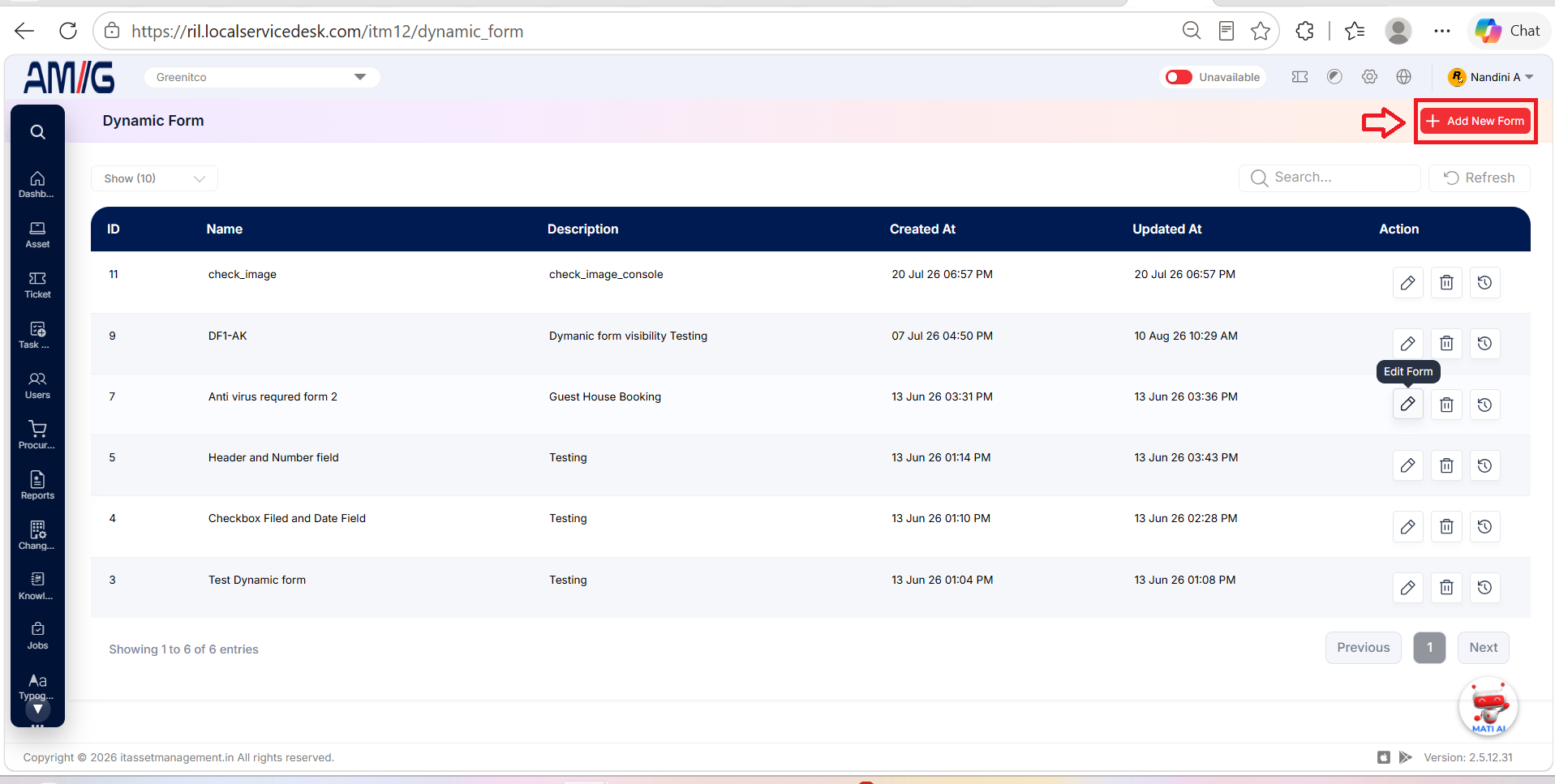
Step 1: Click Add New Form.
Step 2: Enter the required Name and Description.
Step 3: Drag a component from the right-hand palette into the design area. Repeat for each field or content element needed in the form.
Step 4: Review the layout. Use Clear to remove the current design when you need to start again; use the JSON control where you need to view or work with the form definition.
Step 5: Click Save to store the form.
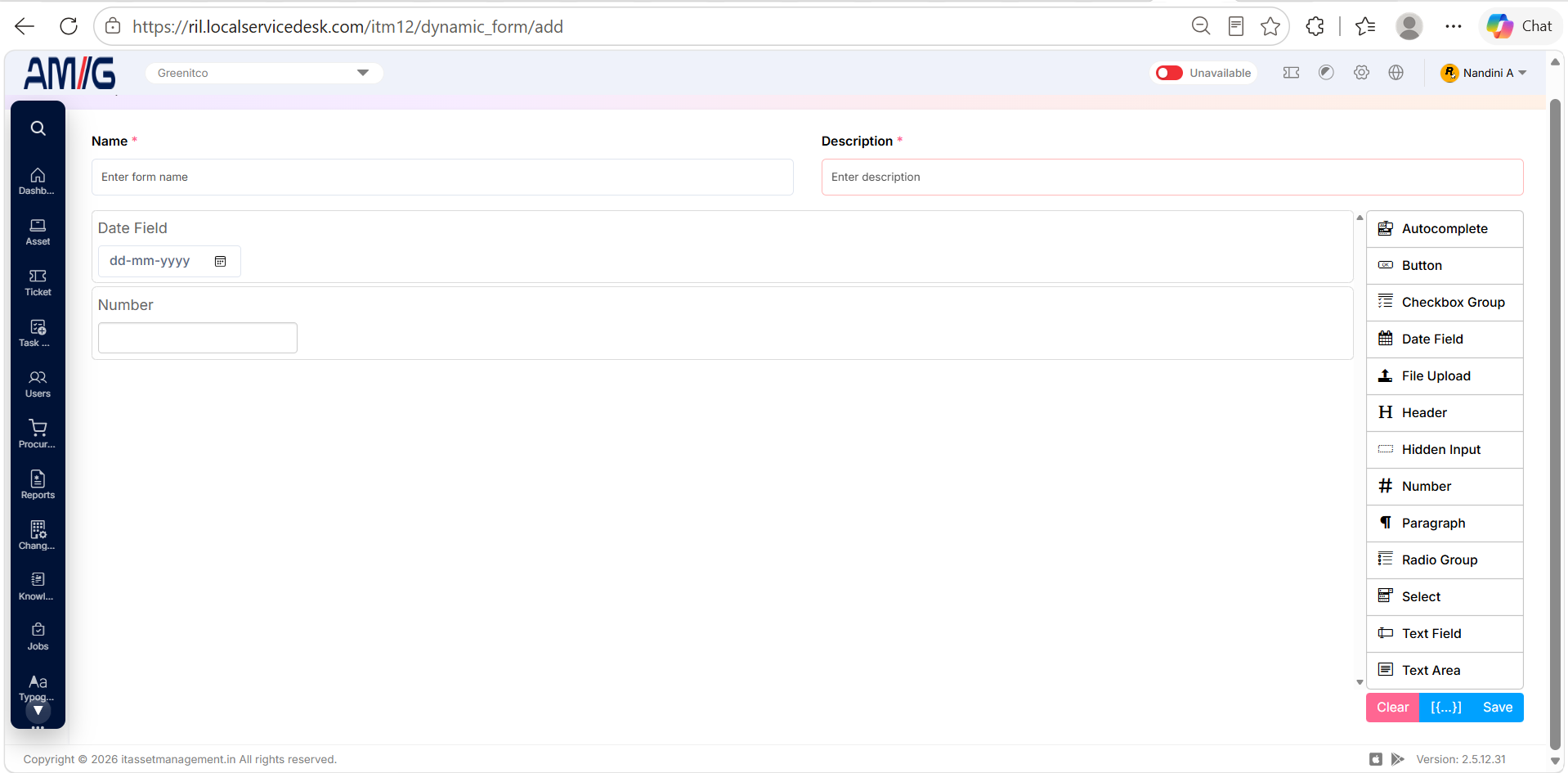
| Component | Purpose as indicated by the component name |
|---|---|
| Autocomplete | Provides an autocomplete input. |
| Button | Adds a button component. |
| Checkbox Group | Adds a group of checkbox options. |
| Date Field | Adds a date input. |
| File Upload | Allows a file-upload field. |
| Header | Adds a header element. |
| Hidden Input | Adds a hidden input. |
| Number | Adds a numeric input. |
| Paragraph | Adds a paragraph/text content element. |
| Radio Group | Adds a radio-button option group. |
| Select | Adds a selection/dropdown field. |
| Text Field | Adds a single-line text input. |
| Text Area | Adds a multi-line text input. |
Managing Existing Forms
Edit an existing form
Step 1: Locate the required form in the Dynamic Form list.
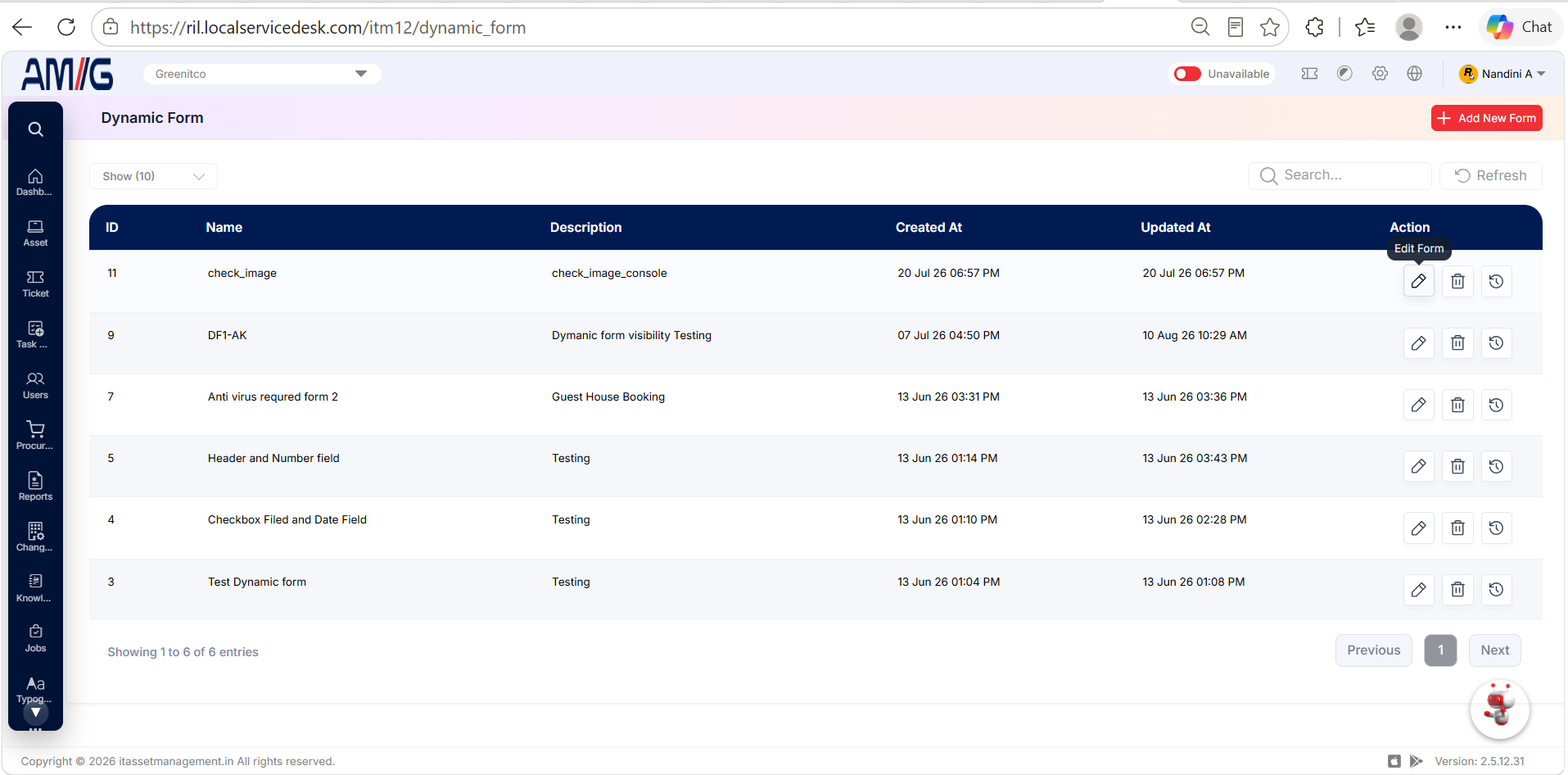
Step 2: Click Edit to open the form designer.
Step 3: Update the form name, description, or layout by adding, removing, or rearranging field components as needed.
Step 4: Save the changes to update the existing form.
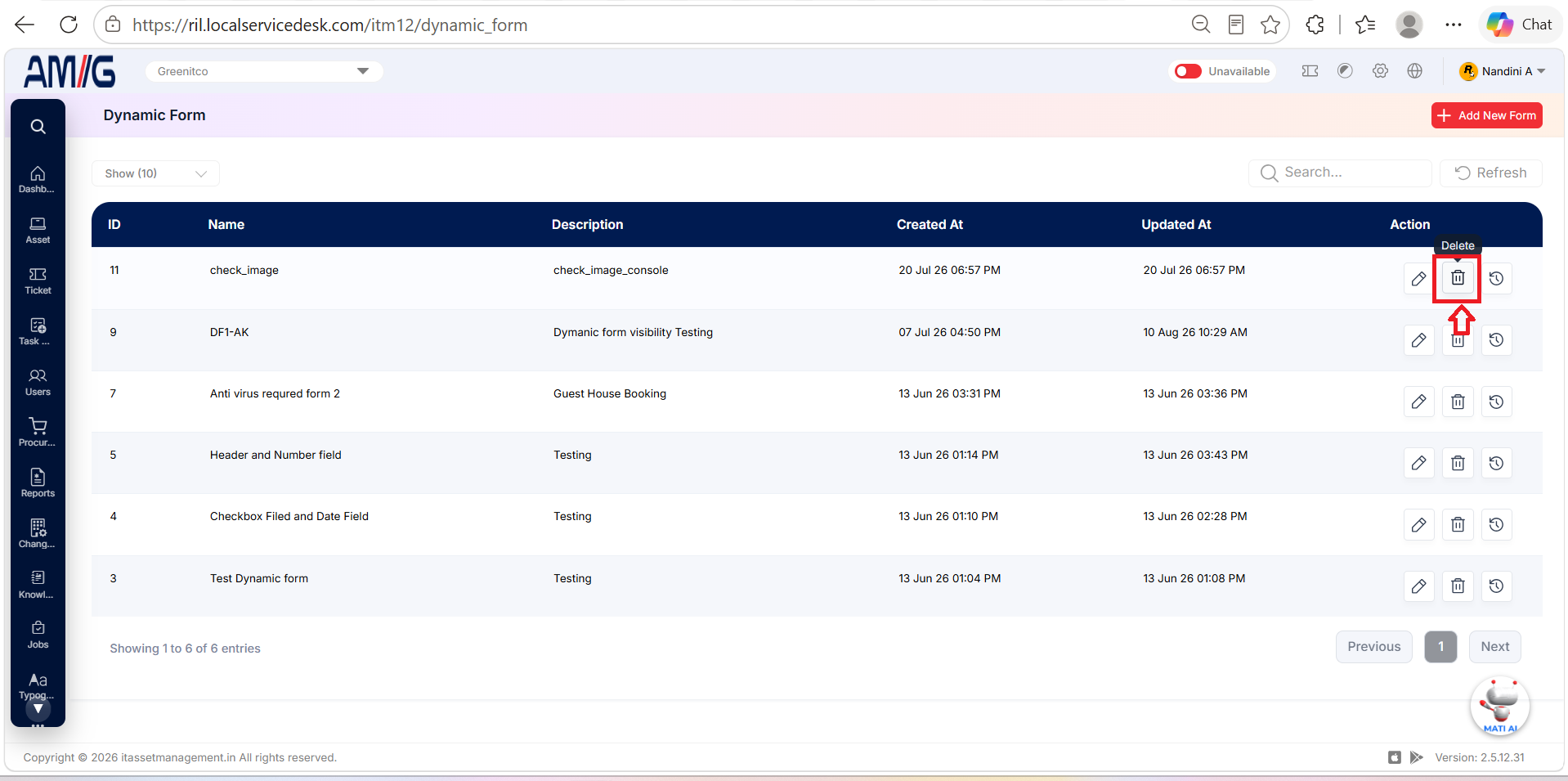
Delete an existing form
Step 1: Locate the form you want to remove in the Dynamic Form list.
Step 2: Click Delete for the selected form.
Step 3: Review the application’s confirmation prompt.
Step 4: Confirm the deletion only if the form is no longer required.
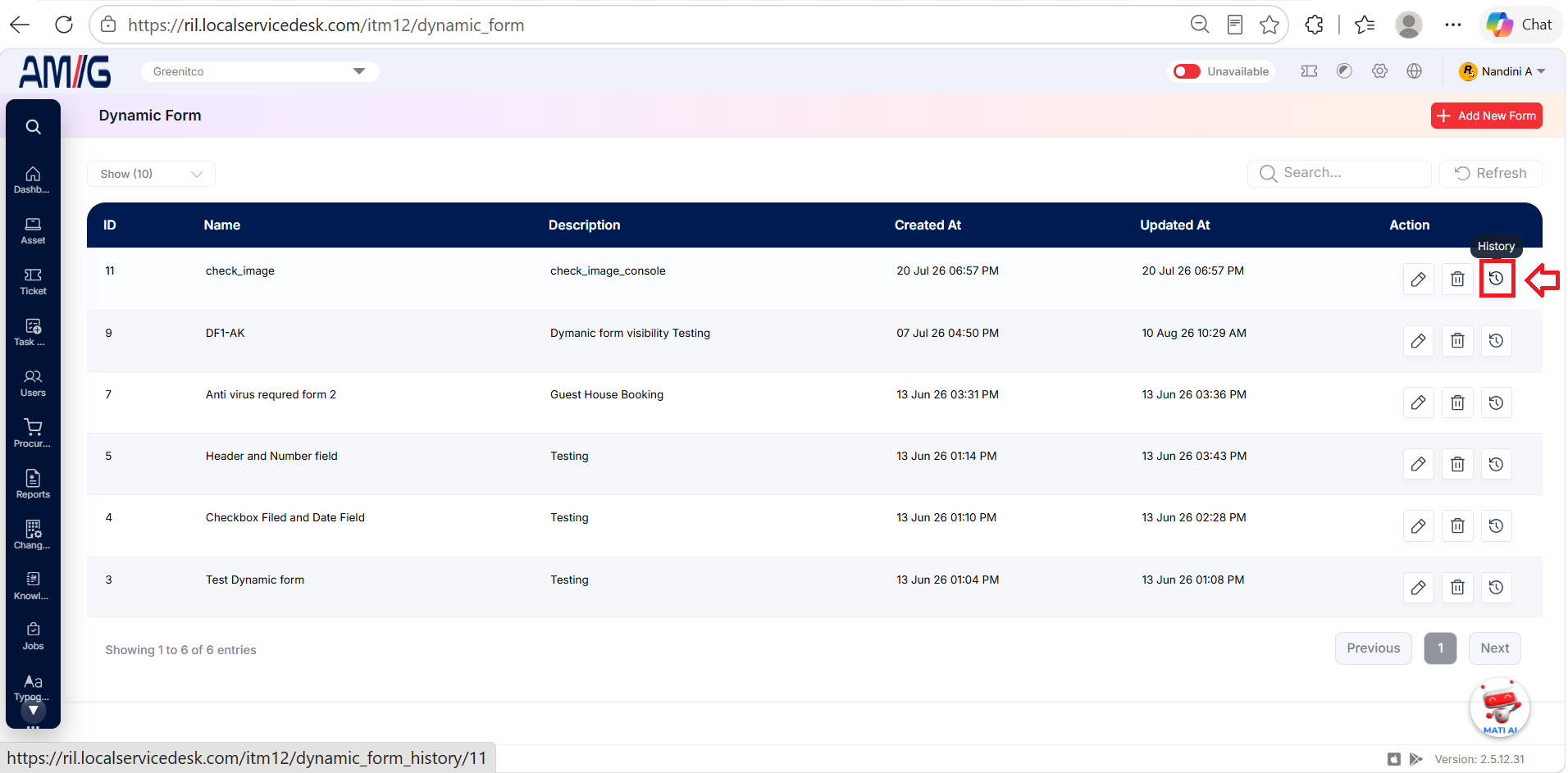
View form history
Step 1: Locate the required form in the Dynamic Form list.
Step 2: Click History to view the form’s recorded change history.
Step 3: Review the available history details to track changes made to the form.
| Column | Description |
|---|---|
| ID | Identifier for the history record. |
| Name / Description | Name and description of the form represented by the history entry. |
| Remark | Recorded change note, such as “New form added”. |
| Created At | Timestamp associated with the history entry. |
| Created By / Updated By / Deleted By | Users recorded for the corresponding operations, where applicable. |
| Action | View the associated history detail where the action is available. |