Introduction
The SR Member Report provides a consolidated overview of service request approval activities at the individual approver level. It summarises the service requests assigned to each SRAT (Service Request Approval Team) member and provides visibility into the Authority Board (PAB) to which each member belongs.
The report displays approval-related information for each member, including the total number of requests approved, rejected, and currently pending. This helps management understand the approval workload and review how individual members are handling the service requests assigned to them.
By analysing member-wise approval statistics, management can identify pending approval backlogs, monitor approval and rejection trends, and determine whether specific members require follow-up or intervention to avoid delays in the service request workflow.
The report also helps administrators review the distribution of approval responsibilities across different Authority Boards and assess the progress of service requests at the member level.
Overall, the SR Member Report provides clear visibility into approver-wise service request activity, helping management monitor approval performance, track pending requests, and improve the efficiency of the service request approval process.
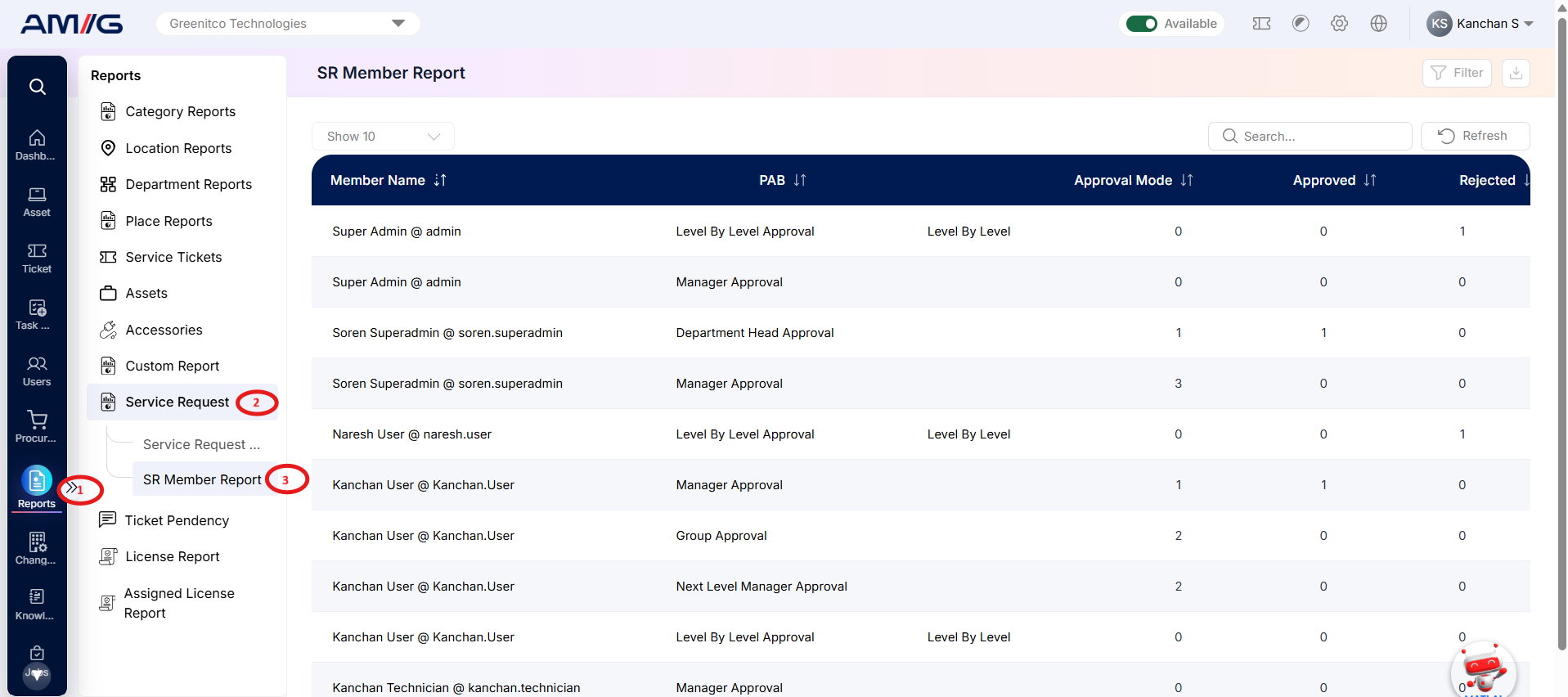
Navigation Path: Sidebar > Reports > Service Request > SR Member Report
Viewing the Report
Open SR Member Report from Sidebar > Reports > Service Request > SR Member Report. The report opens as a list.
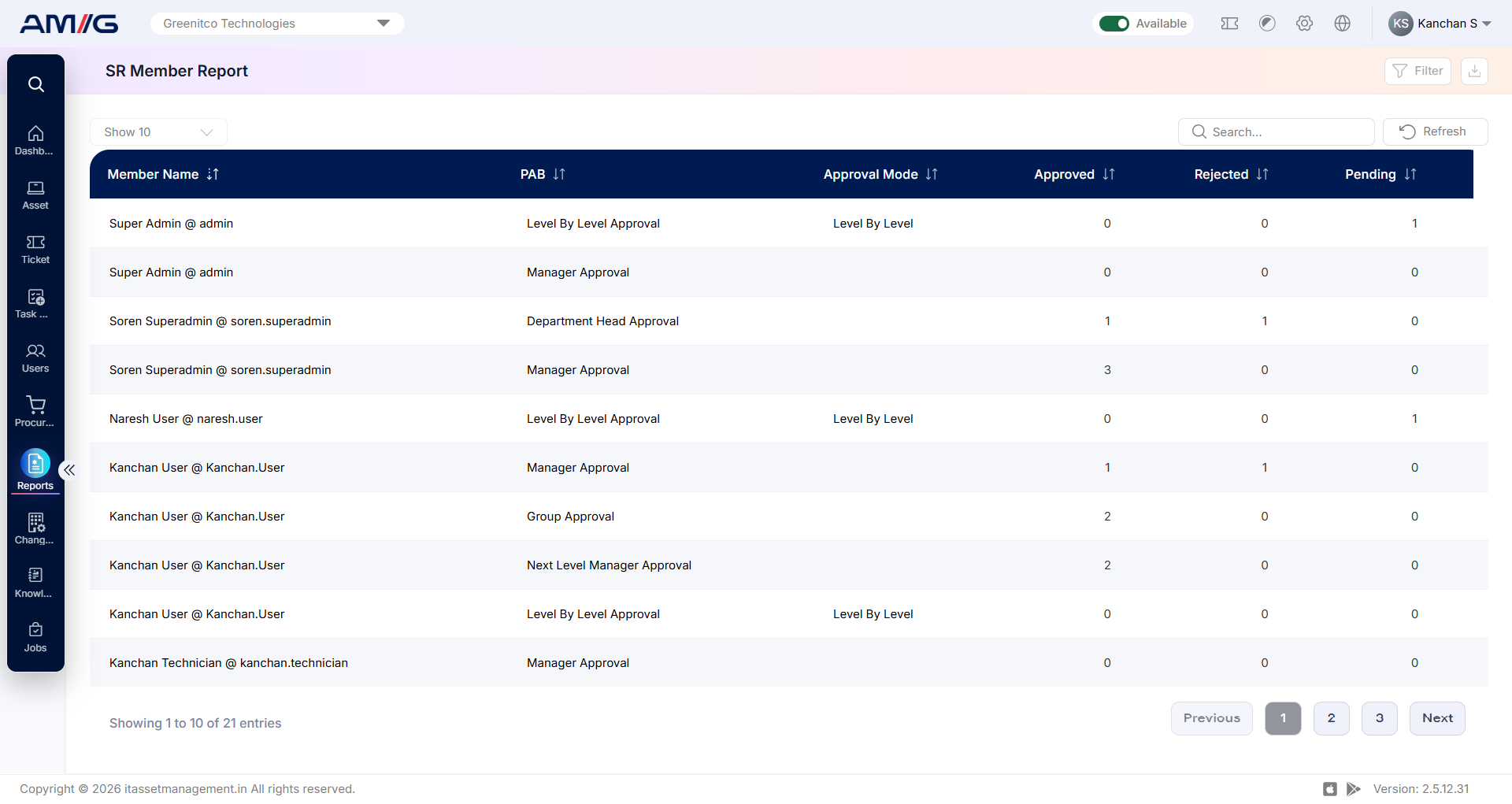
Figure 2.10.1: SR Member Report – report listing
Table 2.10.1: Report columns
| Column | What it shows |
|---|---|
| Member Name | Displays the name of the SRAT member responsible for reviewing and processing service request approvals. |
| PAB | Displays the name of the Parent Approval Board (PAB) to which the member belongs. |
| Approval Mode | Displays the approval mode configured for the member, indicating how the member participates in the service request approval process. |
| Approved | Displays the total number of service requests approved by the respective member. |
| Rejected | Displays the total number of service requests rejected by the respective member. |
| Pending | Displays the total number of service requests currently pending with the respective member for approval or rejection. |
Filtering the Report
Step 1: Click Filter at the top-right of the report. The filter panel opens.
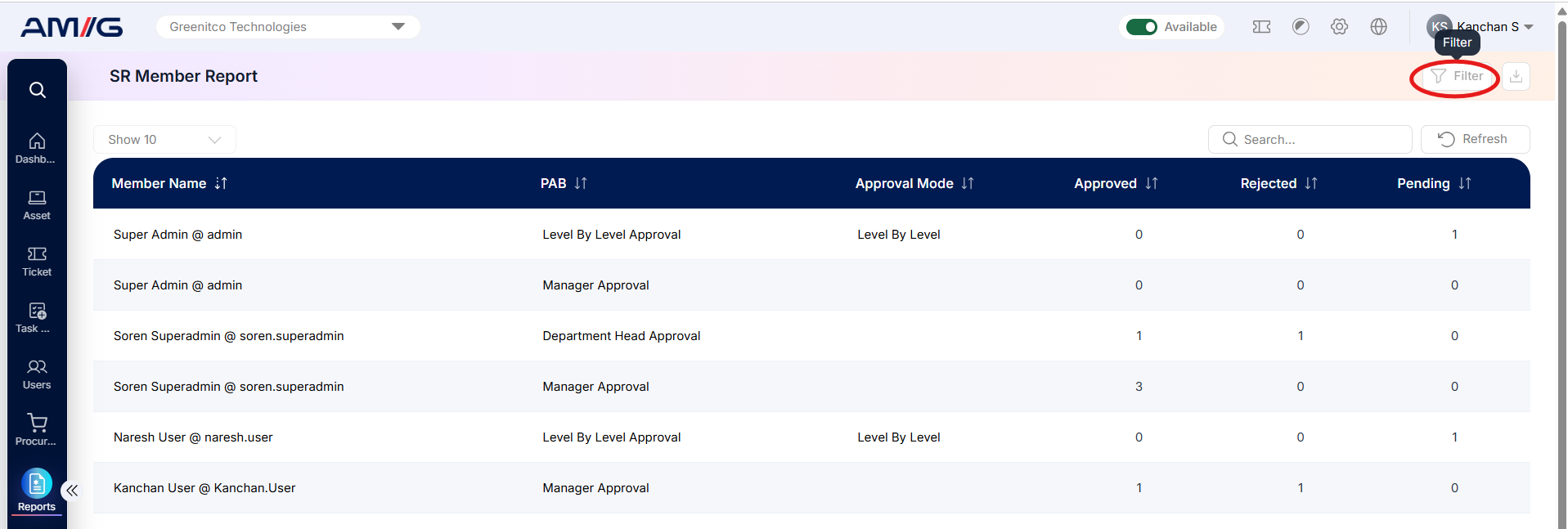 Step 2: Choose the values you need in one or more of the filters listed below.
Step 3: Click Filter (or Apply Filter) to update the report. Click Clear to remove all filters.
Table 2.10.2: Available filters
| Filter | What it does |
|---|---|
| Date | Filters the SR Member Report based on the selected date criteria, allowing users to review approval activities for a specific period. |
| Date Range | Displays service request approval records within the specified start and end dates, helping management analyse approval activities over a selected period. |
| Ticket Creator | Filters approval records based on the user who originally created the service request, helping users review approval activities associated with requests submitted by a specific user. |
| Authority Board | Filters the report based on the selected Authority Board (PAB), displaying approval statistics for members associated with that board. |
Note: These filters help administrators and management narrow down member-wise approval statistics to review approved, rejected, and pending service requests for specific reporting periods, request creators, or Authority Boards.
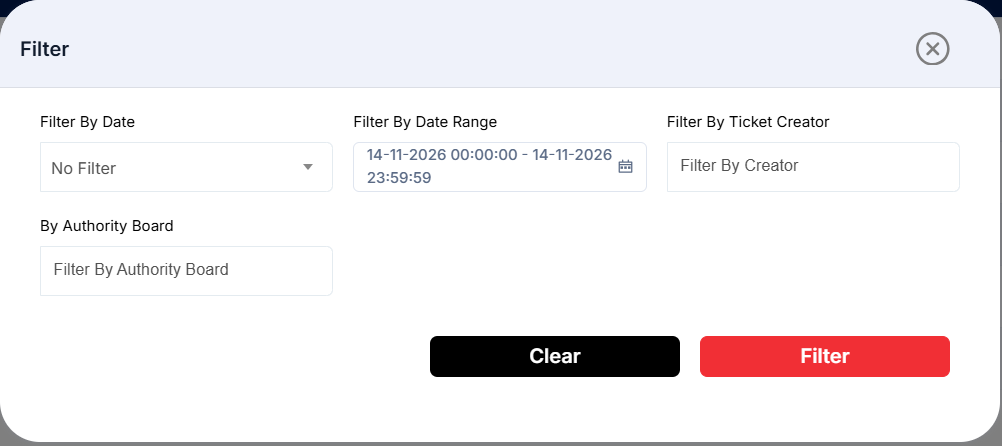
Figure 2.10.2: SR Member Report – filter panel
Sorting the Report
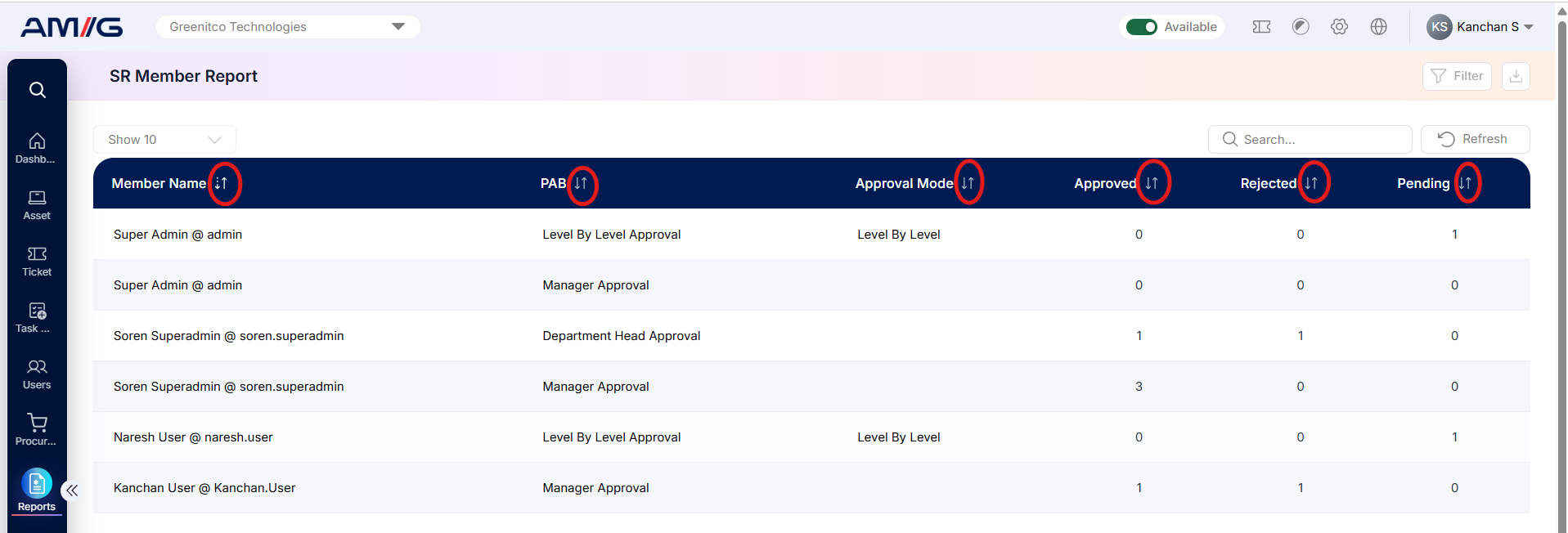
Click a column header to sort by any of the report columns.