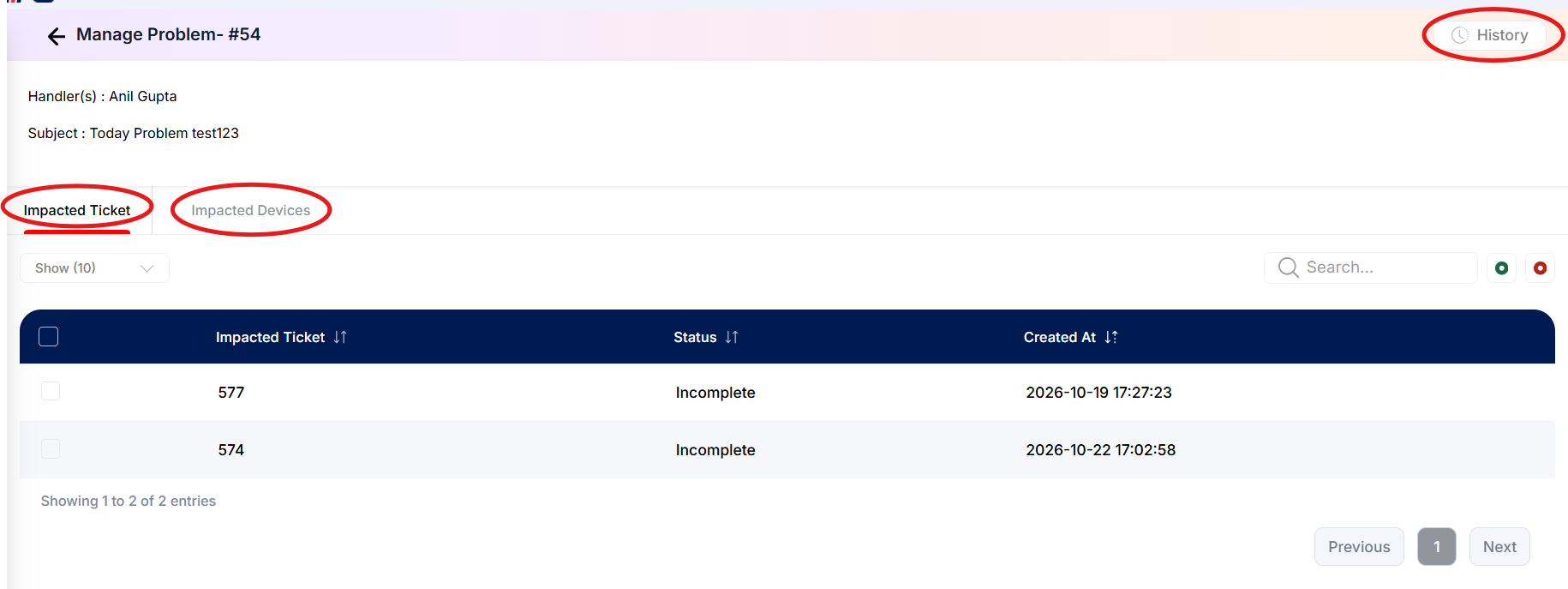
Introduction
Problem Management helps you identify, investigate, and resolve the underlying causes of issues that affect multiple tickets, devices, or business operations. Instead of handling each ticket separately, you can record the common problem in one place and link all related tickets and affected devices to it.
For example, if multiple users raise tickets about a network outage, you can create a problem record, link the affected tickets and devices, and investigate the root cause to prevent the issue from recurring.
Using this section, you can:
-
Record and Track Problems: Create problem records with a description, priority, category, department, and assigned handlers.
-
Link Related Tickets: Associate multiple tickets with a single problem to manage related issues together.
-
Track Impacted Devices: Identify and link devices affected by the problem.
-
Perform Root Cause Analysis: Investigate the underlying cause of recurring issues and document the findings.
-
Plan Resolution and Recovery: Maintain details such as the problem's impact, rollback plan, and fallback plan to support safe resolution and recovery.
-
Manage the Problem Lifecycle: Track the problem until it is resolved and closed.
Important: When a problem is closed, the system also resolves the tickets linked to that problem. Ensure that the related issues have been addressed before closing the problem.
These features help your organisation manage recurring issues more effectively, reduce repeated incidents, and maintain a complete record of problem investigation and resolution.
📍 Navigation: Sidebar › Ticket › Problem Management
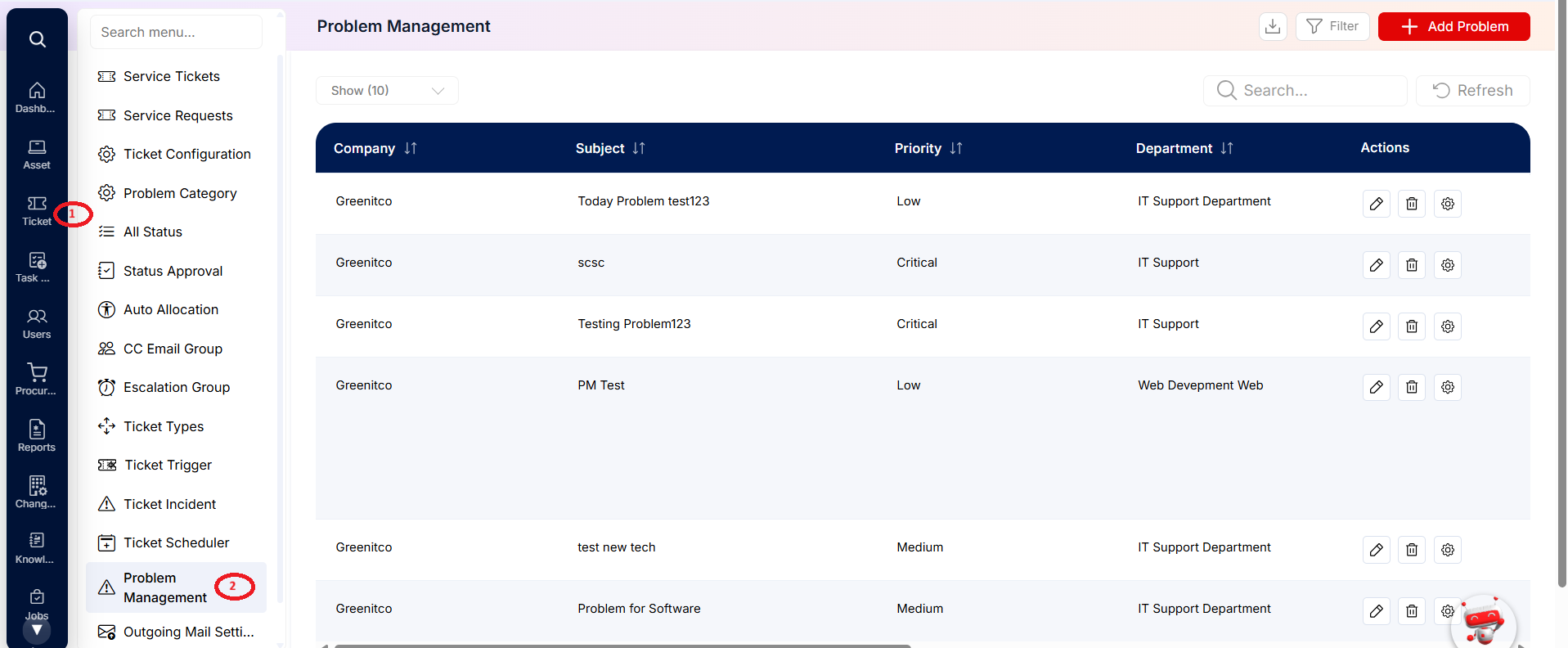
Viewing the Problem Management List
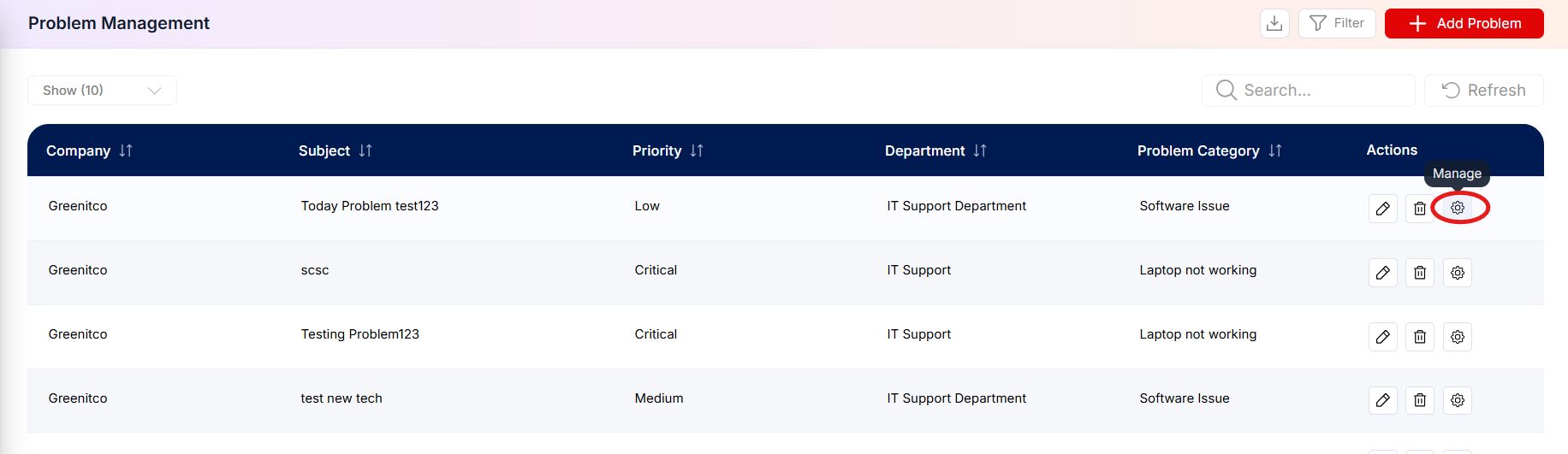
Open Problem Management to view existing records. Use Search to locate a problem, Refresh to reload the list, and the available row actions to edit, delete, or manage a problem. Use the horizontal scrollbar to review additional columns when the full table is wider than the screen.
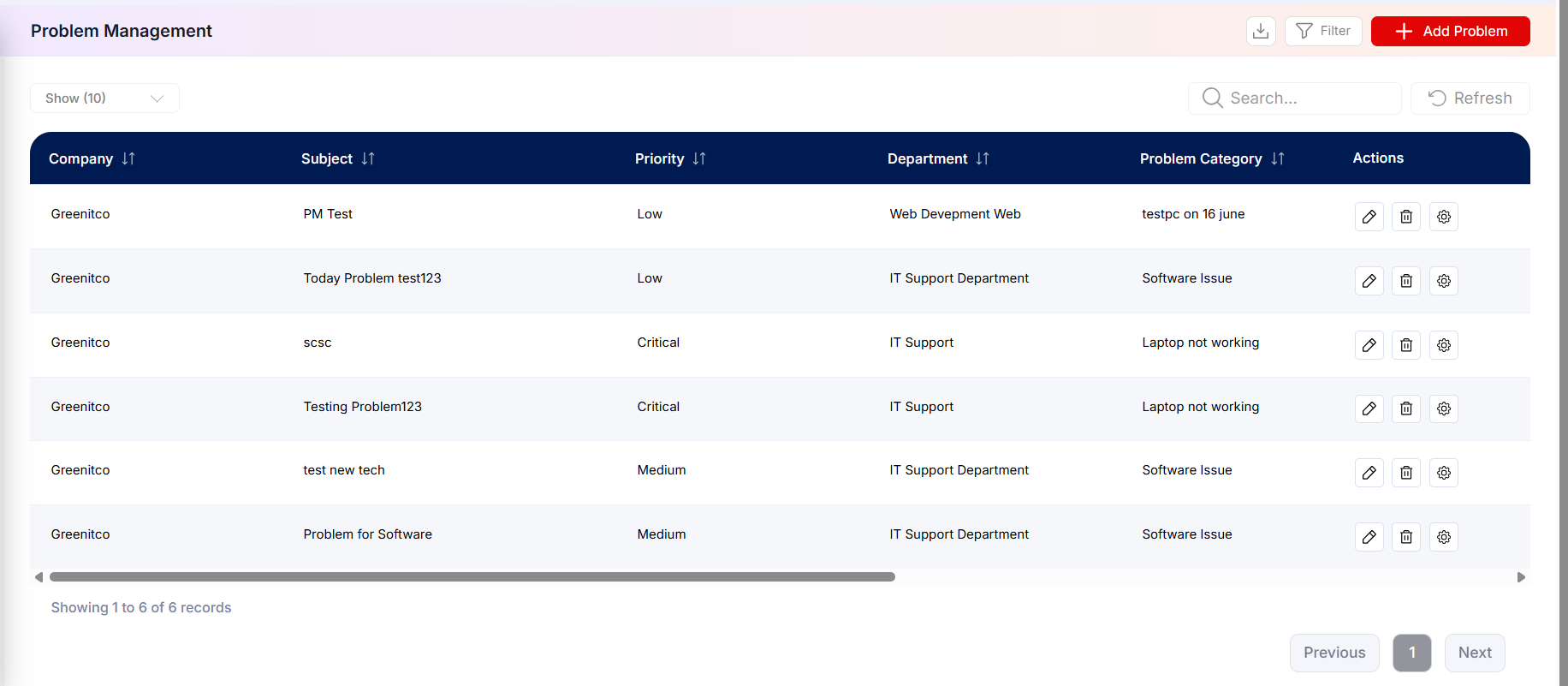
Figure: Problem Management list
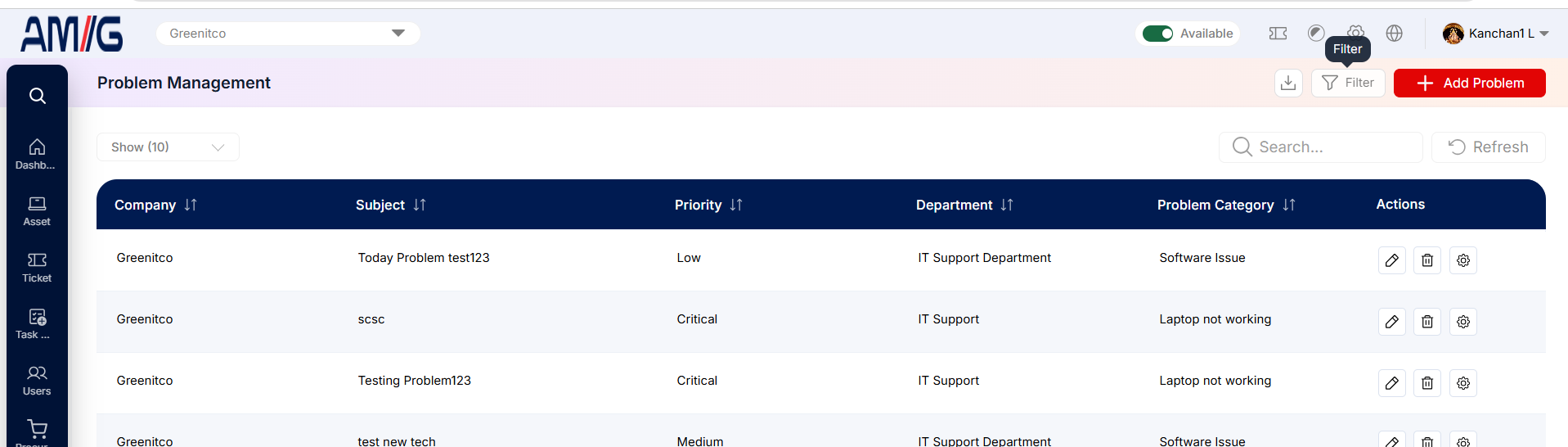
Figure: Problem Management list — extended columns
Problem Management list columns
| Column | Description |
|---|---|
| Company | Company associated with the problem. |
| Subject | Title used to identify the problem. |
| Priority | Priority assigned to the problem. |
| Department | Department responsible for or impacted by the problem. |
| Problem Category / Subcategory | Classification selected for the problem category and sub category. |
| Device Completed / Ticket Completed | Completion percentages displayed for impacted devices and tickets. |
| Created At / Updated At | Record creation and last-update timestamps. |
| Actions | Edit, Delete, and management controls available for the record. |
Creating a Problem — Basic Details
Step 1 → On the Problem Management screen, click Add Problem.
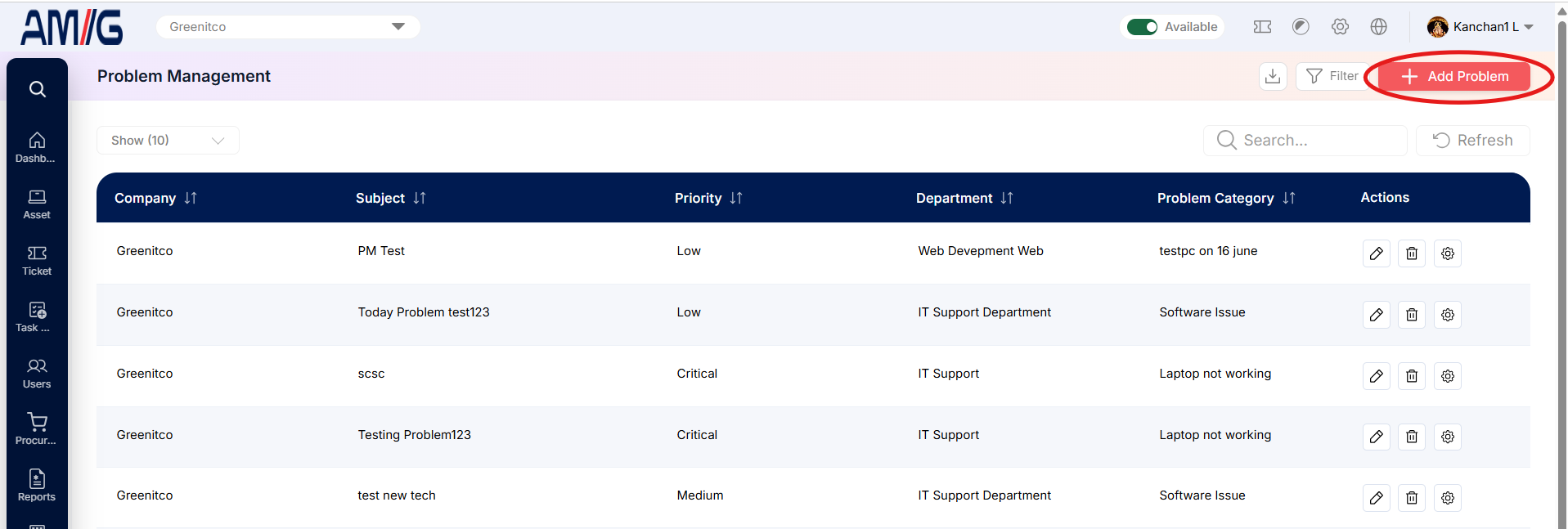 Step 2 → Enter the Subject, select the Company, and provide a clear Description.
Step 3 → Select the Department, Problem Category, and Priority.
Step 4 → Select the required Handler(s). Required fields are marked with an asterisk (*).
Step 5 → Continue to the Impacted Devices and Impacted Tickets tabs to associate related records, if applicable.
Step 6 → Click Save to store the problem.
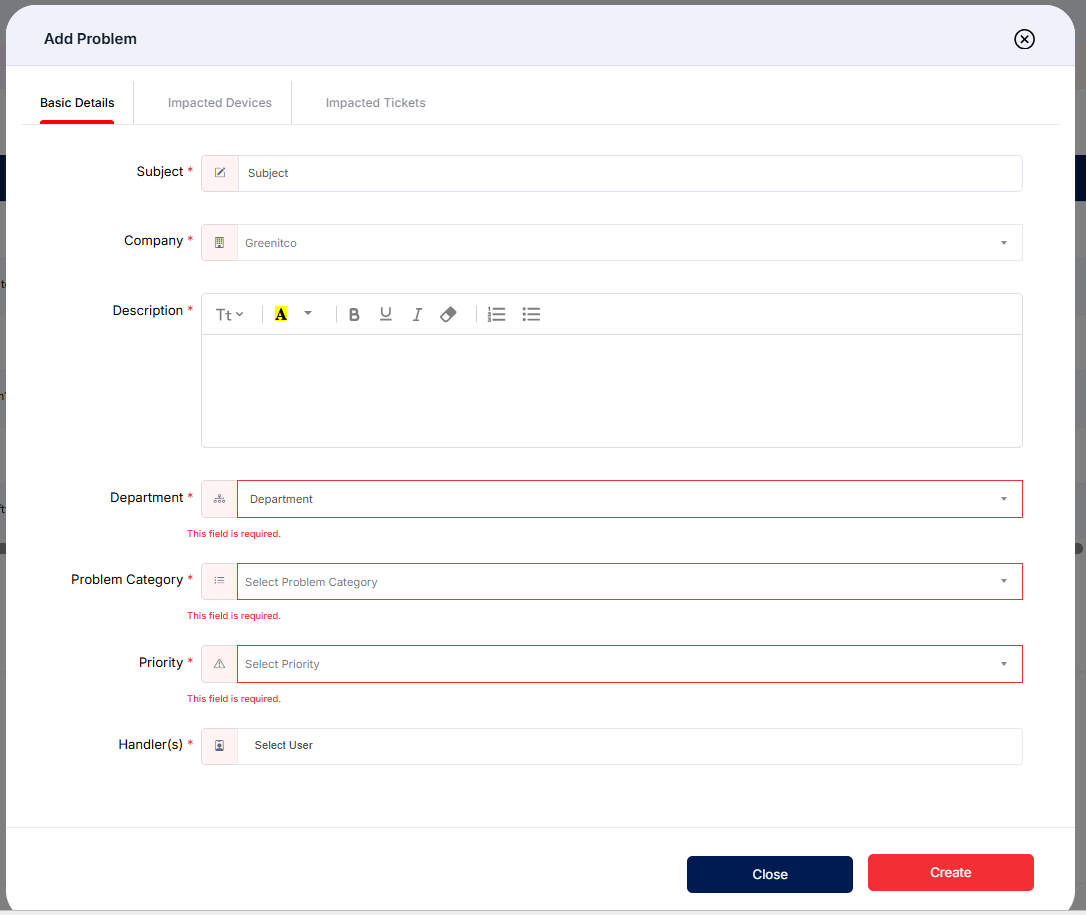
Figure: Add Problem — Basic Details tab
Problem basic details fields
| Field | Description |
|---|---|
| Subject* | Short title for the problem. |
| Company* | Company associated with the problem. |
| Description* | Details describing the problem. |
| Department* | Department associated with the problem. |
| Problem Category* | Category used to classify the problem. |
| Priority* | Priority level for the problem. |
| Handler(s)* | The user or users assigned to handle the problem. Only handlers can manage the problem. |
Linking Impacted Devices
Step 1 → Open the Impacted Devices tab in the Add Problem form.
Step 2 → Select the required device or devices from the selector. Use the filter control or Search to narrow the device list where needed.
Step 3 → Review the selected devices in the table, including Asset Tag, Device Name, Device Type, Model, and Serial Number.
Step 4 → If a device was selected by mistake, remove it using its Delete icon, then save the problem.
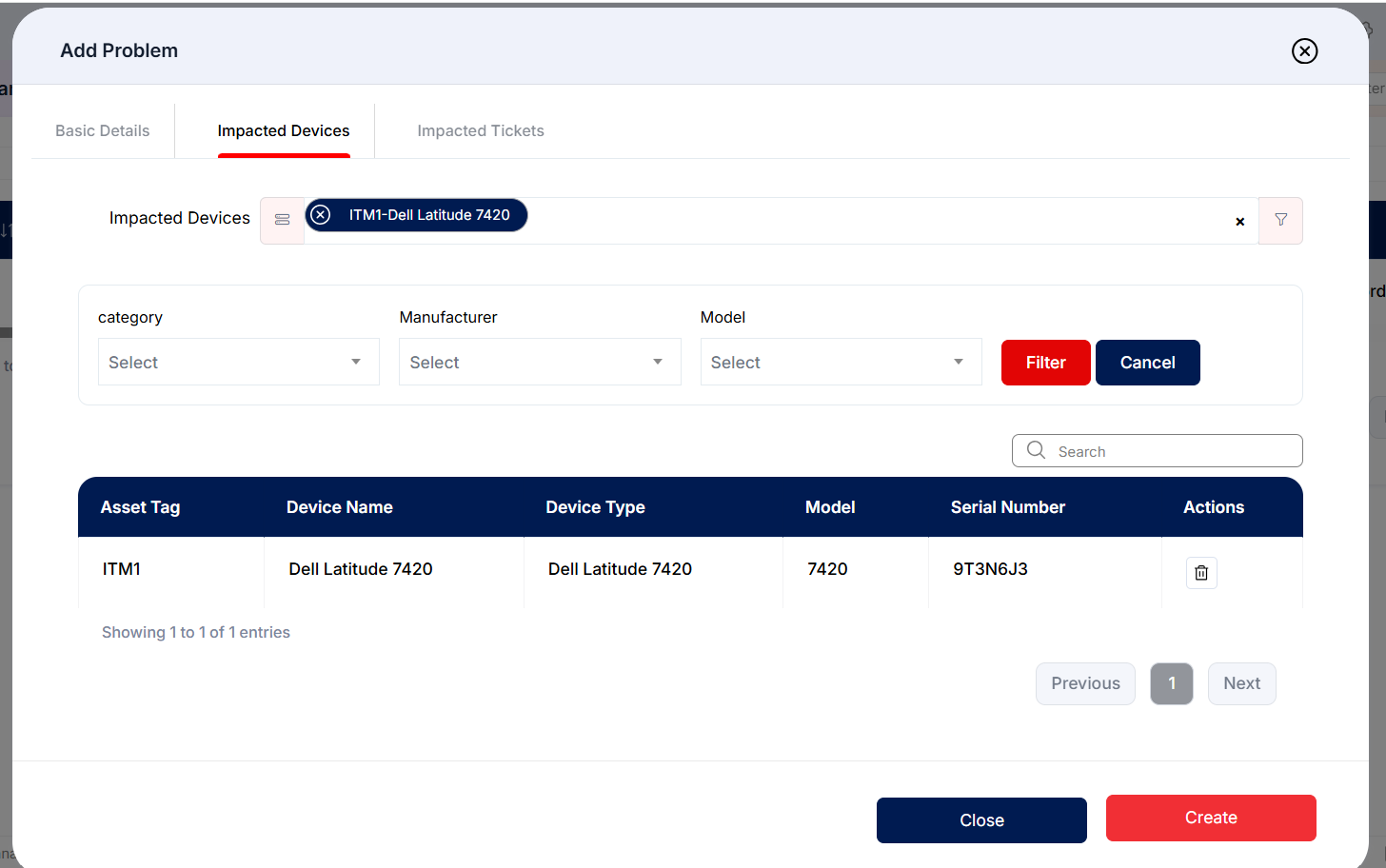
Figure: Add Problem — Impacted Devices tab
Impacted device list columns
| Column | Description |
|---|---|
| Asset Tag | Asset identifier assigned to the device. |
| Device Name | Name of the selected device. |
| Device Type | Device type or model description shown in the list. |
| Model | Manufacturer or model value displayed for the device. |
| Serial Number | Serial number recorded for the device. |
| Actions | Remove a selected device from the problem. |
Linking Impacted Tickets
Step 1 → Open the Impacted Tickets tab.
Step 2 → Select one or more tickets using the Impacted Ticket selector, or tick Select all tickets from selected department and categories to include all matching tickets. Only tickets from the problem’s department and category are shown here.
Step 3 → Review the listed tickets and their ticket ID, tag, subject, department, problem category, subcategory, expiry, and update details where shown.
Step 4 → Click Save to store the impacted-ticket links.
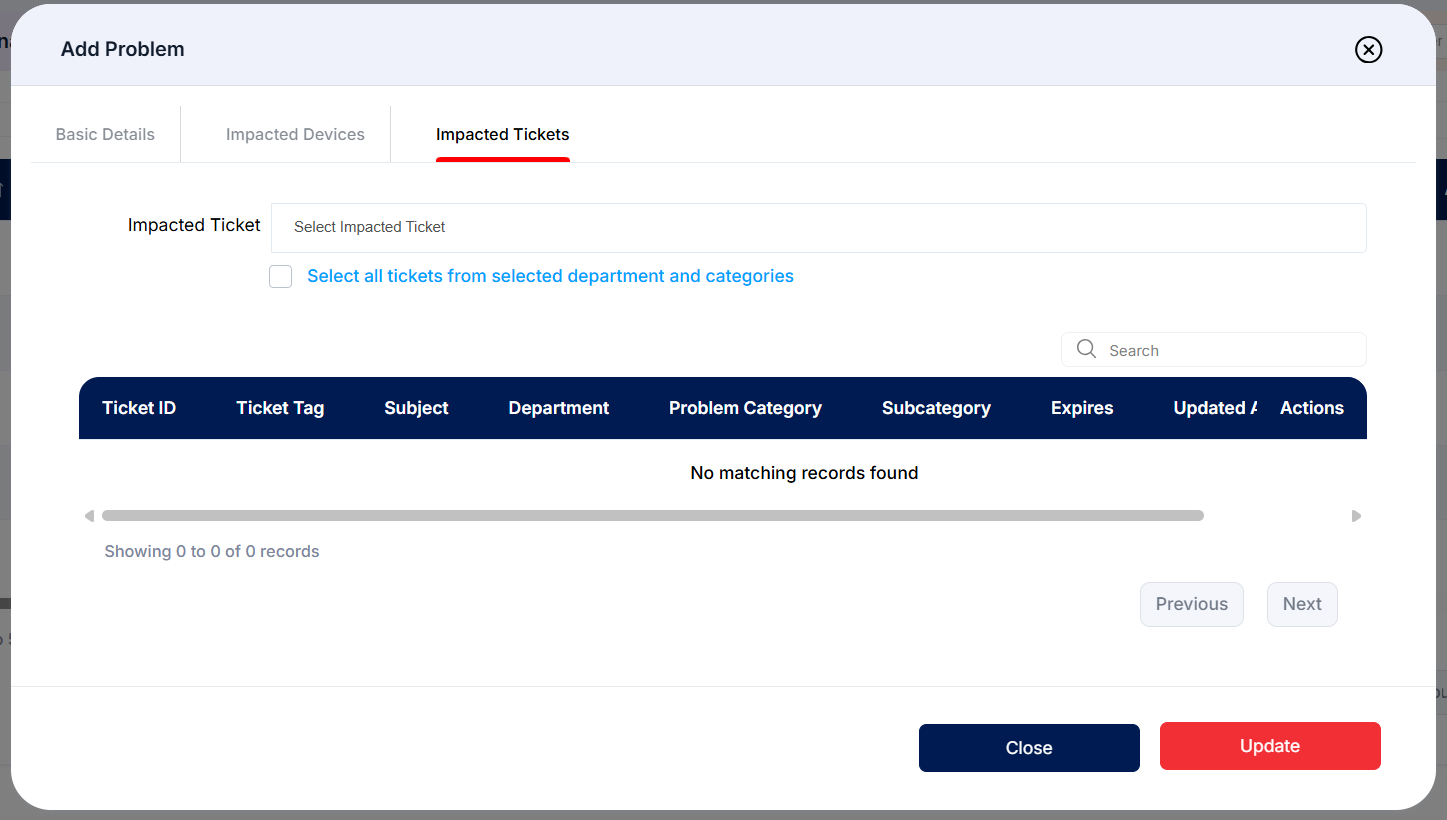
Figure: Add Problem — Impacted Tickets tab
Impacted ticket list columns
| Column | Description |
|---|---|
| Ticket ID / Ticket Tag | Identifies the linked service ticket. |
| Subject | Subject of the ticket. |
| Department | Department associated with the ticket. |
| Problem Category / Subcategory | Ticket classification. |
| Expires / Updated At | Expiry and last-update information where shown. |
| Actions | Available row-level actions for ticket associations. |
Viewing and Managing Problem Details
Step 1 → On the Problem Management list, click the management/settings control for the required problem.
 Step 2 → Review the assigned handler and subject at the top of the page.
Step 3 → Use the Impacted Ticket and Impacted Devices tabs to review linked records and their statuses.
Step 4 → Select the impacted items using their checkboxes, then use the buttons above the table to resolve or reopen them.
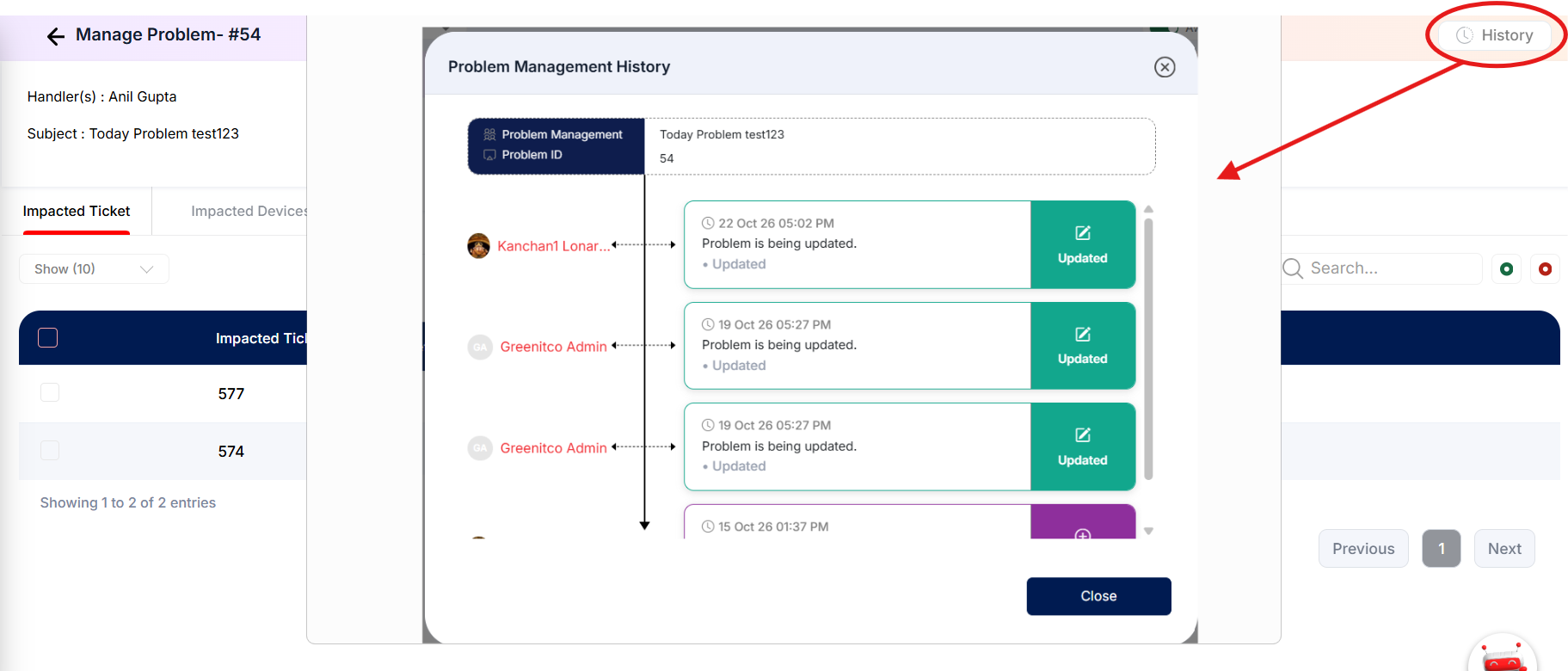
Step 5 → Use the History control to review recorded changes to the problem.
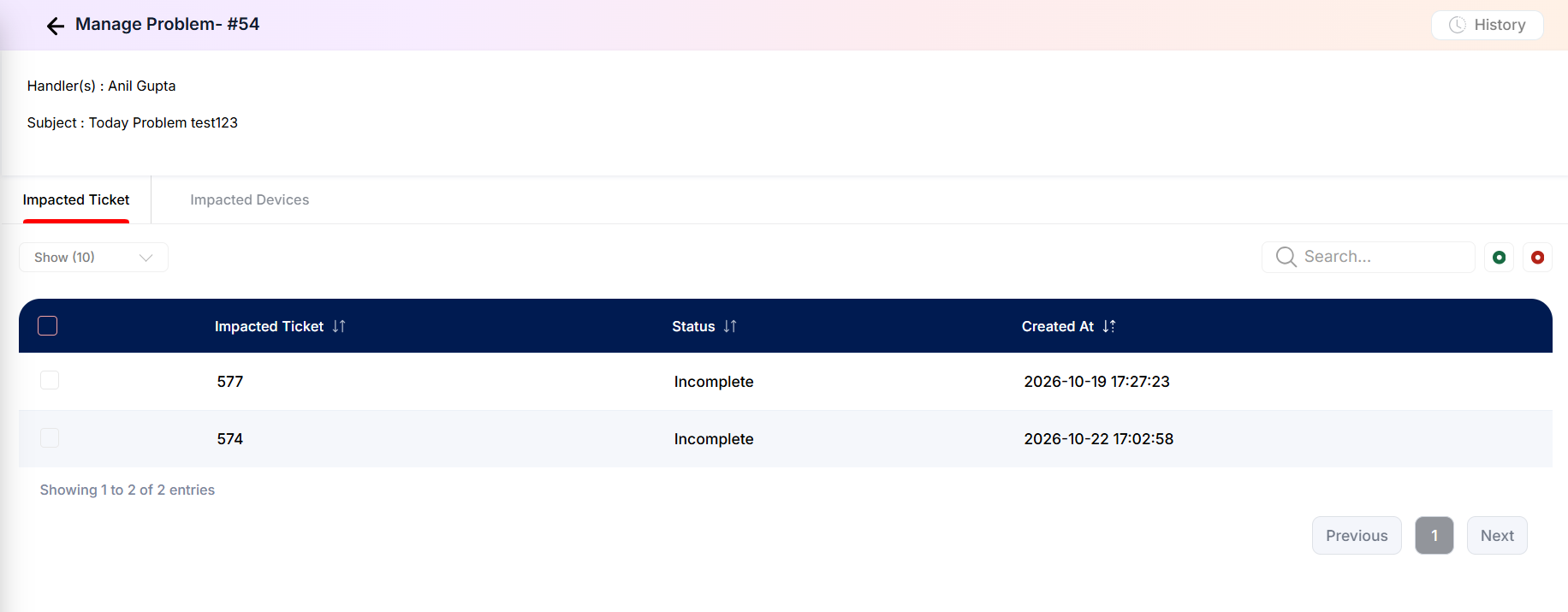
Figure: Manage Problem screen
Reviewing Problem History
The History control is available from the Manage Problem screen. Open it to review the changes recorded for the selected problem. Use the history details to understand what was changed and when, as displayed by the application.
Managing Existing Problems
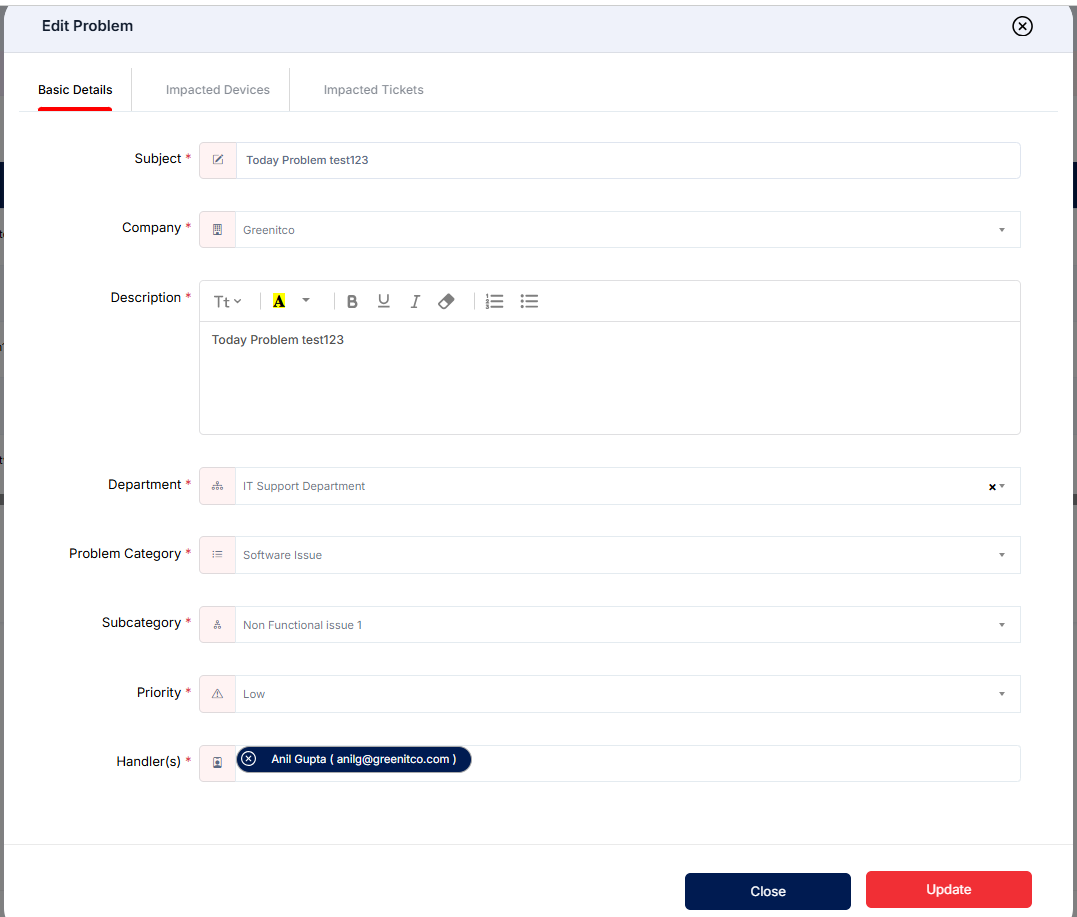
Edit a problem
Step 1 → Find the problem in the Problem Management list and click the Pencil (Edit) icon.
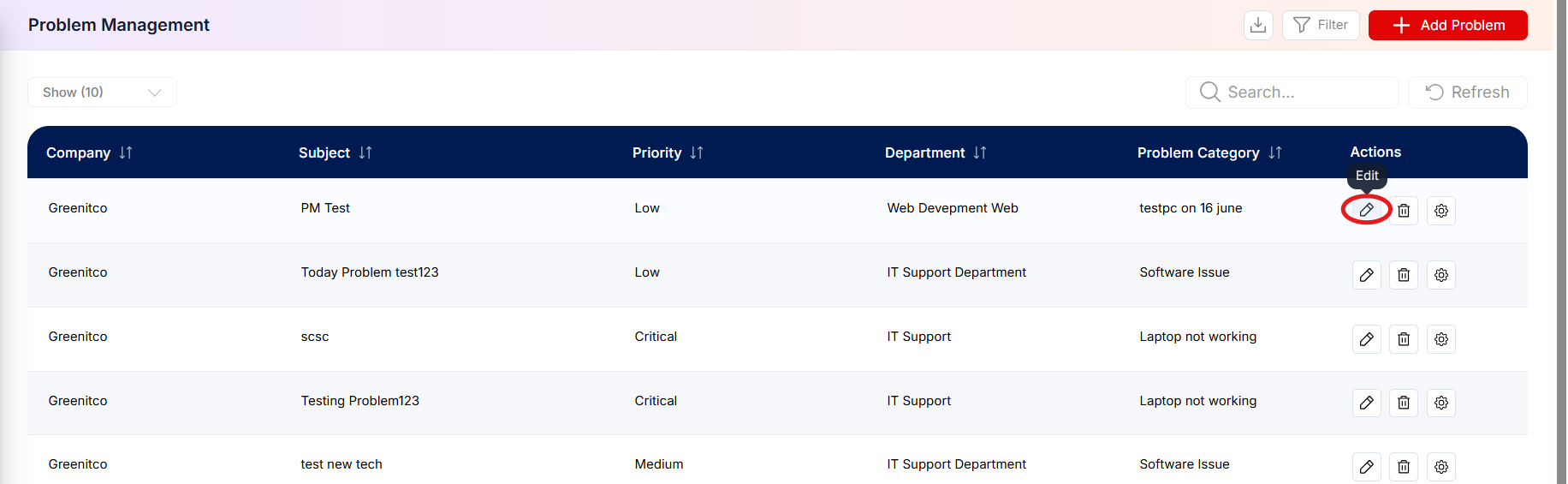
Step 2 → Update its basic details or related device/ticket associations, then save the changes.
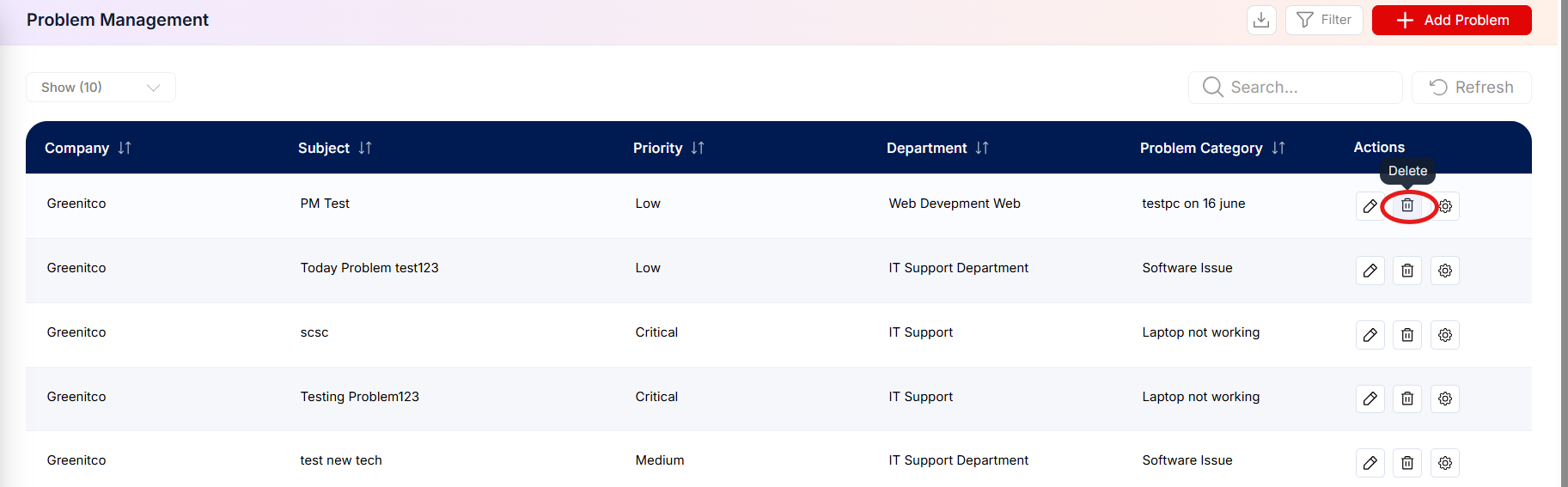
 Delete a problem
Step 1 → Locate the problem and click the Trash (Delete) icon.
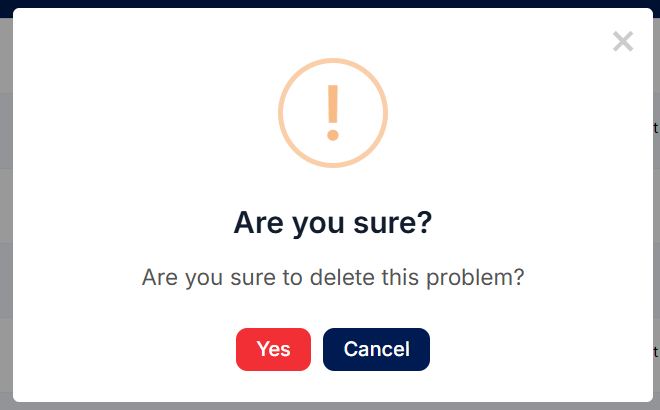
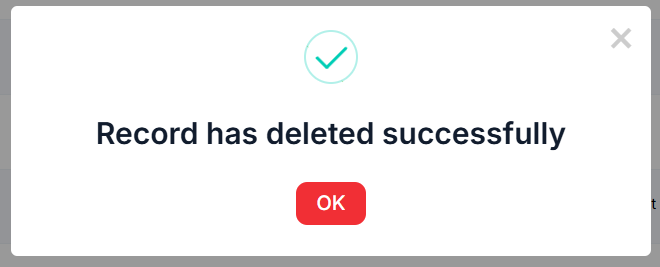
 Step 2 → Review the confirmation prompt and confirm deletion only if the record is eligible for removal.
 Open problem management
Step 1 → Use the management/settings control on the row to view impacted tickets, impacted devices, and history.