

Introduction
The Spam Tickets section displays tickets that have been marked as spam. It helps keep unwanted or irrelevant tickets separate from regular service requests, allowing users to focus on genuine issues that require attention.
Each ticket card displays key information, including the ticket subject, ticket ID, requester, department, task count, turnaround time (TAT), status, location, company, timestamps, and available assignment details.
Users can click the ticket subject to view its details and use the available action icons to perform permitted operations. The actions available depend on the user's role and configured permissions.
This section helps users keep ticket worklists organized and prevents spam records from interfering with day-to-day service operations.
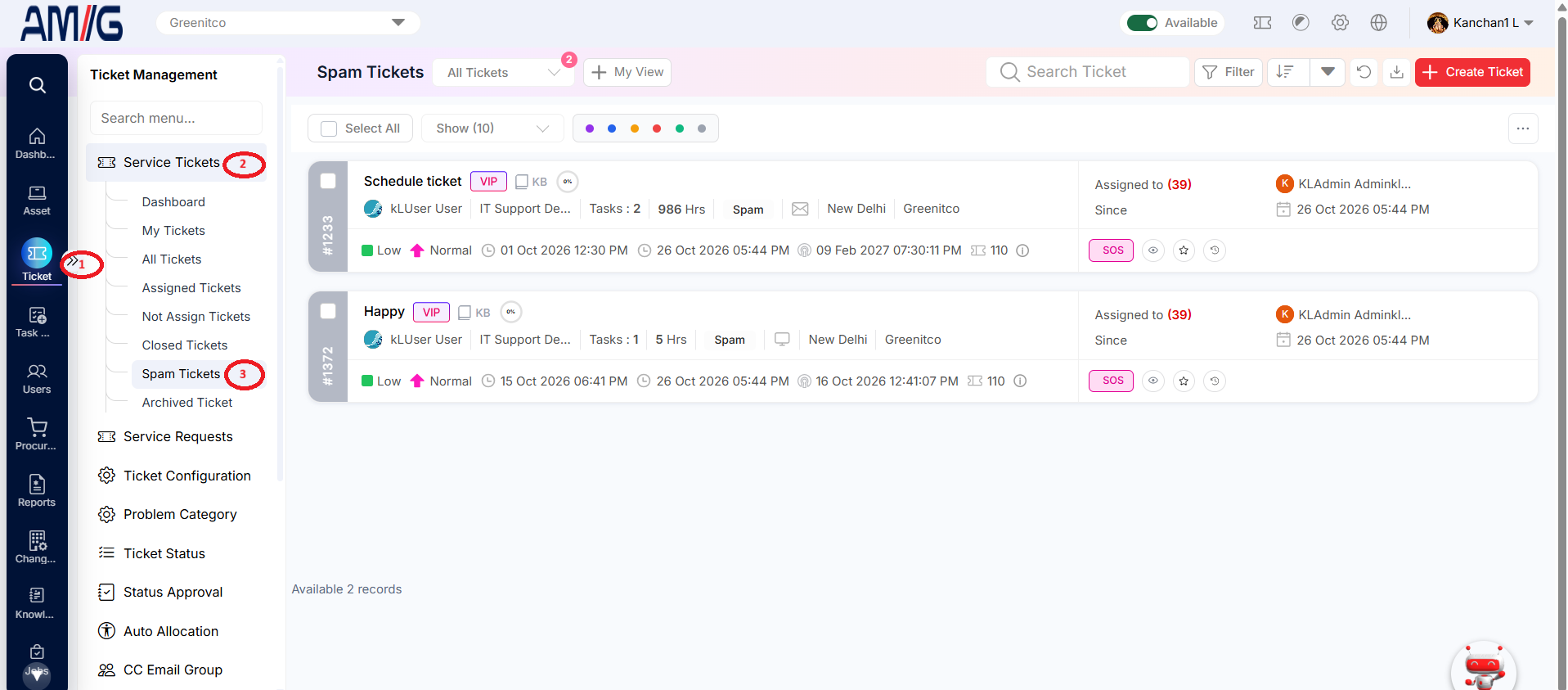
Navigation Path: Sidebar > Ticket > Service Ticket > Spam Tickets
Viewing Spam Tickets
Step 1: Open Sidebar > Ticket > Spam Tickets. Tickets marked as spam are kept separate from the regular worklists.
Step 2: Review the available ticket cards and their details. Card actions are available only when a matching record is present and the action is permitted.
Step 3: Use Search Ticket, Filter, sorting, Refresh and pagination where available. If “No tickets found” appears, clear the filters or refresh the list to check again.
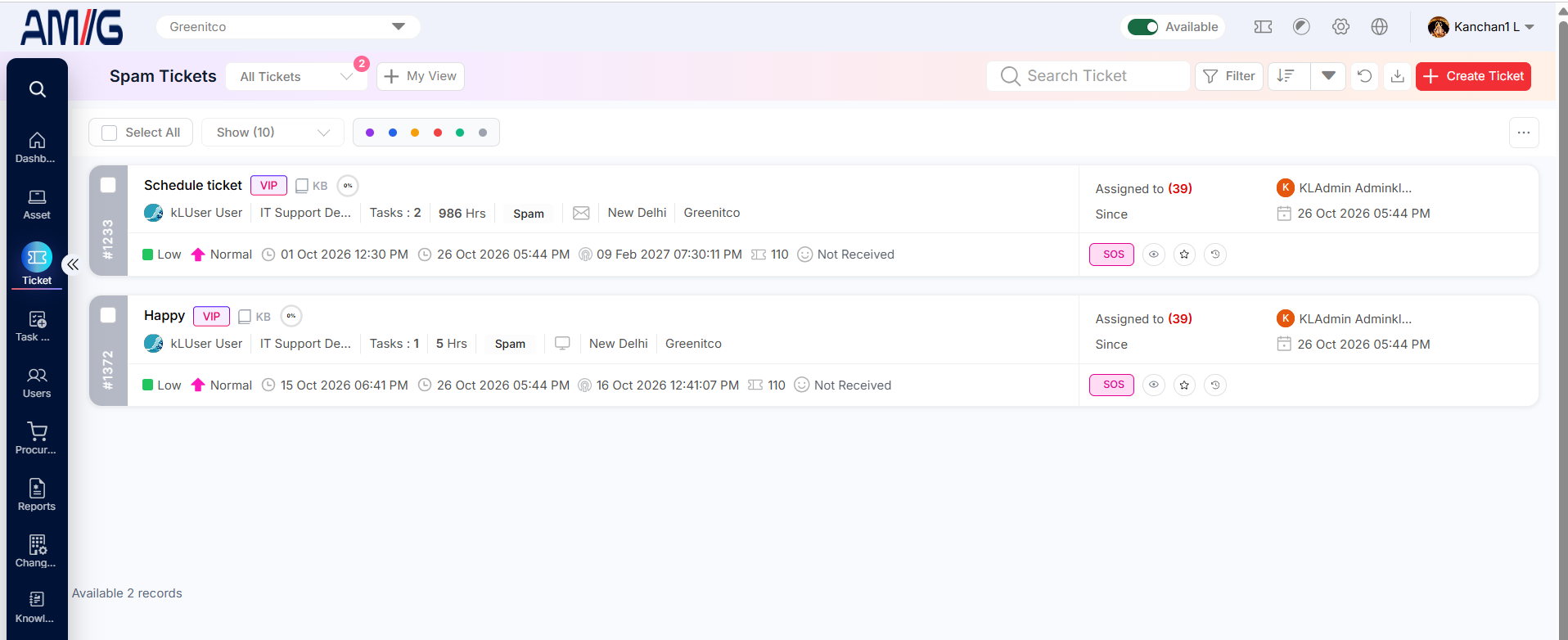
Figure 3.7.1: Spam Tickets list and empty state
Creating a Ticket
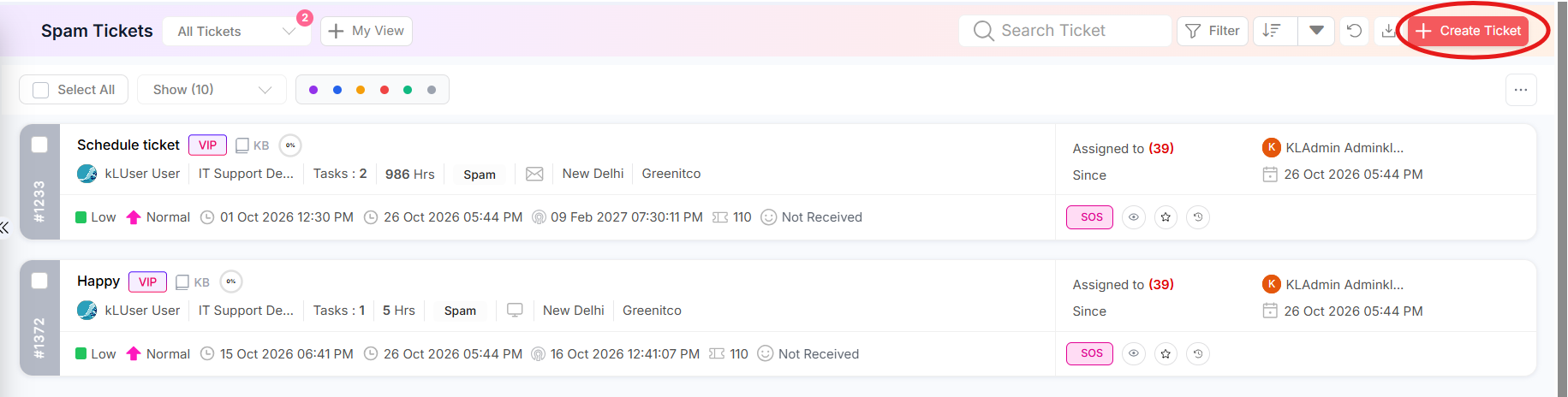
You can create a ticket directly from Spam Tickets when the Create Ticket button is available.
Step 1: Click Create Ticket. The Create Ticket form opens.
 Step 2: Select the required Company, Department, User (Ticket Raiser) and Problem Category. Complete the other fields as applicable.
Step 3: Enter the subject and ticket content. Add a device, reply-to account, seat number, tags, attachments or CC email addresses when needed.
Step 4: Review the information and click Create. Close the form without saving if you do not want to submit the ticket.
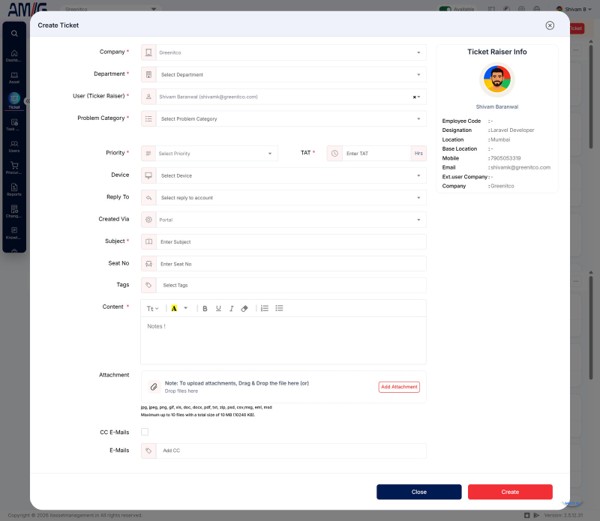
Figure 3.7.2: Create Ticket form
Table 3.7.1: Create Ticket fields
| Field | Mandatory | Description |
|---|---|---|
| Company | Yes | Company under which the ticket is raised. |
| Department | Yes | Department responsible for handling the ticket. Only departments enabled for tickets under Sidebar > Ticket > Ticket Configuration are listed. |
| User (Ticket Raiser) | Yes | User for whom the ticket is created. You can change it to the person on whose behalf you are creating the ticket. This option is enabled only if you have permission to create tickets for others under Sidebar > Ticket > Ticket Configuration. |
| Problem Category | Yes | Category used to classify and route the ticket. The list depends on the selected department and is configured under Sidebar > Ticket > Problem Category. |
| Priority and TAT | Yes | Ticket priority and target turnaround time (TAT), in hours. These are loaded from the selected problem category. They can be changed only by users who have permission to change the TAT or priority under Sidebar > Ticket > Ticket Configuration; regular users cannot change these settings. |
| Device | No | Device associated with the issue, when applicable. The ticket is created against this device and can be seen on the Ticket tab of the device's detail page. |
| Reply To | No | Email account used for replies, where configured. Replies are sent through this email account, which is configured under Sidebar > Ticket > Outgoing Mail Settings. |
| Created Via | No | Source from which the ticket is created, such as Portal or Call. Tickets raised through the web form show Portal. |
| Subject | Yes | Short title that describes the issue or request. |
| Seat No | No | Seat or workstation reference, when applicable. This is the seat number configured under Sidebar > User. |
| Tags | No | Labels used to categorise or find the ticket. Tags help identify the ticket. This is a free-text field that suggests existing tags, and you can also add new ones. |
| Content | Yes | Description of the issue or request. |
| Attachment | No | Supporting files. Follow the file types and size limits shown below the upload area. |
| CC E-Mails / E-Mails | No | Enable CC and add the email addresses that should receive copies, if required. These recipients are notified about the ticket. |
Filtering Tickets
Step 1: Click Filter on the ticket list.
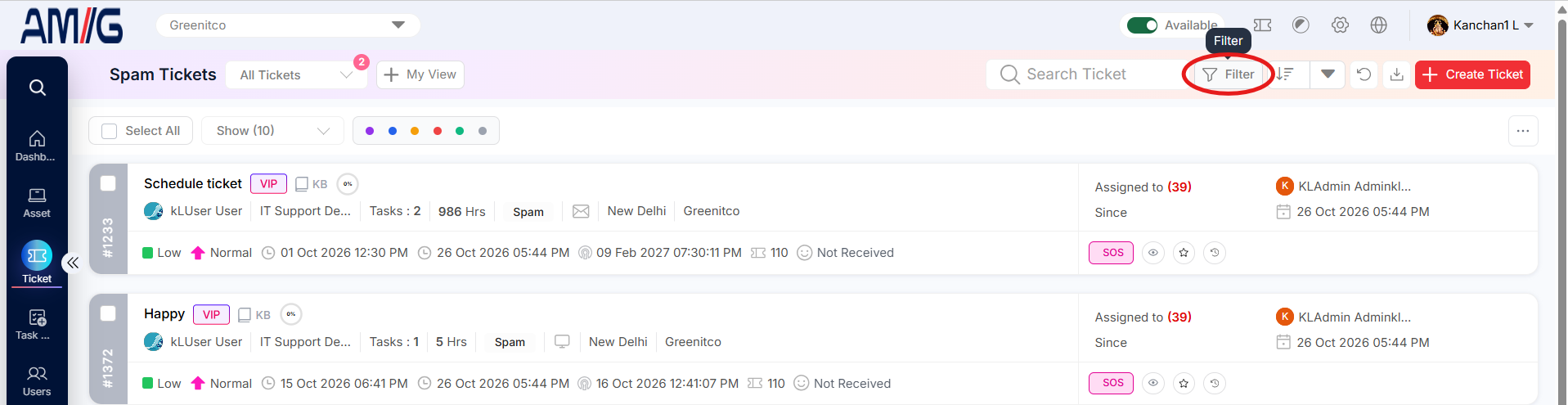 Step 2: Select one or more available filters. Depending on permissions and configuration, the filter can include status, priority, department, problem category, subcategory, ticket handler, tag, creation source, location, creator/logger, ticket or service request, VIP flag, SLA breach, feedback, task, ticket type, custom fields, star, task-added status and date or date range.
Step 3: Click Filter to apply the selected criteria. Click Clear to reset the criteria and restore the broader list.
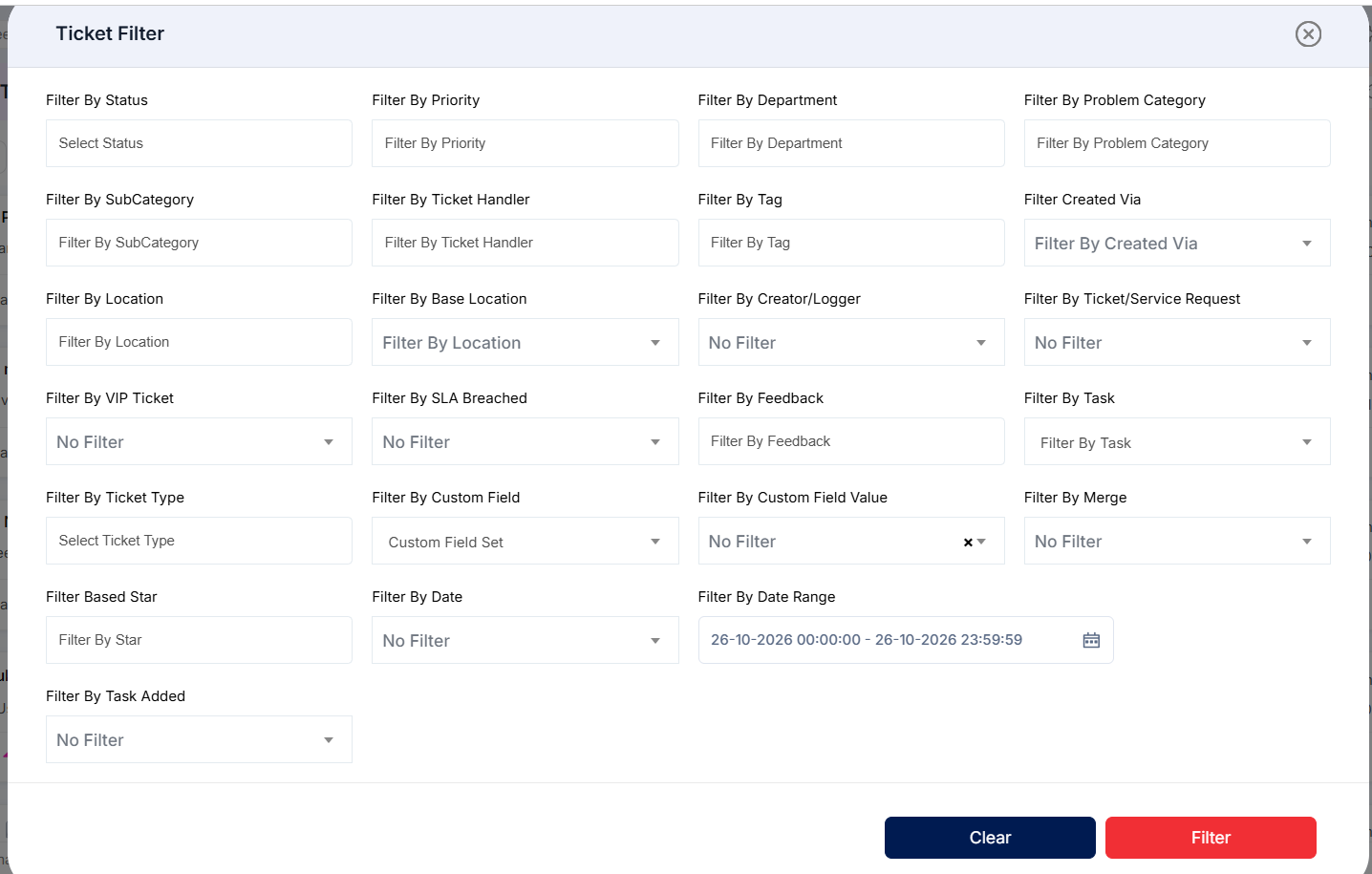
Figure 3.7.4: Ticket Filter options
Table 3.7.2: Common ticket filter groups
| Filter group | Examples shown in the filter |
|---|---|
| Ticket classification |
|
| Ownership and source |
|
| Location and related records |
|
| Service and feedback |
|
| Custom fields |
|
| Date criteria |
|
Reviewing Ticket History
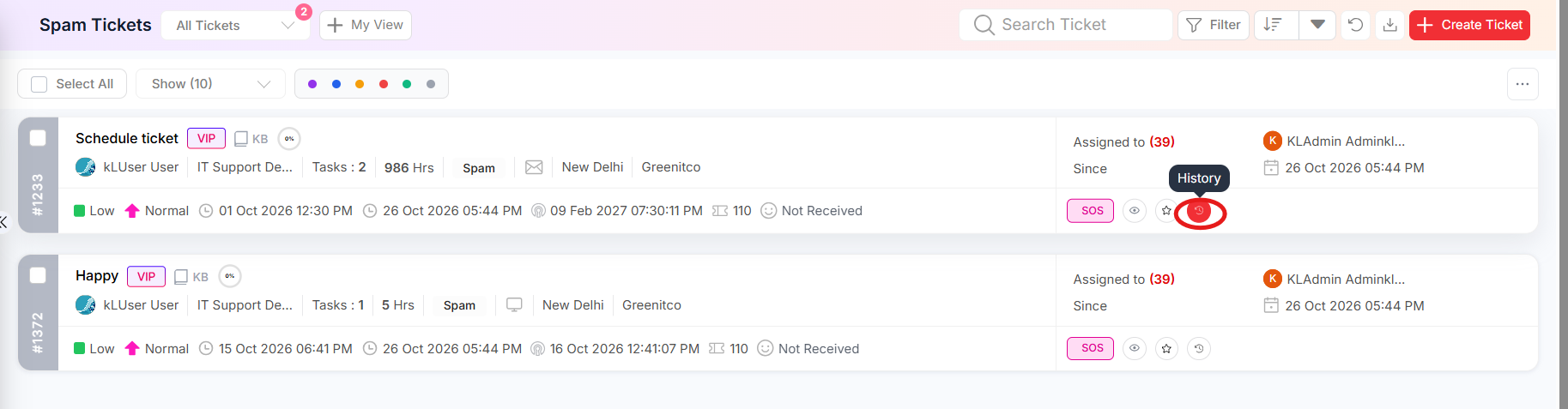
Step 1: Find the ticket and click its History action (clock/history icon), where available.
 Step 2: Review the ticket summary at the top of the history window, including the subject, ticket ID, company, department, category and subcategory.
Step 3: Review the timeline to see recorded changes, who made them and when they occurred. The event label identifies the type of change, such as a task, TAT, priority or subcategory update.
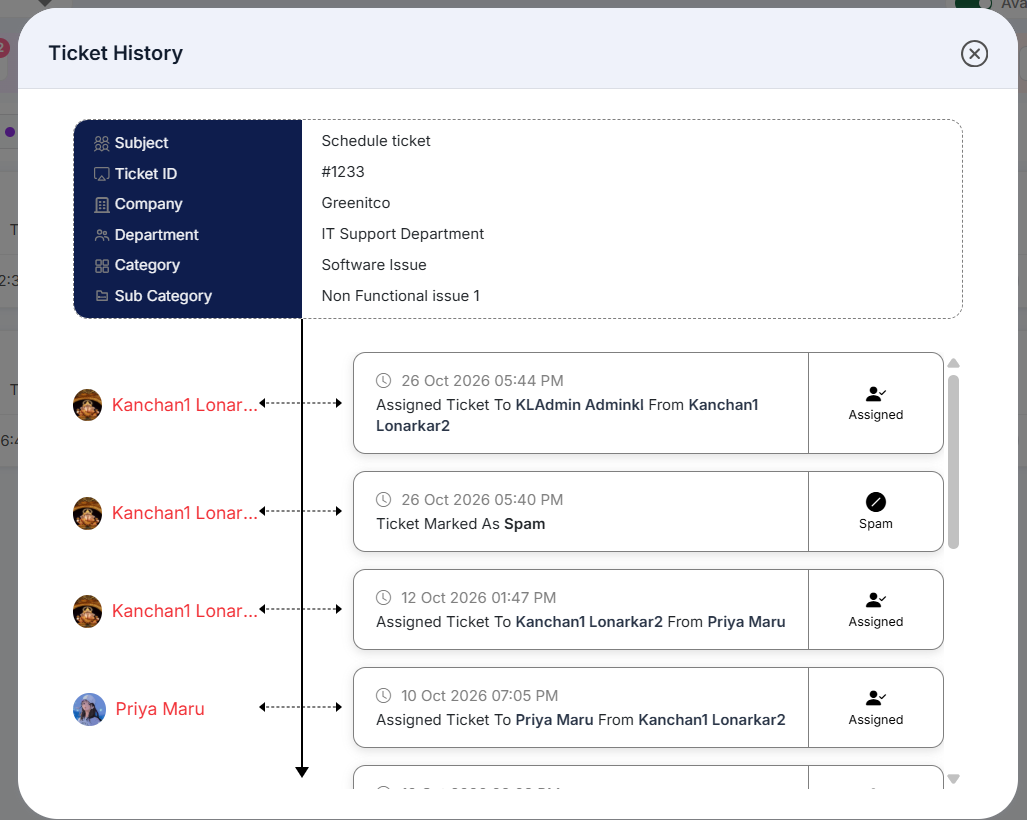
Figure 3.7.5: Ticket History timeline
Creating a Custom Status View
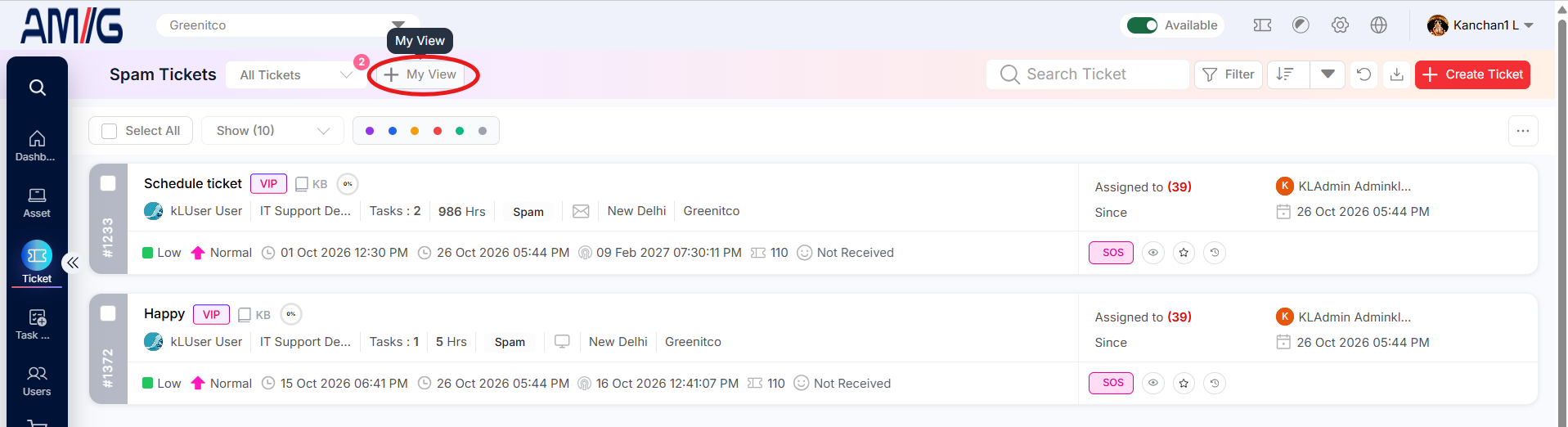
Step 1: Click My View beside the ticket-list selector to open Custom Status View.
 Step 2: Enter a View Name and choose a Status.
Step 3: Configure the view rows by selecting the required view name, view action and status. Use the edit or delete icons to change or remove a row.
Step 4: Click Create to save the custom view. Select the saved view from the view selector when you want to use it.
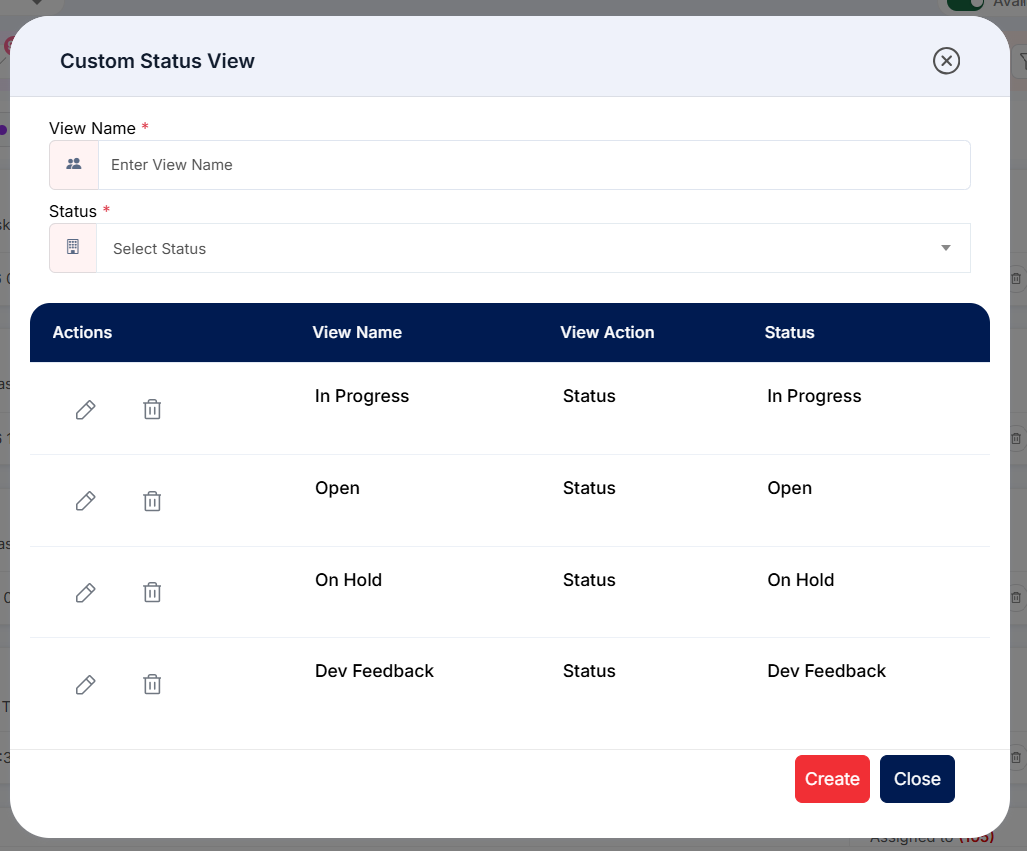
Figure 3.7.6: Custom Status View configuration
Sorting Tickets
Step 1: Open the sorting field menu on the ticket list.
Step 2: Select the field to sort by. The menu shown includes Ticket ID, Created By, Status, Priority, Assigned To, Created On, Updated On, Reopened On, Star, TAT Expire and Feedback.
Step 3: Use the sort direction control, where available, to change the ordering.
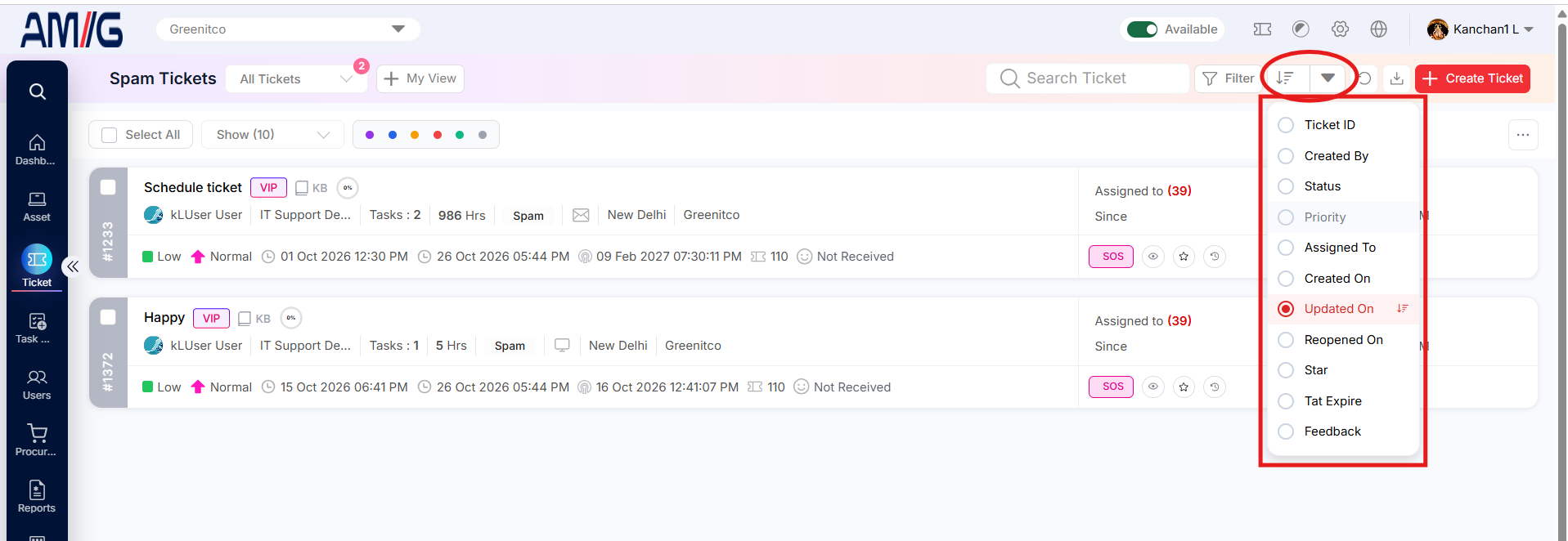
Figure 3.7.7: Ticket sorting fields
Reviewing Customer Sentiment
Step 1: Click the sentiment or feedback-analysis action for the relevant ticket, where available.
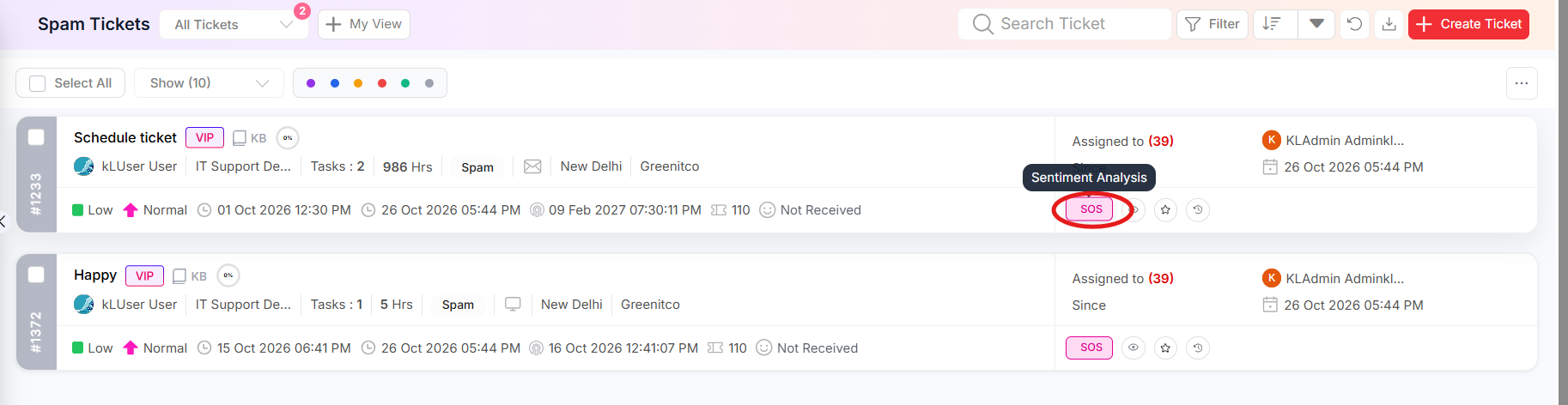 Step 2: Review the Customer Sentiment Analysis panel. It shows the sentiment score, its classification, an explanation and the overall tone detected in the message.
Step 3: Use the result as an aid when prioritising follow-up. The displayed score is an automated analysis and should be considered alongside the ticket context.
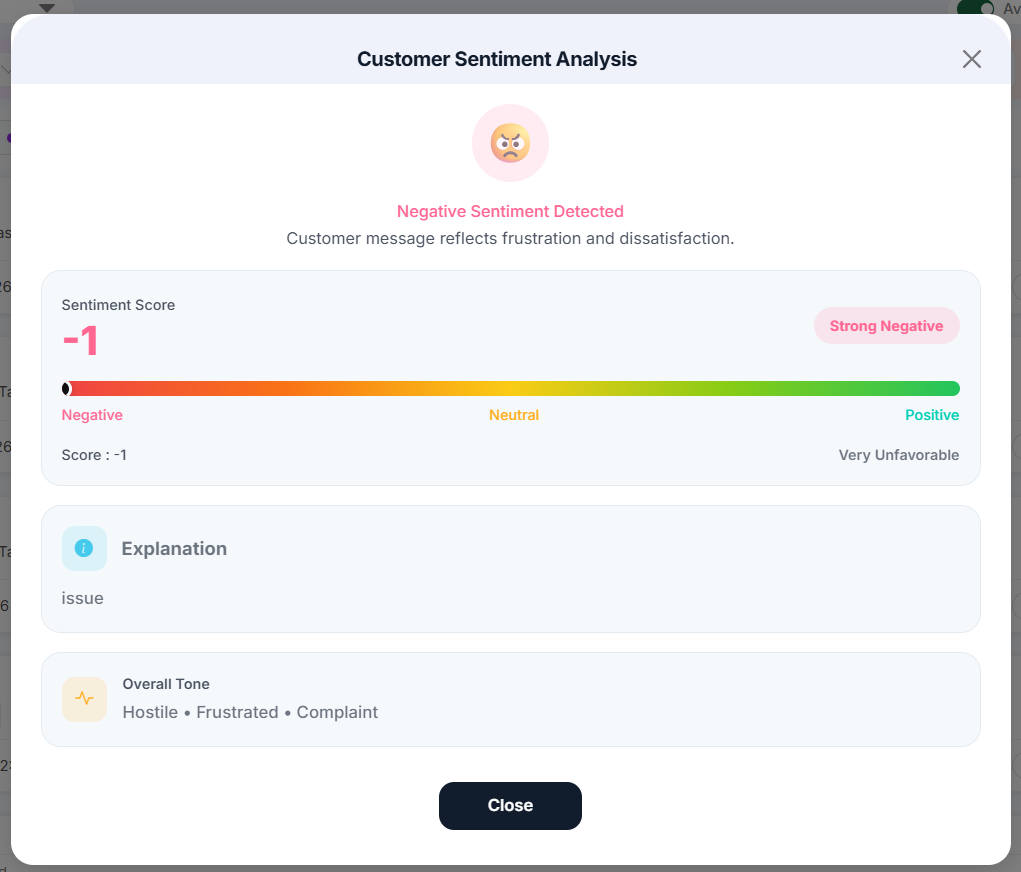
Figure 3.7.8: Customer Sentiment Analysis
Using Bulk Actions
Bulk Actions
The Spam Tickets section allows authorized users to perform actions on multiple tickets at once. Select the required tickets and use the bulk-action toolbar to assign, merge, or delete them, depending on the available permissions.
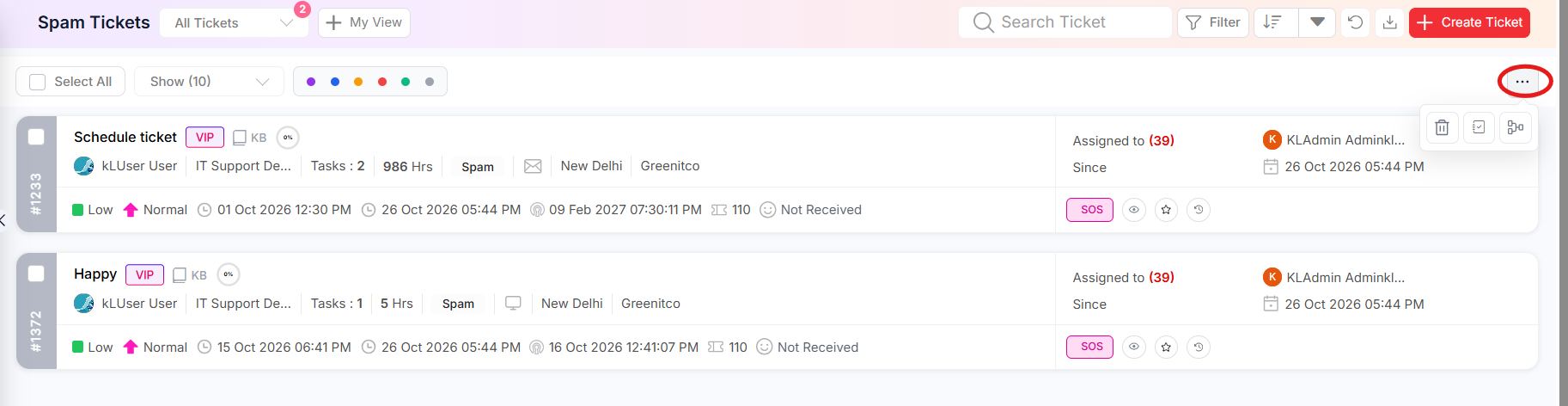
Figure 3.7.10: Bulk-action toolbar on Spam Tickets
Bulk Assign
Bulk Assign allows users to assign multiple tickets in a single operation.
Steps:
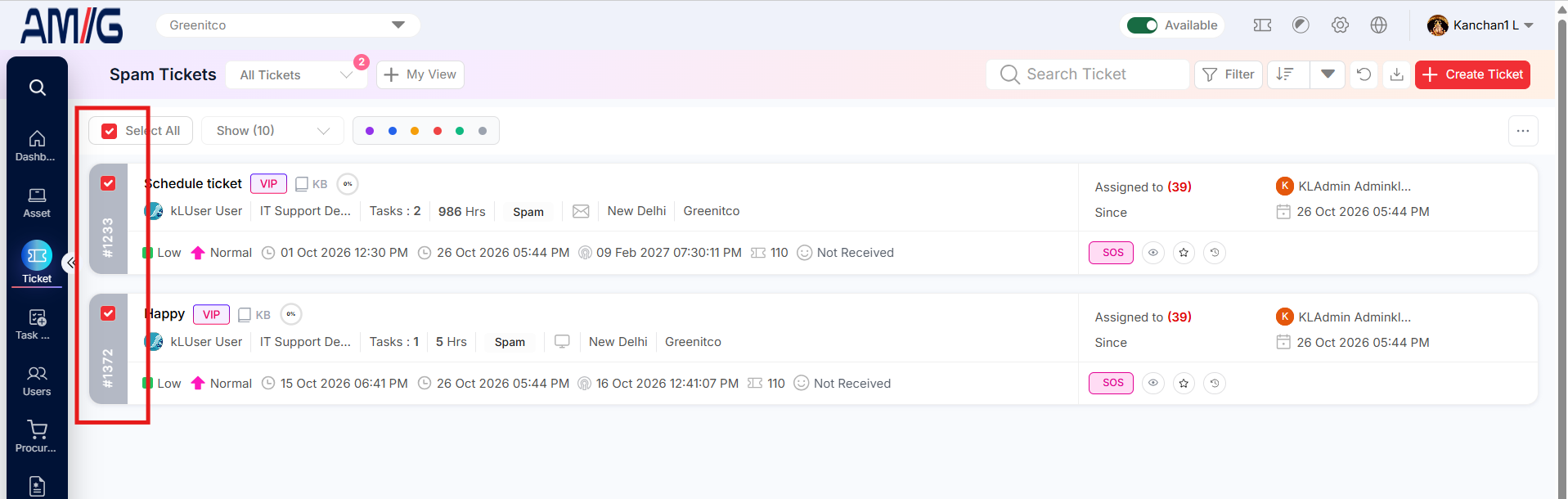
Step 1: Select the checkboxes beside the tickets you want to assign, or click Select All to select the visible records.
 Step 2: Click the More (…) control to display the bulk-action toolbar.
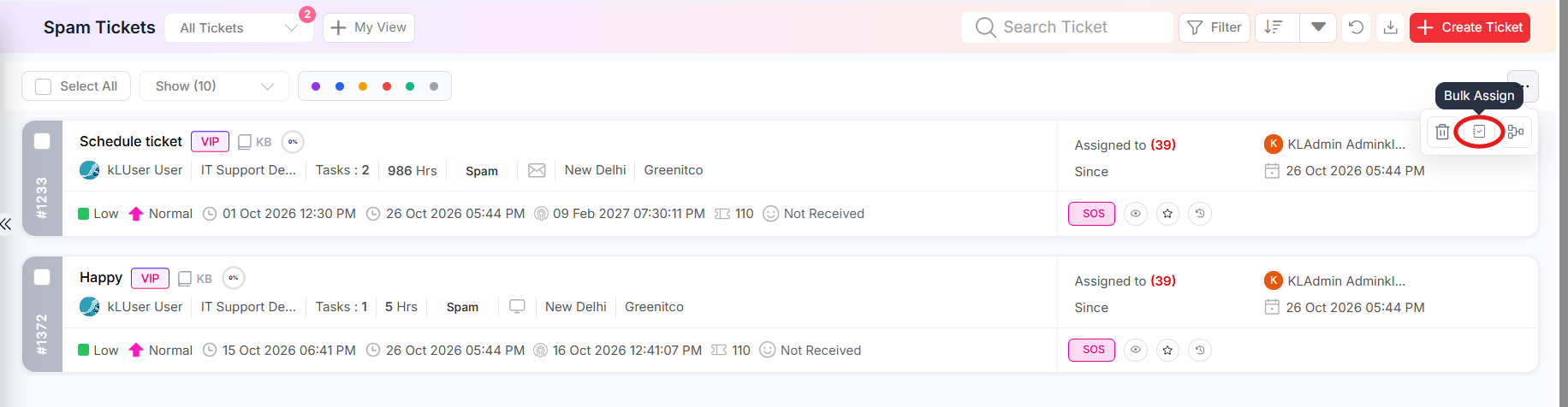 Step 3: Click the Bulk Assign icon and, from the dropdown, select the technician to whom the tickets should be assigned.
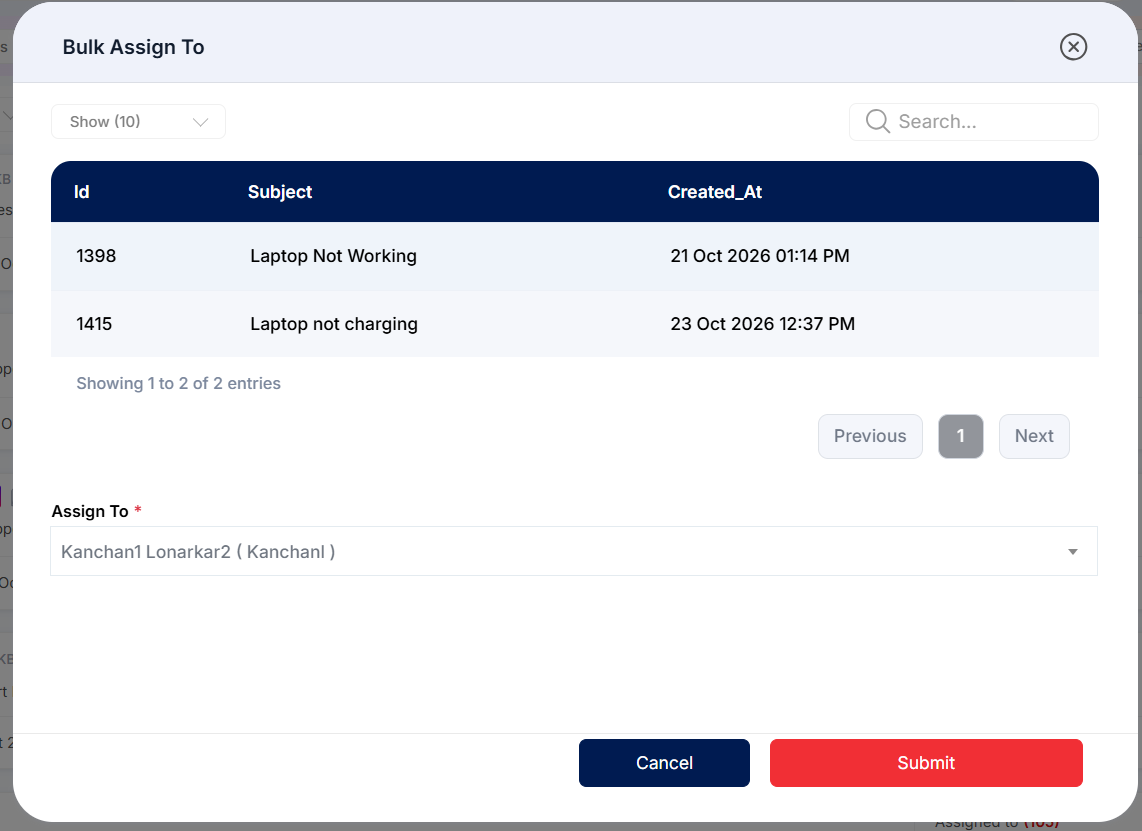
Figure 3.7.11: Bulk Assign dialog
Step 4: Confirm the action if prompted and review the updated ticket list.
Bulk Merge
Bulk Merge allows users to combine multiple related tickets into a single ticket, helping reduce duplicate records and keep related issues together.
Steps:
Step 1: Select the checkboxes beside the tickets you want to merge.
Step 2: Click the More (…) control to display the bulk-action toolbar.
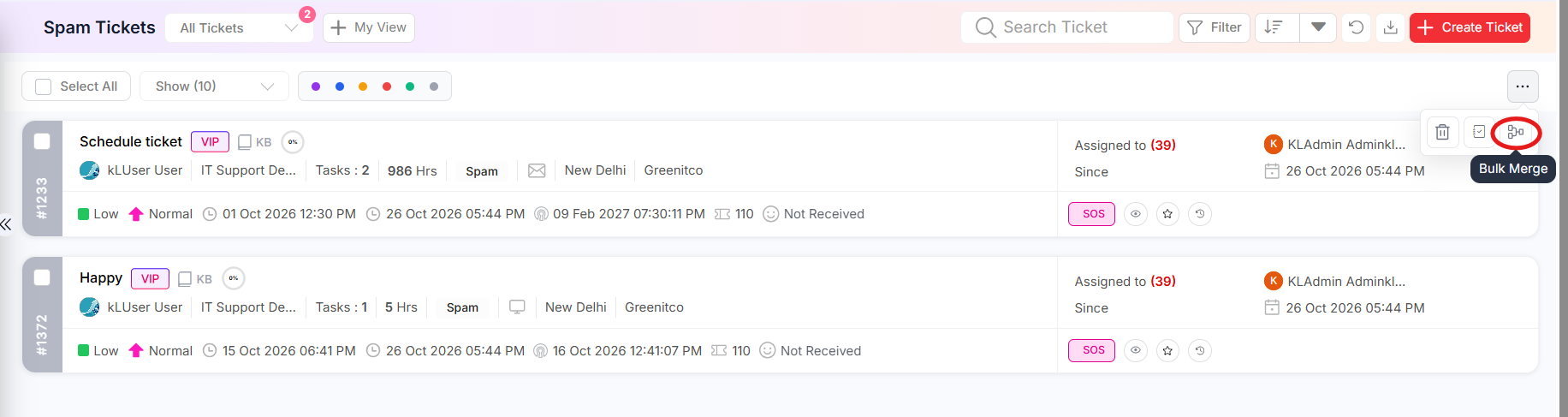 Step 3: Click the Bulk Merge icon and follow the prompts to complete the merge. The dialog shows the primary and secondary tickets; you can set a different ticket as the primary ticket if needed.
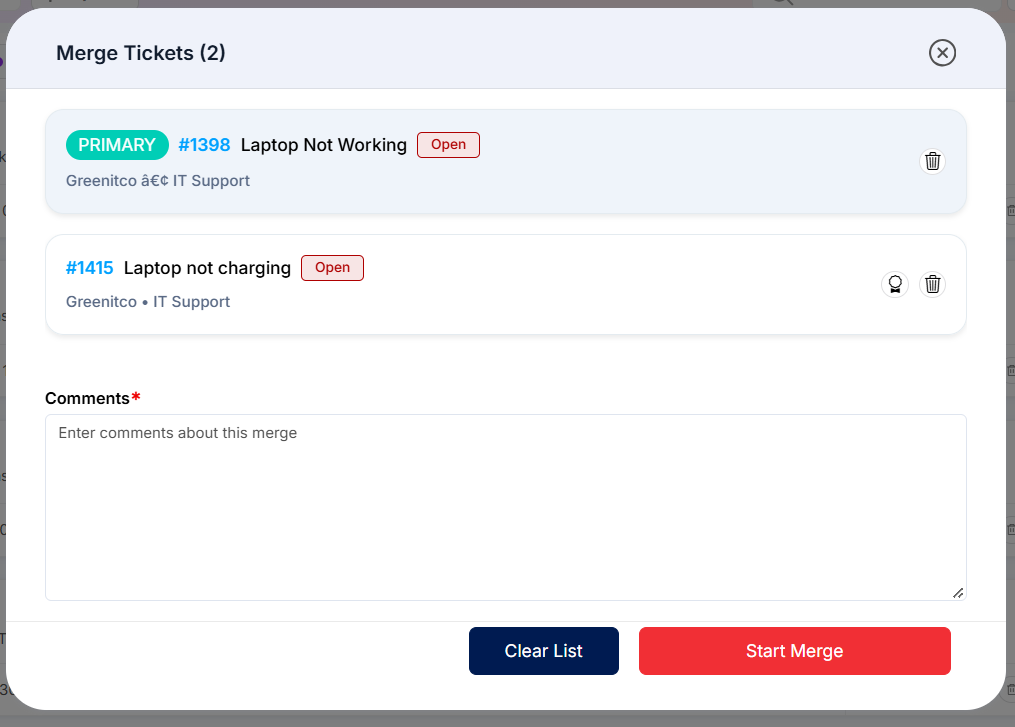
Figure 3.7.12: Merge Tickets dialog
Step 4: Confirm the action if prompted and review the updated ticket list.
Bulk Delete
Bulk Delete allows authorized users to delete multiple tickets in a single operation.
Steps:
Step 1: Select the checkboxes beside the tickets you want to delete.
Step 2: Click the More (…) control to display the bulk-action toolbar.
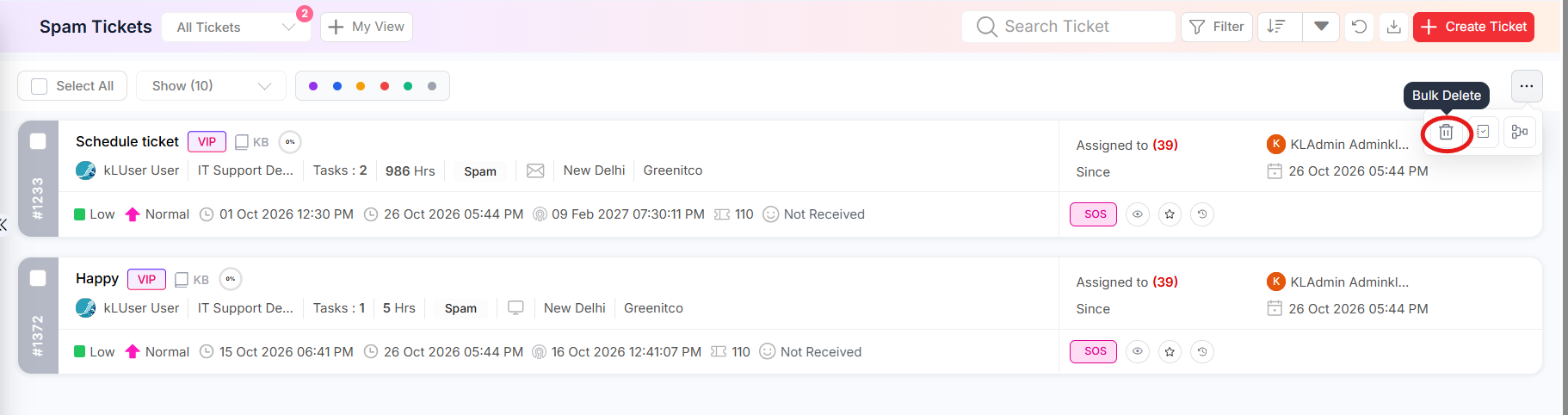 Step 3: Click the Bulk Delete icon to initiate the deletion process.
Step 4: Confirm the deletion if prompted and review the updated ticket list.
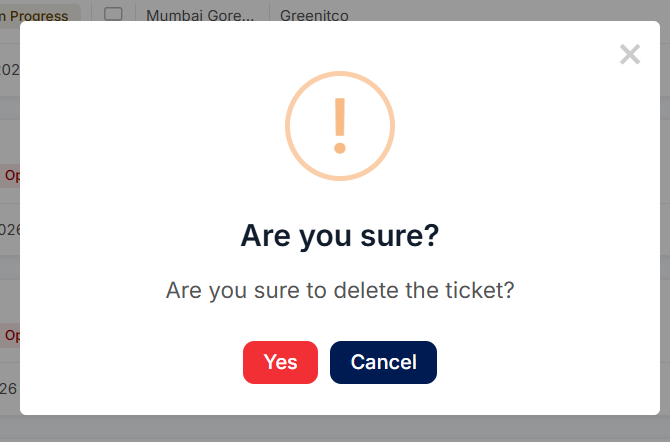
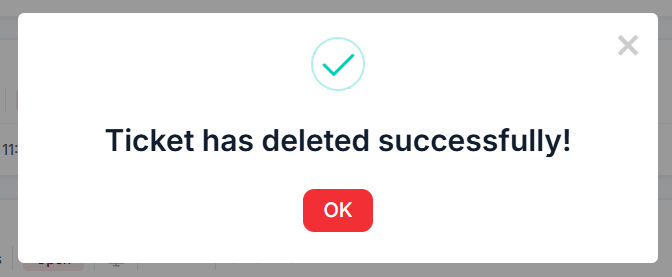
Note: The available bulk actions depend on the user's permissions, the selected tickets, and their current status. Hover over an action icon to view its tooltip, if available. Review the selected tickets carefully before merging or deleting them.
Export Tickets
Use the Download option on the Spam Tickets listing page to export ticket records to an Excel file.
Step 1: On the Spam Tickets listing page, click the Download icon.
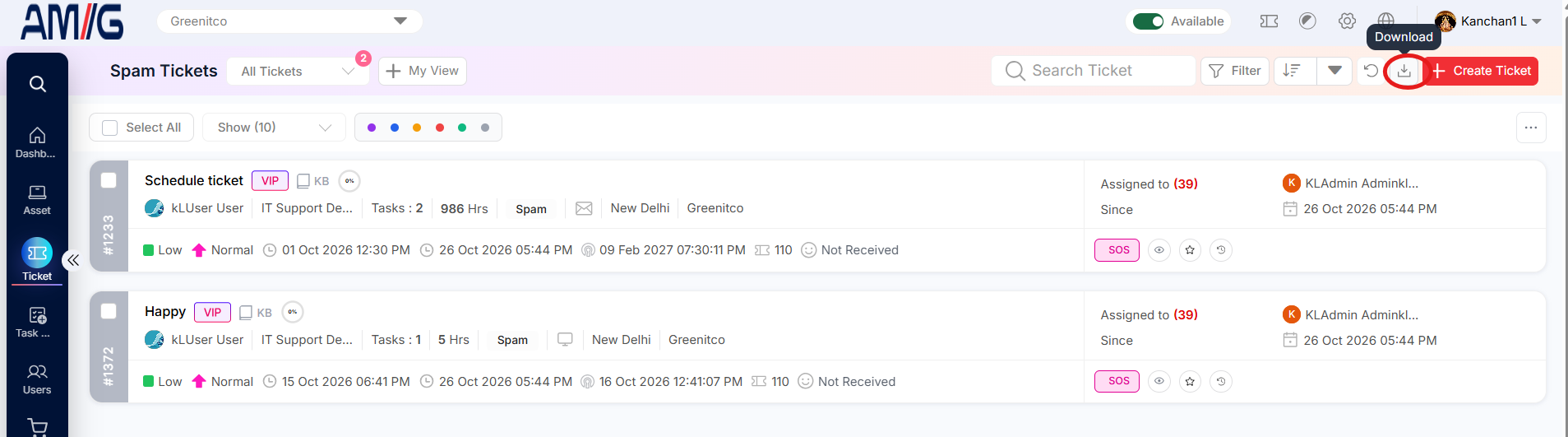 Step 2: The confirmation prompt states that the default export covers the last six months. Only six months of data can be downloaded per export. To export records from a longer period, apply date filters and export separate date ranges. If filters are already applied, only matching tickets are included.
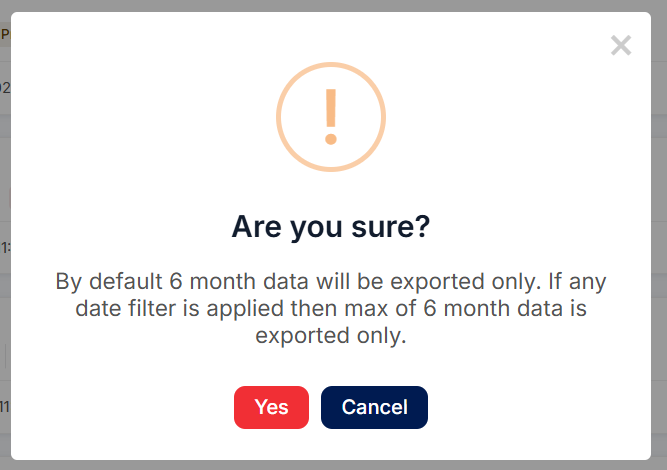 Step 3: Click YES to confirm. The system downloads the selected ticket data as an Excel file.
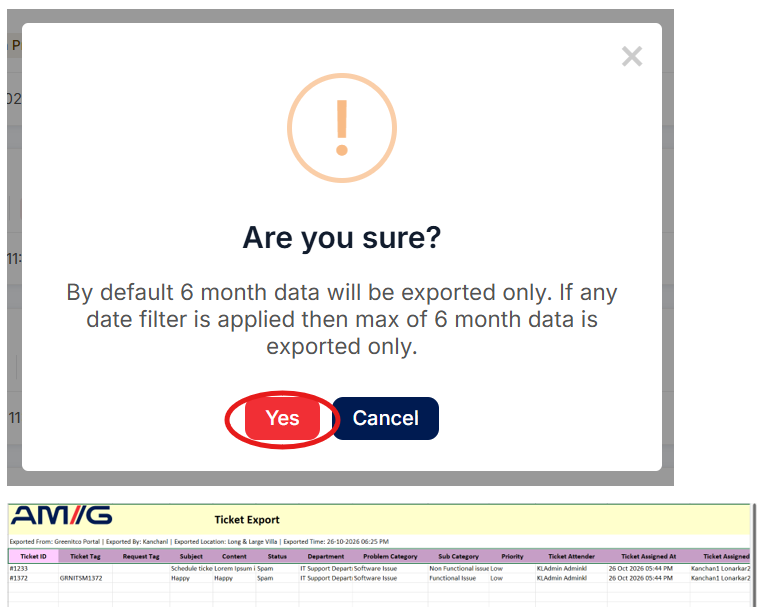
Note: Check the selected date range and filters before confirming the export.