

Introduction
Introduction
The Settings section contains the main configuration options that control how the AMG portal operates. It allows administrators to manage portal branding, security, notifications, email settings, asset identification, user synchronisation, and other system-wide preferences.
These settings affect how the portal works for users across the organisation. Therefore, only authorised administrators should make changes to ensure the system continues to operate correctly.
Using this section, you can:
-
Manage Portal Branding: Configure the portal name and branding to reflect your organisation.
-
Configure Security: Manage security features such as two-factor authentication to help protect user accounts.
-
Configure Asset Identification: Define asset tag generation rules and barcode settings to identify and track assets.
-
Manage EULA Settings: Configure the default End User License Agreement (EULA) presented where applicable.
-
Configure User Synchronisation: Manage LDAP settings to synchronise user information with your organisation's directory service.
-
Manage Notifications and Alerts: Configure system notifications and alerts to keep users informed about relevant activities.
-
Configure Outgoing Email: Manage email settings used by the portal to send messages and notifications.
These settings help maintain consistent portal behaviour, strengthen security, and ensure that essential system functions work according to your organisation's requirements.
In this section, you will learn how to review the existing settings and update the options available under each settings tab.
Navigation:
Header › Config › Settings
Viewing Application Settings
Go to Header > Config > Settings. The Application Settings screen shows a read-only summary of the most important settings.
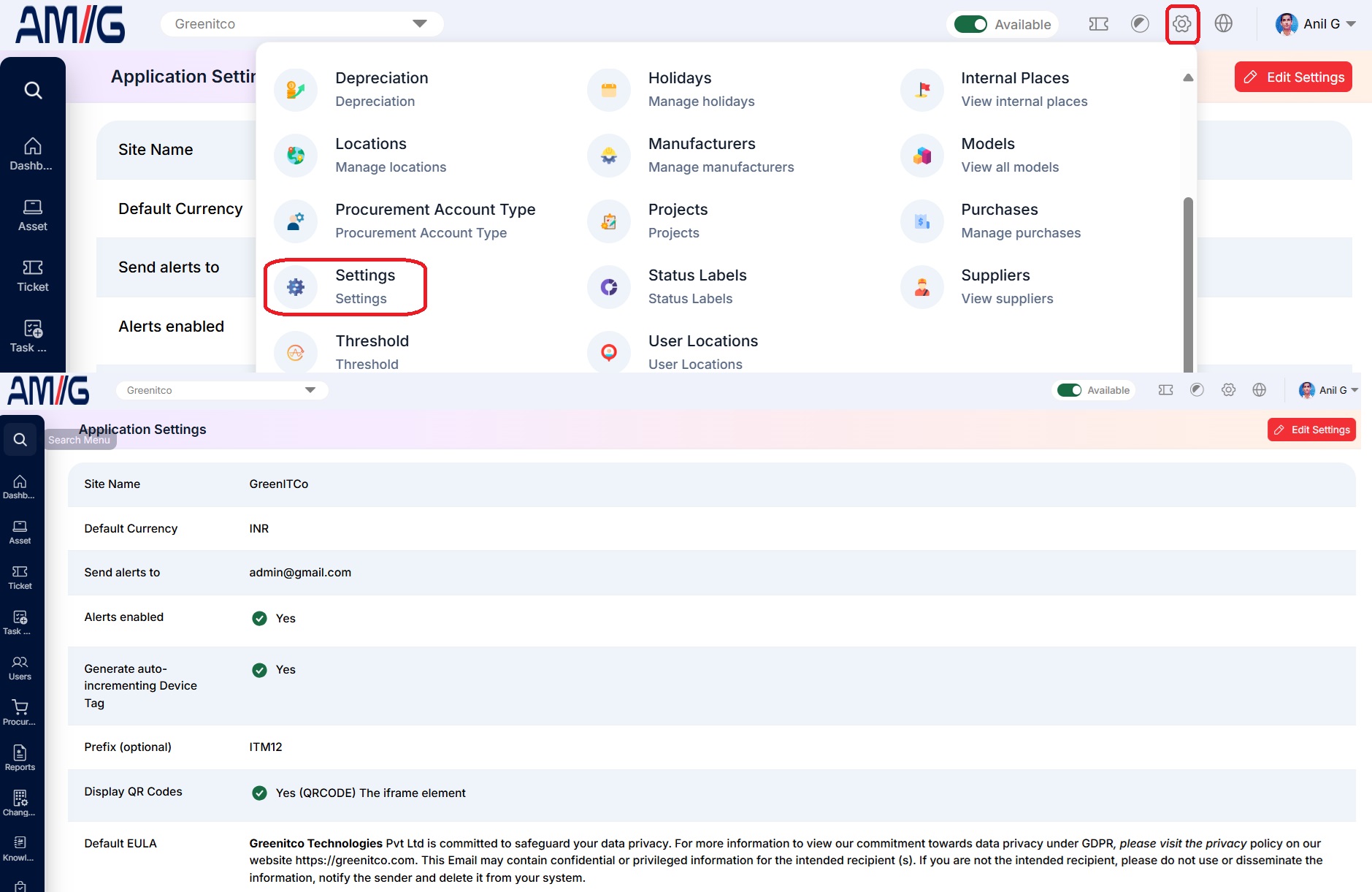 Application Settings Main Screen
Understanding the Main Screen
Application Settings summary
| Setting | Description |
|---|---|
| Site Name | The name of your portal (for example, GreenITCo). |
| Default Currency | The currency used by default for costs and purchases (for example, INR). |
| Send alerts to | The email address that receives system alerts. |
| Alerts enabled | A green tick (Yes) means system alerts are switched on. |
| Generate auto-incrementing Device Tag | Shows whether asset tags are generated automatically. |
| Prefix (optional) | The text added at the start of every automatically generated asset tag (for example, ITM12). |
| Display QR Codes | Shows whether QR codes are displayed, with the barcode type in brackets (for example, QRCODE). |
| Default EULA | The standard End User License Agreement shown to users. |
| Accessory Checkin | How accessories are checked back in (for example, Allow to Checkin Back). |
| LDAP Integration | A green tick (Yes) or red cross (No) shows whether users are synced from LDAP. |
| Edit Settings Button | Click the red Edit Settings button in the top right corner to change the settings. |
Clicking Edit Settings opens the Edit Settings screen, which has four tabs:
Edit Settings tabs
| Tab | Purpose |
|---|---|
| General Settings | Site and branding, alerts, terms and conditions, two-factor authentication, device settings, barcodes, EULA and LDAP. |
| Notification Settings | Which ticket, user and WhatsApp events send notifications. |
| Device Notification Settings | Device check-in/checkout, devices not detected and multiple-asset reminders. |
| Email Configuration Setting | The mail server AMG uses to send emails. |
Editing General Settings
Step 1 → On the Application Settings screen, click the red Edit Settings button. The General Settings tab opens first.
Step 2 → Work through the sections described below and change what you need. Sections marked (Optional) can be collapsed or expanded with the arrow beside their heading.
Step 3 → Click the red Update Settings button at the bottom of the page to save.
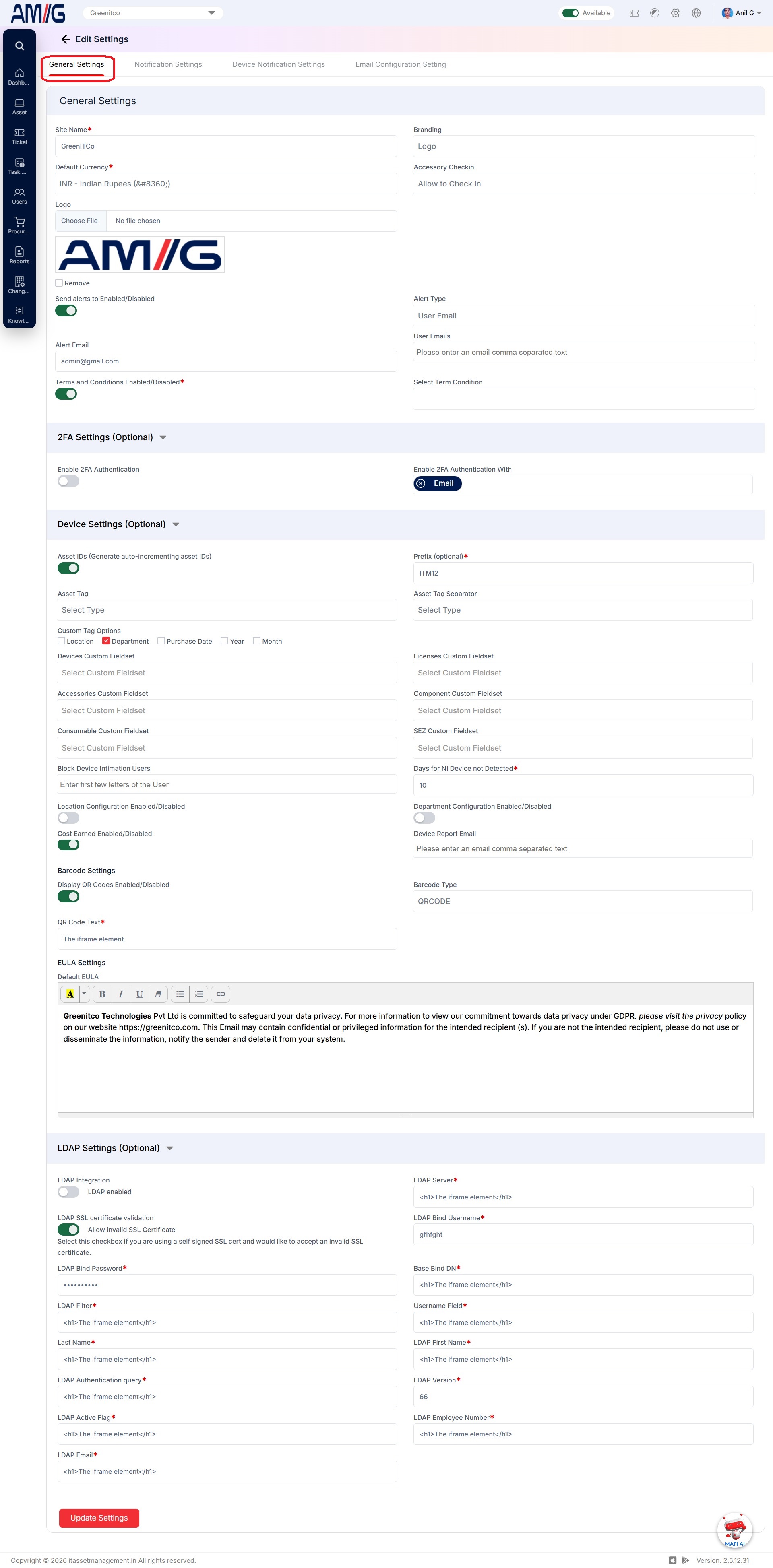 Edit Settings – General Settings
Site and Branding
Site and branding fields
| Field | Mandatory | Description |
|---|---|---|
| Site Name | Yes | Enter the name of your portal. It is used throughout the portal and in emails. |
| Default Currency | Yes | Choose the default currency for costs and purchases (for example, INR – Indian Rupees). |
| Branding | No | Choose how the portal is branded in the header, for example with your Logo. |
| Logo | No | Click Choose File to upload your company logo. A preview is shown below. Tick Remove to delete the current logo. |
| Accessory Checkin | No | Choose how accessories are checked back in (for example, Allow to Check In). |
Alerts and Terms
Alerts and terms fields
| Field | Mandatory | Description |
|---|---|---|
| Send alerts to Enabled/Disabled | No | Switch system alerts on or off. When it is off, no alerts are sent. |
| Alert Type | No | Choose who receives alerts: Role Based: a Select Role field appears; everyone with the chosen role is notified. User Email: a User Emails field appears; pick the users to notify. Device Read Permission: every user with the Device Read permission is notified. |
| User Emails / Select Role | No | The users or role to notify, depending on the Alert Type you chose. |
| Alert Email | No | The common email address that is notified about actions in the portal. |
| Terms and Conditions Enabled/Disabled | Yes | Switch on to make users accept your terms and conditions in the portal before they continue. |
| Select Term Condition | No | Choose, from the terms and conditions master, the terms users must accept. |
2FA Settings (Optional)
Two-factor authentication fields
| Field | Mandatory | Description |
|---|---|---|
| Enable 2FA Authentication | No | Switch on two-factor authentication for sign-in. |
| Enable 2FA Authentication With | No | Choose how the one-time password (OTP) is sent. Email is currently supported. |
When 2FA is on, users who sign in receive an OTP by email. They can only finish signing in once the OTP has been verified.
Device Settings (Optional)
Device settings fields
| Field | Mandatory | Description |
|---|---|---|
| Asset IDs (Generate auto-incrementing asset IDs) | No | Switch on to generate asset tags automatically. |
| Prefix (optional) | Yes | Enter the text added at the start of each asset tag (for example, ITM). Required when automatic asset IDs are on. |
| Asset Tag | No | Choose how asset tags are built: Prefix: the prefix is added to the tag. Hostname: the asset's hostname is used as the tag. Custom Tag: the options ticked under Custom Tag Options are used. |
| Asset Tag Separator | No | Choose the character placed between the parts of an asset tag (for example, a hyphen). |
| Custom Tag Options | No | Tick the parts to add to the tag: Location (branch code), Department (department initial), Purchase Date (purchase reference), Year and Month. You can tick more than one. |
| Devices / Licenses / Accessories / Component / Consumable / SEZ Custom Fieldset | No | For each module, choose a field set created under Header > Config > Custom Fields (Custom Fields). Its fields appear on that module's forms. |
| Block Device Intimation Users | No | Choose the users to notify when a device that is blocked from movement is scanned by an RFID reader. |
| Days for NI Device not Detected | Yes | Enter after how many days without detection administrators are notified that a device has not been detected by NI. |
| Location Configuration Enabled/Disabled | No | Switch on so users only see data for the locations they are allowed (see User Location Limits). |
| Department Configuration Enabled/Disabled | No | Switch on so users only see data for their own department(s). |
| Cost Earned Enabled/Disabled | No | Switch on to enable the cost earned module and its fields on assets. |
| Device Report Email | No | Enter the email addresses, separated by commas, that should receive the regular device report. |
Barcode Settings
Barcode settings fields
| Field | Mandatory | Description |
|---|---|---|
| Display QR Codes Enabled/Disabled | No | Switch on to show the QR code on the device details page and the asset audit tag. |
| Barcode Type | No | Choose the code type: C128, Datamatrix, PDF417 or QRCODE. |
| QR Code Text | Yes | Enter the text shown with the code (for example, your company name). |
EULA Settings
EULA settings field
| Field | Mandatory | Description |
|---|---|---|
| Default EULA | No | Type the default End User License Agreement for the whole application. Categories that tick Show Default EULA use this text (see How to Create a New Category). You can use formatting, lists and links. |
LDAP Settings (Optional)
Use these settings to sync users from your LDAP or Active Directory server. The fields marked as mandatory are required once LDAP integration is switched on.
LDAP settings fields
| Field | Mandatory | Description |
|---|---|---|
| LDAP Integration (LDAP enabled) | No | Switch on to sync users from LDAP. |
| LDAP SSL certificate validation | No | Tick Allow invalid SSL Certificate if your server uses a self-signed certificate. |
| LDAP Server | Yes | The address of your LDAP server (for example, ldap://ldap.example.com). |
| LDAP Bind Username | Yes | The username AMG uses to connect to the LDAP server. |
| LDAP Bind Password | Yes | The password for the bind username. It is hidden on screen. |
| Base Bind DN | Yes | The base distinguished name (DN) where the user search starts (for example, cn=users,dc=example,dc=com). |
| LDAP Filter | Yes | The LDAP filter used to choose which entries are synced. |
| Username Field | Yes | The LDAP attribute that holds the username (for example, samaccountname). |
| LDAP First Name | Yes | The attribute that holds the first name (for example, givenname). |
| Last Name | Yes | The attribute that holds the last name (for example, sn). |
| LDAP Authentication query | Yes | The query used to authenticate users (for example, uid=). |
| LDAP Version | Yes | The LDAP protocol version (usually 3). |
| LDAP Active Flag | Yes | The attribute that shows whether an account is active. |
| LDAP Employee Number | Yes | The attribute that holds the employee number. |
| LDAP Email | Yes | The attribute that holds the user's email address. |
Configuring Notification Settings
Step 1 → On the Edit Settings screen, click the Notification Settings tab.
Step 2 → Tick the events that should send a notification and untick the ones that should not.
Step 3 → Click the red Update Settings button to save.
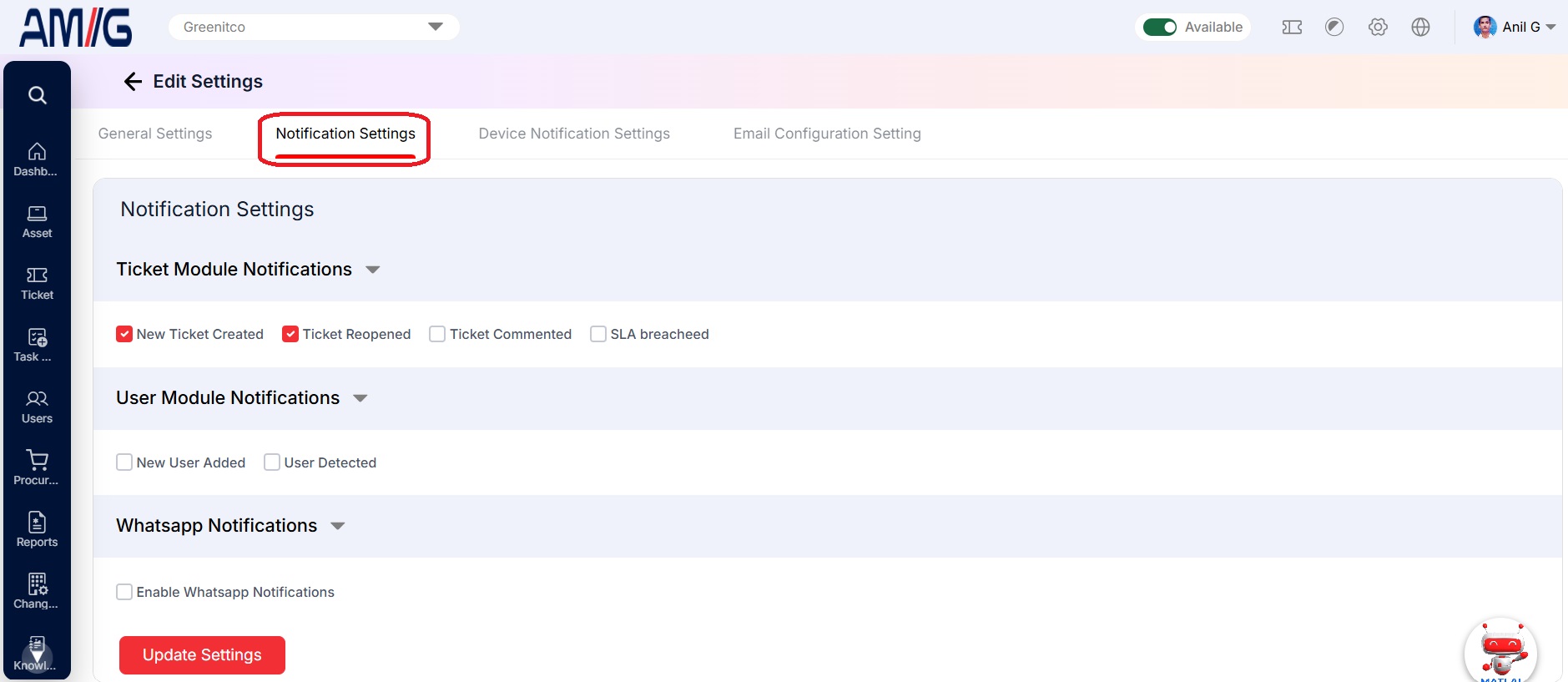
Edit Settings – Notification Settings
Notification settings options
| Group | Option | Sends a notification when… |
|---|---|---|
| Ticket Module Notifications | New Ticket Created | A new ticket is created. |
| Ticket Reopened | A ticket is reopened. | |
| Ticket Commented | Someone comments on a ticket. | |
| SLA Breached | A ticket breaches its SLA. | |
| User Module Notifications | New User Added | A new user is added. |
| User Detected | A new user is detected by the system. | |
| WhatsApp Notifications | Enable WhatsApp Notifications | Notifications are also sent to users on WhatsApp. Users need a phone number on their profile, and a Meta (WhatsApp Business) account must be set up in AMG under Integration > WhatsApp. |
Configuring Device Notification Settings
Step 1 → On the Edit Settings screen, click the Device Notification Settings tab.
Step 2 → Switch on the notifications you need and fill in their details (see the table below).
Step 3 → Click the red Update Settings button to save.
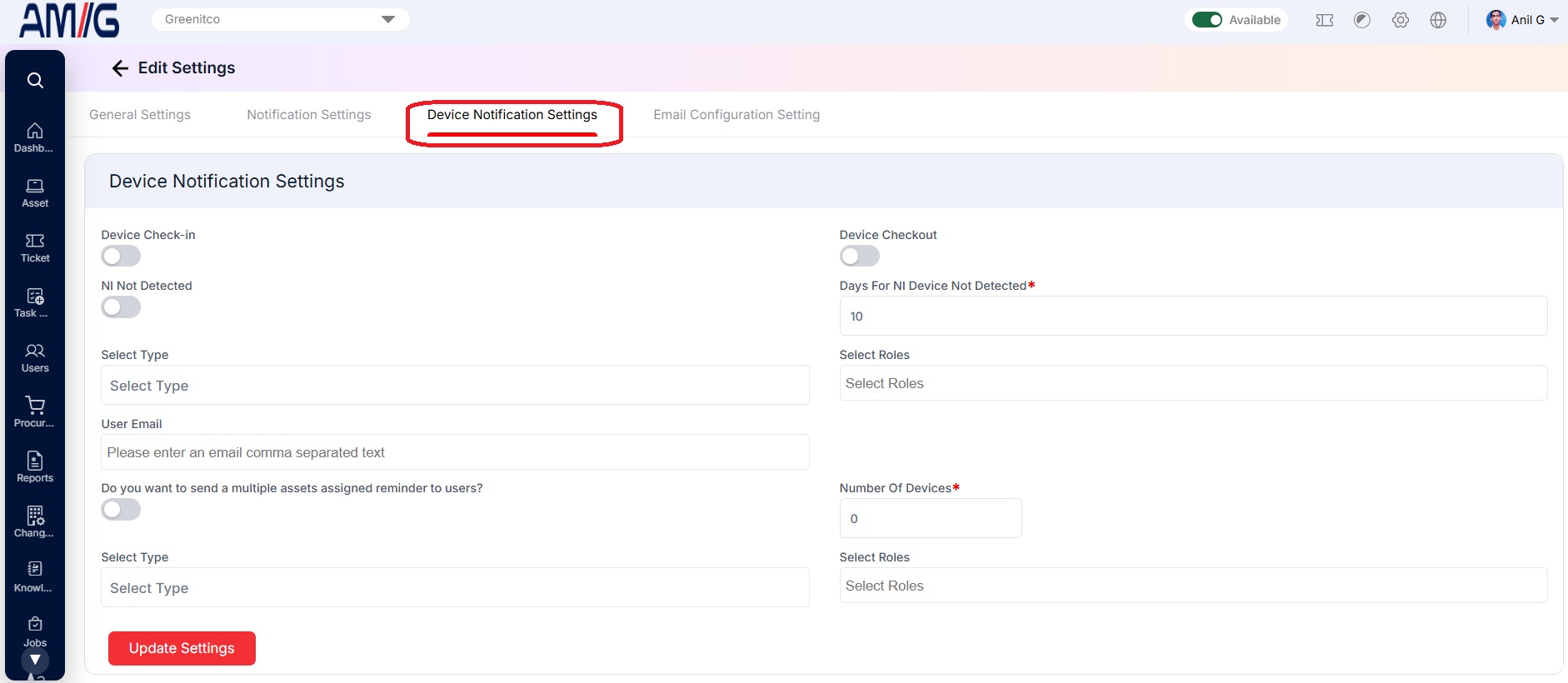 Edit Settings – Device Notification Settings
Device notification settings fields
| Field | Mandatory | Description |
|---|---|---|
| Device Check-in | No | Switch on to send a notification when a device is checked in. |
| Device Checkout | No | Switch on to send a notification when a device is checked out. |
| NI Not Detected | No | Switch on to send a notification when a device has not been detected by NI. |
| Days For NI Device Not Detected | Yes | Enter after how many days without detection the notification is sent. |
| Select Type | No | Choose who receives these device notifications: Role Based, User Email or Device Read Permission (see the Alerts and terms fields table). |
| Select Roles | No | When the type is Role Based, choose the role(s) to notify. |
| User Email | No | When the type is User Email, enter the email addresses separated by commas. |
| Do you want to send a multiple assets assigned reminder to users? | No | Switch on to send a reminder when a user has several assets assigned to them. |
| Number Of Devices | Yes | Enter how many assigned assets trigger the reminder. When a user reaches this number, a reminder is sent. |
| Select Type / Select Roles (reminder) | No | Choose who receives the multiple-assets reminder, in the same way as above. |
Configuring Email Settings
AMG needs a mail server to send notifications, alerts and reports. Ask your email or server administrator for these details before you start.
Step 1 → On the Edit Settings screen, click the Email Configuration Setting tab.
Step 2 → Fill in the mail server details (see the table below) and switch on Enable Mail Service.
Step 3 → Click the red Update Settings button to save.
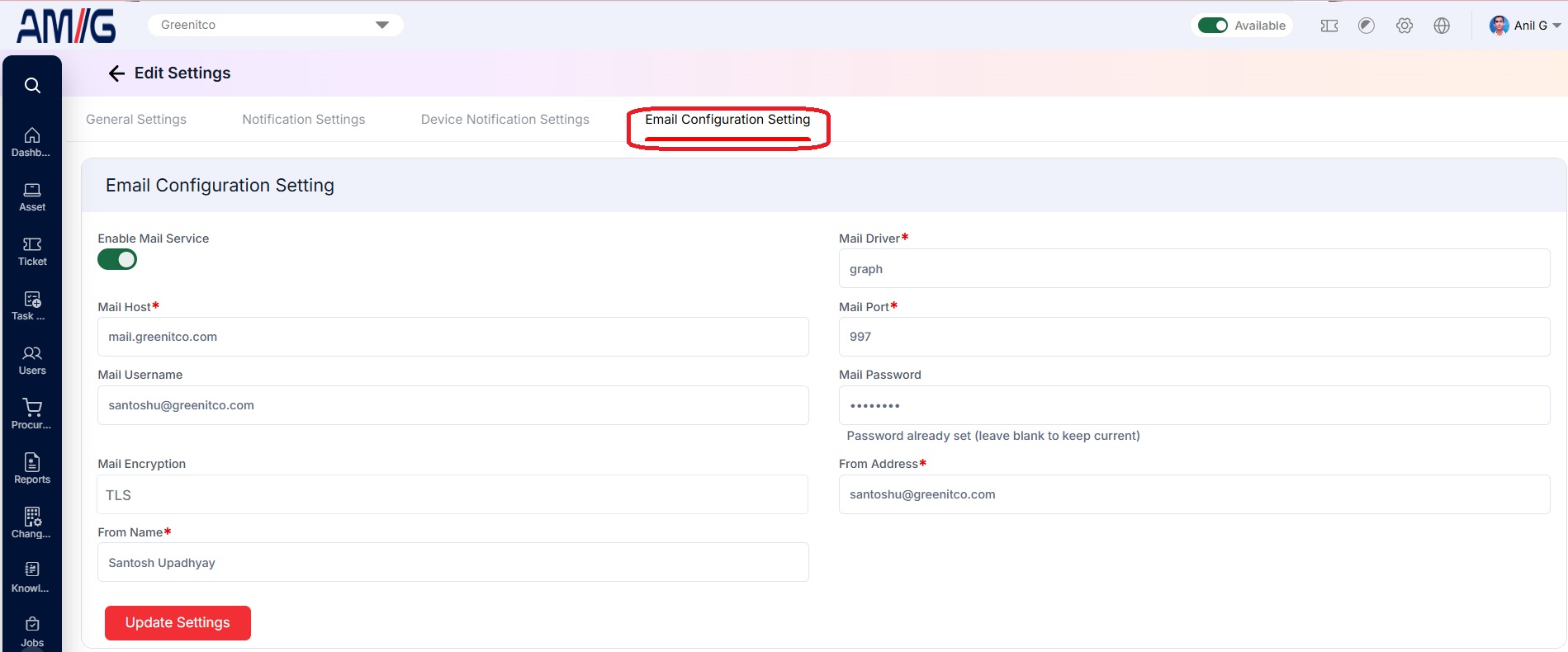 Edit Settings – Email Configuration Setting
Email configuration fields
| Field | Mandatory | Description |
|---|---|---|
| Enable Mail Service | No | Switch on to let AMG send emails. When it is off, no emails are sent to users. |
| Mail Driver | Yes | The mail transport to use (for example, smtp). |
| Mail Host | Yes | The mail server's host name (for example, smtp.mailgun.org). |
| Mail Port | Yes | The port used to connect to the mail server (for example, 587). |
| Mail Username | No | The username used to sign in to the mail server. |
| Mail Password | No | The password for the mail username. It is hidden on screen. |
| Mail Encryption | No | The encryption used for the connection, such as TLS, SSL or None. |
| From Address | Yes | The email address that emails are sent from (for example, noreply@yourdomain.com). |
| From Name | Yes | The sender name recipients see (for example, your company or app name). |
Saving and Reviewing Your Settings
Each tab on the Edit Settings screen has its own Update Settings button and is saved separately, so save each tab before moving on to the next one.
To verify the changes, return to Header > Config > Settings and review the summary, or reopen the tab you updated.
⚠️ Important: These settings affect everyone who uses the portal, including mail delivery, notifications, asset tags and user sync. Check mail server and LDAP details with the responsible administrator before changing them.