

Procurement Setup
Product: NEXTMEGABYTE (Greenitco ITAM) · Module: Procurement Management · Audience: Administrator
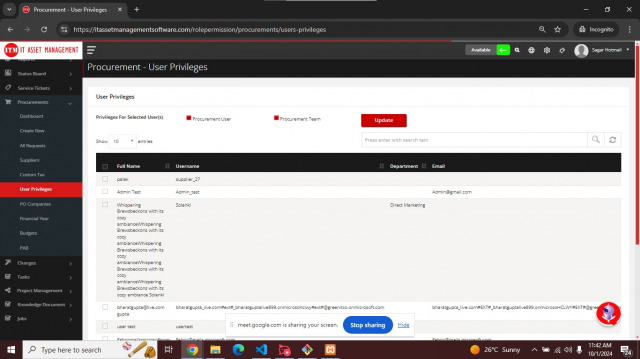
User privileges
Menu path: Procurement → User Privilege
- Select the users.
- Select User or Procurement Team privileges. Procurement team members get full access to the procurement module.
- Select Update.
Procurement Advisory Board (PAB)
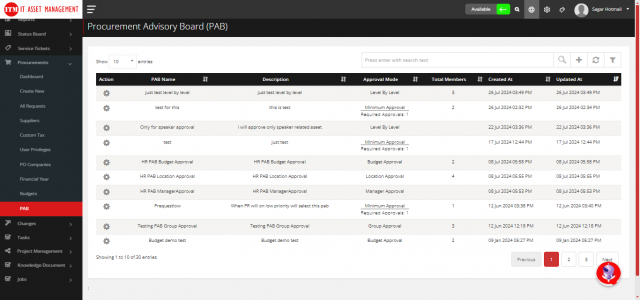
The PAB approves procurement requests.
| Approval type | How it works |
|---|---|
| Level by Level | Members approve in level order (levels must not repeat). One rejection rejects the request |
| Minimum Approval | A minimum number of members must approve, for example 3 of 5 |
| Group Approval | All members must approve |
| System Approval | Approved automatically by the system |
| Manager Approval | The requester's manager approves |
| Budget Approval | Approval based on a price range |
| Location Approval | Members of the requester's location approve |
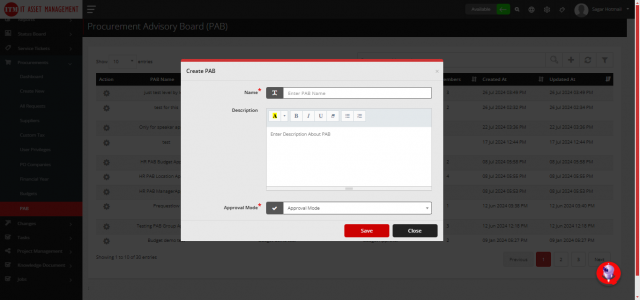
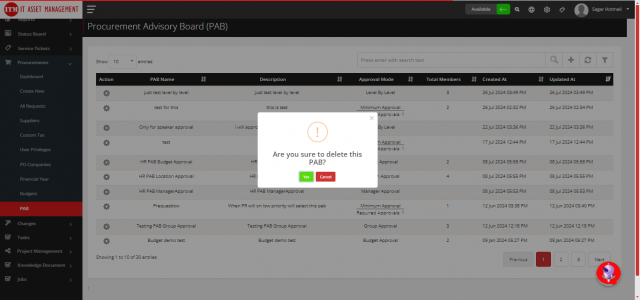
- Open Procurement → PAB and select Add (plus icon).
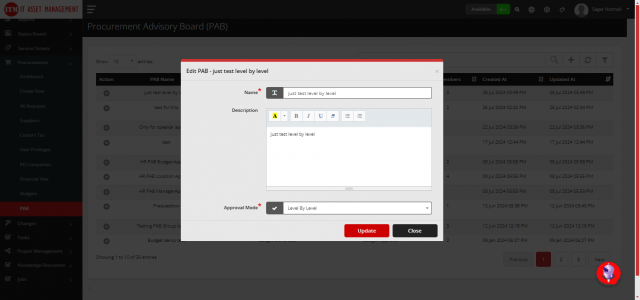
- Enter the Name and Description, choose the approval type and select Add.
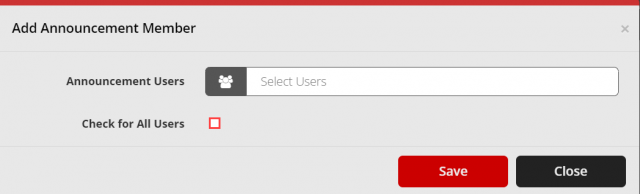
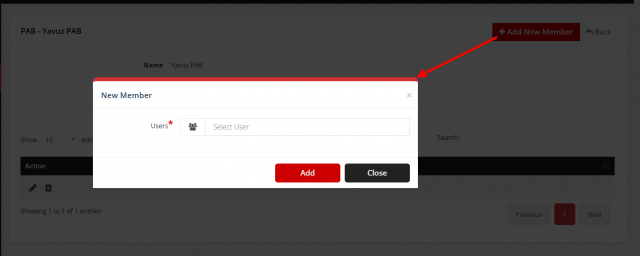
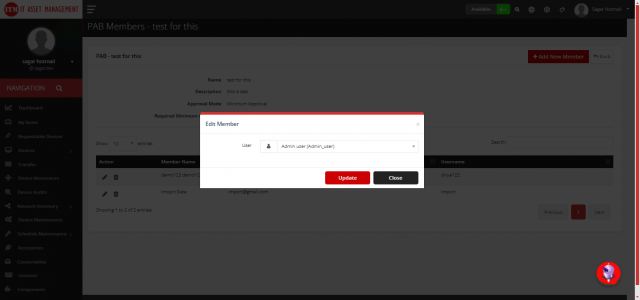
- Select Members (user icon), then Add (plus icon) to add members. Use the pencil icon to change a member.
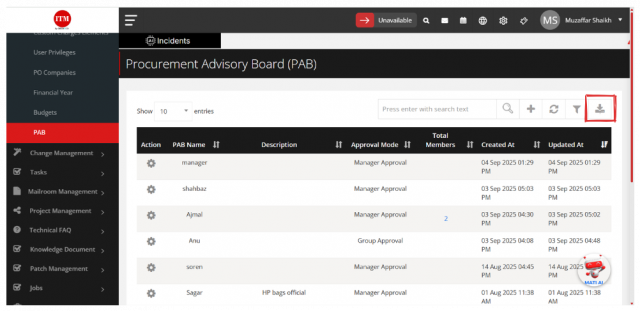
- Select Download to export PAB data (all or filtered) to Excel.
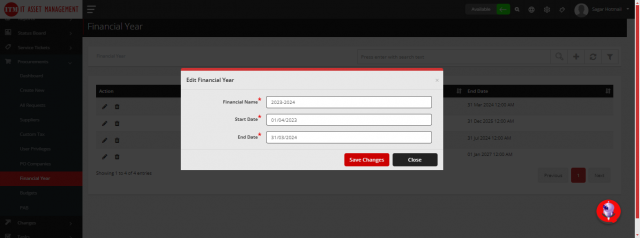
Financial years
Menu path: Procurement → Financial Year
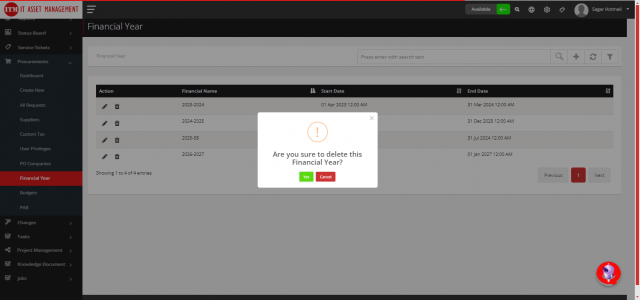
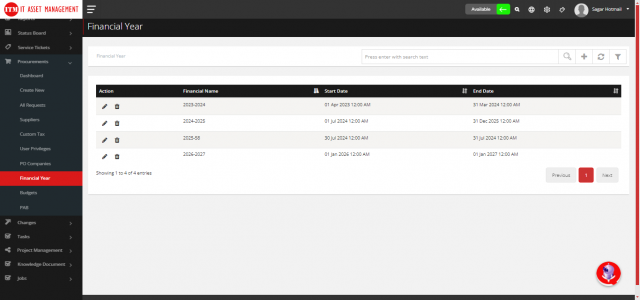
Select Add (plus icon), enter the details and select Save Financial. Edit with the pencil icon and delete with the trash icon.
Budgets
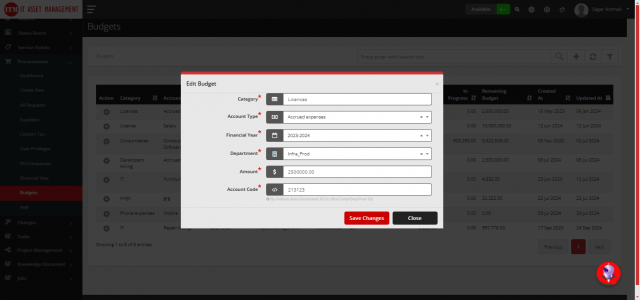
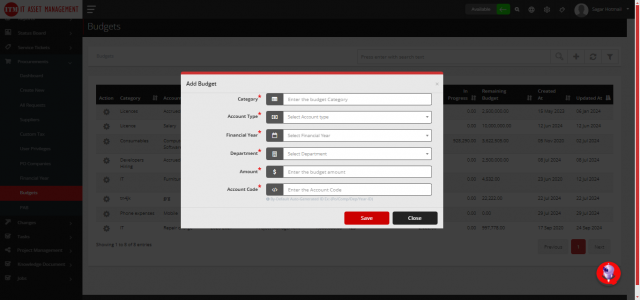
A budget allocates money to a department for a financial year.
Menu path: Procurement → Budgets → Add (plus icon)
| Field | Description |
|---|---|
| Category | Asset type; it appears in the product information of procurement requests |
| Account Type | Type of expenditure |
| Financial Year | The financial year |
| Department | Department receiving the budget |
| Amount | Budget amount |
| Account Code | Accounting code |
Custom tax
Custom taxes are applied when the purchase order is generated.
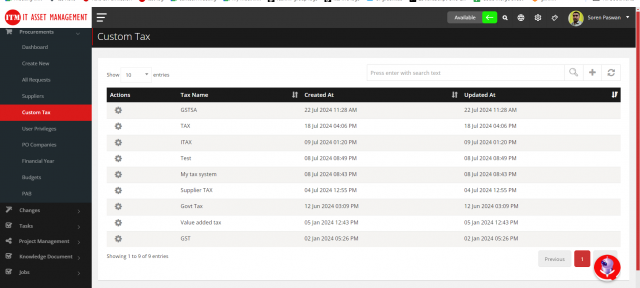
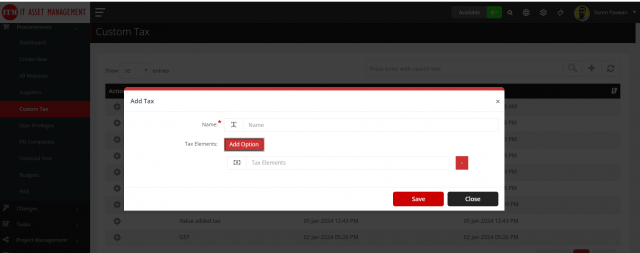
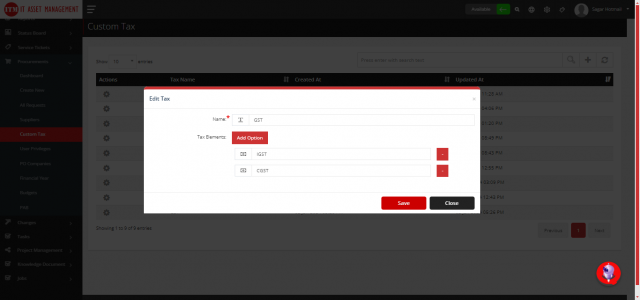
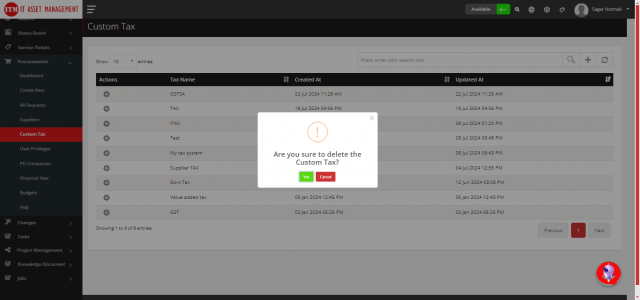
Menu path: Procurement → Custom Tax → Add (plus icon). Enter the tax name and its elements and save.
PO companies
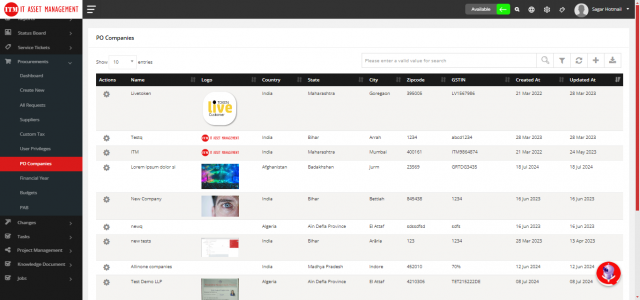
PO companies are the buying entities printed on purchase orders.
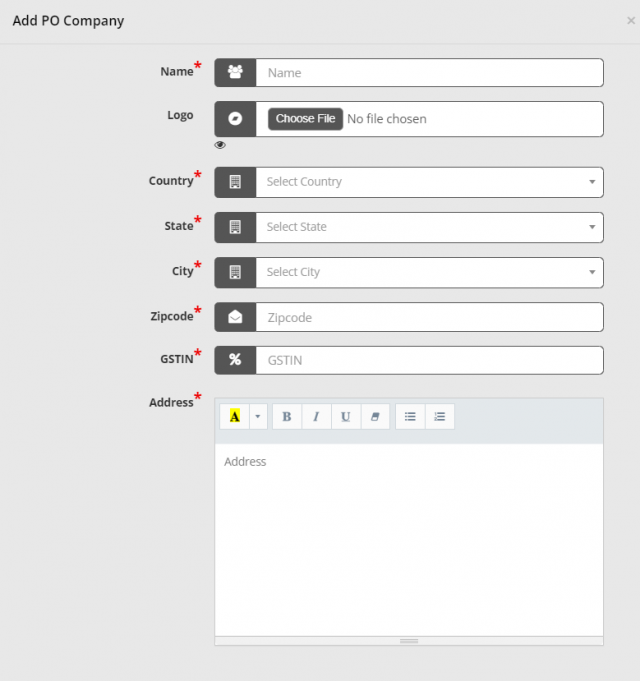
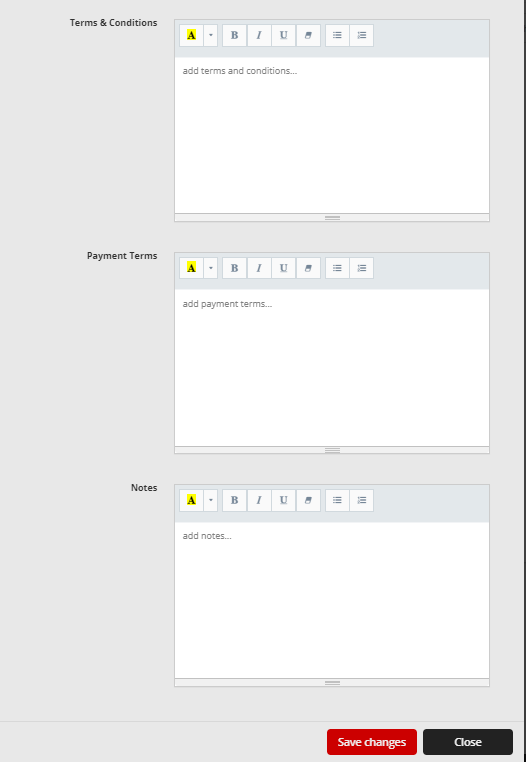
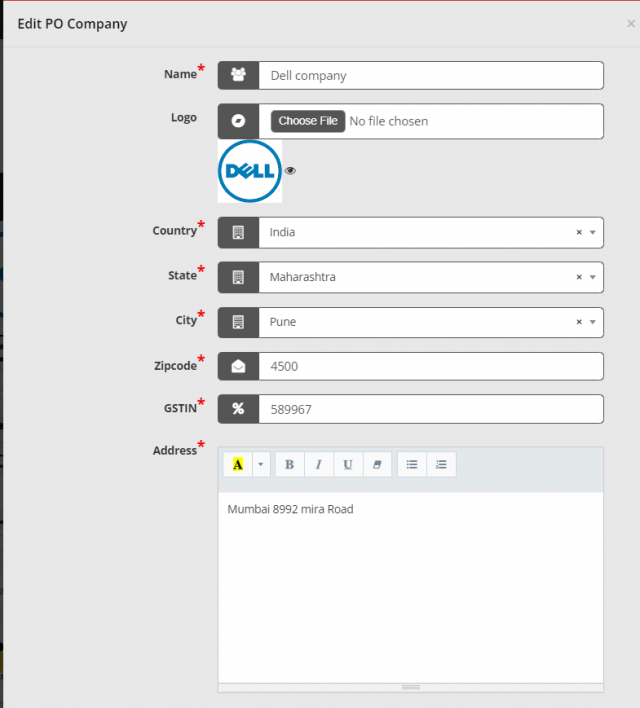
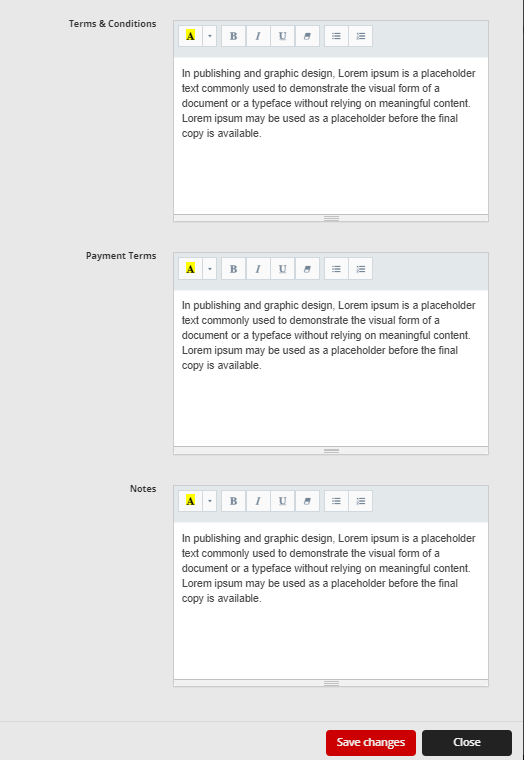
Menu path: Procurement → PO Company
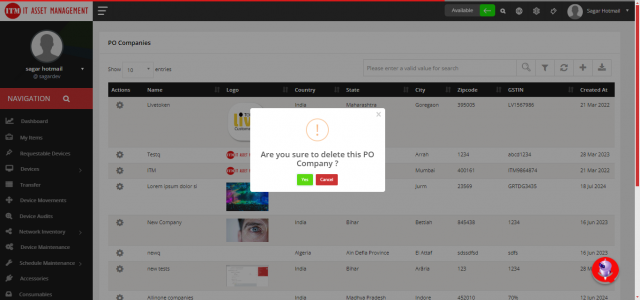
The list shows company name, logo, country, state, city, postal code and GSTIN, with search, filter, refresh, add and Excel download. Select Add (plus icon) to add a company, the pencil icon to edit and the trash icon to delete.
Company and branch locations: before creating POs, open Settings → Profile Settings → Location, check that every branch is listed and mapped to its company, and that the GST number is entered for each company or branch. The PO uses the GST number and delivery address of the selected location.
Suppliers
Suppliers provide goods or services, meet quality standards, deliver on time and agree prices and payment terms. Suppliers are managed in Supplier Configuration.