

Create and Process a Procurement Request
Product: NEXTMEGABYTE (Greenitco ITAM) · Module: Procurement Management · Audience: All users
Create a procurement request
Any user can request goods or services.
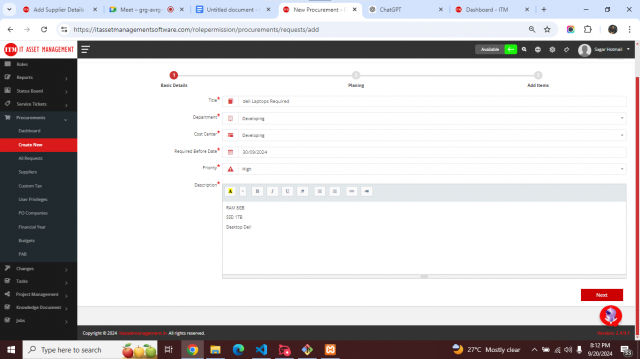
- Open Procurement and select Create New.
- Fill in the request details and product information.
- Select Create Request. You return to the request list.
| Field | Description |
|---|---|
| Title | Short subject |
| Department | Department the purchase is for |
| Cost Department | Department that pays for the purchase |
| Required Before Date | Last date for suppliers to upload quotations. After this date suppliers cannot update quotations |
| Priority | Urgent, High, Medium or Low |
| Description | Details of the requirement |
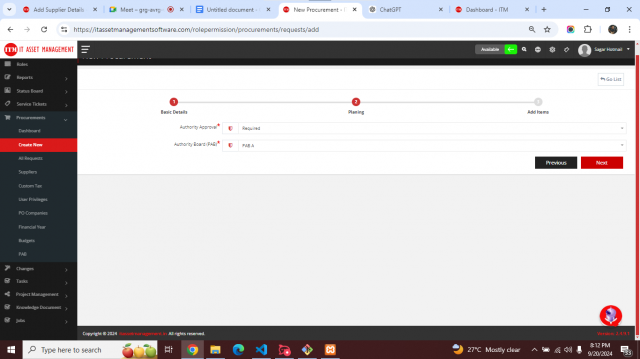
| Authority Approval | Required: the request needs PAB approval. Not Required: no approval step |
| Authority Board (PAB) | The approval board. Types: level by level, minimum, group, system, manager or budget approval |
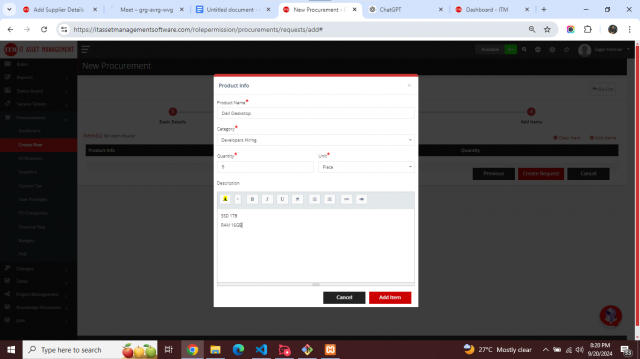
| Product Info | The items, quantities and specifications to buy |
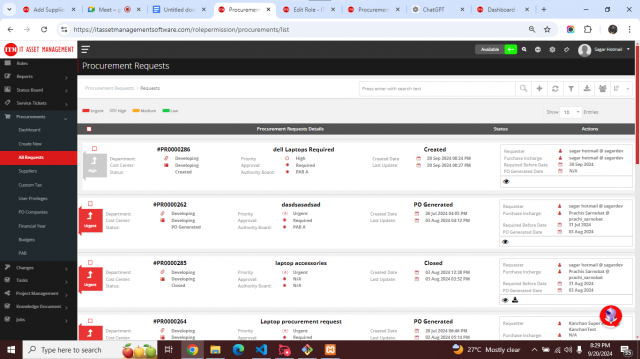
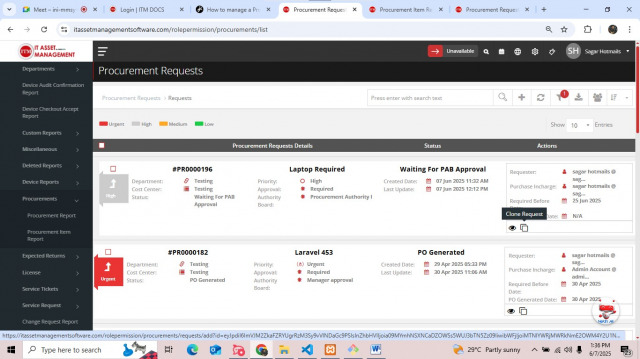
Clone a request: to raise the same request again, select Clone. The form opens with all values filled in.
Process a request (procurement team)
Menu path: Procurement → All Requests → View (eye icon)
If the request was created with Authority Approval: Not Required, step 5 is skipped.
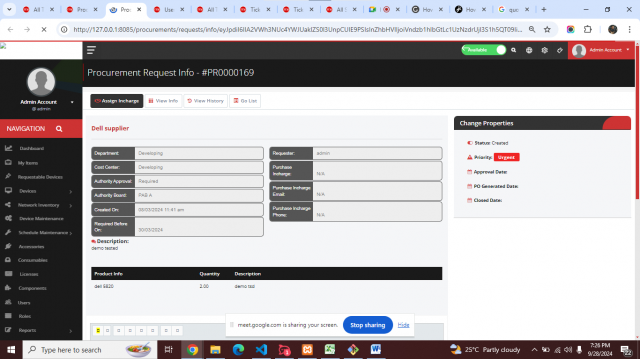
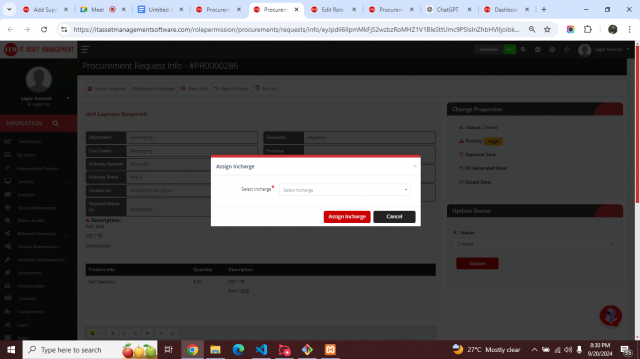
- Assign in-charge: select Assign In-charge and choose the purchase in-charge.
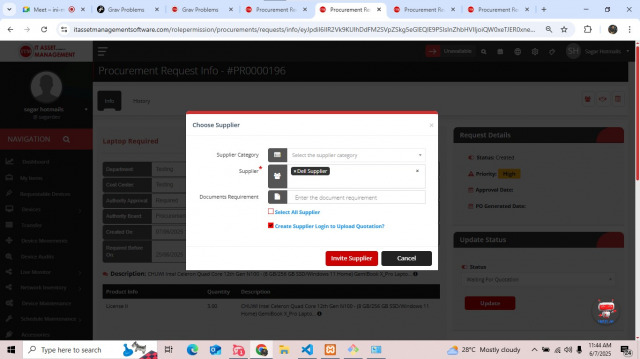
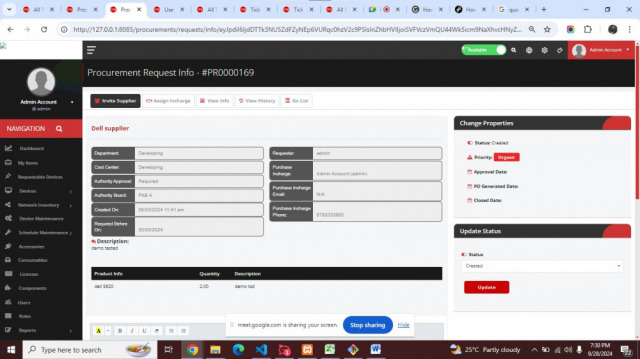
- Invite suppliers: select Supplier and choose one or more suppliers. Choose whether documents are required. To let a supplier upload its own quotation, select Create supplier login to upload quotation; credentials are sent to the supplier.
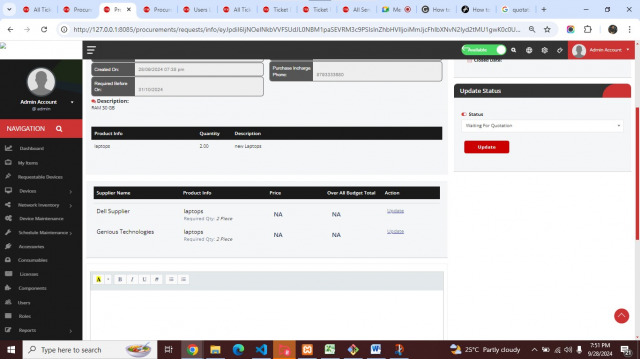
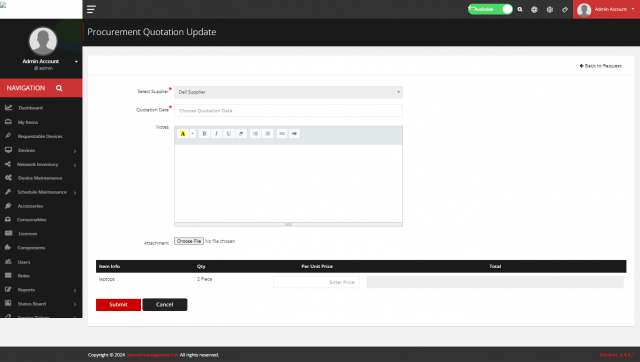
- Waiting for quotation: set the status to Waiting for Quotation. Suppliers (or the in-charge) select Update Quotation and fill in the quotation form.
- Compare quotations and choose the supplier.
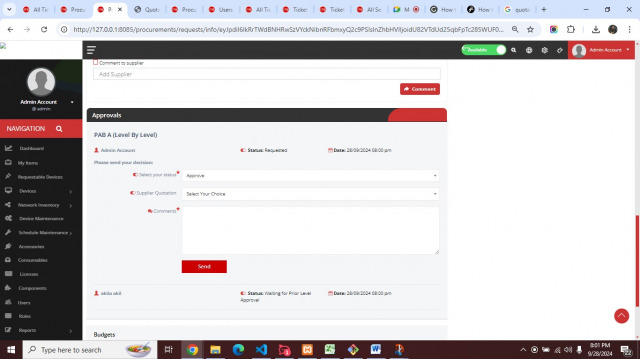
- PAB approval: set the status to PAB Approval. The approval board members are shown at the bottom of the page and approve or reject.
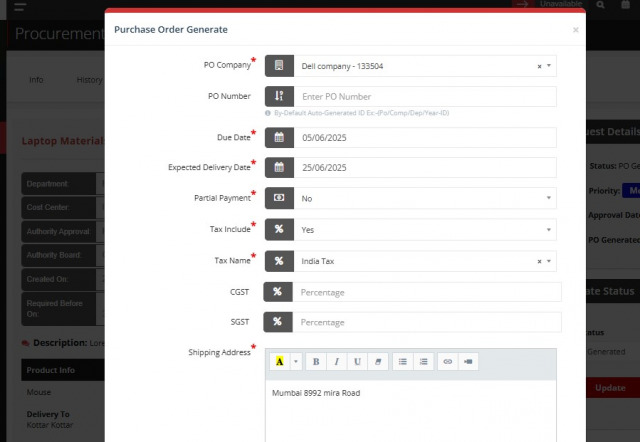
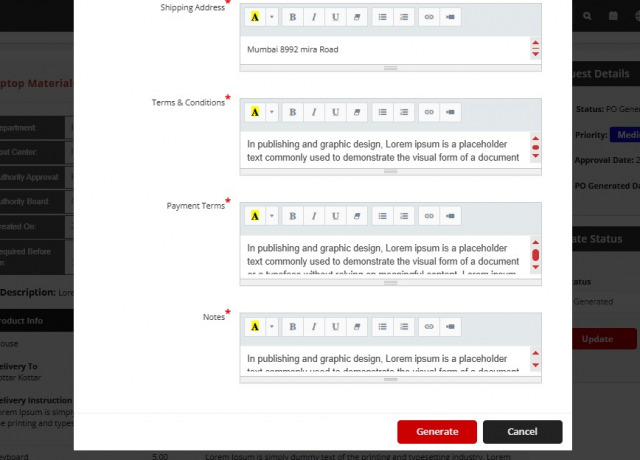
- Generate PO: when all PAB members approve, the in-charge sees PO Generated at the top and creates the purchase order.
- Print PO: select Print to print the PO with the selected supplier and procurement team details.
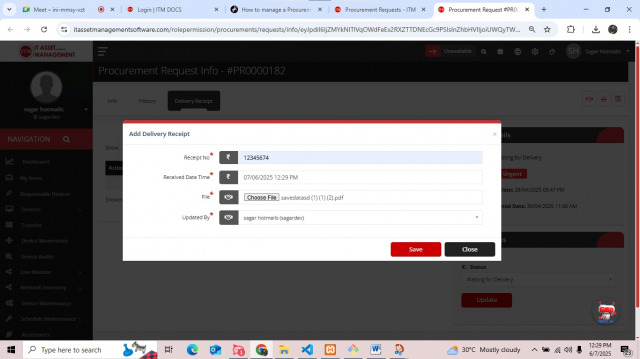
- Delivery: set the status to Waiting for Delivery. On the Delivery tab, add delivery receipts.
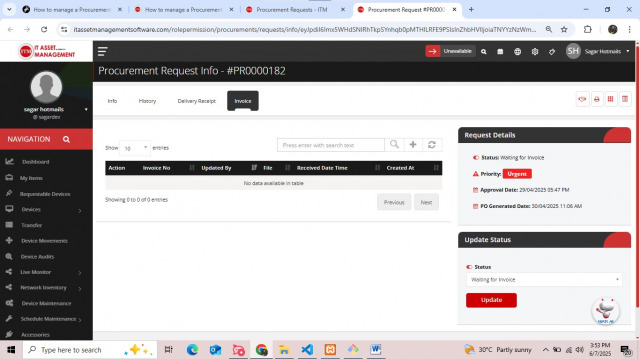
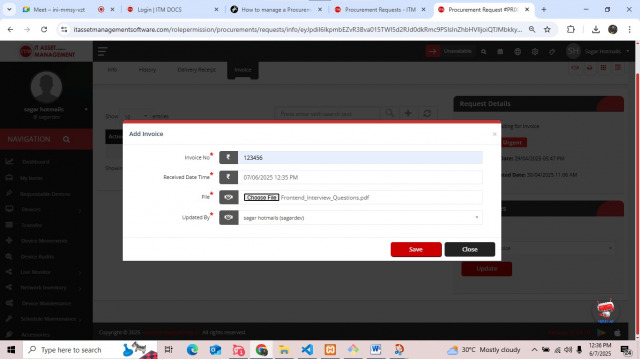
- Invoice: set the status to Waiting for Invoice. On the Invoice tab, add invoices.
- Close: set the status to Closed and select the final delivery date.
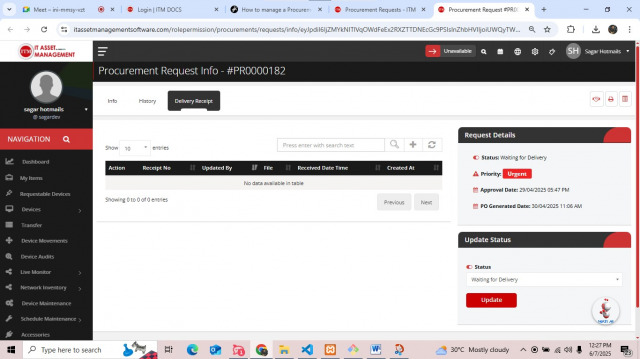
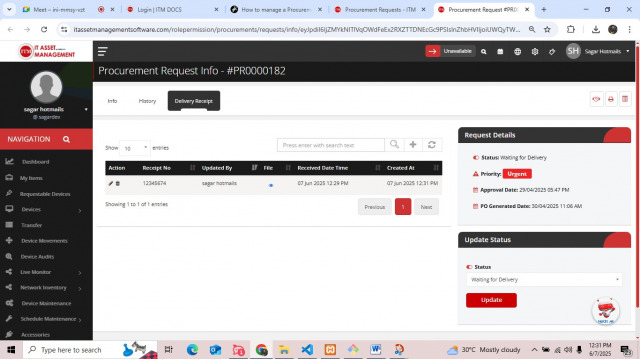
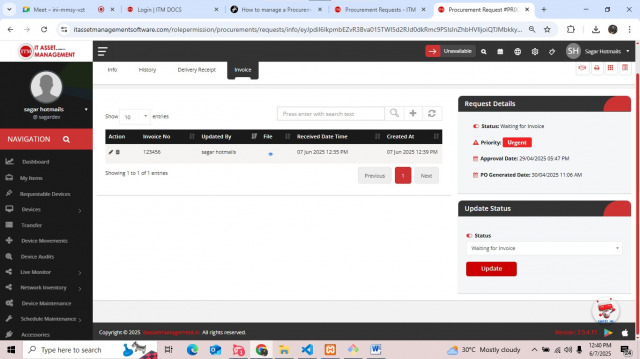
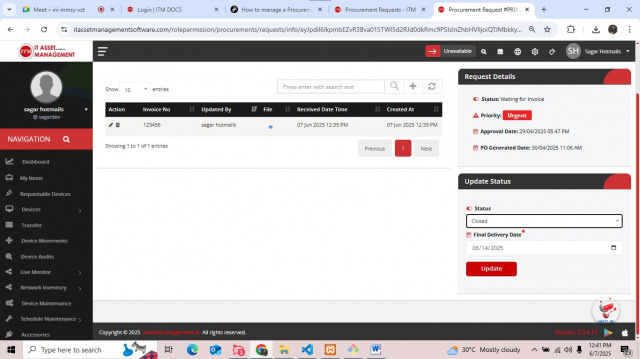
Users can edit and delete their own delivery and invoice records; the purchase in-charge can add, edit and delete them on the user's behalf.
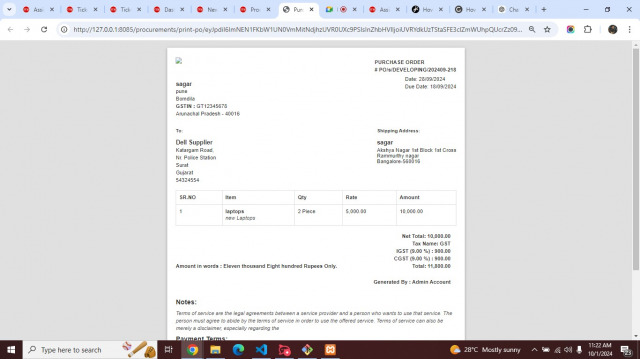
The GST number and delivery address on the PO are filled automatically from the location selected when the PO is created. See Procurement Setup.