Introduction
Ticket Incident allows you to record and manage significant events that disrupt or affect a service, department, or business operation. It helps you maintain a complete record of an incident, from the time it occurs until the investigation and follow-up activities are completed.
Using this section, you can:
-
Record Incidents: Document important events, including when and where they occurred and which services or business operations were affected.
-
Assess Impact: Record the impact of an incident on business operations, including financial losses, manpower loss, and service disruptions.
-
Classify and Prioritise Incidents: Categorise incidents and assign priorities based on their severity and business impact.
-
Link Related Tickets and Devices: Associate incidents with relevant tickets or devices to maintain a complete record of the issue.
-
Perform Root Cause Analysis (RCA): Investigate why the incident occurred and identify the underlying cause.
-
Document Corrective and Preventive Actions: Record the actions taken to resolve the incident and prevent similar incidents from happening again.
-
Maintain Incident History: Keep a record of incident details, timelines, findings, and follow-up activities for future reference and reporting.
These features help your organisation understand the causes and consequences of incidents, measure business losses, improve decision-making, and prevent similar issues from recurring.
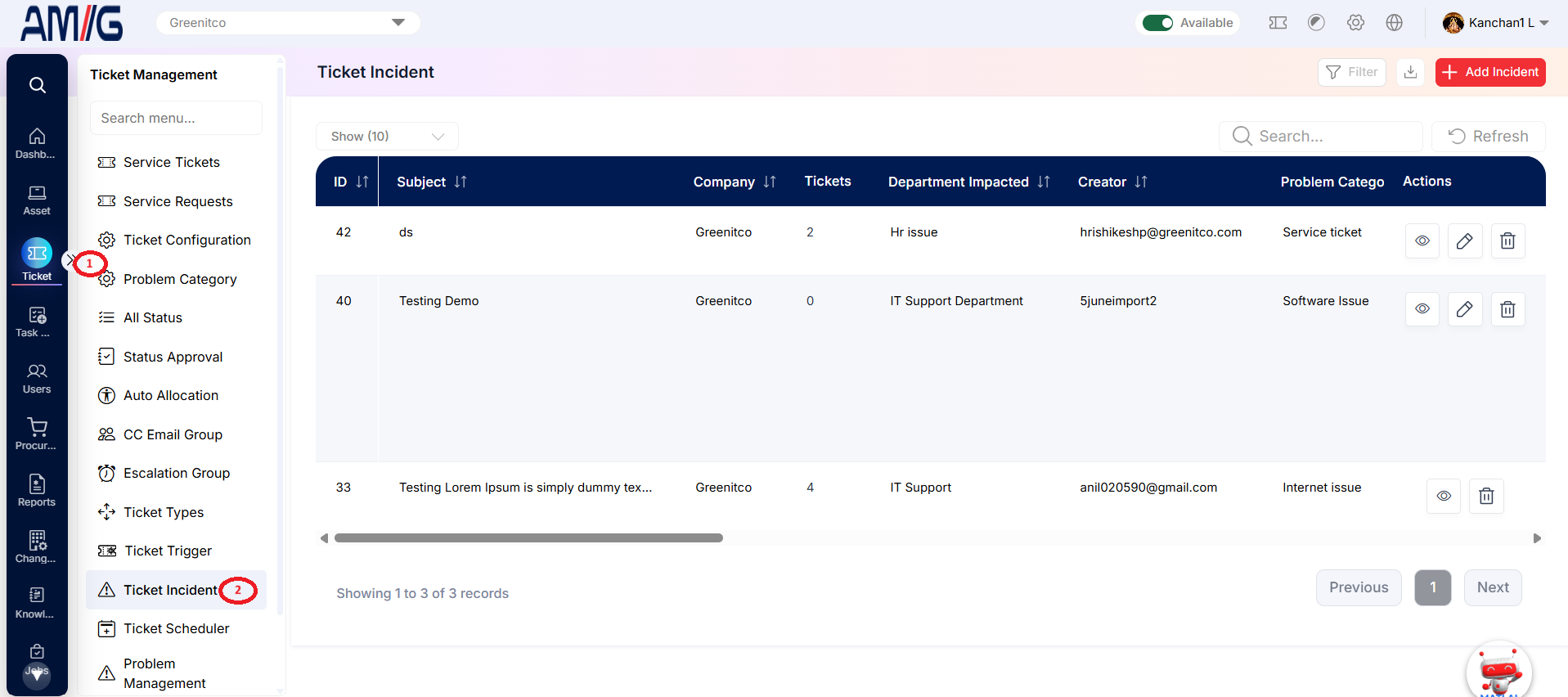
Navigation: Sidebar › Ticket › Ticket Incident
Viewing the Ticket Incident List
Open Ticket Incident to review existing incidents. Use Search to locate a record, Filter to narrow the list, and Refresh to reload the results. The table can be wider than the visible area, so use the horizontal scrollbar to review additional columns.
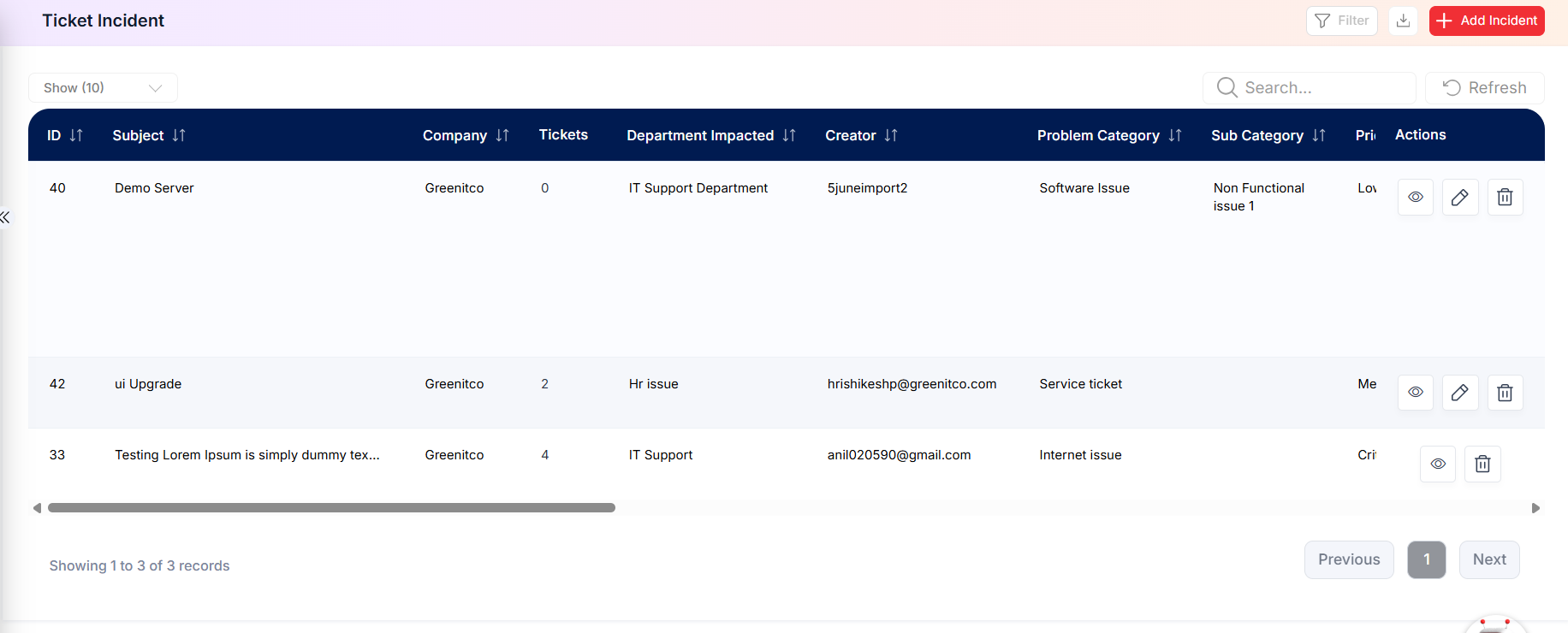
Figure: Ticket Incident list
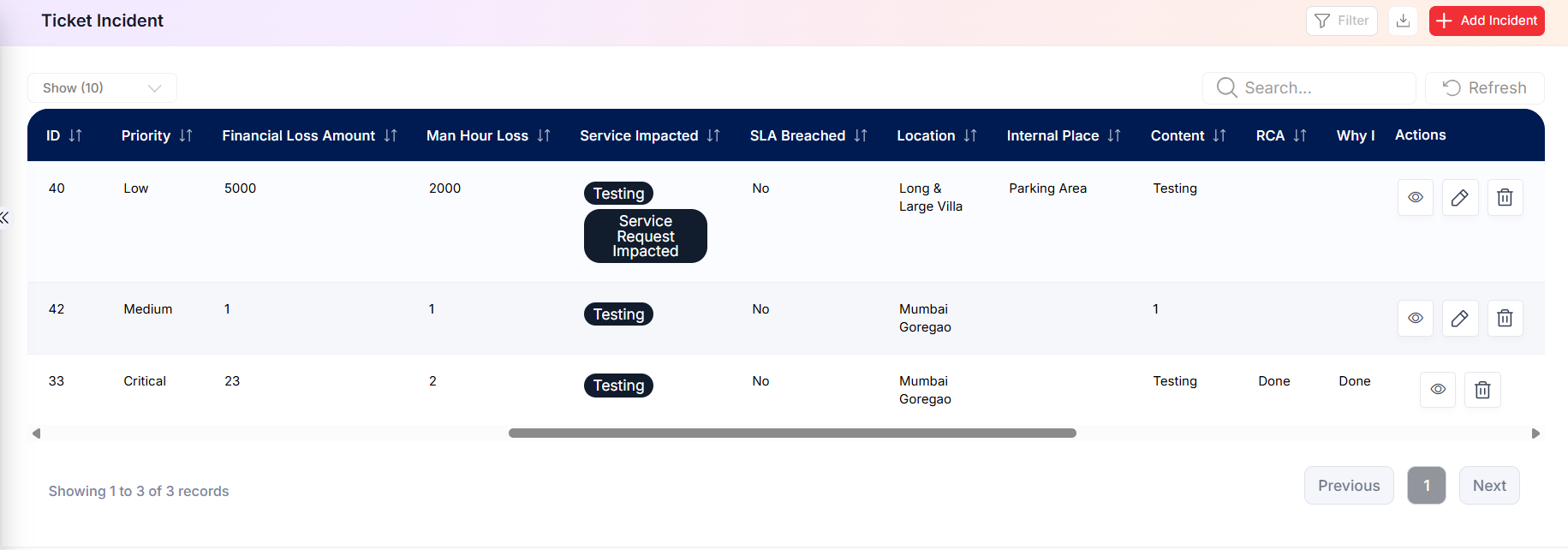 Figure: Ticket Incident list — extended columns
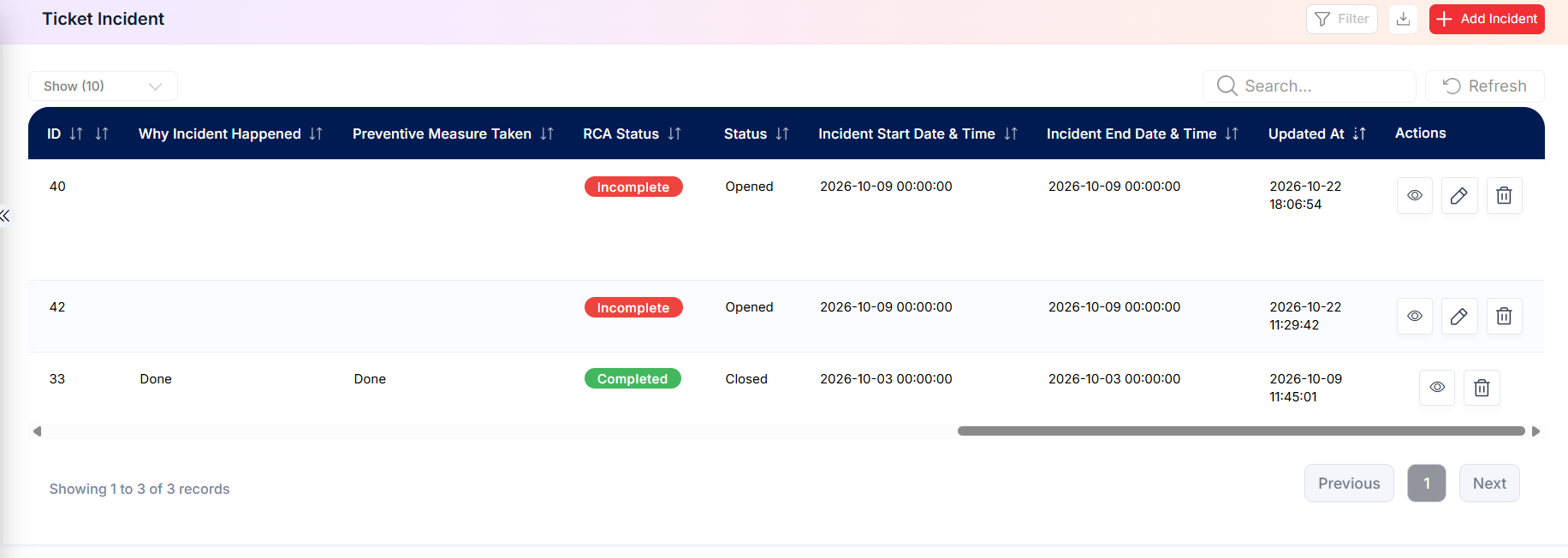 Figure: Ticket Incident list — extended columns
Ticket Incident list columns
| Column | Description |
|---|---|
| ID | Unique identifier for the incident. |
| Subject | Short title used to identify the incident. |
| Company | Company associated with the incident. |
| Tickets | Count or references for tickets linked to the incident. |
| Department Impacted | Department affected by the incident. |
| Creator | User who reported or created the incident. |
| Problem Category / Sub Category | Classification selected for the incident. |
| Priority | Priority assigned to the incident. |
| Financial Loss Amount / Man Hour Loss | Recorded financial impact and work-hour loss. |
| Created At / Updated At | Record creation and last-update timestamps, when shown in the extended list. |
| Actions | View, edit, and delete controls for each incident row. |
Creating or Editing an Incident
Create a new incident from the Ticket Incident list. Required fields are marked with an asterisk (*) in the form.
Step 1 → Open Ticket Incident and click Add Incident. The Add New Incident window opens with the Basic tab selected.
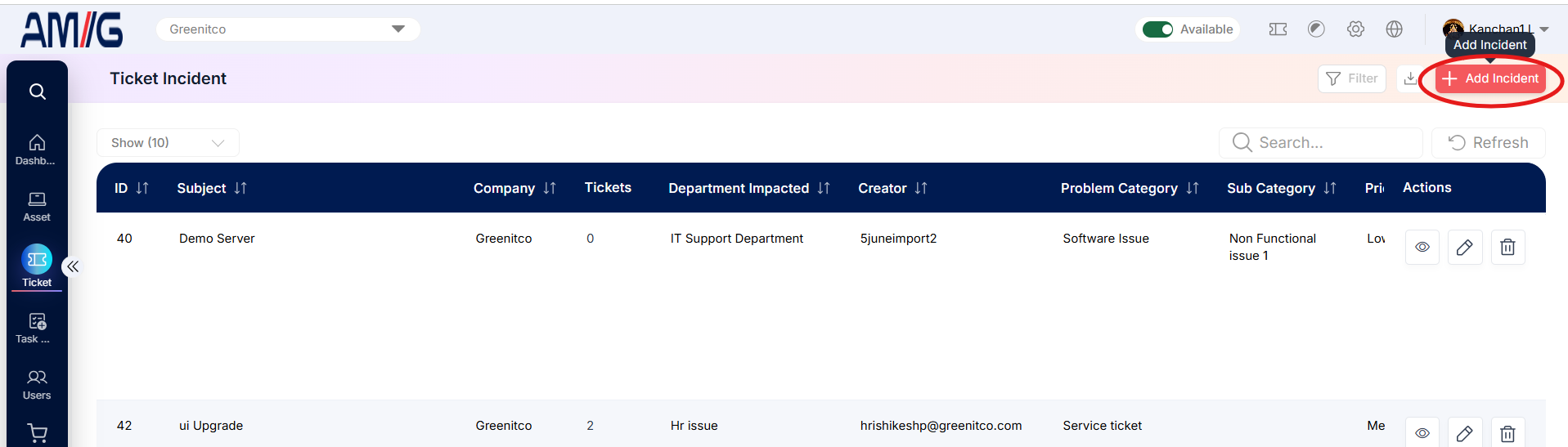
Step 2 → Select the Company, Department Impacted, and Incident Reported By user.
Step 3 → Enter the incident start and end date/time when available, then select the Problem Category and Priority.
Step 4 → Set whether the incident breached the SLA, enter the Service Impacted and Subject, and choose the Location. Select an Internal Place or related Ticket Number when applicable.
Step 5 → Review the Incident Status. Enter the Financial Loss Amount and Man Hour Loss, then provide the incident Content.
Step 6 → Open the Incident Management tab and complete the RCA, Why Incident Happened, and Preventive Measure Taken fields as applicable.
Step 7 → Click Save to store the incident. To discard the form, click Close or the X icon.
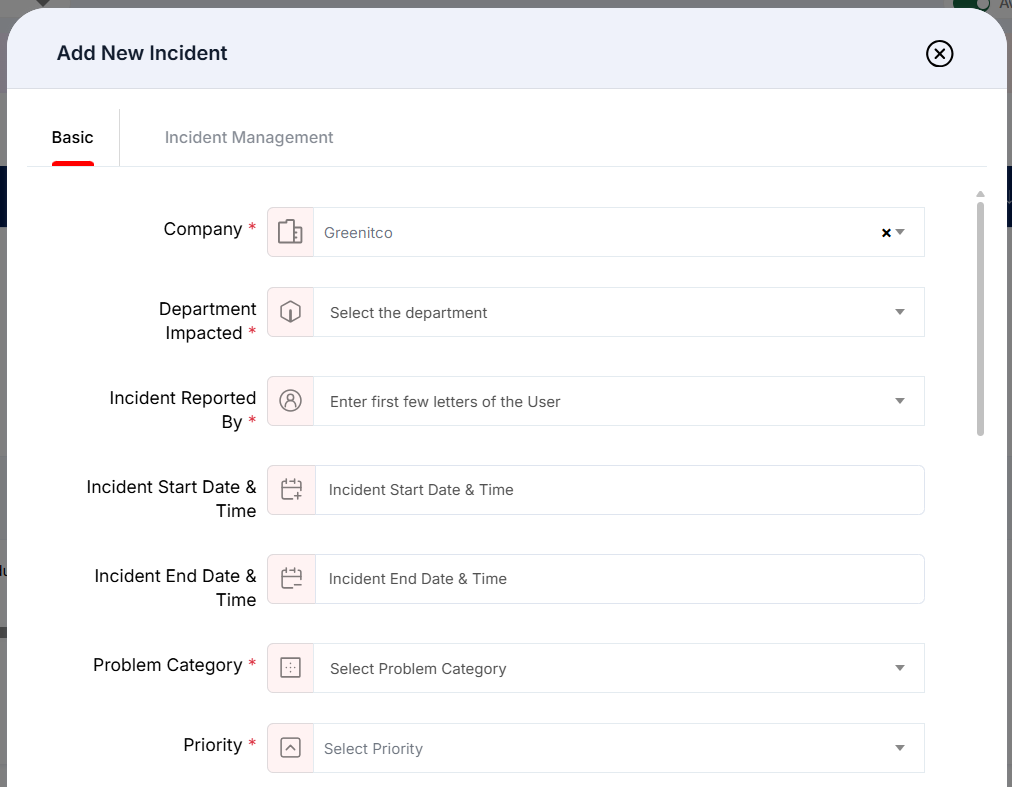
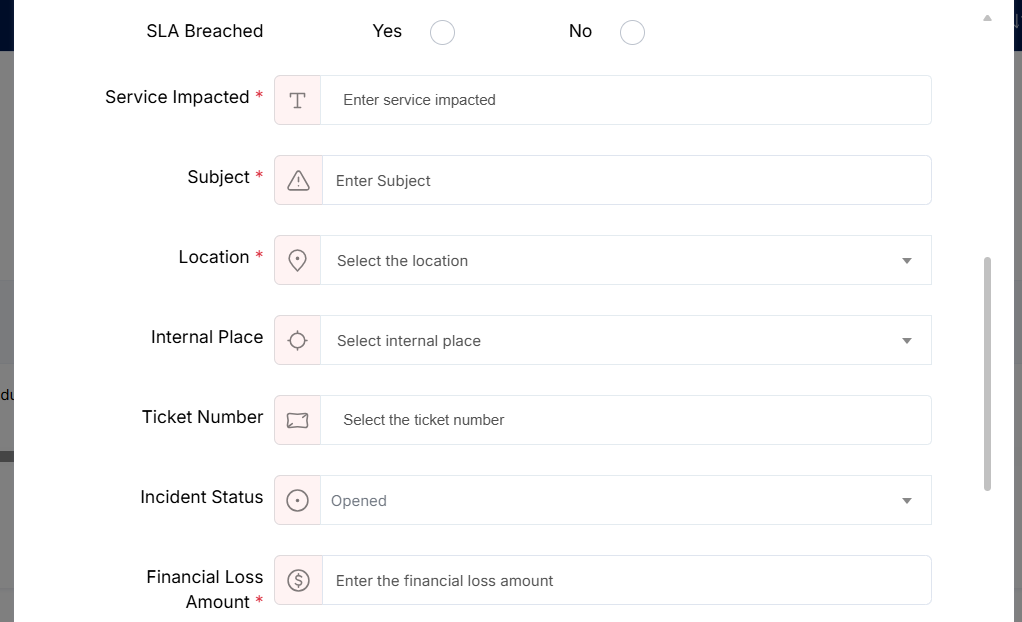
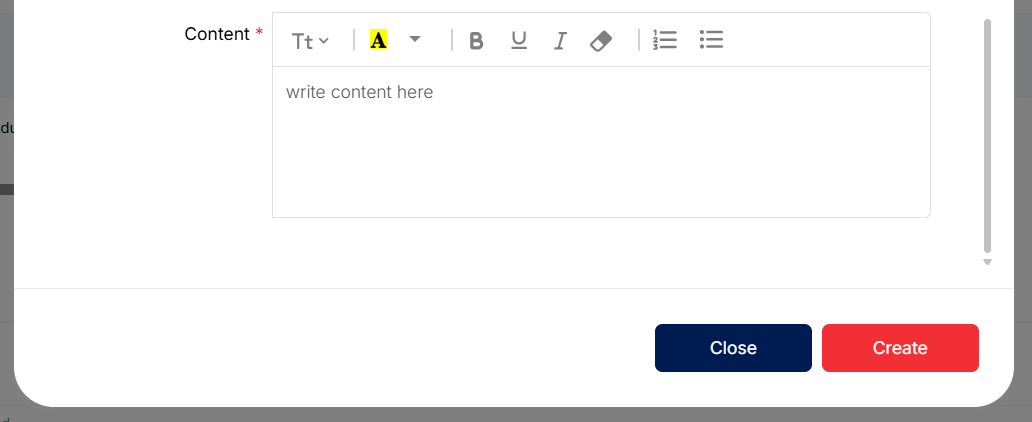
Figure: Add New Incident — Basic details
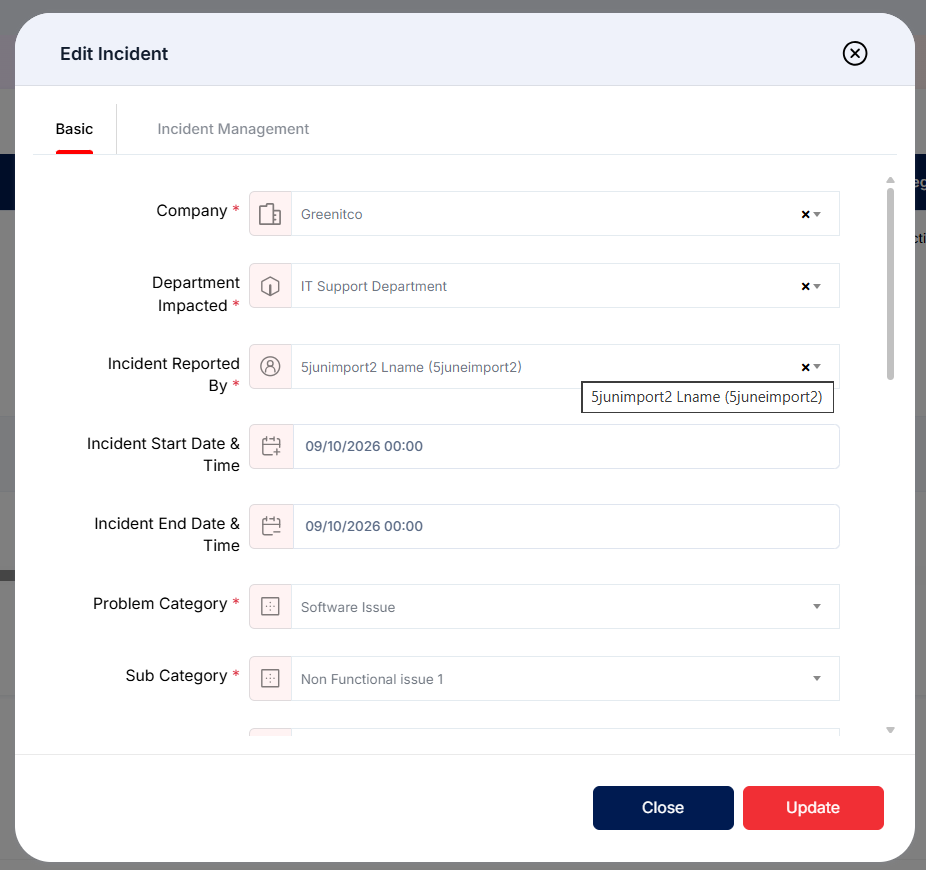
Incident basic details fields
| Field | Description |
|---|---|
| Company* | Company for which the incident is being recorded. |
| Department Impacted* | Department affected by the incident. Departments are configured under Header > Config > Departments. |
| Incident Reported By* | User who reported the incident. |
| Incident Start Date & Time / End Date & Time | The date and time the incident started and ended, if known. |
| Problem Category* / Priority* | The problem category (configured under Sidebar > Ticket > Problem Category) and the priority used to classify the incident. |
| SLA Breached | Indicates whether the incident breached an SLA. |
| Service Impacted* / Subject* | The service affected by the incident, and a short title used to identify it. |
| Location* / Internal Place | Location and more specific internal place associated with the incident. |
| Ticket Number | Related ticket reference, if applicable. |
| Incident Status | The current status of the incident: Opened or Closed. |
| Financial Loss Amount* / Man Hour Loss* | Estimated financial loss and effort lost on the incident. |
| Content* | Detailed incident description or supporting notes. |
Completing Incident Management Details
Use the Incident Management tab to record the analysis and actions associated with the incident.
Step 1 → Open the Incident Management tab in the incident form.
Step 2 → Enter the Root Cause Analysis (RCA) and explain why the incident happened.
Step 3 → Record the preventive measures taken to reduce the likelihood of recurrence.
Step 4 → Click Save to store the incident.
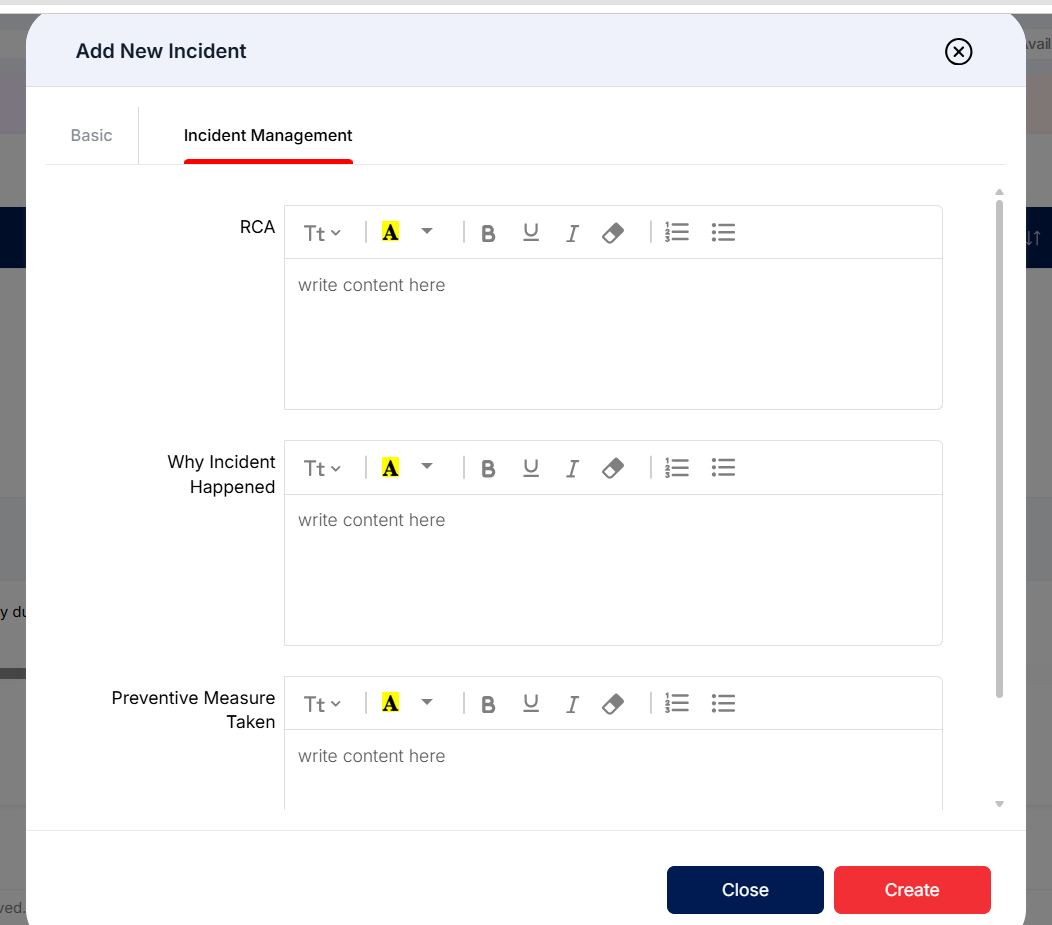
Figure: Add New Incident — Incident Management tab
Incident management fields
| Field | Description |
|---|---|
| RCA | Root cause analysis for the incident. |
| Why Incident Happened | Explanation of the circumstances or causes that led to the incident. |
| Preventive Measure Taken | Actions taken or planned to help prevent recurrence. |
Filtering Incidents
Step 1 → On the Ticket Incident list, click Filter.
Step 2 → Select one or more criteria, such as RCA status, Status, Priority, Department, Problem Category, Sub Category, Creator, or SLA Breached.
Step 3 → Click Apply Filter to view matching incidents. Use Clear to remove selected criteria and return to the broader list.
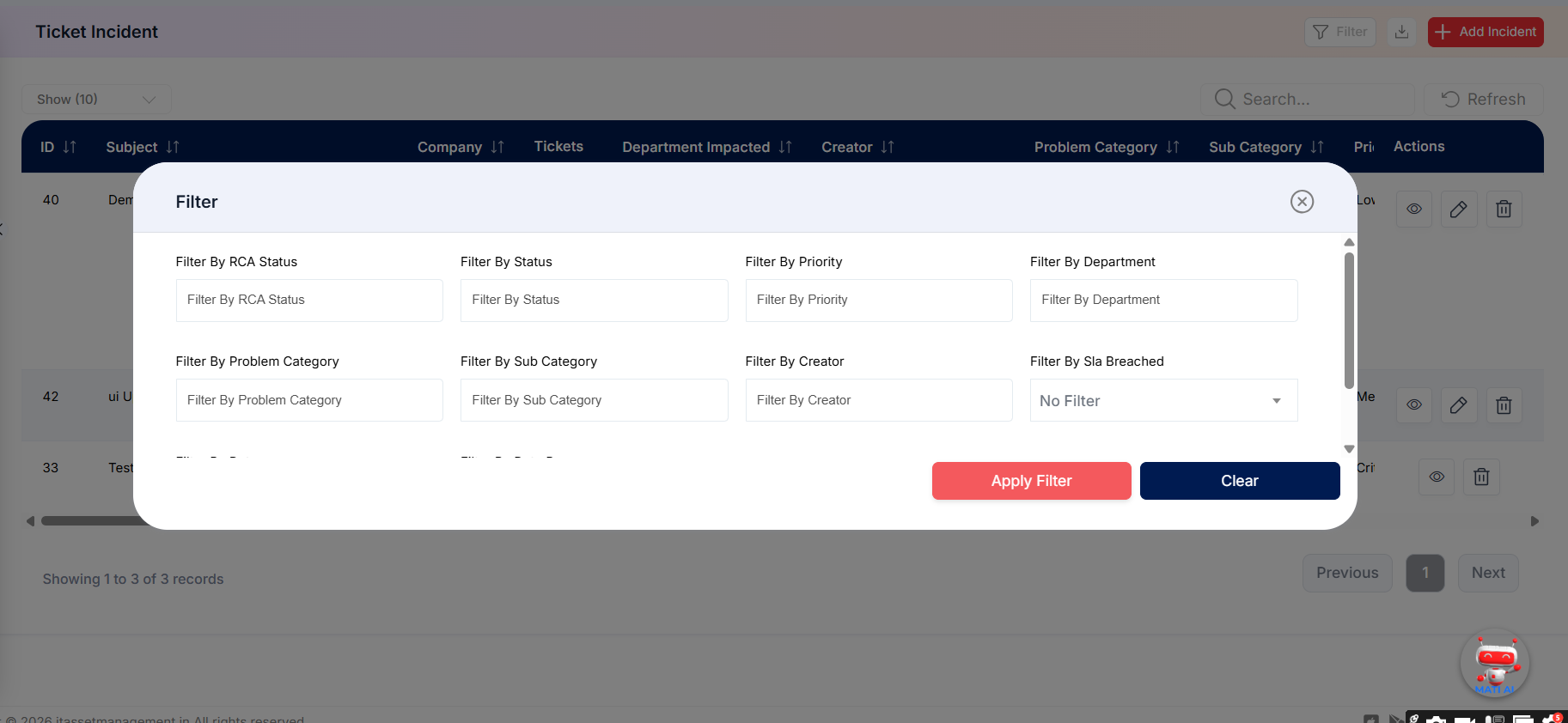
Figure: Ticket Incident filter options
Incident filter options shown
| Filter | Purpose |
|---|---|
| RCA Status | Narrow the list by RCA status. |
| Status | Filter by incident status. |
| Priority | Filter incidents by priority. |
| Department | Show incidents associated with a selected department. |
| Problem Category / Sub Category | Filter by problem category and subcategory. |
| Creator | Show incidents created by a selected user. |
| SLA Breached | Filter incidents according to the SLA-breach setting. |
Viewing Incident Details
Select the View action for an incident to inspect its recorded details, impact, linked tickets, and incident-management information.
Step 1 → Locate the incident in the list and click its View (eye) icon.
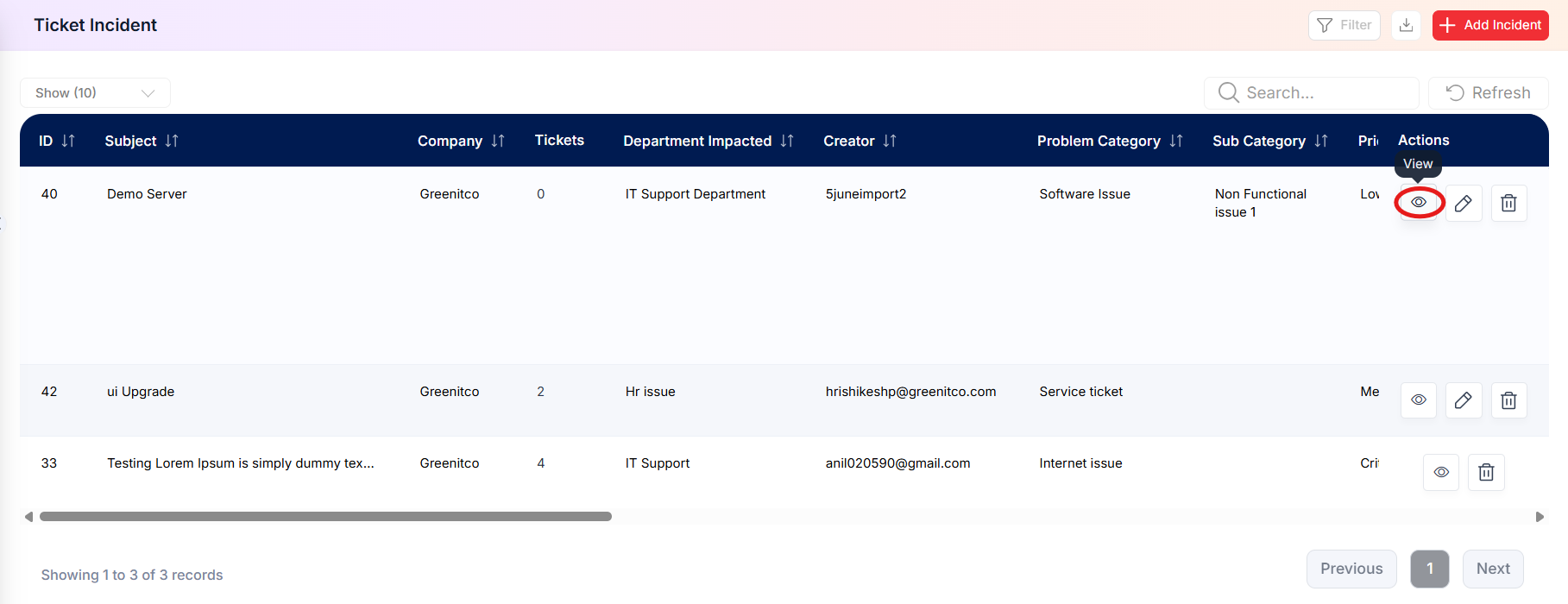 Step 2 → Review the company, ticket references, affected department, creator, priority, location, category, incident dates, service impact, and SLA-breach information.
Step 3 → Review the Content, RCA, Why Incident Happened, and Preventive Measure Taken sections as needed.
Step 4 → Use the print control, if required, to print the displayed incident details.
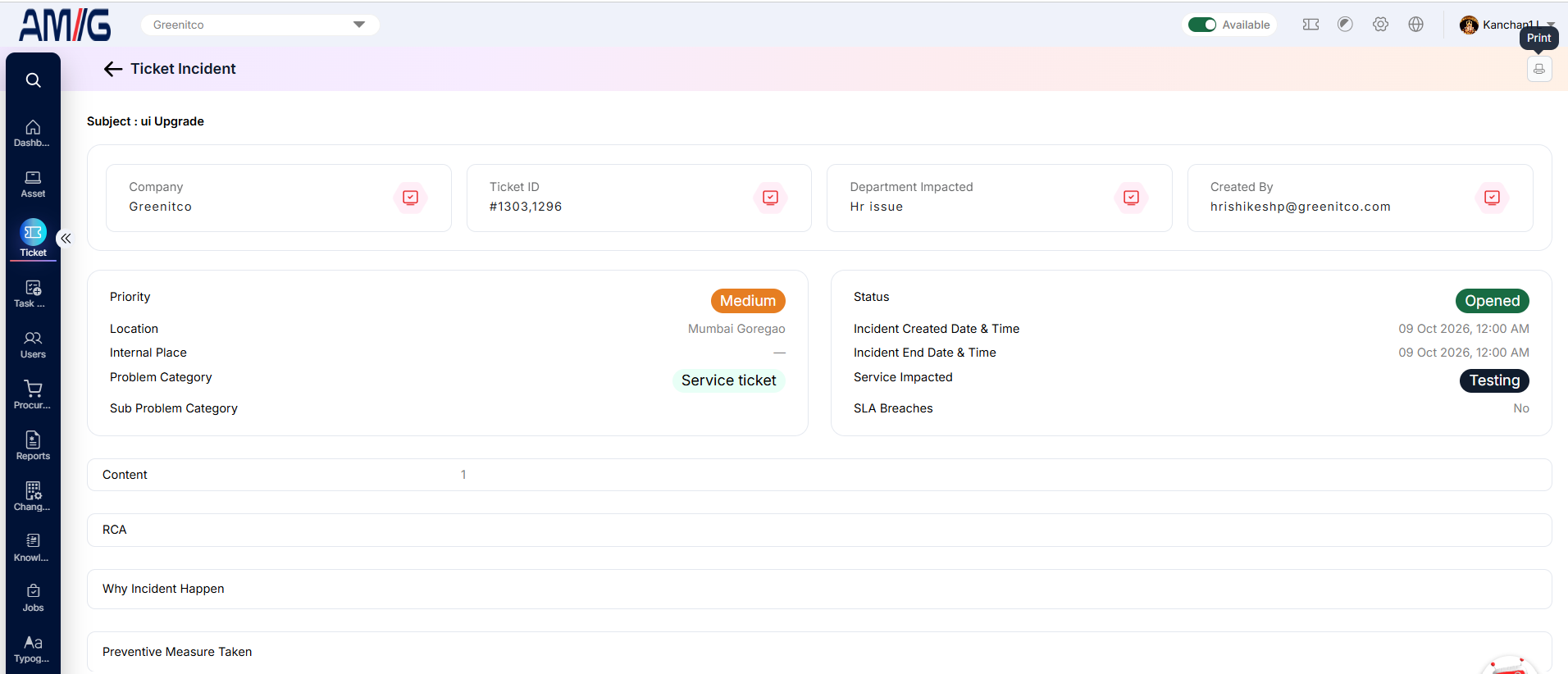
Figure: Ticket Incident details view
Managing Existing Incidents
Edit an incident
Step 1 → Find the incident in the Ticket Incident list and click the Pencil (Edit) icon.
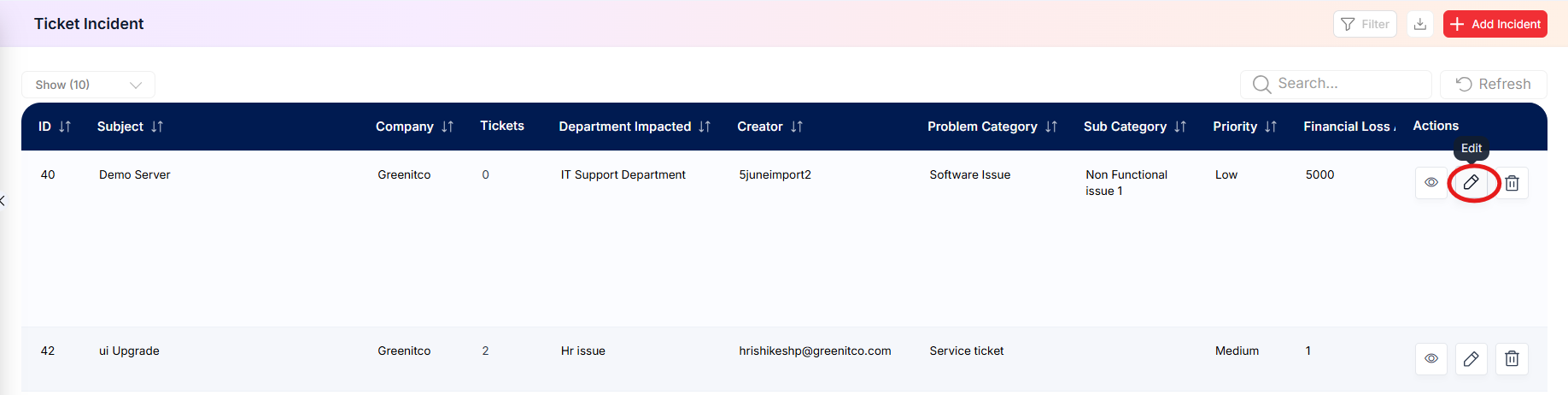 Step 2 → Update the basic or incident-management details as required, then save the changes.
Delete an incident
Step 1 → Locate the incident and click the Trash (Delete) icon in the same row.
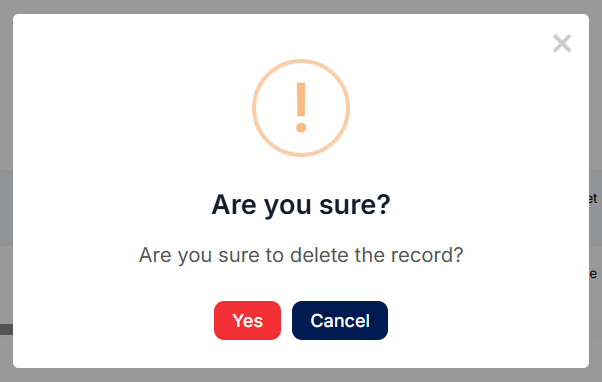
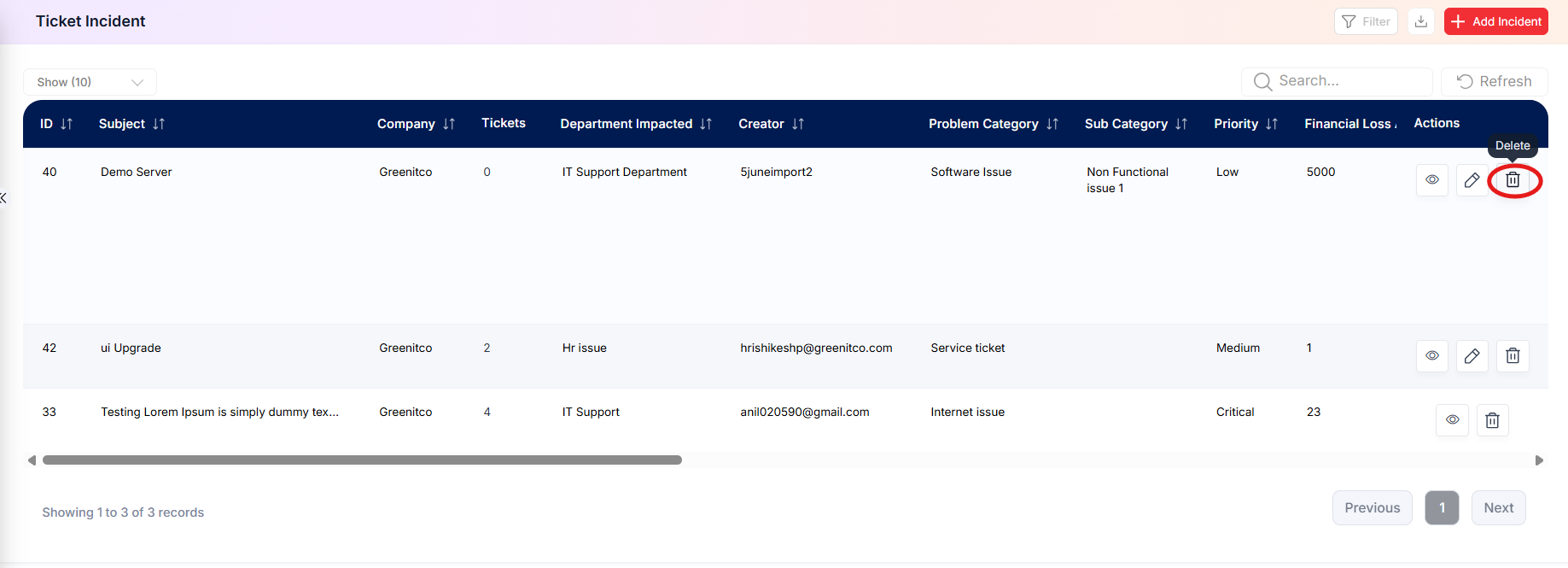 Step 2 → Review the confirmation prompt and confirm deletion only if the record is eligible for removal.