

Introduction
Suppliers are the companies you buy from. A supplier record keeps everything about them in one place: contact details, business categories, bank accounts, PAN numbers, addresses, GSTINs and courier charges. Purchases and procurement records then link back to these suppliers.
| Navigation Path | Header > Config > Suppliers |
Viewing the Suppliers List
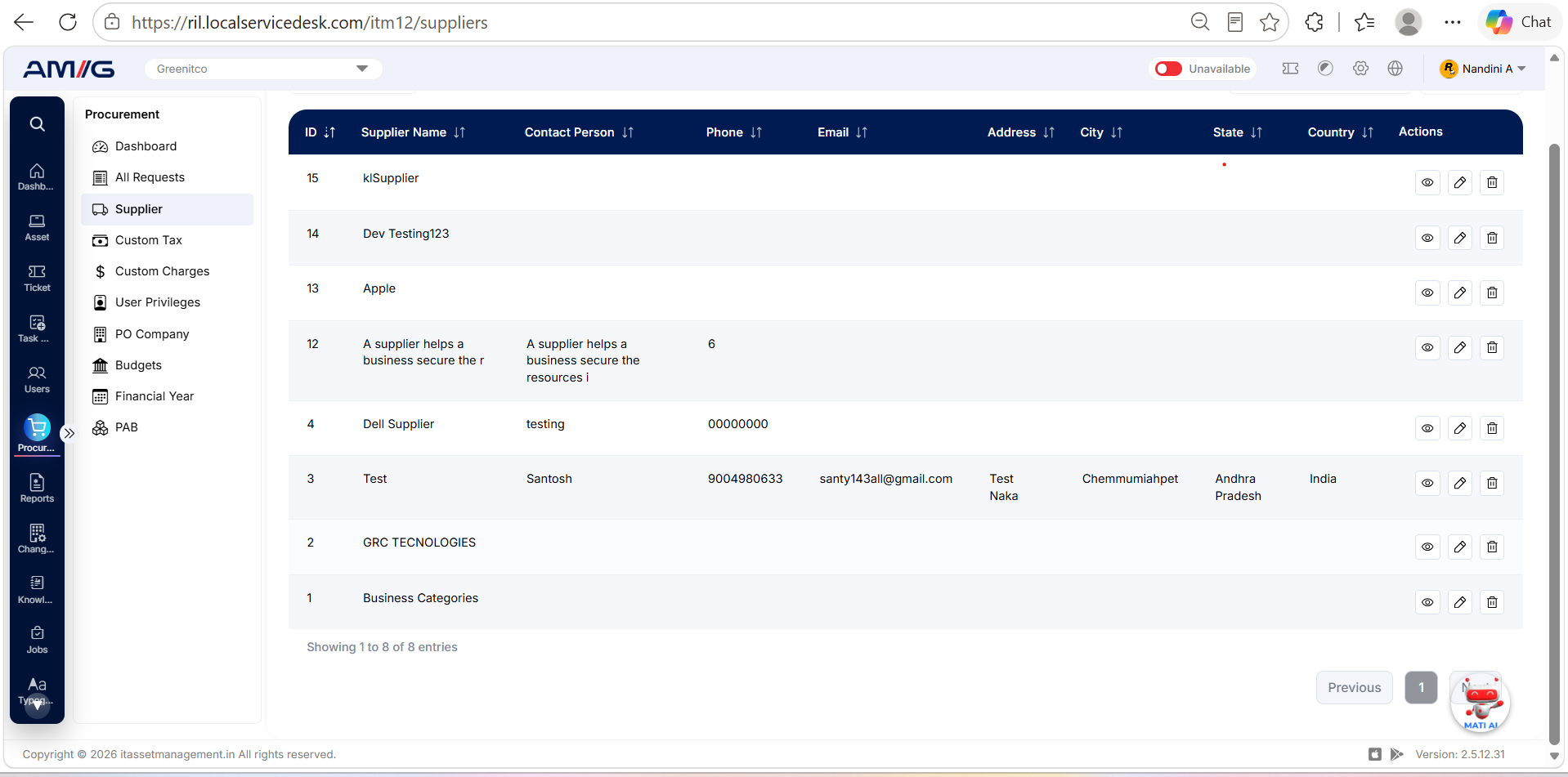
Open Suppliers (from the Header > Config menu) to see every supplier registered in the system.
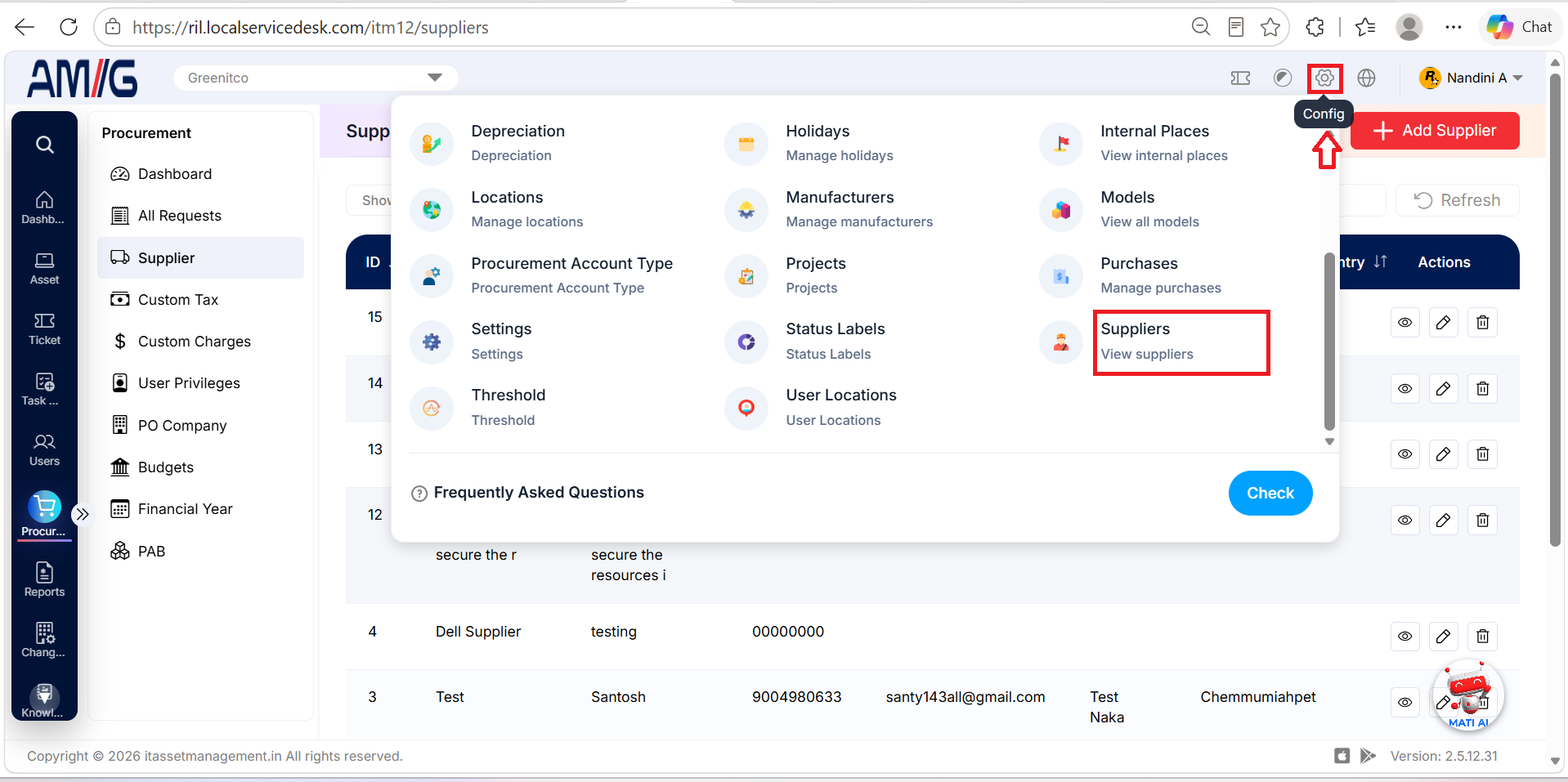
Figure: Suppliers Main Screen
Understanding the Main Screen
Table: Suppliers main screen elements | Area / Field | Description | | --- | --- | | Show entries | Choose how many suppliers you see on one page. | | Search | Type here to find a supplier quickly. | | Refresh | Reloads the list. | | Export | Small icons in the toolbar let you download (export) the list and use other list tools. | | Add Supplier | Click the red + Add Supplier button to create a new supplier. |
Creating a New Supplier
Start by creating the supplier's basic profile. Once it is saved, you can add their bank accounts, tax numbers, addresses and courier details from the supplier's own page.
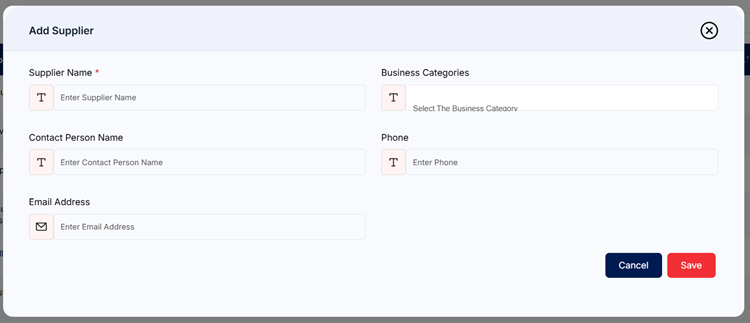
Figure: Add Supplier Form
Table: Add Supplier fields
| Field | Mandatory | Description |
|---|---|---|
| Supplier Name | Yes | Enter the supplier's business name. |
| Business Categories | No | Choose what the supplier provides. You can pick an existing category from the dropdown, or type a new one and select it. New categories are saved for future entries. |
| Contact Person Name | No | Enter the name of your main contact there. |
| Phone | No | Enter the supplier's phone number. |
| Email Address | No | Enter the supplier's email address. |
How to create a supplier:
Step 1: On the Suppliers screen, click the red + Add Supplier button.
Step 2: Enter the Supplier Name and whatever contact details you have.
Step 3: Choose a Business Category if it applies.
Step 4: Click Save. To close without saving, click Cancel or the X icon.
Step 5: Click the View (eye) icon on the new supplier to add bank accounts, PAN, addresses, GSTIN and courier details (see Sections 2.16.4 to 2.16.9).
Viewing Supplier Information
Click the View (eye) icon on any supplier to open its information screen. The Basic Info tab gives you a summary, and the other tabs hold the rest of the supplier's details. The icons in the top right corner of this screen, such as Edit and Delete, let you manage the supplier without going back to the list.
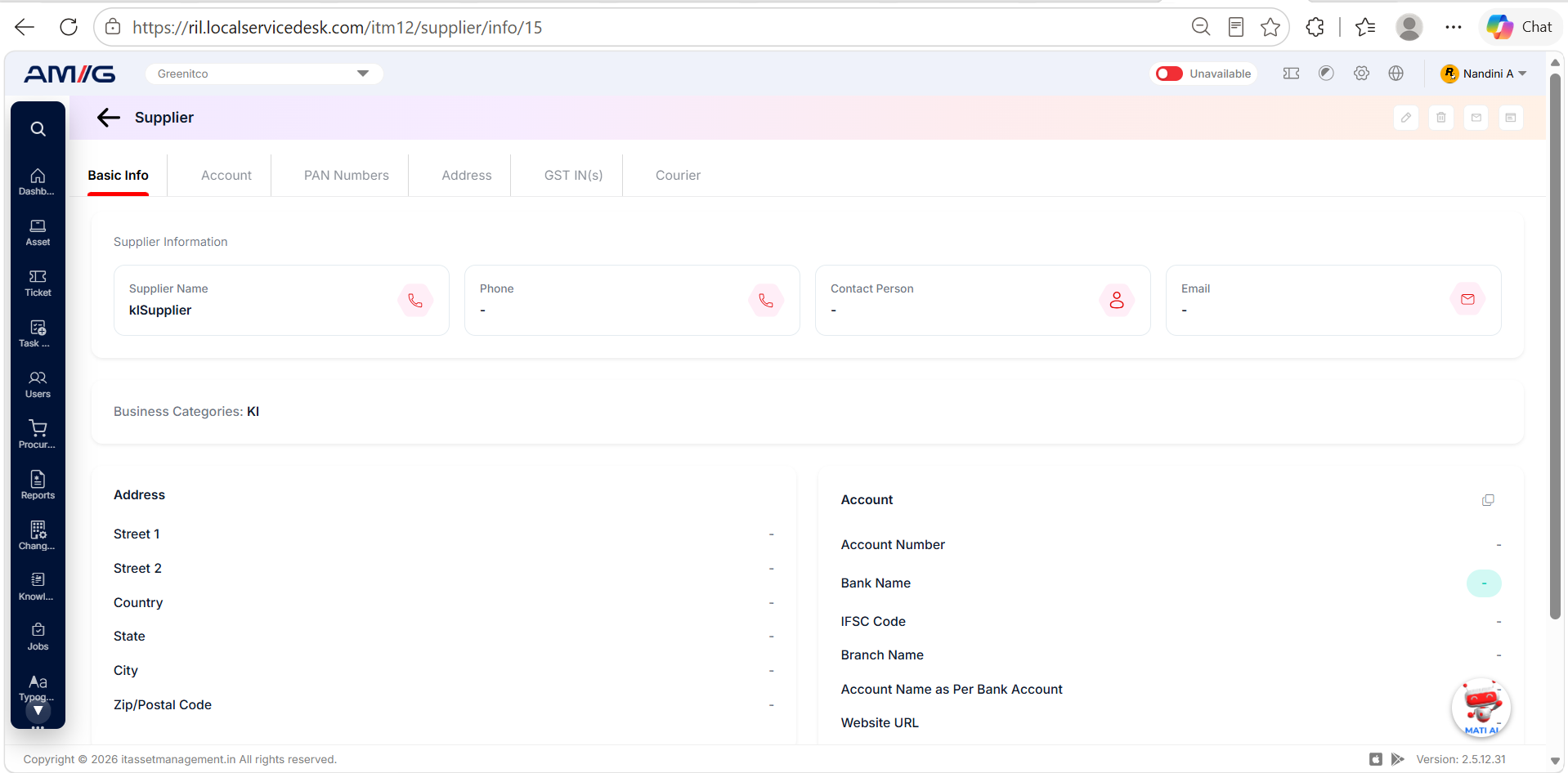
Figure: Supplier Information Screen
Table: Supplier detail tabs
| Tab | Purpose |
|---|---|
| Basic Info | Who the supplier is: contact details, business categories and a summary. |
| Account | The supplier's bank accounts. |
| PAN Numbers | The supplier's PAN records. |
| Address | The supplier's addresses. |
| GST IN(s) | The supplier's GST identification numbers. |
| Courier | Courier charges, insurance and tax settings for this supplier. |
Managing Supplier Account Details
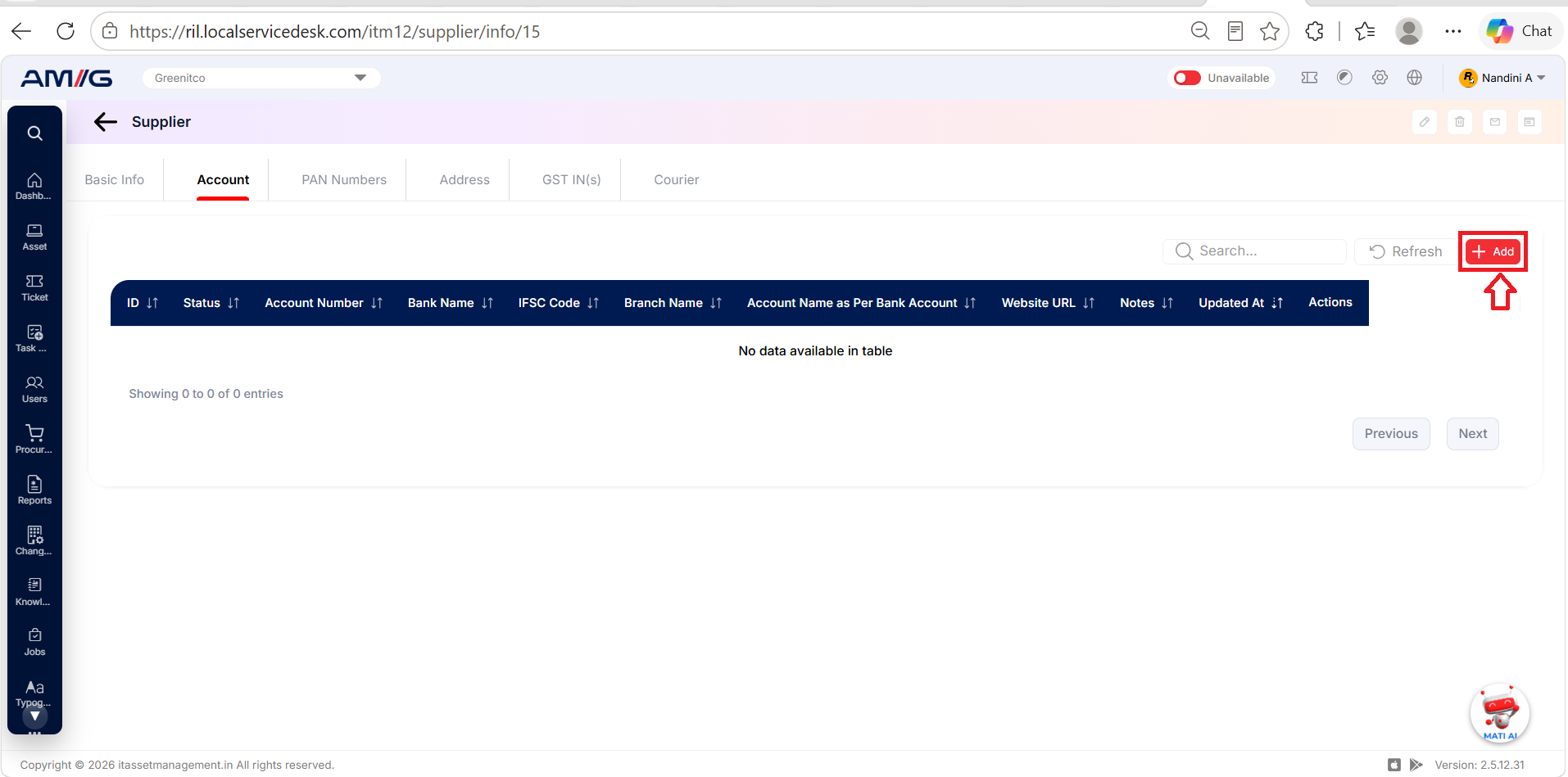
The Account tab lists the supplier's bank accounts. You can search the list, refresh it, or click Add to add a new account.
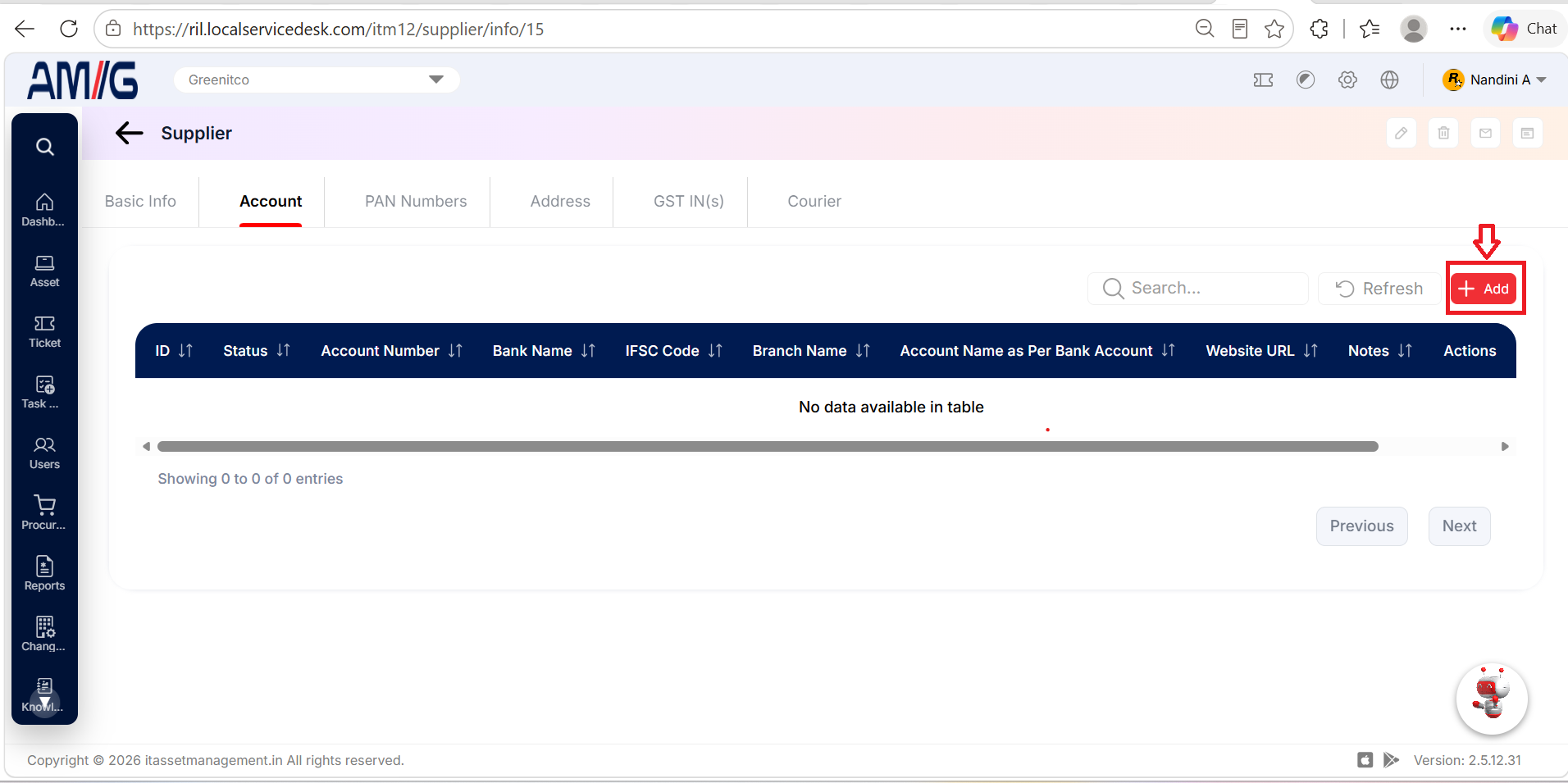
Figure: Supplier Account Tab
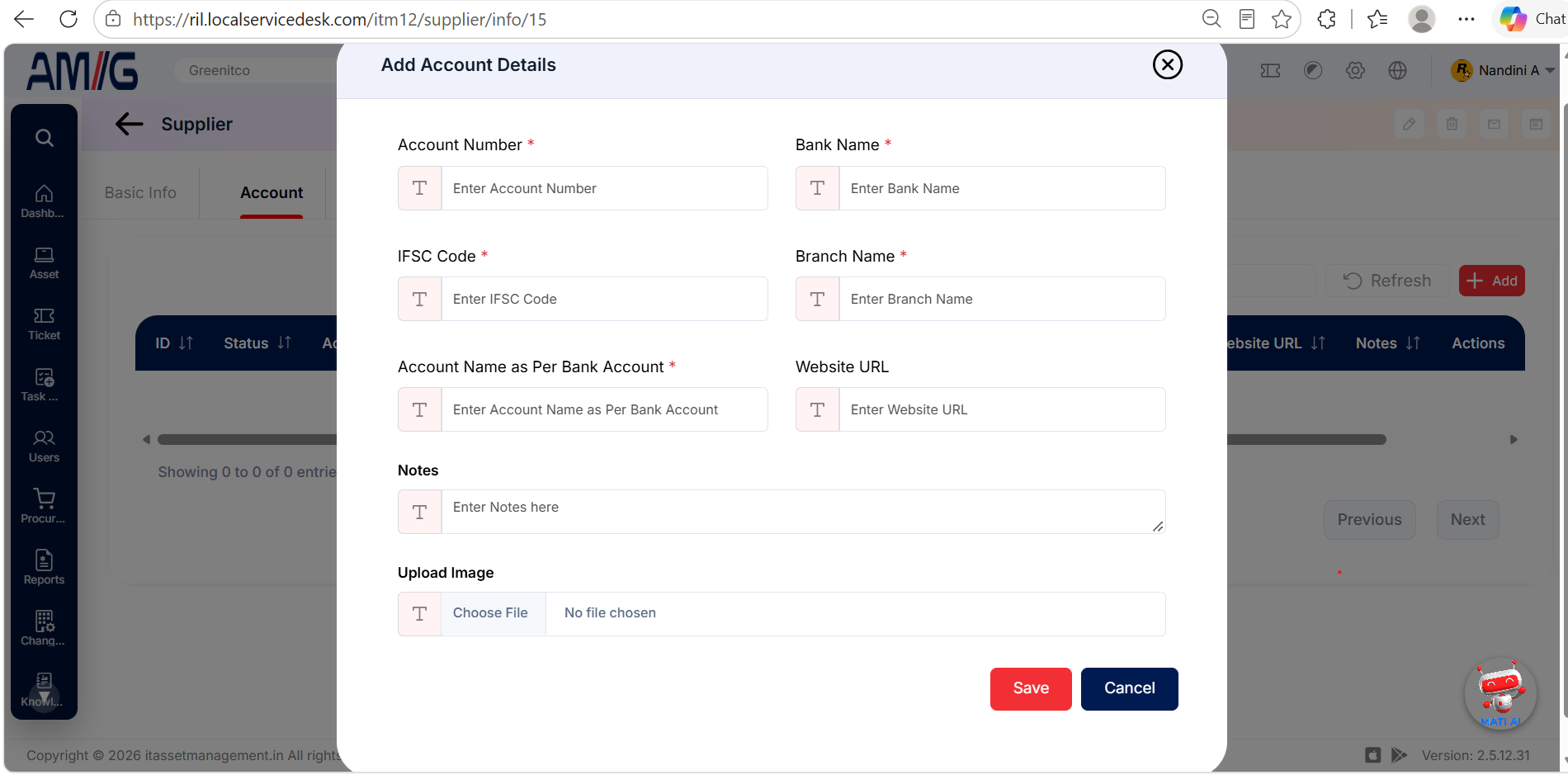
Figure: Add Account Details Form
Table: Account details fields
| Field | Mandatory | Description |
|---|---|---|
| Account Number | Yes | Enter the supplier's bank account number. |
| Bank Name | Yes | Enter the name of the bank. |
| IFSC Code | Yes | Enter the branch's IFSC code. |
| Branch Name | Yes | Enter the branch name. |
| Account Name as Per Bank Account | Yes | Enter the account holder's name exactly as the bank has it. This helps avoid payment problems. |
| Website URL | No | Enter a related website, if there is one. |
| Notes | No | Add any extra information about the account. |
| Upload Image | No | Upload an image related to the account, if needed. |
How to add account details:
Step 1: Open the supplier and select the Account tab.
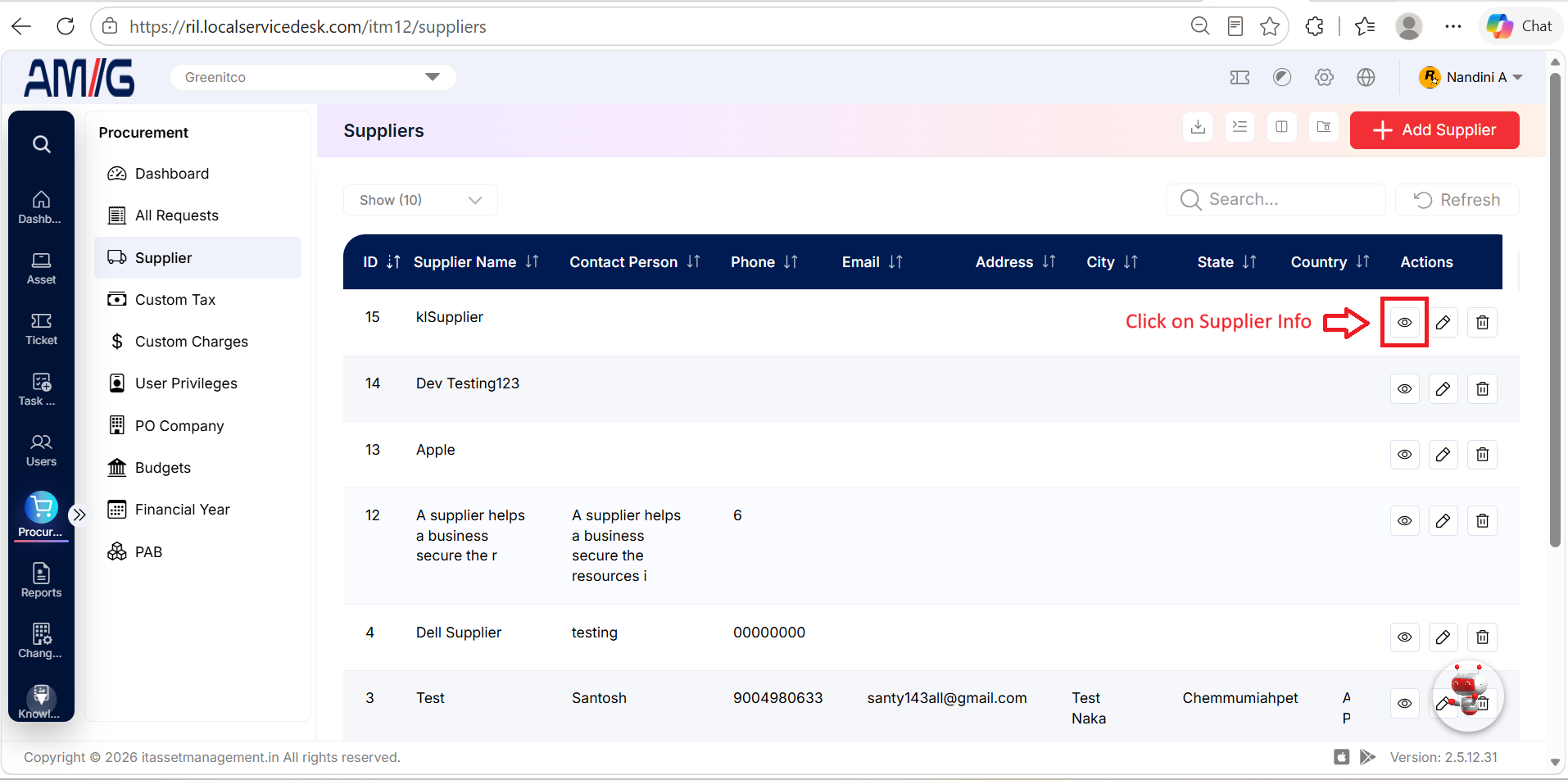
Step 2: Click Add and fill in the required bank details.
Step 3: Add a website, notes or an image if you like.
Step 4: Click Save. The account now appears in the list.
Tip: Double-check the account number and IFSC code before saving. A small typo here could send a payment to the wrong account.
Managing PAN Numbers
The PAN Numbers tab holds the supplier's PAN (Permanent Account Number) details.
Figure: Supplier PAN Numbers Tab
Table: PAN field
| Field | Mandatory | Description |
|---|---|---|
| PAN | Yes | Enter the supplier's 10-character PAN. |
To add a PAN number, follow these steps:
Step 1: Open the supplier and select the PAN Numbers tab.
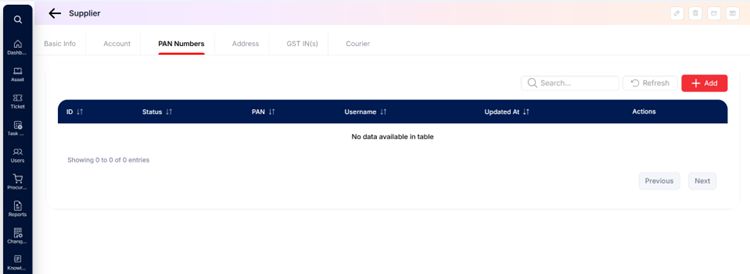
Step 2: Click Add.
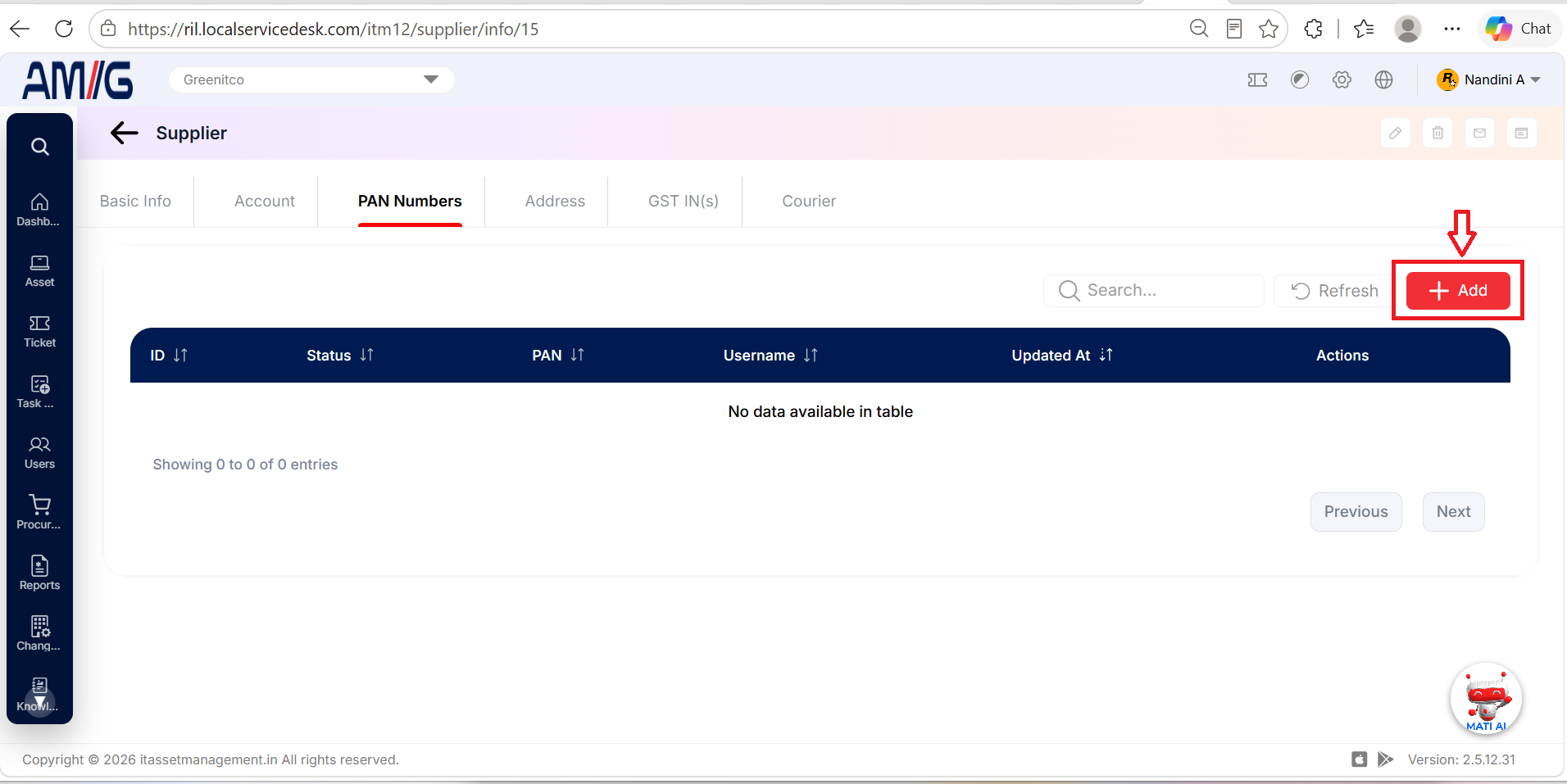
Step 3: Enter the PAN and click Save. (Click Cancel to close without saving.)
Managing Supplier Addresses
The Address tab holds the supplier's addresses. A supplier can have more than one, for example a head office and a warehouse.
Figure: Add Address Details Form
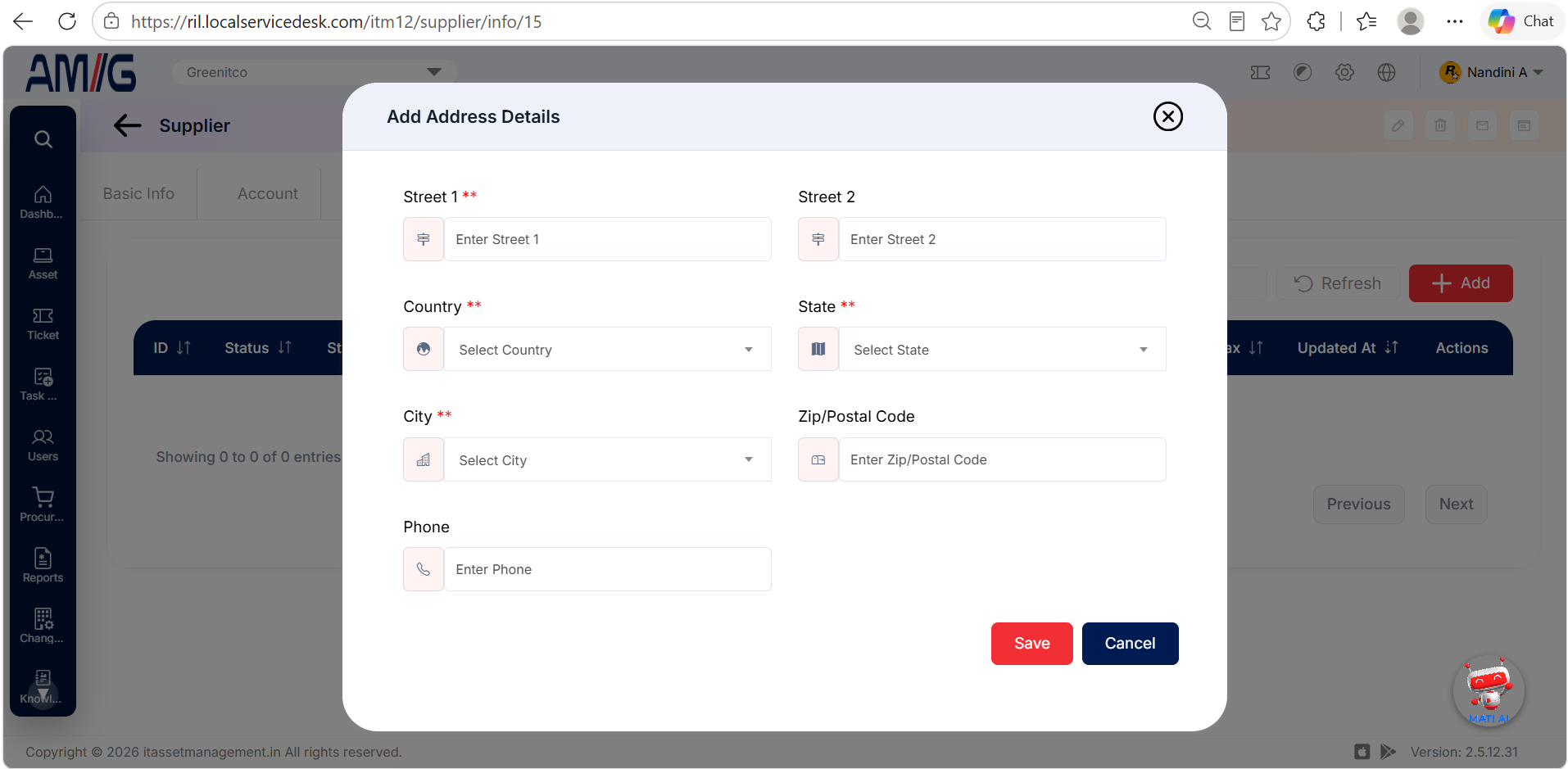
Table: Address fields
| Field | Mandatory | Description |
|---|---|---|
| Street 1 | Yes | Enter the main street address. |
| Street 2 | No | Add extra address details, such as a building name. |
| Country | Yes | Choose the country. |
| State | Yes | Choose the state. |
| City | Yes | Choose the city. |
| Zip/Postal Code | No | Enter the postal code. |
| Phone | No | Enter a phone number for this address. |
To add a supplier address, follow these steps:
Step 1: Open the supplier and select the Address tab.
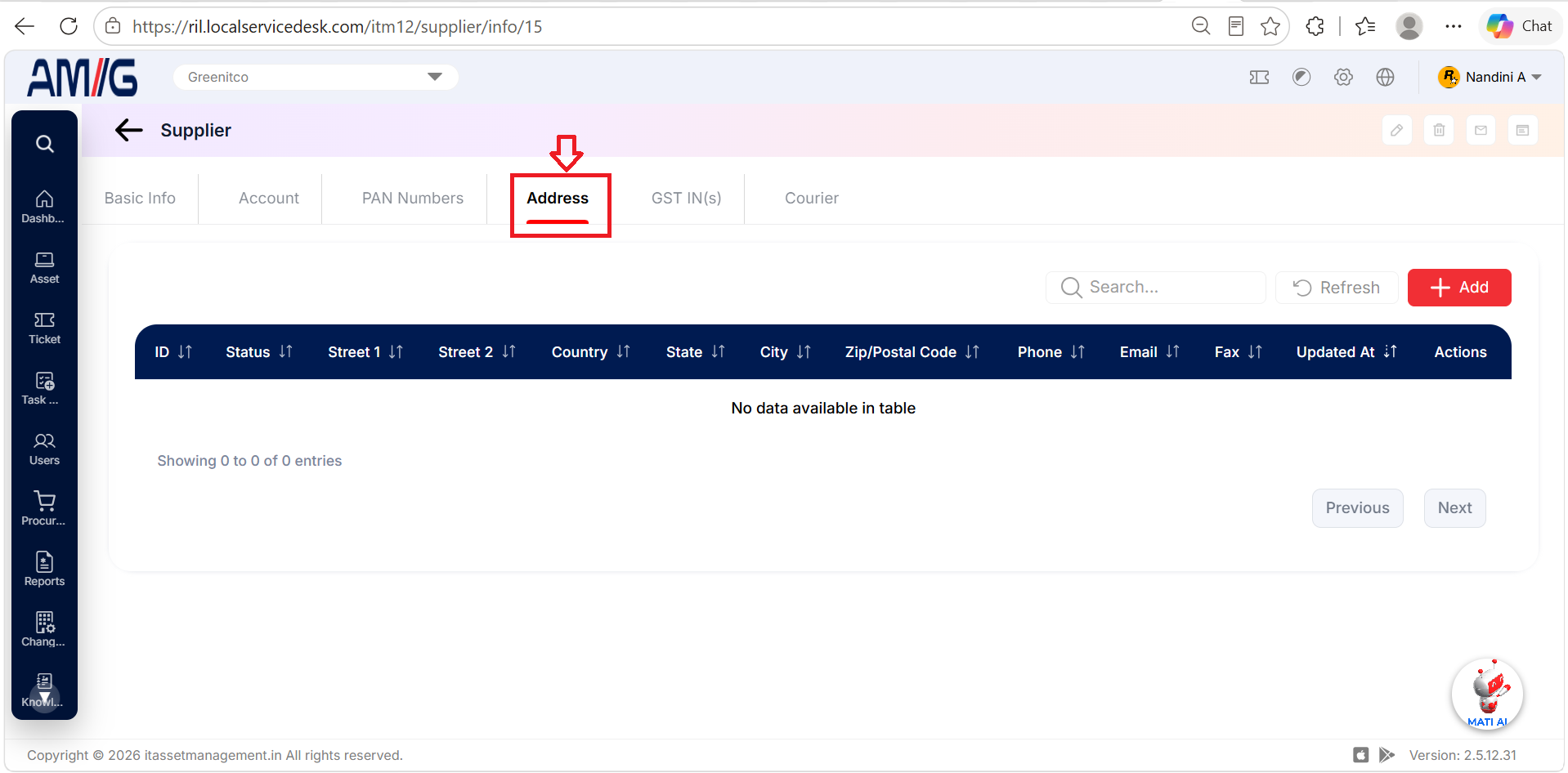
Step 2: Click Add.
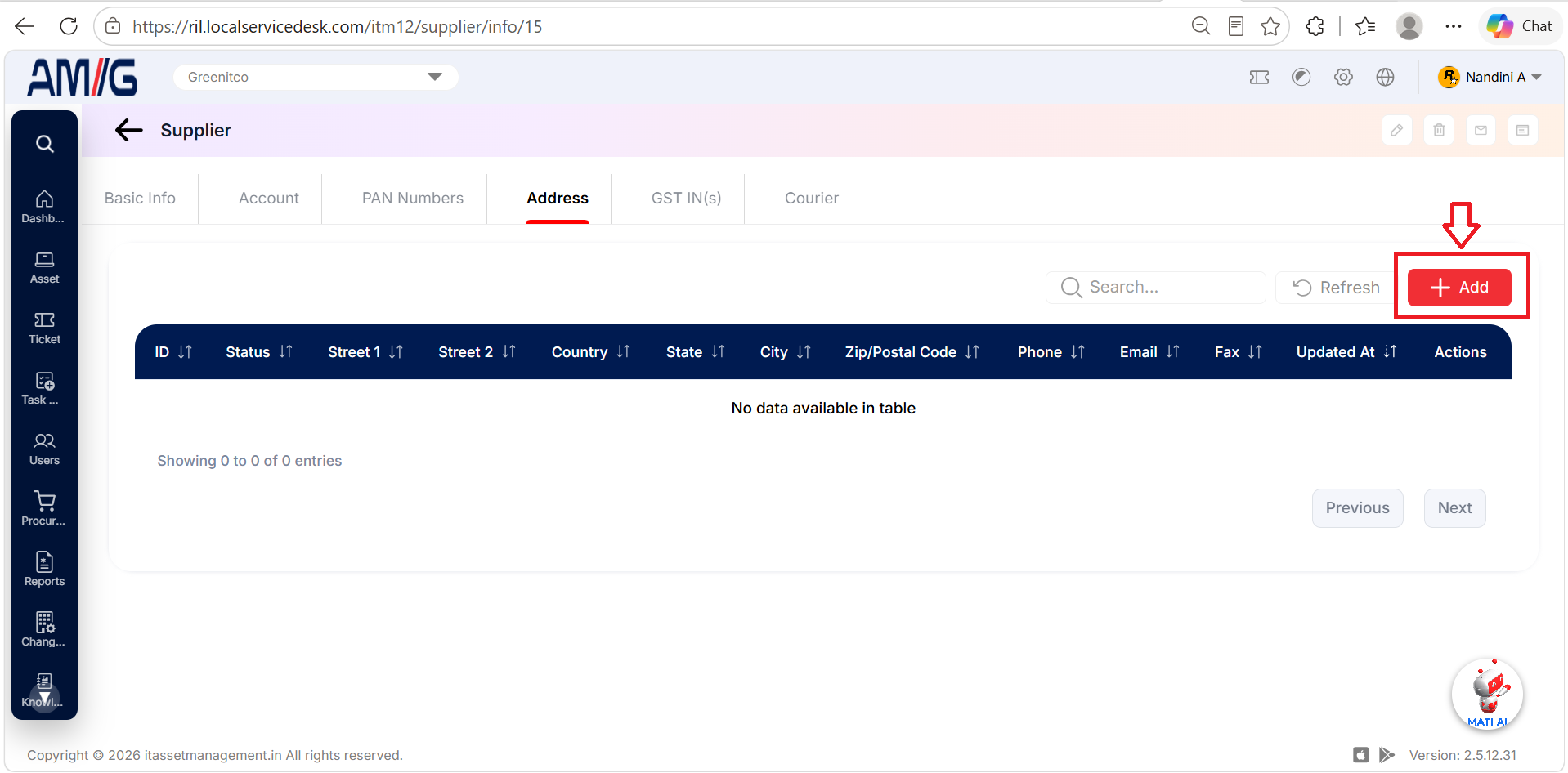
Step 3: Fill in the street address and choose the Country, State and City. Add the postal code and phone number if you have them.
Step 4: Click Save.
Managing GSTIN Details
The GST IN(s) tab holds the supplier's GST identification numbers. You can add more than one, for example if the supplier is registered in several states.
Table 2.16.7: GSTIN field
| Field | Mandatory | Description |
|---|---|---|
| GSTIN | Yes | Enter the supplier's 15-character GSTIN. |
To add a GSTIN, follow these steps:
Step 1: Open the supplier and select the GST IN(s) tab.
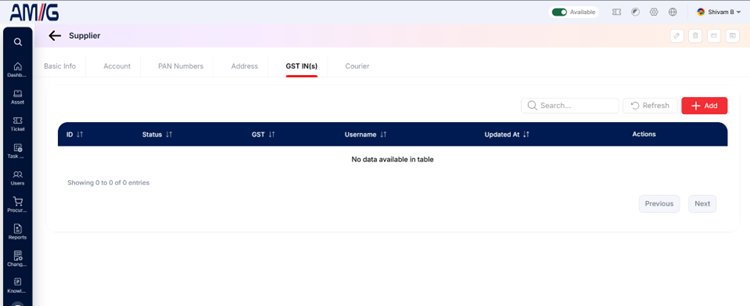
Step 2: Click Add.
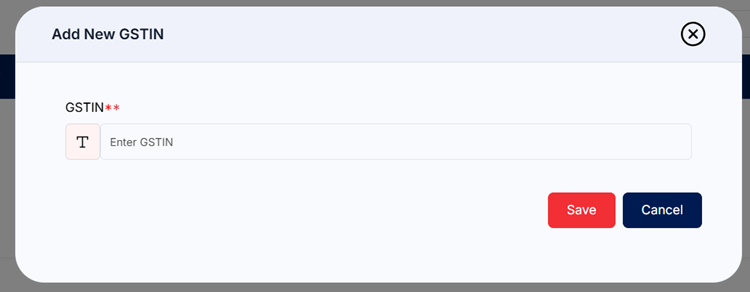
Step 3: Enter the GSTIN and click Save. (Click Cancel to close without saving.)
Managing Courier Configuration
The Courier tab is where you record what this supplier charges for courier services. The settings are split into three parts: Basic Details, Insurance and Taxation. Open the part you need, update it and save. This configuration is also used as the master for the Mailroom module, where the supplier's rates are used to calculate parcel charges.
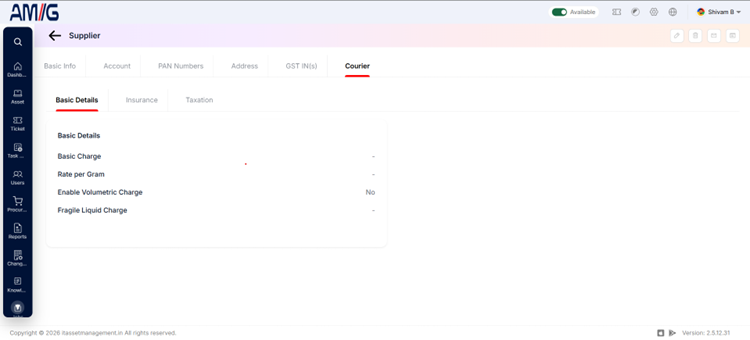
Figure: Supplier Courier Tab
Basic Details
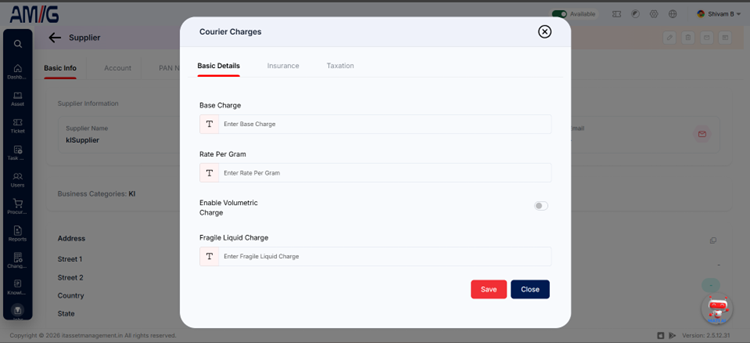
Figure: Courier Charges — Basic Details Form
Table: Courier basic details fields
| Field | Description |
|---|---|
| Base Charge | The starting (fixed) charge for each shipment. |
| Rate Per Gram | The extra charge for each gram of weight. |
| Enable Volumetric Charge | Switch this on if the supplier also charges by package size (volume), not just weight. |
| Fragile Liquid Charge | The extra charge for fragile or liquid items. |
To set this up: open the Courier Charges form, choose Basic Details, enter the charges, switch volumetric charging on or off, and click Save.
Insurance
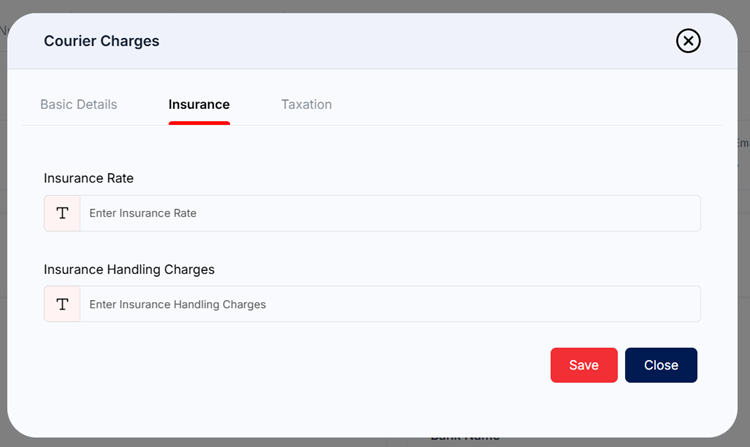
Figure: Courier Charges — Insurance Form
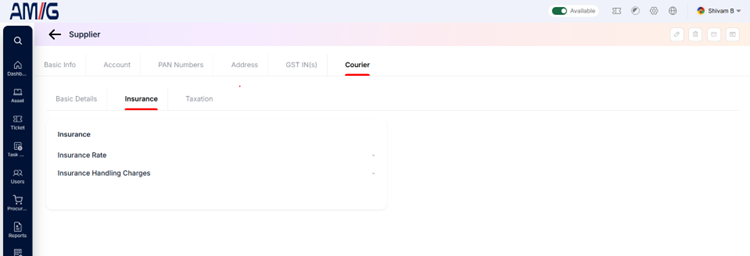
Figure: Supplier Courier Insurance Details View
Table: Courier insurance fields
| Field | Description |
|---|---|
| Insurance Rate | The insurance rate (%) the supplier charges, calculated on the value of the parcel. |
| Insurance Handling Charges | Any extra handling fee for insured shipments. |
To set this up: open Courier Charges, choose Insurance, enter the Insurance Rate and Insurance Handling Charges, and click Save.
Taxation
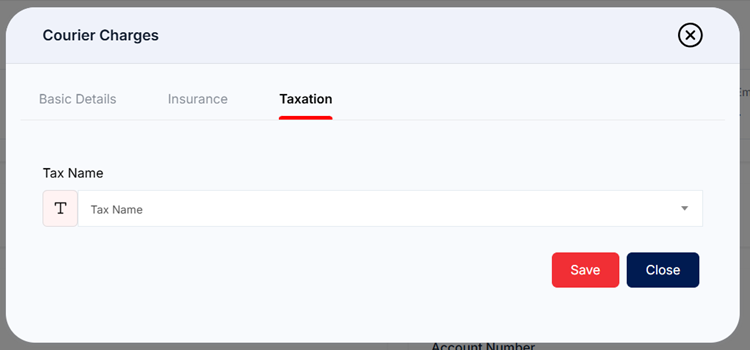
Figure: Courier Charges — Taxation Form
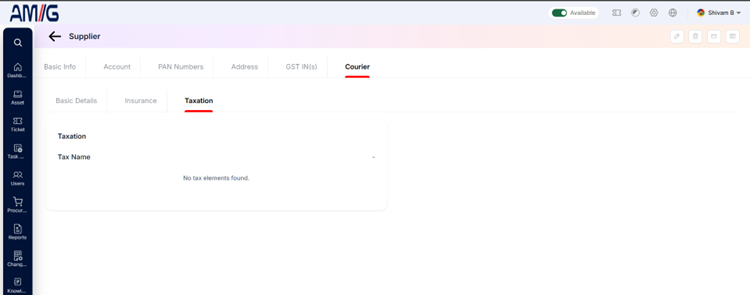
Figure: Supplier Courier Taxation View
Table: Courier taxation field
| Field | Description |
|---|---|
| Tax Name | Choose the tax that applies to courier charges. Taxes are set up under Header > Config > Custom Tax. |
To set this up: open Courier Charges, choose Taxation, pick the Tax Name and click Save. If you see "No tax elements found", the chosen tax has no tax elements yet. You can add them under Header > Config > Custom Tax (see Section 2.8).
Managing Existing Suppliers
You can manage suppliers from the Suppliers list using the icons in the Actions column. Inside a supplier, each tab has its own Add button for adding more details.
View a supplier
Step 1: On the Suppliers screen, locate the supplier and open its information screen.
Step 2: Select the relevant tab to review the supplier details.
Edit a supplier
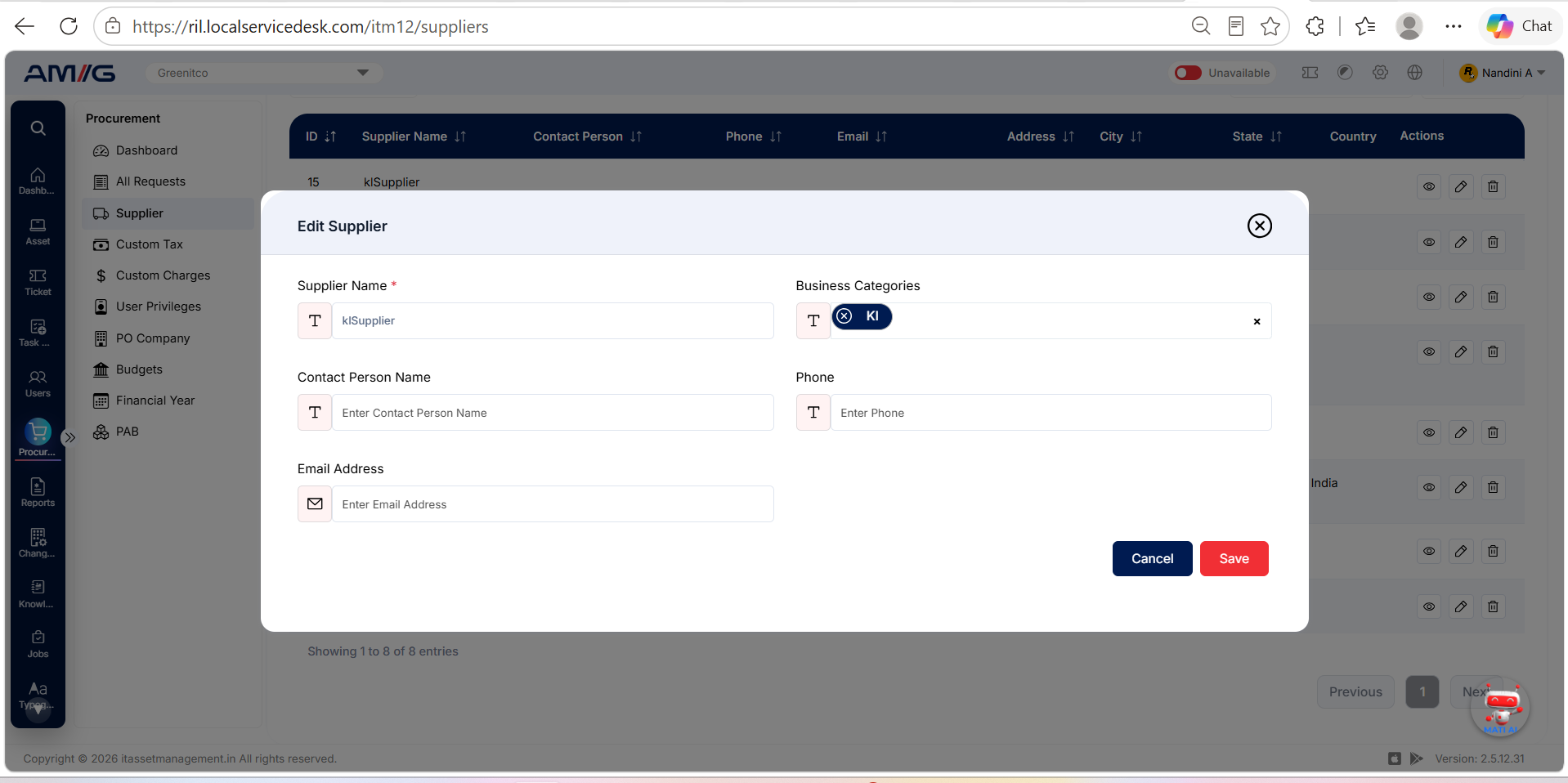
Step 1: On the Suppliers screen, locate the supplier and click the Pencil (Edit) icon.
Step 2: Update the supplier basic details.
Step 3: Click Save to apply the changes.
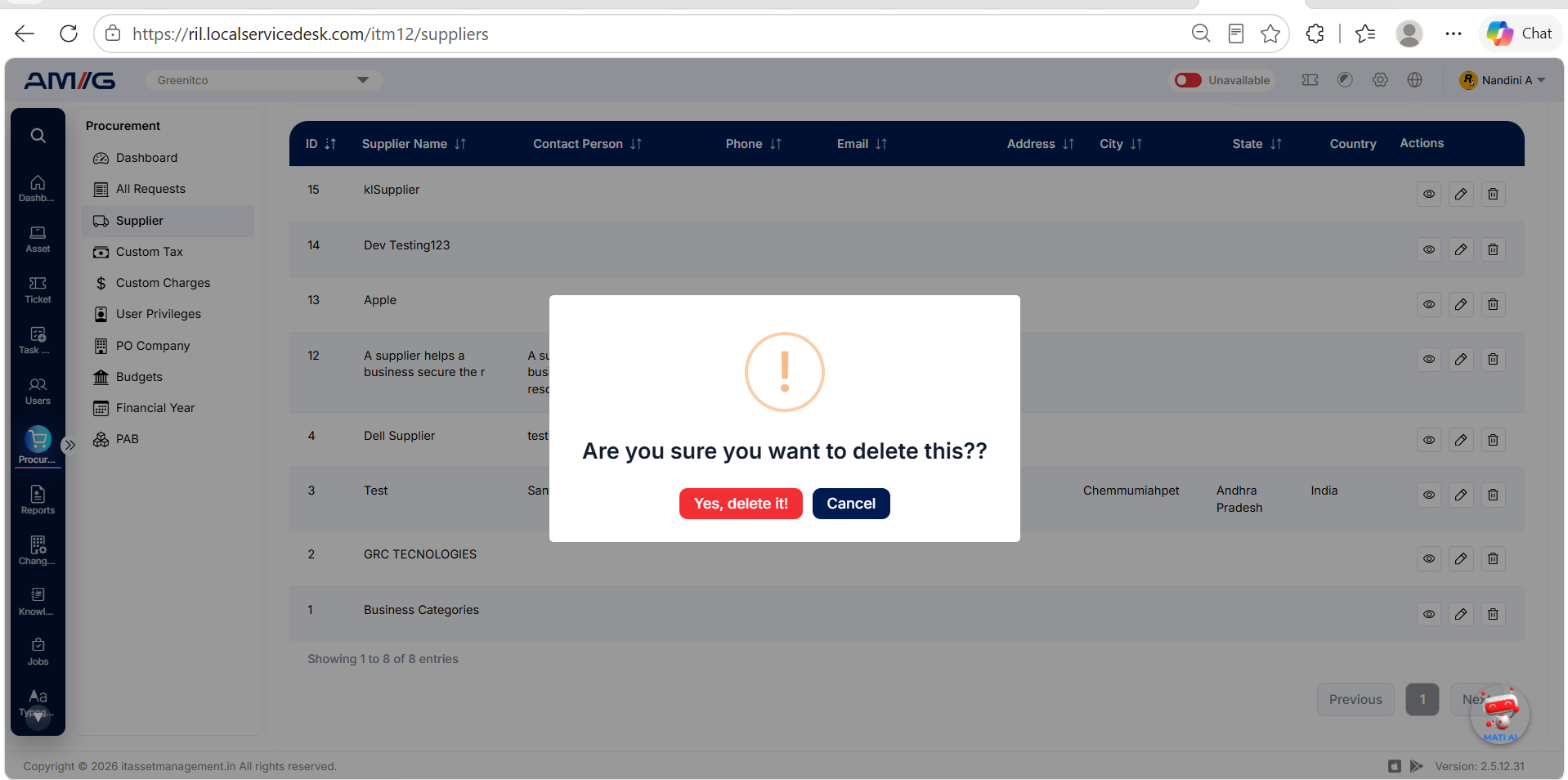
Delete a supplier
Step 1: Check whether any purchases or procurement records still refer to the supplier.
Step 2: Locate the supplier and click the Trash Can (Delete) icon.
Step 3: Review the confirmation prompt and confirm the deletion.
Add details in a supplier tab
Step 1: Open the supplier information screen and select the required detail tab.
Step 2: Click Add in that tab to create a bank account, PAN, address, GSTIN, or courier setting.
Step 3: Complete the form and save the new details.
Important: Before deleting a supplier, check whether any purchases or procurement records still refer to it.## Introduction
Supplier Information
Each supplier record can contain the following information:
- Company Details: Supplier name and business category.
- Contact Details: Contact person's information, phone number, and email address.
- Address Details: Registered office address and other relevant addresses.
- Financial Details: Bank account information and other relevant payment details.
- Tax Information: PAN number and GSTIN.
- Mailroom Details: Applicable courier charges and other relevant service information.
Maintaining complete and accurate supplier details helps ensure that the correct information is available across the system.
Where Are Supplier Records Used?
Supplier information is used across different ITM12 modules to support purchasing, procurement, and mailroom operations.
Asset Purchase Reference
The Asset Purchase Reference module helps record the supplier from whom an asset was purchased. Linking a supplier to a purchase reference makes it easier to identify the source of an asset and refer to its purchase details when required.
Navigation Path: Header > Config > Purchase Reference
Procurement
The Procurement module uses supplier information to support purchasing activities. Supplier records are used when inviting suppliers to participate in procurement activities, requesting quotations, and performing other supplier-related operations.
Linking suppliers to procurement activities helps maintain supplier information and keeps purchasing records organised.
Navigation Path: Sidebar > Procurement
Mailroom
The Mailroom module uses supplier records to manage vendors that provide mailroom or courier services. Supplier contact details and addresses help identify the service provider, while configured courier charges can be used to manage applicable courier-related costs.
Navigation Path: Sidebar > Mailroom
Benefits of Supplier Management
Maintaining supplier information in one place offers several benefits:
- Centralised Information: Keeps supplier details organised in a single record.
- Consistent Records: Allows different modules to refer to the same supplier information.
- Purchase Tracking: Helps identify the supplier associated with an asset purchase.
- Procurement Support: Simplifies supplier management during quotation and purchasing activities.
- Mailroom Management: Helps maintain courier service provider details and applicable charges.
- Improved Record-Keeping: Makes supplier information easier to find and maintain across ITM12.
By maintaining accurate supplier records, the organisation can manage vendor information more efficiently and maintain consistent records across different modules.