Introduction
Device records in an asset management application are not static—they change as hardware is upgraded, reassigned, retired, or removed. To manage this lifecycle, the application provides four core record-level operations: Edit, Clone, Delete, and Restore. Together, they let administrators and asset managers keep the device inventory accurate without losing historical data or accidentally destroying records.
Navigation Path: Sidebar > Assets > Asset Details > action
Edit an Asset
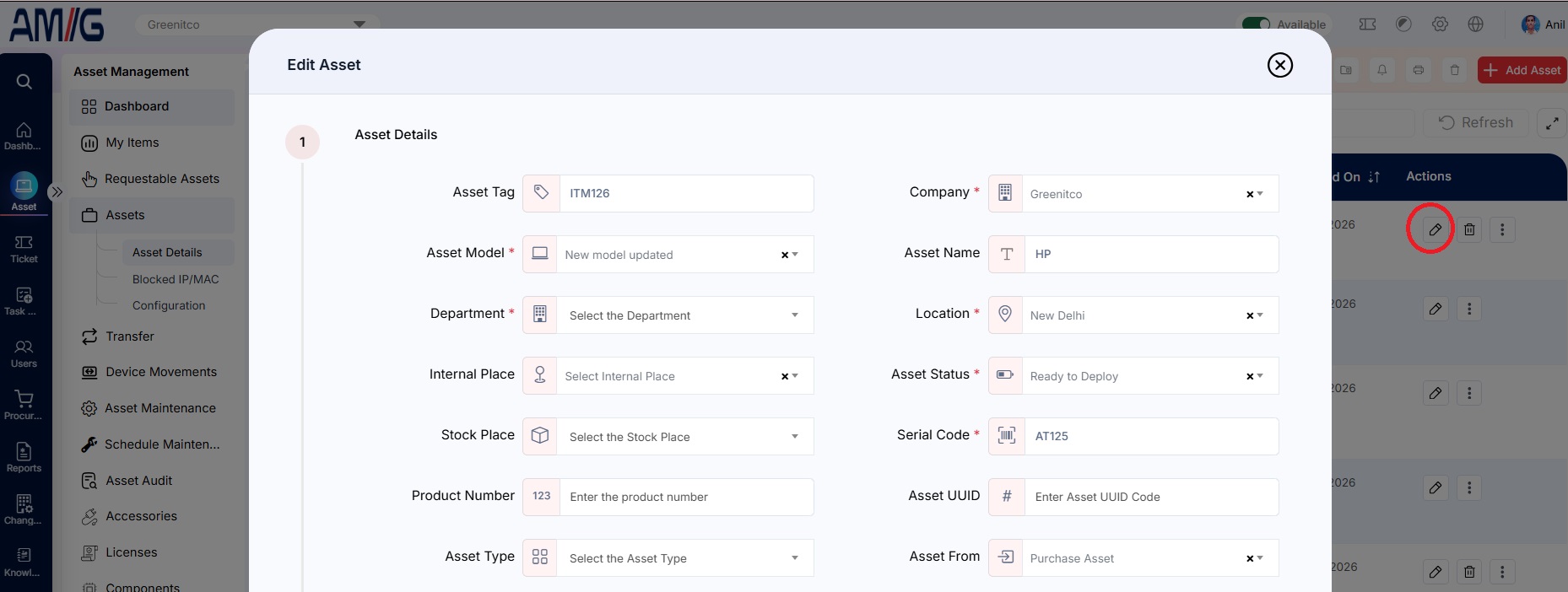
- Open the Asset's action menu and select Edit (pencil icon).
- Change the details and select Save.
Clone an Asset
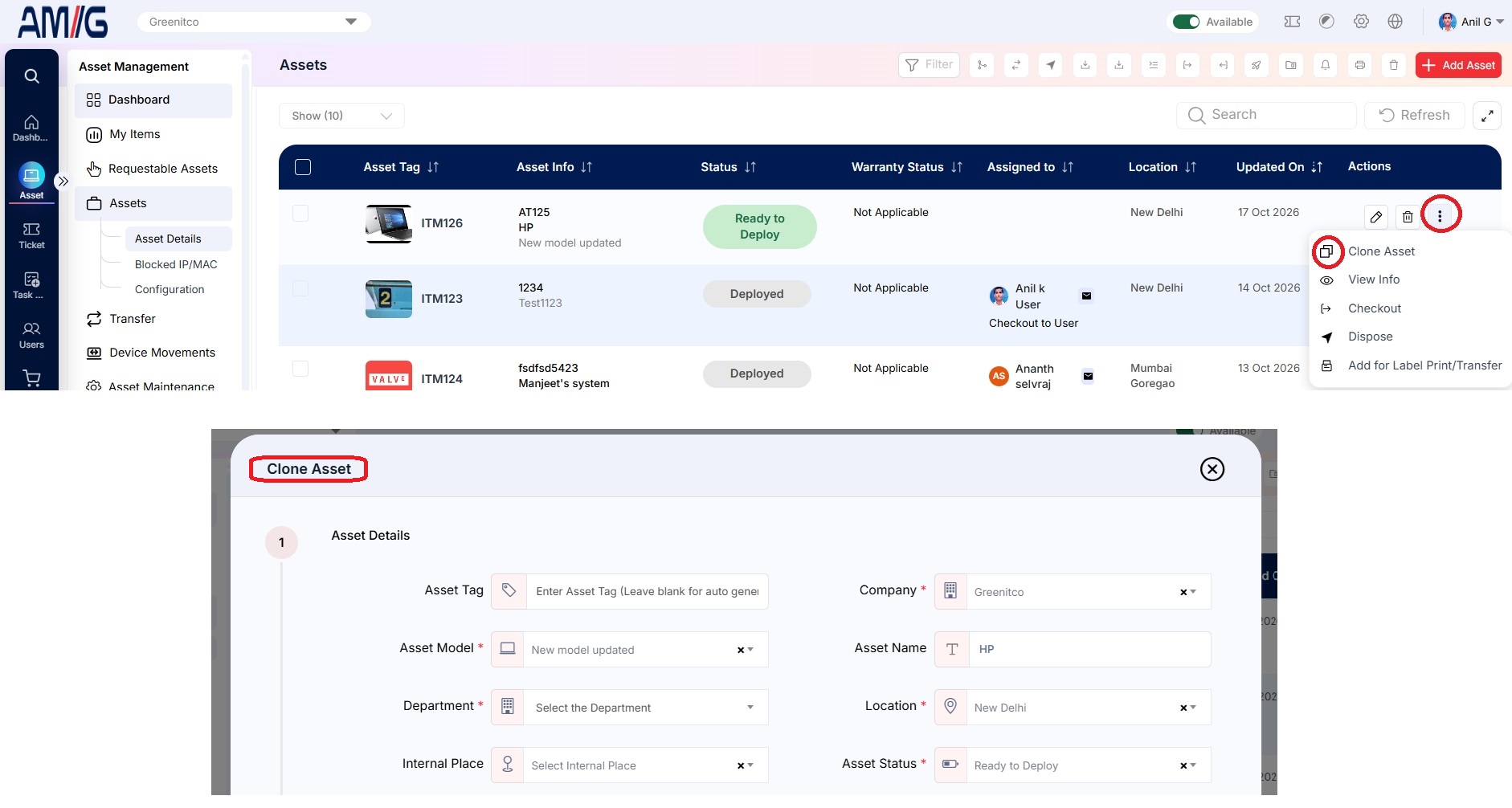
Use clone to add an asset that is similar to an existing one. Only the asset tag and serial number need to change, because they must be unique.
- Open the existing Asset's action menu and select Clone (copy icon).
- Update the asset tag, serial number and any other details.
- Select Save. A notification is sent to the alert email address in settings.
Delete an Asset
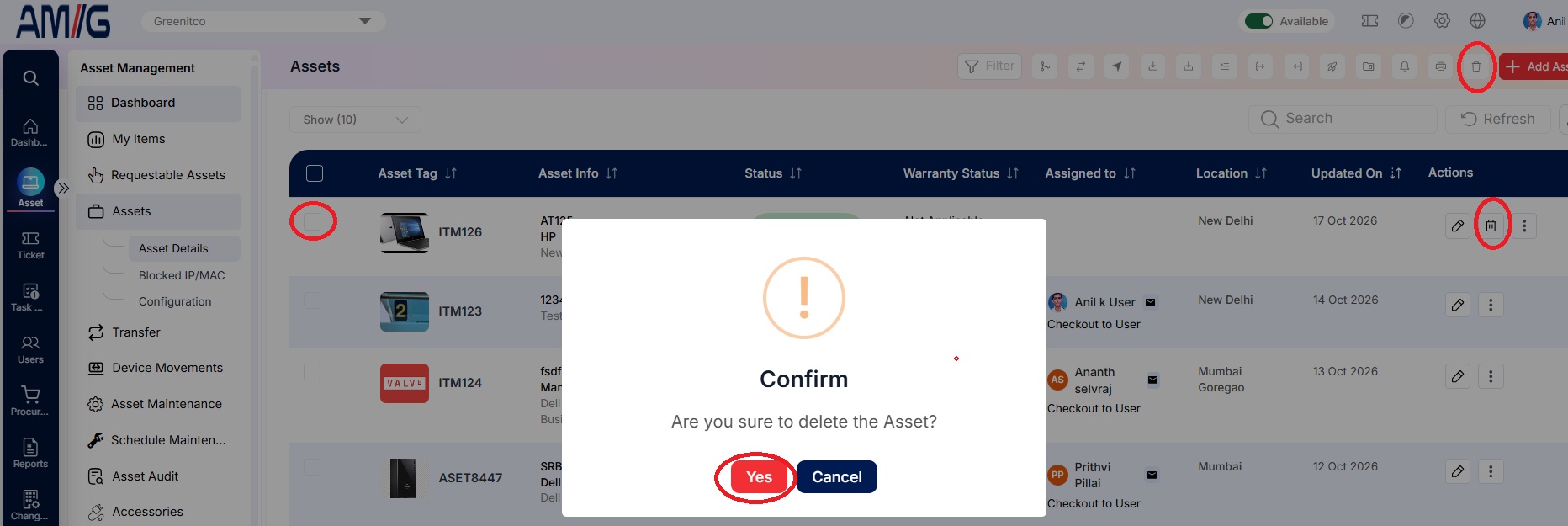
- Open the device's action menu and select Delete (trash icon).
- Select Yes to confirm. Or
- Check Multi select check box and click on BulkDelete on header(trash icon).
Restore a deleted Asset
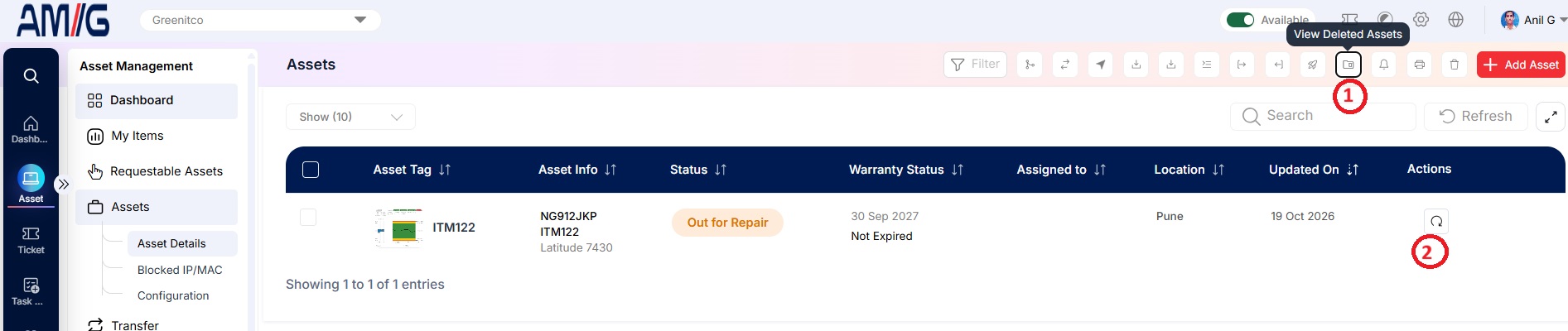
- Open Assets → Asset Details and select Deleted Assets (recycle icon) to show deleted Assets.
- Open the Asset's action menu and select Restore (recycle icon).
- Select Yes to confirm.