

Introduction
The Archived Tickets section provides access to older tickets that have been archived. It keeps archived records separate from active ticket lists while allowing authorized users to review ticket details and history when needed.
Resolved tickets are automatically closed after three days. You can configure when closed tickets should be archived by navigating to Sidebar > Ticket > Ticket Configuration and setting the Auto Archive Ticket After X Days option.
Once tickets meet the configured archival criteria, they are moved to the Archived Tickets section, helping keep active ticket lists organized and manageable.
Users can click a ticket subject to review its details and available history. Access to archived records and the actions available depend on the user's role and permissions.
This section helps users maintain access to historical ticket information without cluttering active worklists.
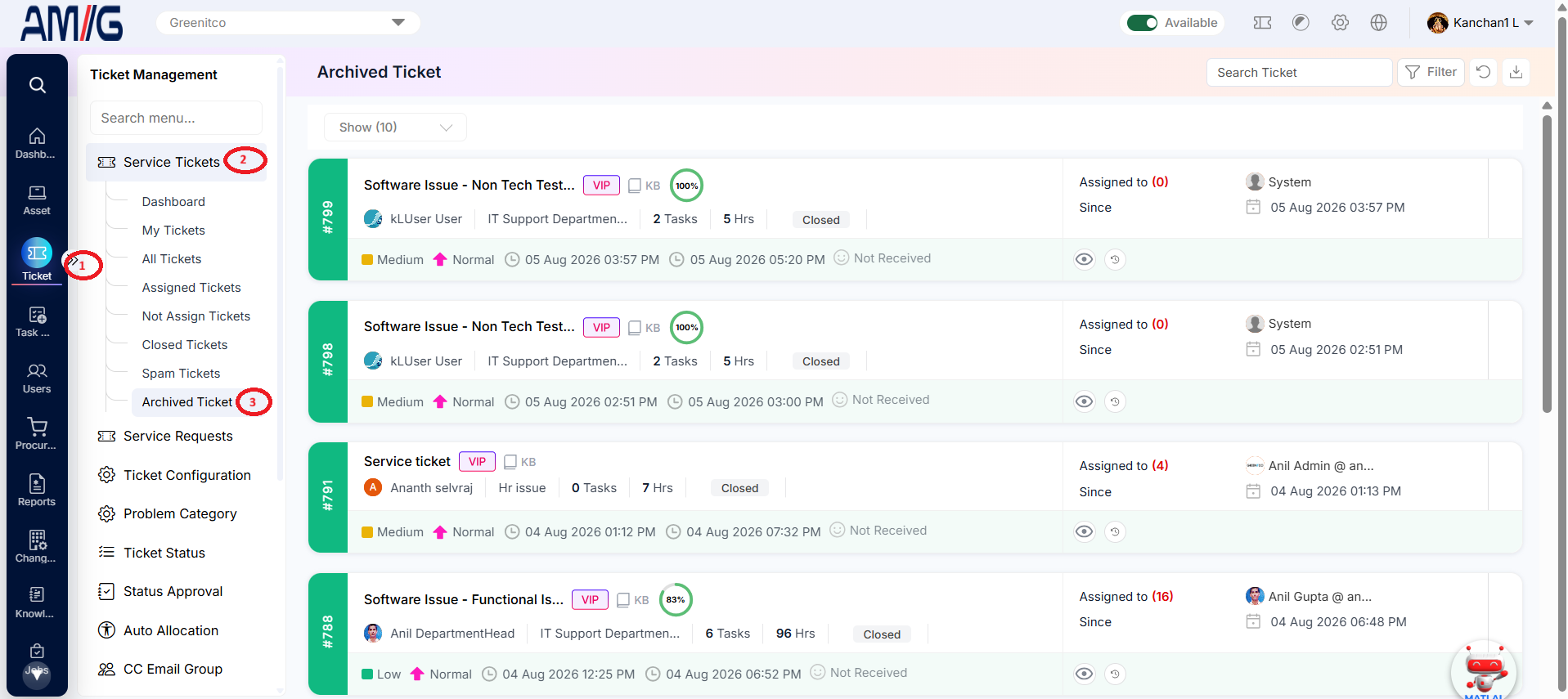
Navigation Path: Sidebar > Ticket > Service Ticket > Archived Tickets
Viewing Archived Tickets
Step 1: Open Sidebar > Ticket > Archived Ticket.
Step 2: Review the ticket card, including ticket ID, subject, VIP indicator (when shown), knowledge-base indicator, requester, department, task count, TAT, status, timestamps and assignee.
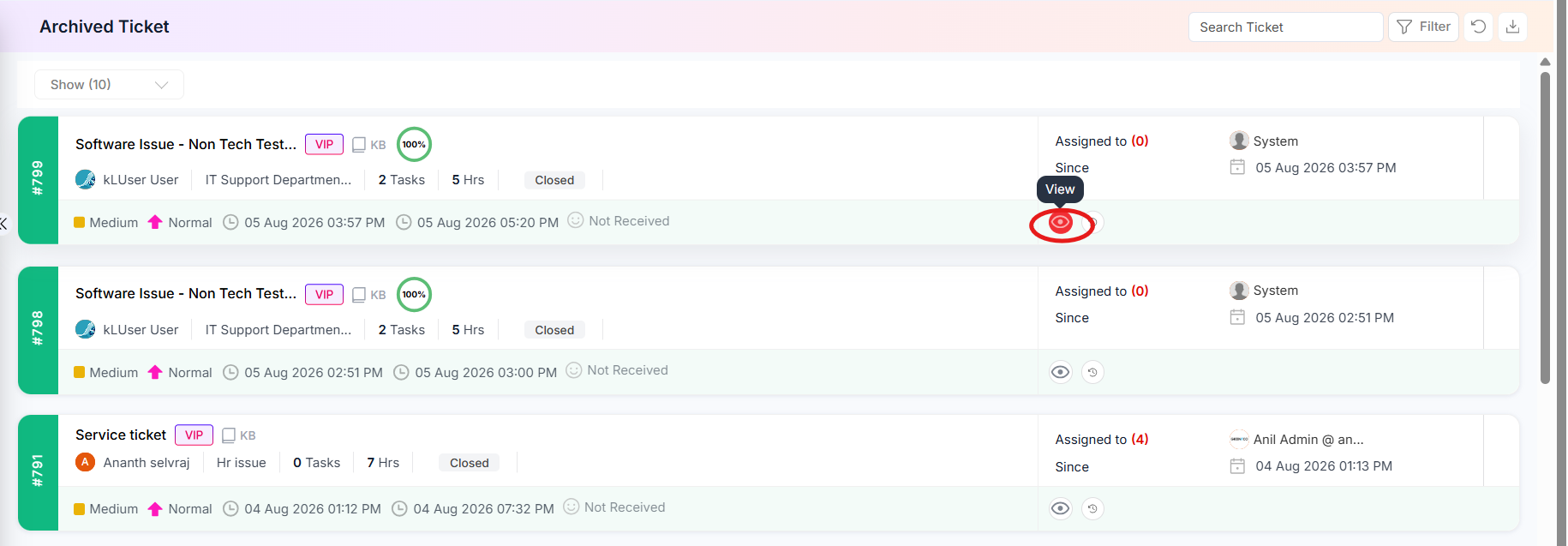
Step 3: Use Search Ticket or Filter to find an archived record. Click the view icon on the required card to open its details.
Step 4: Click Ticket History to review the recorded events for the archived ticket, where available.
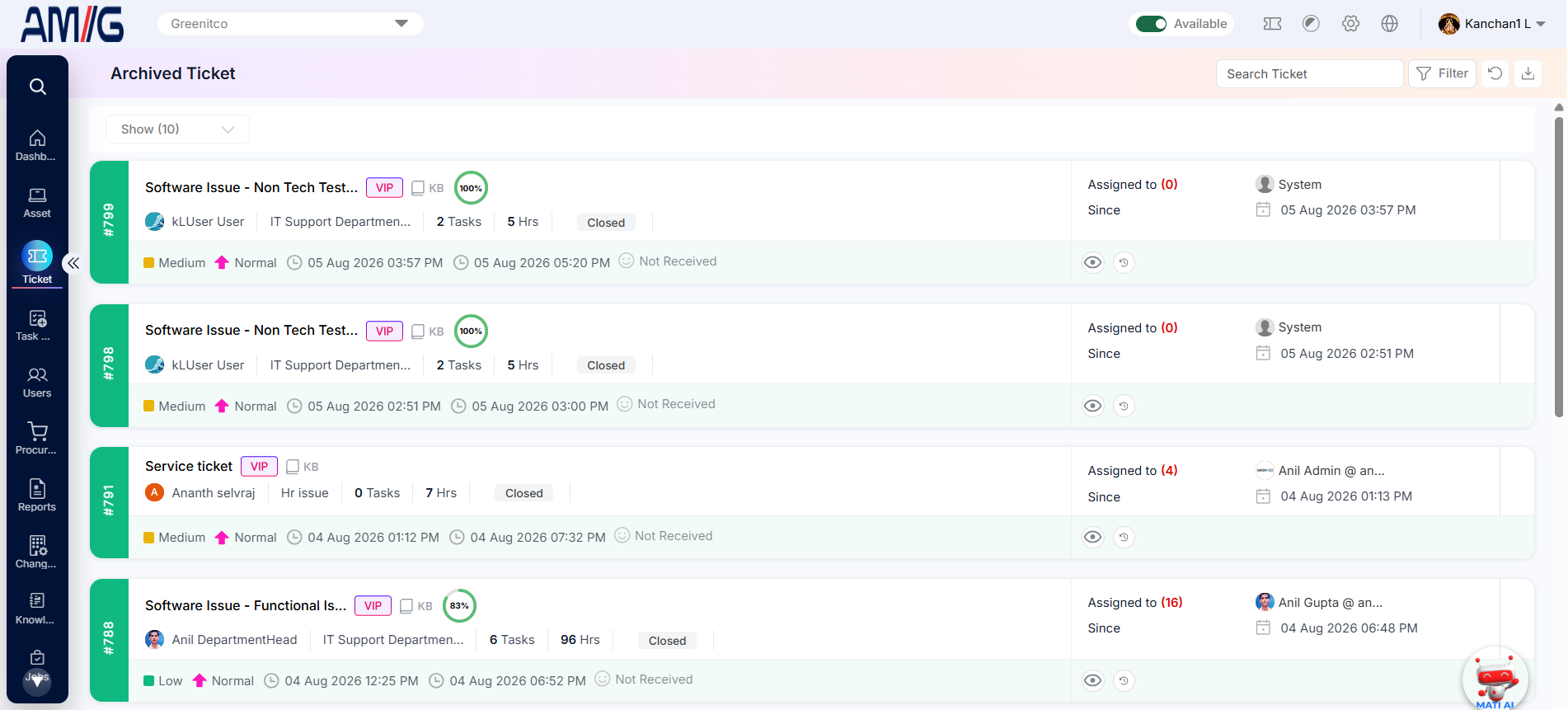
Figure 3.8.1: Archived Ticket list
Reviewing Archived Ticket Details
Step 1: Open an archived ticket using its View action.
 Step 2: Review the summary information, including ticket status, TAT expiry, priority, subject, creator, assignee, company, department, category, subcategory, created/updated/resolved/closed dates and ticket type.
Step 3: Review Related Task for task links and completion information. Expand Conversation to read recorded messages and system updates.
Step 4: Use the side panels to review Feedback, Creator Info, Assigned To, Tags, Ticket Timeline and People. These panels provide a consolidated view of the archived ticket context.
Step 5: Select Ticket History when you need the chronological audit trail of changes.
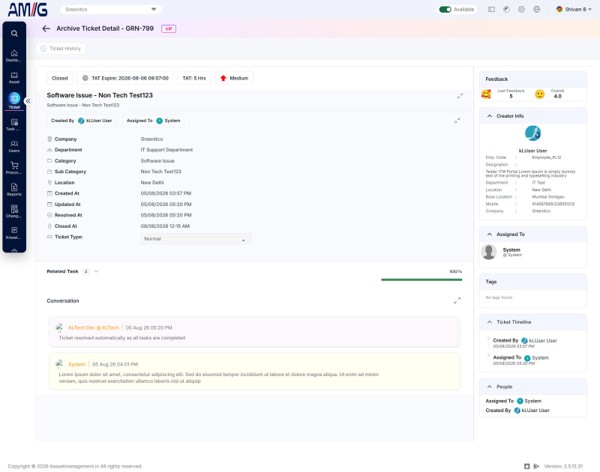
Figure 3.8.2: Archived Ticket details page
Table 3.8.1: Archived Ticket details areas
| Area | Information shown |
|---|---|
| Ticket summary | Status, TAT expiry, priority, subject, creator, assignee and core ticket attributes. |
| Ticket information | Company, department, category, subcategory, location, timestamps and ticket type. |
| Related Task | Associated tasks and their progress or completion percentage. |
| Conversation | Recorded comments, replies and system updates. |
| Feedback | Latest feedback and overall rating, when available. |
| Creator Info / Assigned To / People | User details and ownership context. |
| Tags | Tags associated with the ticket, if any. |
| Ticket Timeline / Ticket History | Key ticket events and the chronological change record. |
Export Archived Tickets
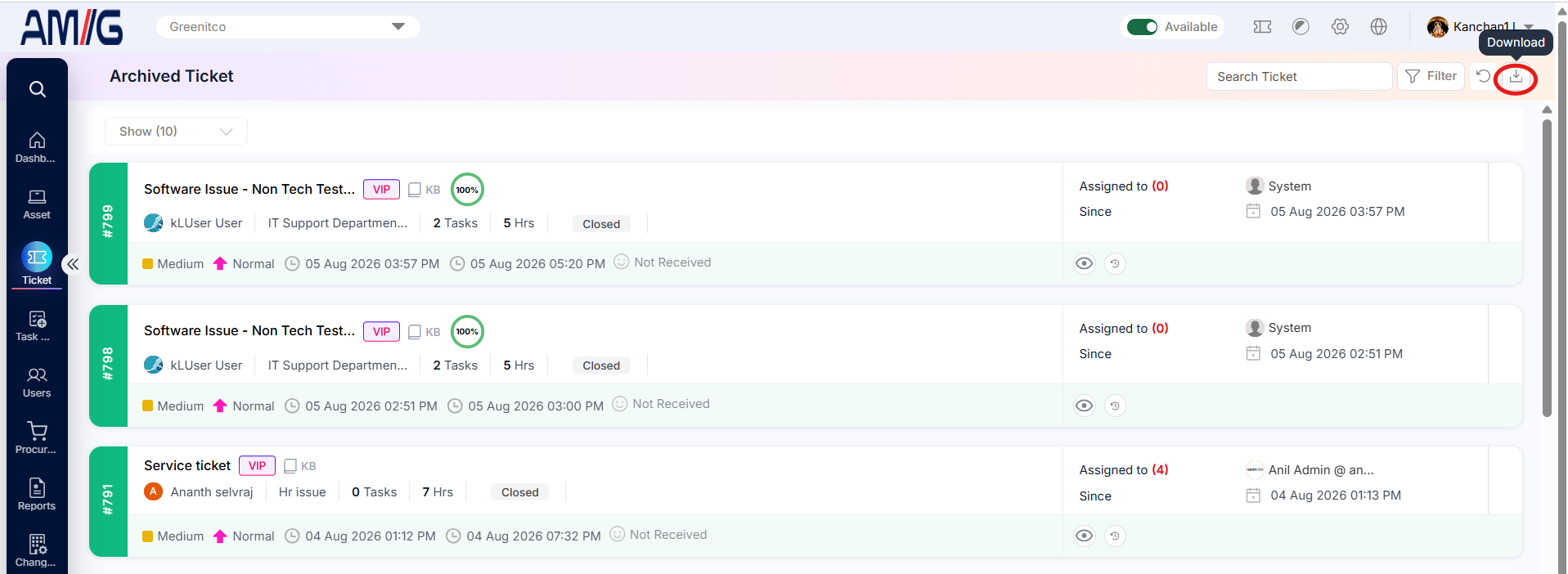
Use the Download option on the Archived Tickets listing page to export ticket records to an Excel file.
Step 1: On the Archived Tickets listing page, click the Download icon.
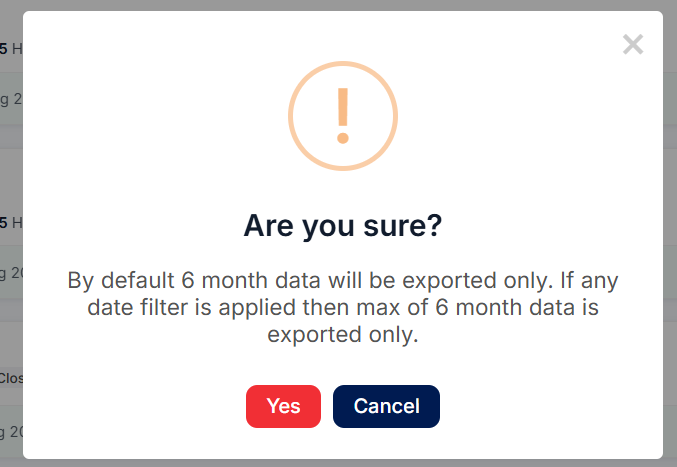
 Step 2: The confirmation prompt states that the default export covers the last six months. Only six months of data can be downloaded per export. To export records from a longer period, apply date filters and export separate date ranges. If filters are already applied, only matching tickets are included.
 Step 3: Click YES to confirm. The system downloads the selected ticket data as an Excel file.
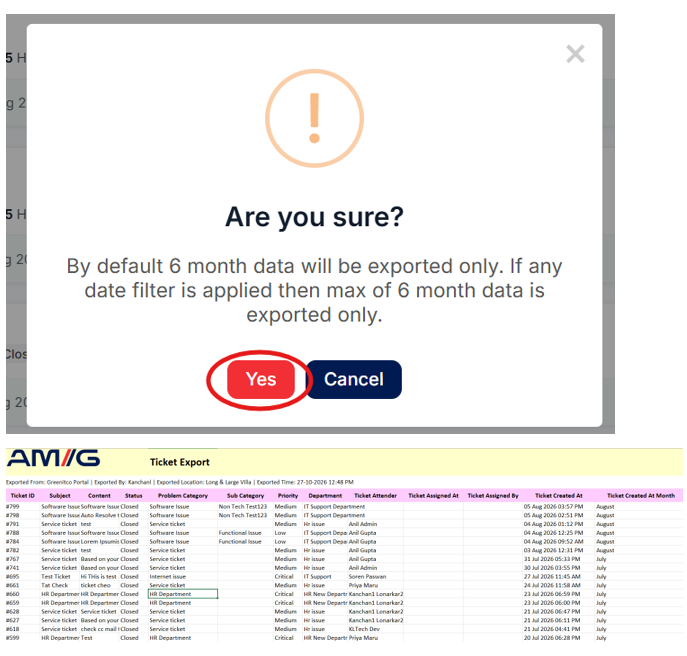
Note: Check the selected date range and filters before confirming the export.