

Introduction
The Overdue Tickets Report provides an overview of tickets that have exceeded their defined Turnaround Time (TAT) but are still pending resolution.
The report displays ticket details, ticket creation source, assigned handler, applicable TAT, and overdue information. It helps administrators understand which tickets have exceeded their expected resolution time and provides visibility into the reasons for delays through a summarized view.
Use this report to:
-
Identify tickets that have exceeded their defined TAT.
-
Monitor overdue tickets across departments and problem categories.
-
Track the handlers responsible for managing overdue tickets.
-
Understand the reasons behind ticket resolution delays.
-
Identify departments or handlers with a higher number of overdue tickets.
-
Evaluate workload distribution and technician performance.
-
Help administrators take corrective actions and improve TAT compliance.
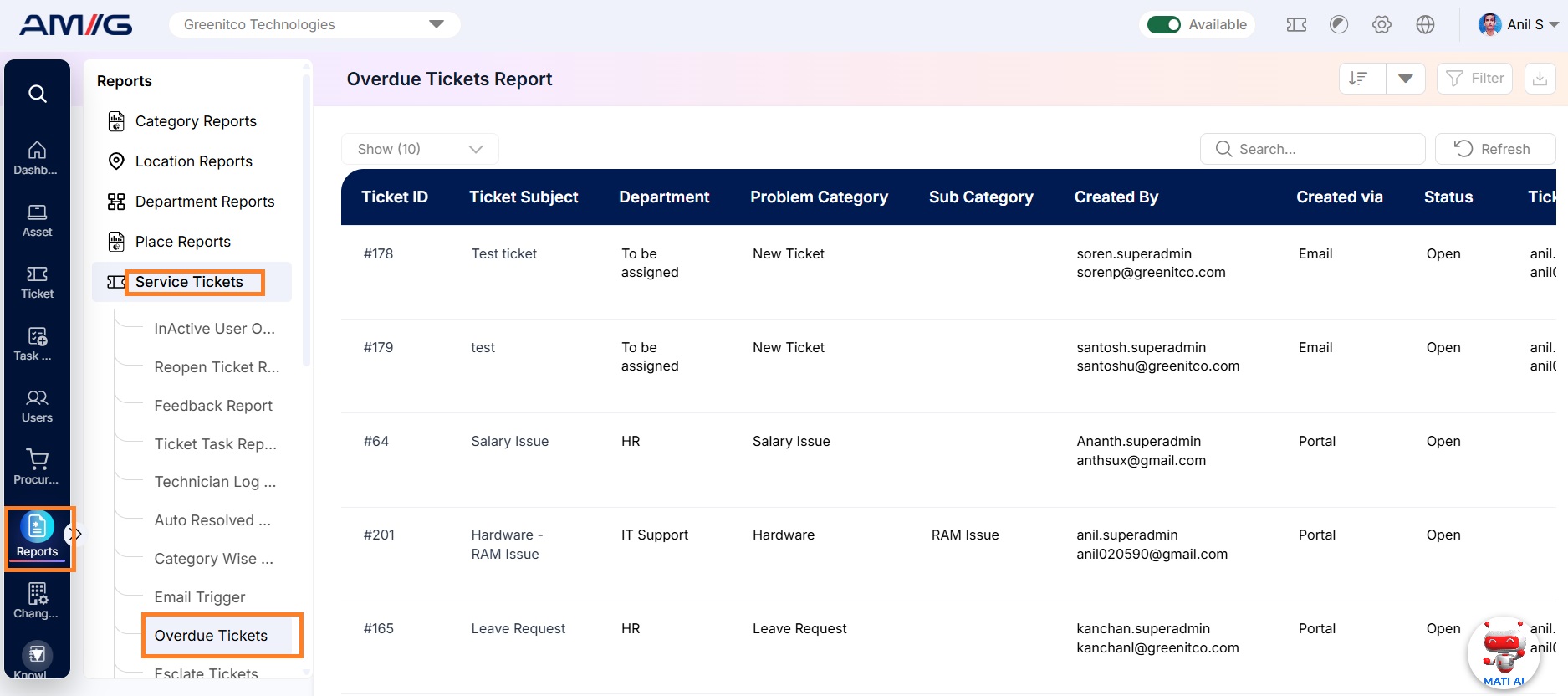
Navigation Path: Sidebar > Reports > Service Ticket > Overdue Tickets Report
Viewing the Report
Open Overdue Tickets Report from Sidebar > Reports > Service Ticket > Overdue Tickets Report. The report opens as a list.
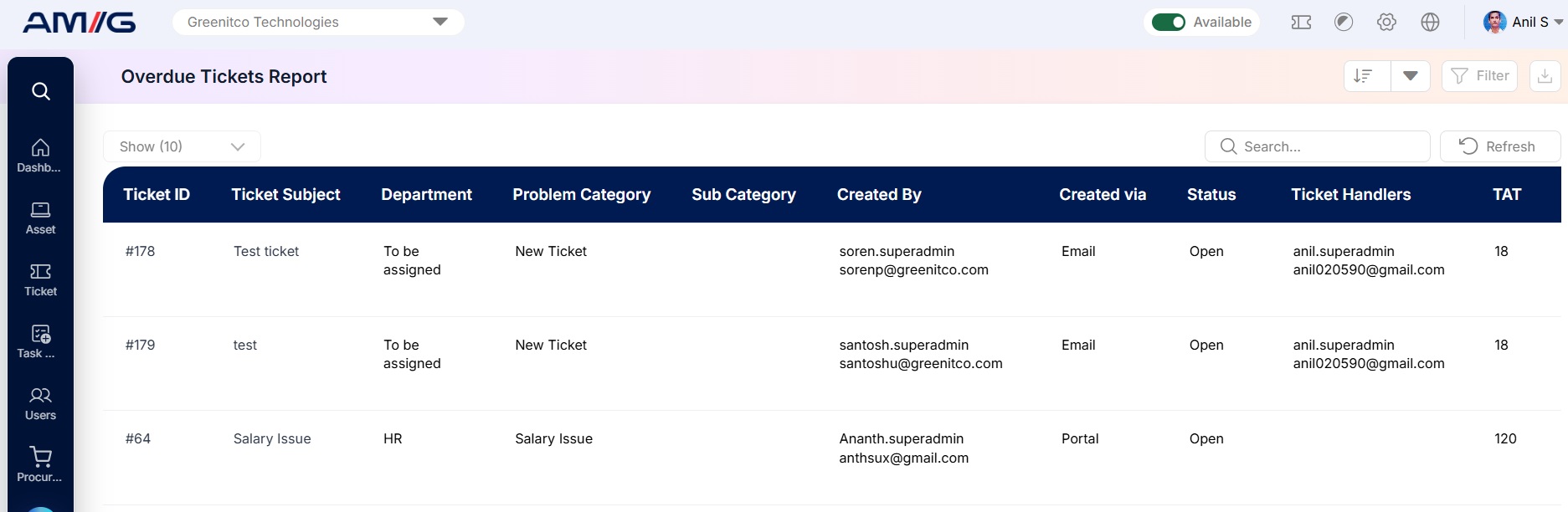
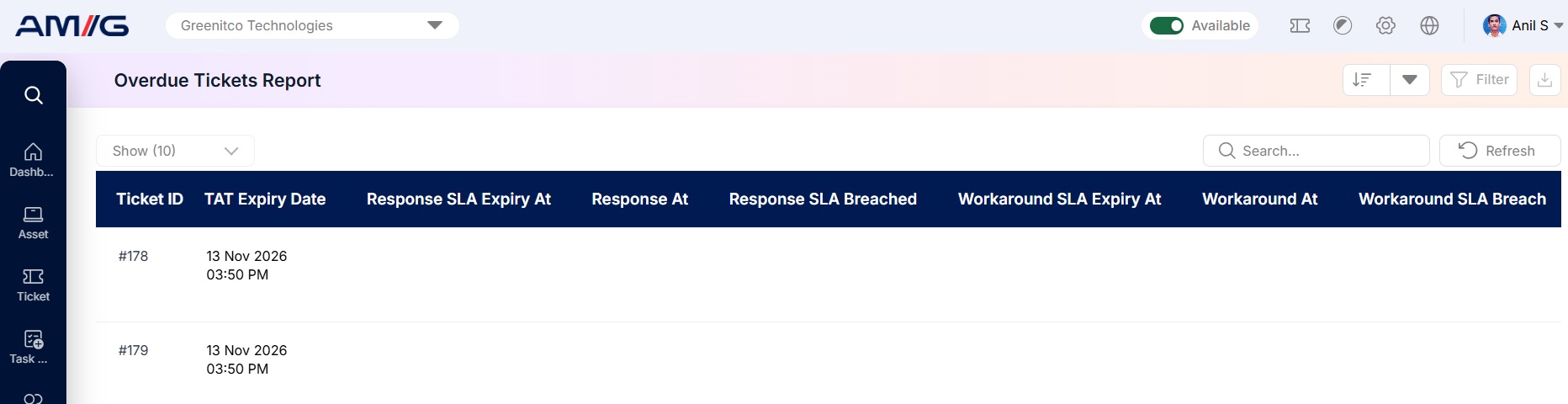
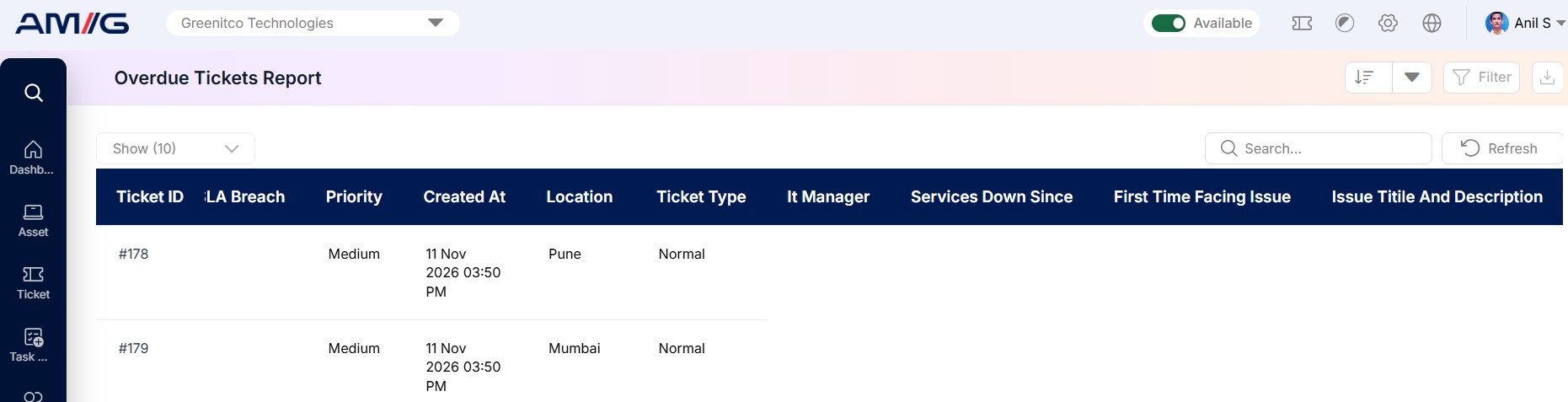 Figure 2.16.1: Overdue Tickets Report – report listing
Table 2.16.1: What each column shows
| Column | What it shows |
|---|---|
| Ticket ID | The ticket number. |
| Ticket Subject | The title of the ticket. |
| Department | The department the ticket was raised for. |
| Problem Category | The main category of the issue. |
| Sub Category | The sub-category of the issue, if one was chosen. |
| Created By | The person who raised the ticket. |
| Created via | How the ticket was raised, such as Email or Portal. |
| Status | The current status of the ticket. |
| Ticket Handlers | The technicians assigned to the ticket. Blank if the ticket is not assigned yet. |
| TAT | The turnaround time set for the ticket. |
More columns are available by scrolling to the right.
Table 2.16.2: Buttons and controls on the report
| Control | What it does |
|---|---|
| Show | Choose how many entries appear on each page (10 by default). |
| Search | Find entries by typing any value shown in the report. |
| Refresh | Reloads the report with the latest data. |
| Filter | Opens the filter panel so you can narrow down the report. |
| Download | The icon at the top-right. Downloads the report as a file. |
Filtering the Report
Step 1: Click Filter at the top-right of the report. The filter panel opens.
Step 2: Choose the values you need in one or more of the filters listed below.
Step 3: Click Filter to update the report. Click Clear to remove all filters.
Table 2.16.3: Available filters
| Filter | What it does |
|---|---|
| Department | Filter overdue tickets based on the associated department. |
| Problem Category | Filter tickets according to their assigned problem category. |
| Sub Category | Narrow down tickets based on the selected problem subcategory. |
| Status | View overdue tickets based on their current status. |
| Created Via | Filter tickets based on their creation source, such as portal, email, or other channels. |
| Priority | Filter tickets according to their assigned priority level. |
| Ticket Handler | View overdue tickets assigned to a specific technician or handler. |
| Date | Filter tickets based on a specific creation date. |
| Date Range | Retrieve overdue tickets created within a selected start and end date. |
| Creator / Logger | Filter tickets based on the user who originally created or logged them. |
| Ticket Type | Filter tickets based on their configured ticket type. |
| Non Handler | Identify overdue tickets that are not assigned to a handler. |
| Location | Filter overdue tickets based on their associated location. |
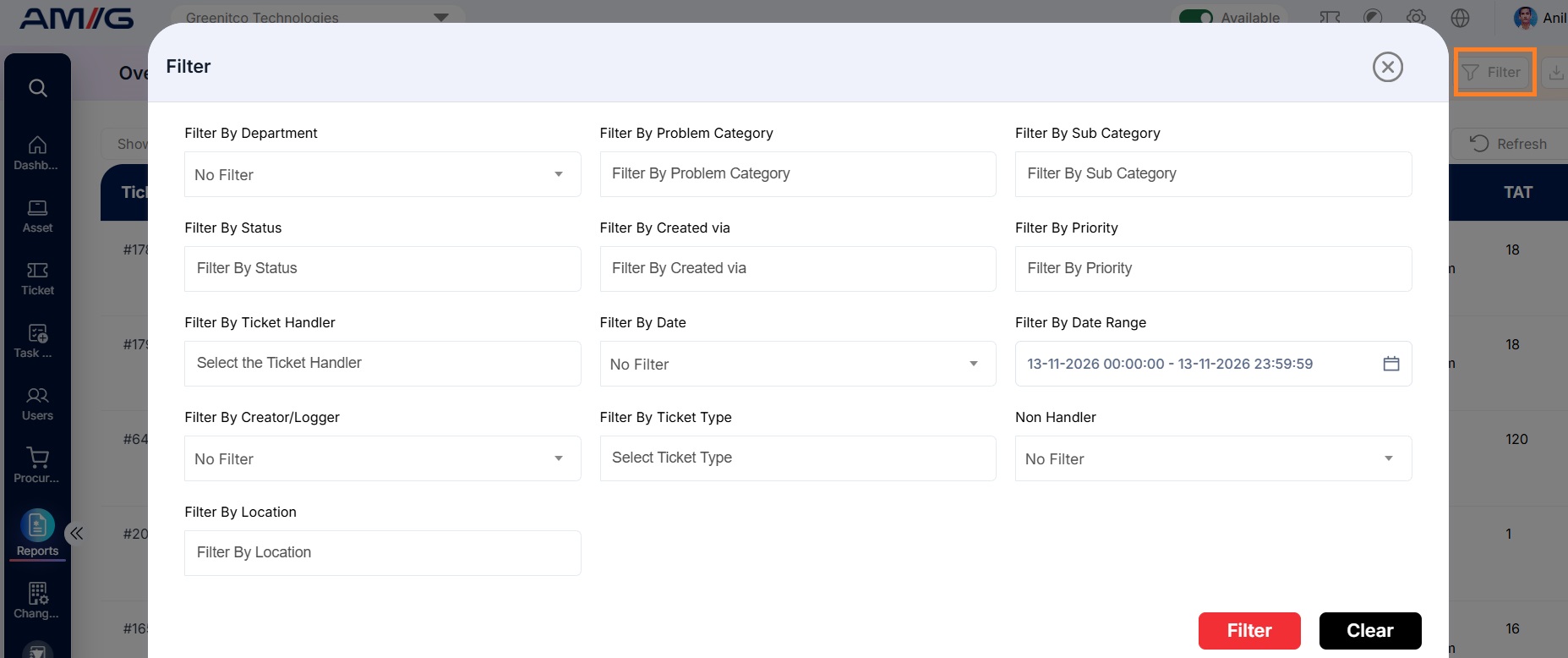 Figure 2.16.2: Overdue Tickets Report – filter panel
Sorting the Report
Click the Sort button available at the top-right corner of the report to arrange ticket records based on a specific column.
The following sorting options are available:
- Ticket ID
- Ticket Subject
- Department
- Problem Category
- Sub Category
- Created By
- Created Via
- Status
Use these options to organize ticket records and quickly locate or review overdue tickets based on the selected field.
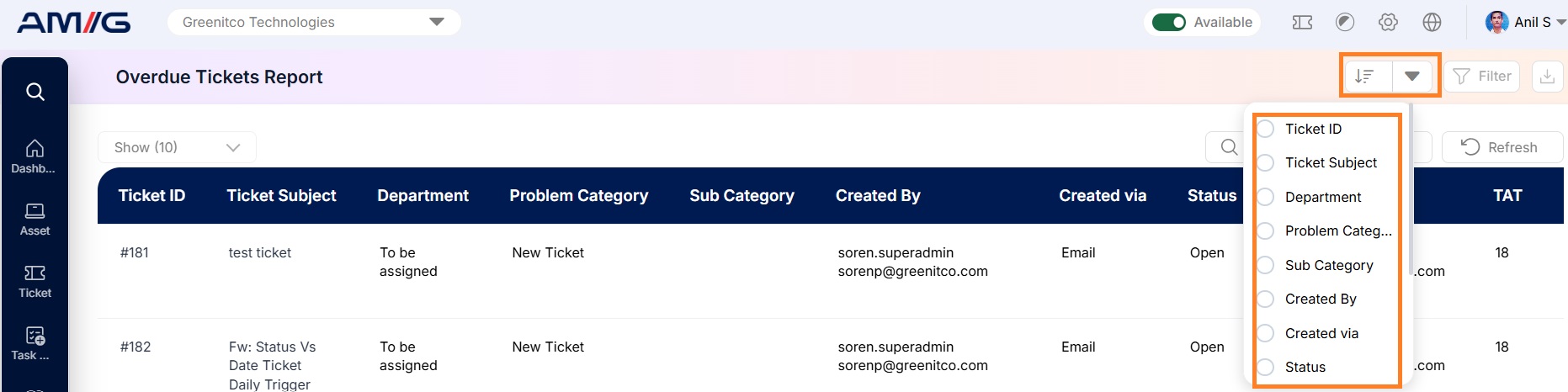 Figure 2.16.3: Overdue Tickets Report – sort options