Introduction
Purchase Management allows you to record and track organizational purchases in one place. It maintains a centralized purchase history and helps link purchased items to their corresponding assets, licenses, accessories, and consumables for accurate tracking and reporting.
Each purchase record can include invoice details, supporting documents such as invoices and delivery notes, and information about the items purchased. Linking purchases to assets and other items helps maintain purchase references, connect purchase order details with assets, and simplify reporting.
Purchases can also be imported from Excel, making it easier to manage existing purchase records. Additionally, purchases completed through the Procurement (Sidebar > Procurement) module are added automatically, eliminating the need for duplicate data entry.
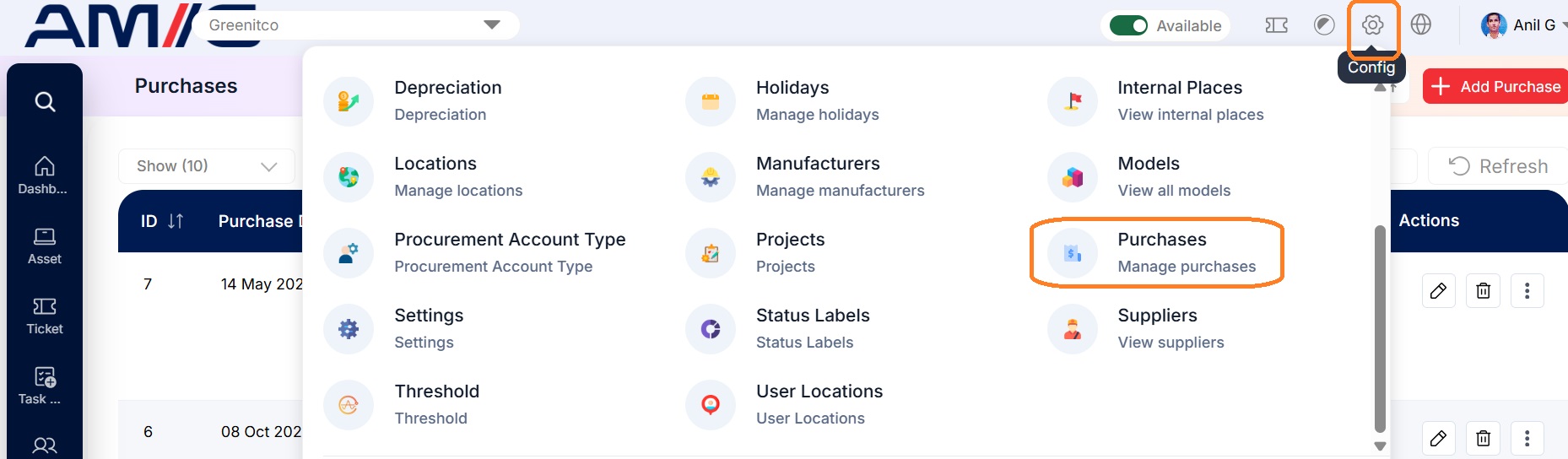
Navigation Path:> Header > Config > Purchase
Viewing the Purchase List
Go to Header > Config > Purchase to see all purchase records.
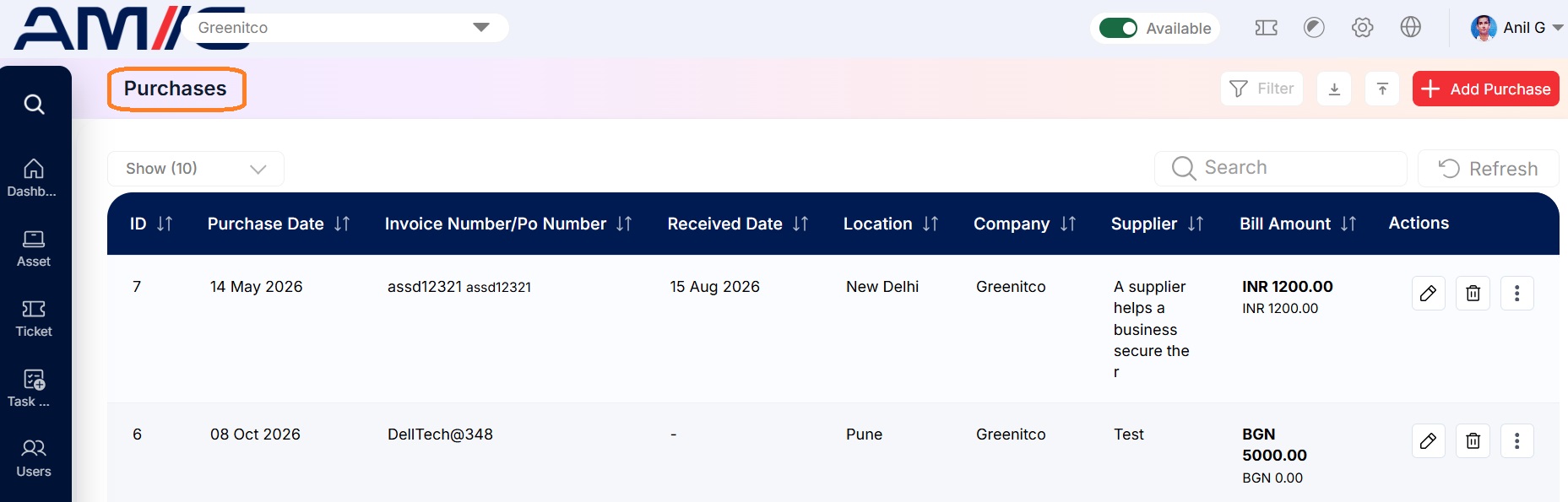 Figure: Purchase List
Understanding the Main Screen
Table: Purchases main screen elements
| Area | Description |
|---|---|
| Sub Header | Use Show (10) to choose how many records you see on one page. Type in the Search box to find a record quickly, or click Refresh to reload the list. |
| Action Buttons | In the top right corner you will find the Filter button (narrow down the list), the Download icon (export the list), the Upload icon (opens Purchase Import, see Section 14.7) and the red + Add Purchase button. |
| The Data Table | Shows each purchase with its ID, Purchase Date, Invoice Number/PO Number, Received Date, Location, Company, Supplier, Bill Amount, Status, Documents Count, Created On and Updated On. Documents Count tells you how many files are attached. |
| Sorting | Click the small arrows beside a column name to sort the list (A to Z, Z to A, oldest or newest first). |
| Actions Column | Each row has three icons: Edit (pencil), Delete (trash can) and a More menu (three dots) with further options for that purchase. |
| Pagination | The bottom of the page shows how many records you're looking at. Use Previous and Next to move between pages. |
Creating a Purchase Record
Here is how to record a new purchase:
Step 1: Click the red + Add Purchase button in the top right corner.
Step 2: Enter the Purchase Date and Invoice No. (both required), plus the received date and PO number if you have them.
Step 3: Choose the Company, Location and Bill Currency, and the Supplier if there is one.
Step 4: Enter the Bill Amount, choose whether it Includes Taxes, and set the Status. Add the quantity, other information or notes if useful.
Step 5: Check everything and click the red Save button. (Click Cancel to close without saving.)
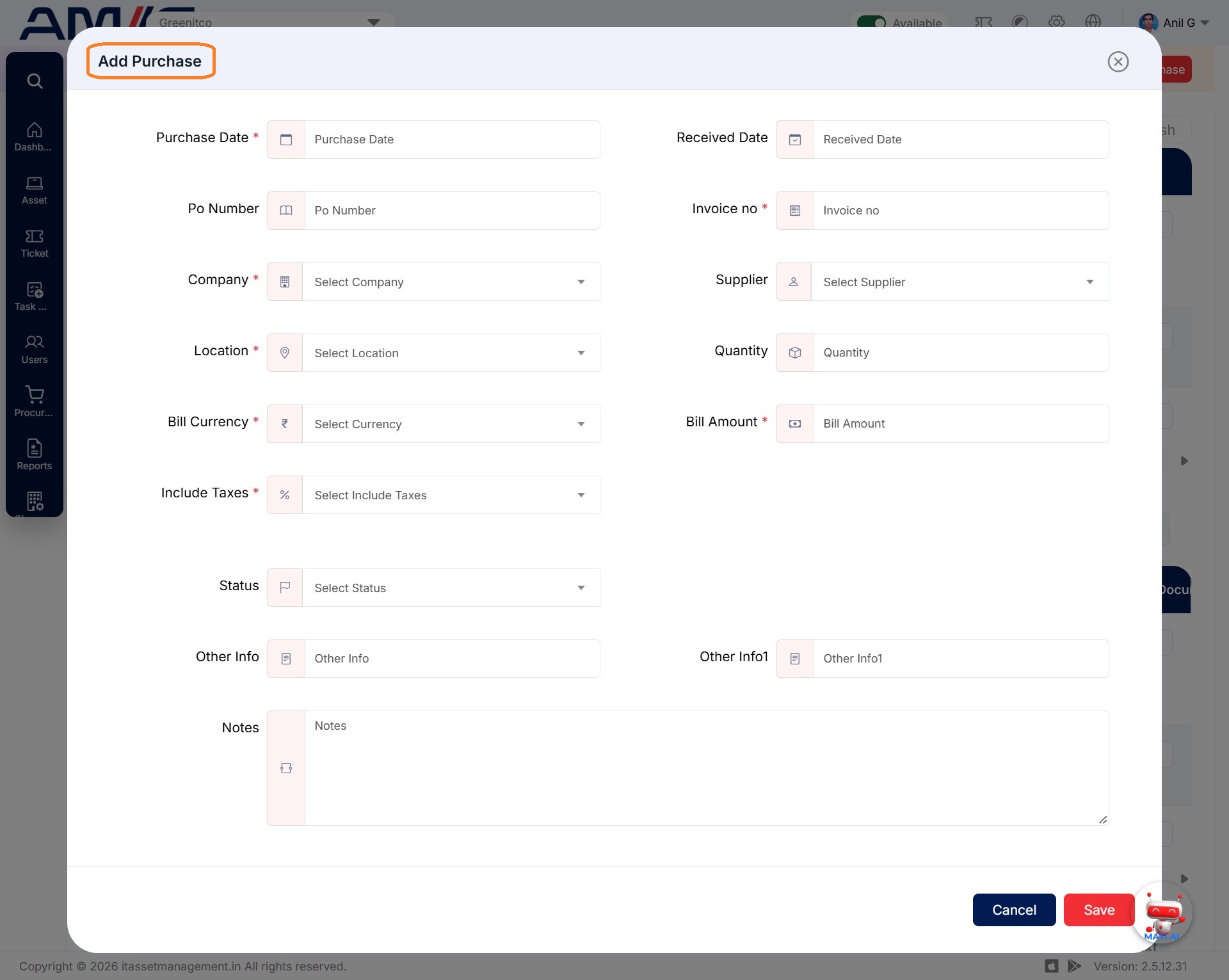 Figure: Add Purchase
Table: Add Purchase fields
| Field | Description |
|---|---|
| Purchase Date | The date the purchase was made. |
| Received Date | The date the goods arrived, if they have. |
| Invoice No. | The invoice number from the supplier's bill. |
| PO Number | The purchase order number, if there is one. |
| Company | Choose the company. Companies are set up under Header > Config > Company. |
| Supplier | Choose who you bought from, if applicable. Suppliers are set up underHeader > Config > Suppliers. |
| Location | Choose where the purchase is for. Locations are set up under Header > Config > Locations. |
| Quantity | How many items were bought. |
| Bill Currency | Choose the currency of the bill (for example, INR). |
| Bill Amount | Enter the bill total as a number. |
| Include Taxes | Choose whether the bill amount already includes tax. |
| Status | Choose where the purchase stands: Not Yet Received, Fully Received, Partially Received or Provision. |
| Other Info / Notes | Add any extra details or notes. There are two Other Info boxes and a Notes box for this. |
Viewing Purchase Information
Open a purchase to see all its details on the Info tab of the Purchase Info screen: invoice and PO numbers, dates, company, supplier, location, status, quantity, bill amount and notes. The Attachment and Add Item tabs on the same screen are explained below. Click the back arrow to return to the list.
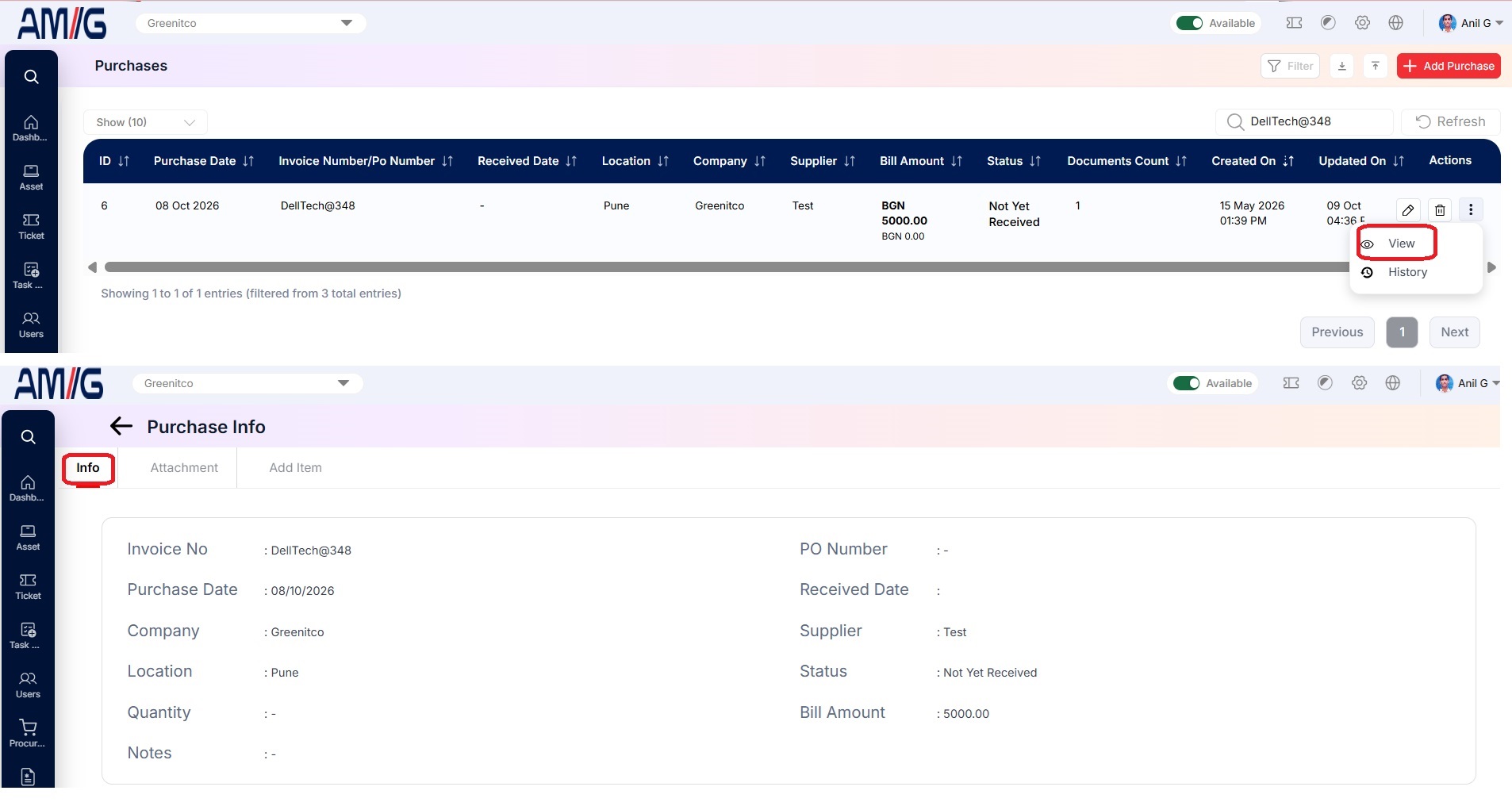 Figure: Purchase Information
Managing Purchase Attachments
Keep invoices, delivery notes and other paperwork with the purchase they belong to. That way, anyone checking the purchase later can find the documents in one place.
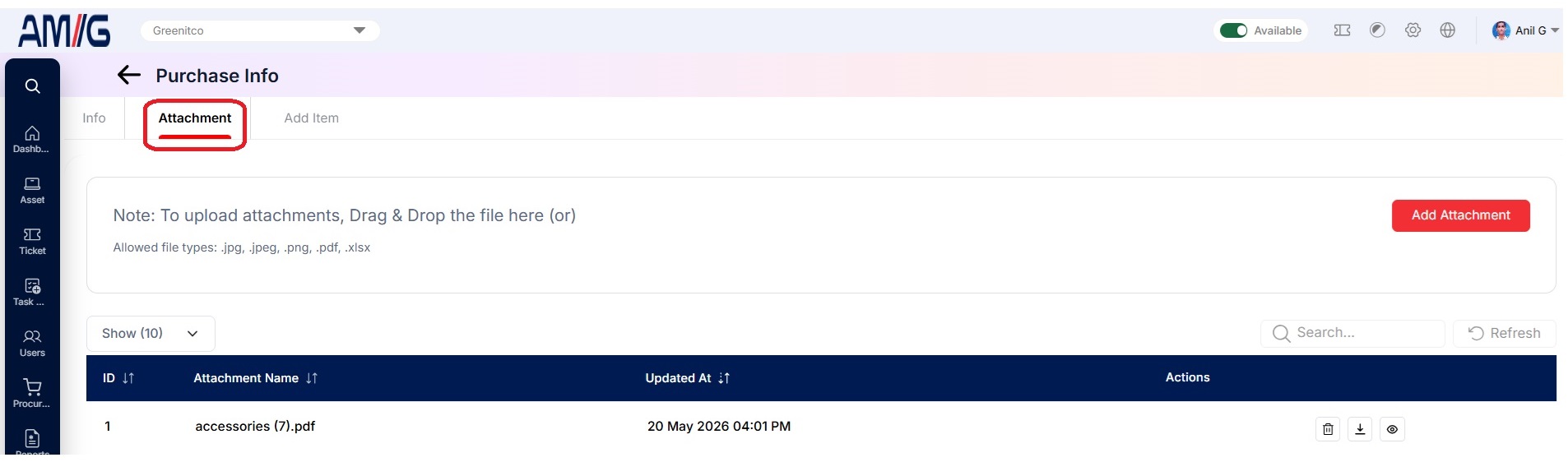
Step 1: Open the purchase and go to the Attachment tab.
Step 2: Drag your file into the upload area, or click the red Add Attachment button and choose it. You can upload .jpg, .jpeg, .png, .pdf and .xlsx files.
Step 3: Check that the file now appears in the attachment list below.
Table: Attachment actions
| Action | Description |
|---|---|
| Delete | Click the Trash Can icon to remove an attachment you no longer need. You will be asked to confirm first. |
| Download | Click the Download icon to save a copy of the file to your computer. |
| View | Click the Eye icon to open and view the file. |
Managing Purchase Items
List the individual items included in a purchase. This is useful when one invoice covers several different things.
Step 1: Open the purchase and go to the Add Item tab. You will see the items already added, with their ID, Item Name, Quantity, Unit, Price, Total Price and Type.
Step 2: Click the red Add Item button.
Step 3: Fill in the Item Name, Qty, Unit, Price Per Quantity and Type (all required). Add a Description if it helps.
Step 4: Click the red Save button. The item is added to the list. (Click Close to cancel.)
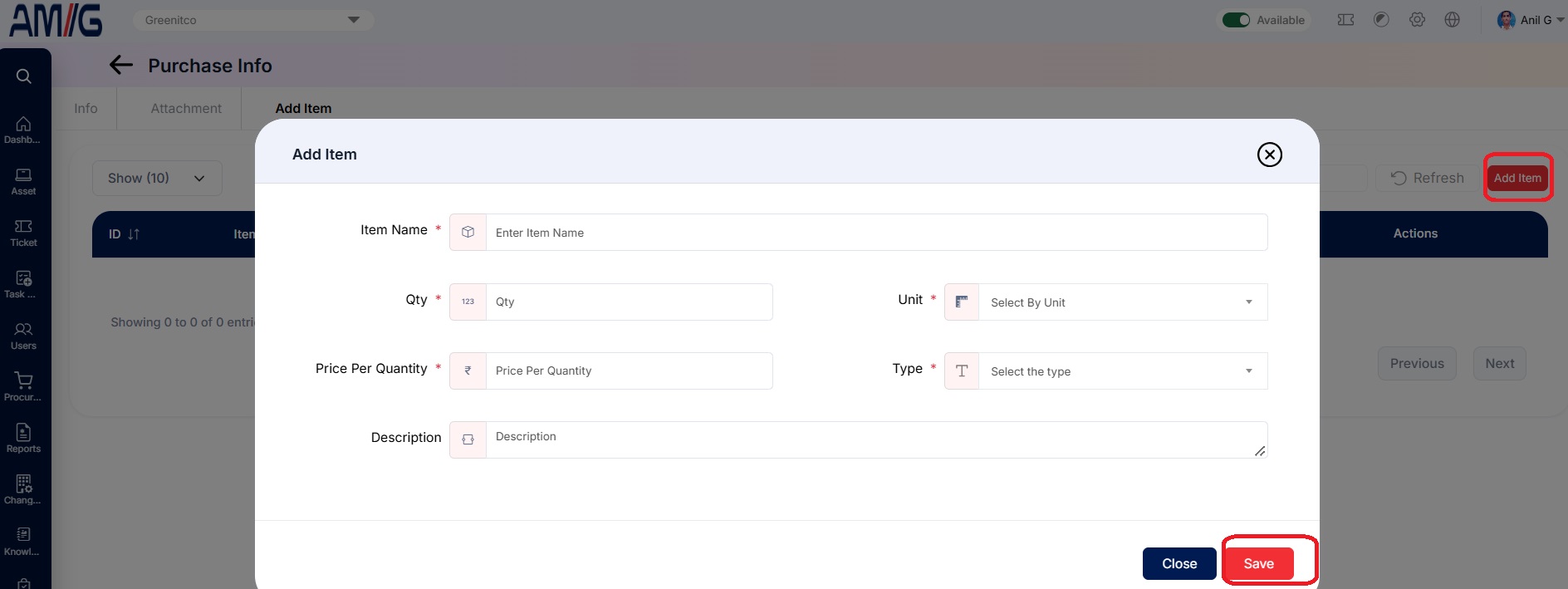 Figure: Add Purchase Item
Table: Add Item fields
| Field | Description |
|---|---|
| Item Name | Enter the name of the item. |
| Qty | Enter how many were bought. |
| Unit | Choose the unit the item is measured in. |
| Price Per Quantity | Enter the price of one unit. |
| Type | Choose what kind of item it is: Asset, Accessory, Consumable or License. |
| Description | Add any extra details about the item. |
Bulk Purchase Import
To add lots of purchases at once, upload them from an Excel file using Purchase Import.
Step 1: On the Purchases screen, click the Upload icon in the top right corner. The Purchase Import screen opens.
Step 2: Click Download Purchase Import Template to get the Excel template.
Step 3: Fill in your purchases. Never change the first (header) row and follow the rules in the table below.
Step 4: Drag the finished .xlsx file into the dashed box or click Upload XLSX File to choose it.
Step 5: Open the Purchase Import Info tab to see the result (see Section 14.8).
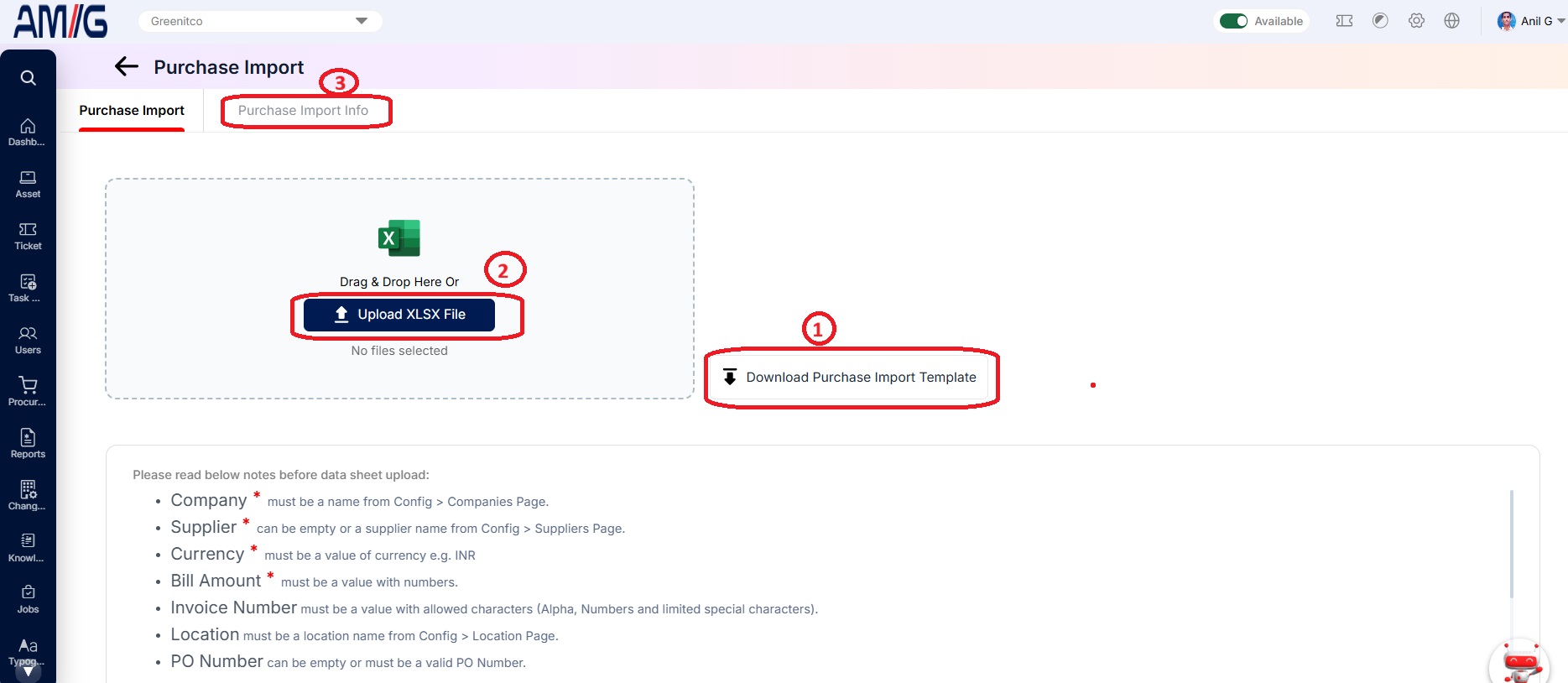 Figure: Purchase Import and Template Guidance
Table: Purchase import field rules
| Import field / rule | Guidance shown in the application |
|---|---|
| Company | Must match a company name set up under Config > Companies. |
| Supplier | Can be left empty; otherwise it must match a supplier name set up under Config > Suppliers. |
| Currency | Must be a valid currency, such as INR. |
| Bill Amount | Numbers only. |
| Invoice Number | Letters, numbers and a few special characters only. |
| Location | Must match a location name set up under Config > Location. |
| PO Number | Can be left empty; otherwise, it must be a valid PO number. |
| Template header | Never change the first (header) row of the template. |
Import History
Every upload is logged on the Purchase Import Info tab. For each file you will see the Document Name, Total Upload, Total Success, Total Failure, when it was processed and who uploaded it. If any rows failed, click the Download icon on that upload to get the processed file, fix the failed rows and upload them again.
 Figure: Purchase Import History
Managing Existing Purchases
You can manage existing purchases from the Purchases list using the icons in the Actions column:
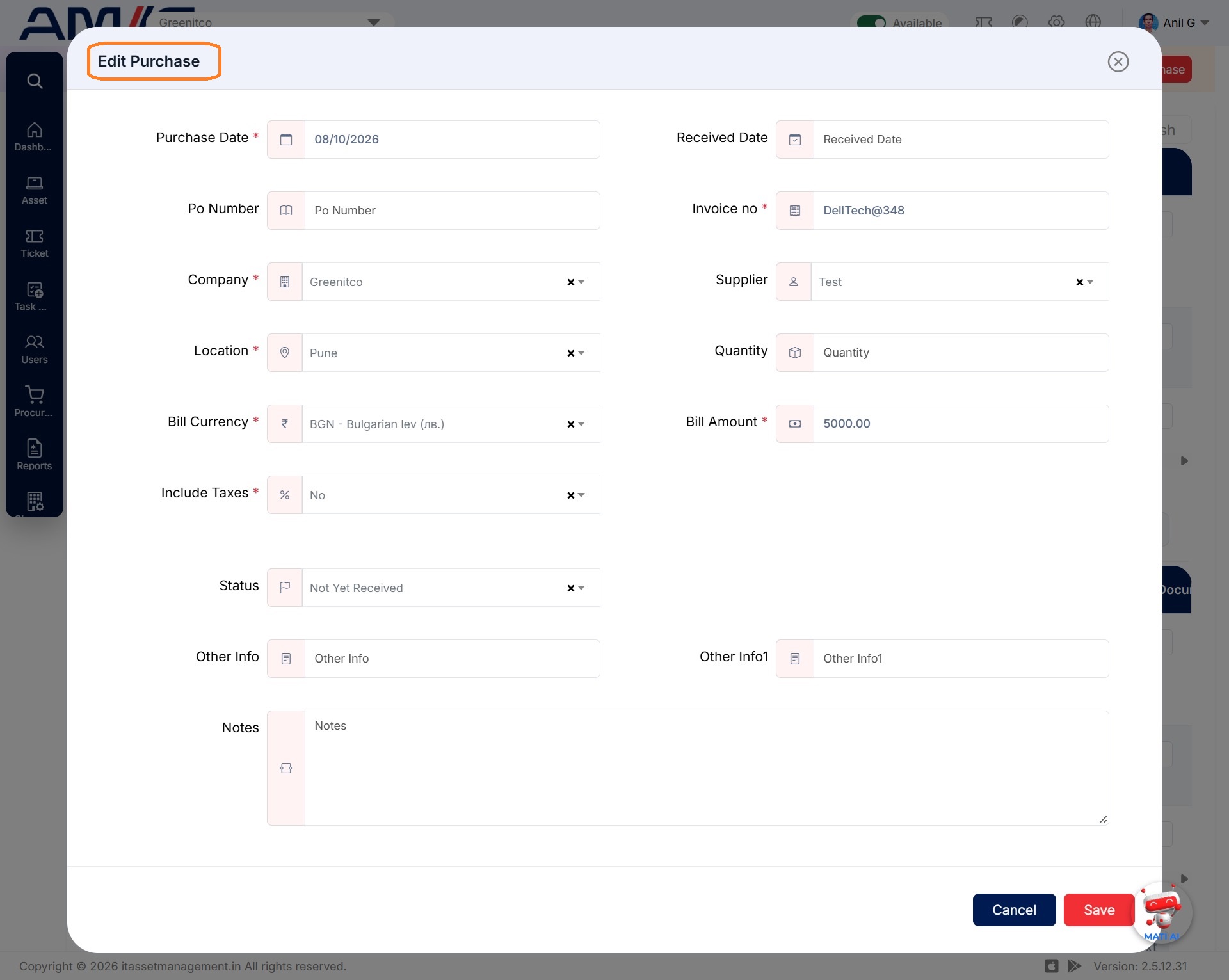
Edit a purchase
Step 1: On the Purchases screen, locate the purchase record you want to change.
Step 2: Click the Pencil (Edit) icon in the Actions column.
Step 3: Update the purchase details as required.
Step 4: Click Save to apply the changes.
Delete a purchase
Step 1: Before deleting, check whether the purchase attachments or items are still needed.
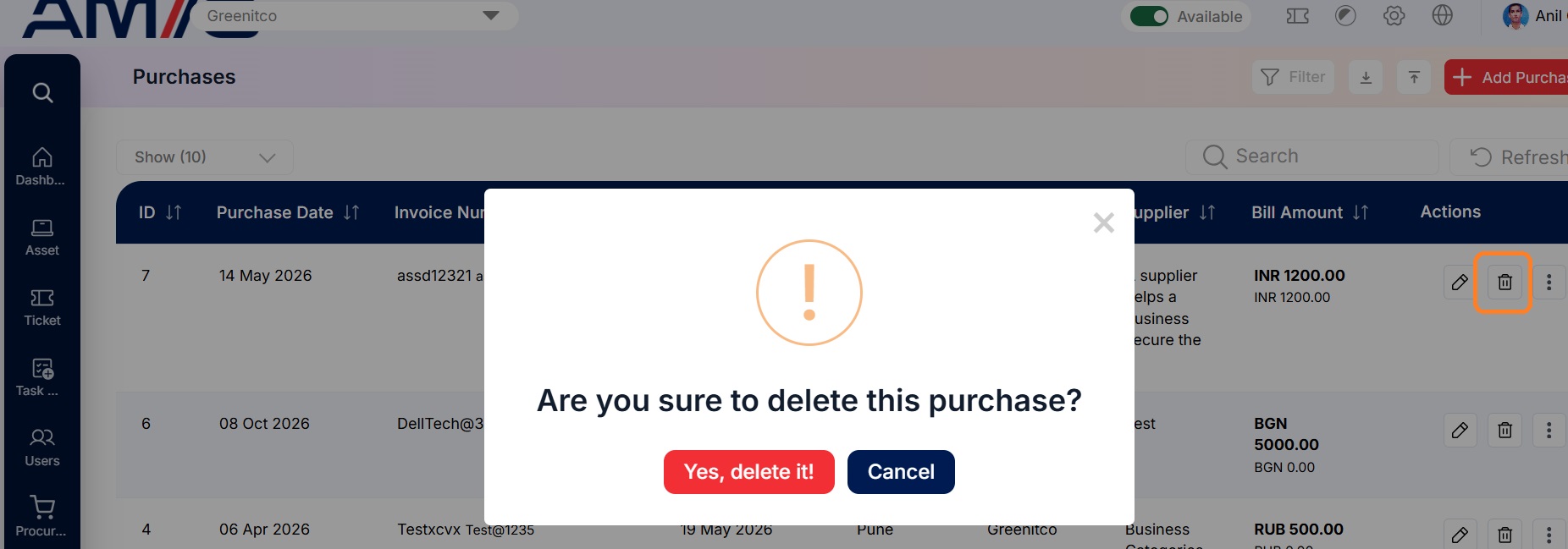
Step 2: Locate the purchase and click its Trash Can (Delete) icon.
Step 3: Review the confirmation prompt and confirm the deletion.
Important: Before deleting a purchase, make sure you no longer need its attachments and items. Always keep documents attached to the correct purchase so there is a clear paper trail.