

Introduction
Threshold Settings control low-stock alerts in ITM12. They help the organisation monitor stock levels and receive notifications when the available quantity reaches the configured threshold.
Each category has its own threshold value, which is configured under Header > Config > Categories (see Section 2.3.3).
The Threshold Settings screen controls whether threshold checks are enabled, whether notifications are sent when a threshold is reached, and which users receive these notifications.
- Enable Threshold: Controls whether the system checks stock quantities against the configured threshold values.
- Enable Notifications: Controls whether the system sends notifications when a stock threshold is reached.
- Users to Notify: Specifies the users who should receive threshold-related notifications.
When threshold checking is enabled, the system checks stock quantities against the threshold values configured for each category. When the applicable threshold condition is met, the system can notify the configured users if notifications are enabled.
In this section, you will learn how to view and update Threshold Settings, enable or disable threshold checks and notifications, and configure the users who receive low-stock alerts.
Navigation Path | Header > Config > Threshold Settings |
Viewing Threshold Settings
Go to Header > Config > Threshold Settings. You will see the current settings at a glance.
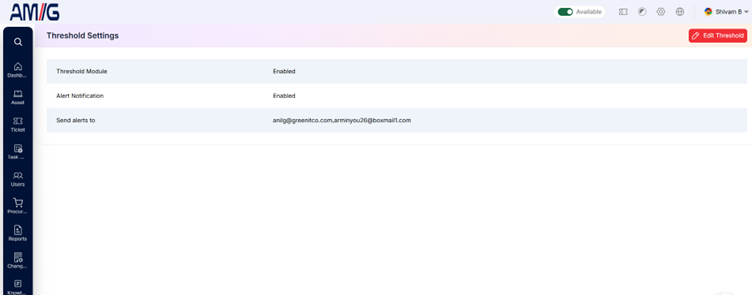
Figure: Threshold Settings Main Screen
Understanding the Main Screen
Table: Threshold Settings main screen elements
| Area | Description |
|---|---|
| Threshold Module | Shows whether threshold checks are Enabled or Disabled. |
| Alert Notification | Shows whether alert notifications are Enabled or Disabled. |
| Send alerts to | Shows the email addresses that receive threshold alerts. |
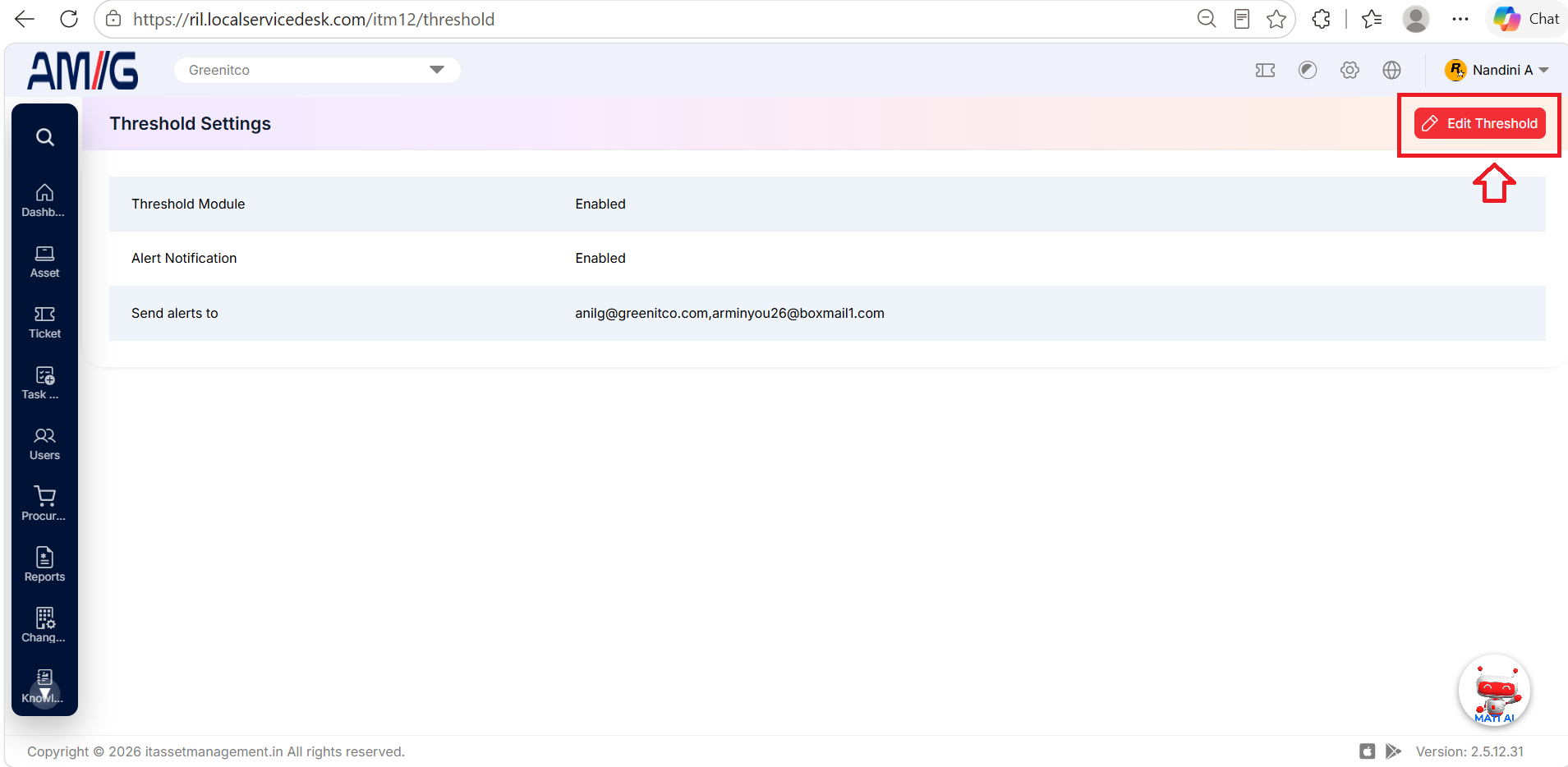
| Edit Threshold Button | Click the red Edit Threshold button in the top right corner to change the settings. |
Editing Threshold Settings
Step 1: On the Threshold Settings screen, click the red Edit Threshold button in the top right corner.
Step 2: The "Edit Threshold" pop-up window opens with the current settings already filled in.
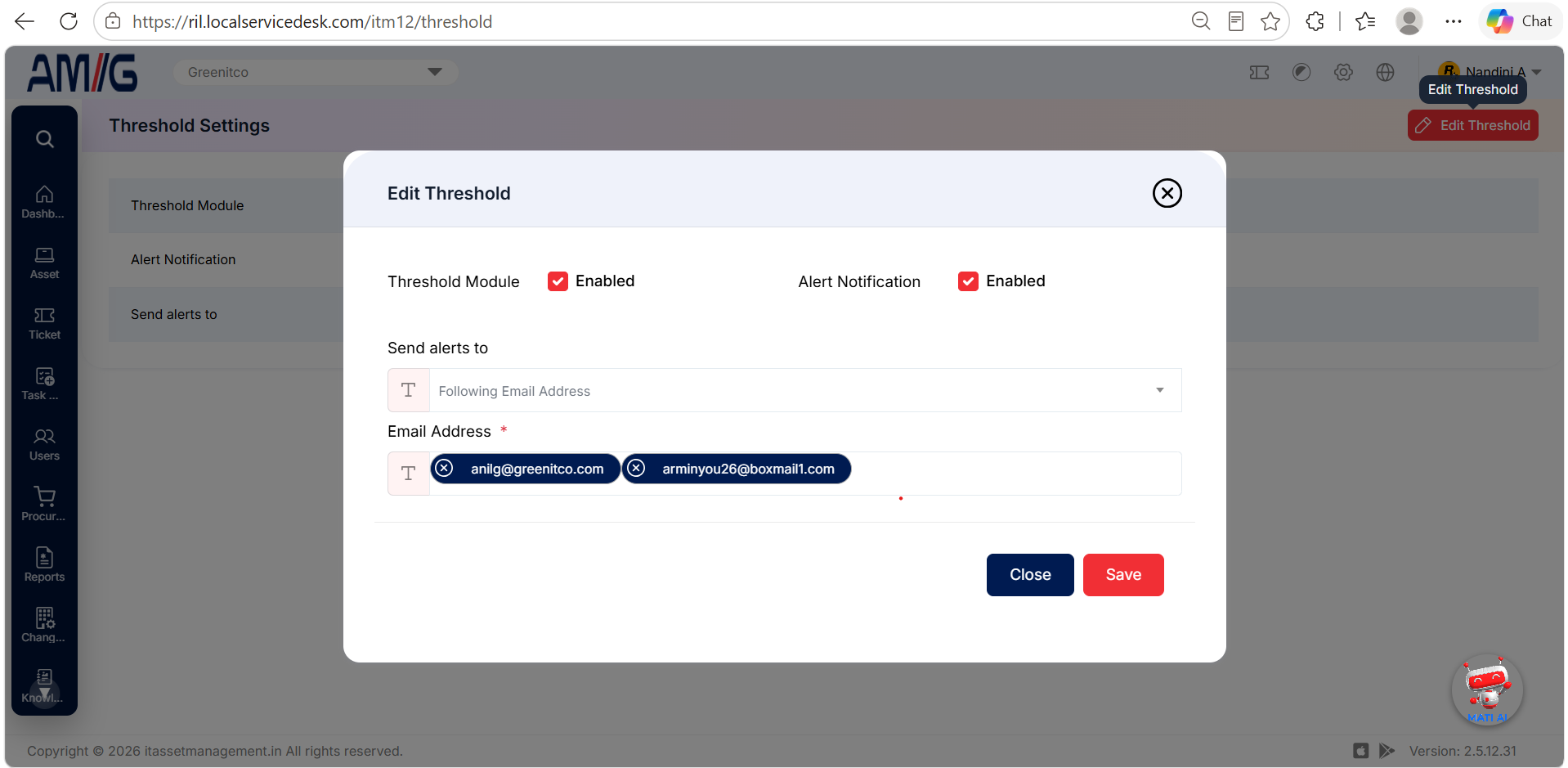
Figure: Edit Threshold Modal
Step 3: Change the settings you need:
Table: Edit Threshold fields
| Field | Mandatory | Description |
|---|---|---|
| Threshold Module | No | Tick Enabled to switch on threshold checks across the modules. Untick it to stop all threshold checks. |
| Alert Notification | No | Tick Enabled to send an alert when stock drops to a category's threshold. |
| Send alerts to | No | Choose who receives the alerts: Following Email Address (the addresses you enter below) or the system administrator email set under Header > Config > Settings. |
| Email Address | Yes | Type each address that should receive threshold alerts and press Enter. Each address appears as a tag. Click the X on a tag to remove that address. |
Step 4: Click Save to apply the settings.
Note: To cancel without saving, click Close or the X in the top-right corner.
Tip: Threshold alerts only work for categories that have a Threshold value and Send Threshold Alerts ticked.