

Introduction
The Manufacturers section maintains a list of brands, such as Dell, HP, Lenovo, and TATA, whose products are used in the organization.
When adding an asset, users can select its manufacturer from this list. Linking assets to their manufacturers helps keep inventory records organized, simplifies warranty tracking, and makes it easier to review assets and purchases by brand.
This section explains how to view, add, edit, and delete manufacturer records.
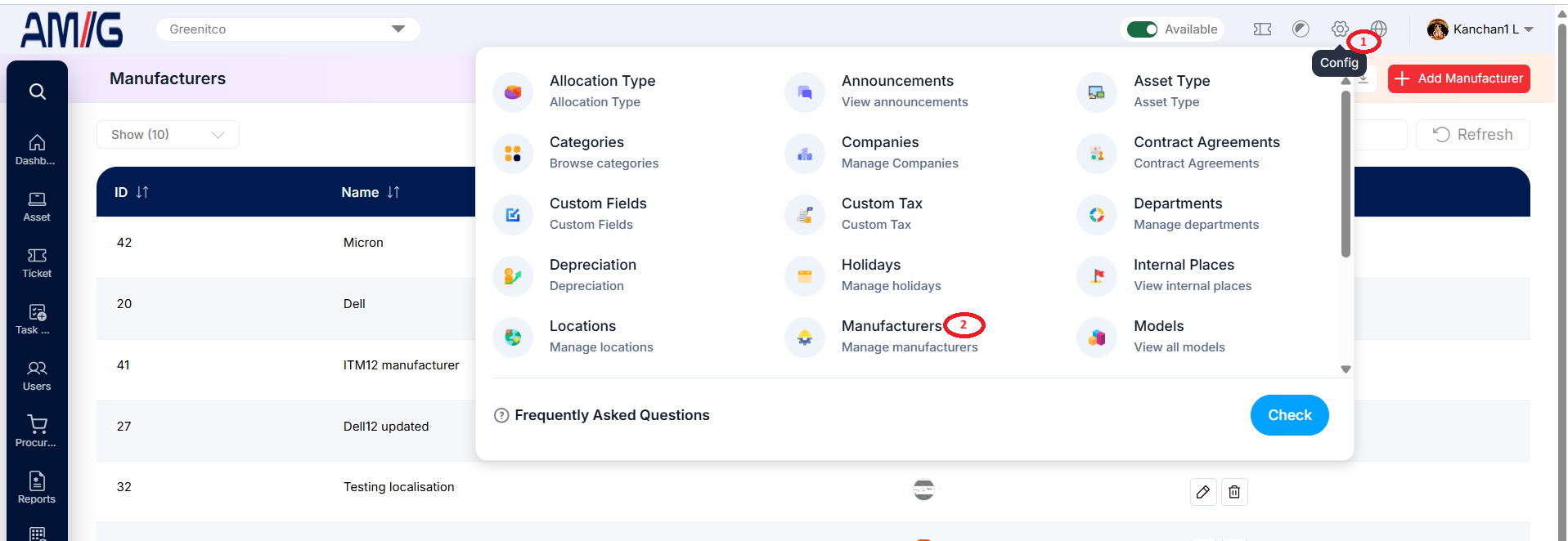
Navigation Path: Header > Config > Manufacturers
Viewing the Manufacturers List
Go to Header > Config > Manufacturers. You will land on the main list showing all existing manufacturers.
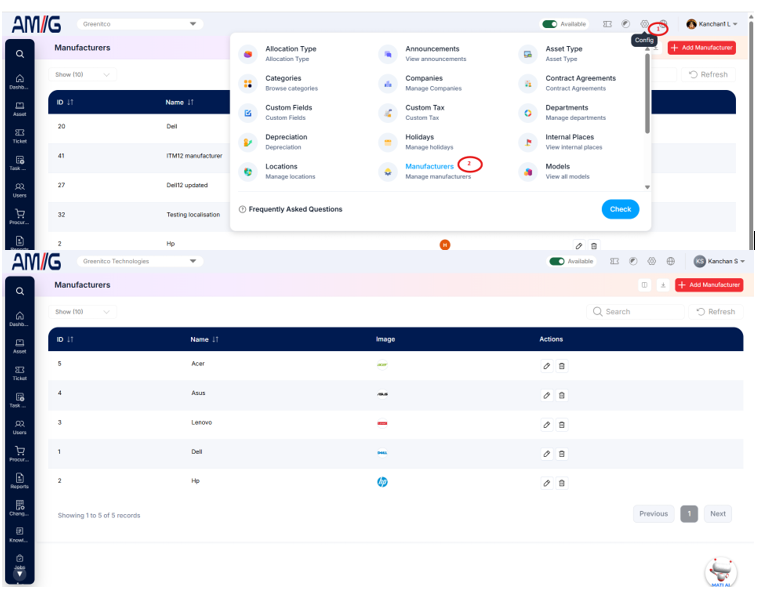 Figure: Manufacturers Main Screen
Understanding the Main Screen
Table: Manufacturers main screen elements
| Area | Description |
|---|---|
| Sub Header | Use Show (10) to choose how many records you see on one page. Type in the Search box to find a record quickly, or click Refresh to reload the list. |
| Action Buttons | In the top right corner you will find the Download icon (export the list) and the red + Add Manufacturer button. |
| The Data Table | Shows all your manufacturers with their ID, Name and Image. If no logo has been uploaded, you will see a coloured circle with the first letter of the name instead. |
| Sorting | Click the small arrows beside ID or Name to sort the list. |
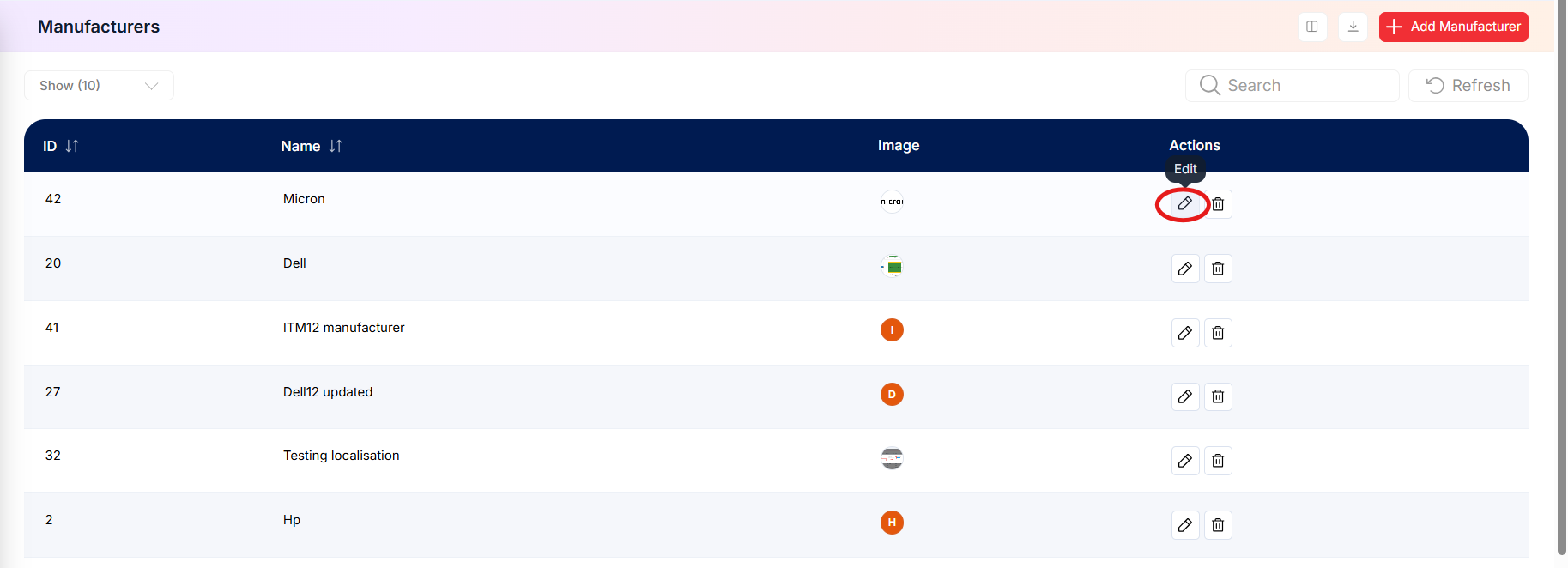
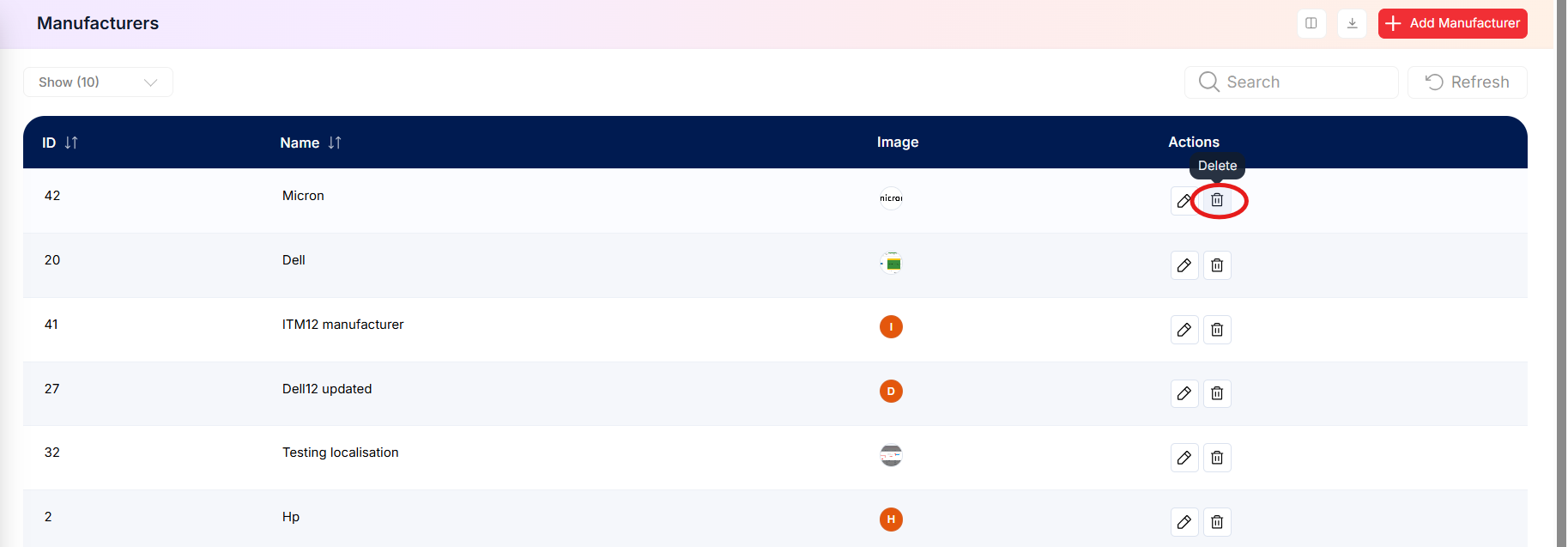
| Actions Column | Every row has two icons on the far right: Edit (pencil) to change that manufacturer, and Delete (trash can) to remove it. |
How to Create a New Manufacturer
Adding a new manufacturer only takes a minute. Here is how:
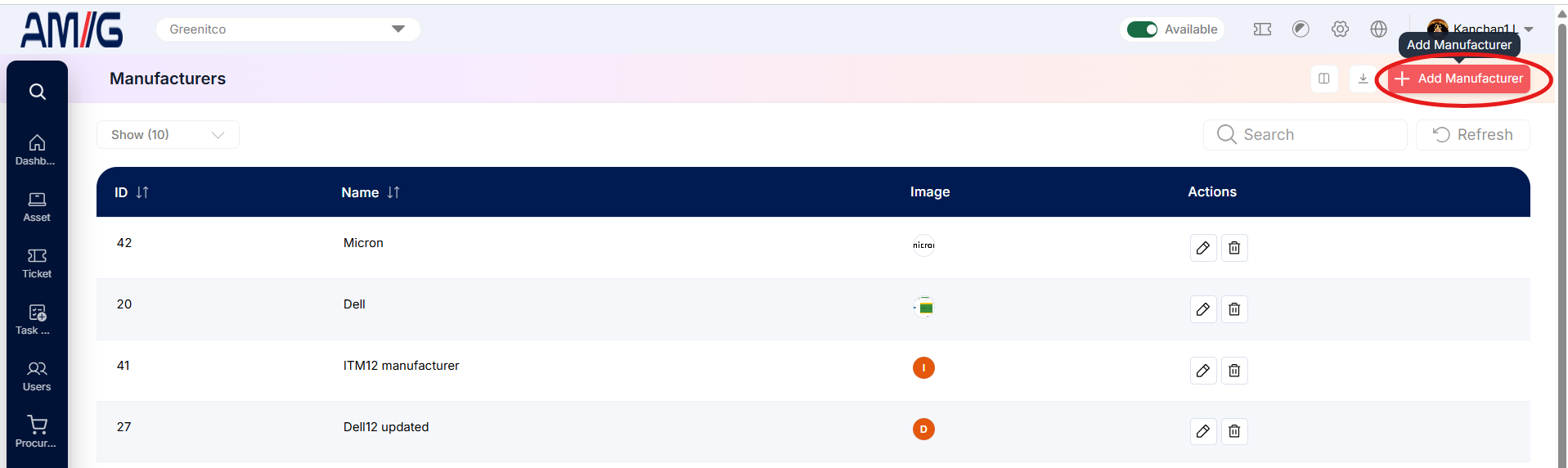
Step 1: On the Manufacturers screen, click the red + Add Manufacturer button in the top right corner.
 Step 2: The "Add Manufacturer" pop-up window opens.
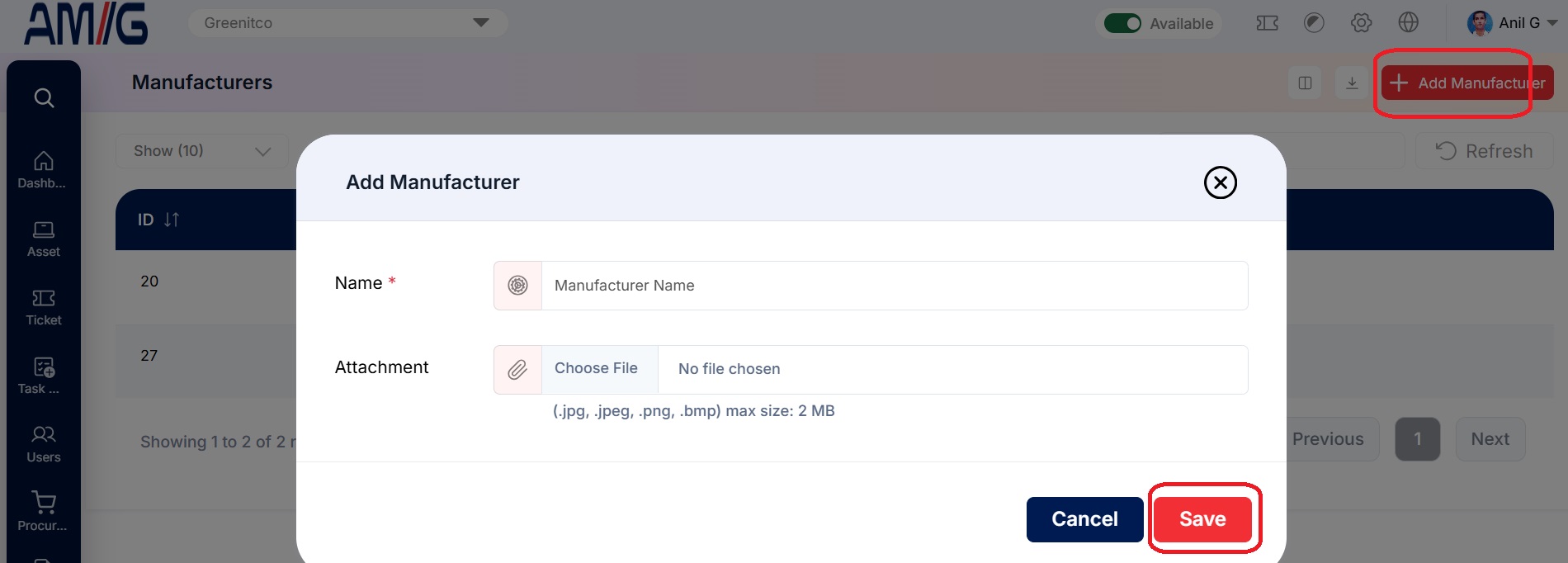 Figure: Add Manufacturer Modal
Step 3: Fill in the required fields. They are marked with a red asterisk (*), and the form will not save without them:
Table: Add Manufacturer – required field
| Field | Description |
|---|---|
| Name | Enter the manufacturer's name (for example, "Dell" or "HP"). |
Step 4: Add the brand's logo if you like (optional):
Table: Add Manufacturer – optional field
| Field | Description |
|---|---|
| Attachment | Click Choose File to upload a logo. You can use .jpg, .jpeg, .png or .bmp files up to 2 MB. |
Step 5: Click the red Save button. Your new manufacturer is created and shows up in the list straight away.
Note: Changed your mind? Click the blue Cancel button or the X in the top right corner. Nothing will be saved.
Managing Existing Manufacturers
Once a record exists, you can look after it straight from the Manufacturers list using the icons in the Actions column:
Edit a manufacturer
Step 1: On the Manufacturers screen, locate the manufacturer you want to change.
Step 2: Click the Pencil (Edit) icon in the Actions column.
 Step 3: Update the manufacturer name or replace the uploaded image, as needed.
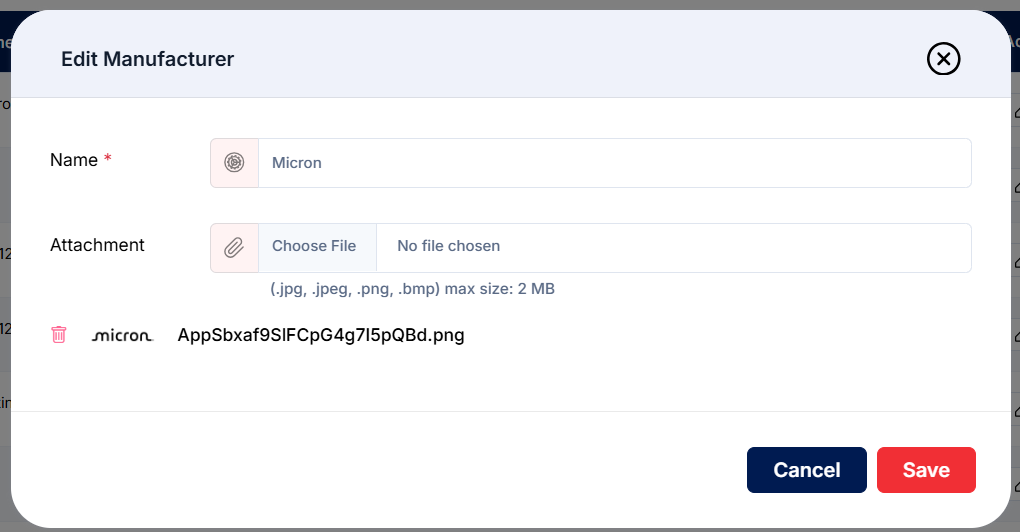 Step 4: Click Save to apply the changes.
Delete a manufacturer
Step 1: Locate the manufacturer in the list.
Step 2: Click the Trash Can (Delete) icon for that manufacturer.
 Step 3: Review the confirmation prompt and confirm the deletion.


Important: Before deleting a manufacturer, make sure no active assets are still linked to it.