

Introduction
RDP Status and the Power On/Off Graph are monitoring and visualization features that give administrators real-time and historical visibility into a device's remote-access availability and power state. Together, they help answer two practical questions: Is this device remotely accessible right now? and When has it been powered on or off over time?
These features are typically found in the device detail view or a monitoring dashboard, and they support troubleshooting, compliance auditing, and energy/usage analysis.
Remote Desktop Protocol (RDP) is used to access another computer remotely, usually a Windows computer. Each device shows its current RDP status and a power on/off graph.
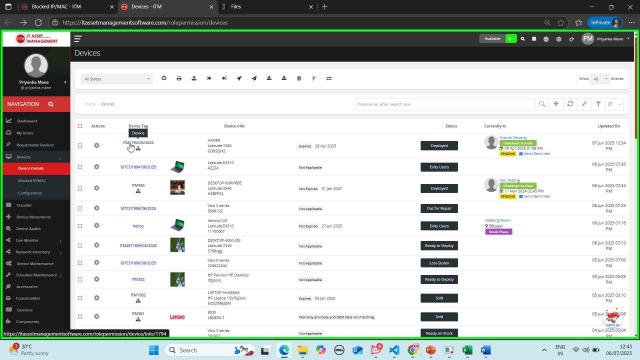
Check or change the RDP status of a device
- Open the device you want to check.
- The current RDP status is shown on the right side of the screen (for example Enabled).
- To disable RDP, select Disable, then select OK. The status changes to Disabled.
- To enable RDP again, select Enable, then select OK. The status changes to Enabled. Select Cancel to keep the current status.
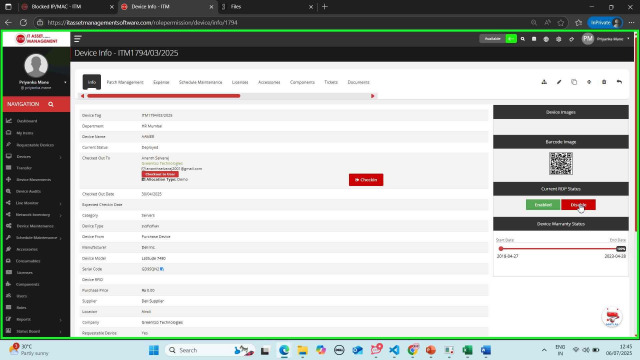
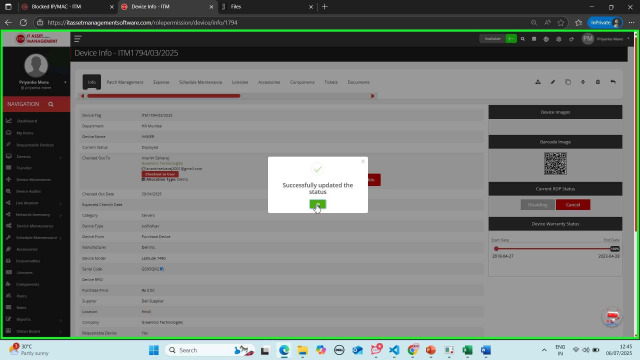
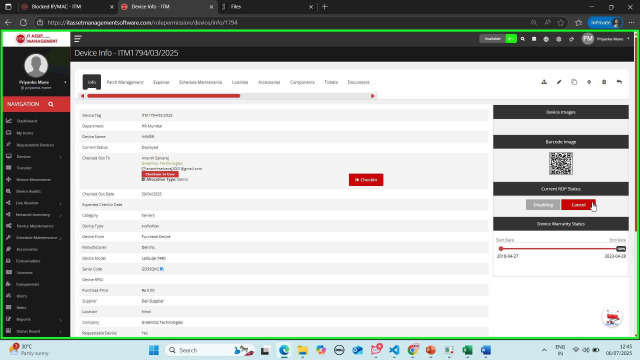
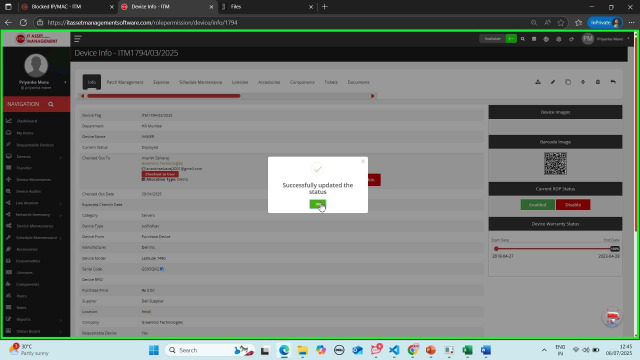
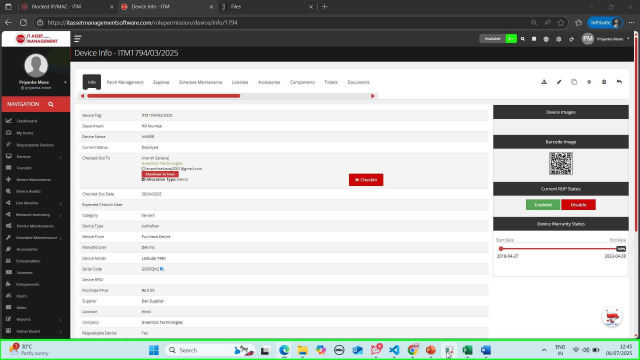
Changing RDP status requires the DeviceRdpStatusUpdate permission; remote access requires RdpAccess. Use the RDP Status filter in the device list to find devices with RDP enabled or disabled.