

Bulk User Operations
Product: NEXTMEGABYTE (Greenitco ITAM) · Module: Users and Access Control · Audience: Administrator
Menu path: left side menu → Users
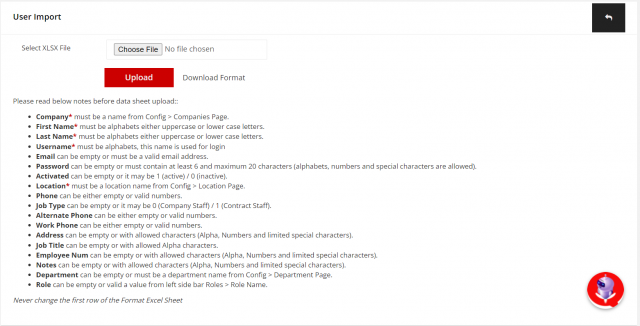
Never change the first (header) row of an Excel template. Columns marked * are mandatory.
Bulk import users
- Open Users and select Upload (upload icon).
- Select Download Format to get the Excel template.
- Fill in the template using the rules below.
- Choose the completed file and select Upload.


| Column | Rule |
|---|---|
| Company * | A company name from Config → Companies |
| First Name * | Letters only |
| Last Name * | Letters only |
| Username * | Letters; used to sign in |
| Empty or a valid email address | |
| Password | Empty, or 6–20 characters (letters, numbers and special characters) |
| Activated | Empty, 1 (active) or 0 (inactive) |
| Location * | A location name from Config → Locations |
| Phone, Alternate Phone, Work Phone | Empty or numbers |
| Job Type | Empty, 0 (company staff) or 1 (contract staff) |
| Address, Employee Num, Notes | Empty or letters, numbers and limited special characters |
| Job Title | Empty or letters |
| Department | Empty or a department name from Config → Departments |
| Role | Empty or a role name from Roles |
Bulk update users
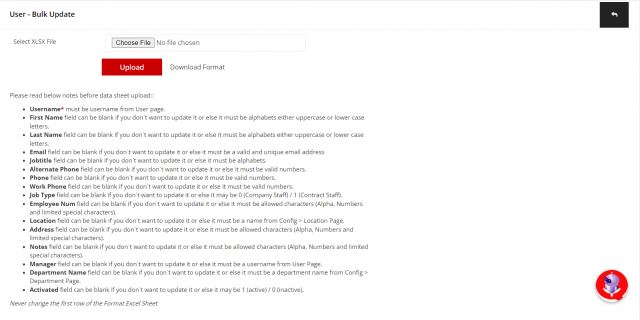
A blank cell leaves the existing value unchanged.
- Open Users and select Bulk Update (rocket icon).
- Select Download Format, fill in the template and upload it.
| Column | Rule |
|---|---|
| Username * | An existing username |
| First Name, Last Name | Blank or letters |
| Blank or a valid, unique email address | |
| Job Title | Blank or letters |
| Phone, Alternate Phone, Work Phone | Blank or numbers |
| Job Type | Blank, 0 (company staff) or 1 (contract staff) |
| Employee Num, Address, Notes | Blank or letters, numbers and limited special characters |
| Location | Blank or a name from Config → Locations |
| Manager | Blank or an existing username |
| Department Name | Blank or a name from Config → Departments |
| Activated | Blank, 1 (active) or 0 (inactive) |
Activate or deactivate many users
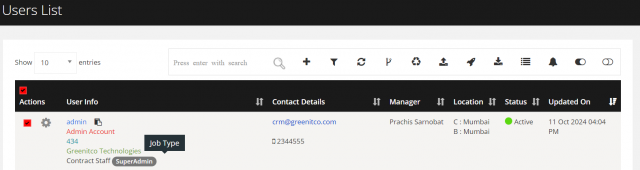
- Open Users and select the check boxes of the users.
- Select toggle-on to activate or toggle-off to deactivate them.


Download the user list
Open Users and select Download (download icon). The list is exported to Excel.
