User Tools
Product: NEXTMEGABYTE (Greenitco ITAM) · Module: Users and Access Control · Audience: Administrator
Menu path: left side menu → Users
Check user activity
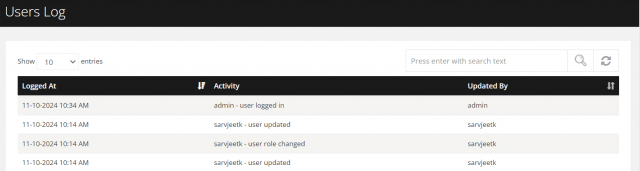
Open Users and select Activity (list icon) for the user. The activity log shows the user's actions in the portal.

Send an announcement notification to users
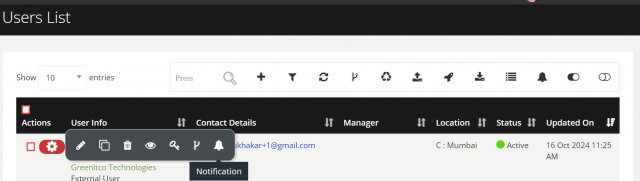
- One user: select Notify (bell icon) for the user, enter the details and select Save.
- Many users: select the users' check boxes, select the bell icon, enter the details and select Save.
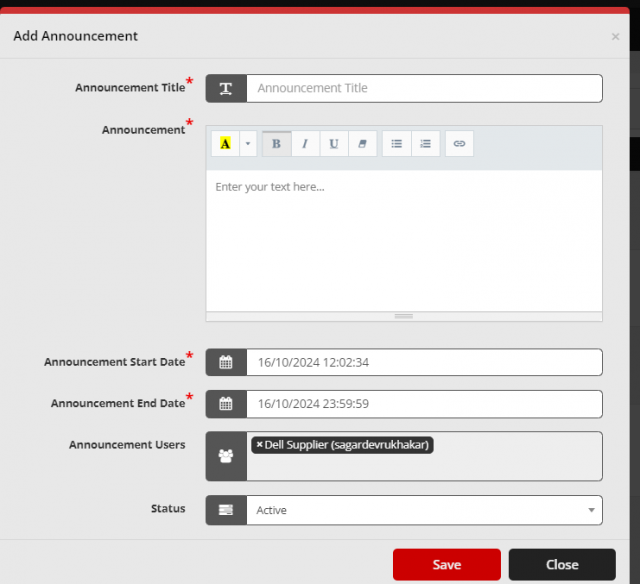
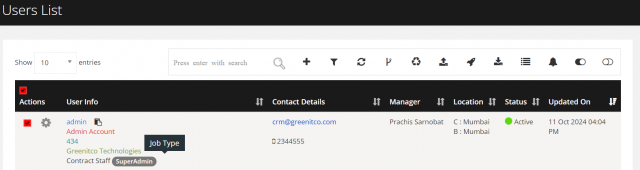

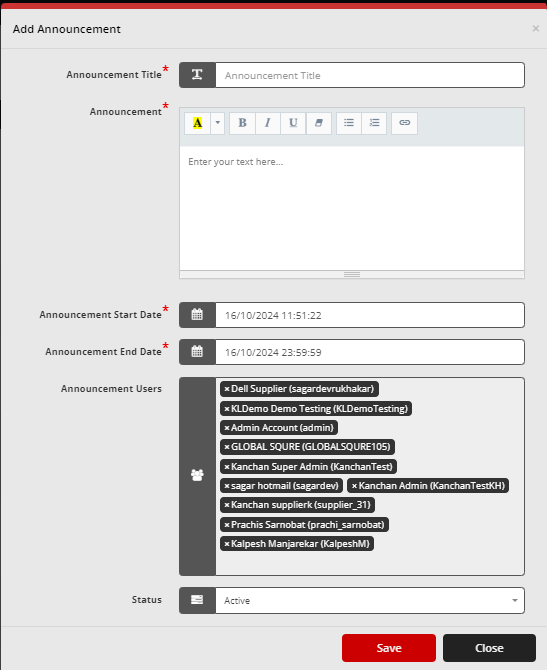
For company-wide announcements with start and end dates, use Announcement Configuration.
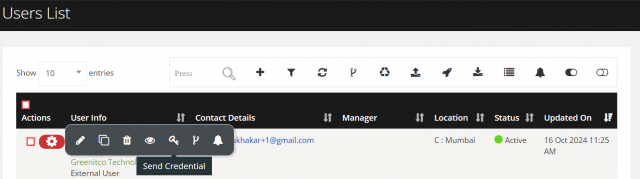
Send login credentials to a user
- Select Send Credentials (key icon) for the user, or
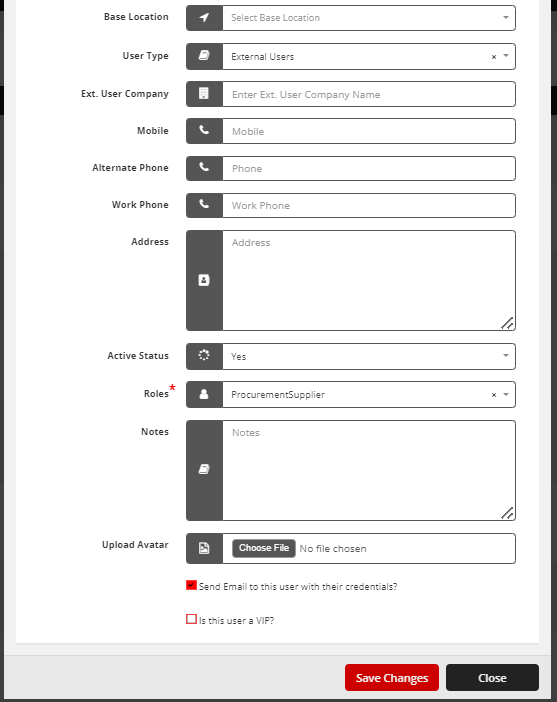
- Select Edit (pencil icon), select the send-credentials check box and select Save Change.
Record a user's seat number
The seat number identifies a user's desk and is shown on tickets for faster on-site support.
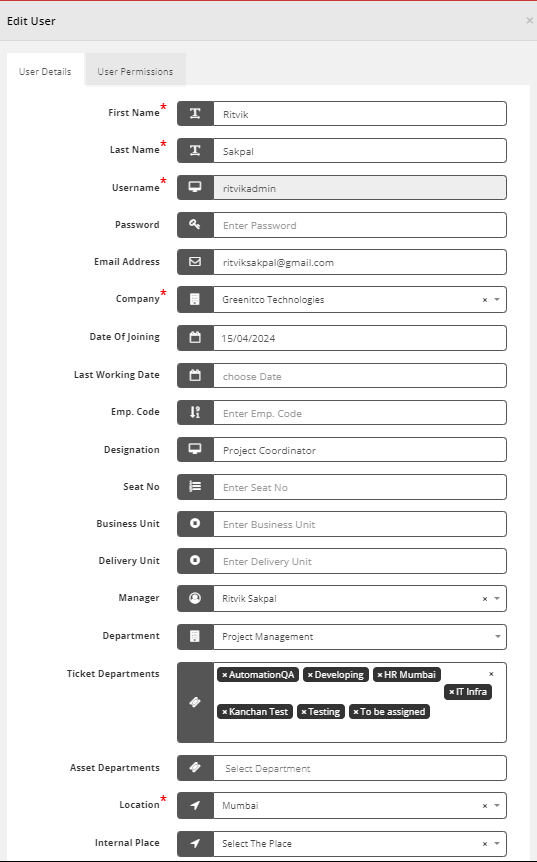
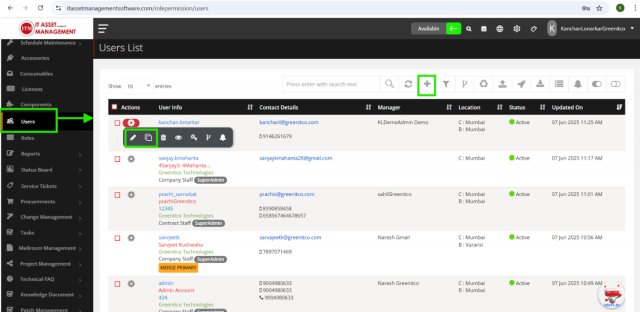
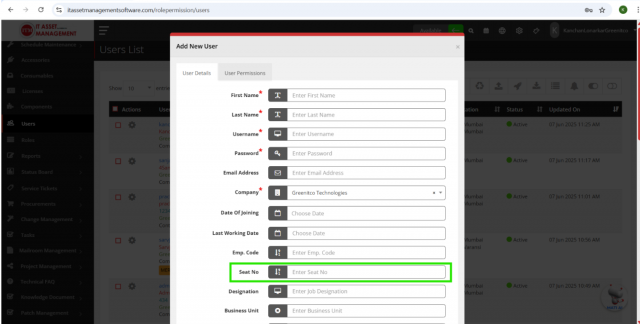
- In Users, select Add, Edit or Clone for the user.
- Enter the Seat No and select Save.
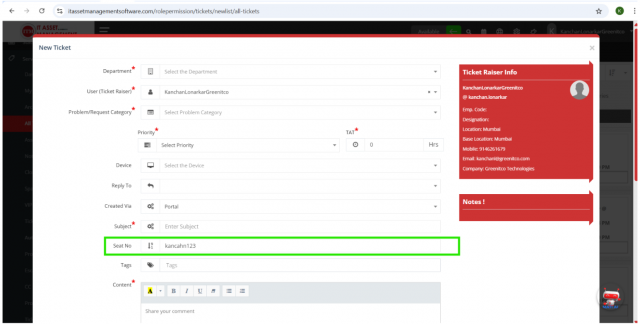
- When the user logs a ticket (from the dashboard, header, Service Ticket or Service Request), the Seat No field is filled automatically. The user can enter or change it if it is empty or wrong.
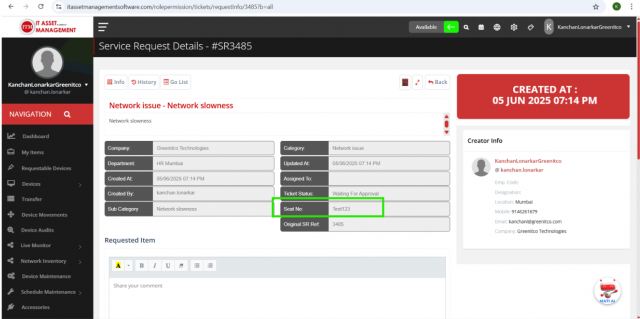
- The seat number is shown on the Ticket Details and Service Request Details pages.
Print user labels
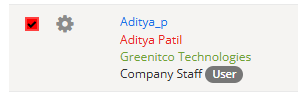
- Open Users and select the users with the check box (or open a user's action menu).
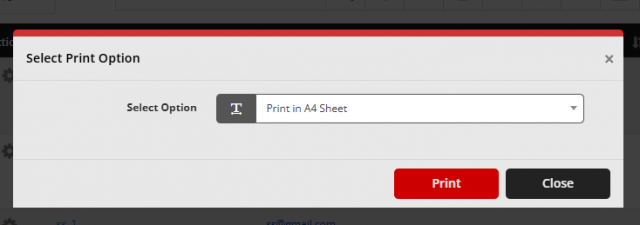
- Select Print (print icon), choose the label option and select Print.