

Role-Based Permissions
Product: NEXTMEGABYTE (Greenitco ITAM) · Module: Users and Access Control · Audience: Administrator
Roles group permissions. Each user is assigned a role and inherits its permissions.
Menu path: left side menu → User (user icon) → Role & Permissions
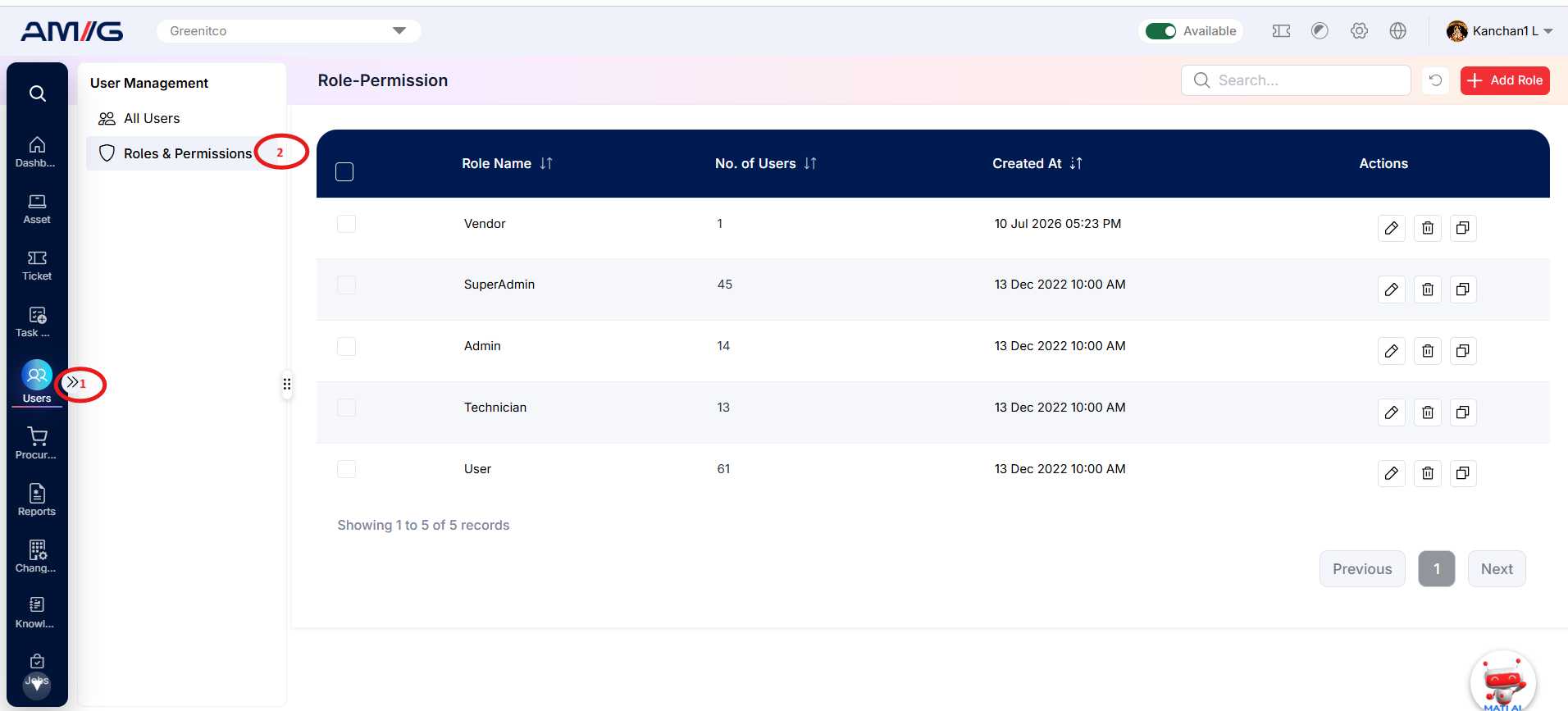
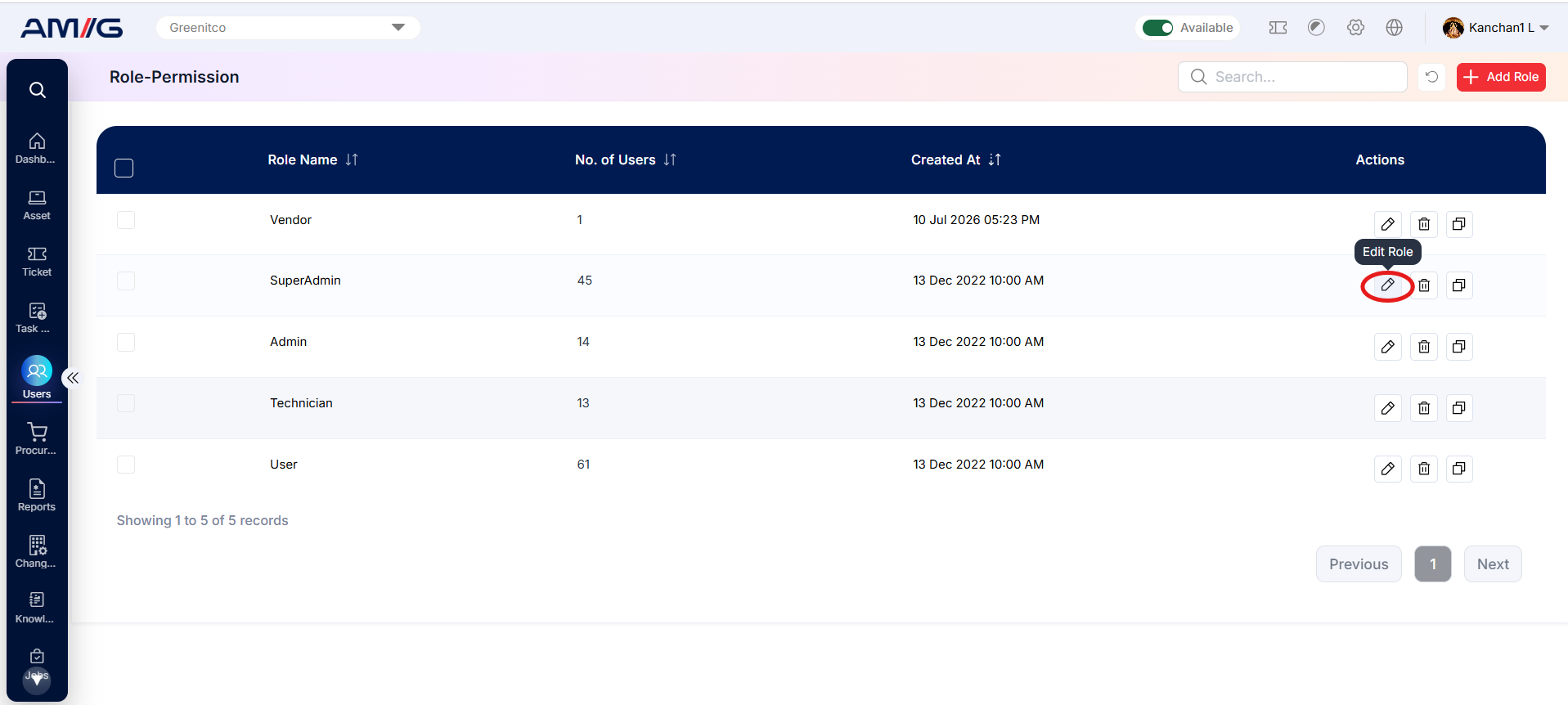
Role list
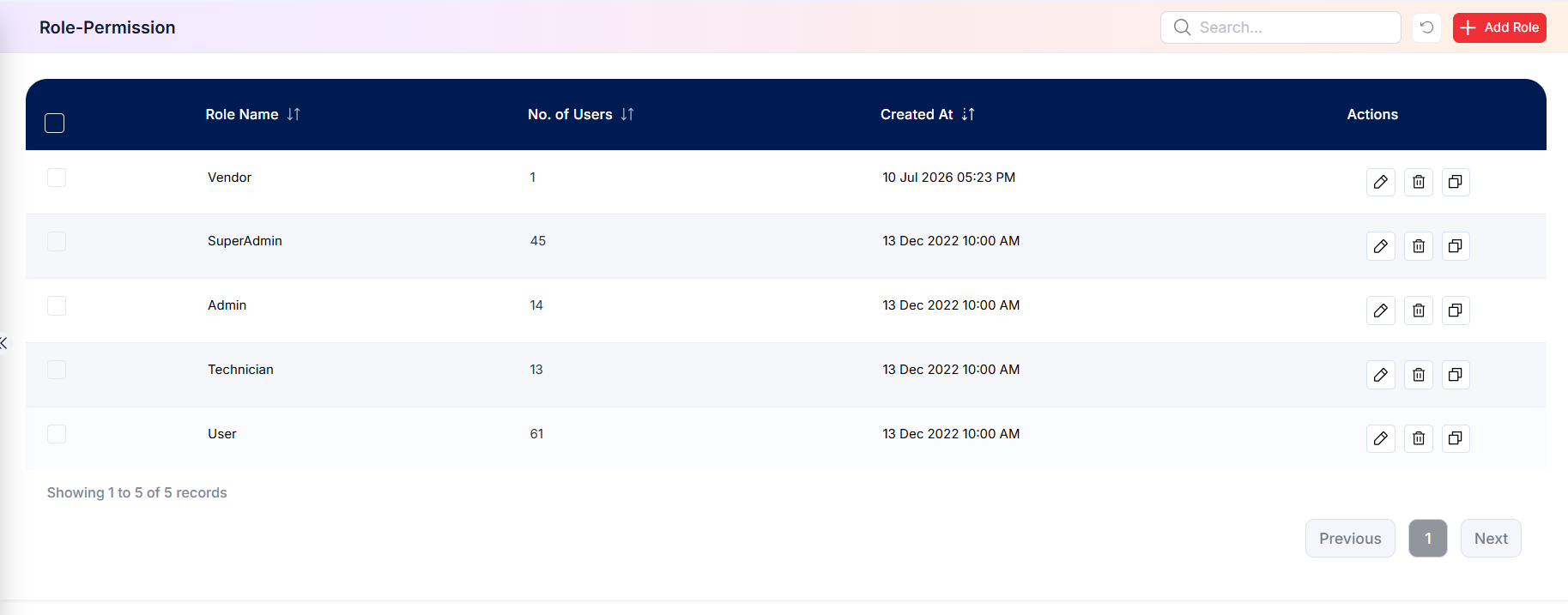
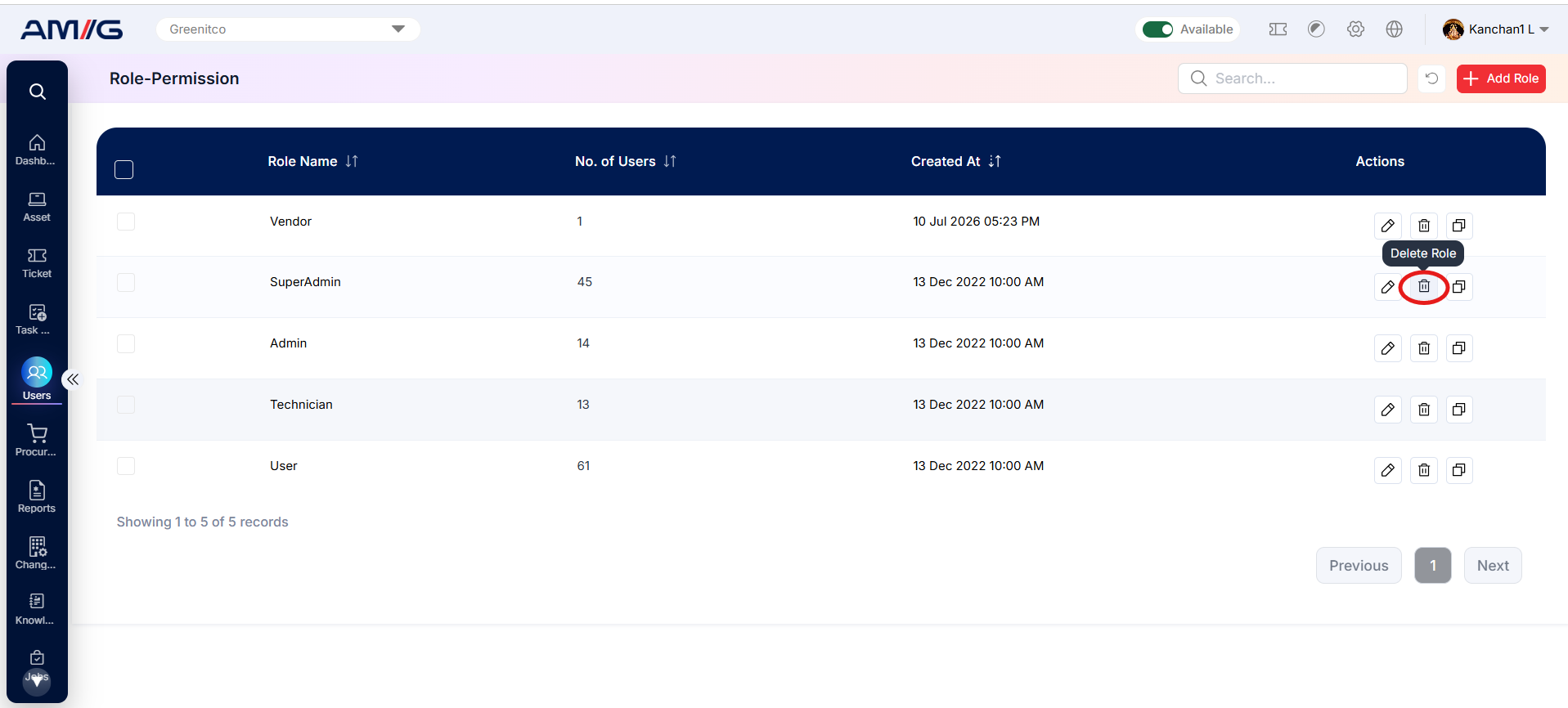
The role list shows every role in a table.
| Control | Use |
|---|---|
| Search | Filter roles as you type |
| Sorting | Select ↑ (ascending) or ↓ (descending) on a column header |
| Pagination | Move between pages of roles |
| Refresh (refresh icon) | Reload the latest data |
| Add Role (plus icon) | Create a new role |
Create a role
- Select Add Role (plus icon).
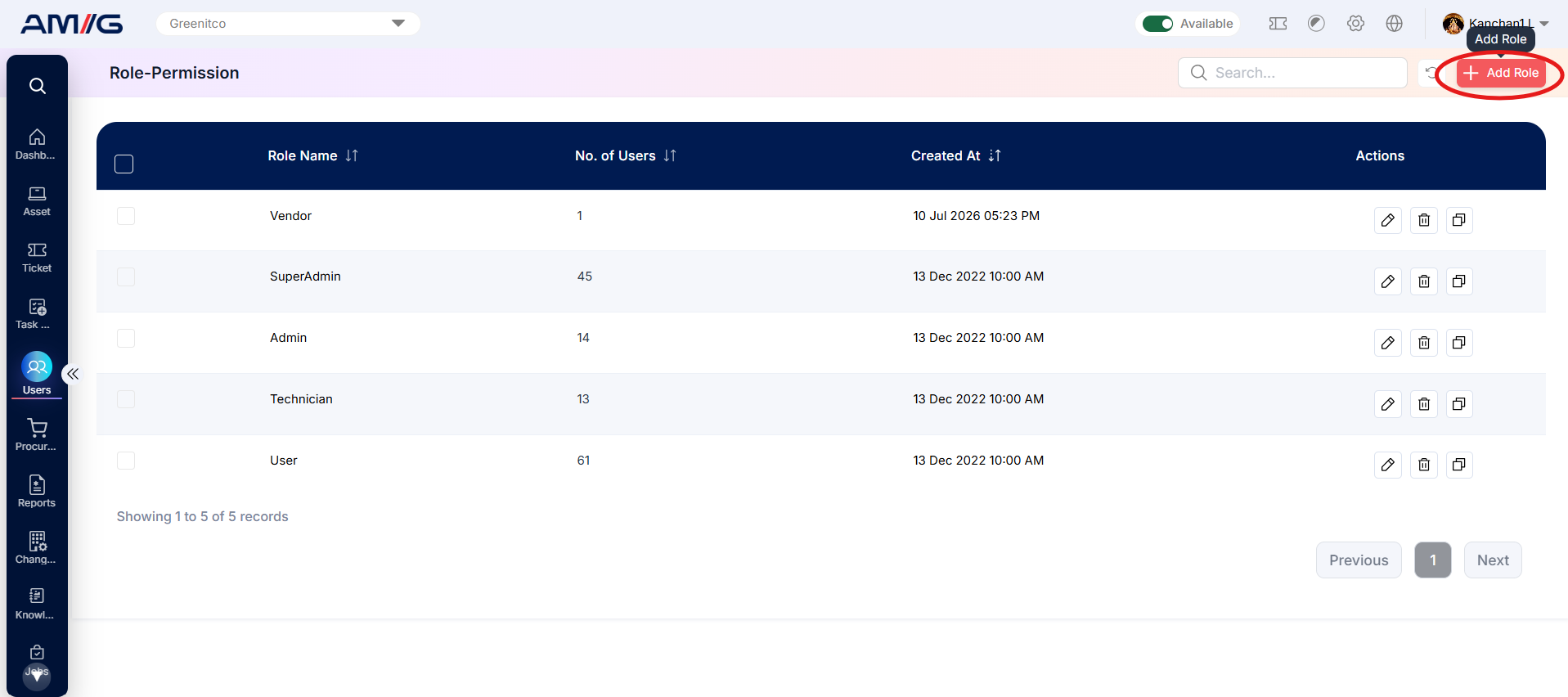
- Enter the role details in the Add Role window.
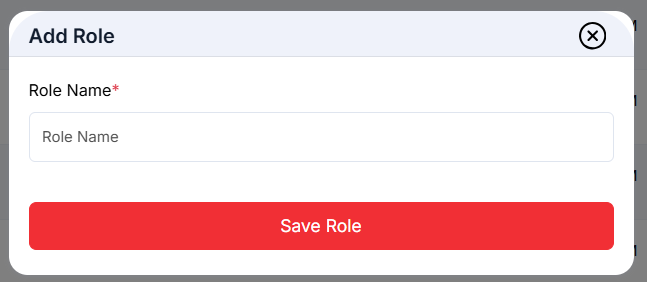
- Select Save Role, or Cancel to discard.
Edit the permissions of a role
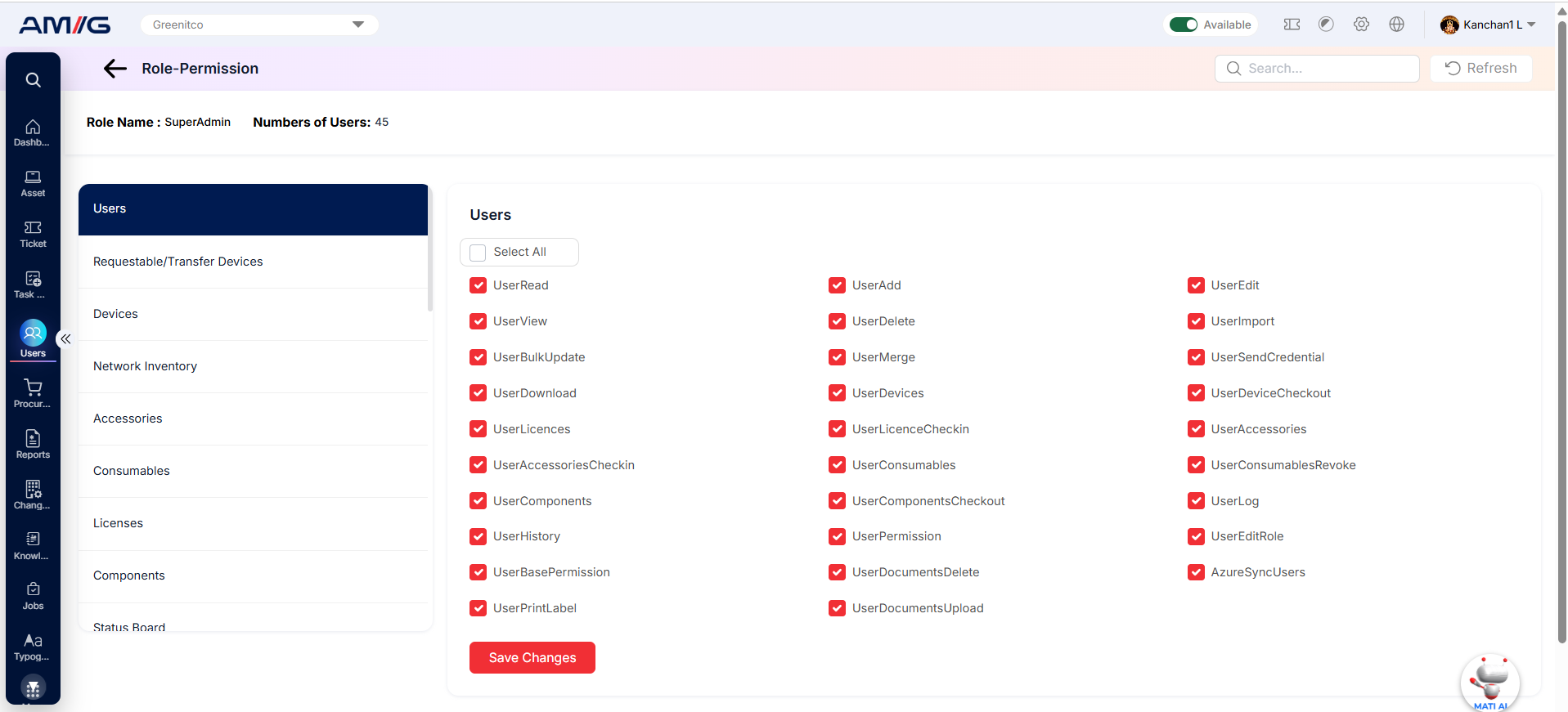
- In the Action column, Select Edit (pencil icon). The permission management page opens.
- The page shows the role name, the number of users assigned to the role, a search bar and a Back button.
- Select a module tab. Each tab lists the permissions for that module.
- Select the check box to enable a permission, or clear it to disable the permission.
- Select Save Changes, or Cancel to discard.
Clone a role
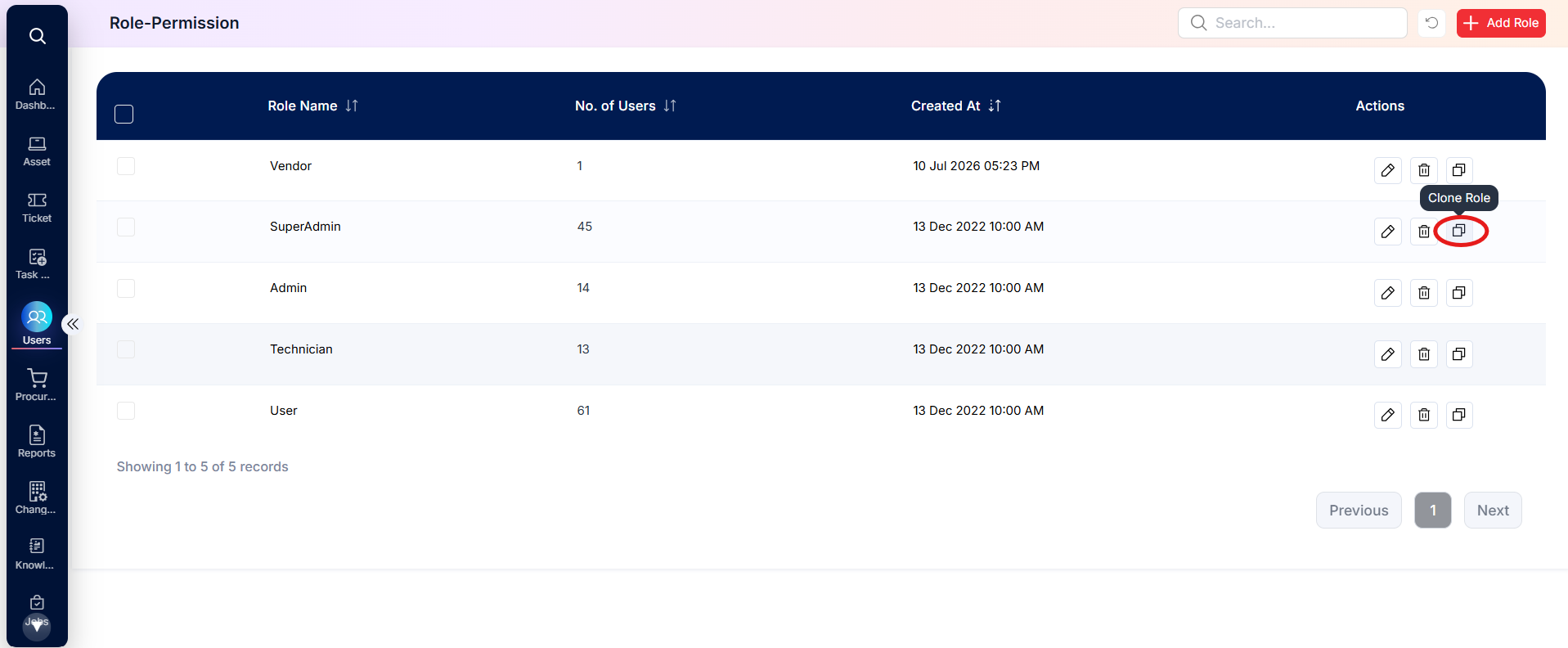
Cloning creates a new role with all permissions of an existing role.
- In the Action column, select … → Clone (copy icon).
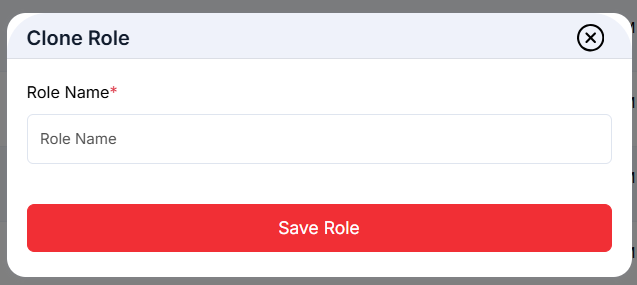
- Enter the new role details in the Clone Role window.
- Select Save Role.
Delete a role
- In the Action column, select … → Delete (trash icon).
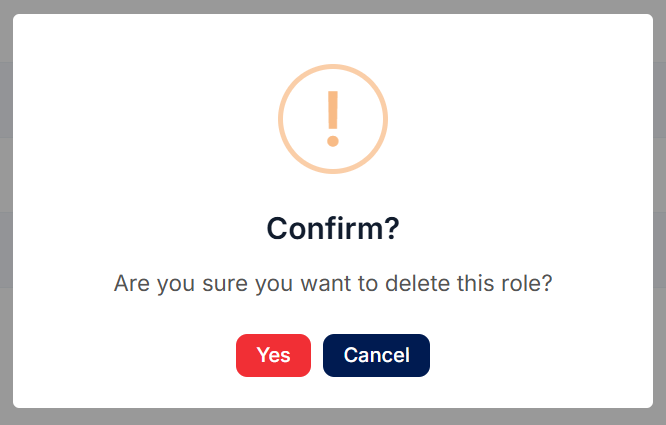
- Select Yes to confirm.
Common questions
How do I give all technicians access to a new module? Edit the Technician role, open the module's tab, enable the required permissions and save. All users with that role receive the change.
How do I create a role similar to an existing one? Clone the existing role, then edit only the permissions that differ.