

Manage Users
Product: NEXTMEGABYTE (Greenitco ITAM) · Module: Users and Access Control · Audience: Administrator
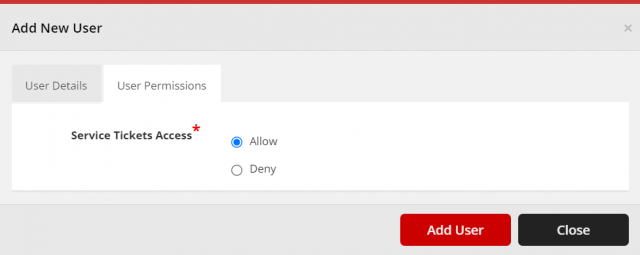
Users have access according to their roles. Additional permissions can be assigned when the user is created or later. When a user is created, the portal emails the login details to the user's email address.
Menu path: left side menu → Users
Add a user
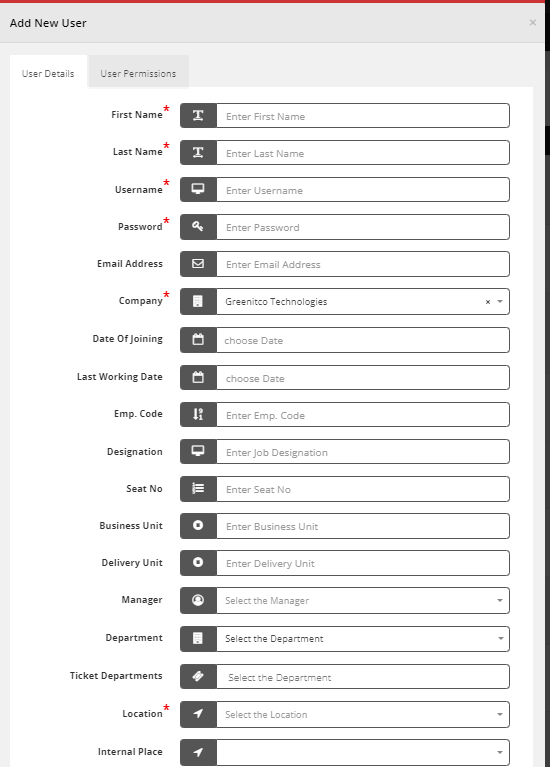
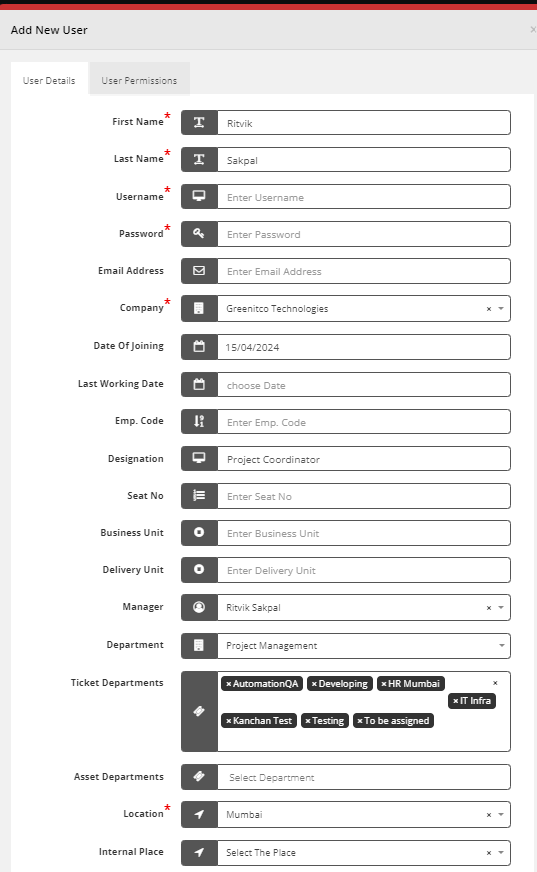
- Open Users and select the plus icon.
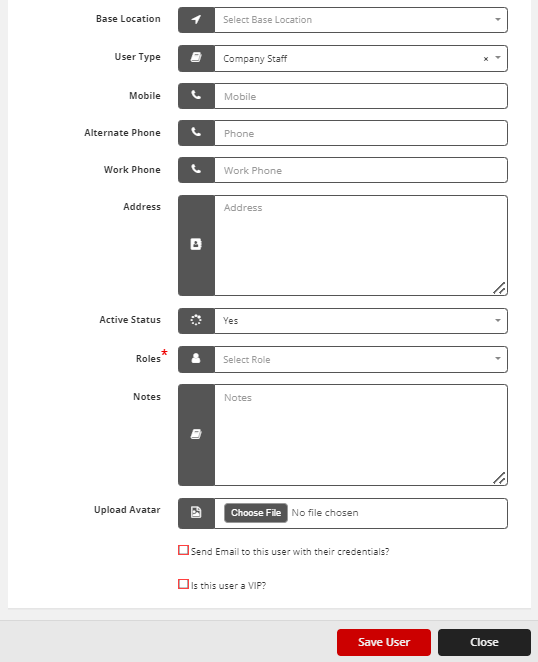
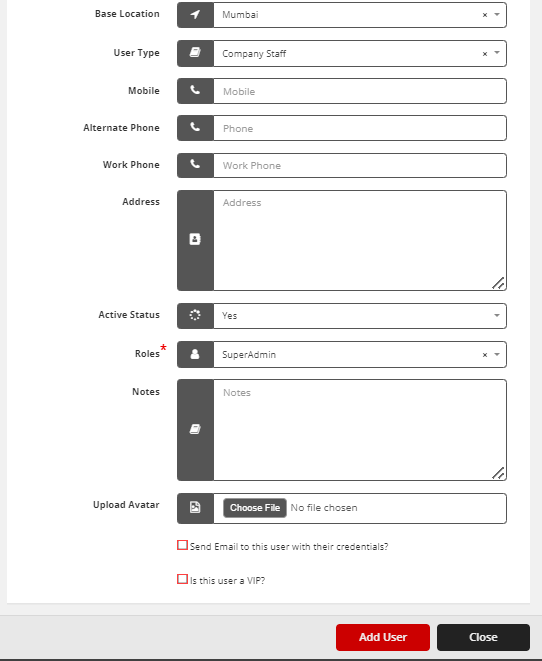
- Enter the user details (see the field table below).
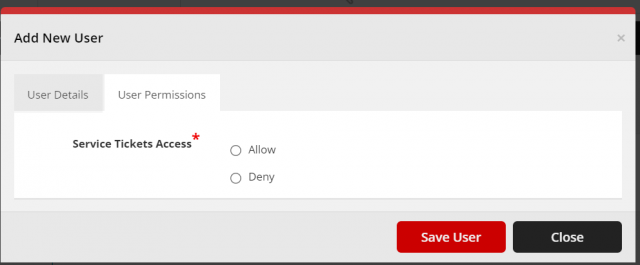
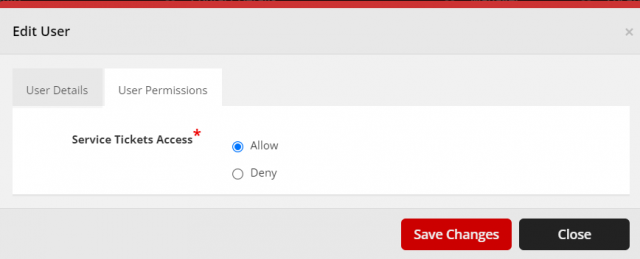
- Set the user's permissions if required.
- Select Save User. A notification with login details is sent to the user's email address.

| Field | Description |
|---|---|
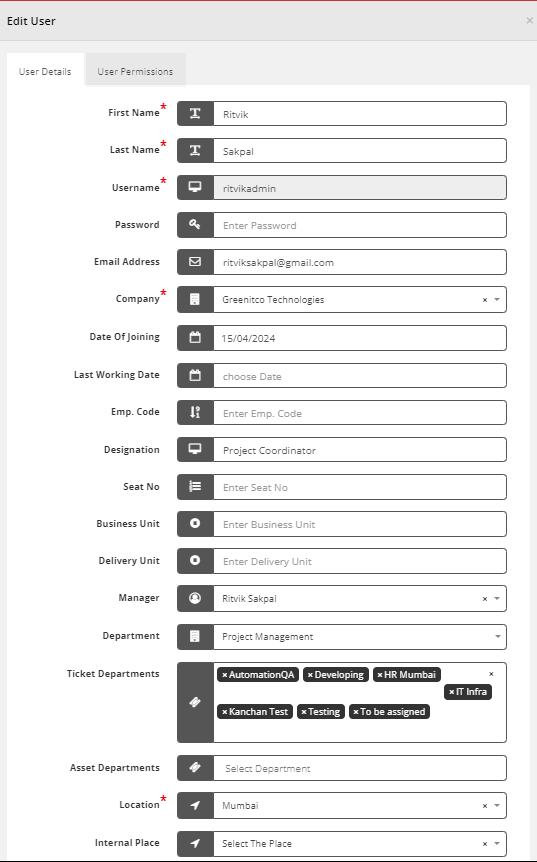
| First Name / Last Name | The user's name |
| Username | The name used to sign in. Must be unique |
| Password | The initial password |
| Company | The company the user belongs to. See Company Configuration |
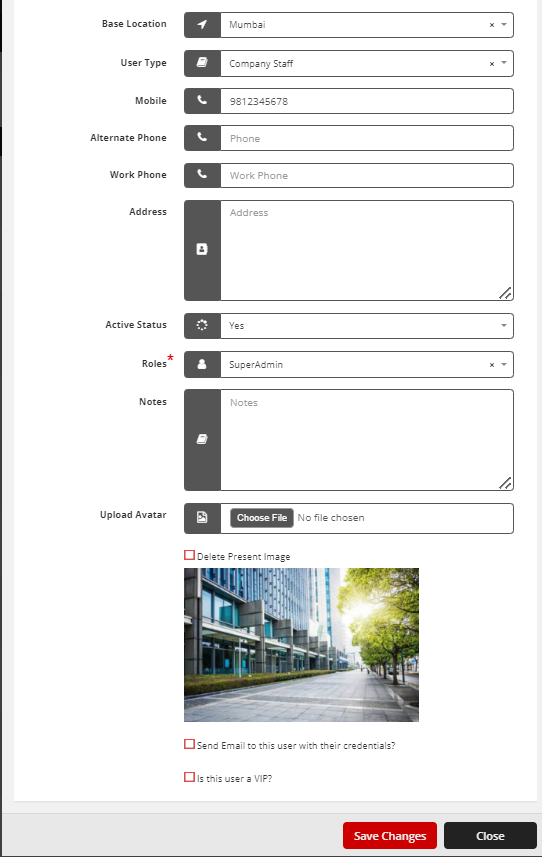
| Location | The user's base location. See Location Configuration |
| Role | The role that sets the user's permissions. See Role-Based Permissions |
| Seat No | Optional desk or seat number, used in tickets. See User Tools |
Edit a user
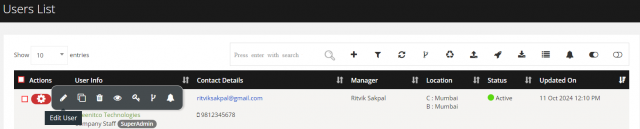
- Open Users and select Edit (pencil icon) for the user.
- Update the details and permissions.
- Select Save Change.
Clone a user
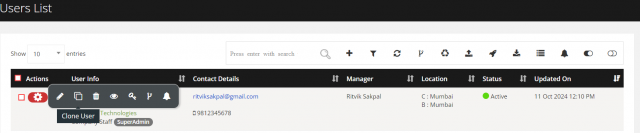
Use clone to create a user with the same company, location, role and permissions as an existing user.
- Open Users and select Clone (copy icon) for the existing user.
- Enter the new user's name, username and password, and change other fields if required.
- Select Add User.
Remove a user
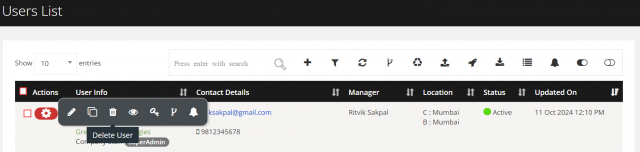
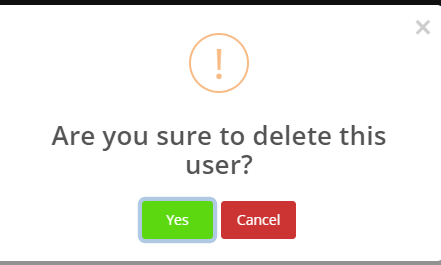
- Open Users, open the action menu for the user and select Delete (trash icon).
- Select Yes to confirm.

Restore a deleted user
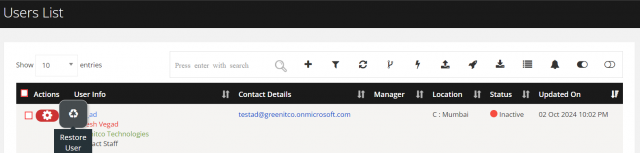
- Open Users and select the bolt icon to show deleted users.
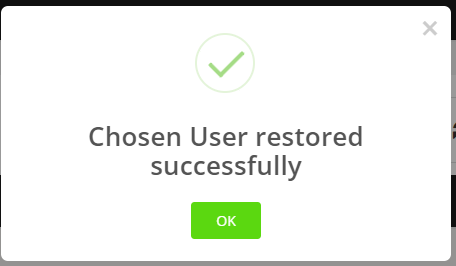
- Open the action menu for the user and select Restore (recycle icon).
View full user details
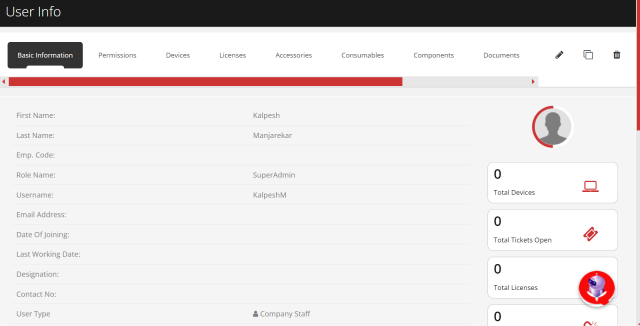
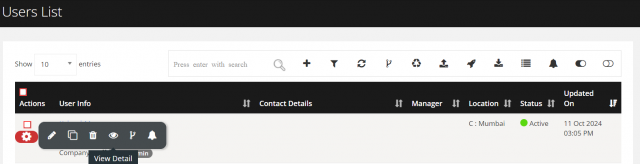
- Open Users, open the action menu for the user and select View (eye icon).
- Select the tabs to see the user's assigned assets, licenses, documents, history and permissions.
Merge two user accounts
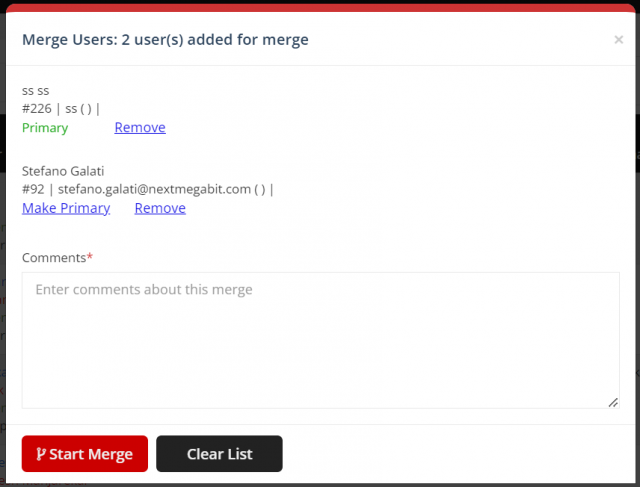
Merge combines duplicate user records into one account.
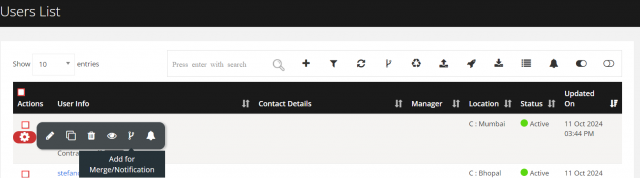
- Open Users, open the action menu for the user and select Merge (code-fork icon).
- Review the list of users to merge.
- Select Start Merge.

Common questions
How do I create many users at once? Use Bulk User Import.
A user was deleted by mistake. Can I get it back? Yes. Show deleted users with the bolt icon and select Restore.